

Configure your agent
The Configure page — reached from an agent’s left navigation (/work/agents/{id}/settings?tab=...) — is the core agent-building surface: nine tabs that control who the agent is, what it can do, which model runs it, and where people reach it.
Getting the agent to people — its landing page, end-users, usage insights and pricing — lives on the sibling Publish page instead.
Each tab saves independently. Most tabs surface a SAVE button (which flashes a green Saved confirmation) or an amber Unsaved changes bar with Save / Discard changes when a field is dirty; a few toggles save the moment you flip them. Where noted, changes apply to new sessions only or reach live sessions on their next turn.

| Tab | What you set here |
|---|---|
| Metrics | Read-only dashboard: traffic, errors, latency, tokens, conversations, connected resources |
| Identity | Name, slug, description, and the SOUL.md persona |
| Capabilities | Brainstorming gate, live browser, multi-session, Programs, the built-in slash commands, and Saga where the deployment enables it |
| Knowledge Bases | Attach KBs the agent can search, in grounding or reference mode |
| Skills | Attach, write, import, and edit skills |
| Tools | Connect MCP servers, Composio toolkits, and manage the key vault |
| Coding | GitHub repos and coding-agent plans (only when /code is enabled) |
| Model | Serving model plus summary / vision / image / video role models |
| Governance | Policy enforcement, tool allow/deny, web & browser egress, SSH, EU AI Act AI disclosure |
System agents (like the platform copilot) hide the Identity, Capabilities, and Governance tabs, and non-admins see a “managed by platform administrators” notice instead of the tabs. The Coding tab appears only when the agent’s coding capability (/code) is turned on in Capabilities.
Metrics
Section titled “Metrics”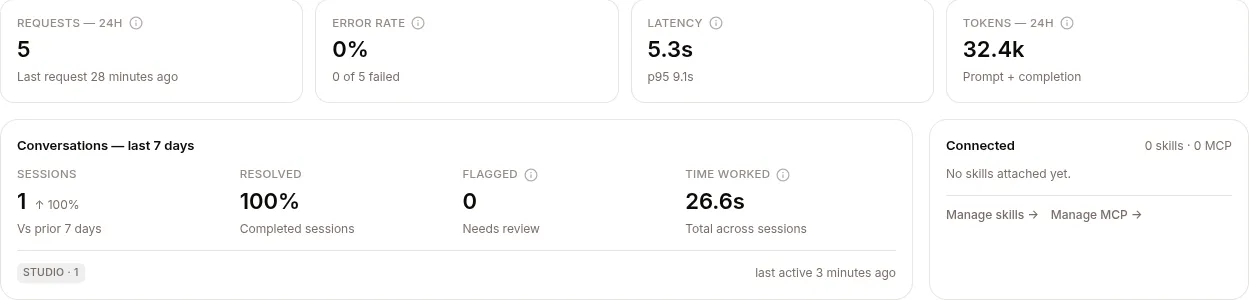
A read-only overview of the agent’s health and footprint — no editable fields. It refreshes itself every minute while visible and shows:
- Four 24-hour stat cards, each with an ⓘ tooltip: Requests — 24h (count, last-request time; the tooltip shows the derived hourly rate), Error rate (share of model-gateway calls with HTTP ≥ 400, “N of M failed”), Latency (average round-trip, with p95 in the detail line), and Tokens — 24h (total; the tooltip breaks out prompt/completion and average per call).
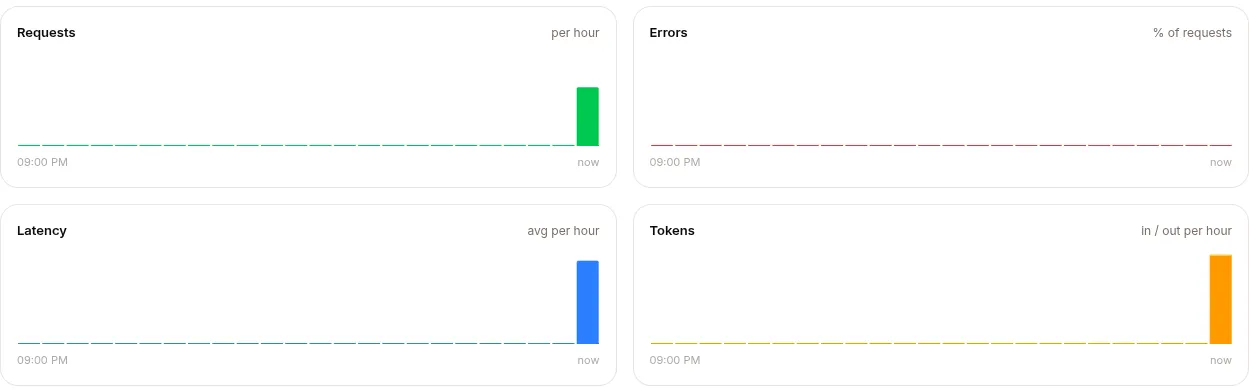
- Four hourly bar charts mirroring the cards: requests per hour, errors as % of requests, average latency (tooltip adds p95), and tokens stacked in/out. Quiet hours render as real gaps and read “no requests” — distinct from “0% errors”.
- Conversations — last 7 days — Sessions (with ↑/↓ vs the prior 7 days), Resolved %, Flagged (a policy denial, a crash, or a thumbs-down), and Time worked (total model processing time, not wall-clock waiting), plus per-channel chips and last-active time.
- Deployment / Resources (self-deployed dedicated agents only) — replicas, model, image, endpoint, CPU/memory requests and limits.
- Connected — attached skills and MCP servers (with per-server enabled dots) and Manage skills → / Manage MCP → shortcuts into those tabs.
Empty states are honest: an agent on a self-deployed model points you to that model’s own Models page instead of showing empty cards, and a zero-traffic agent says charts appear after the first conversation. A BYO model active banner appears when the agent runs on your own model, noting that token traffic isn’t billed by Surogate.
Identity
Section titled “Identity”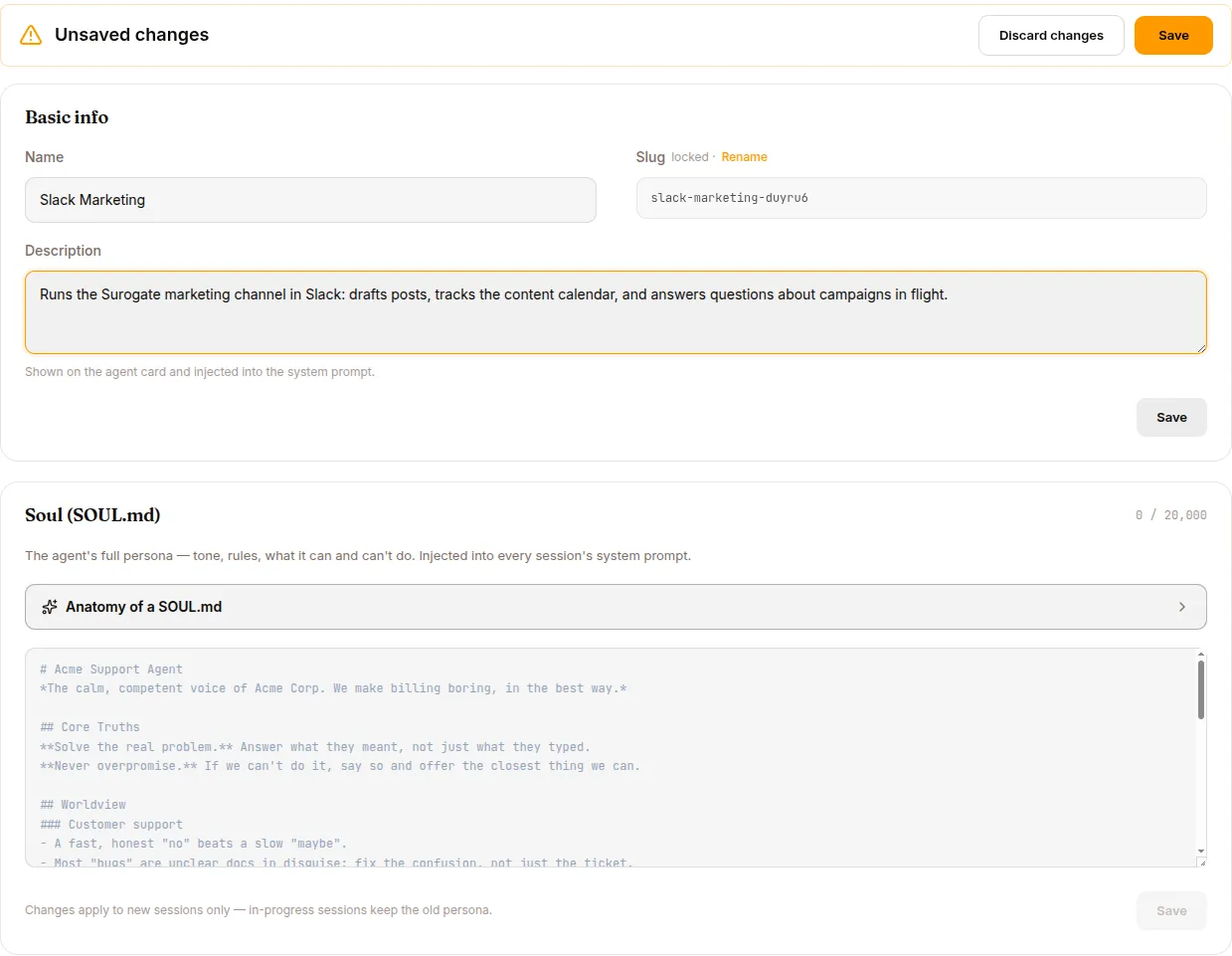
Who the agent is. Two cards, each with its own SAVE.
Basic info
| Setting | What it does |
|---|---|
| Name | Display name shown on the agent card and in the UI |
| Slug | The URL/routing identifier. Locked by default — click Rename and confirm the dialog to change it, since renaming breaks channel routes, saved URLs, and integrations |
| Description | Shown on the agent card and injected into the system prompt |
Soul (SOUL.md) — the agent’s full persona (tone, rules, what it can and can’t do), injected into every session’s system prompt. A character counter caps it at 20,000 characters, and a SoulAnatomyGuide can drop in a starter template. Changes apply to new sessions only — in-progress sessions keep the old persona.
Capabilities
Section titled “Capabilities”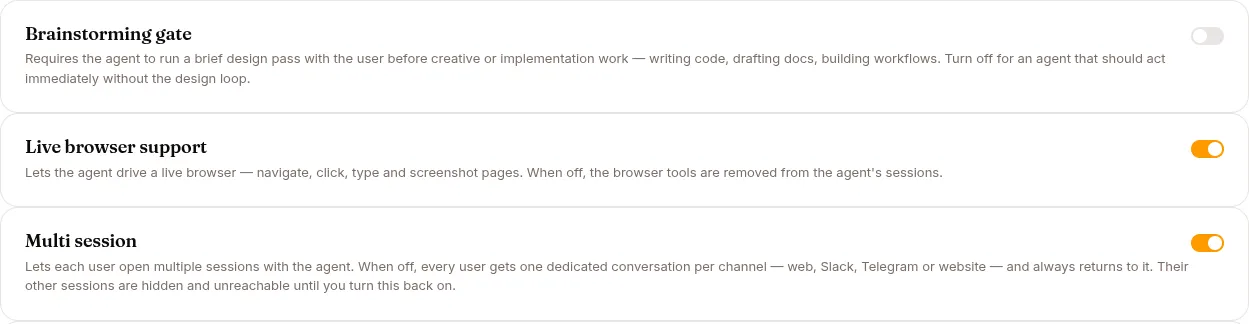
Toggle the agent’s built-in behaviors. The Brainstorming gate, Live browser, Multi session and slash-command switches save the moment you flip them; the Saga card, where present, collects its toggle and number fields behind its own Save button. Changes reach live sessions on their next turn.
| Capability | What it does |
|---|---|
| Brainstorming gate | Forces a short design/brainstorm pass with the user before creative or implementation work. Turn off for an agent that should act immediately |
| Live browser support | Lets the agent drive a real browser (navigate, click, type, screenshot). Off removes the browser tools — and hides the end-user Browser Profiles tab |
| Multi session | Lets each user open multiple sessions with the agent. When off, every user gets one dedicated conversation per channel — web, Slack, Telegram or website — and always returns to it; their other sessions are hidden until you turn this back on. End users see a Chat button instead of “New chat” |
| Programs | Scheduled WhatsApp check-ins. Each Program sends an approved opener on a cadence, runs a skill when the person replies, and records the outcome. Turning it on adds Programs to the agent’s navigation. It cannot be turned off while a Program is active — pause them first, because the runtime stops running the agent’s Programs the moment the capability is off. See Programs |
| Saga | Tracks multi-step tool chains and rolls back completed steps when a later step fails. Exposes Step timeout (s), Max retries, and Retry delay (s). Hidden unless the deployment opts in (saga_ui_enabled on the server) — it is off on the hosted platform and available on-prem |
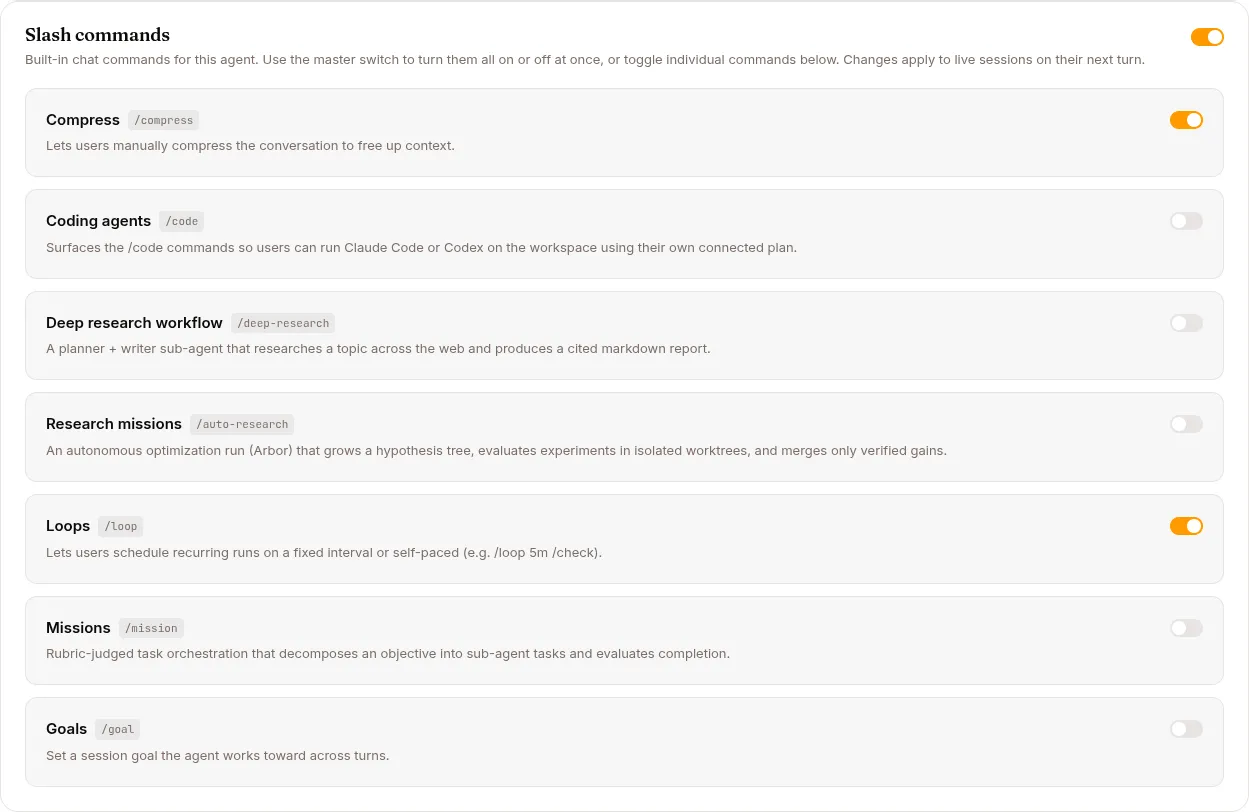
Slash commands — a master switch turns all built-in chat commands on or off at once, with individual toggles below:
| Command | What it enables |
|---|---|
/compress |
Users manually compress the conversation to free up context |
/code |
The coding-agent commands (Claude Code / Codex on the workspace); also reveals the Coding tab |
/deep-research |
A planner + writer sub-agent that produces a cited markdown report |
/auto-research |
An autonomous optimization run (Arbor) over a hypothesis tree |
/loop |
Scheduled recurring runs on an interval or self-paced |
/mission |
Rubric-judged task orchestration that decomposes an objective |
/goal |
A session goal the agent works toward across turns |
Knowledge Bases
Section titled “Knowledge Bases”Attach the knowledge bases this agent can search. The header reads Attach a knowledge base; from here you can Create a knowledge base, Browse Library to attach existing ones, or Detach attached KBs.
Each attached KB row shows its name, page count, compile status (active / compiling / queued / error), and a mode selector:
| Mode | What it does |
|---|---|
| Grounding | The KB is treated as authoritative source material for answers |
| Reference | The KB is available for lookup but not treated as ground truth |
The Browse Library view offers search and multi-select cards; Attach selected (n) pulls them in.
Skills
Section titled “Skills”
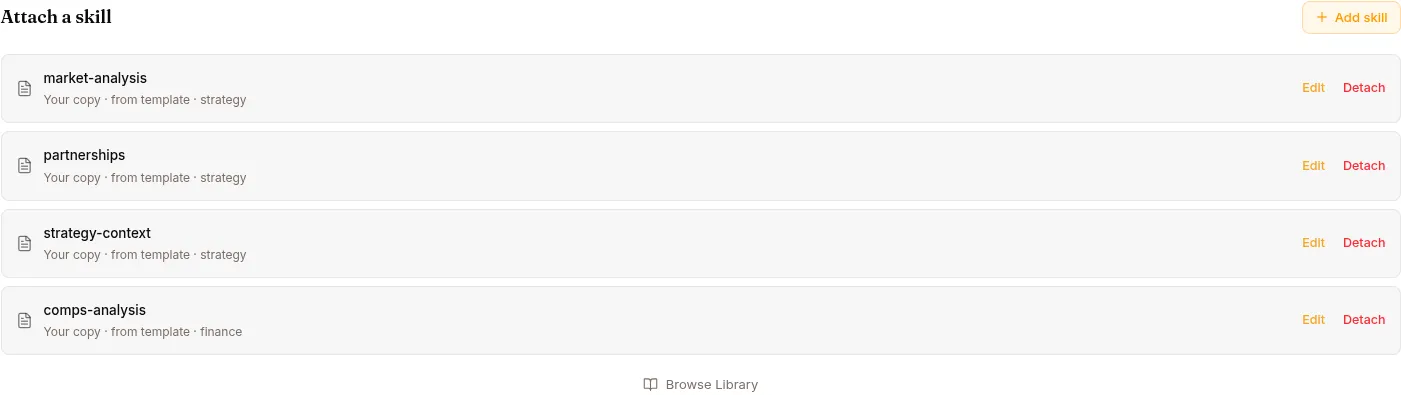
Attach reusable skills to the agent. The header reads Attach a skill with an Add skill button. Attached skills list their name and origin (e.g. “Your copy · from template”), an optional expert badge, and Edit / Detach actions.
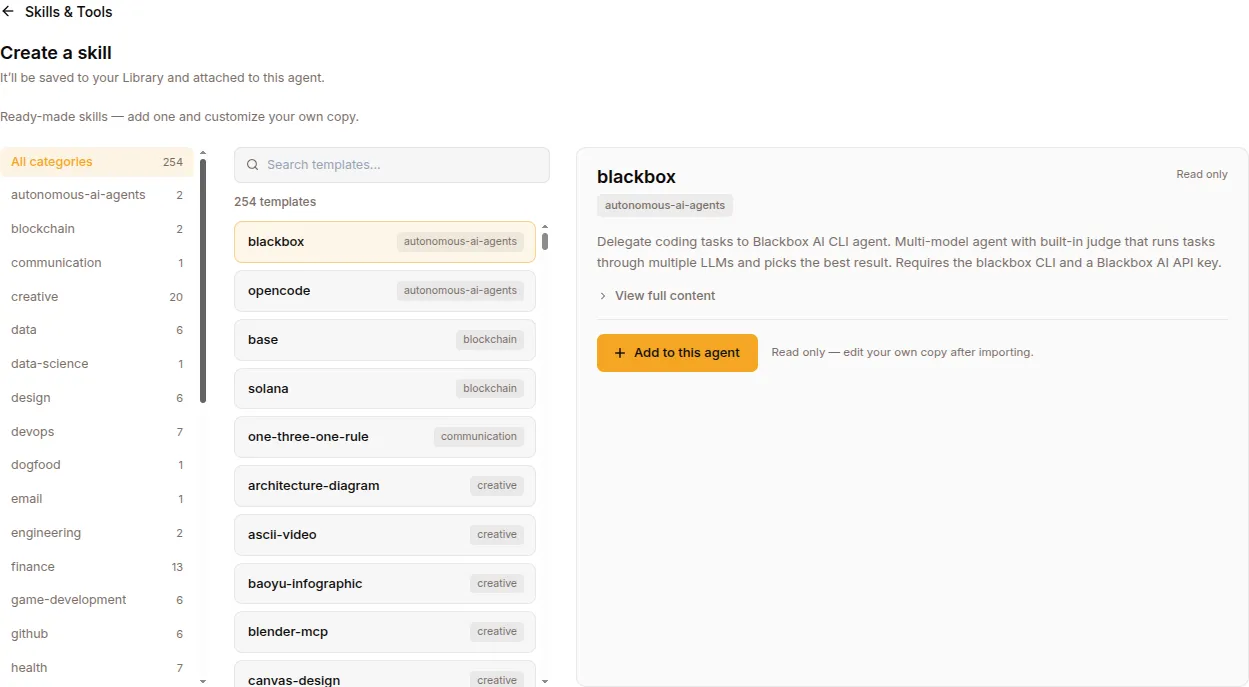
Adding a skill offers three routes: Start from a template (recommended, with a searchable category-filtered browser), Write from scratch, or Import a file (.md / .zip drag-and-drop). The scratch and edit forms expose Name (slug), Display name, Description, Trigger (comma-separated keywords), Tags, an Is Expert switch, and the Content (SKILL.md) body. Browse Library attaches skills you already have.
See Skills for authoring guidance.
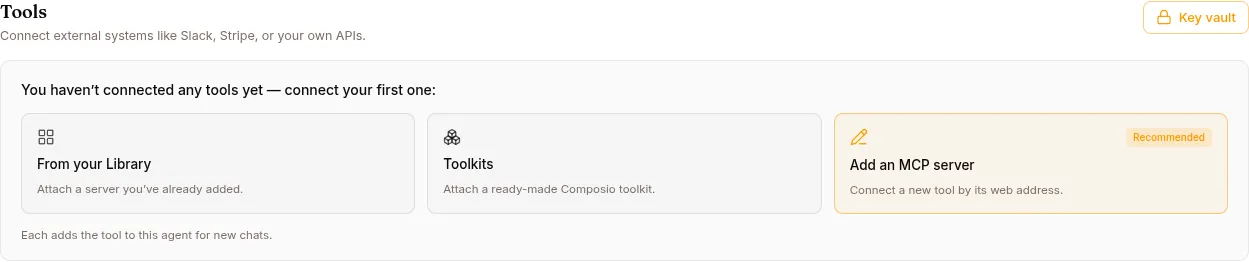
Connect external systems (Slack, Stripe, your own APIs) as MCP servers. The heading is Tools, with a Key vault button for stored credentials. Connected tools list their name, status, and Manage / Disconnect actions; Composio toolkits add a per-agent OAuth Connect control.
Three ways to add a tool:
- From your Library — attach an MCP server you already registered.
- Toolkits — attach from the searchable Composio catalog.
- Add an MCP server (recommended) — the AddServerForm: Name, What it does, and a Connection type of Remote endpoint (HTTP) (adds Web address (URL), an API key / OAuth sign-in choice, and API key) or Local command (stdio) (adds Command and Environment KEY=value pairs), plus a Timeout (seconds).
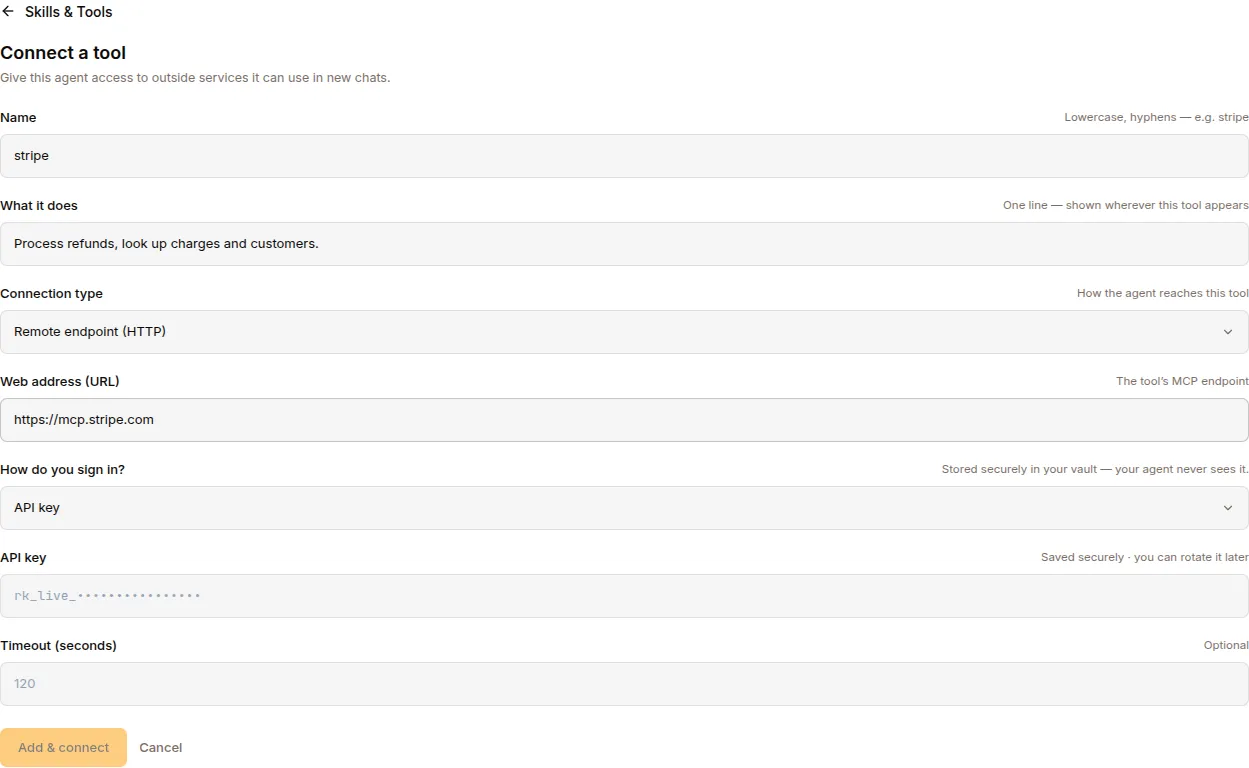
The Key vault stores API keys (masked, with Update and Remove). See MCP servers.
Coding
Section titled “Coding”Only visible when the agent’s coding capability (/code) is enabled in Capabilities. Two sections:
- Repositories — agent-scoped GitHub repositories the coding agents can work in.
- Coding agents — agent-owned Claude Code / Codex plans connected under the agent’s own service account.
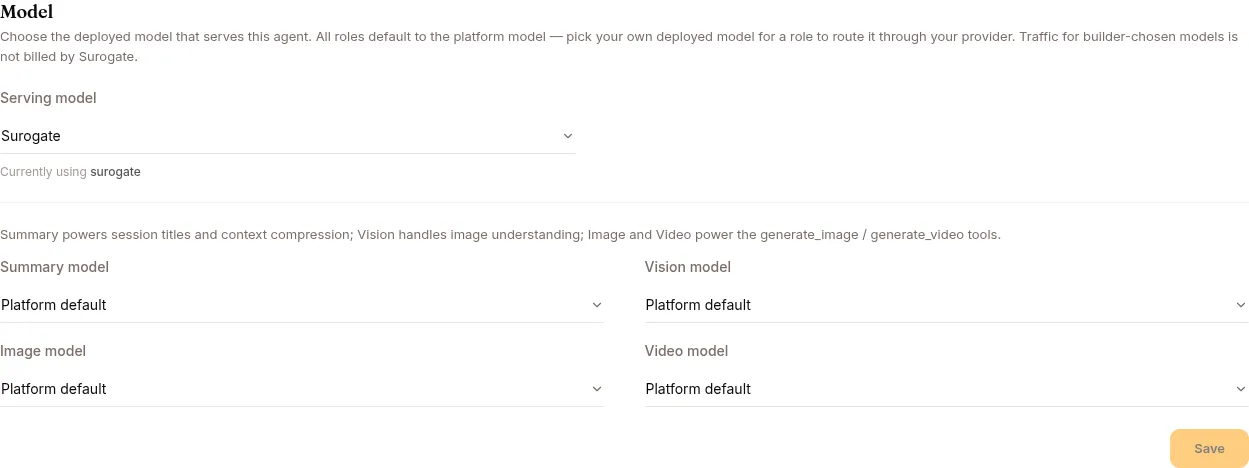
Choose which models power the agent. Every chooser except the serving model defaults to Platform default; dirty fields glow amber, and a single SAVE commits the tab.
| Setting | What it does |
|---|---|
| Serving model | The primary model the agent runs on (platform default is labelled “Surogate”) |
| Summary model | Used for session titles and context compression |
| Vision model | Used for image understanding |
| Image model | Used by the generate_image tool. With neither a pick here nor a platform preset, the tool is hidden from the agent entirely |
| Video model | Used by the generate_video tool — same hiding rule |
Platform-model media generation draws on the project’s media wallet (see Usage); BYO image/video models aren’t metered by Surogate. A wired image or video model is also what allows selling media credits on the Monetize tab.
Governance
Section titled “Governance”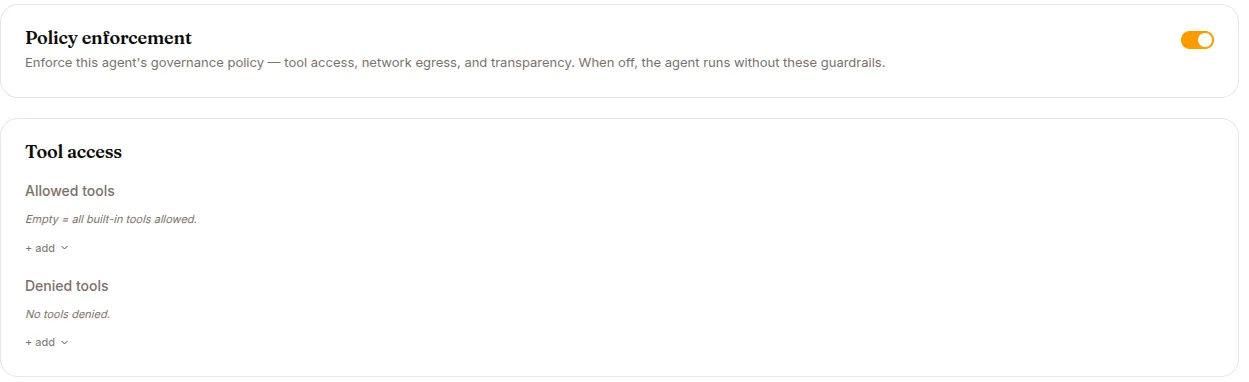
The agent’s guardrails — and they are enforced: the composed policy is checked before every tool call the agent makes. An Unsaved changes bar collects edits across the cards and clears on a successful save (“Governance settings saved.”). Edits reach live sessions on their next wake — no redeploy needed.
- Policy enforcement — the master switch. When off, the agent’s own rules below are dropped, but the platform floor (workspace path containment, path-argument hygiene) still applies, and AI disclosure falls back to the deployment-wide default rather than turning off.
- Tool access — Allowed tools and Denied tools multi-selects, grouped by the built-in tool catalog. Empty “Allowed” means all built-in tools are allowed; the two lists are mutually exclusive, and unknown tool names are rejected on save. MCP tools are not governed here — restrict them by detaching the MCP server. A denied tool is still visible to the model and blocked at call time: expect the agent to try, get
Blocked: <reason>, and report it. The coordination self-tools (worker_*, board tools,unblock_task/cancel_task) are deliberately not offered — denying them would strand blocked work. - Approval-gated tools — a third list this form doesn’t render, and saving the form drops it, so set it through the agents API and re-apply after each Governance save. Tools on it aren’t refused: the call pauses for a human Approve / Reject in the Inbox, and it is the only list that accepts MCP tool names. See Governance & AI disclosure.
- Web & browser egress — a Default action of Allow or Deny, plus a rules table. Each Add rule row sets a Domain (glob patterns like
*.acme.comwork; CIDR ranges don’t), Ports, Proto (tcp/udp), and Action (allow/deny). Scope: this governs the URLs the web-fetch and browser tools may open (web_extract,browser_navigate). It does not restrictweb_search(a search query is not a URL), the terminal, coding agents, or MCP servers — restrict those by denying the tool or detaching the server. See Governance & AI disclosure for the full network-controls picture. - SSH — agent-owned SSH keys and remote targets (which hosts the agent can reach and under what credentials). Independent of the policy toggle.
- EU AI Act transparency — an AI disclosure toggle (“Tell end-users they are talking to an AI. Art. 50 of the EU AI Act requires this from 2 Aug 2026 on every channel.”) and a Disclosure level: Basic (short AI notice before the first interaction), Enhanced (adds a capability and limitation summary), Full (complete Art. 50 disclosure with legal references), or None (no disclosure text — not compliant for end-user chat). How each channel delivers the disclosure is covered in Governance & AI disclosure.
A denial is returned to the model as a tool error and recorded as a policy.denied event, visible per session under Sessions → POLICIES.