

Monetize your agents
Charge end users for access to one of your public agents. You decide the price and what each purchase includes — usage, channels, capabilities, knowledge bases, tools, skills, even the model tier. The payment goes straight into your Stripe account; Surogate keeps a 5% platform fee per sale.
What it is
Section titled “What it is”Three roles:
| Role | What they do |
|---|---|
| You (the builder) | Created an agent and want to charge for it. |
| Your buyer | Pays you to use the agent. Doesn’t need a Surogate account. |
| Surogate | Hosts the agent, brokers the payment via Stripe, and enforces the buyer’s usage and package on every message. |
Six things you’ll work with:
| Term | Meaning |
|---|---|
| Pricing model | How your agent charges: Free, Subscription, One-time packs, or Both. |
| Offer | A specific plan or pack you sell — a price plus what it includes: usage, browsing time, media credits, and a package. |
| Package | What a purchase unlocks beyond usage: capabilities, channels, knowledge bases, connected tools, skills, and the model tier. |
| Entitlement | What a specific buyer holds — subscription status, balances, and their effective package. |
| Message | The usage unit shown everywhere: 1 message ≈ 1,000 tokens (a question plus the agent’s answer). Amounts are stored in tokens; the UI authors and displays messages. |
| Per-user allowance | The usage budget each end user draws from — funded by their purchases, your free-trial grant, or your per-user limit on a free agent. |
Who can use it
Section titled “Who can use it”Selling requires the Pro plan or higher — but spending is never gated: buyers keep using balances they already paid for regardless of your plan.
| Plan | Agent commerce |
|---|---|
| Free | — |
| Standard | — |
| Pro | ✅ |
| Max | ✅ |
| Enterprise | ✅ |
If you drop below Pro, your agent’s storefront degrades to free mode: the buy page shows no offers (“This agent is not currently accepting purchases.”), the Monetize panel collapses to an Upgrade to Pro prompt, and the agent behaves as a free agent. Takedown actions still work below the gate — you can always set the mode to Free, deactivate or delete offers, and disconnect Stripe. Stripe keeps charging and granting existing subscriptions the whole time, and re-upgrading restores your catalog intact.
Upgrade under Settings → Billing.
Set up your agent
Section titled “Set up your agent”You’ll need a project on the Pro plan or higher with BYO Firebase Auth configured (see Self-registration). The platform operator must have completed the platform-side Stripe Connect setup; if Stripe Connect isn’t enabled platform-wide, the Monetize tab reports that Stripe Connect is not available on this deployment.
Step 1 — Connect your Stripe account
Section titled “Step 1 — Connect your Stripe account”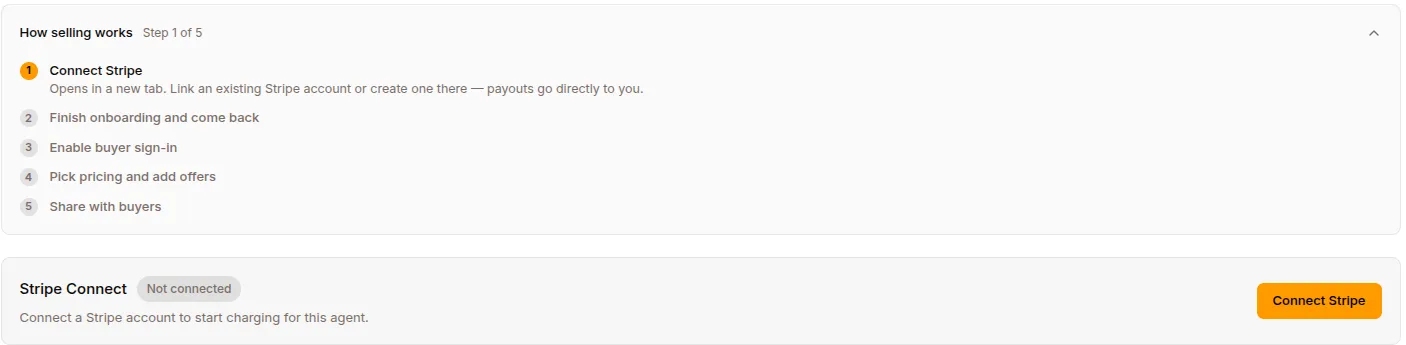
Open the agent’s Publish page and click the $ Monetize tab. A How selling works guide walks the five steps (Connect Stripe → Finish onboarding → Enable buyer sign-in → Pick pricing and add offers → Share with buyers) and dismisses itself once selling is live.
Click Connect Stripe and follow Stripe’s Express onboarding:
- Verify your identity (passport / driving licence depending on country).
- Link a bank account (Stripe uses Plaid-style instant verification where available).
- Answer a short questionnaire about your business.
Stripe redirects you back to Surogate when you’re done. The status pill flips to Active once Stripe has cleared you for charges, and the Open dashboard button becomes active. If anything is still pending you’ll see exactly which step to finish.
A few things worth knowing:
- One Stripe account per project, not per agent. If you monetize more than one agent in the same project they all share the same Stripe account and the same payout schedule.
- Your buyers’ payments land in your Stripe balance, not Surogate’s. Stripe pays you out on your normal schedule (daily by default).
- The buyer’s card statement shows your business name — you’re the merchant of record on each charge.
Step 2 — Set up buyer sign-in
Section titled “Step 2 — Set up buyer sign-in”Your buyers need a way to sign in before they can pay. Surogate uses Firebase Authentication for this — the same setup you use to let end users self-register.
Under Settings → Authentication tab → BYO Firebase auth, configure your project’s Firebase account. Choose which sign-in providers to offer (email/password, Google, GitHub). You can use the same Firebase project for both agent self-registration and commerce.
If you skip this step the buyer paywall shows “buyer authentication is not configured.”
Step 3 — Pick a pricing model
Section titled “Step 3 — Pick a pricing model”
Back on the Monetize tab, the Pricing model cards offer four choices:
| Mode | When to use it |
|---|---|
| Free | No charge. The default. |
| Subscription | Buyers must hold an active subscription. Best for all you can eat pricing. |
| One-time packs | Usage or feature packs bought once. They never expire. Best for casual users and add-ons. |
| Both | Buyers can subscribe or buy packs. Subscription usage is spent first; pack usage kicks in when it runs out. |
You can change the mode at any time. Offers of a kind the current mode doesn’t sell are collapsed in the list behind a note — “N live plans hidden — not sold under this pricing model, but still active for existing buyers” — and can be revealed (dimmed) so Edit / Deactivate stay reachable without flipping the mode back, which would put them on sale again. Existing buyers keep billing either way.
Step 4 — Create offers
Section titled “Step 4 — Create offers”Once you’ve picked a paid mode, the offer composers appear (disabled until Stripe is connected). You can keep up to 5 live offers of each kind; exact duplicates (same price, usage, interval, and package) are refused.
Fields, for plans and packs alike:
- Name — defaults to
Monthly access/Top-up pack; shown on the buy page and the buyer’s statement. - Price and Currency — seven currencies: USD, EUR, GBP, RON, CHF, CAD, AUD. New offers default to EUR.
- Usage included — authored in messages from a preset ladder (~100 up to ~10,000 messages) or Custom. Packs can also pick No extra usage (feature only) — a pack that sells only features is valid, as is a plan with no usage (
Access included). - Interval — Monthly or Yearly (plans only; packs are one-time).
- Browsing time included — a dedicated Browser use block (only when the agent’s Browser use capability is on): none, 30 min / 1 h / 2 h / 5 h, or custom minutes. Browsing is metered by the wall clock while the buyer’s browser is open. See How browsing time works.
- Media credits included — a Media generation block (only when the agent has an image or video model wired): none, $1 / $3 / $10 / $25 of generation, or custom cents. See Media credits.
- Description (shown on your buy page) — up to 2,000 chars, local-only (never mirrored to Stripe). A Generate description button drafts it with AI from the offer’s contents; an Instructions field steers the draft (e.g. “friendly tone, write it in Romanian”).
- What’s included — the package. See the next section.
Editing offers. Name, usage, minutes, media, package, and description edit in place. Changing the price, currency, or interval replaces the offer in one step — a new Stripe Price is minted, the old offer retires, and the toast confirms “Offer updated — new buyers see the new terms.” Current subscribers keep their price until they cancel.
Two guard rails you may hit on save:
- “this offer sells browsing time but its package excludes Browser use — include it or remove the minutes” (same rule for media credits vs. Image/Video generation).
- “this agent’s browser capability is off — enable it before selling browsing time” (and “this agent has no image or video model configured — wire one before selling media credits”).
What’s included: packages
Section titled “What’s included: packages”Every offer carries a package — what the purchase unlocks beyond usage. A segmented control offers Everything the agent offers (plans) / Extra usage only (packs) versus Custom package. A custom package picks from:
| Group | Sellable items |
|---|---|
| Capabilities | Browser use, Coding agents, Deep research, Research missions, Loops and scheduling, Missions, Goals, Brainstorming, Image generation, Video generation |
| Channels | Slack, Telegram, Website widget, WhatsApp — the agent’s own web app is always included and can’t be excluded |
| Knowledge bases | The agent’s attached KBs, by name |
| Connected tools | The agent’s enabled MCP servers and Composio toolkits |
| Skills | The agent’s attached skills (built-in platform skills are always available and not sellable) |
| Model | Plans: a Basic / Pro radio, seeded from the agent’s own tier. Packs: an optional Include the Pro model checkbox — unchecked, the pack carries no model opinion |
Notes:
- Compress and multi-session always ship with every purchase — they’re deliberately not sellable.
- You can only sell what the agent actually has switched on; items turned off for the agent disappear from the composer (staying visible only if already stored, so you can remove them).
- An amber warning appears when a custom package omits a capability the offer’s minutes or media credits depend on.
How packages combine
Section titled “How packages combine”- A subscription with no custom package includes everything the agent offers. A pack with no custom package is pure extra usage — it never widens a restricted plane.
- Within a custom package, a dimension you don’t restrict is unrestricted; a dimension with nothing ticked grants nothing.
- Each buyer holds two planes: the subscription plane (reset to the offer’s package on every renewal, counts only while the subscription is active) and the pack plane (the union of every pack ever bought — it accumulates and never expires). Their effective package is the union, and the strongest model tier wins — a Pro pack outlives a basic plan’s resets.
- Packages are snapshotted at purchase. Editing an offer changes future purchases and renewals only: what a buyer already holds stays as bought. Buyers who subscribed before packages existed read as unrestricted.
What the package does at runtime
Section titled “What the package does at runtime”Enforcement is real, per turn, pinned from the payment receipt:
- A message on an excluded channel is refused before any usage is spent, with “Your current plan doesn’t include this channel.” and the buyer’s buy link.
- Excluded KBs are invisible to the agent (a package with zero KBs drops the KB tools entirely), and each KB call re-checks.
- Excluded capabilities lose their tools — browser toolset, coding agent, image/video generation — and excluded MCP servers / Composio toolkits disappear from the toolset. Unresolvable tools fail closed.
- Excluded skills behave exactly like skills that don’t exist; a slash command for an excluded capability answers “/x is disabled for this agent.” (the same wording as an agent-level disable).
- A pinned model tier swaps the buyer’s session onto the matching platform model.
Free trial and per-user limits
Section titled “Free trial and per-user limits”
Two cards on the Monetize tab, depending on your pricing model — both carry their own What’s included composer, which sets the default package applied to users with no active purchase. These cards save the moment you change them.
- Free trial (Subscription and Both modes): a switch plus a size picker (default 50,000 tokens ≈ 50 messages). One-time — when a user’s trial usage runs out they’re prompted to subscribe (or buy usage) to keep going; it never refills, and a lapsed subscriber gets no second trial. The buy page advertises it: “Try it free first: every new user gets ~N messages of one-time trial usage.”
- Per-user usage limit (Free mode): cap how much each user may chat per month, drawn from your own subscription. Unlimited (the default) means no per-user cap.
One rule worth reading twice: on a monetized agent, leaving the trial off means zero free usage — a purchase is required before the first message. Only free-mode agents default to uncapped.
One-time-packs-only mode shows neither card.
Your buy page
Section titled “Your buy page”Every monetized agent gets a hosted storefront at https://<host>/buy/<agent-slug> — the Your buy link card has Copy link and Preview, plus a Storefront look picker with six themes (Light, Dark, Midnight — the default, Ultraviolet, Midas, Surogate).
What buyers experience there:
- The storefront. Your agent’s description, the trial note if enabled, and your offers as cards — price, usage line (
~N messages every period,… of extra usage · one-time,Access included, orFeature add-on · one-time), your description, and anIncludes: A · B · Cline for custom packages. - Sign in. With their Firebase account (whatever providers you enabled); the same flow registers new buyers.
- Checkout. Subscribe / Buy lands on Stripe Checkout — card, Apple Pay, Google Pay, whatever you’ve enabled, auto-converted to their local currency. A buyer with an active subscription who clicks Subscribe again is refused: “You already have an active subscription. Use Manage subscription to change plans.”
- Use the agent. Right after purchase, a hint points them to messaging channels their package includes: “Chat on Slack and Telegram: open the agent app and link your account under Settings, Connected Channels.”
- Manage subscription. Takes them into Stripe’s hosted Customer Portal — cancel, change plan, update card, download invoices.
Inside the agent’s web app, buyers get a Settings → Plan & Usage tab: their plan and renewal date, Included usage left this period, Extra usage (top-ups, never expire), Browsing time left and Media generation left where metered, “Your plan includes …”, and your offers under Plans / One-time packs. In buyer chat, a balance chip shows what’s left (e.g. ~120 messages · 45 min browsing · $2.40 media left).
You don’t have to build any of this UI.
How usage is spent
Section titled “How usage is spent”Three layers stand between a buyer’s message and your bill:
- Your project wallet is the hard ceiling. Every end-user turn ultimately draws on your own subscription’s token wallet. When it’s empty, end users see “This assistant is temporarily unavailable. Its owner has run out of credit.” — with no buy link, because buying can’t help them. Top up under Settings → Billing.
- The per-user allowance. Each user’s budget: the period grant (funded by their subscription tier, your trial, or your free-mode cap — resets on a 30-day cycle, or on the buyer’s own billing cycle while a subscription is active) plus the top-up bucket (token packs — rolls over, never expires). Spend order: period grant first, then top-ups.
- The package gate. Channel, tools, KBs, skills, and model tier — checked before any tokens are held.
The buyer’s card is never charged per message — only at Checkout.
Browsing time and media credits
Section titled “Browsing time and media credits”Selling browsing time or media credits on any active offer makes that resource metered for every buyer of the agent — including buyers on offers that don’t sell it. Leave the fields at zero on all offers and the resource stays unmetered.
- Browsing time is wall-clock: minutes accrue while the agent has a live browser open for that buyer (rounded up per minute, 1-minute minimum per browser — an idle open browser still costs, so
browser_closeis the cheap habit). A chunk of minutes is held before a browser opens and extended while it runs; when the balance can’t cover the next chunk, the browser is closed within about half a minute and only actual time is billed. Period minutes reset each renewal and don’t roll over; pack minutes never expire. Note the double meter: a buyer’s browsing also draws your own project’s web-browsing wallet, so price above your own cost. - Media credits are dollars of provider spend: an image costs a few cents, a short video around fifty. Credits are held before generating and settled at the actual price — a failed generation charges nothing. Buyers without credits are asked to top up before the next generation; images and videos can also be gated per package (Image / Video generation capabilities).
Your own sessions (Studio chat, API calls, scheduled runs) are exempt from buyer metering — testing your agent never eats a buyer balance or shows you a paywall.
What buyers see when they hit a limit
Section titled “What buyers see when they hit a limit”| Reason | Buyer-facing message |
|---|---|
| Allowance exhausted | “You’ve reached your usage limit for this assistant.” + buy link |
| Subscription required | “A subscription is required to keep chatting with this assistant.” + buy link |
| Channel not in package | “Your current plan doesn’t include this channel.” + buy link |
| Sign-in required | “Please sign in to keep chatting with this assistant.” |
| Browsing time spent | The agent explains browsing is used up, links the buy page, and continues on non-browser tools |
| Media credits spent | The agent asks the user to top up or upgrade, with the buy link; nothing was generated or charged |
| Your wallet empty | “This assistant is temporarily unavailable. Its owner has run out of credit.” — no buy link |
On web these render in the composer; on Slack / Telegram / WhatsApp as an inline notice.
Let buyers embed your agent on their own site
Section titled “Let buyers embed your agent on their own site”Buyers with a funded purchase (an active subscription or a positive pack balance) can mint their own website-widget key from the buy page (“Embed on your website”) and put the agent on their own site — their visitors’ chats draw from the buyer’s purchased usage. Preconditions: you must have the Website channel enabled, and a first-time mint requires your project to still be on Pro+ (refreshes keep working). Details in Website widget.
Subscription lifecycle
Section titled “Subscription lifecycle”| Event | What happens |
|---|---|
| Renewal succeeds | The buyer’s period balances reset to the offer’s amounts — usage, browsing minutes, media credits — and the subscription plane’s package snapshot refreshes to the offer’s current package. Top-up balances untouched. |
| Renewal fails | Stripe marks the subscription past_due and retries on a schedule (typically up to 3 weeks). The buyer’s package stops counting immediately; the paywall tells them to update their card via the Customer Portal. Service resumes automatically once Stripe charges successfully. |
| Buyer cancels | Active until the end of the period. Then period balances drop to zero (usage, minutes, media) and the subscription plane stops counting. Top-up balances and pack-plane features are preserved. |
| Buyer disputes a charge | Stripe Smart Disputes auto-submits a counter using the payment metadata. You can override with your own evidence before the deadline. |
| Charge | Who pays |
|---|---|
| Surogate platform fee | You — 5% of each sale (subscription renewals and pack purchases), split off automatically. Per-seller overrides are possible (set by a platform admin). |
| Stripe processing fees | You. Standard Stripe rates — typically 2.9% + $0.30 in the US, with discounts for SEPA / EU recurring. |
| Tax (VAT / GST / sales tax) | Buyers, where applicable. Stripe Tax (free, built in) tells you when you cross a registration threshold. You register and remit; Stripe gives you the data. |
| Currency conversion | Buyer pays ~1% when Stripe converts to their local currency at checkout. |
| Chargeback fees | You (~$15 per chargeback). Smart Disputes reduces how often you lose them. |
| Buyer support | You. Buyers pay you, so support questions reach you, not Surogate. |
What if I downgrade off Pro after creating offers? Your storefront degrades to free mode — no offers are shown and the agent behaves as free. Existing subscribers keep being charged and granted (Stripe doesn’t stop), takedown actions stay available, and re-upgrading restores the catalog intact.
Can I use a single Stripe account across multiple Surogate projects? No — one connected Stripe account per project. If you want to share payouts across projects you’d need to handle that on the Stripe side (e.g. consolidate to a single business bank account).
Can a buyer try the agent before paying? Yes — turn on the Free trial card (Subscription and Both modes). Every new user gets a one-time trial of the size you pick, advertised on the buy page, and is prompted to buy when it runs out. A separate free demo agent remains an option if you want a permanently free tier.
Can I let some buyers use the agent for free? There’s still no per-buyer override, but the default package and the trial / per-user limit shape what non-payers get — on a free-mode agent you can leave the limit at Unlimited.
A buyer says a command or feature is “disabled for this agent.” Check their package first — an excluded capability answers with the same wording as an agent-level disable.
A buyer paid but has no access.
Almost always the Connect webhook: if no Stripe webhook endpoint targets /api/commerce/stripe/connect/webhook, checkouts succeed but grants never arrive. The server warns loudly about this at startup.
I sold the Pro model but the buyer’s answers didn’t change. Older agents need one server restart after the platform upgrade (a one-shot backfill projects the tier model slots); agents on a BYO model don’t support tier swaps.
What if my buyer asks for a refund? You handle refunds directly via your Stripe dashboard. Stripe refunds the buyer; the corresponding grant on Surogate isn’t automatically clawed back, so it’s your call whether to disable that buyer’s access.
How fast do I get paid? Stripe’s default is daily payouts with a 2-day rolling reserve in most countries. You can change the schedule in your Stripe dashboard.
Can I sell in currencies other than EUR? Yes — USD, EUR, GBP, RON, CHF, CAD, and AUD, per offer. Stripe auto-converts to the buyer’s local currency at checkout regardless (the buyer pays in their currency, you settle in yours).
Where do I see how much I’ve earned? In your Stripe dashboard (Express). It shows every charge, payout, dispute, and refund. Surogate doesn’t aggregate this — your Stripe account is the source of truth.
Platform setup (one-time, by the Surogate operator)
Section titled “Platform setup (one-time, by the Surogate operator)”This section is for the operator running the Surogate platform — it covers turning the agent-commerce feature on for the entire platform so individual builders can use it. Skip if you’re a builder configuring your own agent — the platform operator has already done this.
The setup happens in two places: the Stripe Dashboard (one-time Stripe Connect config) and the Surogate server config. About 20 minutes end-to-end.
A. Enable Stripe Connect
Section titled “A. Enable Stripe Connect”- Stripe Dashboard → Connect → Get started.
- Business model: pick Platform (the left option — Merchants will collect payments directly). The Marketplace option does not match the architecture and will not work.
- Account type: pick Express. Gives builders a slim Stripe-hosted dashboard scoped to their own funds; you keep platform-level Dashboard access.
- Platform public details: fill in your platform’s name, logo, and support URL. Builders see these during Express onboarding and on emails Stripe sends about their payouts.
B. Configure onboarding options
Section titled “B. Configure onboarding options”Settings → Connect → Onboarding options:
| Tab | Setting | Value |
|---|---|---|
| Countries | Tick every country you want to onboard builders in. | Be generous — adding later forces re-verification of existing builders. |
| Capabilities | Payments + Transfers | Both required. Direct charges fail without either. |
| OAuth | OAuth toggle, redirect URIs | Skip both. OAuth is the legacy connect existing Stripe account flow; we use Account Links instead. The you must define a redirect URI warning is misleading and safe to ignore. |
| Tax | Show tax during signup | ON (default). Free Stripe Tax for Connect — monitors each builder’s tax registration thresholds. Zero conversion impact per Stripe data. |
| Regional → Singapore | Connected-account declaration | “None of my platform’s connected accounts are used to facilitate financial services, rewards-based crowdfunding or receive donations.” |
| Regional → Japan | Installment Sales Act question | No unless Surogate has actually lost a Japanese consumer-protection lawsuit. |
| Climate programs | Optional Stripe Climate contribution | Off by default; flip on later if you want. |
| Public details | Collect public details | ON with all four fields (statement descriptor, support email, support phone, support address). Buyer receipts/invoices show the builder’s contact info, not Surogate’s. |
C. Configure Connect-wide settings
Section titled “C. Configure Connect-wide settings”Settings → Connect:
| Section | Setting | Value |
|---|---|---|
| Connect → Settings → Branding | Logo + brand colour | Shown on every Express onboarding screen and Customer Portal. |
| Connect → Settings → Branding → Statement descriptor | Platform-side descriptor | SUROGATE (≤22 chars). Appears on the platform half of split charges. |
| Connect → Payment methods | Allow connected accounts to customize their own | ON. Set defaults to Card + Apple/Google Pay + SEPA + iDEAL + Bancontact. Builders override per-account. |
| Connect → Adaptive Pricing | Enable for connected accounts | ON. Auto-converts prices to the buyer’s local currency at checkout — ~30% conversion lift on non-domestic buyers. Allow builders to toggle. |
| Connect → Disputes | Smart Disputes auto-respond | ON. Free safety net — Stripe auto-submits a counter at the deadline. ~25% win-rate improvement vs no response. Allow builders to toggle. |
| Connect → Payouts → External accounts | Require at least one bank account | Yes. Forces builders to supply a payout destination during onboarding. |
| Connect → Payouts → External accounts | How to collect bank details | Financial Connections + Allow saved bank accounts. Instant Plaid-style verification; cuts payout failures ~15×. |
| Connect → Payouts → External accounts | Allow debit cards | No. Bank-only is the legitimate-merchant default. |
| Connect → Payouts → Statement descriptor | What builders see on their bank statement | SUROGATE PAYOUT or similar. |
D. Configure the Customer Portal defaults
Section titled “D. Configure the Customer Portal defaults”Connect → Settings → Customer portal defaults. This is the Portal config every new Express account inherits — your buyers’ Manage subscription button drops them into this Portal scoped to the builder’s connected account.
| Feature | Enable? |
|---|---|
| Update payment methods | ✓ |
| Update billing address | ✓ |
| View invoices | ✓ |
| Cancel subscriptions | ✓ |
| Switch plans | Optional |
| Pause subscriptions | ✗ |
Builders can override these per-account from their Express dashboard.
E. Add the connected-account webhook endpoint
Section titled “E. Add the connected-account webhook endpoint”Stripe Dashboard → Developers → Webhooks → + Add endpoint.
- Endpoint URL:
https://<your-host>/api/commerce/stripe/connect/webhook - Listen to: Connected accounts (this is what separates this endpoint from the platform-billing one)
- Events to subscribe to:
account.updatedcheckout.session.completedcustomer.subscription.createdcustomer.subscription.updatedcustomer.subscription.deletedinvoice.paidinvoice.payment_failed
Stripe shows the webhook signing secret (whsec_…) after you create the endpoint. You’ll need it for the next step.
This endpoint matters more than it looks: without it, checkouts succeed while grants never arrive. The server verifies at startup that the platform account has an enabled webhook endpoint targeting the Connect path, and warns loudly when none exists (a running stripe listen session is undetectable, so the warning is expected during local dev).
F. Add the secrets and flags to your Surogate config
Section titled “F. Add the secrets and flags to your Surogate config”Add to ~/.surogate/config.yaml (or wherever your ServerConfig lives):
# The same Stripe secret key the platform billing already uses.stripe_secret_key: sk_live_xxx
# The signing secret from the webhook you just created in step E.stripe_connect_webhook_secret: whsec_xxx
# Optional — platform fee percentages, defaults are 5.0 each.# Per-seller overrides live on users.commerce_fee_percent.stripe_connect_subscription_fee_percent: 5.0stripe_connect_token_pack_fee_percent: 5.0
# Enforcement and metering switches (all default false — flip deliberately):end_user_allowances_enabled: true      # per-user allowances, trials, per-user limitswebsite_commerce_enforcement: true     # the website widget gates and meters buyersbrowser_minutes_commerce_enabled: true # per-buyer browsing-time meteringmedia_allowance_enabled: true          # owner-plane media wallet billingmedia_credits_commerce_enabled: true   # per-buyer media metering; flip only after media_allowance_enabled
# Optional tuningbrowser_minutes_reserve_chunk: 10      # minutes held per browser authorize/extensionmedia_credits_reserve_chunk: 100       # media cents held per video authorize
# If the platform's base LLM is a reasoning model, disable thinking for# server-side completions (AI offer blurbs time out otherwise):base_llm_extra_body:  enable_thinking: false               # DashScope shape; vLLM wants chat_template_kwargs
Restart the server. The boot log line Stripe Connect agent commerce enabled confirms it’s wired correctly. Two more startup signals worth knowing: the Connect webhook delivery warning (step E) and a one-shot LLM tier-slot backfill that resyncs older agents so sold Pro-model packages actually take effect (agents on BYO models are excluded).
Smoke test
Section titled “Smoke test”Once enabled, the fastest end-to-end test:
- As an admin, bump a test project to Pro plan via
/api/billing/projects/{id}/plan. - Open the project’s agent → Monetize tab → click Connect Stripe and complete Express onboarding with Stripe’s test-mode dummy data (SSN
000-00-0000, routing110000000, account000123456789). - Set the pricing model to Both and create one subscription offer with a custom package (exclude one channel and one KB) and one pack.
- Turn on the Free trial; as a signed-out visitor, confirm the buy page shows the trial note and the
Includes:line. - As a buyer, sign in via Firebase and complete a subscription checkout with test card
4242 4242 4242 4242. - Verify the buyer can chat, the balance chip decrements, and a message on the excluded channel is refused with the channel copy.
- Exhaust or shrink the trial for a second user and confirm the buy prompt appears in the composer.
- Click Manage subscription → land in the connected account’s Customer Portal → cancel → confirm the subscription goes to
canceledand top-up balances are preserved.
If all eight steps work, the platform is set up correctly.