

Compute
The Compute page is where you wire up GPU providers so the platform can run training jobs, serve fine-tuned models, and drive data pipelines on your behalf. You don’t manage Kubernetes or VM provisioning — the platform does that — but you choose which provider runs what, and you watch everything that’s consuming compute in one place.
In-app path: Develop → Compute (/studio/compute, which lands on the Cloud tab). The backend lives under the REST prefix /api/compute (also mounted at /api/nebius).
This page is the conceptual overview — what the providers are, the difference between bringing your own GPUs and using bundled compute, and what actually shows up in the queue. The step-by-step onboarding — the tabs, per-provider credential fields, browsing backend offers, and the Policies preview — lives in Connect compute.
The three views
Section titled “The three views”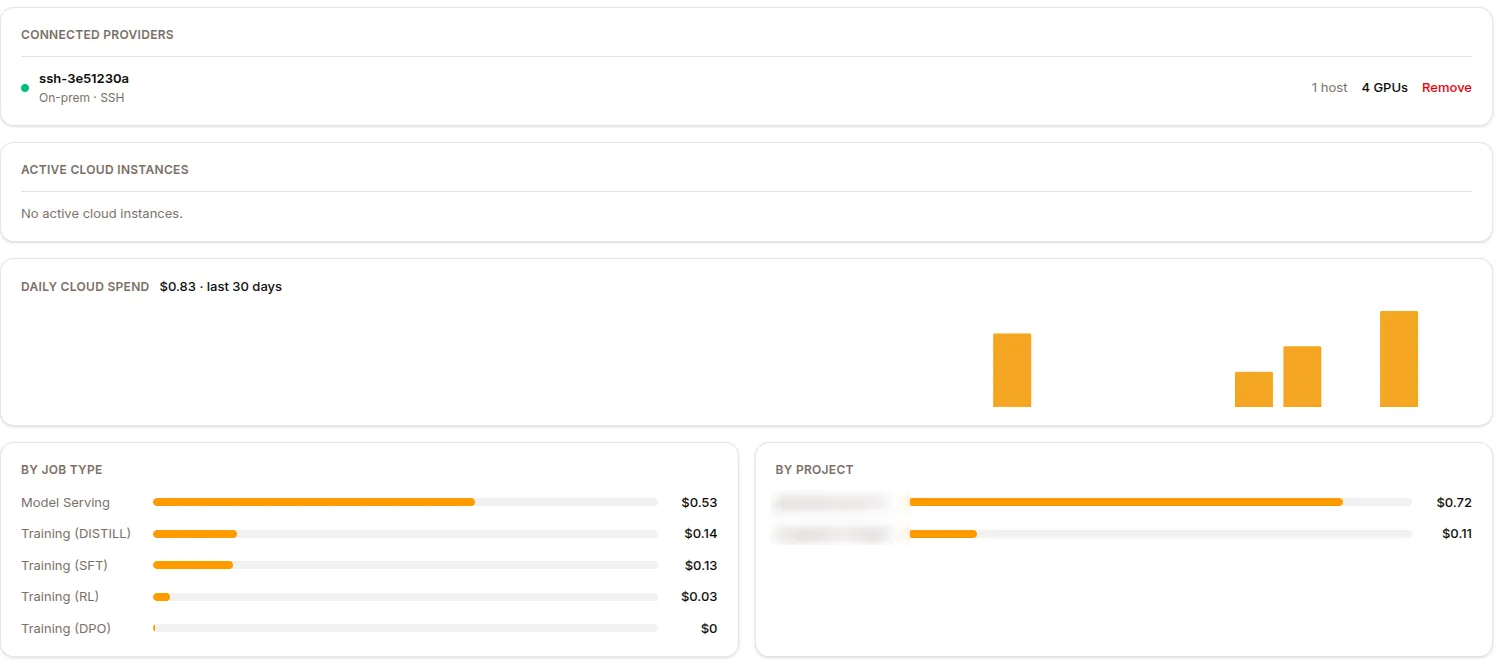
| View | Path | State |
|---|---|---|
| Cloud | /studio/compute/cloud |
Live. Connected providers, active cloud instances, cloud spend, and the provider connect grid. |
| Workload Queue | /studio/compute/workload-queue |
Live. Everything currently running on your behalf, read from real training runs, models, synthetic runs, and managed jobs. |
| Policies | /studio/compute/policies |
Preview. Renders sample auto-scaling policies; not wired to a backend yet. |
Only Cloud and Workload Queue appear in the tab bar. Policies is a real page in the section but isn’t a tab, and nothing on it is enforced — see Connect compute → Policies.
Providers offered
Section titled “Providers offered”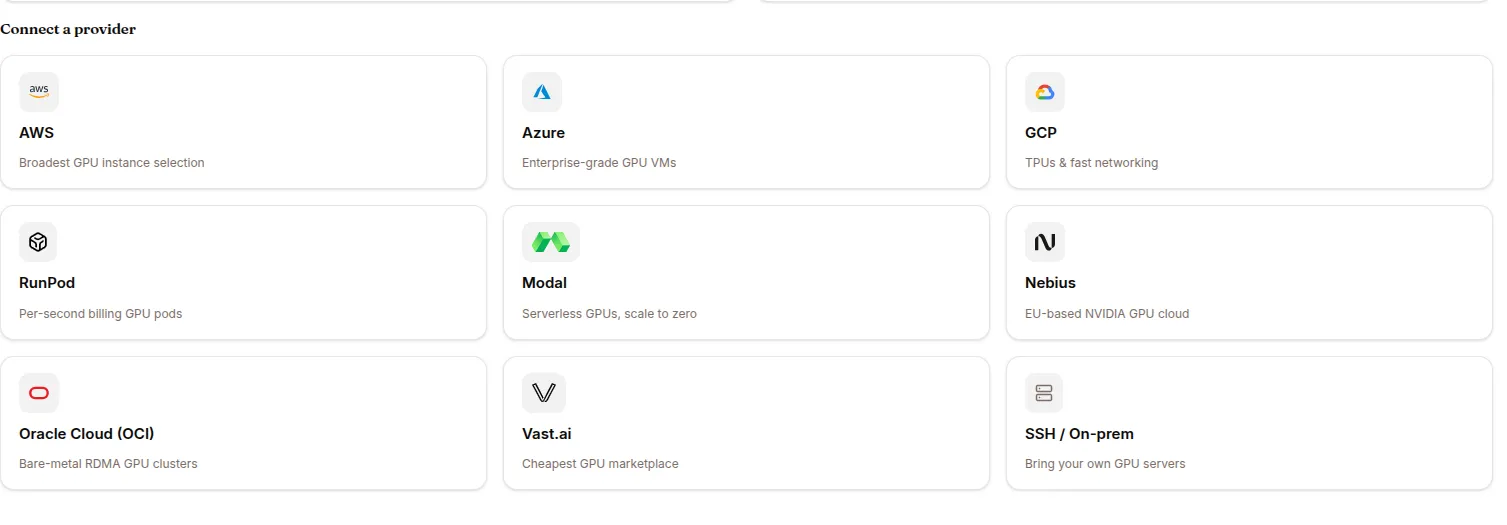
Nine backends are supported. Eight are managed clouds; the ninth (SSH / On-prem) is the bring-your-own path.
| Provider | Tagline | Example instances / notes |
|---|---|---|
| AWS (Amazon Web Services) | Broadest GPU instance selection | P4d, P5, G5 |
| Azure (Microsoft Azure) | Enterprise-grade GPU VMs | NC, ND-series VMs |
| GCP (Google Cloud Platform) | TPUs & fast networking | A2, A3, G2 VMs |
| RunPod | Per-second billing GPU pods | GPU-native cloud; optional Community Cloud |
| Modal | Serverless GPUs, scale to zero | Serverless GPU functions |
| Nebius | EU-based NVIDIA GPU cloud | GPU cloud with flexible billing |
| Oracle Cloud (OCI) | Bare-metal RDMA GPU clusters | GPU.A10, BM.GPU shapes |
| Vast.ai | Cheapest GPU marketplace | Marketplace GPU rentals |
| SSH / On-prem | Bring your own GPU servers | Your own machines or cluster over SSH |
Click a provider card → paste credentials → CONNECT. The platform verifies the connection (the button reads “Verifying connection…”) before marking the backend healthy. The exact credential fields each provider asks for are documented in Connect compute → Credentials per provider.
Local / on-prem via SSH — bring your own GPUs
Section titled “Local / on-prem via SSH — bring your own GPUs”The SSH / On-prem backend is how you point the platform at your own machine or cluster instead of a managed cloud. Give it the host address and an SSH key and the platform runs training and serving on your hardware — nothing is billed to a cloud provider, and no cloud note appears on the connect page.
What you provide (full field list in Connect compute):
- SSH user (default
ubuntu, must have passwordless sudo) and SSH port (default22). - A private key (pasted, not uploaded).
- The host address.
- Optionally a bastion / proxy jump (its own hostname, port, user, and key) for hosts you reach through a jump box.
Each host must have Docker pre-installed, CUDA 12.1 + the NVIDIA Container Toolkit on GPU hosts, passwordless sudo, AllowTcpForwarding yes in sshd_config, and a firewall that allows SSH. On connect, the platform probes each host and reports reachability plus the GPUs it found (e.g. 2× H100 (80GB) · 160GB total), so you can confirm the fleet before running anything.
An SSH backend is treated as a fleet rather than a billed cloud: in the Cloud tab its row shows a host count and total GPU count (not an hourly cost), and removing it only drops the saved configuration — no hosts are touched. You can edit a saved fleet later; the private key is kept unless you paste a new one.
What you can launch on connected providers
Section titled “What you can launch on connected providers”| Workload | Where it lands |
|---|---|
| Training runs | SFT / GRPO (and DPO/PPO) jobs. See Training. |
| Model serving | Fine-tuned models served behind OpenAI-compatible endpoints. See Models. |
| Synthetic data pipelines | Teacher/judge/worker generation. See Datasets. |
| Knowledge-base compilation | PageIndex compile jobs for knowledge bases. See Knowledge bases. |
When you start any of these in the platform UI you pick a provider (or the bundled/local cluster); the platform handles provisioning, staging, and teardown.
Workload Queue
Section titled “Workload Queue”
The Workload Queue is a live table — it isn’t a mockup. It reads real state from four sources and unifies them into one project-scoped list:
- Training runs — surfaced as SFT or GRPO depending on method (SFT/DPO bucket as SFT; GRPO/PPO as GRPO), because GRPO has a multi-pod topology and per-pod logs.
- Model serving — deployed models, shown as Serving.
- Synthetic runs — expert data-generation pipelines, shown as Synthetic.
- Managed jobs — background jobs shown as Task, including KB-compile and synthetic-data pipeline jobs (the
TYPEcolumn reads the underlying job kind, e.g.kb compile).
Filter pills across the top narrow by type with a live count each — ALL · SFT · GRPO · SERVING · EVAL · TASK · SYNTHETIC — and rows sort active-first, then newest. The PRI column is a computed queue position: only queueable work (training, eval, synthetic) gets a number; serving and tasks read —. Click any row to drill into its logs and metrics.
The full column reference is in Connect compute → Workload Queue tab. Under the hood the queue reads /api/compute/jobs plus the training-runs, models, and synthetic-runs endpoints — there is no separate /api/jobs route.
Browser warm pool (advanced)
Section titled “Browser warm pool (advanced)”For agents that use the browser_* tools heavily, first-use latency is normally ~60s (Chromium pod cold start). The platform optionally maintains a warm pool of pre-provisioned browser pods to drop that to ~2s; subsequent calls in the same session reuse the pod.
This is a cluster-admin opt-in (set on the agent’s CONFIG with browser.backend: fleet), not exposed in the UI for self-serve toggling. Talk to your platform admin if you’re shipping browser-heavy agents at scale.
When to connect a provider vs use the bundled compute
Section titled “When to connect a provider vs use the bundled compute”By default, the platform runs agents and small inference on its own bundled compute (billed via your Surogate plan). You only need to connect a provider when you want to:
- Host a fine-tuned expert (model serving),
- Run training jobs,
- Run large synthetic-data pipelines,
- Compile large knowledge bases, or
- Self-serve GPU spending — either on a managed cloud billed to your own account, or on your own hardware via SSH / On-prem.
If none of those apply, leave the Cloud tab empty.
Related
Section titled “Related”- Connect compute — the tabs, per-provider credential fields, backend offers, and the Policies preview.
- Training — launching training runs on connected compute.
- Models — serving fine-tuned models.