

Run an agent
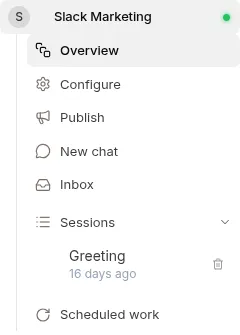
Open an agent from Agents in the left nav, then click New chat in the agent’s left navigation (between Publish and Inbox). The composer opens with a Send a message... field; you’ll see Commands / Skills / Scheduled Tasks shortcuts above it and an Add button for attachments.
What you’ll see in the thread
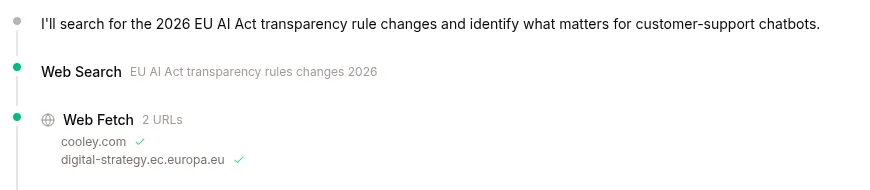
Section titled “What you’ll see in the thread”The agent streams its response in real-time, token by token. Tool calls render inline as bracketed events you can expand:
You: Compare our Standard and Pro plans.
Agent: I'll pull the pricing details for you.[kb_list_pages: pricing-kb][kb_read_page: plans/standard-vs-pro]Agent: Here's a comparison: ...
Bracketed items are tool calls — the agent searching a KB, calling an API, running code. Expand any of them to see args and results.
The workspace pane
Section titled “The workspace pane”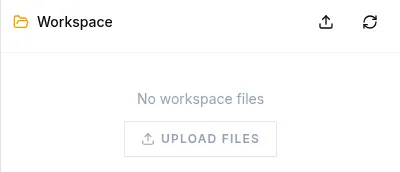
When the agent writes files, downloads documents, or generates artifacts, a workspace pane appears on the right with every file it touched. Markdown / code / CSV / images preview in-browser; download saves locally.
Files persist for the lifetime of the session and survive sandbox restarts. They’re cleared when the session ends or resets.
What the agent can do
Section titled “What the agent can do”Each agent has an allowlist of built-in tools set in its CONFIG tab:
| Tool | Purpose |
|---|---|
kb_list_pages, kb_read_page |
Browse and read any KB attached to this agent |
web_search, web_extract |
Public web research (Tavily / Exa) |
read_file, write_file, patch |
Read and modify workspace files |
terminal, process |
Shell + code execution in the isolated sandbox |
vision_analyze |
Image analysis |
browser_* |
Drive a real Chromium browser (with user-handoff for login / MFA) |
consult_expert |
Delegate a hard task to a fine-tuned expert |
create_artifact |
Render a chart, table, HTML, or SVG inline |
The agent picks. You describe what you want.
Composer
Section titled “Composer”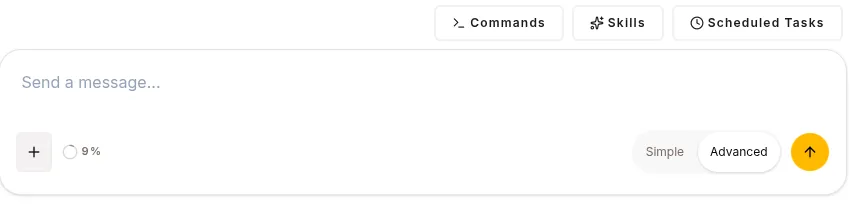
| Control | What it does | Always visible? |
|---|---|---|
| Text field + Submit | Send a message | yes |
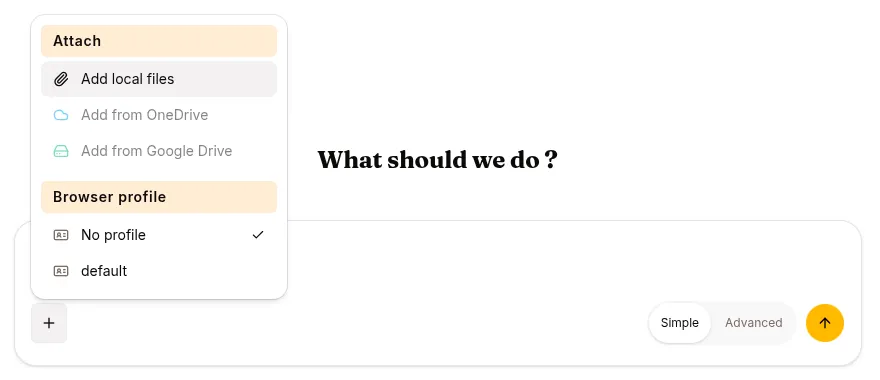
Add (+) |
Attach a file to the message (CSV, screenshot, document, …), and pick the session’s browser profile | yes |
| Simple / Advanced | Switch between the conversation alone and every step the agent took | yes |
| Commands | Slash commands: /clear, /compress, /goal, /loop |
Advanced only |
| Skills | Invoke a skill by name: /<skill-name> |
Advanced only |
| Scheduled Tasks | View /loop schedules for this agent |
Advanced only, and only when /loop is enabled for the agent |
The three shortcut buttons sit above the composer and appear only in Advanced view — in Simple view the composer is just the text field, the + and the view switch. You can always type the slash command directly instead; the palette opens as soon as the message starts with /.
/goal is documented in Goals. The Copilot (⌘+/) is in Copilot.
Interrupting mid-stream
Section titled “Interrupting mid-stream”The Submit arrow becomes a Stop button while the agent is responding. Hitting it interrupts the current turn; the partial work is preserved in the event log and the next message resumes from there.

Cross-channel sessions
Section titled “Cross-channel sessions”If you’ve linked a Slack or Telegram identity to your Surogate account, a session that started on the web continues on Slack (same event log, same memory). The Web channel shows everything — tools, files, reasoning — that messaging channels usually drop. Use Web for deep dives.