

Chatting with an agent
The chat is where you actually talk to an agent — type a message, watch it reason and act, attach files it can work on, and steer a turn with slash commands. This page covers the composer and the controls that live around it. Open a chat from an agent’s left navigation or at /work/agents/<agentId>/chat.
Sending a message
Section titled “Sending a message”
Type in the composer (the placeholder reads Send a message…) and press Enter to send. Shift+Enter inserts a newline instead of sending, so a message can span multiple lines.
Once you send, the agent’s reply streams back token by token in the thread as it thinks and works. While a turn is running, the send button becomes a stop control — click it to interrupt the agent mid-turn. When the turn finishes, the composer is ready for your next message.
The composer is disabled (with an explanatory placeholder) when the session can’t take input — for example a read-only view of a scheduled run, or an agent that isn’t running.
Adding local files and attachments
Section titled “Adding local files and attachments”Click the + (Add) button on the left of the composer to open the attach menu, then choose Add local files to pick files from your computer. You can also drag and drop files straight onto the composer. (The menu also lists Add from OneDrive and Add from Google Drive, which are placeholders and currently disabled.)
Picked files appear as a preview strip above the input; remove one before sending if you change your mind. Send the message and the attachments go with it.
What the agent does with them
Section titled “What the agent does with them”- Images are sent inline to the agent on that turn, so a vision-capable model can actually see them. They are also saved into the session workspace alongside other uploads.
- Other files (documents, spreadsheets, code, archives, audio, video) are written into the session workspace, where the agent can open and work on them. Text and document files additionally have their content inlined into your message so the model can read them immediately. Filenames are sanitized on the way in as a prompt-injection guard.
Limits
Section titled “Limits”The composer rejects a pick that breaks any of these caps before uploading, and surfaces the reason as a toast:
| Limit | Value |
|---|---|
| Images per message | 5 |
| Max size per image | 20 MB |
| Non-image attachments per message | 10 |
| Max size per attachment | 50 MB |
| Total attachment bytes per message | 200 MB |
| Accepted types | Any type that matches the composer’s accept filter |
Choosing a browser profile
Section titled “Choosing a browser profile”
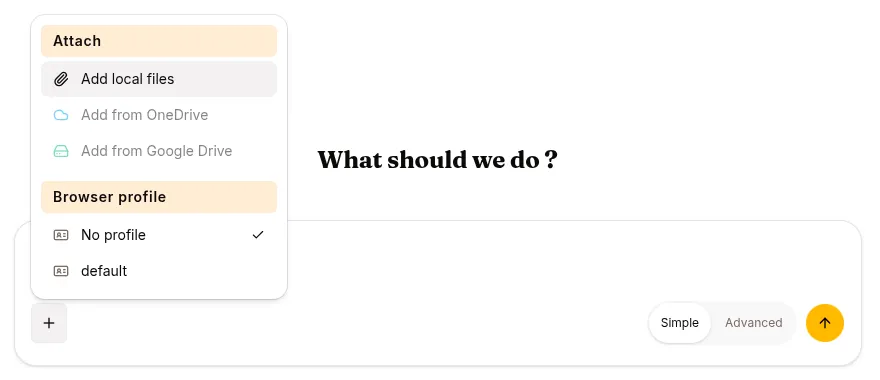
When an agent has the Agent browser enabled, the composer shows a browser-profile selector (an ID-card icon). Use it to start the session with a saved, already-logged-in browser profile so the agent browses as you — signed in to the sites you captured — instead of starting from a blank browser.
A few rules, because a profile is bound to a session at creation:
- Pick the profile before you send the first message — click the ID-card icon and choose a profile from the list (or No profile to browse anonymously). The selected profile shows Active.
- Send your first message; the session is created with that profile attached.
- Once a session is active the picker locks — the icon is disabled with a tooltip explaining a profile must be chosen before the session starts. To use a different profile, start a new session.
The selector only appears for agents that support a live browser. See Browser profiles for how to create and manage the profiles it lists.
Answering a question the agent asks
Section titled “Answering a question the agent asks”When the agent calls ask_user_question, a tabbed question widget appears in the thread. You can answer via the widget — or just type your reply in the composer: while the question is pending, a plain text message is consumed as the answer. Text that exactly matches a choice label (case-insensitive) selects that choice; anything else is recorded as a free-form “Other” answer; a multi-question prompt receives your whole reply against each question.
Exclusions worth knowing: a message with images or attachments is always an ordinary message, the shortcut stops working as the question’s 30-minute window closes, and once an answer exists (widget or typed) later messages are ordinary messages again.
Simple and Advanced view
Section titled “Simple and Advanced view”A Simple / Advanced toggle sits in the composer footer. It changes how much of the agent’s work you see; it does not change what the agent is allowed to do.
| View | What it shows |
|---|---|
| Simple (default) | The conversation, front and center. Infrastructure plumbing is hidden — file listing/search, skill bookkeeping, memory and process calls, shell commands, code execution, and browser steps are collapsed away, and the workspace pane is hidden so the reply stays the focus. You see what the agent accomplished, not how. |
| Advanced | The full picture. Every tool call renders with its command and output, the workspace pane is shown, and a row of quick-launch buttons appears above the input — Commands, Skills, and Scheduled Tasks — that open the slash menu pre-scoped to that category. |
Switching to Simple keeps the agent’s behaviour identical; it only trims the transcript. The quick-launch buttons are an Advanced-only convenience — the slash menu itself is always available by typing / (see below), in either view.
Slash commands from chat
Section titled “Slash commands from chat”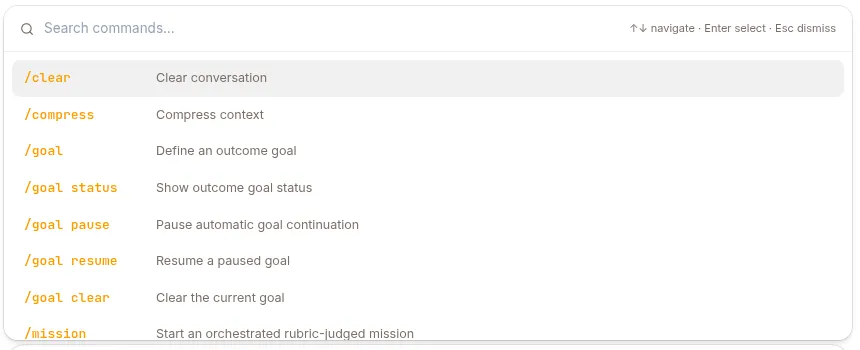
The composer supports slash commands. Type / as the first character of a message and a menu opens with the built-in commands and any skills attached to the agent; keep typing to filter. Everything after the command name is passed as its arguments.
See Slash commands for the full list (/clear, /compress, /goal, /mission, /code, /deep-research, and more) and the per-agent capability toggles that gate them.
Invoking skills from chat
Section titled “Invoking skills from chat”Any /<skill-name> that isn’t a built-in command is resolved as a skill attached to the agent. Type / and the skill name (the slash menu lists the skills this agent actually has), then add your request after it:
/research vector databasesThe agent inlines that skill’s instructions before acting on your message. See Skills for how to find, attach, and improve the skills that show up here.
Scheduling tasks from chat
Section titled “Scheduling tasks from chat”Use /loop from the composer to schedule a prompt to run on a recurring interval — or self-paced when you give no interval:
/loop 15m triage new PRs assigned to meThe slash menu suggests ready-made examples and the /loop list and /loop cancel <id> management commands. Scheduled loops then show up on the agent’s Scheduled work page, which is also where you manage and inspect their runs.
Related pages
Section titled “Related pages”- Slash commands — every
/command and its capability toggle. - Skills — find, attach, and improve the skills you invoke with
/<skill-name>. - Scheduled work — where
/loopschedules live. - Browser profiles — saved logins the profile picker offers.
- Inbox — questions and approvals an agent raises back to you.