

Skills
A skill is a small markdown file (a SKILL.md) that tells the agent how to handle a specific kind of request. Think of skills as reusable mini-prompts — procedural memory the agent loads when a request looks relevant.
Builders write skills more deeply — frontmatter, conditional activation, the override model. You’ll find that in Develop mode → Skills. This chapter is the operator’s view: how to find, add, edit, publish, and attach skills.
Where skills live
Section titled “Where skills live”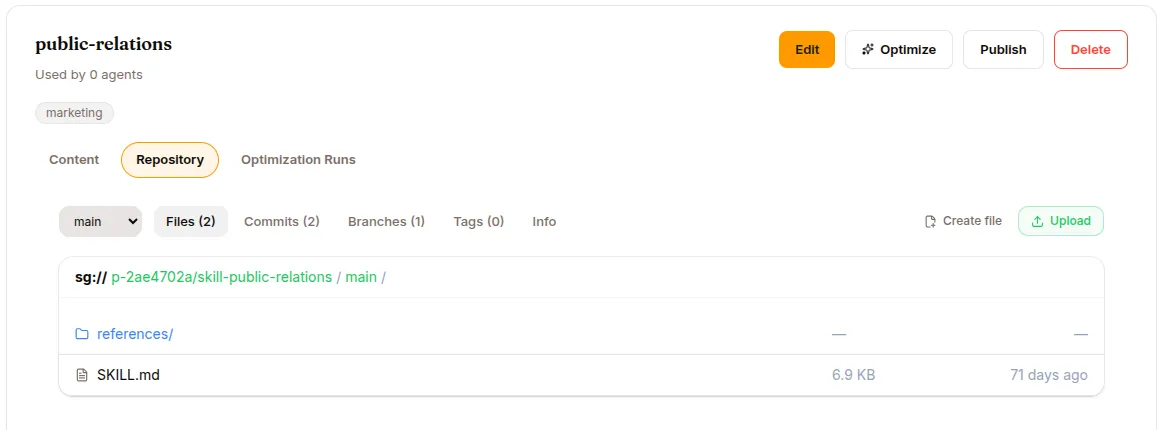
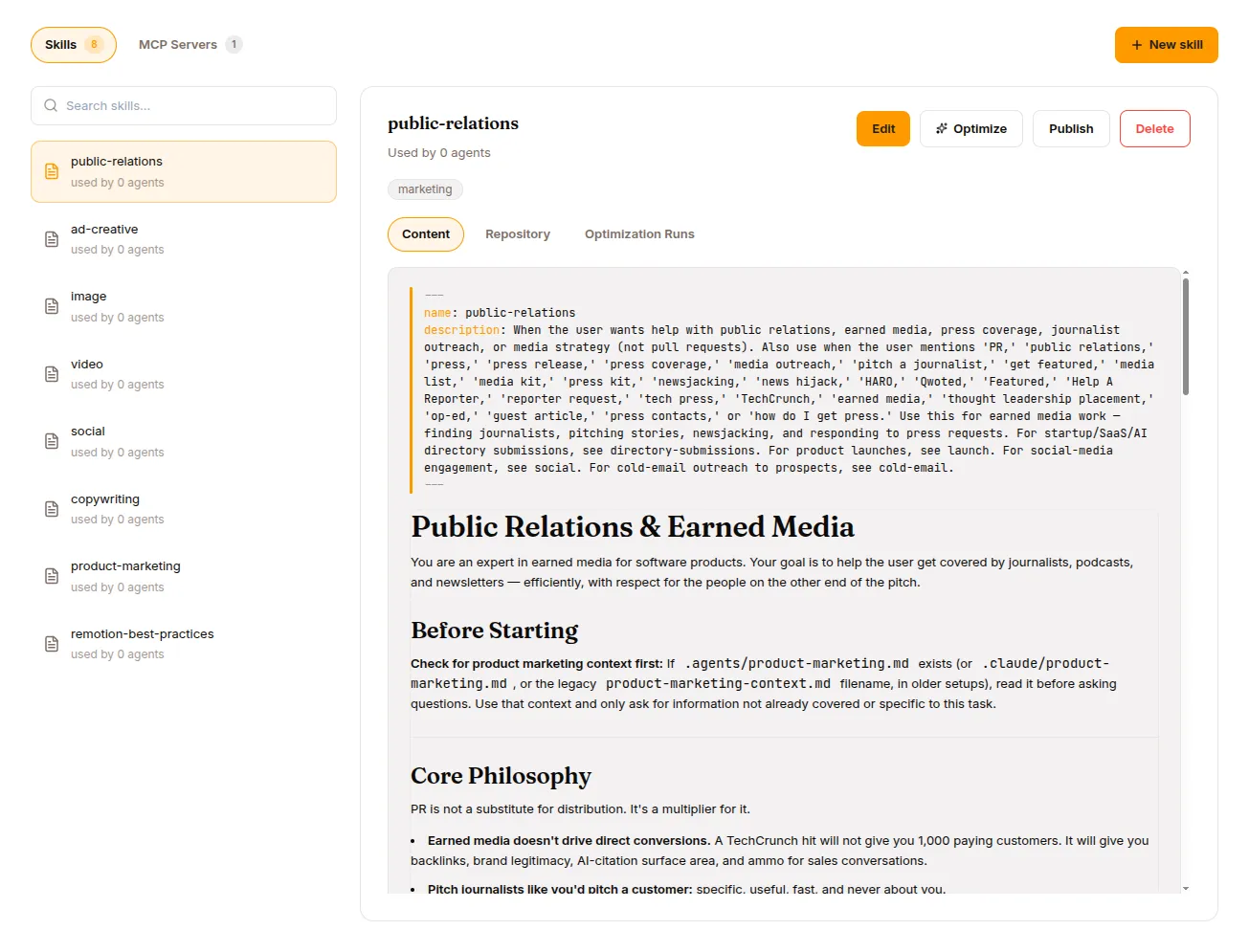
Library → Skills & Tools → Skills tab. (The page is titled “Skills & Tools” and carries two tabs: Skills and MCP Servers.) Layout:
- Left rail — a search box (
Search skills…), a New skill button, then the list of every skill in your workspace. Each row shows an icon, the display name, and aversion · used by N agentsline. - Right pane — detail for the selected skill: the display name + a version chip, a Used by N agents line, Edit / Publish / Delete, its tags, and inner Content / Repository tabs.
The Content tab renders the skill’s frontmatter (name / description / trigger) above the rendered markdown body. The Repository tab (shown once the skill has been provisioned in the Hub) opens a file browser over the skill’s git-backed repo.
Platform-default skills that the runtime loads on its own (the built-in process skills like brainstorming or systematic-debugging) don’t appear in this list — it shows only the skills your workspace has created.
You can still change how one behaves: create your own skill with the same name and attach it to the agent. An attached skill shadows the platform default of the same name for that agent — the built-in isn’t deleted, just superseded. Detach yours and the original comes back.
The SKILL.md format
Section titled “The SKILL.md format”A skill is YAML frontmatter followed by a markdown body:
---name: tldrdescription: Summarize text into one tweet-length sentencetrigger: tldr, tweet-length, one-sentence summarytags: [summarize, writing]---
When asked to give a tldr, produce exactly one sentence of 240characters or fewer that captures the most important fact. Nopreamble, no "Sure!" prefix, no quotation marks. Just the sentence.
Frontmatter fields:
| Field | Required | Notes |
|---|---|---|
| name | Yes | Unique slug used to reference and invoke the skill (agent catalog, slash commands). Lowercase letters, digits, -, ., _; must start with a letter/digit; ≤ 64 chars. Fixed after creation. (The Studio From scratch form is stricter — lowercase letters, digits, and hyphens only — so use hyphens there; ./_ names come in via import or the API.) |
| description | Yes | One line — what the skill does and when to use it. The agent reads this to decide whether to apply the skill, so be specific and action-oriented. |
| trigger | No | Comma-separated keywords describing when the skill is relevant. Surfaced to the agent as a hint. |
| tags | No | Labels for organizing and filtering in the studio. |
| tools | No | The tools this skill is allowed to invoke. |
The body must be non-empty — it’s the actual instruction set the LLM follows. Only name and description are mandatory.
Adding a skill
Section titled “Adding a skill”Click New skill in the Skills tab. This opens an Add a skill panel with a three-way segmented control:
| Tab | What it is |
|---|---|
| Browse | The curated template library. A category rail on the left, a searchable template list in the middle, and a read-only preview on the right (description, triggers, “View full content”). Click Add to Library to import a template as your own editable copy. |
| From scratch | A form: Name, Display Name, Description, Trigger, Tags, and a markdown editor for the content. |
| Import | Drop in a SKILL.md file or a .zip archive (e.g. one exported from agentskills.io). Every file in the archive is uploaded to the skill’s repository. |
All three land the skill in your workspace Library; from the agent’s own Skills & Tools tab (see below) they additionally auto-attach it to that agent.
Create a skill from a chat
Section titled “Create a skill from a chat”You don’t have to use the form at all. Agents ship with a built-in skill_manage tool: when you finish a difficult, multi-step task in a session, the agent can offer to save the approach as a skill (skill_manage(action='create')), and can patch an existing skill when it finds it stale or wrong. Skills created this way go to the user’s skills directory and follow the same SKILL.md format. This is often the easiest way to grow a good skill library — let the agent capture procedures it just worked out.
Writing a useful skill
Section titled “Writing a useful skill”The minimum skill (see the tldr example above) is a working skill: fill in From scratch, click Create skill, then Publish and attach it.
Rules of thumb
Section titled “Rules of thumb”- Be specific about output, not vibes. “Produce 3-5 bullets, each under 20 words” beats “be thorough.”
- Show one example. A concrete example saves a paragraph of prose. LLMs are much better at imitating than inferring.
- List forbidden behaviours explicitly. “Never include the internal ticket ID” beats hoping the agent figures it out.
- Keep triggers precise.
trigger: refund request, refund policy, customer wants money backis better thantrigger: help, refund. Loose triggers cause cross-contamination — the skill fires on unrelated messages.
What NOT to put in a skill
Section titled “What NOT to put in a skill”- The agent’s identity (“You are a friendly support agent…”) — that’s SOUL.md (see Improve your agent).
- Long lists of facts — those are knowledge base material (see Knowledge bases).
- Workflow that touches many features — that’s a use case (see Use cases).
Editing a skill
Section titled “Editing a skill”Skill detail → Edit. You can change everything except the name (the slug is locked once the skill exists). Saving rewrites the skill’s SKILL.md on the Hub and republishes the bundle of every agent that has the skill attached, so an edit reaches the runtime — but only on the next session.
Publishing — versioning your skill
Section titled “Publishing — versioning your skill”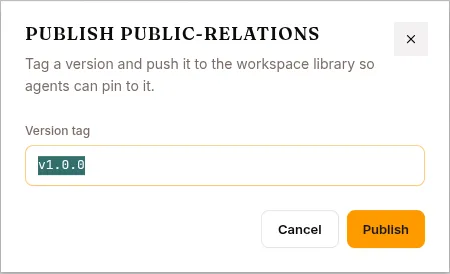
Every skill is stored in a small git-backed repo in the Hub under your project. Click Publish on a skill to create a tag such as v1.0.0. Why this matters:
- Immutability: once published, the tag doesn’t change. Editing creates new commits; you have to Publish again to cut a new tag.
- Rollback: if a new version regresses, you can re-attach the previous tag.
- Audit: sessions record which skill version they used.
The Publish dialog asks for a Version tag (it pre-fills the current version, or v1.0.0 for a first publish). Use semantic versioning if you like; nothing enforces a format.
Note that attaching a skill to an agent pins the main branch by default (always-latest), not a specific tag — tags exist for when you want to pin.
Attach to an agent
Section titled “Attach to an agent”Open the agent → Configure in the left nav → the Skills & Tools tab. Two ways in:
- Attach from your Library — pick one or more existing skills and attach them in a batch.
- Add skill — the same Browse / From scratch / Import flow, which creates the skill and attaches it to this agent in one step. (In the agent view these appear as three cards: Start from a template, Write from scratch, Import a file.)
The agent hot-reloads on the next session. Existing in-progress sessions keep their old skill list. To remove a skill, use Detach on the skill row — it stays in your Library and can be reattached anytime.
When the agent isn’t using your skill
Section titled “When the agent isn’t using your skill”A common frustration: you wrote and attached a skill, the agent should be using it, it isn’t. Three things to check:
- Did you start a NEW session? Skill changes (and edits) don’t apply to in-progress sessions.
- Are the triggers specific enough? The LLM compares the user’s message against the description and triggers. Vague triggers fire on everything; overly specific triggers fire on nothing.
- Does the skill need a tool the agent doesn’t have? If the skill’s
toolslist names a tool the agent’s config denied, the skill can’t run it. Either grant the tool or drop the requirement.
The session’s Skills panel shows which skills loaded into context. If yours isn’t there, the filter is hiding it.
Expert skills
Section titled “Expert skills”Flip the Is Expert switch (in the From-scratch/Edit form) to turn a skill into an expert — a skill backed by its own deployed model that the base LLM can delegate to. Instead of just injecting instructions into the base model’s context, an expert runs its own mini agent loop on its own model and hands the answer back. This is how you attach an LLM that’s specialised in one thing (a fine-tuned coder, a domain classifier) inside an ordinary agent.
An expert skill carries extra configuration beyond the standard frontmatter:
- Deployed model — the model that backs the expert. Its endpoint is derived from the selected model; the skill can’t be activated until that model is actually serving.
- Max iterations — how many tool-call rounds the expert may take before giving up.
- Allowed tools — the tools the expert may use during delegation (e.g.
read_file,search_files,list_files,patch,write_file,terminal,web_search,web_extract). - Generation parameters — optional sampling overrides (temperature, top_p, top_k, max_tokens, repetition_penalty); blank means use the model default.
In the SKILL.md this surfaces as type: expert in the frontmatter plus the model / endpoint / max_iterations / expert_status / generation fields. The skill’s markdown body doubles as the expert model’s system prompt.
Lifecycle
Section titled “Lifecycle”Experts have a status: draft → active → retired. The expert detail panel shows the backing model, a usage tally, and an Activate / Retire button. Don’t trust the tally — it isn’t wired up and reads zero no matter how much the expert has run. Judge an expert by reading the sessions that used it.
- Activate publishes the expert as live. It’s refused unless the backing model has a working serving endpoint — otherwise
consult_expertwould fail at runtime with “no endpoint configured.” Deploy/serve the model first. - Retire takes it out of rotation: the base LLM stops delegating to it.
When the base LLM sees a request matching an active expert’s trigger, it calls consult_expert; the expert runs its loop and returns an answer, which the base model reviews and either accepts or adjusts. For operators, the practical read: experts cost money to serve, so they earn their keep when a specific task recurs often and the default model gets it wrong often enough to matter.
Delete a skill
Section titled “Delete a skill”Skill detail → Delete. A pre-flight check warns you if any agent currently has the skill attached (and blocks the delete while it’s actively in use — detach it first). The confirmation is deliberate: you have to click Delete to proceed. Deleting also drops the skill’s Hub repo.
What’s next
Section titled “What’s next”If you’ve never built a knowledge base, read Knowledge bases. For the tool side of this tab, see MCP servers. If you want a worked end-to-end example, jump to Use cases.