

Copilot (⌘+/)
The Copilot is an AI agent that drives the platform itself. Press ⌘+/ (Mac) or Ctrl+/ (Windows/Linux) anywhere in ops.surogate.ai.
A drawer opens with a chat composer. Ask in natural language; the Copilot calls the platform’s tools and reports back.
What it can do
Section titled “What it can do”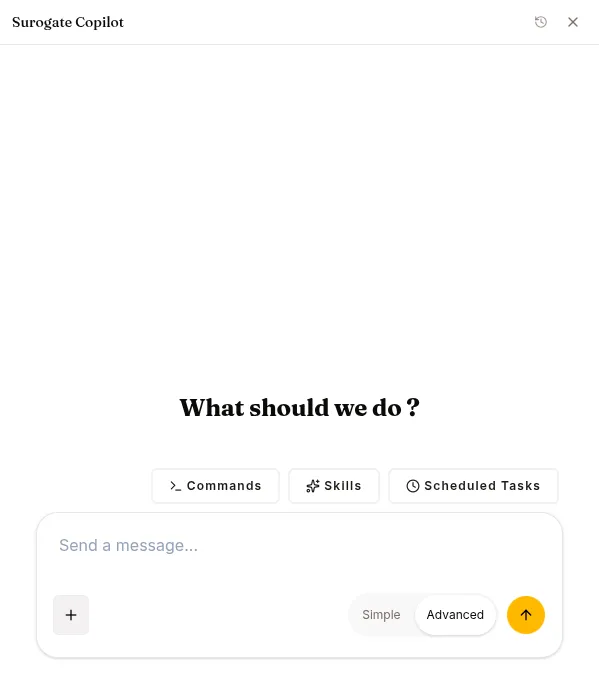
Read operations (always enabled):
- “What agents do I have running?”
- “Which agent had the most sessions yesterday?”
- “Find sessions where the agent thumb-downed in the last week.”
- “Show me the latest training run for sql-writer.”
- “What skills does my customer-support-bot have attached?”
Write operations (live — with a confirmation step for risky actions, see below):
- “Create a skill called
weekly-summarythat produces 5-bullet summaries.” - “Attach the
acme-productKB to my customer-support-bot.” - “Scale customer-support-bot to 5 replicas.”
- “Delete the test-summarizer-bot agent.”
- “Start training run with the conversations dataset.”
The Copilot calls the platform’s REST API on your behalf. You see the same effects as if you’d clicked through the UI.
The CLARIFY confirmation
Section titled “The CLARIFY confirmation”For destructive or expensive operations, the Copilot is required to ask first. You’ll see a Yes/No confirmation card inside the chat:
The Copilot wants to delete agent `test-summarizer-bot`. This will:
- Remove the agent's URL (test-summarizer-bot.cloud.surogate.ai)- Detach 1 skill and 1 knowledge base- Preserve session history in the audit log
Proceed?
[ Yes, delete ]   [ No, cancel ]
Operations that require CLARIFY:
| Operation | Why |
|---|---|
delete_* (any kind) |
Irreversible |
start_training |
Burns GPU hours |
deploy_model |
Burns GPU hours |
scale_agent to higher replicas |
Cost increase |
start_agent when current status is error |
Triggers a re-deploy |
Routine writes (create_skill, update_skill, create_dataset, create_knowledge_base, stop_agent, cancel_training) don’t require CLARIFY — the Copilot proceeds directly.
Conversation history
Section titled “Conversation history”The Copilot drawer keeps a history menu in its header (the clock/history icon). Open it to switch between past Copilot conversations, rename them, or start a new chat — each conversation is its own session and resumes where you left off.
What the Copilot can’t do
Section titled “What the Copilot can’t do”- It has no browser tool. By design — the Copilot works from the platform’s own tools, not the open web. If you want to scrape or navigate a site, use a regular agent with
browser_*tools. - It can’t see all sessions in your org — only the ones in your current project. Use the Sessions view for tenant-wide observability.
- It can’t change billing, manage Stripe, change your password, or other deeply personal admin ops. Those still go through Settings.
When the Copilot misbehaves
Section titled “When the Copilot misbehaves”The most common issue: it tries to list resources via a tool that doesn’t exist (a known bug — read_resource is in its allowlist but not implemented). Workaround: ask the question in a way that doesn’t require enumeration. Example:
- ❌ “Tell me about my knowledge bases.”
- ✅ “What knowledge bases does my customer-support-bot have attached?” (specifies the agent, scopes the lookup)
If the Copilot returns 401 (“Invalid base LLM token”), it’s an admin-side config issue. Contact whoever runs your tenant.
Keyboard shortcuts
Section titled “Keyboard shortcuts”- ⌘+/ (or Ctrl+/) — open the drawer
- Esc — close the drawer
- Enter — submit the current message
- Shift+Enter — newline in the composer
What’s next
Section titled “What’s next”Other tools: Goals (/goal), Inbox.