

Web channel
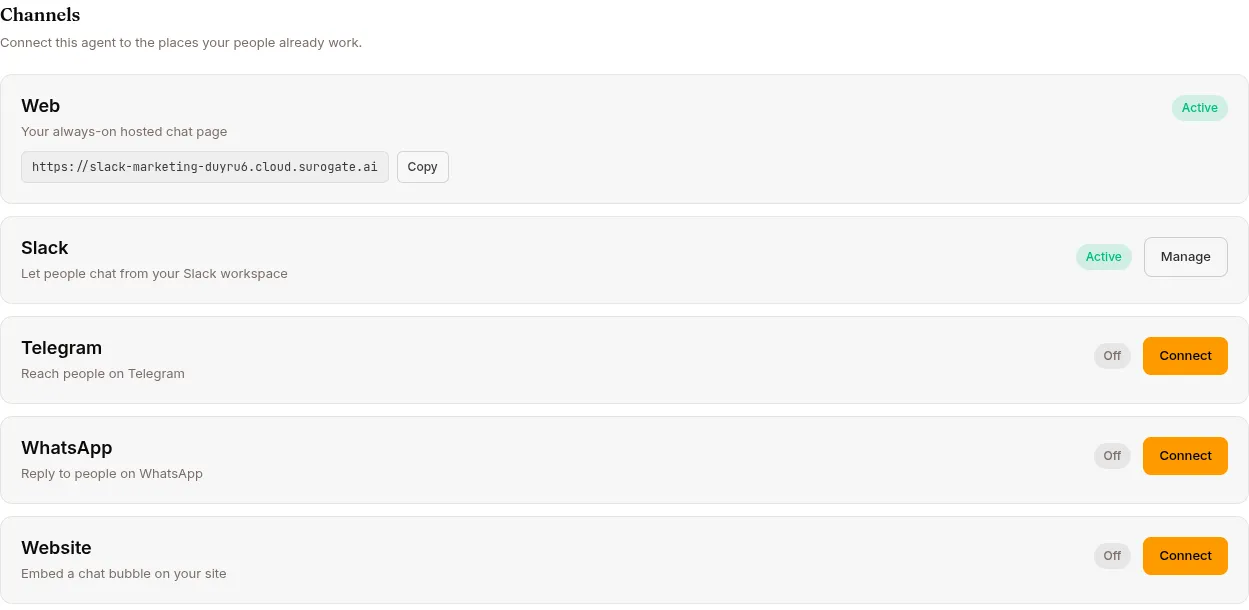
The Web channel is always on for every deployed agent. Once the agent is running, anyone with the URL https://<slug>.cloud.surogate.ai can sign in and chat. On monetized agents, the web app is also the one channel a buyer’s package can never exclude — every purchase includes it.
What users see
Section titled “What users see”A clean, branded chat UI with:
- The agent’s name and avatar
- A composer at the bottom
- A session history sidebar (their own sessions only)
- File upload + download
- A live browser pane (when the agent’s Live browser support capability is on)
- An inbox icon for items needing the user’s attention
This is the customer-facing Web UI — a separate React app from ops.surogate.ai. Each user only sees what they’re allowed to see (their sessions, their files).
If the agent’s AI disclosure is on (Configure → Governance), a disclosure banner is shown before interaction — Accept records a disclosure.confirmed event, Decline blocks interaction. See Governance & AI disclosure.
Answering the agent’s questions
Section titled “Answering the agent’s questions”When the agent asks something via ask_user_question, a tabbed question widget appears — but users can also just type their reply in the composer and it’s consumed as the answer: an exact match on a choice label picks that choice, anything else is recorded as “Other”. Messages with images or attachments stay ordinary messages, and the shortcut expires with the question (30 minutes).
The inbox spans a user’s agents
Section titled “The inbox spans a user’s agents”A user’s inbox is scoped to the user, not to the agent whose app they happen to be in — so someone with accounts on several of your agents sees every agent’s items in one list. Opening an item that belongs to a different agent opens that agent’s app in a new browser tab, at that session; items for the current agent open in place.
Single-session agents
Section titled “Single-session agents”When the agent’s Multi session capability is off, each user gets one dedicated conversation and always returns to it: no “New chat”, no session list — the sidebar shows a Chat button that reopens their conversation from anywhere in the app (their other sessions stay hidden until the capability is turned back on).
Who can sign in
Section titled “Who can sign in”Two modes:
- Anonymous (default): visitors use the agent without an account. Each browser session gets a UUID stored locally; subsequent visits resume the same Surogate session.
- Authorised users only: open the agent → Publish in the left nav → the Users tab → Add user for each authorised email — or turn on self-registration.
For authorised users, they sign in with the credentials you set (email + password, Google SSO, or GitHub SSO). Signed-in turns are metered against the user’s per-user allowance; when a limit is hit, the composer shows a clear message — with a buy link on monetized agents.
The user’s Settings page
Section titled “The user’s Settings page”Signed-in users get their own Settings page with up to five tabs — three of them appear only when the matching capability is on:
| Tab | Shown when | What’s there |
|---|---|---|
| Profile | Always | Display name (editable), email (read-only — “Your sign-in email cannot be changed here.”), member-since, and password controls (below) |
| Connected Channels | The agent has at least one active messaging channel (Slack / Telegram / WhatsApp) | Linked channel identities, per-row unlink, Link a channel |
| Plan & Usage | Always | Their plan and renewal date, usage / browsing / media balances, “Your plan includes …”, and your offers — see Monetize |
| Coding Agents | The /code command is enabled |
Their coding-agent plans |
| Browser Profiles | Live browser support is on | Their saved browser logins |
Password controls, by account type
Section titled “Password controls, by account type”Which password affordance a user sees follows how they sign in — recorded server-side, so it stays correct even after an SSO session lapses:
- Accounts you created on the Users tab (local accounts) → an in-app change-password form (current + new + confirm, 8-character minimum).
- Self-registered with email/password (Firebase) → a Send reset email button. The confirmation toast is deliberately neutral — it never reveals whether an address is registered.
- Signed in with Google or GitHub → no password UI at all; their provider owns the credential. If such a user asks how to change their password, that’s the answer.
Linking a messaging channel (/link)
Section titled “Linking a messaging channel (/link)”When a channel runs in Personal assistant mode, users pair their Slack / Telegram / WhatsApp identity with their web account:
- The user messages the agent on the messaging channel; the bot replies privately with an 8-character code (like
A3F7-K9M2) and a link to<agent-url>/link. - On the
/linkpage they enter the code (Verify code shows which platform it’s from), then click Link account. Opening a link with?code=pre-fills and verifies automatically. - The identity appears under Connected Channels; unlinking warns that a fresh pairing code will be needed to re-link.
Codes last 10 minutes, are single-use, and are minted at most once per user per 10 minutes. See Users for the operator-side picture.
The endpoint
Section titled “The endpoint”https://<agent-slug>.cloud.surogate.ai
The slug is set when you deploy the agent (the URL is what your team and customers will see, so pick something readable).
You can’t change the slug after deployment — only via the dedicated Rename button on the agent’s Configure page.
Customising the look
Section titled “Customising the look”For now, branding is limited to:
- The agent’s name (shown at the top of the chat)
- The agent’s avatar (uploaded in Settings → Profile or via a preset picker)
- The favicon (tied to the agent slug)
Full white-label (custom domain, your logo, your colours) is on the roadmap. If you need it sooner, embed the Website widget on your own domain instead — see Website widget.
What’s next
Section titled “What’s next”If you want to also publish to Slack: Slack channel. For Telegram: Telegram channel. For WhatsApp: WhatsApp channel. Or for a customer site: Website widget.