

Authentication
The Authentication tab holds end-user sign-in configuration for your active project, at /work/settings/authentication (shared with Dev mode at /studio/settings/authentication).
Projects are hidden from the everyday UX — each account works against a single default project — so this tab always acts on whichever project is active in the navbar. If no project is active, it shows “No active project. Pick a project from the navbar to manage its settings.” The only knob today is BYO Firebase auth; more per-project authentication settings will land here over time.
BYO Firebase auth
Section titled “BYO Firebase auth”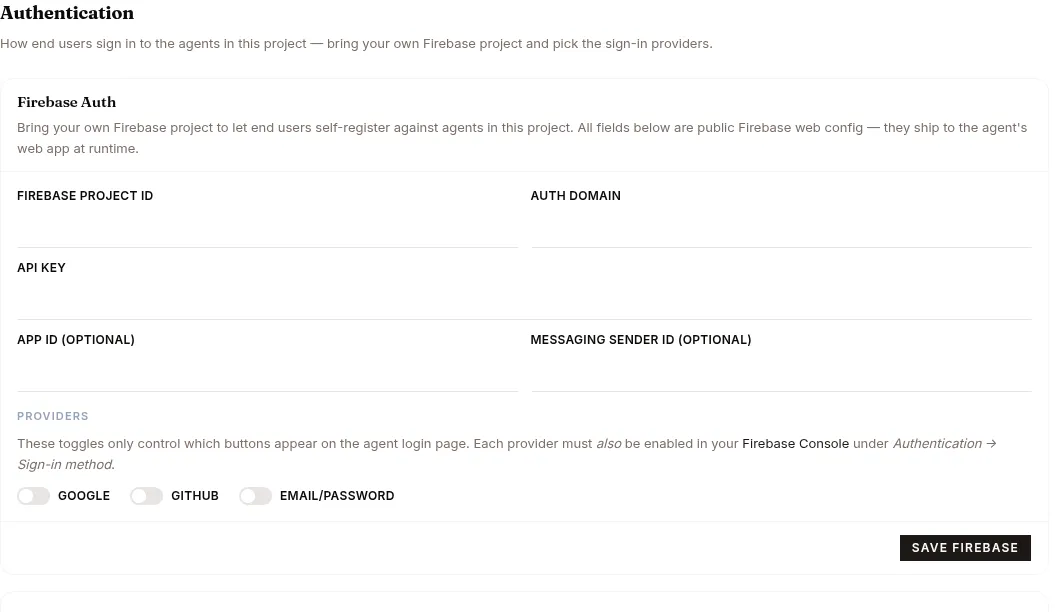
Bring your own Firebase project so end users can self-register against the agents in this project. Every value on this form is public Firebase web config — it ships to each agent’s web app at runtime. Surogate never sees your end users’ passwords or OAuth client secrets.
BYO Firebase is a paid feature. On a Free-tier project the form is shown but locked (read-only), with an upgrade prompt linking to Billing. The gate is enforced server-side, not just in the UI: saving or removing a config from a Free-tier project is rejected with an “upgrade to configure end-user sign-in” error even when called through the API directly.
Config fields
Section titled “Config fields”| Field | Required | Notes |
|---|---|---|
| Firebase project ID | Yes | Maps to Firebase config projectId. |
| Auth domain | Yes | Maps to authDomain. |
| API key | Yes | Maps to apiKey (public web API key). |
| App ID | Optional | Maps to appId. |
| Messaging sender ID | Optional | Maps to messagingSenderId. |
The three required fields must be non-empty — blank values are rejected on save rather than silently stored as a broken login config.
When a configuration is saved, a configured badge appears on the section header.
Providers
Section titled “Providers”Three sign-in providers can be toggled on: Google, GitHub, and Email/Password. These switches only control which buttons appear on the agent login page — each provider must also be enabled in the Firebase Console under Authentication → Sign-in method.
Actions
Section titled “Actions”- Save Firebase — persists the form to the active project.
- Remove Firebase — appears only once a config exists. Prompts for confirmation and warns that self-registered users won’t be able to log in until Firebase is re-configured or they’re issued local credentials.
Setting up your Firebase project
Section titled “Setting up your Firebase project”The tab includes a step-by-step setup guide. In summary:
- Create a Firebase project in the Firebase Console, named for your agents’ end-user audience.
- Enable/disable Gemini or Google Analytics — your choice.
- Register a Web app inside the project and copy its config snippet into the form above (
projectId,apiKey,authDomain,appId,messagingSenderId). - Enable sign-in providers in Authentication → Sign-in method, then toggle the matching switches. Google works out of the box; GitHub requires registering an OAuth App on GitHub and pasting its Client ID + secret into Firebase; Email/Password just needs to be toggled on.
- Authorize your agents’ domains under Security → Authentication → Settings → Authorized domains (e.g. the
*.cloud.surogate.aihost your agent is served from). - Save the form — running agents pick up the change automatically within a minute; no restart or redeploy is needed.