

Connect compute
The Compute page is where you wire up cloud GPU providers, watch what’s running, and set scaling policies. This page walks through the onboarding — the tabs, connecting a provider, and browsing the instance types a backend offers. For the conceptual overview of why and when to connect a provider, see Compute.
In-app path: Develop → Compute (/studio/compute, which lands on the Cloud tab).
The Compute tabs
Section titled “The Compute tabs”The Compute header (/studio/compute) carries a tab bar with two tabs:
| Tab | Path | What it shows |
|---|---|---|
| Cloud | /studio/compute/cloud |
Connected providers, active cloud instances, cloud spend, and the provider connect grid. |
| Workload Queue | /studio/compute/workload-queue |
Everything currently consuming compute — training, serving, eval, tasks, synthetic. |
A third view, Policies, lives at /studio/compute/policies (auto-scaling & resource policies). It isn’t in the tab bar’s two buttons, but it’s a real page in the Compute section.
Cloud tab
Section titled “Cloud tab”The Cloud tab stacks a few cards:
- Connected providers — one row per connected backend. Each row shows the provider name and tagline, a status dot (green healthy, amber degraded), the instance count (or host count for SSH fleets), the hourly cost (or GPU count for SSH), and a Remove link. Removing a cloud backend disconnects it from the project and terminates its running instances; removing an SSH fleet only drops the configuration (no hosts are touched).
- Active cloud instances — one row per running cloud instance (Kubernetes instances are excluded), showing the workload name, the GPU · instance type, when it started,
$/hr, and a Terminate button. - Cloud spend — a Daily cloud spend bar chart over the last 30 days plus By job type and By project breakdown bars. Only shown once at least one provider is connected and spend was recorded.
- Connect a provider — the grid of provider cards (see below). When no providers are connected yet, the tab shows just this grid with an empty-state note.
Workload Queue tab
Section titled “Workload Queue tab”
A live table of everything running on your behalf — not a mockup. It merges four real backend sources, scoped to the active project:
- Training runs → shown as SFT (SFT/DPO) or GRPO (GRPO/PPO).
- Models → shown as Serving.
- Synthetic runs → shown as Synthetic.
- Managed jobs (
/api/compute/jobs) → shown as Task, including KB-compile (kb_compile) and synthetic-data pipeline jobs; theTYPE/method reads the underlying job kind (e.g.kb compile).
Rows sort active-first, then newest. Filter pills across the top narrow by type, each with a live count:
ALL · SFT · GRPO · SERVING · EVAL · TASK · SYNTHETIC
The table columns are:
| Column | Meaning |
|---|---|
| PRI | Queue position. Only queueable workloads (training, eval, synthetic) get a number; serving and tasks read —. |
| WORKLOAD | The run / deployment name. |
| TYPE | Training, serving, eval, task, or synthetic. |
| STATUS | With a colored dot (running, queued, provisioning, etc.). |
| GPU | e.g. 4× H100. |
| LOCATION | Where it’s running (local cluster or a cloud backend). |
| PROGRESS / ETA | Time estimate. |
| REQUESTED BY | Who launched it. |
Click any row to open the workload detail (logs, metrics). Opening a workload replaces the header with the detail view.
Policies
Section titled “Policies”The Policies view (/studio/compute/policies) lists auto-scaling & resource policies. A + New Policy button sits in the header. Each policy is a card with:
- An enable/disable Switch and the policy name.
- A “Triggered N times · last: …” line.
- An Edit button.
- A When (trigger condition) / Then (action) pair.
- Optional max spend and cooldown values.
Connecting a cloud provider
Section titled “Connecting a cloud provider”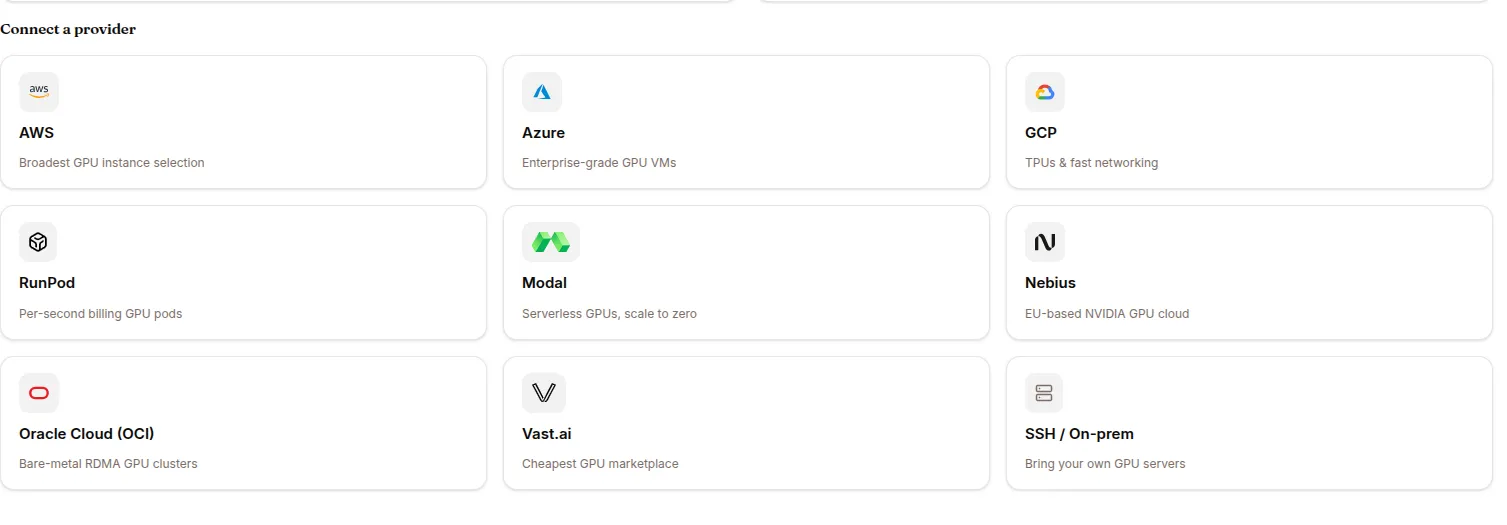
Click a card in the Cloud tab’s Connect a provider grid. That opens the connect page at /studio/connect-cloud?provider=<key>.
Nine backends are offered:
| Provider | Tagline |
|---|---|
| AWS | Broadest GPU instance selection |
| Azure | Enterprise-grade GPU VMs |
| GCP | TPUs & fast networking |
| RunPod | Per-second billing GPU pods |
| Modal | Serverless GPUs, scale to zero |
| Nebius | EU-based NVIDIA GPU cloud |
| Oracle Cloud (OCI) | Bare-metal RDMA GPU clusters |
| Vast.ai | Cheapest GPU marketplace |
| SSH / On-prem | Bring your own GPU servers |
On the connect page you’ll see:
- The provider’s icon, name, and tagline, with a Change link that jumps back to the connect grid.
- A collapsible How to connect section with provider-specific setup instructions.
- For every provider except SSH, an amber note: “Connecting lets the platform spin up GPU billed to your account at this provider.”
- The credential form (below). CONNECT verifies the connection (button reads “Verifying connection…”) before showing a success screen.
Credentials per provider
Section titled “Credentials per provider”| Provider | Fields |
|---|---|
| AWS | Access Key ID · Secret Access Key |
| Azure | Tenant ID · Subscription ID · Client ID (Application ID) · Client Secret |
| GCP | GCP Project ID · Service Account Key (JSON file — the project ID auto-fills from the key if left empty) |
| RunPod | API Key · Include Community Cloud toggle (adds cheaper, less reliable Community Cloud offers alongside Secure Cloud) |
| Modal | Token ID · Token Secret · Environment (defaults to main) |
| Nebius | Service Account ID · Public Key ID · Private key .pem file |
| Oracle Cloud (OCI) | User OCID · Tenancy OCID · Fingerprint · Home Region · Private Key (.pem file) |
| Vast.ai | API Key |
| SSH / On-prem | SSH user (default ubuntu) · SSH port (default 22) · Private key (pasted) · Host · optional bastion / proxy jump (hostname, port, user, key) |
The SSH / On-prem form lists host requirements up front (Docker pre-installed; CUDA 12.1 + NVIDIA Container Toolkit on GPU hosts; passwordless sudo; AllowTcpForwarding yes; firewall allowing SSH). On connect it probes each host and reports whether it’s reachable and what GPUs it found (e.g. 2× H100 (80GB) · 160GB total), so you can confirm before running workloads. Editing a saved fleet (?fleet_id=) pre-fills everything except the private key (leave blank to keep the saved key).
Backend offers — browsing instance types & prices
Section titled “Backend offers — browsing instance types & prices”Once a backend is connected, you can browse the instance types it offers at /studio/backend-offers?backend=<key>. The page title reads “{Provider} — Available Instances”.
Click Fetch available instances to load the offer list, then pick a row. The offer table has columns:
| Column | Meaning |
|---|---|
| Instance | The instance / machine type. |
| GPU | N× <GPU name> with GPU memory, or — for CPU-only. |
| vCPUs | vCPU count. |
| RAM | System memory. |
| Region | Cloud region. |
| $/hr | Hourly price, with a green spot badge on spot offers. |
A Spot instances checkbox filters the list to spot offers (cheaper, but may be terminated anytime). The picked offer is echoed above the table (GPU, instance, region, price).
Modal is the exception: instead of the generic offer table it shows a Modal GPU picker where you choose a GPU spec and save it as the backend’s default.