

MCP servers
The Model Context Protocol (MCP) is an open standard for connecting LLMs to external systems — your CRM, your ticketing tool, GitHub, internal APIs, anything that speaks MCP.
You wire a server up once in the Library; any agent in your workspace can then attach it and use its tools.
The MCP Servers tab
Section titled “The MCP Servers tab”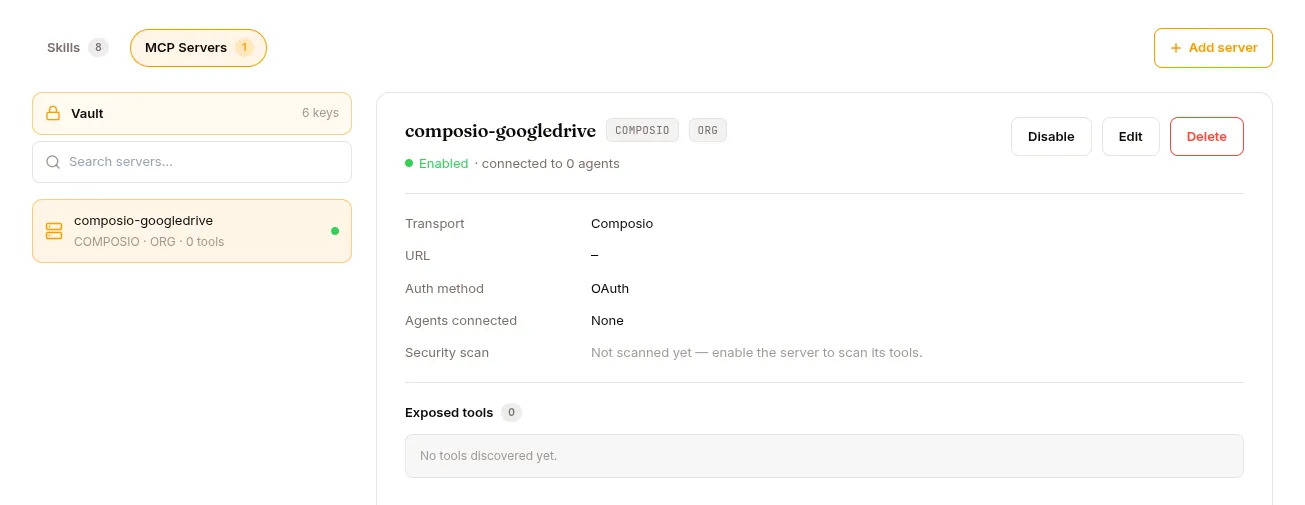
Library → Skills & Tools → MCP Servers tab.
- Left rail — a Vault button at the top (a lock icon, showing how many keys are stored), a search box, then the list of every server. Each row shows the server name and a
TRANSPORT · LAYER · N toolsline, with a green dot when the server is enabled. - Right pane — the selected server’s detail: name + transport/layer chips, an Enabled/Disabled status with the number of connected agents, Disable/Enable · Edit · Delete, the connection details, the auth method, the security-scan result, and the list of exposed tools.
Click any server to open its detail panel; click Add server (top right) to create one.
Adding a server
Section titled “Adding a server”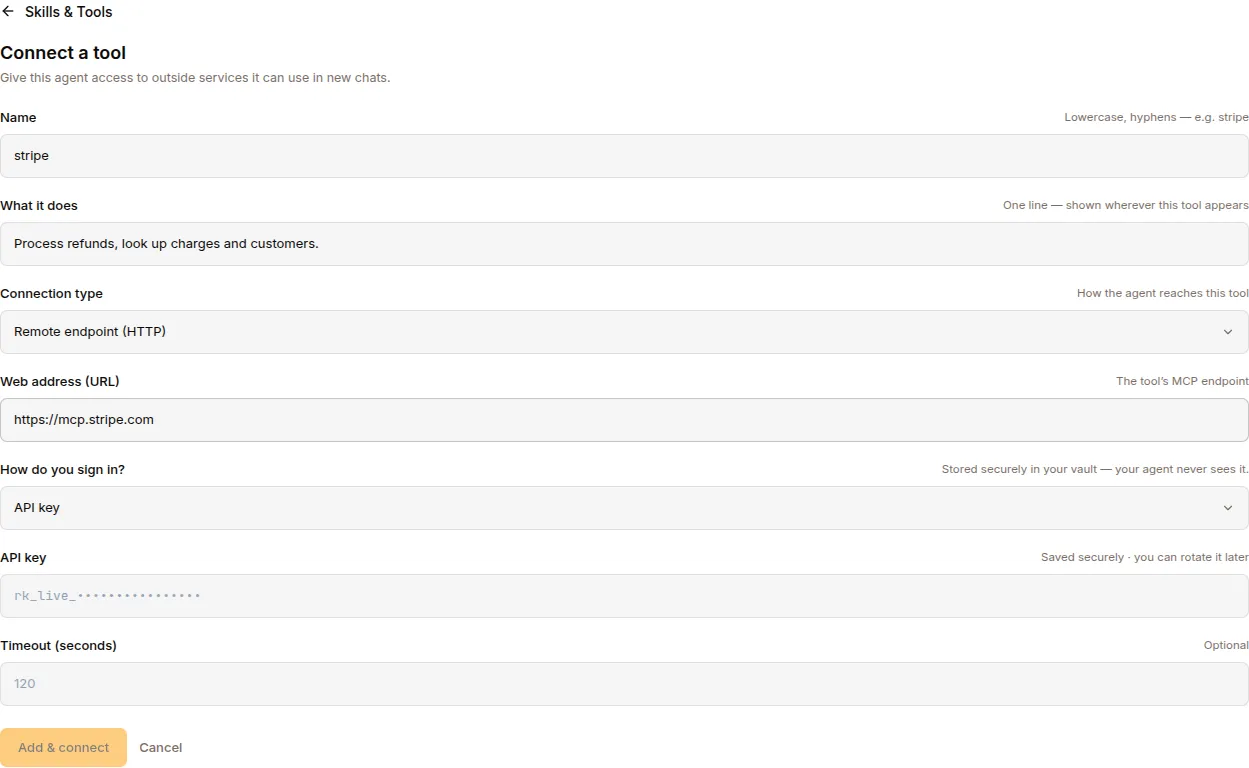
Click Add server. The form (“Add a server — connect an MCP endpoint, its tools become available to your agents”):
| Field | Notes |
|---|---|
| Name | Lowercase, hyphens (e.g. stripe, github). |
| What it does | One line, shown wherever the tool appears. |
| Connection type | Remote endpoint (HTTP) or Local command (stdio). |
| Web address (URL) (HTTP) | The tool’s MCP endpoint, e.g. https://mcp.stripe.com. |
| How do you sign in? (HTTP) | API key (stored in the Vault) or OAuth (sign in in a new window). |
| API key (HTTP + API key) | The key itself — saved securely to the Vault, your agent never sees it. |
| Command (stdio) | The full command that starts the server, e.g. npx -y @modelcontextprotocol/server-filesystem /workspace. |
| Environment (stdio) | Optional, one KEY=value per line. |
| Timeout (seconds) | Optional, defaults to 120. |
The submit button reads Add & connect (HTTP + API key), Connect (OAuth), or Add server (stdio). New servers are created enabled, at the user layer, and are mirrored into the runtime’s MCP registry so the proxy picks them up on its next discovery cycle.
What happens to your API key
Section titled “What happens to your API key”When you add an HTTP server with an API key, Studio does two things: it stores the key in the Vault (keyed by the server name), and it saves the server with a reference to that Vault entry — not the key itself. At runtime the MCP proxy resolves the reference and injects the key. The agent’s sandbox never sees the secret. See MCP & Vault for the full trust model.
Choosing a connection type
Section titled “Choosing a connection type”- Remote endpoint (HTTP / StreamableHTTP) — for cloud-hosted MCP servers (SaaS connectors, your internal API, third-party MCP services). The most common choice.
- Local command (stdio) — for tools that launch as a subprocess (CLI-like tools, MCP servers shipped as npm packages).
Authentication
Section titled “Authentication”- API key — a static key, passed as a header. Stored in the Vault, injected by the proxy.
- OAuth — for servers that require an OAuth 2.1 sign-in (Salesforce, Slack, GitHub, most enterprise SaaS). You sign in in a browser window; the platform stores the resulting connection (refresh token), not your password.
The proxy also supports Bearer token and no auth for servers configured directly; the Studio “Add server” form surfaces the two you’ll reach for most. Whatever the method, secrets live in the Vault and are injected by the proxy — never handed to the sandbox.
The Vault
Section titled “The Vault”The Vault button at the top of the left rail opens the credential store — where API keys, OAuth secrets, and other tokens the proxy needs live. Each entry shows its name and when it was added; you can Update it (set a new value) or Remove it. Values are write-only: they’re never displayed back to you.
Full detail — reference syntax, encryption at rest, config layers — is in MCP & Vault.
Enabling, disabling, and security scanning
Section titled “Enabling, disabling, and security scanning”The Enable / Disable button toggles whether the server is live. Enabling doesn’t run a synchronous scan in Studio — instead, the MCP proxy scans every tool a server advertises when it discovers them (at attach/connect time). The scanner:
- Runs each tool definition through checks for invisible Unicode (zero-width, bidi marks), hidden HTML comments, prompt-injection patterns, tool-poisoning descriptions, and schema abuse.
- Computes a SHA-256 fingerprint for each tool (for rug-pull detection).
- Drops any tool that fails; only passing tools are registered and offered to the agent.
The detail panel reflects the result under Security scan: Passed / Failed with a scan timestamp, or “Not scanned yet — enable the server to scan its tools.” until the proxy has connected.
Attaching to an agent
Section titled “Attaching to an agent”Open the agent → Configure → Skills & Tools → Connect a tool. Three tabs:
- From your Library — the custom MCP servers you’ve added. Attach the one you want.
- Toolkits — the live Composio catalog (searchable, can be 1000+ toolkits). Attaching one provisions a shared
composio-{toolkit}server for the project, with OAuth auto-provisioned by the broker under the agent’s own account. - Add server — the same “Add a server” form inline, so you can connect a brand-new server and attach it in one step.
Attaching a server grants the agent its full (scanned) toolset — there’s no per-tool checkbox in Studio; the security scanner is the gate (it removes unsafe tools before they ever reach the agent). Builders who need a tighter allow/deny list can pin one in the agent config (tools / disallowed_tools).
To remove a server from an agent, detach it from the same section.
Editing and deleting
Section titled “Editing and deleting”- Edit — the same form, pre-filled. For an HTTP + API-key server, leaving the API-key field blank keeps the current key.
- Delete — a pre-flight dependency check lists any agents attached to the server; stop those agents first. (System-agent servers are protected and can’t be deleted.)
Rug-pull detection
Section titled “Rug-pull detection”The scanner fingerprints every tool definition. If a server returns a different definition on reconnect (the same tool name with different behaviour), it’s flagged as a rug-pull — the fingerprint no longer matches. The common cause is a legitimate upstream update; review the change before trusting the new definition.
What MCP gives you in practice
Section titled “What MCP gives you in practice”| You want to… | Add an MCP server / toolkit for… |
|---|---|
| Create / read GitHub issues | @modelcontextprotocol/server-github (stdio) or the GitHub toolkit |
| Look up customer accounts in Salesforce | A Salesforce MCP server (OAuth) |
| Read internal docs from Confluence / Notion | Confluence / Notion MCP servers |
| Get current data from your data warehouse | A SQL MCP server (Postgres, Snowflake, etc.) |
| Send messages to Slack from inside an agent | A Slack MCP server (outbound — distinct from the Slack channel) |
| Integrate your internal API | A custom HTTP MCP server (see MCP & Vault) |
What’s next
Section titled “What’s next”If you’ve covered the Library, head to Channels to publish the agent. Or jump to Use cases for end-to-end recipes.