

Agent browser
Give an agent a real, session-scoped Chromium browser it can drive — navigate, read the page, click, type, scroll, and screenshot — while you watch live and take over when a human step is required.
Use the browser when a task needs an interactive web page rather than static text extraction: filling forms, moving through multi-step flows, verifying rendered UI, or signing in to a site the agent then continues to use. For plain research or page-text retrieval, prefer the cheaper web_search / web_extract tools, which do not allocate a browser.
Turning it on
Section titled “Turning it on”The agent browser is gated by a per-agent capability toggle, LIVE BROWSER SUPPORT, on the agent’s CAPABILITIES tab.
| State | Effect |
|---|---|
On (browser_enabled = true) |
The runtime includes the agent’s browser_* tools. |
| Off | The browser_* tools are removed from the agent’s toolset. |
The capability is also the prerequisite for selling browsing time on a monetized agent’s offers — see Monetize.
Browser tools
Section titled “Browser tools”
Browser tools are registered under the browser toolset. Every call passes through governance before it runs (including URL checks on navigation).
| Tool | Purpose |
|---|---|
browser_navigate |
Navigate to a URL; returns the final URL and page title. |
browser_get_state |
Return the rendered page as a markdown outline with stable @eN element refs (format: "json" for the raw node tree with viewport coordinates). |
browser_evaluate |
Run a JavaScript function body in the page and return its JSON-serializable value. |
browser_click |
Click an @eN ref or viewport coordinates. |
browser_type |
Type text at the current focus or into an @eN ref. |
browser_press_key |
Press a key or chord such as Enter, Tab, or Control+a. |
browser_scroll |
Scroll at viewport coordinates; reports the new position and whether the page is at the bottom. |
browser_drag |
Drag along a path of viewport coordinates. |
browser_wait |
Wait a bounded number of milliseconds (up to 30 s) for page transitions. |
browser_screenshot |
Capture a PNG screenshot into the session workspace. |
browser_close |
Close the browser for the current session. |
browser_get_state is the agent’s main way of perceiving a page. It returns a markdown outline — headings for structure, - role @eN "name" lines for anything clickable or typeable, plain lines for text — and caches element refs such as @e3 that browser_click and browser_type can then target. After navigation or a large page change, the agent re-reads the state to refresh those refs. format: "json" returns the raw node tree instead, needed only when clicking by viewport coordinate rather than by ref.
A markdown snapshot is capped at 500 nodes; past that the result ends in a truncation line naming how many of how many were shown (the format: "json" tree is not capped). The cap is not a parameter — narrow with selector (a CSS selector scoping the snapshot to one subtree, the most effective lever), interactive_only: true (drop page text, keep only clickable and typeable elements) or max_depth, or read the rest with browser_evaluate.
browser_evaluate is the reading channel for anything the outline does not carry — a full results table, a hidden input’s value, every option of a <select>. The code runs in page context (document and window exist; Playwright’s page does not), must return a JSON-serializable value (await is allowed), and its result is truncated at 20,000 characters, so return the fields you need rather than whole innerHTML. DOM nodes are not serializable — return their properties. Cached @eN refs are dropped after every evaluate, because JavaScript can move the nodes they pointed at; the agent re-reads browser_get_state before using a ref again.
browser_screenshot saves each PNG under browser-screenshots/ in the session workspace and returns a path and a workspace-relative relative_path. It never returns inline image data — the image is read back with a file/vision tool when the agent needs to look at it.
Lifecycle
Section titled “Lifecycle”Each session gets at most one browser, created lazily and reused:
- The agent calls its first
browser_*tool (for examplebrowser_navigate). - The runtime provisions a browser through the configured backend (a dedicated Kubernetes pod in production). On a metered agent, a chunk of the sender’s browsing minutes (default 10) is held before the pod is provisioned — once per provision, so pod reuse costs no extra authorize.
- The browser is reused by every later browser call in that same session.
- The session keeps the same browser until it calls
browser_closeor the session ends, at which point the browser is torn down. On a metered agent there’s one more terminal state: when the buyer’s balance can no longer cover the next chunk, the platform closes the browser within about half a minute and bills only the time that actually ran.
A browser pod also carries a hard deadline: Kubernetes stops it about an hour after the pod was created, whether or not the session is still running. That clock starts at pod creation, not when the session leases the pod, so a session served from the warm pool gets less — an hour is the ceiling, not the guarantee. The next browser_* call provisions a fresh browser: a saved browser profile is re-applied, but anything signed into interactively — by the agent or by a take-control operator — is gone, so prefer a saved profile for long browsing work.
The browser runs separately from the agent’s execution sandbox but mounts the same session workspace, so files and screenshots can be shared between the two.
Minutes and metering
Section titled “Minutes and metering”Two independent meters can apply to browser time:
- The project’s own web-browsing wallet (always) — every agent browser draws on the operator’s prepaid browsing minutes; see Usage and Billing.
- The buyer’s purchased browsing time (monetized agents that sell minutes) — each buyer’s per-agent balance, held before provisioning and settled after teardown. See Monetize.
Accrual is wall-clock while the browser is open, not per tool call — rounded up per minute with a 1-minute minimum per browser. An idle open browser still costs minutes; closing it with browser_close when done is the cheap habit.
Exempt from the buyer meter: sessions run by the operator (Studio chat, API service accounts, scheduled runs) and browser-profile capture sessions — those draw only on the project wallet.
Live view
Section titled “Live view”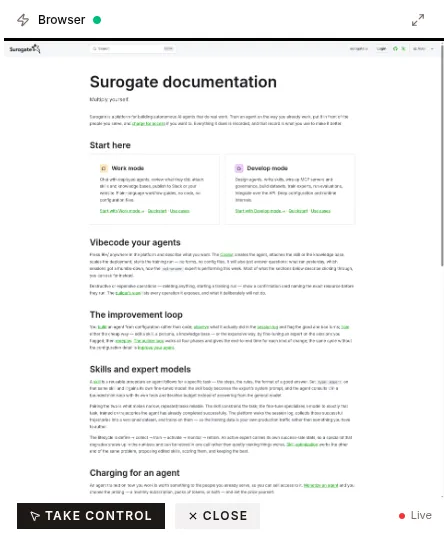
Once a session provisions a browser, the web chat UI shows a live browser pane so you can watch the agent work in real time. See the Web channel for where this pane appears.
Your browser never connects to the agent’s browser directly. It talks to the API server, which authenticates the request, checks that you are scoped to the session, resolves the browser, and proxies the live view (a VNC stream relayed over a WebSocket) back to you.
Taking control
Section titled “Taking control”From the live view you can acquire manual control of the browser — the intended path for login, MFA, CAPTCHA, or any step that needs a human. While you hold control:
- Only your input reaches the browser; the agent’s input is blocked.
- Every
browser_*tool the agent calls returns apaused_by_userresult, and the agent is told to wait for you to finish. - Only you (the current holder) can release control. If someone else tries to acquire a browser that is already held, they get a conflict.
Releasing control hands the browser back to the agent and wakes the session so it continues from exactly where it paused — in the same browser, with whatever you signed into still active.
To make a login persist across future sessions instead of just the current one, see Browser profiles.
Security model
Section titled “Security model”The browser is deliberately isolated from the agent’s sandbox:
- Browser pods receive no database, Redis, API, or LLM credentials, and their service account has no Kubernetes permissions.
- All live-view and control traffic is authenticated and authorized by the API server.
- Browser tool calls pass through governance, including URL checks on
browser_navigate. - If a browser can’t be provided, the tools degrade with a structured result rather than failing the session. Three distinct cases:
| Result | Meaning | Fix |
|---|---|---|
browser_unavailable |
The browser backend (or, on metered agents, the metering plane) is unreachable | Try again shortly; nothing was charged |
browser_credits_exhausted |
The project’s web-browsing wallet is empty | Operator tops up under Settings → Billing |
browser_minutes_exhausted |
The sender’s purchased browsing time is spent | Carries the agent’s buy link; the agent is told not to retry and to continue on non-browser tools |