

Puts the agent on a WhatsApp business number via Meta’s official WhatsApp Business Cloud API. Conversations are one-to-one (no groups, no threads). In conversation the agent only replies; the one message it can send first is a check-in Program’s opener, which has to be a Meta-approved template — see Templates below.
What you need
Section titled “What you need”A Meta app and a business phone number:
- Create a Meta app with the “Connect with customers through WhatsApp” use case.
- In Business Settings, add a System user and generate a token with expiration Never, scoped to
whatsapp_business_messaging,whatsapp_business_management, andbusiness_management. Don’t ship the token from the API Setup page — that one expires after 24 hours and the channel stops working silently.
Configuration in Surogate
Section titled “Configuration in Surogate”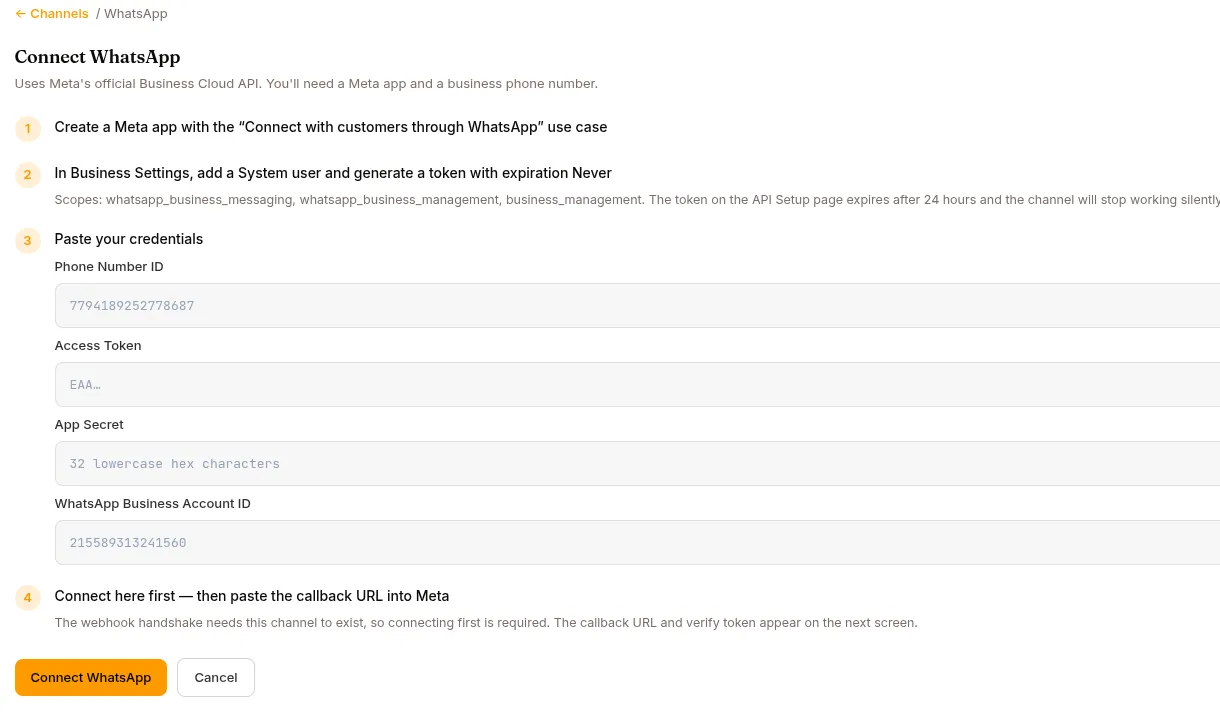
Open the agent → Publish in the left nav → the Channels tab → find the WhatsApp card (“Reply to people on WhatsApp”) → Connect. The wizard walks the Meta steps and asks for four credentials:
| Field | Where it comes from |
|---|---|
| Phone Number ID | Meta’s internal ID for your number (15–17 digits), shown just below the “From” dropdown in API Setup — not the phone number itself |
| Access Token | The system-user token (EAA…) |
| App Secret | 32 lowercase hex characters, from the app’s settings |
| WhatsApp Business Account ID | Your WABA ID. Optional for replying; required for Templates and therefore for Programs |
Connect here first — then register the webhook in Meta. The webhook handshake needs the channel to exist, so the order matters. After connecting, the Manage screen shows:
- Callback URL — paste into Meta › WhatsApp › Configuration › Edit webhook.
- Verify Token — paste alongside the callback URL, click Verify and save. Don’t rotate it later — that breaks the webhook Meta has already verified.
- Then click Manage on the webhook fields and subscribe to
messages— skipping this is the classic “verified but nothing arrives”.
While your Meta app is in development mode, Meta only delivers messages from numbers on its recipient list (five maximum, under API Setup › To) — that’s a Meta restriction, separate from the agent’s own access rules.
Options (the WhatsApp “Manage” screen)
Section titled “Options (the WhatsApp “Manage” screen)”One option, auto-saved:
| Option | What it does |
|---|---|
| Mode | Team member — every sender talks to a shared agent identity. Personal assistant — each user links their own account; unlinked senders are prompted with a pairing code (same linking flow as Slack/Telegram). |
Photos, voice notes, and documents are ingested automatically as attachments (up to 10 files / 20 MB per message). Note: voice notes arrive as audio files — there’s no speech-to-text on this channel.
The agent can send files back as native WhatsApp attachments, within Meta’s caps: 5 MB for images, 16 MB for video and audio, 100 MB for documents. Attachments arrive uncaptioned — any sentence that goes with a file is sent as its own message just before it. Long replies are split at natural boundaries to fit WhatsApp’s 4,096-character message limit.
Templates (the check-in opener)
Section titled “Templates (the check-in opener)”Meta only lets a business send the first message of a conversation, or any message outside the 24-hour service window, as a message template it has approved. That is what a check-in Program needs to open the conversation, so the Manage screen has a Templates button.
The list shows every template on the account, including ones created outside Surogate, with Meta’s real status — APPROVED, PENDING, REJECTED, or whatever else Meta reports, passed through unchanged. A rejected template shows Meta’s reason. Only an APPROVED template can be sent.
Register a template with four fields:
| Field | Notes |
|---|---|
| Name | Lowercase letters, digits and underscores, e.g. daily_checkin. This is the name you pick in a Program. |
| Language | A Meta language code, e.g. en_US or ro. A Program names the template and the language. |
| Category | UTILITY for check-ins. |
| Body | Fixed text, no variables. Example: Time for your check-in. Reply to begin. |
The questions do not go in the template. Meta reviews template text, so every wording change means another approval round. Keep the opener short and stable; the questions live in the Program’s skill, where you can edit them freely. Once the user replies, the agent asks them as ordinary messages inside the 24-hour window that the reply opens.
On Slack the opener is plain text you write on the Program; only WhatsApp needs Meta’s approval. Meta’s review usually takes minutes to hours, sometimes longer. Registration submits the template; come back to this screen to see whether it was approved. A Program refuses to activate while its template is not approved.
What users see
Section titled “What users see”If the agent’s AI disclosure is on (Configure → Governance), the disclosure text arrives as the first message of every new conversation — see Governance & AI disclosure.
Users message your business number and just type. When the agent asks a question (ask_user_question), it renders as plain text with bulleted choices — the user replies by typing; a reply matching a choice label (case-insensitively) selects it. /stop (or /cancel) interrupts the agent’s current run.
No progress updates on this channel. WhatsApp doesn’t allow a sent message to be edited, so — unlike Slack, where the bot posts a “Thinking…” message and keeps editing it — the agent stays quiet while it works. It marks the user’s message read and shows the typing indicator, and that’s the only signal until the answer arrives: a long turn looks like nothing is happening, which is expected rather than a fault.
On monetized agents, WhatsApp is a sellable channel — a buyer whose package excludes it gets a short notice with their buy link (see Monetize).
When WhatsApp stops working
Section titled “When WhatsApp stops working”- Webhook verified but nothing arrives — you didn’t subscribe to the
messageswebhook field in Meta. Fix under WhatsApp › Configuration. - Worked for a day, then went silent — you pasted the 24-hour token from API Setup instead of a permanent system-user token. Generate the system-user token and Reconnect.
- “Bad object id” delivery errors — usually a phone number pasted into the Phone Number ID field; it needs Meta’s internal ID.
- Replies fail after a quiet day — Meta’s 24-hour customer-service window: the business can only message a user within 24 hours of that user’s last message. The conversation resumes when the user writes again.
- A Program’s openers all show “Failed” with a
132001or template error — the template named on the Program no longer exists, or is not approved, on this account. Check its status under Templates, then pause and re-activate the Program so the gate re-checks it. - Templates button says WhatsApp is not configured — the connection has no WhatsApp Business Account ID. Reconnect and fill it in.
Reconnecting and disconnecting
Section titled “Reconnecting and disconnecting”- Reconnect reopens the wizard so you can paste new credentials.
- Disconnect stops the agent replying on WhatsApp. Your credentials stay in place — reconnect anytime.
What’s next
Section titled “What’s next”For embedding chat on your website: Website widget. To have the agent open conversations on a schedule: Programs.