

Slack channel
Publishes the agent as a Slack bot. Users DM it or @mention it in channels. Same conversations as on Web — if Slack identities are linked to Surogate users, sessions are shared.
Surogate connects to Slack over webhooks (Event Subscriptions), not Socket Mode. You create a Slack app, paste a few Request URLs into it, and hand Surogate your app’s Signing Secret and Bot Token.
Configuration in Surogate
Section titled “Configuration in Surogate”Open the agent → Publish in the left nav → the Channels tab → find the Slack card → Connect. That opens a step-by-step walkthrough:
-
Create a Slack app at api.slack.com/apps → Create New App → From scratch.
-
Add Bot Token Scopes (OAuth & Permissions → Bot Token Scopes):
chat:write,app_mentions:read,im:read,im:write,channels:history,groups:history,files:read,users:read. The wizard has a Copy button for the full list. -
Enable Event Subscriptions and paste your Request URLs. Enter your App ID in the wizard; it then shows the exact URLs to paste back into Slack:
- Event Subscriptions Request URL —
https://channels.surogate.ai/slack/<APP_ID> - Interactivity Request URL —
https://channels.surogate.ai/slack/<APP_ID>/interact - Slash Command Request URL —
https://channels.surogate.ai/slack/<APP_ID>/commands
Also subscribe to these bot events:
message.im,app_mention,message.channels. - Event Subscriptions Request URL —
-
Install to your workspace (OAuth & Permissions → Install to Workspace) and copy the Bot User OAuth Token (starts with
xoxb-). -
Paste your credentials — the Signing Secret (Basic Information) and the Bot Token (
xoxb-…).
Click Connect Slack. There is no separate save button — the connect step and every later option change save automatically.
Options (the Slack “Manage” screen)
Section titled “Options (the Slack “Manage” screen)”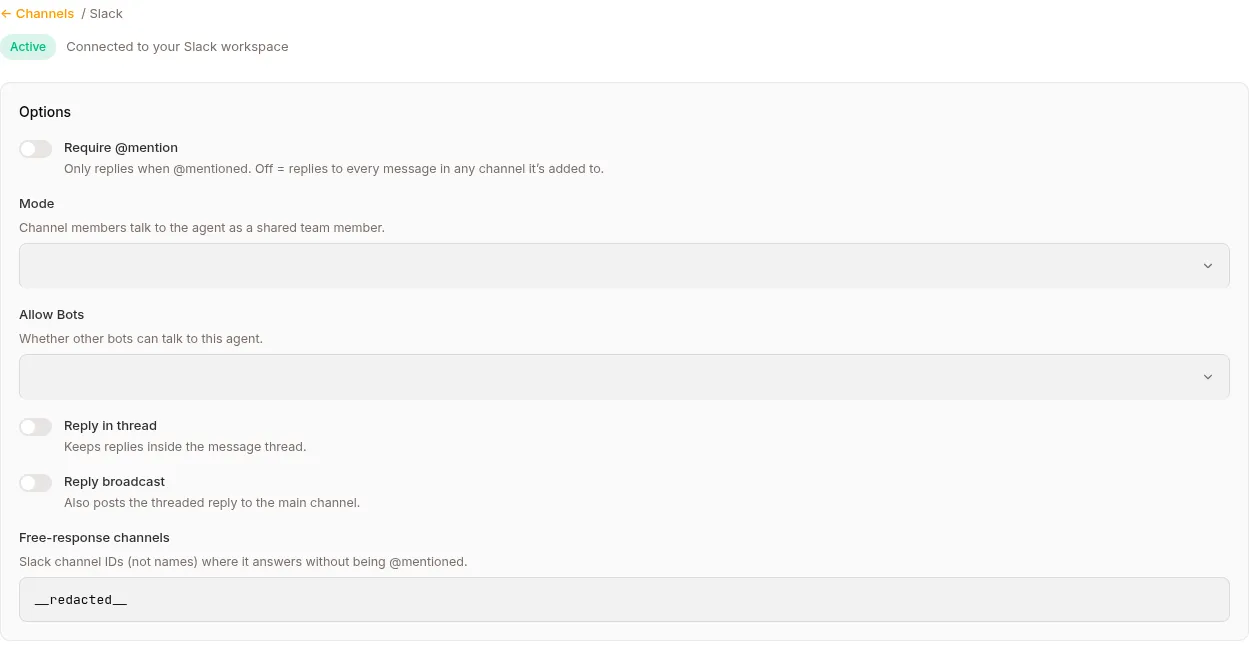
Once connected, the Slack card shows Manage. The options there auto-save as you change them:
| Option | What it does |
|---|---|
| Require @mention (default ON) | Only replies when @mentioned. Off = replies to every message in any channel it’s added to. |
| Mode | Team member — channel members talk to a shared agent identity. Personal assistant — each user links their own Surogate account; unlinked users are prompted to link. |
| Allow Bots | Whether other bots can talk to this agent: None (default), Mentions only, or All. |
| Reply in thread (default ON) | Keeps replies inside the message thread. |
| Reply broadcast (default OFF) | Also posts the threaded reply to the main channel. |
| Free-response channels | Comma-separated Slack channel IDs (not names, e.g. C0123ABCD) where it answers without being @mentioned. |
The Slack manage screen also has a Surogate Mate section (Follow / Ambient) — see Proactive engagement.

What users see
Section titled “What users see”If the agent’s AI disclosure is on (Configure → Governance), the disclosure text is posted as its own message at the start of every new conversation, before any agent output. It doesn’t repeat on established conversations, and control commands like /stop don’t trigger it. See Governance & AI disclosure.
The user types a message; the bot responds. Each DM is one Surogate session. Subsequent messages in the same DM continue the session.
Channel @mentions
Section titled “Channel @mentions”@acme-support what's the refund policy?The bot responds inside the thread (assuming Reply in thread is on). Subsequent messages in that thread continue the session — no need to @mention again.
The slash command
Section titled “The slash command”Pasting the Slash Command Request URL doesn’t create the command. You also have to add it in the Slack app (Slash Commands → Create New Command), point it at that URL, and reinstall if Slack asks. Any name works, but call it /surogates — that’s the name the built-in usage hint tells your users, which they see if they send the command with nothing after it.
Whatever the user types after the command goes to the agent as a message. It works from any channel, but the message always lands in the sender’s DM session with the agent, never the channel’s session. It’s a quick private question without leaving the channel you’re in — not a way to talk to the channel’s shared conversation.
Channel history on the first message
Section titled “Channel history on the first message”The first time the bot is messaged in a channel, that session starts with a snapshot of the channel’s recent history, so the agent isn’t answering blind on a conversation already underway. The snapshot is bounded — at most the last 7 days and 200 messages — and joins, leaves, topic changes and other bots’ posts are dropped. DMs are never backfilled.
It’s a one-time snapshot per session, not continuous reading. To have the agent keep building context from everything posted in the channel, turn on FOLLOW THE CHANNEL — see Proactive engagement.
File attachments
Section titled “File attachments”Slack users can attach files to messages. The bot reads them (markdown, CSV, JSON, images, PDFs) like any other input. If the bot writes files in response (e.g. an analysis CSV), it uploads them to Slack.
How Slack identities are linked
Section titled “How Slack identities are linked”The first time a Slack user messages the bot:
- The platform looks up
(platform=slack, platform_user_id=U03ABCDEF)in the channel-identity table. - If found, the message routes to that user’s existing Surogate sessions.
- If not found, the behavior follows the channel’s Mode: in Team member mode an internal user is created automatically; in Personal assistant mode the bot DMs them an 8-character pairing code and a link to the agent app’s
/linkpage, where they sign in and enter the code (codes last 10 minutes, single-use — see Users).
Once linked, the same person on Web and Slack sees the same agent, same memory, same sessions — and shares the same per-user usage allowance, so switching channels never resets a limit.
When the agent asks a question (ask_user_question), Slack shows a modal — typed replies aren’t converted into answers here (unlike Web and Telegram); the bot nudges toward the modal instead. On monetized agents, Slack is a sellable channel: a buyer whose package excludes it gets a short notice with their buy link.
Programs on Slack
Section titled “Programs on Slack”A Program can open a conversation with a workspace member on a schedule: the bot posts your opener as a direct message, waits for the reply, and runs the Program’s skill when it comes.
What it needs, beyond a connected channel:
- Personal assistant mode on this channel’s Manage screen. In Team member mode every sender shares one identity, so a reply could not be attributed to the enrolled user; the activation gate refuses a Program on a channel in that mode.
- Each user linked to their workspace member, from the agent’s Users tab: Link Slack member opens the workspace directory. See Linking a Slack member.
- Permission to message them first, recorded on that binding.
No channel membership is needed: a direct message reaches any member of the workspace the app is installed in. No new scopes either; chat:write, im:write and users:read from the setup above cover posting, opening the direct message and listing members. A member who leaves the workspace is caught at activation, and a send to someone Slack cannot reach shows as Failed on that user’s row with Slack’s reason.
Multi-workspace
Section titled “Multi-workspace”Each Slack workspace needs its own Slack app + its own credentials. To run the same agent across multiple workspaces, create multiple agents in Surogate (each pointing at its workspace’s app), or use the API channel for cross-workspace routing.
When the Slack bot isn’t responding
Section titled “When the Slack bot isn’t responding”Common causes:
- Missing scopes — you added a new scope but didn’t re-install the app to the workspace. Re-install, then paste the new Bot Token via Reconnect.
- Request URLs not verified — Slack must accept the Event Subscriptions Request URL (it shows a green “Verified”). If it’s not verified, events never reach Surogate.
- Wrong credentials — the Signing Secret and Bot Token must both be from the same Slack app.
Check the agent’s Sessions view — if no Slack-channel sessions are appearing when you send Slack messages, the inbound path is broken.
Reconnecting and disconnecting
Section titled “Reconnecting and disconnecting”- Reconnect reopens the walkthrough so you can paste a new Bot Token after re-installing the app (e.g. when you added scopes).
- Disconnect stops the bot from replying. Your Slack app and credentials stay in place — reconnect anytime.
What’s next
Section titled “What’s next”For Telegram setup: Telegram channel. For embedding chat on your website: Website widget. For end-user accounts: Users.