View, edit and keep versions
For staff who work on a document’s file: viewing it, checking it out, adding versions, going back to an older one and comparing two.
View a document
Section titled “View a document”The viewer on the document page shows the file page by page. Use Zoom in and Zoom out or the zoom list to resize, the page box to jump to a page, and Full screen to fill the window. When you opened the document from a search result, the matches are marked and a bar counts them.
Where your institution has an online editor for office files, Edit online opens one in the DMS and Close the editor returns you to the document. Ask your administrator whether your institution has it.
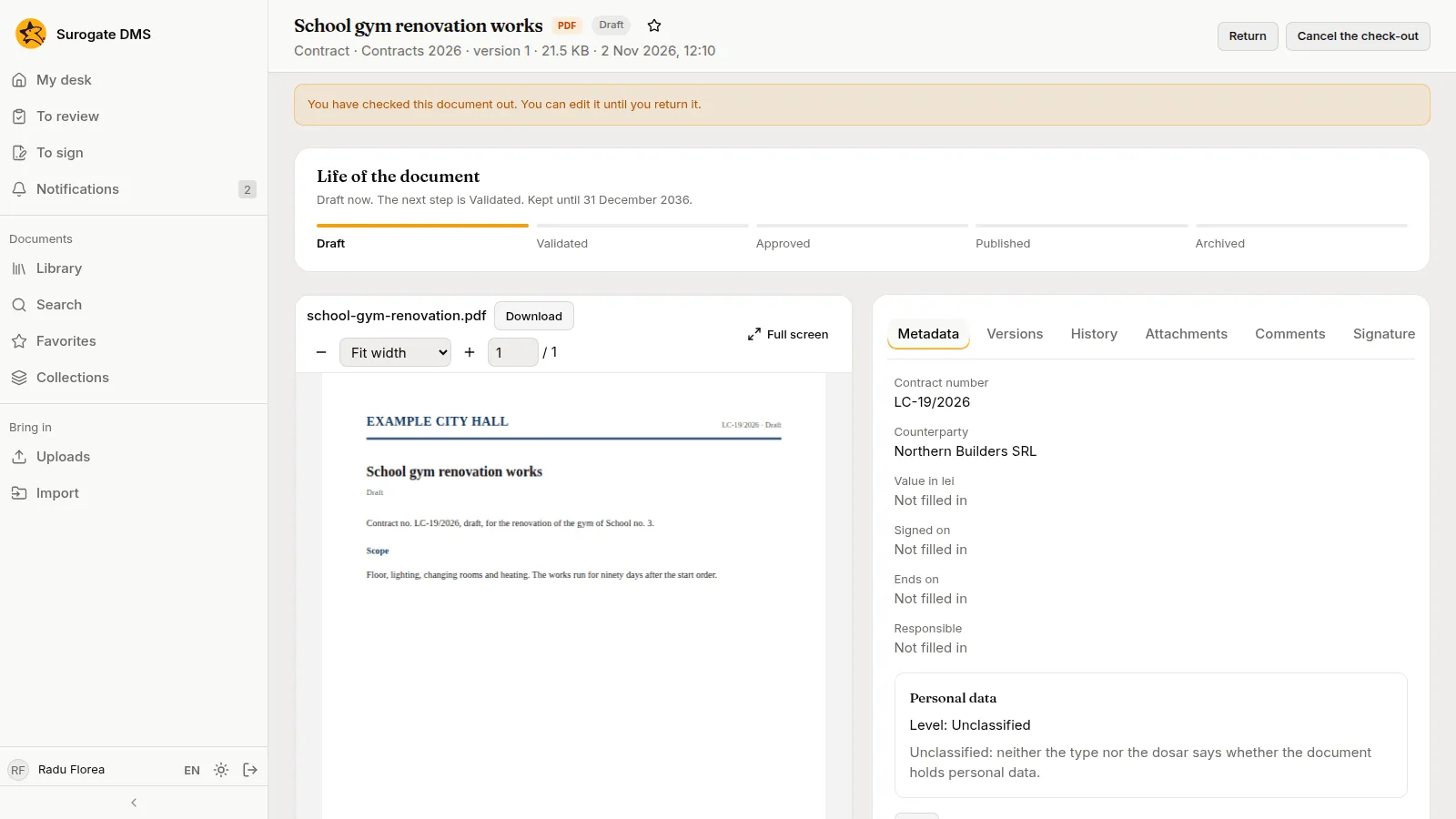
Check a document out
Section titled “Check a document out”Check a document out to work on it without anyone else changing it. Check out locks it; the page shows “You have checked this document out…”. Return gives the document back and Cancel the check-out gives it back unchanged. An administrator can unlock a document someone forgot.
Versions
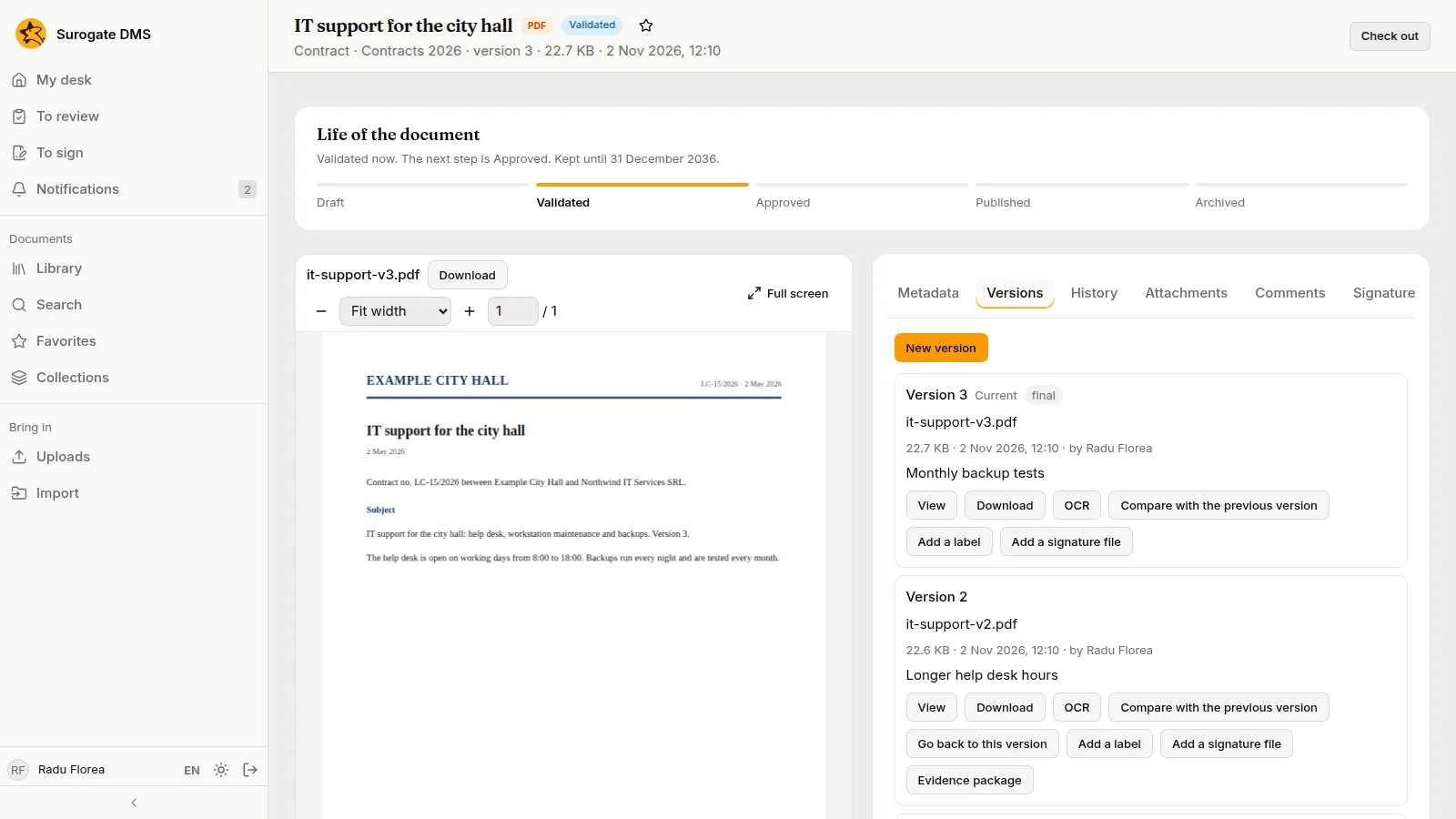
Section titled “Versions”The Versions tab lists every file of the document, newest first, with who saved it and a comment. New version adds one. For each version you can View, Download, press OCR to read its text again, Add a label such as “final” and Add a signature file. Go back to this version makes an older version the current one.
Beside Download, on the viewer and on each version, Download as offers the file as a PDF, a Searchable PDF/A (made when you choose Make the PDF/A copy), a Word (.docx) file with the text in reading order and the data read at capture, or JSON with the document, its text and the data read. A choice that does not fit the version says why: a Word file needs text that was read, and a signed PDF has no PDF/A copy. For a document that came from a capture, the Word and JSON files of its first version also hold the data read at capture. See Capturing documents.
Compare two versions
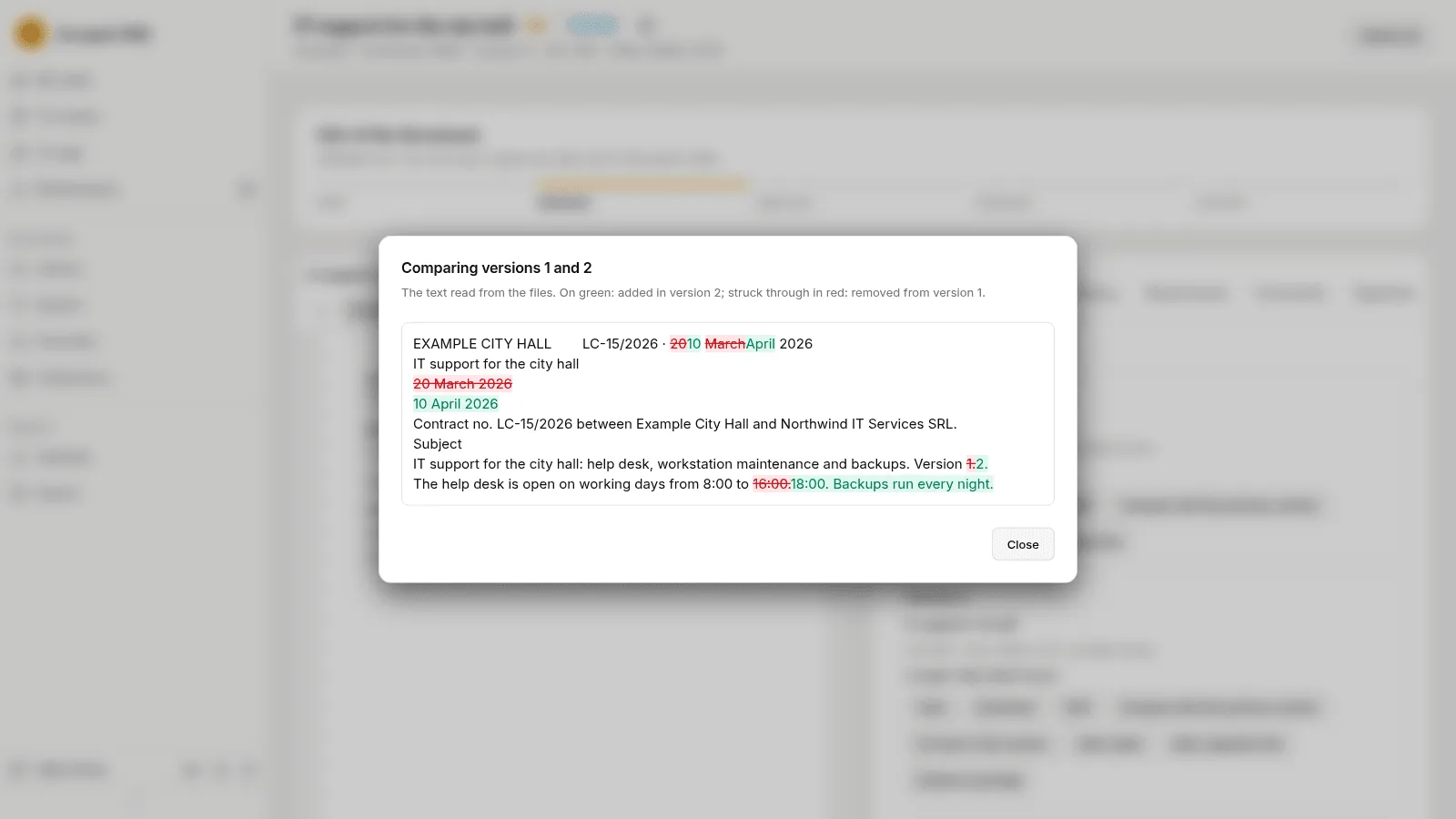
Section titled “Compare two versions”On a version, Compare with the previous version shows what changed in the text read from the files: green for what was added, red struck through for what was removed.
A document can be edited and given new versions only while it is a draft or validated.