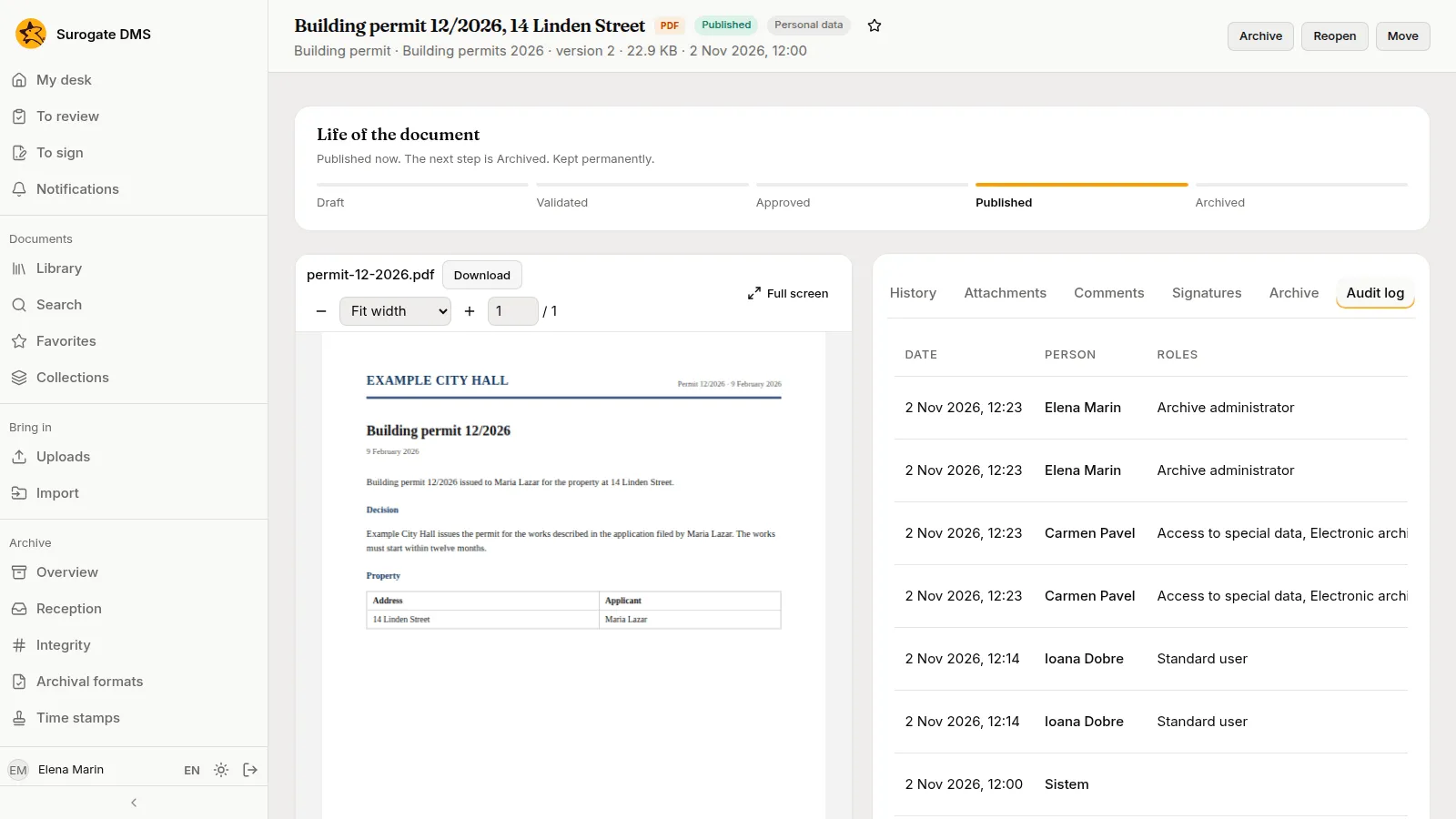
The document page
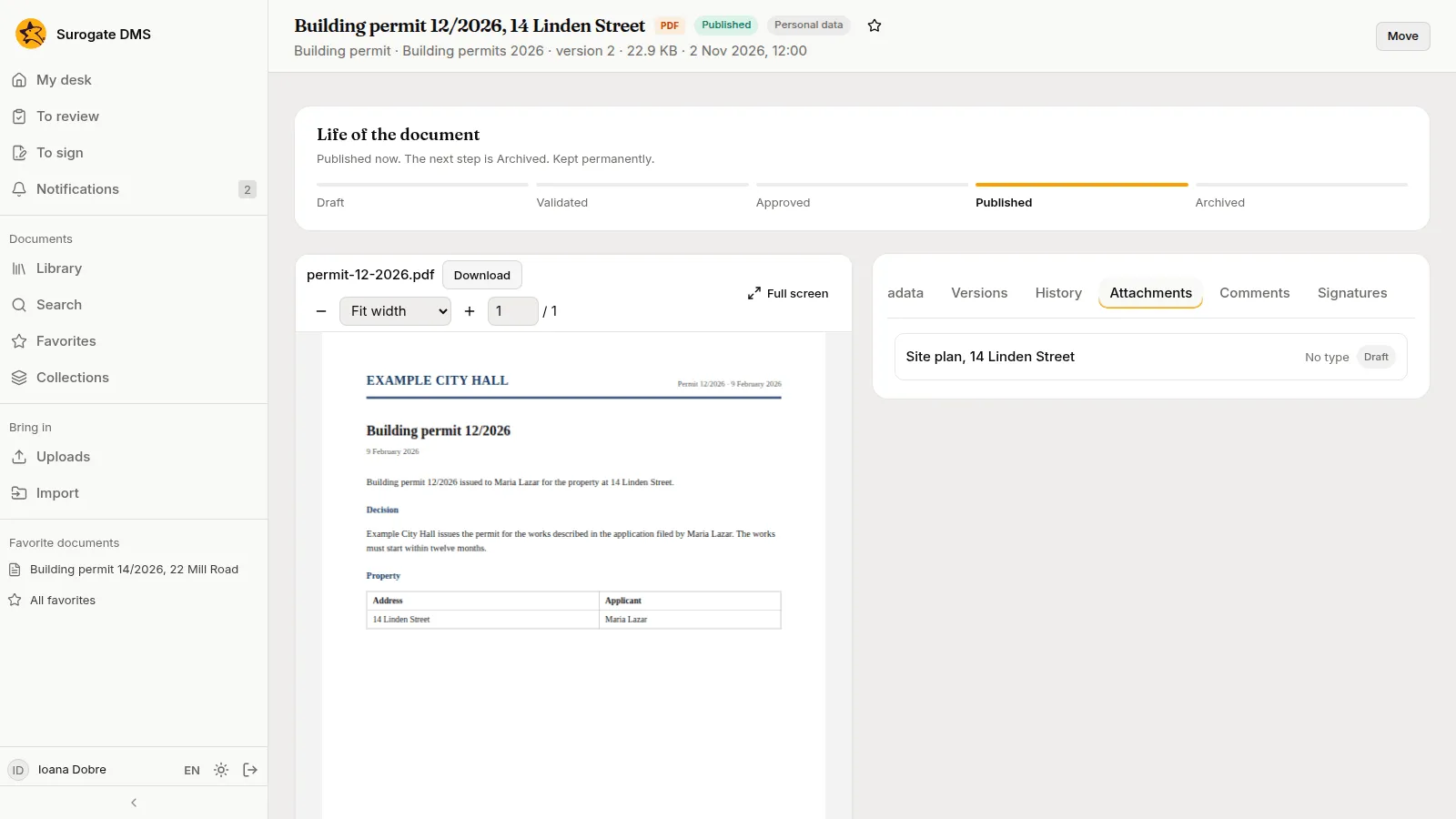
For everyone: the page of one document: its header, the card Life of the document, the viewer and the tabs on the right.
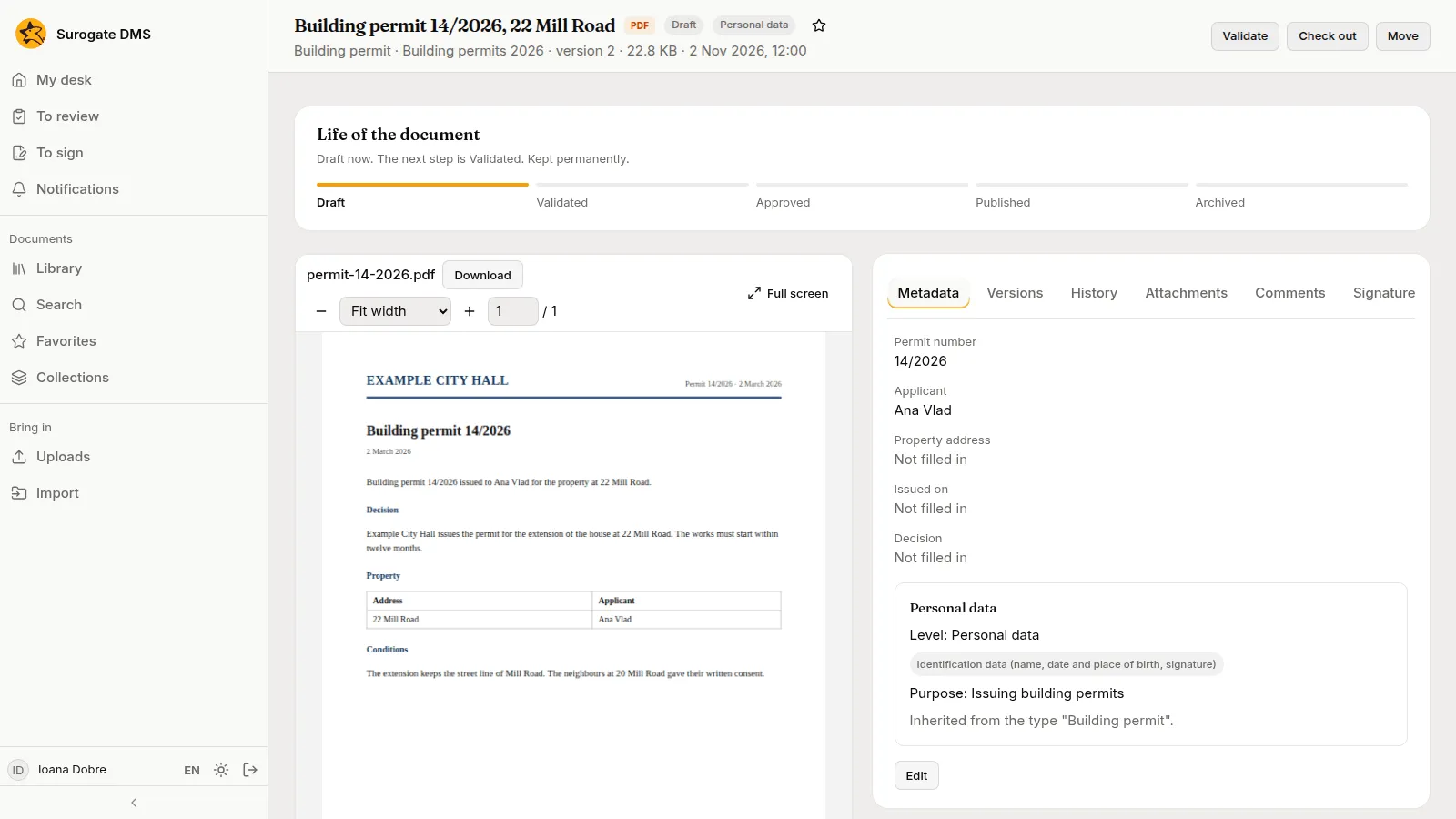
The header
Section titled “The header”The header shows the title, the file’s kind, the state, a Personal data pill when it applies, the star that makes the document a favorite, and a line with the type, the folder, the version, the size and the date. The buttons on the right are the ones you may use: Validate, Approve, Publish, Archive or Reopen; Check out; Move. A document that a registration holds shows the line Registered as with its numbers under the header: see Registering documents. A document that was filed from a capture says “Captured through {channel} on {date}”, with the channel and the date filled in. One whose data failed a check at capture shows Not conforming at capture: see Checking the data read from forms.
The viewer
Section titled “The viewer”The viewer shows the file page by page. Its toolbar zooms and moves between pages, and Full screen fills the window; Escape leaves it. Download saves the file. See Viewing, editing and versions.
The tabs
Section titled “The tabs”| Tab | What it holds |
|---|---|
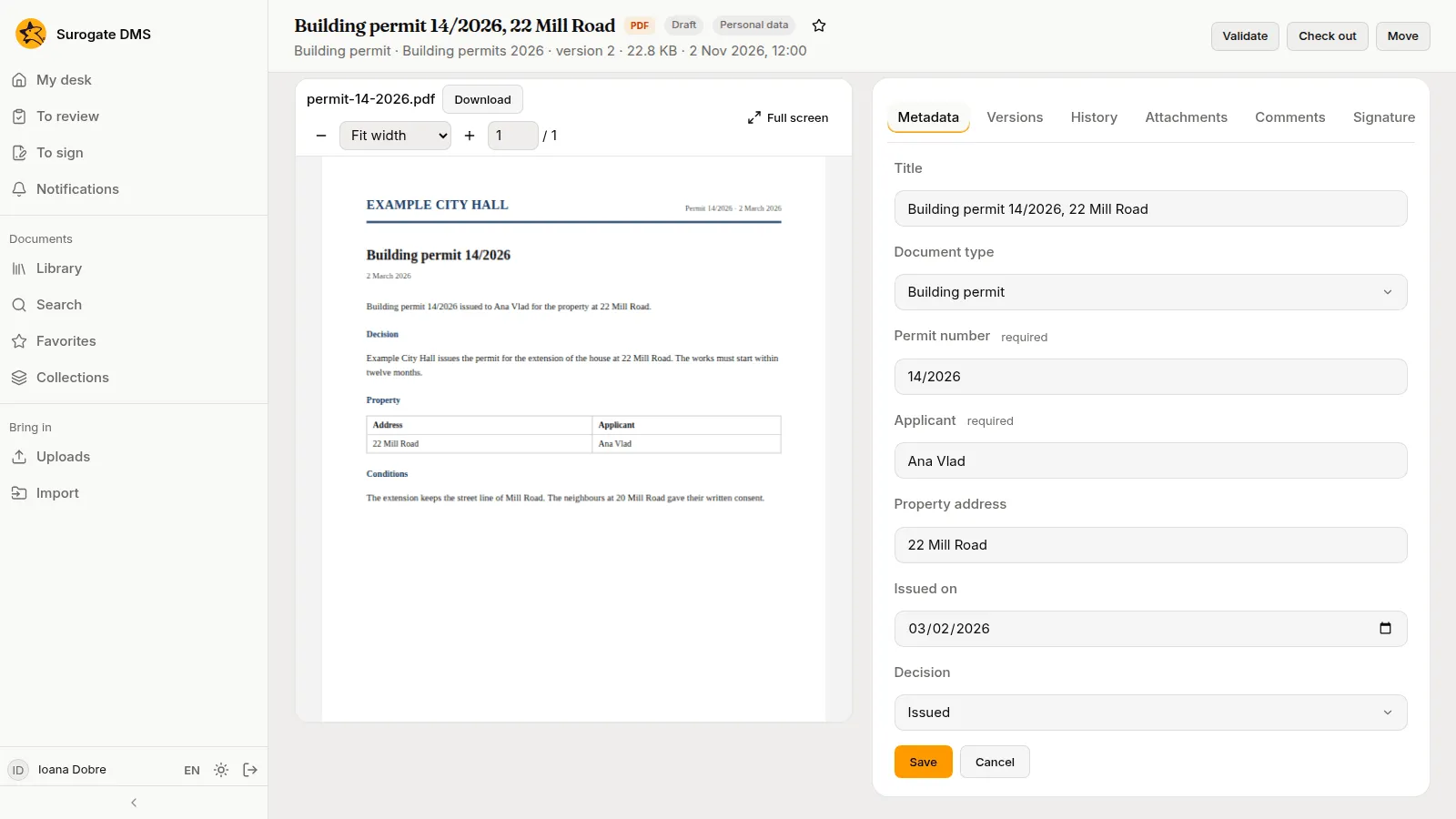
| Metadata | The type and the values of the document, and Edit to change them. Fields the type requires are marked “required”; empty ones read “Not filled in”. |
| Versions | Every saved file of the document |
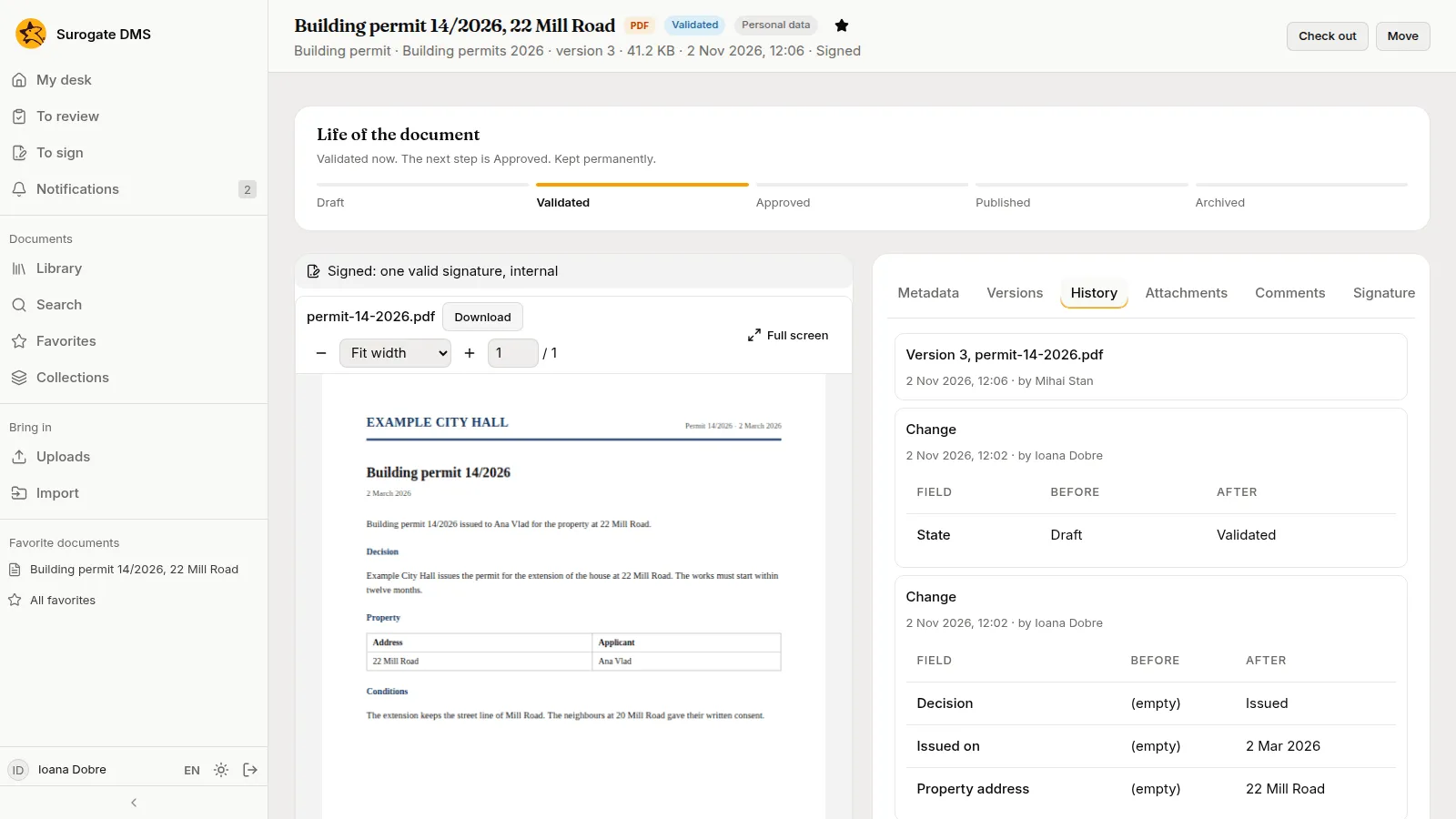
| History | What happened to the document, newest first |
| Attachments | Documents attached to this one |
| Comments | Remarks by colleagues |
| Signatures | The signatures and refusals of each version, and the buttons to ask for or give a signature |
| Workflows | The Keel cases and processes that hold the document |
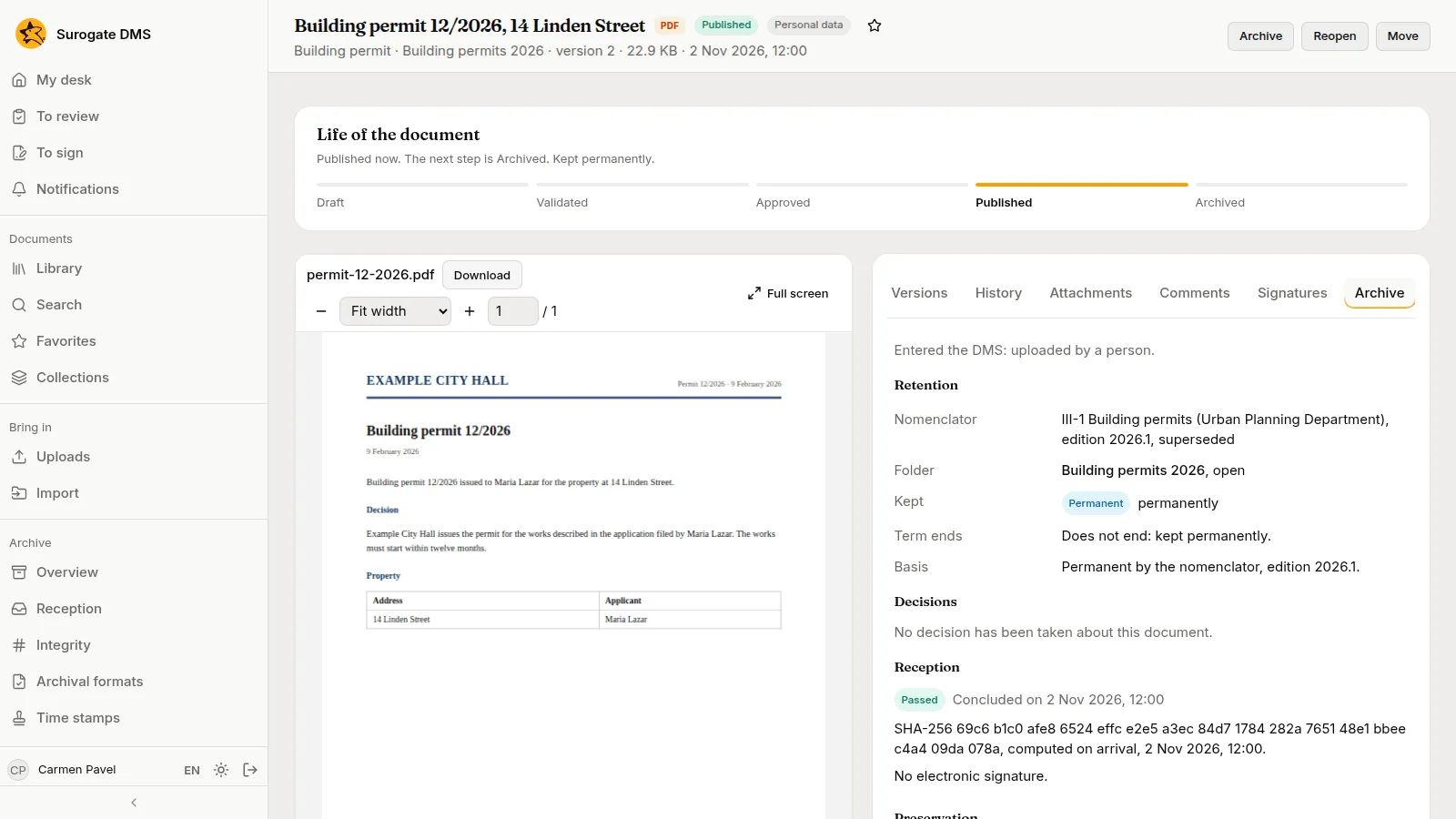
| Archive | How long the document is kept and why, and its reception and preservation |
| Audit log | For people who may consult the audit log: the entries about this document |
The tab Workflows is there when your institution connected the DMS to Keel. See Workflows and cases with Keel.
Edit the metadata
Section titled “Edit the metadata”Press Edit, change the title, the type or the values, and press Save. A change is possible while the document is a draft or validated. Changing the type to one with a default folder can move the document there.
History
Section titled “History”Each line says what changed, who changed it and when, with the value before and after.
Attachments
Section titled “Attachments”A document can have other documents attached to it, for example a contract and its annex. Attach chooses a document you may read; Detach removes the link. A document takes attachments only while it is a draft or validated.
Archive
Section titled “Archive”The Archive tab says why and for how long the document is kept: the nomenclator entry of its dosar, the dosar and whether it is open, the term as Kept and Term ends, how the document Entered the DMS, and the result of its reception.
Audit log
Section titled “Audit log”People who may consult the audit log see the entries about the document in a last tab.