Capture templates
For administrators who teach the DMS to read a form: how to draw the zones of a blank form, say how each value is read and checked, try the template on a capture, and publish it.
What a template does
Section titled “What a template does”A capture template describes one kind of form: where each value lies on the page, how the text there is read, what is made of it, which field of the document it fills, and which checks it must pass. A capture that is read with a template gets its title and its metadata from the form. A person looks at what does not conform before the document is filed; see Checking the data read from forms.
You make templates in Administration › Capture templates. You need Manage capture for the whole institution. The list shows each template’s Name, Document type, Version and Active state. A template that has not been published says “Not published”.
Make a template
Section titled “Make a template”- Choose New template.
- Write the Name, a Description and choose the Document type whose fields the values of the form fill. The name must differ from every other template’s, whatever the case and the accents. The description and the type are optional.
- Choose Create. The page of the template opens.
On the page, Save keeps your changes as the draft. Active (offered when a template is chosen) switches the template on and off: a template that is off is not offered, and no capture is read with it. If someone else saved first, Save is refused and the page offers Read the template again, which drops what you typed.
The type of a template that has been published cannot be changed.
The sample and the zones
Section titled “The sample and the zones”A template page shows the Sample on the left and the settings on the right. Choose Upload the sample and send a blank form, as a PDF or a picture. The page says “Upload a blank form, a PDF or a picture, at most 20 MB and 10 pages. A filled form would keep personal data in the template.” Never send a filled form: the template, and with it the sample, is kept.
After you send the sample, the page says “The sample is still being read.” until its words are ready.
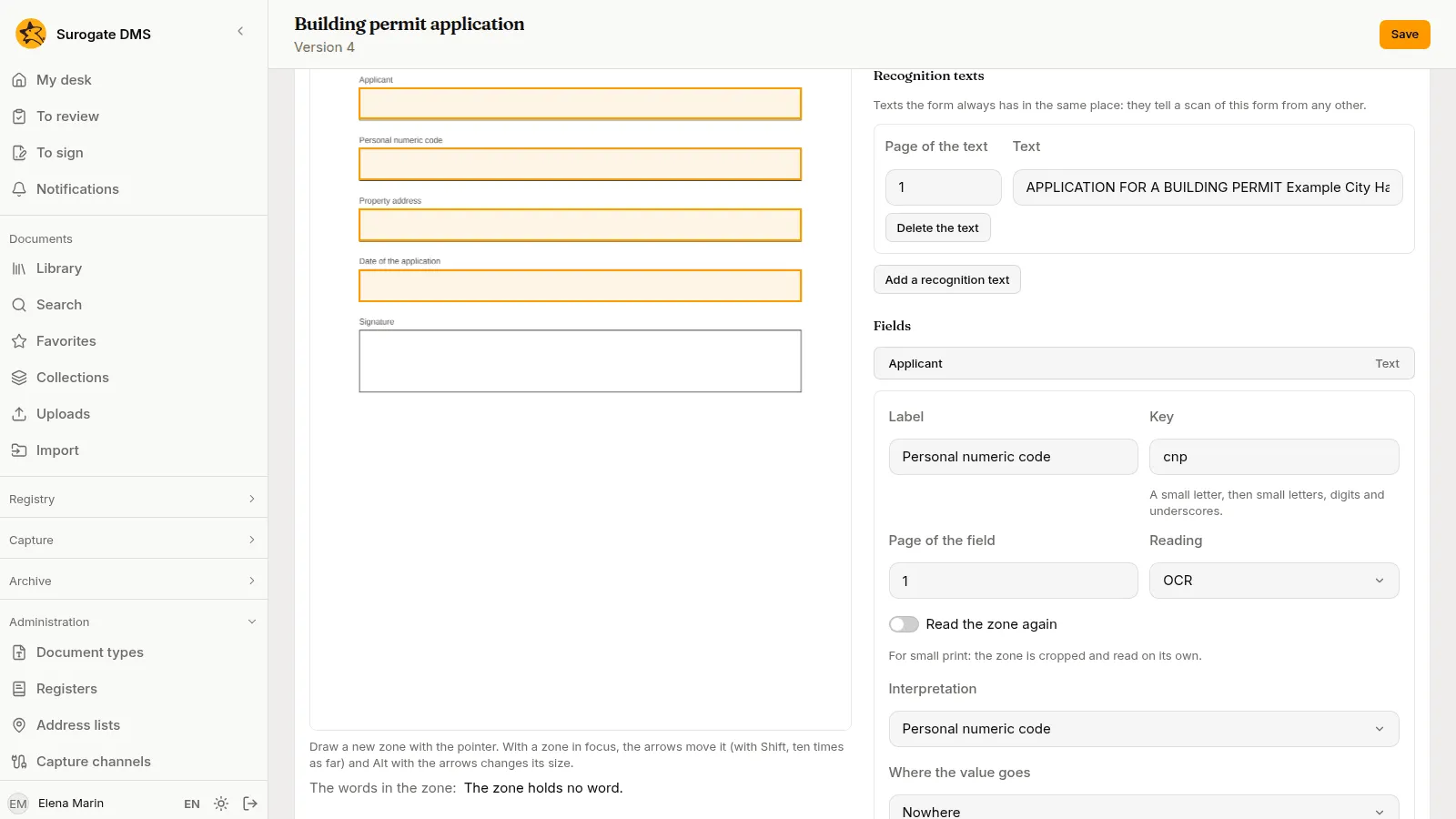
To place a zone, choose a field or a recognition text in the list on the right, then draw a rectangle on the page with the pointer. The page says “Choose a field or a recognition text, then draw its zone on the page.” With a zone in focus, the arrow keys move it, Shift makes the move ten times as large, and Alt with the arrows changes its size. Under the page, The words in the zone: lists the words the DMS read there. The page says “The zone holds no word.” when the zone is empty, as on a blank sample.
The form, recognition texts and the code
Section titled “The form, recognition texts and the code”- Pages of the form is how many pages the blank form has. A part with fewer pages is not chosen automatically for this template.
- When a part does not conform is Waits for a person or Is filed with a mark. It decides only where the channel or the flow does not already ask a person; see How a template is chosen.
- Recognition texts are texts the form always has in the same place. They tell a scan of this form from any other. Choose Add a recognition text, write the Text, choose its Page of the text, and draw its zone. Use the text found fills the text with the words the DMS read in the zone. A scan matches when each recognition text is found in its zone, allowing for the small mistakes a reading makes.
- The code on the first page starts with is for a form that carries a bar code. Leave it empty if the form has no code that sets it apart.
Fields
Section titled “Fields”Choose Add a field for each value to read. Delete the field removes one.
| Setting | What it does |
|---|---|
| Label | The name a person sees on the part. |
| Key | A short name for the field: a small letter, then small letters, digits and underscores. Each field has its own. Flows use the key to refer to the field. |
| Page of the field | The page of the form where the field lies. |
| Reading | OCR, for printed text and for text typed in, or Handwriting, see below. |
| Read the zone again | For small print: the zone is cut out and read on its own. It takes longer. |
| Interpretation | What is made of the text, see the table below. |
| Where the value goes | Nowhere, The document’s title, or a field of the document type. |
Interpretation has seven choices.
| Choice | Reads | Settings |
|---|---|---|
| Text | The text, with its spaces collapsed. | Letters: Unchanged, Capitals or Small; Longest length. |
| Date | A date written with dots, slashes or hyphens, such as 5.11.2026 or 2026-11-05, or a day, a Romanian month name (whole or short, such as noiembrie or noi) and a year. | None. The value is kept as year, month and day. |
| Number | Digits with a decimal sign and thousands separators. | Decimals. |
| Amount | A number and a currency word or sign. | The Currency to take when the text names none. |
| Personal numeric code | The 13 digits of a CNP. | None. |
| Tax code | The digits of a CUI, with or without the letters RO before them. | None. |
| Value from a list | The text, matched to the closest value of a list. | List: The field’s choices, The organisation’s units or A list of my own, with The values, one per line. |
When the text cannot be read as asked, the part says so in words: “The text read is not a date.”, “The text read is not a number.” or “The text read does not match.”
Where the value goes offers only fields of the document type that fit the interpretation: a date goes into a date field or a text field, a number into a number field or a text field, and so on. The document’s title takes text only, at most 300 characters. A template whose field does not fit its target cannot be published.
Checks
Section titled “Checks”A field can have checks. Choose Add a check and one of these.
| Check | Passes when | Message on the part when it fails |
|---|---|---|
| Required | The field has a value. | The field is required. |
| Matches a pattern | The whole text fits the Pattern. | The value does not have the required form. |
| Length | The length of the text is between Least and Most. | The value does not have the required length. |
| Range | A number, an amount or a date lies between Least and Most, both included. Dates are written yyyy-mm-dd. | The value is not in the required range. |
| Control digit | The control digit of a CNP or a CUI is right. | The control digit of the CNP does not match, or the control digit of the CUI does not match. |
| Equal to another field | The value equals that of the Field you choose. | The value is not the same as that of another field. |
| One of the values | The value is one of The values, one per line. | The value is not one of those allowed. |
A check on an empty optional field is skipped. A part conforms when every check of every field passed, and does not conform when one failed. A part read with no template is not judged. A pattern is matched against the whole text. Some forms of pattern, such as a reference to an earlier group, are not accepted, and the page says so when you save.
In the Try section, the page says “A try reads the saved draft and saves nothing.” Under Try it on, choose The sample, or A capture and then the Capture and the Part, and choose Try.
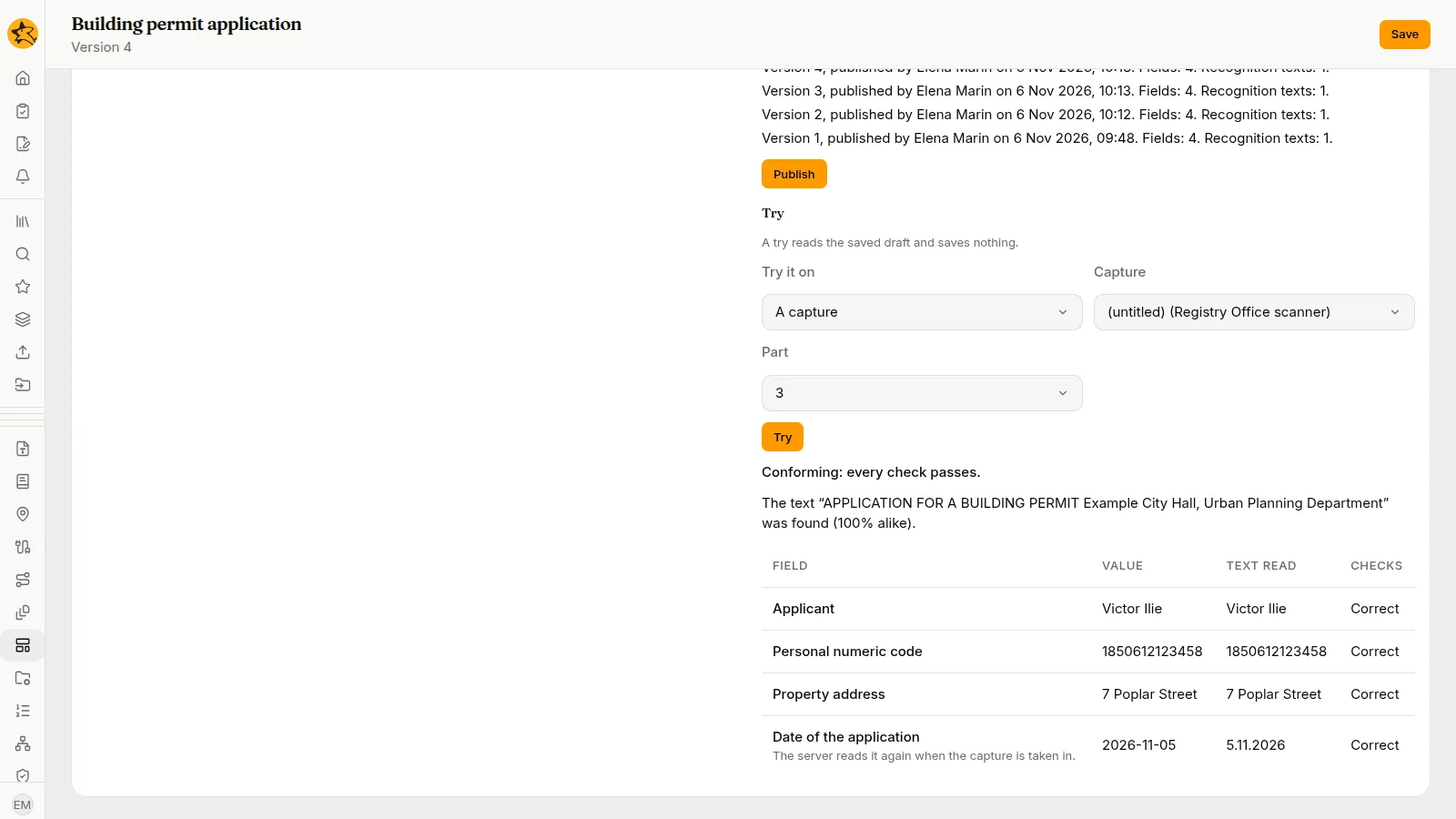
The result says whether the part conforms: “Conforming: every check passes.” or “Not conforming: at least one check fails.” It says how each recognition text matched, for example “The text “APPLICATION FOR A BUILDING PERMIT Example City Hall, Urban Planning Department” was found (100% alike).”, and it lists for each field the Value, the Text read and the Checks. A field read as handwriting, or read again from the zone, shows “The server reads it again when the capture is taken in.” because the page of a try cannot run those readings. Try the template on a filled test form of the institution, and on the blank sample, before you publish.
Publish and versions
Section titled “Publish and versions”Choose Publish to make the saved draft the next version of the template. It must be saved first: the page says “Save the changes before publishing: the saved draft is what is published.” If the draft has a problem, Problems with the draft lists each one with its place: a form with no field, a field on a page the form lacks, a target the type does not have, a value that does not fit its target, or a check that does not suit the interpretation.
Versions lists each one: “Version {n}, published by {name} on {date}. Fields: {fields}. Recognition texts: {anchors}.” A version never changes and is never deleted. A capture keeps the template and the version it was read with, and a part read again with the same template keeps the values a person typed.
How a template is chosen
Section titled “How a template is chosen”For each part, the DMS takes the first of these that gives a template:
- The template the channel names in Extraction › Template, or the template the flow’s Extraction step names. If you leave Automatic, this step gives none.
- The template the part’s separator sheet profile names, or the one a person chose on the part.
- A template whose The code on the first page starts with fits a code on the first page of the part.
- A template that is active and has recognition texts, all of which are found on the pages of the part.
If two templates fit, the capture waits and says which two. Staff choose one on the part with Choose the template and then Try again. If none fits, the capture waits when Required is on, and otherwise the part is read with no template. If the channel names a template that is off or has no version, the part waits whatever a person chose, until the channel names another one or the template is switched on again.
Whether a person is asked about a part that does not conform depends on two settings together. The Validation by a person of the channel or the flow decides first: Always asks about every part, When it does not conform asks about the parts that fail, and only with Never does the template’s When a part does not conform decide. A part with a handwritten field is always asked about.
Handwriting
Section titled “Handwriting”When your institution has it, a field with Handwriting as its Reading is read by a model that your institution connects. Only a picture of the field’s zone is sent to the model. The rest of the page, the file name and the other fields are not sent. A person always checks the value, and it shows “read by machine” until a person types it. Your institution sets a daily limit for these readings. When the reading is not set up, or fails, or the limit is reached, the capture waits and the person fills the field in; see Processing captures. Try it on a filled test form of your institution before you rely on it. How well a model reads handwriting varies, which is why a person always checks.