Sign documents
For staff who ask for or give signatures: requesting a signature, the To sign page, signing internally or with a token, and refusing. A signature in the DMS is always of a named person on a named version of a document.
Ask colleagues to sign
Section titled “Ask colleagues to sign”- Open the document and choose the Signatures tab.
- Press Request a signature.
- In Signers, choose a person; repeat for each signer, up to 20.
- Under Signature asked for, choose Internal allowed, which accepts an internal or a qualified signature, or Qualified (token), which accepts only a signature made with a qualified certificate on a token.
- Write a message for the signers if you like.
- Press Send the request.
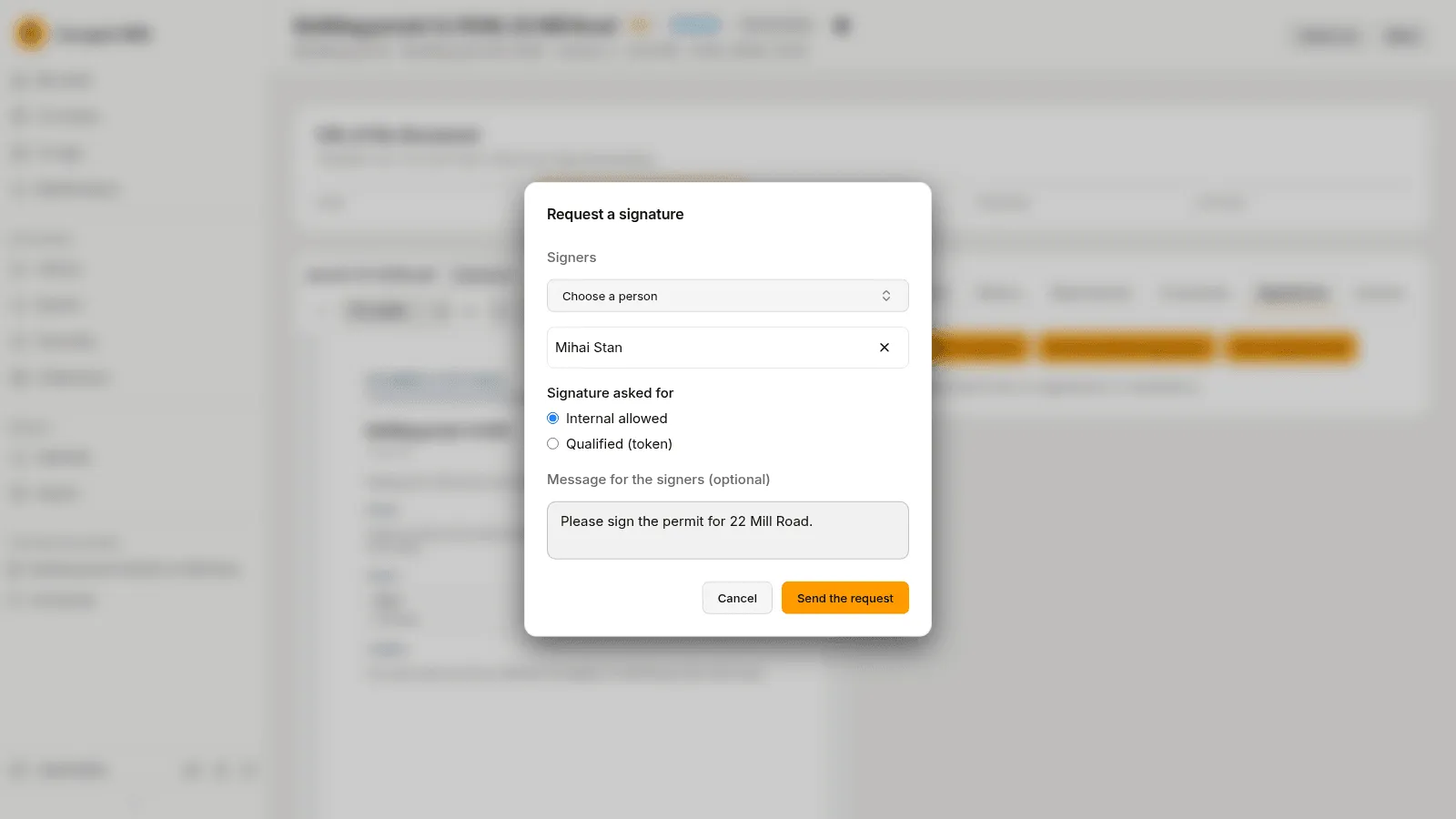
A request names the version it concerns. The document shows “Waiting for one signature” until the signers answer. You can follow and cancel the requests you sent on the To sign page, under Sent requests.
See what waits for your signature
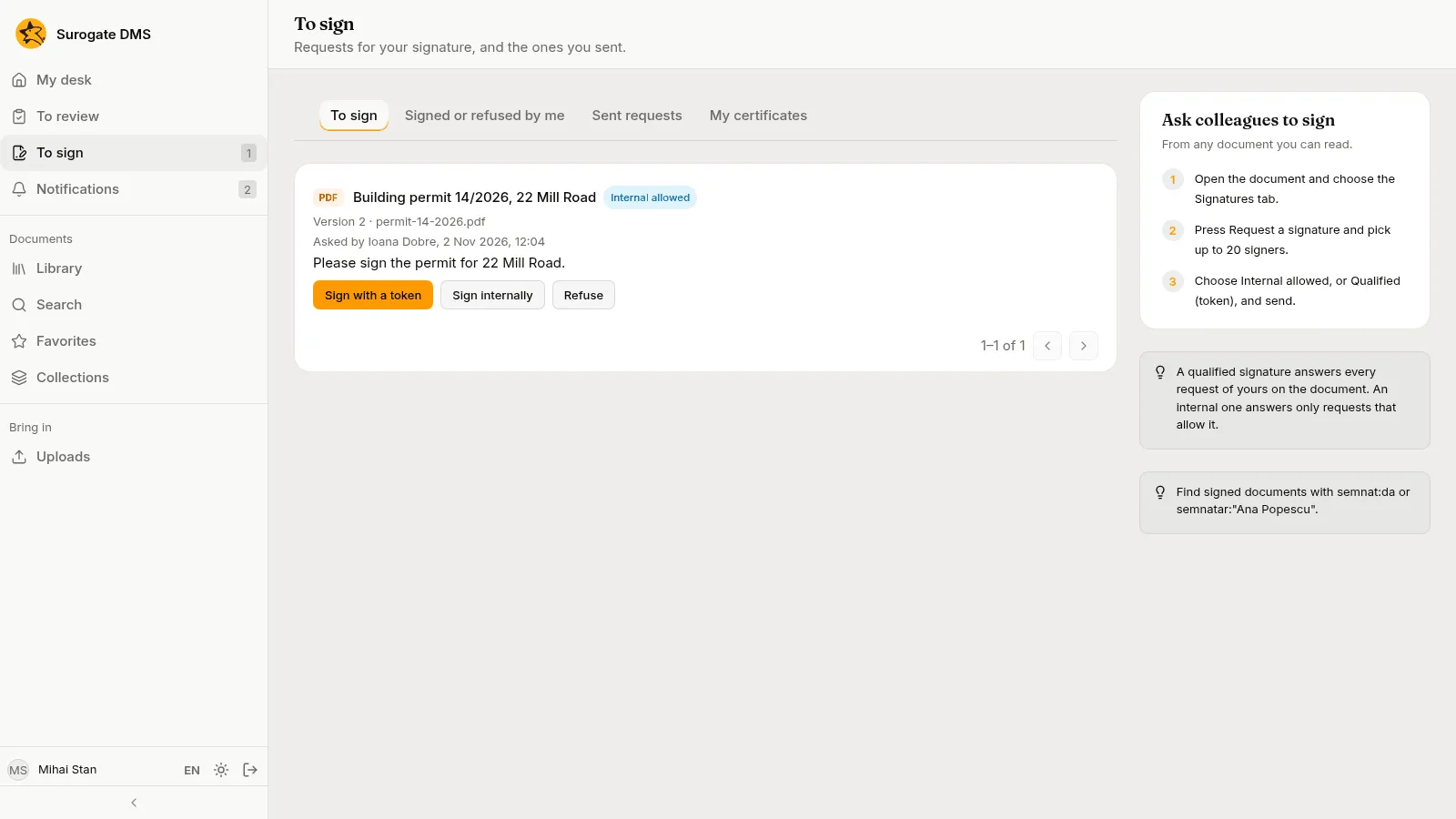
Section titled “See what waits for your signature”The To sign page lists the requests that wait for you. Its tabs are To sign, Signed or refused by me, Sent requests and My certificates. Each request shows the document, who asked, the version and the message, with Sign with a token, Sign internally and Refuse.
Sign internally
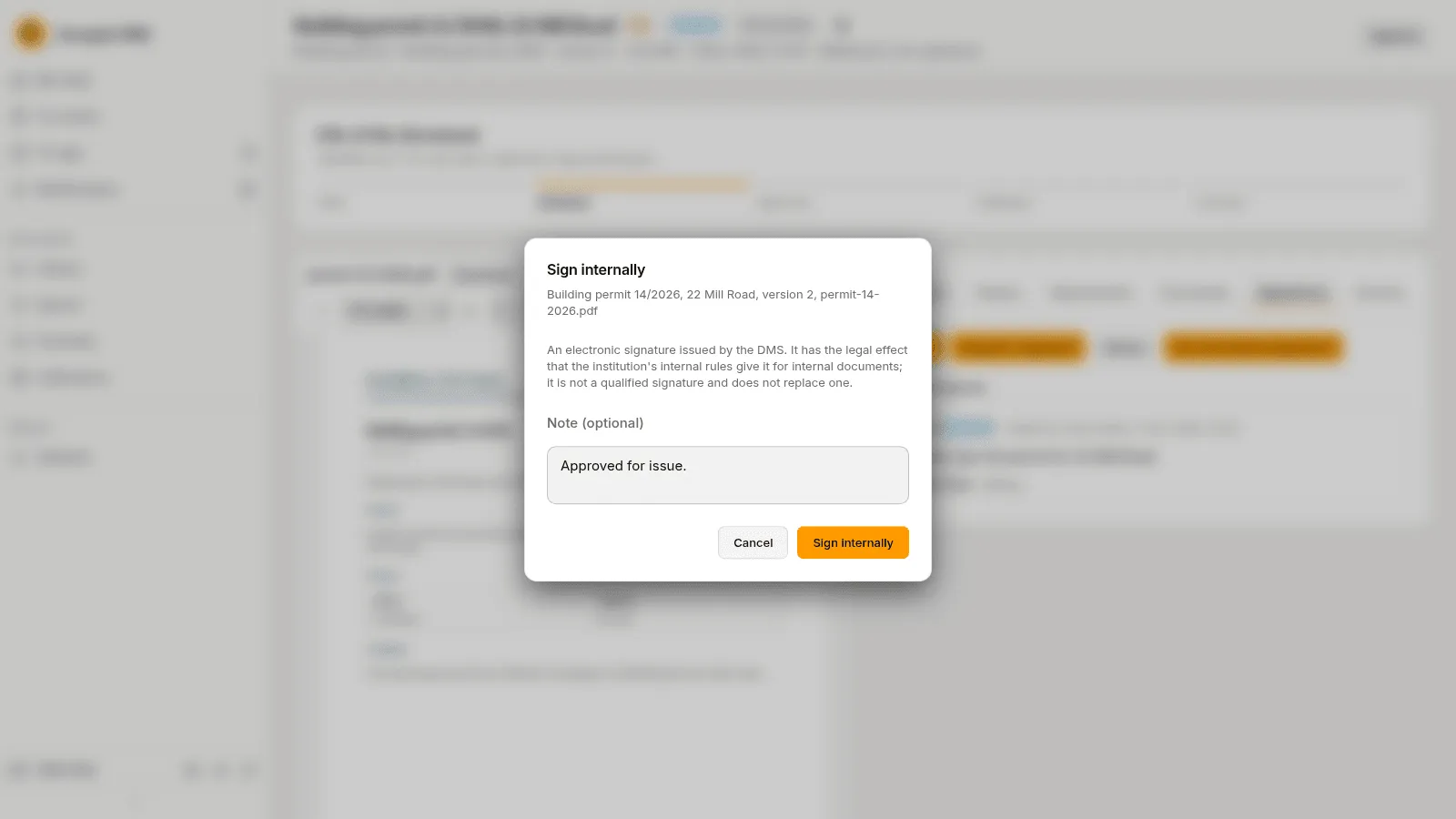
Section titled “Sign internally”- On the document’s Signatures tab press Sign and choose Internal, or press Sign internally on the To sign page.
- Read the notice: an internal signature is an electronic signature issued by the DMS. It has the effect your institution’s internal rules give it for internal documents, is not a qualified signature and does not replace one.
- Write a Note (optional).
- Press Sign internally.
Sign with a token
Section titled “Sign with a token”A request that asks for a qualified signature, or a document that needs one, is signed with a certificate on a token. On the Signatures tab press Sign and choose With a token, or press Sign with a token on the To sign page, and follow the steps in the dialog: download the version, sign the file in your certificate provider’s app, and upload the signed file. The DMS checks the signature after it is uploaded.
Refuse to sign
Section titled “Refuse to sign”Press Refuse, on the To sign page or on the Signatures tab, write the Reason for refusing and confirm. The person who asked is notified.
Read the signatures
Section titled “Read the signatures”The Signatures tab lists, for each version, who signed or refused, when, how (Internal, or with a certificate) and the status. After an internal signature the status first reads “Being checked”, then Valid · internal (not qualified). Check again repeats the check.
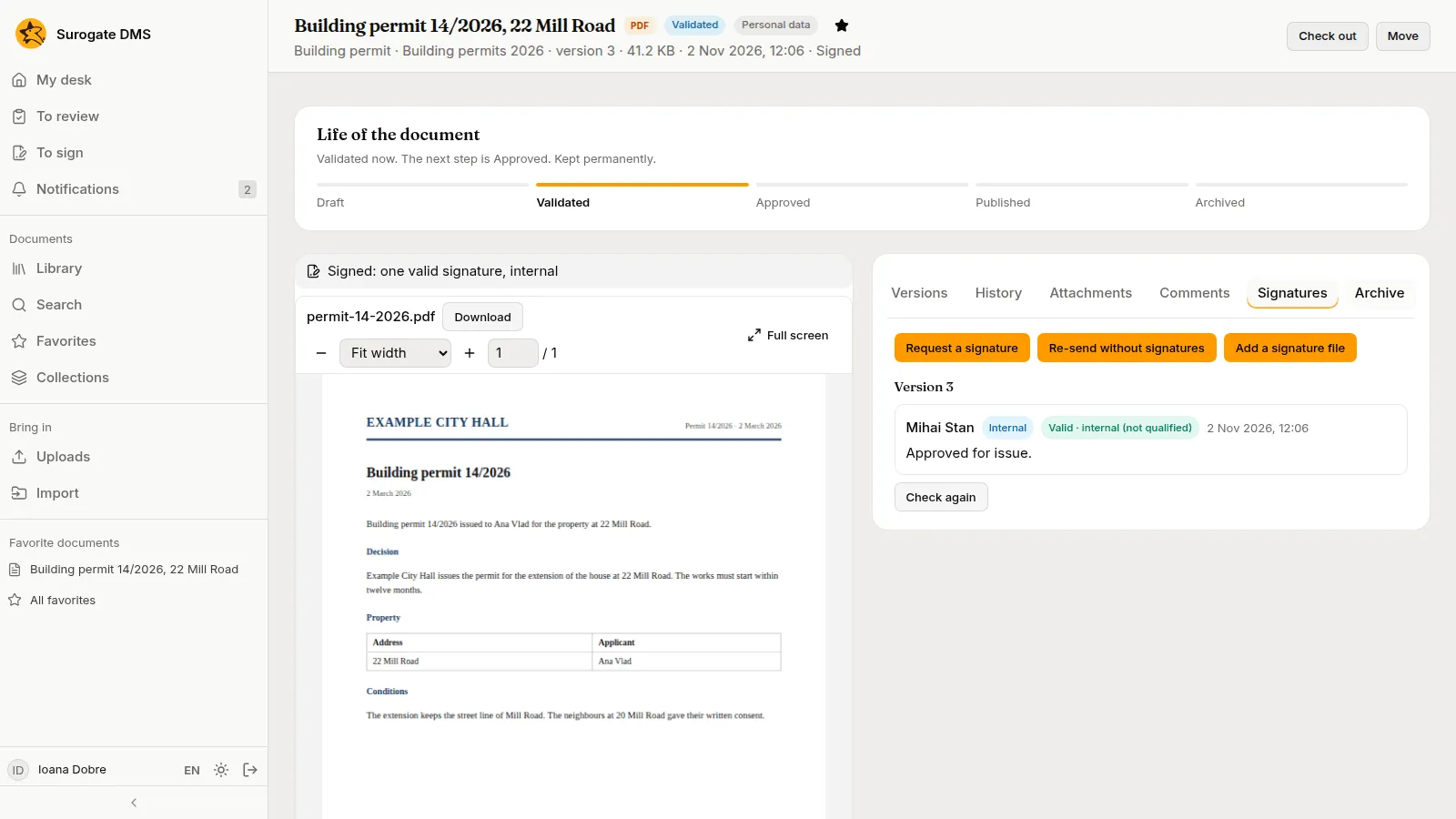
A new version of a signed document has no signatures; Re-send without signatures starts a new round for a new version. A document that has open requests can be changed only after the requests are cancelled or answered.