Checking the data read from forms
For staff who check what the DMS read from a filled form: how to correct a value, what to do with handwriting, and how to file a part that fails a check.
The list
Section titled “The list”Capture › To validate lists the captures that wait for a person to look at the data read from a form. They need attention for one of these reasons: Data to check, Template not settled, Handwriting, reading off, Handwriting not read or Daily handwriting limit. The columns and the buttons are those of To process.
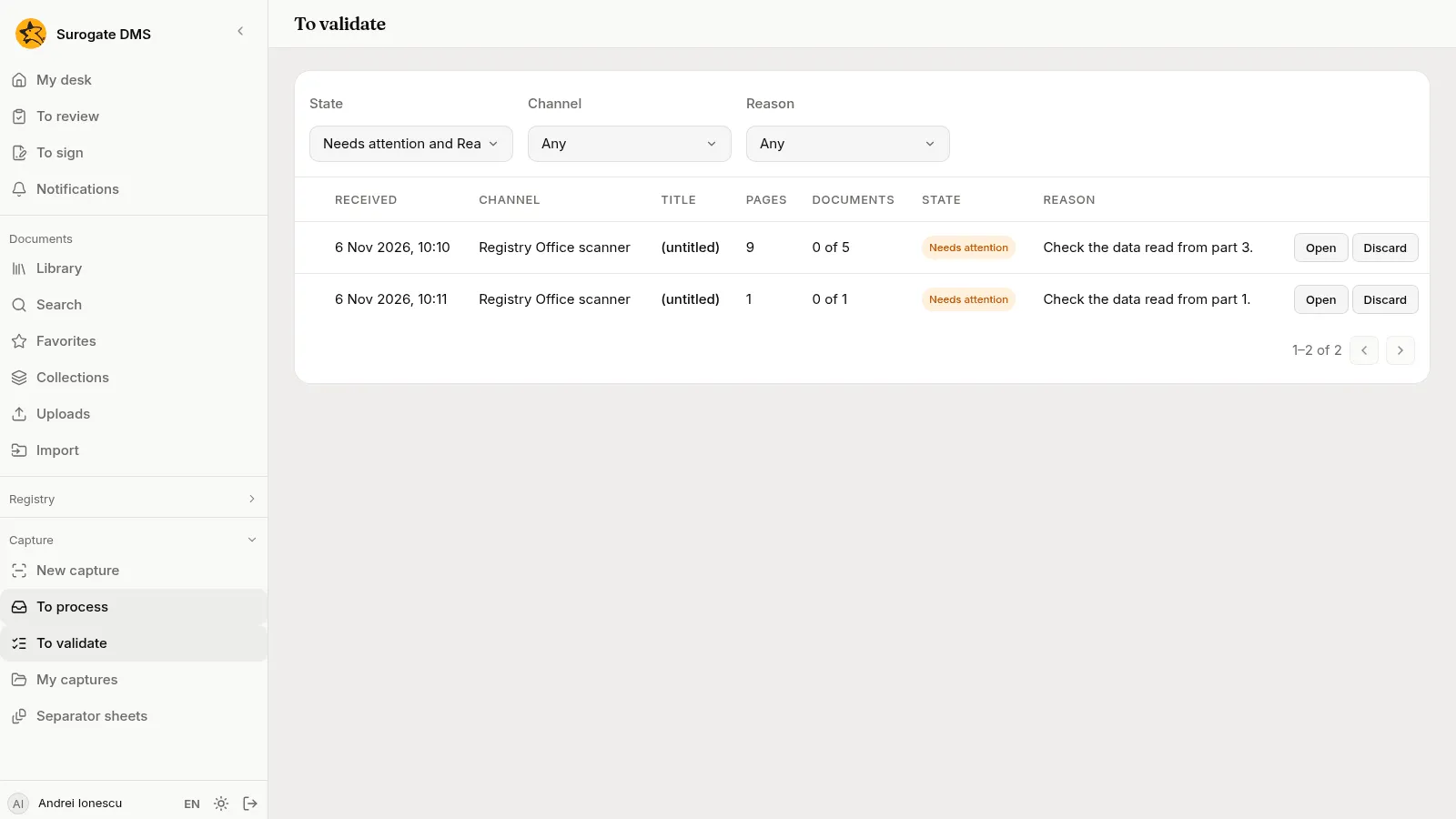
Choose Open on a row. The sentence says which part to look at: “Check the data read from part 1.”
The data read from a part
Section titled “The data read from a part”A part that was read with a template shows Template: Building permit application, version 4 and, under it, the fields read from the form. Each field has its label, the text that was read and, when a check fails, a red sentence in words, such as “The control digit of the CNP does not match.”
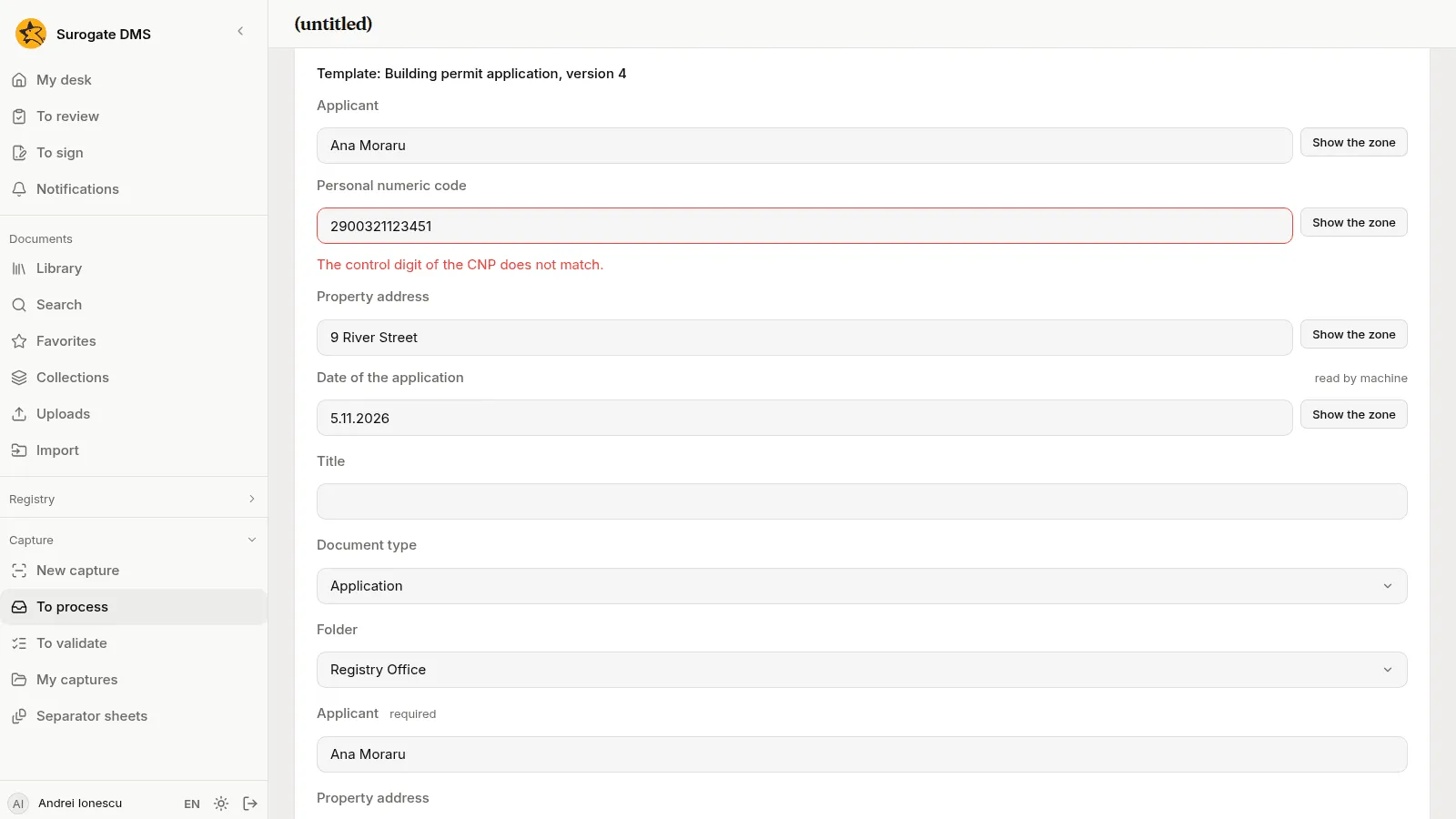
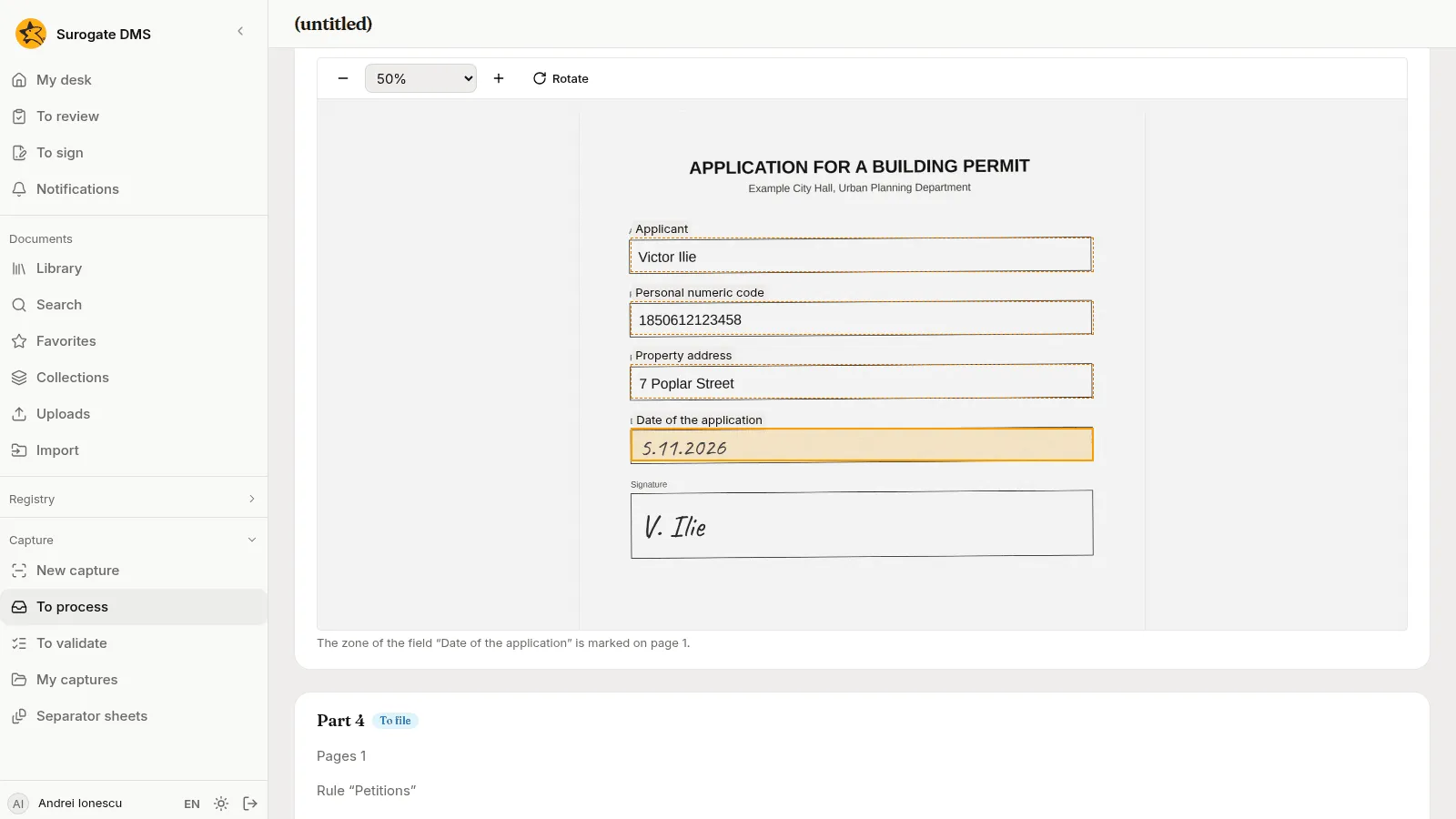
- Show the zone marks, on the page below the card, the place the value was read from. The page opens below the card and its zone is outlined; the sentence under the page says which zone it is.
- To correct a value, type the right one in the box and leave it or press Enter. The checks run again at once.
- You can also take the value from the page: choose Select text on the page, drag over the words, and drop them on the field. The field reads them as its kind asks, a date as a date, a number as a number.
- Under the title, the type and the folder, the card shows the fields of the document type. Values the template put there are already filled in; fill in the others.
- When several templates fit the part, choose Choose the template, then Try again.
Handwriting
Section titled “Handwriting”When your institution has it, a handwritten field is read by a model: only the picture of that zone is sent, nothing else of the page. The value shows “read by machine” until you type it yourself, and a person always checks it. If the machine read the value right, write it in a different way, such as 05.11.2026 for 5.11.2026: typing exactly the text that is already there sends nothing, and the field stays “read by machine”. If the reading is off, failed or over its daily limit, the capture says so, and you fill the field in. See the reasons in Processing captures.
File the part
Section titled “File the part”- File files the part when every check passes.
- File as non-conforming files it even though a check fails. The document carries a mark that says so, with the checks it failed.
- Confirm is for a part you checked and that fails a check you know to be wrong. It asks for a Reason, between 3 and 500 characters, and files the part as checked. The reason stays with the document.
A plain File on a part that fails is refused with: “Part 1 does not satisfy the template’s keys. File it as non-conforming or confirm it.” Use File as non-conforming when the data is wrong and someone must fix it later, and Confirm when the data is right and the check is too strict.
The document afterwards
Section titled “The document afterwards”A document filed from a capture says in its header “Captured through Registry Office scanner on” the date. A document filed as non-conforming shows Not conforming at capture and the checks it failed. Someone who has looked at it can choose Mark as checked and give a reason; the mark then reads “Checked at capture by” the person “on” the date.
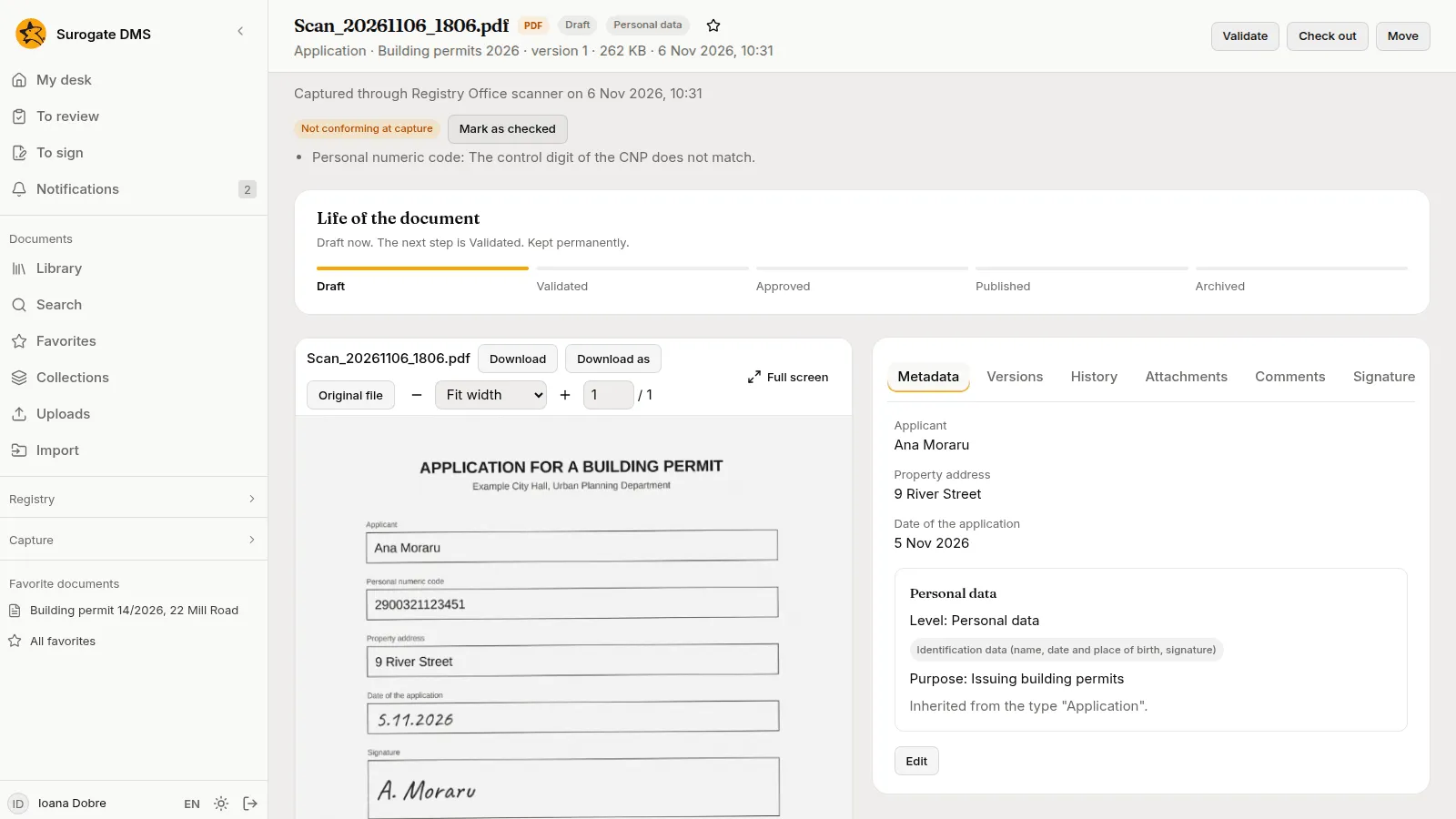
To find such documents, open Search, choose Filters, then Capture, then Not conforming at capture, or type preluare:neconform in the search box. See Search. A document that someone has marked as checked is no longer in that list. The document can be downloaded as a PDF, a searchable PDF/A, a Word file or JSON with Download as; see Versions.