Sign in and find your way
For everyone who uses the DMS: how to sign in, what the sidebar shows and which messages the sign-in page can give. Your institution has its own address for the DMS; your administrator gives it to you.
Sign in
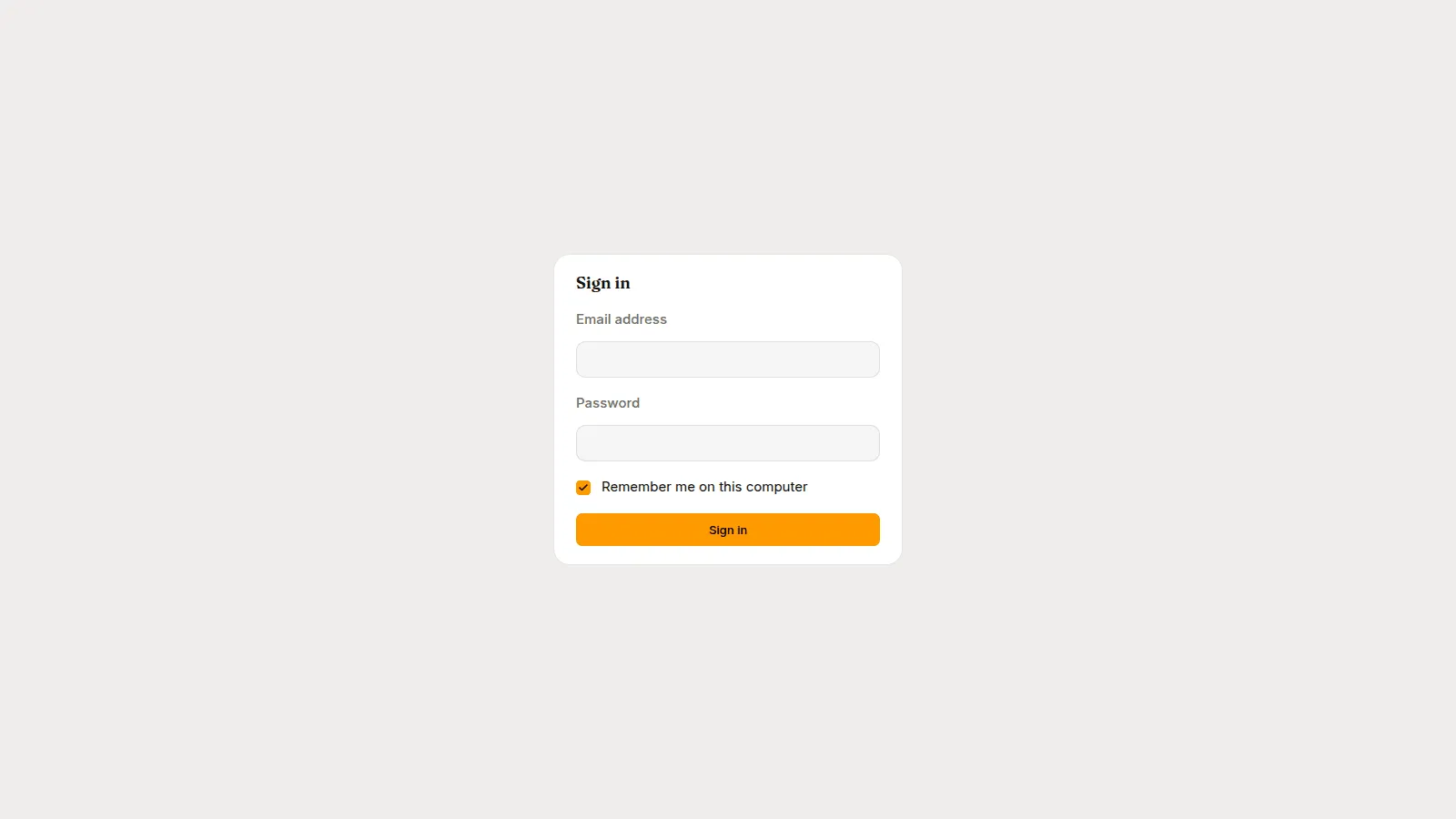
Section titled “Sign in”- Open the address of the DMS.
- Type your Email address and Password. They are the ones of your account in your institution’s sign-in service; the DMS keeps no passwords and makes no accounts.
- Leave Remember me on this computer ticked if the computer is yours, and untick it on a shared computer.
- Press Sign in.
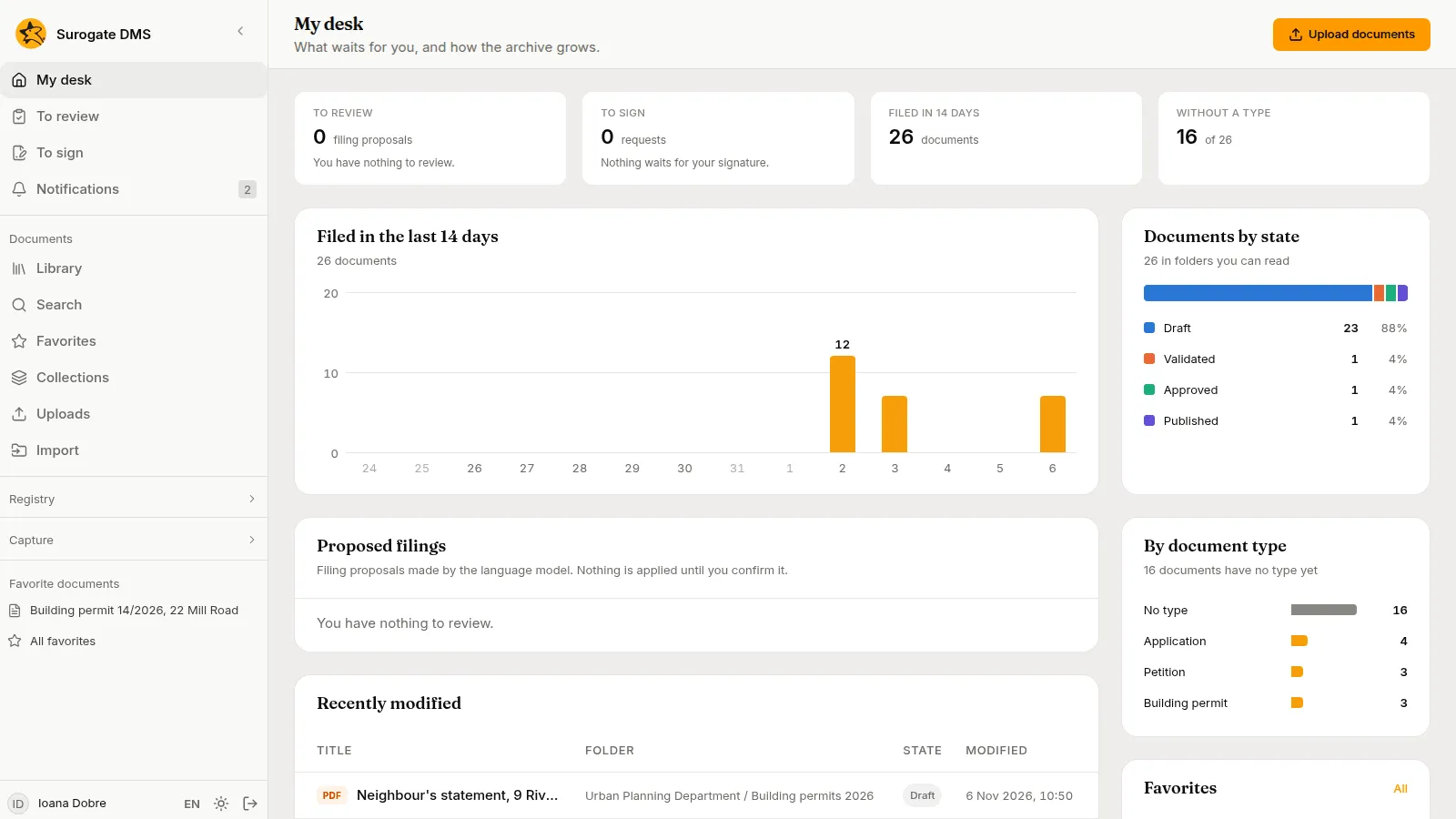
After you sign in you land on My desk, or on the page you had opened before. If your administrator added you before your first sign-in, your status is “Pending” until then, and the roles given to you work from that moment.
Messages on the sign-in page
Section titled “Messages on the sign-in page”| Message | What to do |
|---|---|
| The email or the password is not correct. | Check both and try again. |
| Too many attempts. Wait a few minutes and try again. | Wait a minute and try again. |
| Sign-in is not available right now. Try again shortly; if it still does not work, tell the administrator. | Try again, then tell your administrator. |
| Your account does not belong to this institution. Ask the administrator to add you. | Ask your administrator. |
| Your account is deactivated. Ask the administrator to reactivate it. | Ask your administrator. |
| Your session has expired. Sign in again. | Sign in again. |
| You were signed out because you had not used the application for a while. Sign in again. | Sign in again. Unsaved text is lost. |
The sidebar
Section titled “The sidebar”The sidebar lists the pages your roles allow. A person who files documents and reads them sees the first two groups. The Registry group appears for people with a registry permission, the Capture group for people who may upload documents or work captures, and the Archive and Administration groups for people with the right roles. Registry and Capture are folded until you open them.
| Group | Pages | Who sees it |
|---|---|---|
| (no title) | My desk, To review, To sign, Notifications | Everyone |
| Documents | Library, Search, Favorites, Collections, Uploads, and Import for people who may file documents | Everyone, Import with the right to file |
| Registry | Registrations, For my unit, Correspondents | People with a registry permission; Correspondents also for people who may read the directory |
| Capture | New capture, To process, To validate, My captures, Separator sheets | New capture and My captures for people who may upload documents; all of them for people who hold Process captures |
| Archive | Overview, Reception, Integrity, Archival formats, Time stamps, Selection, Handover, Procese-verbale, Personal data, Reports, Alerts | People with archive, audit, personal-data or alert roles |
| Administration | Document types, Folders, Nomenclator, Org chart, Roles and permissions, People, Signatures, Audit log | Administrators and auditors, each page by its own permission |
A first administrator sees every group.
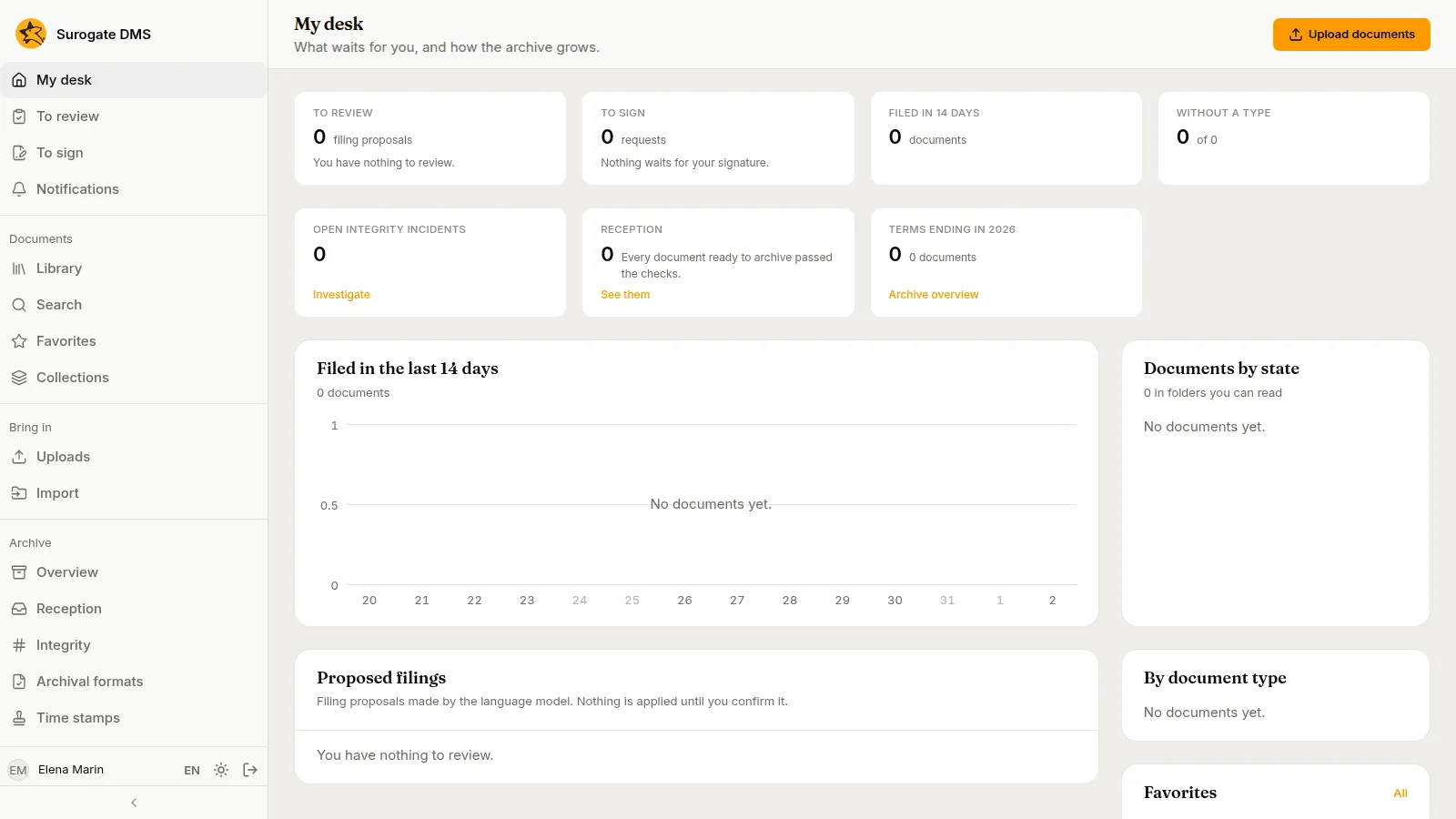
Under the groups the sidebar lists your Favorite documents and your Virtual folders, when you have any. At the bottom are your name, the language button (EN or RO), the theme button and Sign out.
Sign out
Section titled “Sign out”Press Sign out at the bottom of the sidebar. The DMS also signs you out after 30 minutes without use, with the message above.