Upload and import documents
For staff who file documents: uploading one or many files into a folder, following uploads in the tray and on the Uploads page, and bringing many documents in at once with their metadata.
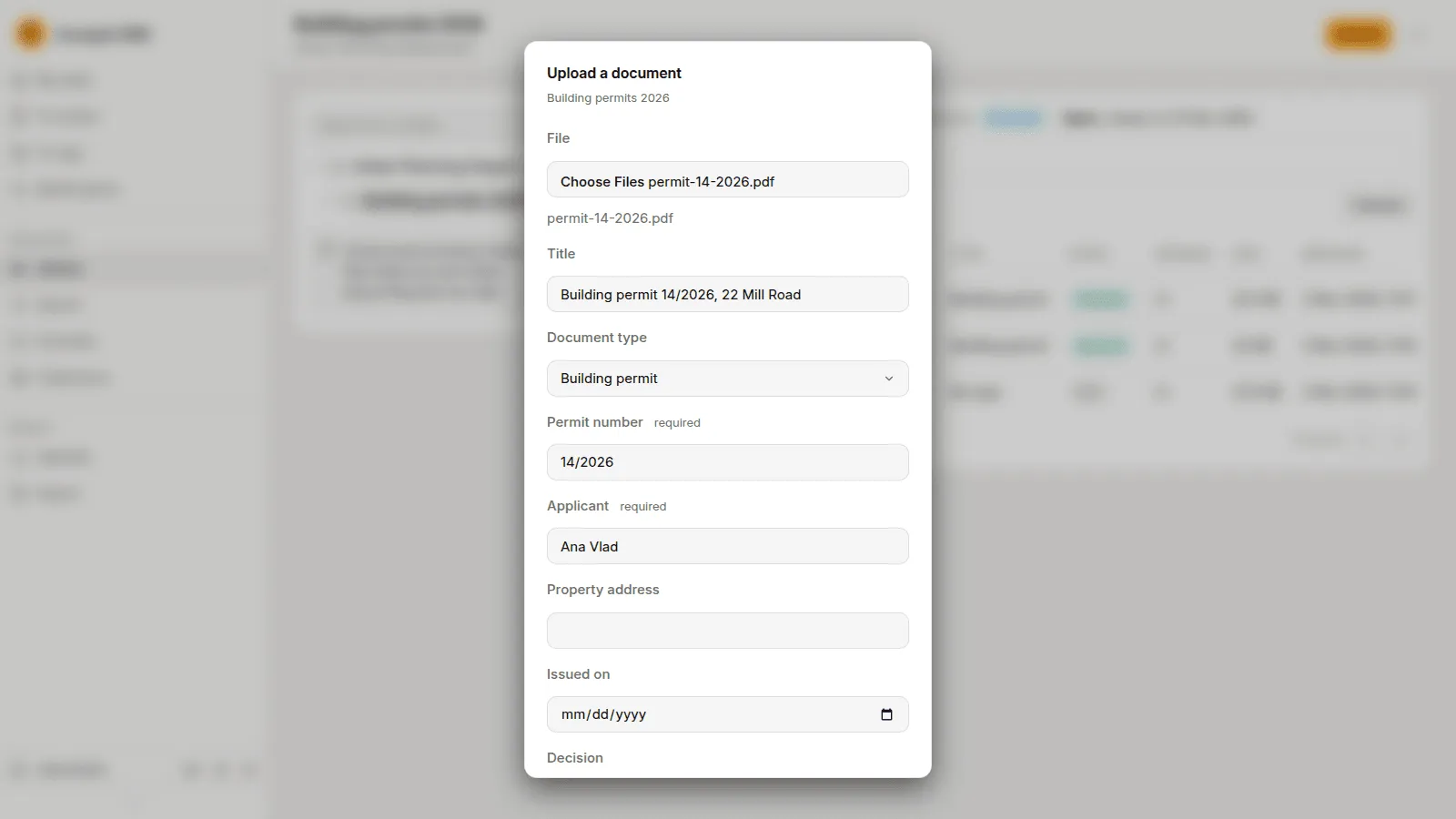
Upload a document
Section titled “Upload a document”- Open the folder in the Library and press Upload. The button shows only where you may file.
- Under File choose one file, or several together.
- Give the document a Title. With several files, each file’s name is its title.
- Choose the Document type. The list holds the types you may file from this folder.
- Fill in the fields of the type that are required, and the others if you wish.
- Press Upload.
You can also drop files on a folder in the Library to file them there.
To bring in paper, a scanned stack or the pages of a letter that must be cut into documents, send a capture instead: see Capturing documents.
Follow the uploads
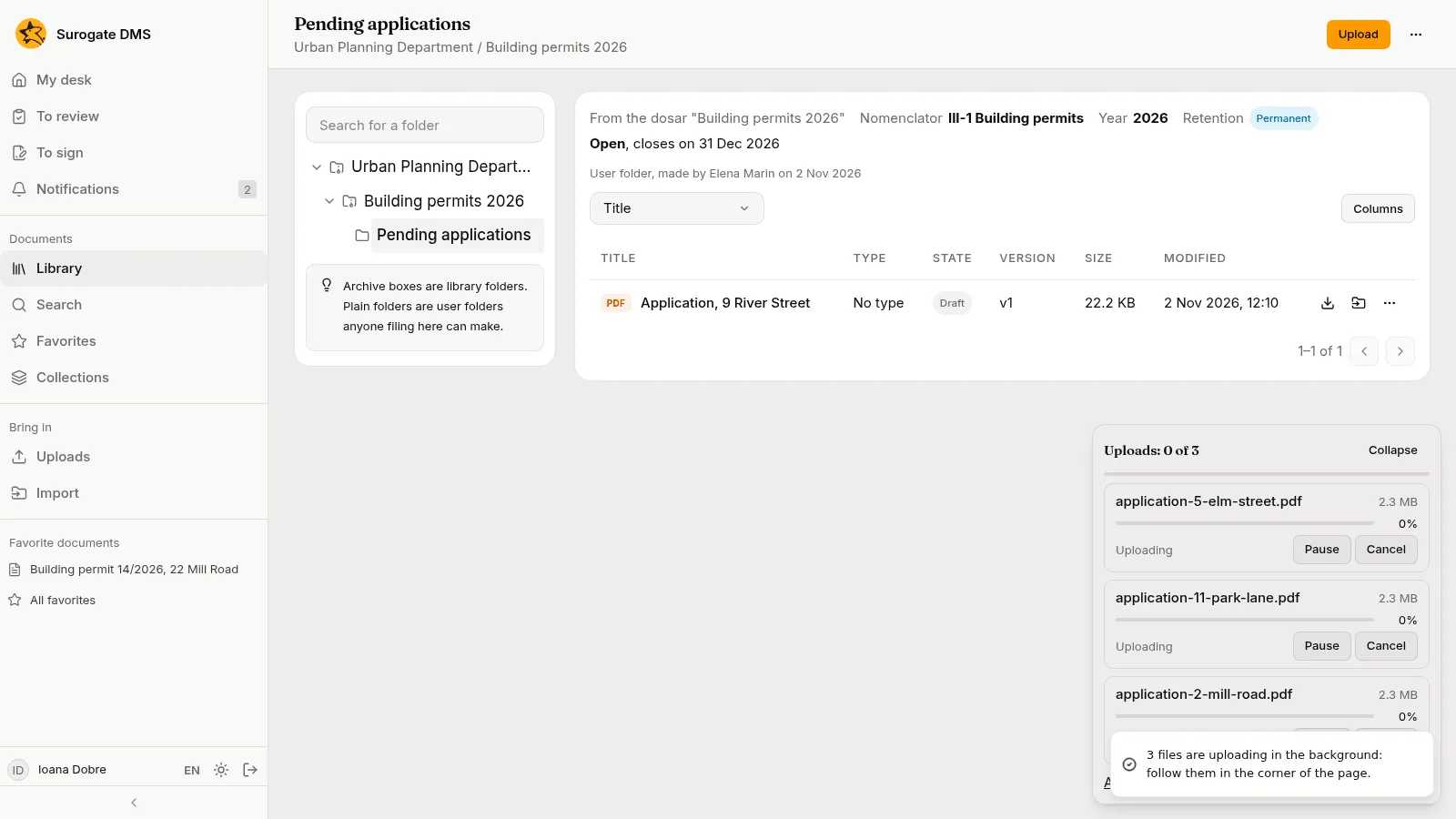
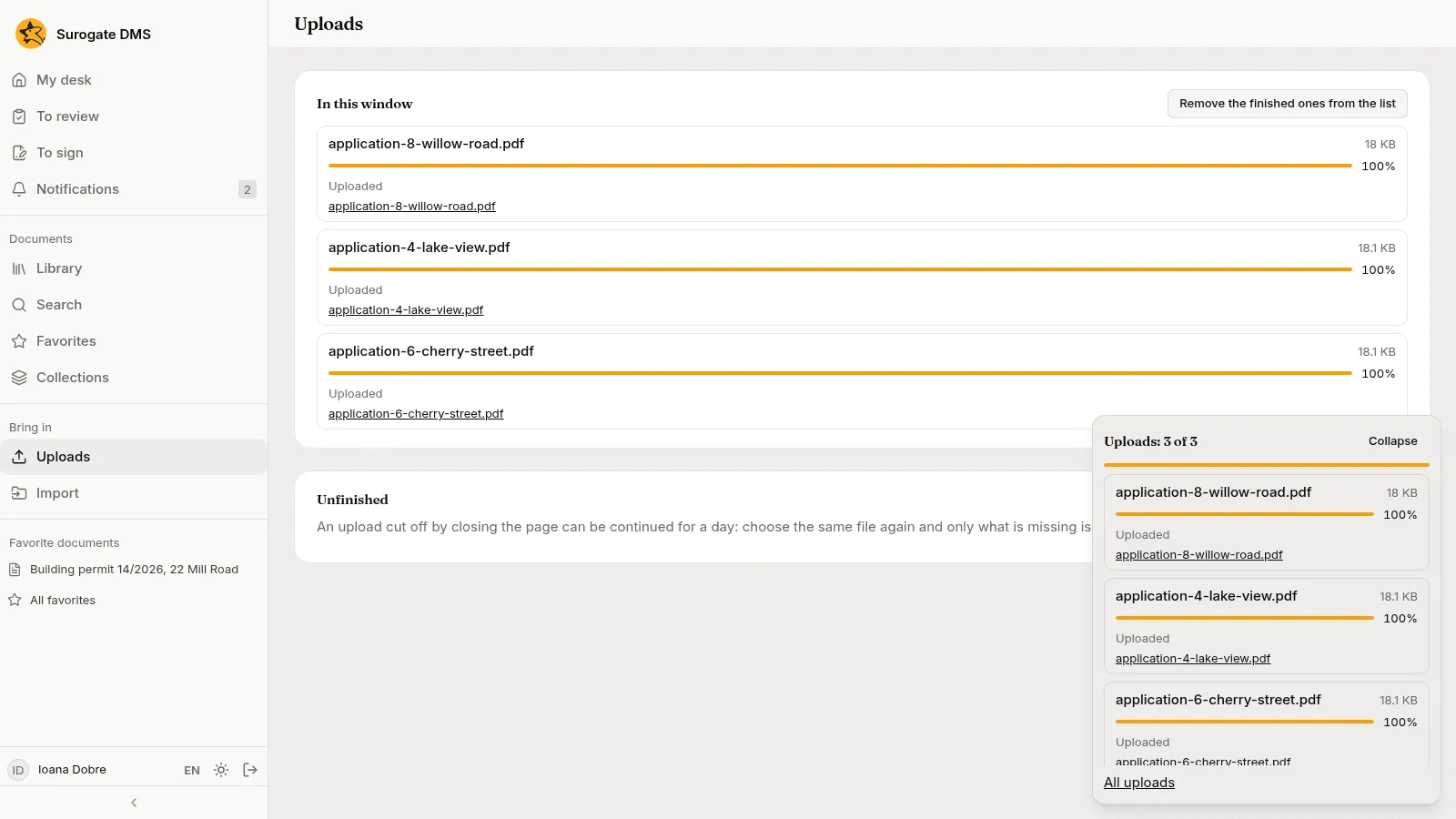
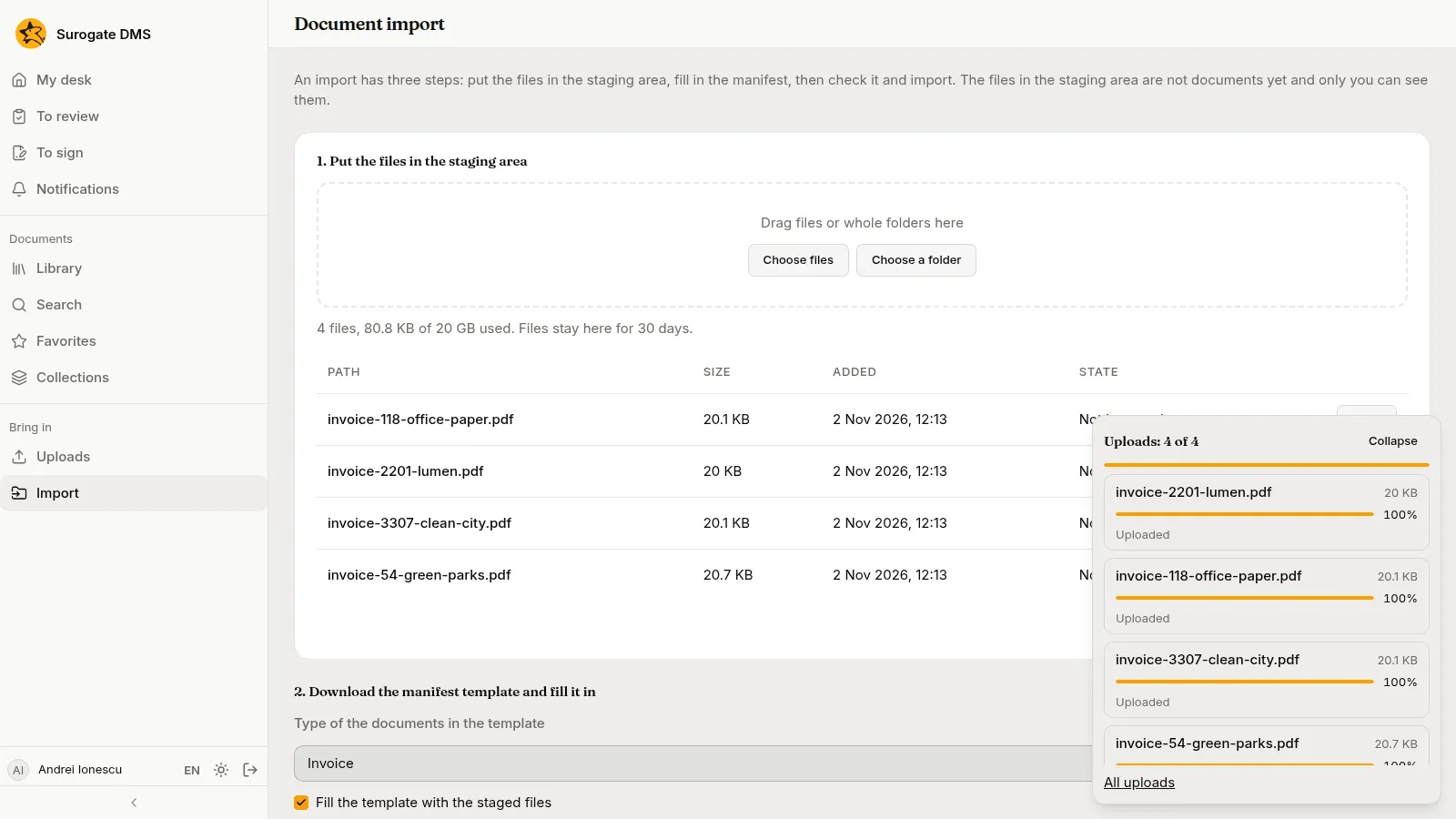
Section titled “Follow the uploads”Uploads go on in the background. A card at the bottom right of every page, the tray, shows how far each file is, with Pause and Cancel.
The Uploads page, under Documents, lists every file of this window and what each is doing. Remove the finished ones from the list tidies it. A file whose upload was cut off by closing the page can be continued for a day: choose the same file again and only what is missing is sent.
After the upload
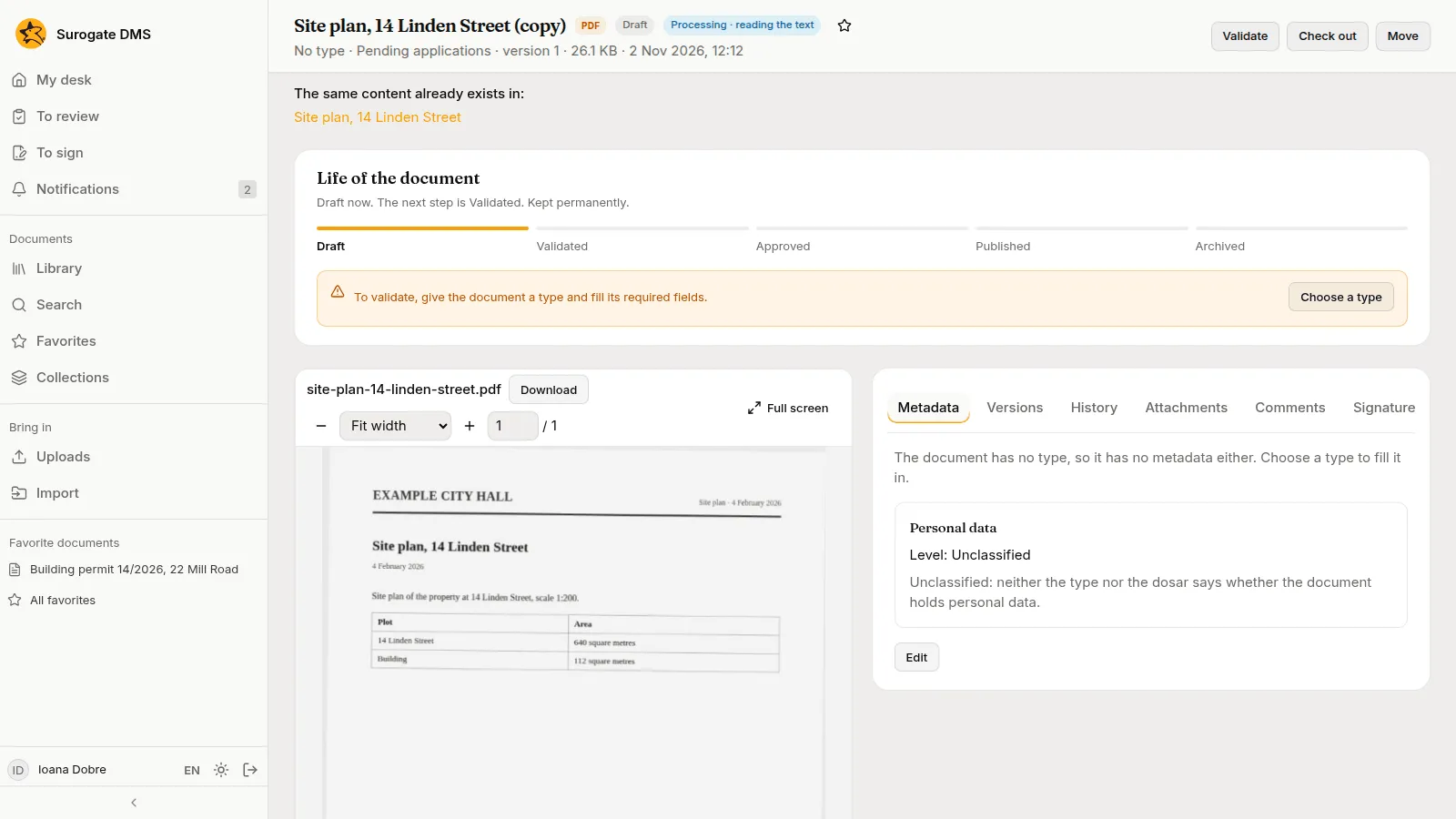
Section titled “After the upload”The DMS reads the file, and a chip next to the title shows where it is: Waiting, Processing with a step such as “reading the text”, or Processing failed. Hold the pointer over a failed chip to read why, and tell your administrator if the reason says the server lacks a program.
When a finished upload looks like another document, the document’s page tells you: “The same content already exists in:” with a link, or “This folder already has a document with the same name”. It is a notice; both documents stay.
Import many documents at once
Section titled “Import many documents at once”When you have many files and their metadata, use Import under Documents. It has three steps.
- Put the files in the staging area. Drop the files or a whole folder, or choose them. The files wait there for 30 days and only you see them.
- Download the manifest template and fill it in. Choose the Type of the documents in the template, tick Fill the template with the staged files and press Download the template. In the spreadsheet, one row for each file: the dosar it goes to, its title, and the values of the type’s fields.
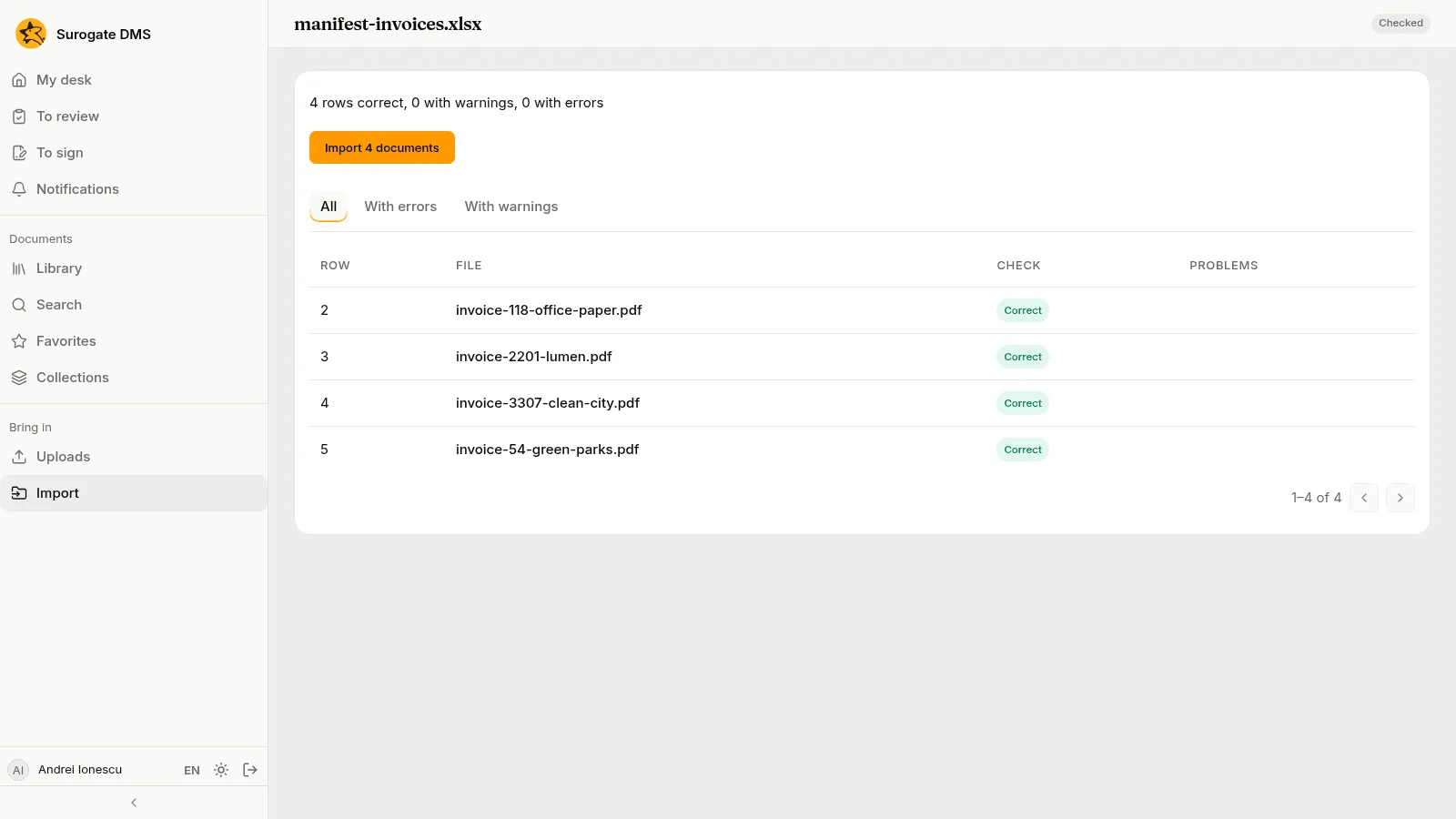
- Check the manifest. Choose the filled file and press Check.
The check lists each row as Correct, with warnings or with errors, and changes nothing. When it is right, press Import {count} documents: the DMS files them.