Capturing documents
For staff who bring paper and files into the DMS: how to send pages from a computer, a phone or your own printer, what a capture is, and what happens to it before it becomes documents.
What a capture is
Section titled “What a capture is”A capture is a batch of pages on its way to becoming documents. It holds the files that came in (a scanned stack, photographs, a PDF, the attachments of a message) and the pages they make. The DMS reads the pages, cuts them into parts (a part is the pages of one future document) and files each part as a document. You check what it did and file what is left.
A capture reaches the DMS in one of these ways:
- New capture, a page of the DMS where you choose files or photograph the pages. It works on a computer and on a phone.
- A scanner that writes into a shared folder of a unit, a mailbox the unit reads, or a virtual printer of the unit, when your institution has them. See Capture channels.
- Your own virtual printer: any program on your computer can print to it. See My captures and My printer.
Who sees the Capture section
Section titled “Who sees the Capture section”| Entry of the Capture section | Who sees it |
|---|---|
| New capture and My captures | People who hold Uploads documents somewhere, and people who hold Process captures. |
| To process, To validate and Separator sheets | People who hold Process captures. The captures they list are those of the units where they also hold Access to documents with personal data. |
| Capture channels, Capture flows, Separator sheets and Capture templates in Administration | People who hold Manage capture for the whole institution. See Roles and permissions. |
Send a capture
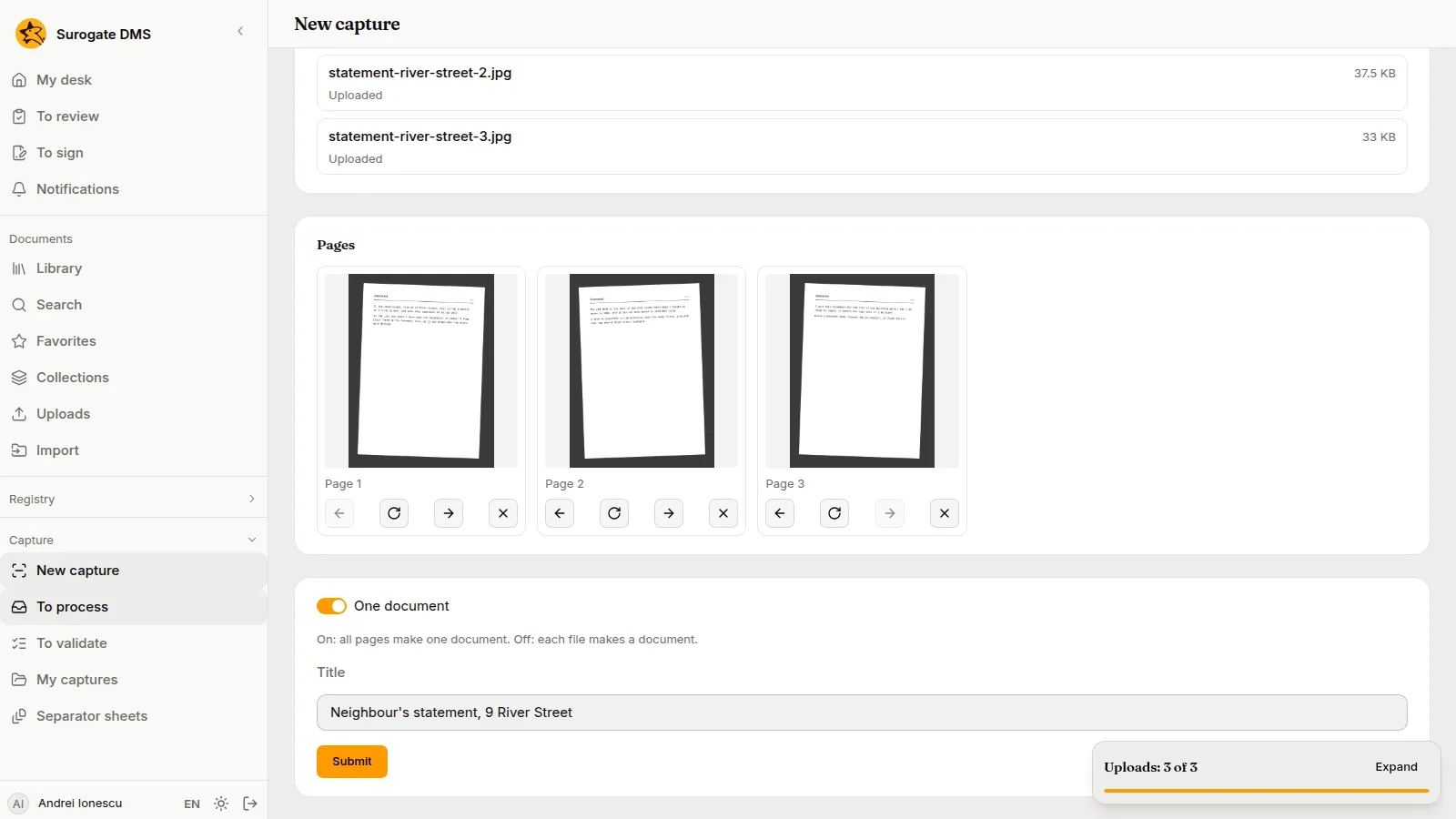
Section titled “Send a capture”- Open Capture › New capture.
- In Destination, choose your own channel or a channel of a unit, for example Registry Office desk. What you send to your own channel is in My captures. The page says “The destination cannot change once the first file is chosen.” Choose it before the files.
- Drop the files on the page or choose Choose files. On a phone you can also Take a photo of each page. The files upload at once and the list Files shows each one with “Uploaded” when it is done.
- Look at Pages. Each page has buttons to turn it, to move it one place earlier or later and to take it out. A photograph shows its own picture. A PDF shows numbered tiles until you send it, and its pictures appear on the capture’s page afterwards.
- Choose how the pages become documents with the switch One document. On: all pages make one document. Off: each file makes a document. A channel may start with it off.
- Write a Title if you want one. It is optional.
- Choose Submit.
If you leave the page with files that were not sent, the page asks “Leave the page?” and says that the capture stays unsent and is deleted after 24 hours.
Separator sheets and labels
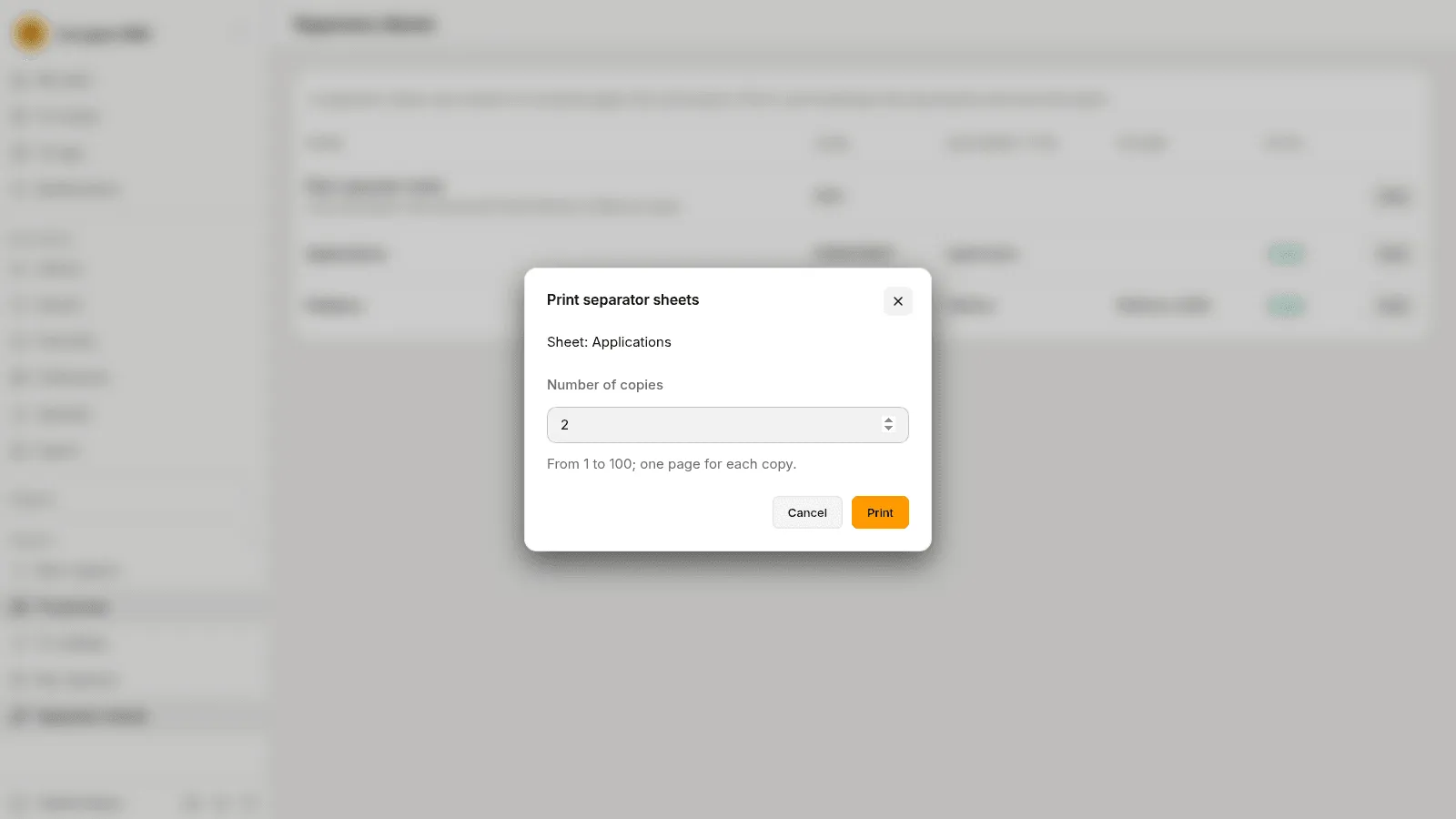
Section titled “Separator sheets and labels”A scanned stack of different documents can be cut by sheets you put between them. In Capture › Separator sheets, the Plain separator sheet cuts the stack and the document that follows is filed as usual. A profile, such as Applications, also says the type and the folder of the document that follows. Choose Print, write the Number of copies (from 1 to 100; one page for each copy) and print at full size. Do not write on a sheet.
A label of a registration does the same for a letter that was registered: stick it on the first page, and the part is linked to its registration. See Print labels. How the DMS cuts a batch is in Separator sheets and registration labels.
What happens next
Section titled “What happens next”The page of the capture says where it is, in words:
| State | What it says | What you can do |
|---|---|---|
| Uploading | The files are uploading; submit the capture when you are done. | Add files and Submit. |
| Waiting | The capture waits to be processed. It says how many captures are ahead of it. | Wait. |
| In progress | Working on the stage it names, such as Reading or OCR. | Wait. The page refreshes. |
| Needs attention | A sentence says what is wrong and which part. | See Processing captures. |
| Ready to file | Everything is ready; check it and file it. | File all, or check the parts first. |
| Filed | Filed as the number of documents it made. | Open the documents. |
| Discarded | Who discarded it, when and why. | A person who processes captures may restore it. |
A unit’s processors see the captures of the unit in To process. You see the captures you sent to yourself or printed in My captures. The daily work of a processor is in Processing captures.
My captures and My printer
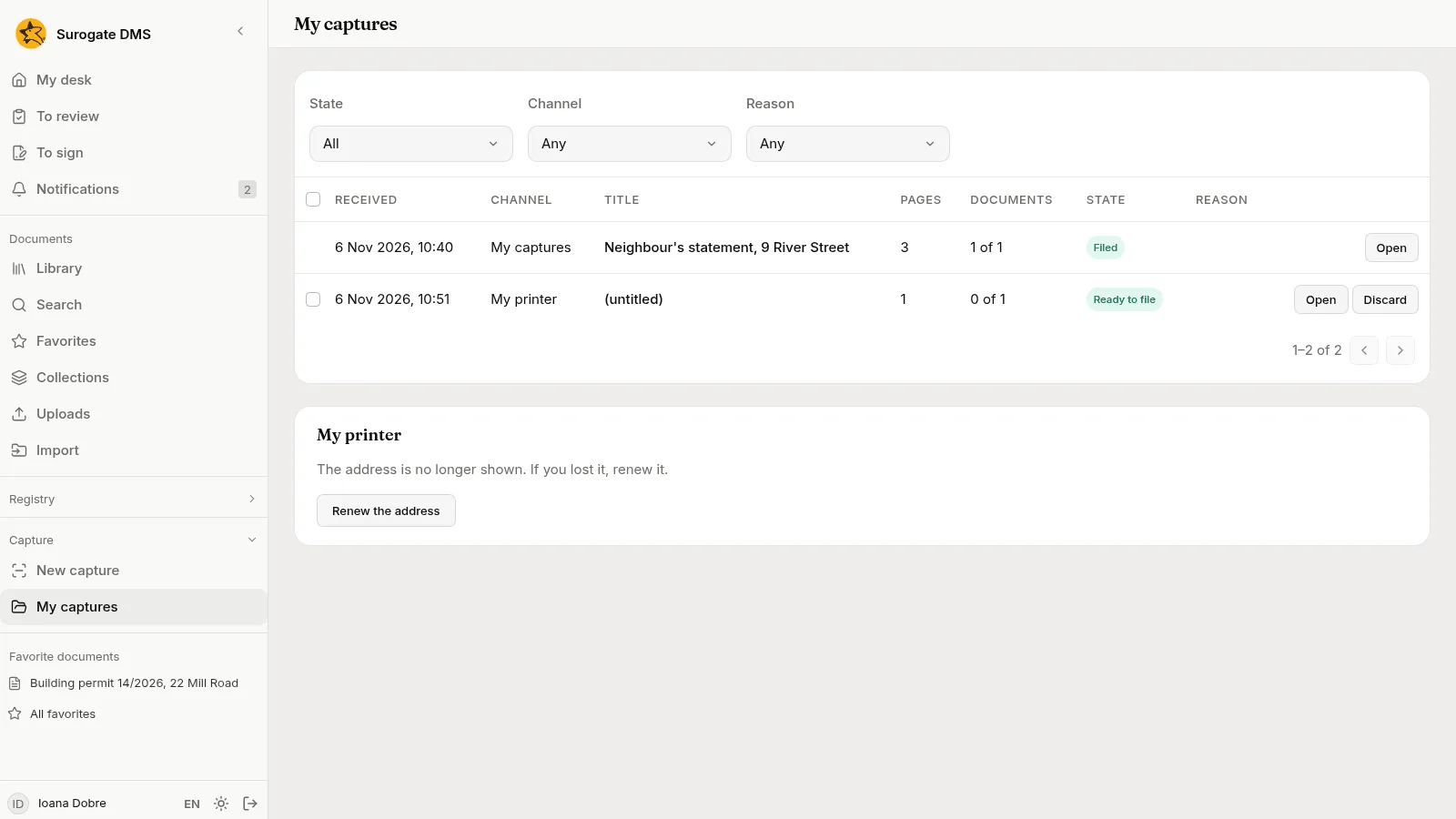
Section titled “My captures and My printer”My captures lists the captures you sent to your own channel and the ones you printed on your own printer, with filters State, Channel and Reason. A capture you sent to yourself, or printed to your own printer, is yours to check and file there.
My printer gives your computer a printer that sends pages to the DMS.
- In My captures, choose Create the printer.
- The card shows two addresses, the Printer address and the https address, each with Copy. They are shown once. Keep them now.
- Add the printer to your computer as the card says for Windows, macOS and Linux: paste the https address in Windows, the address in the Address field on a Mac, and on Linux the command the card gives with the address in place of
ADDRESS. - Print a document to it. A capture appears in My captures, with no title. Its page shows the Job name of the print.
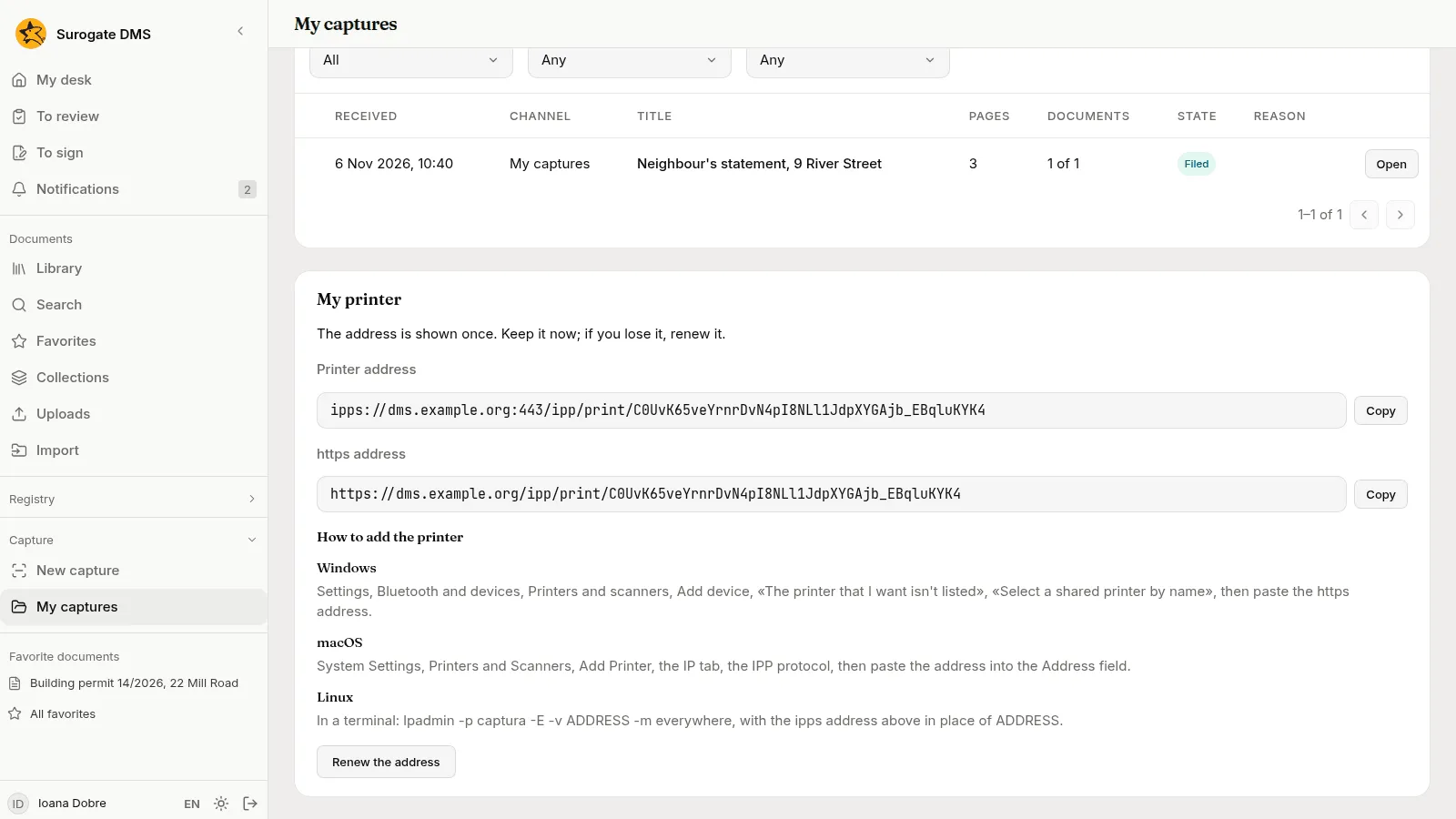
If you lose the address, choose Renew the address. The old address stops working at once, and the printer must be added again with the new one.
How long a capture’s files are kept
Section titled “How long a capture’s files are kept”The files of a capture are kept for a period your institution sets. The documents made from them stay. After that period the page of the capture says “The files of the capture were deleted on” the date, and its pages can no longer be shown.