Processing captures
For staff who work the captures of a unit: reading the inbox, checking the parts the DMS made, splitting and filing them, and what to do when a capture waits.
The list
Section titled “The list”Capture › To process lists the captures of the units where you process captures, and your own. The oldest come first, and a capture that has waited long is marked old.
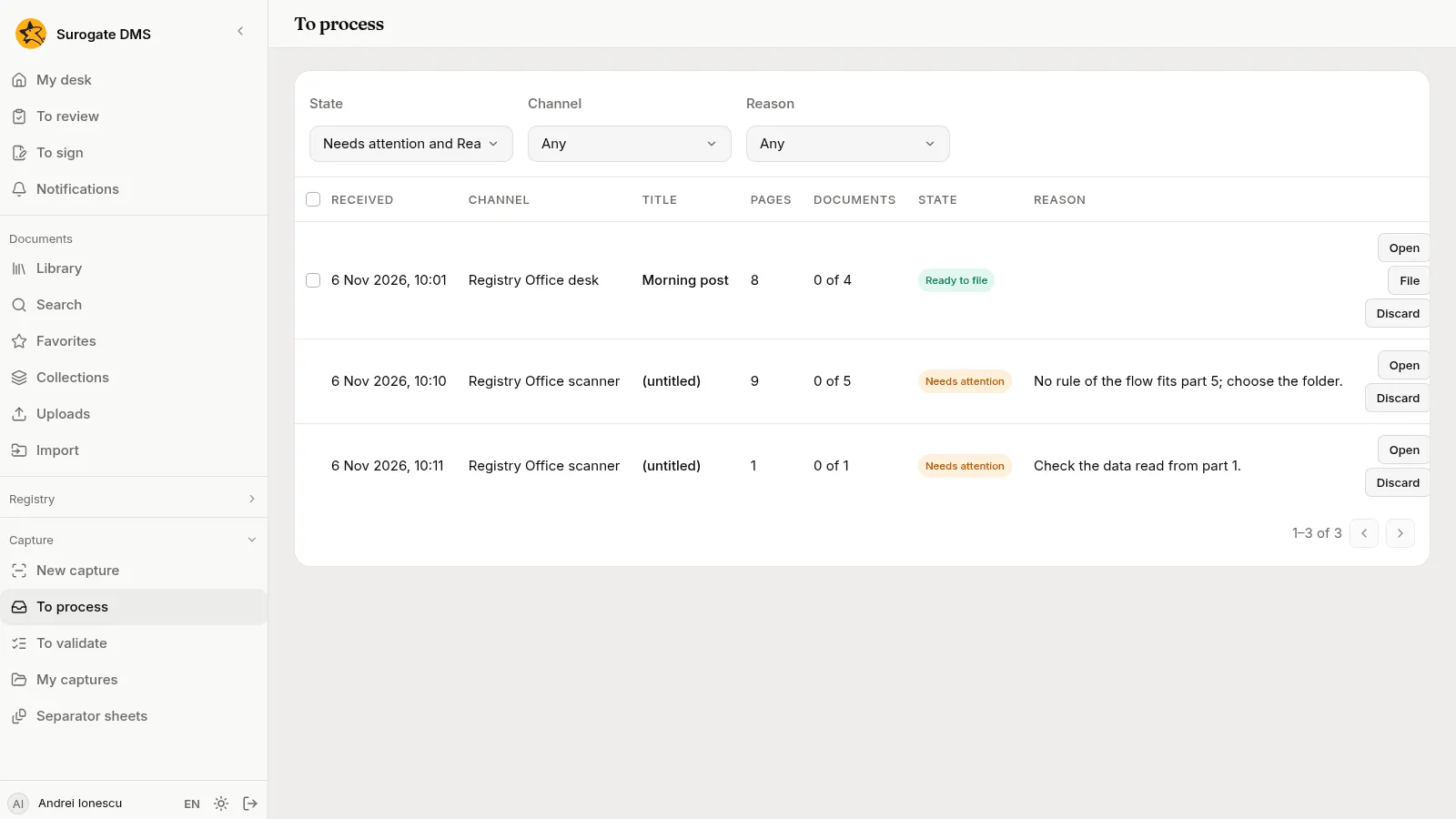
The columns are Received, Channel, Title, Pages, Documents (such as “0 of 4”: documents made out of parts), State and Reason. The filters are State (Needs attention and Ready to file by default, or All), Channel and Reason. A row has Open, File (when the capture is ready) and Discard.
Tick several rows that are ready to file (a capture that waits for a person has no box) and use the bar Actions for the selected captures to file or discard them together. The page tells you the result, for example “Filed 3 of 4.”, and names each capture it could not file and why.
A capture’s page
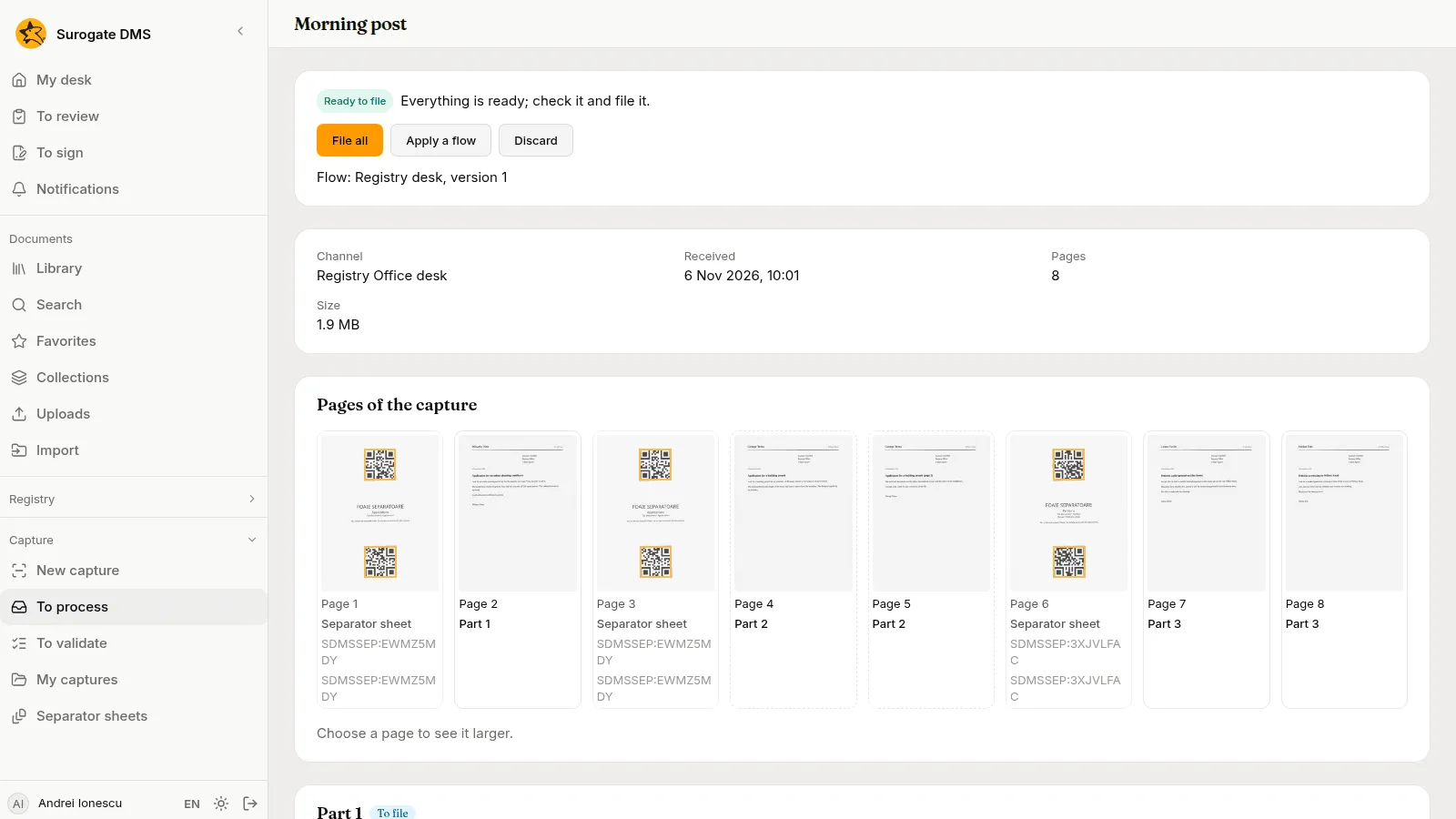
Section titled “A capture’s page”Choose Open. The first card gives the state and its sentence and the buttons that fit it:
- File all files every part that is ready.
- Try again runs again the step that stopped. Use it after you fixed what the sentence says.
- Continue without and the name of the step, such as Continue without Extraction or Continue without Codes, appears when a stopped step may be skipped.
- Apply a flow, see below.
- Discard and Restore, see below.
When the capture runs a flow, the card says “Flow: Registry desk, version 1”. A capture keeps the version it started with, even when a newer one is published.
The next card gives Channel, Received, Pages, Size and a Reference when there is one. It also says how the capture arrived: File, Modified and File size for a scanner’s file, Sender, Recipients and Subject for a message, and the Job name for a printed capture.
The pages and their codes
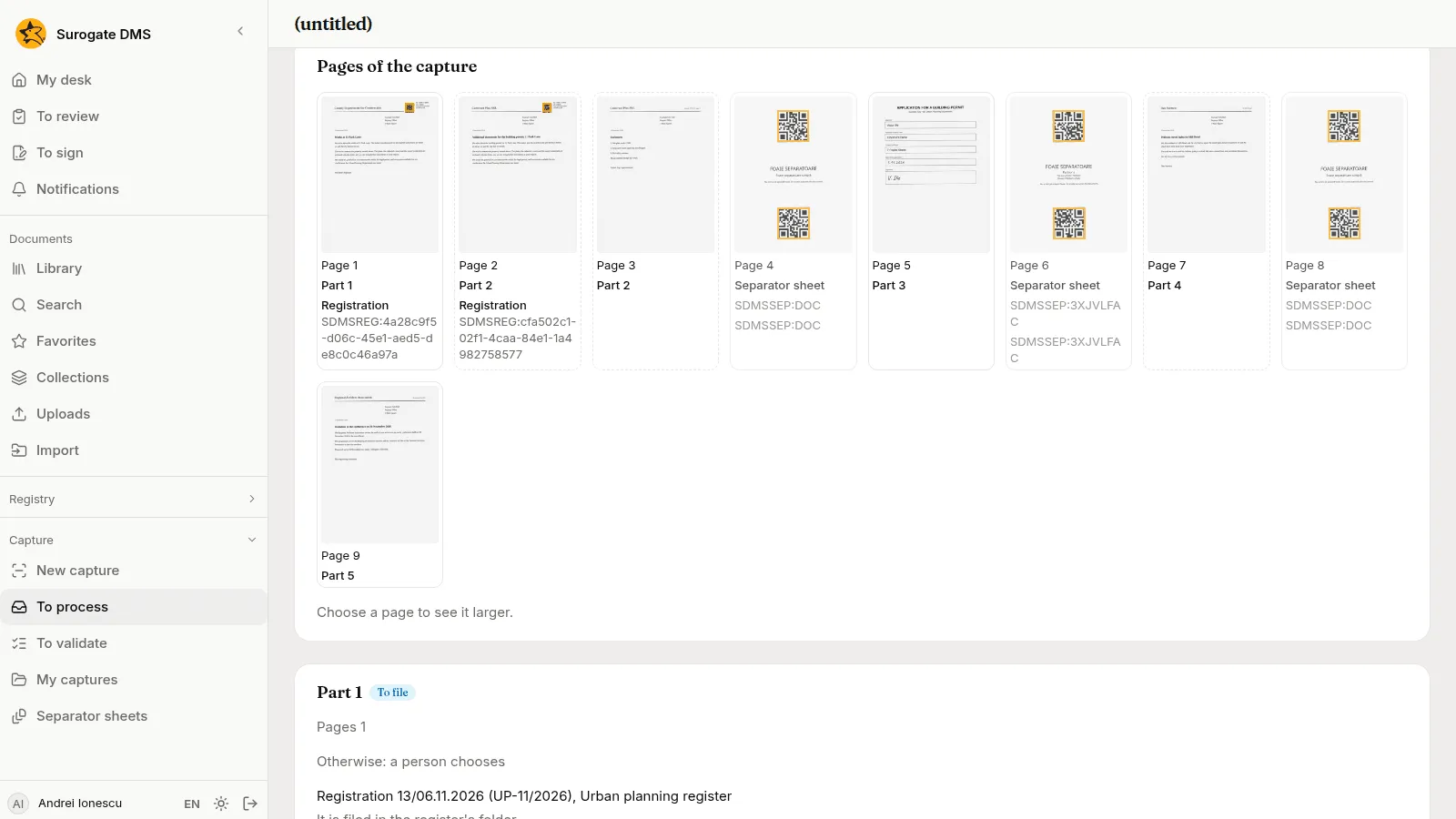
Section titled “The pages and their codes”Pages of the capture shows every page as a small picture with its part, Part 1, Part 2 and so on. Choose a page to see it larger. A page that holds a code of the DMS shows it in words:
- Registration, the label of a registration. The page starts a part linked to that registration.
- Separator sheet, which cuts the stack. The sheet is left out of the documents.
- Other code, a bar code or QR code that is not the DMS’s own. It changes nothing.
A page that was left out says why: “Blank page left out” or “Separator sheet”.
The parts
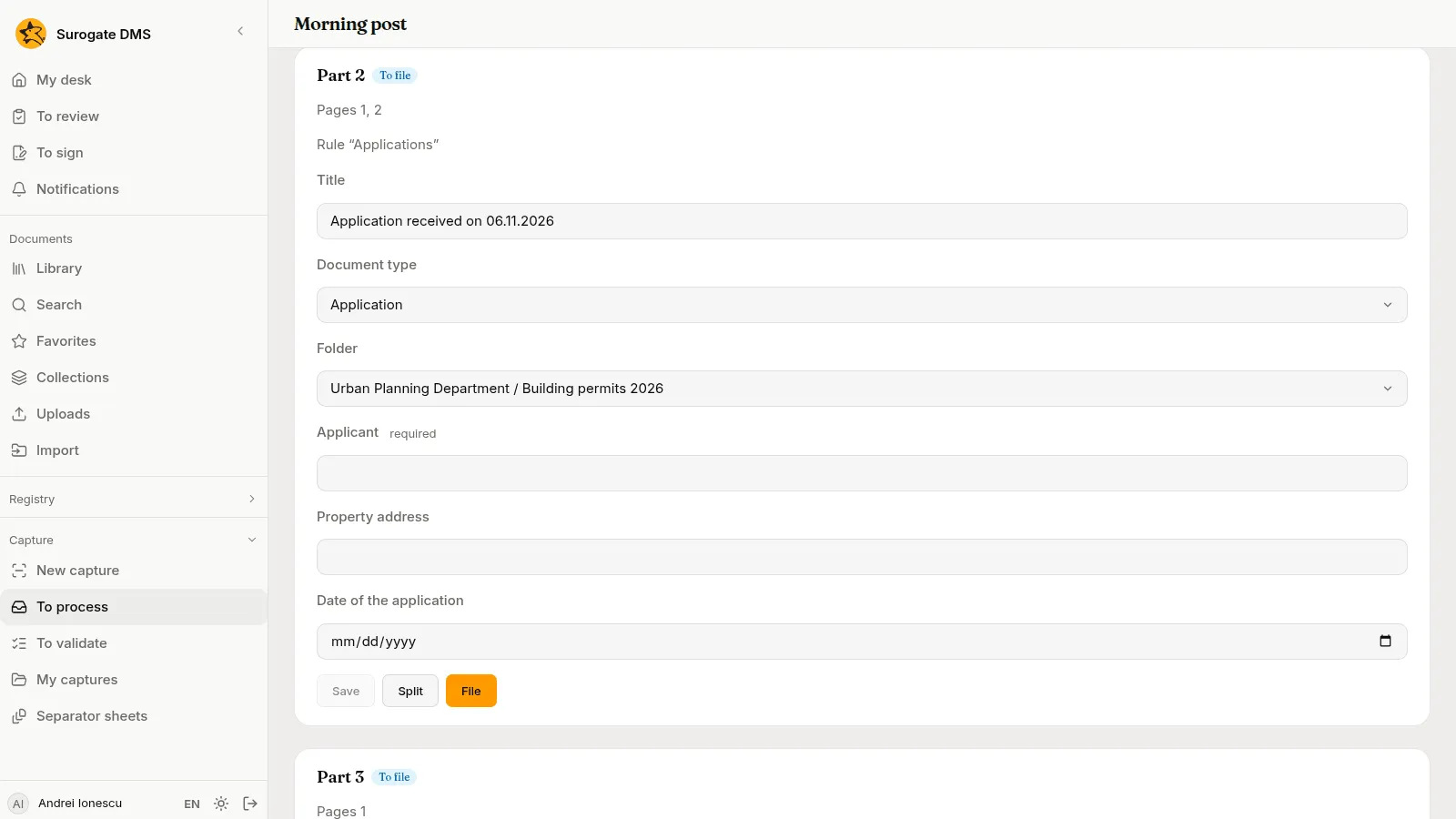
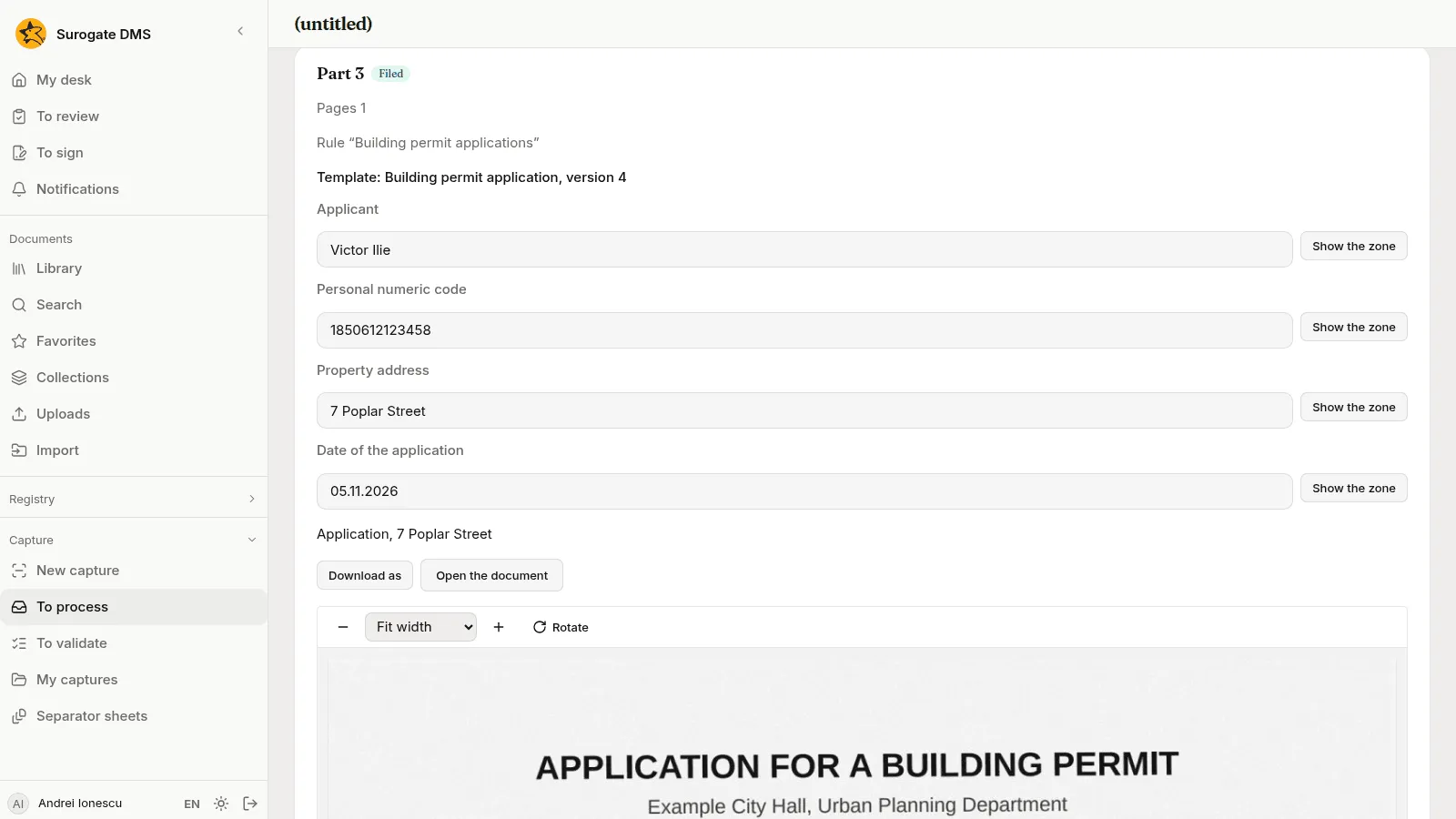
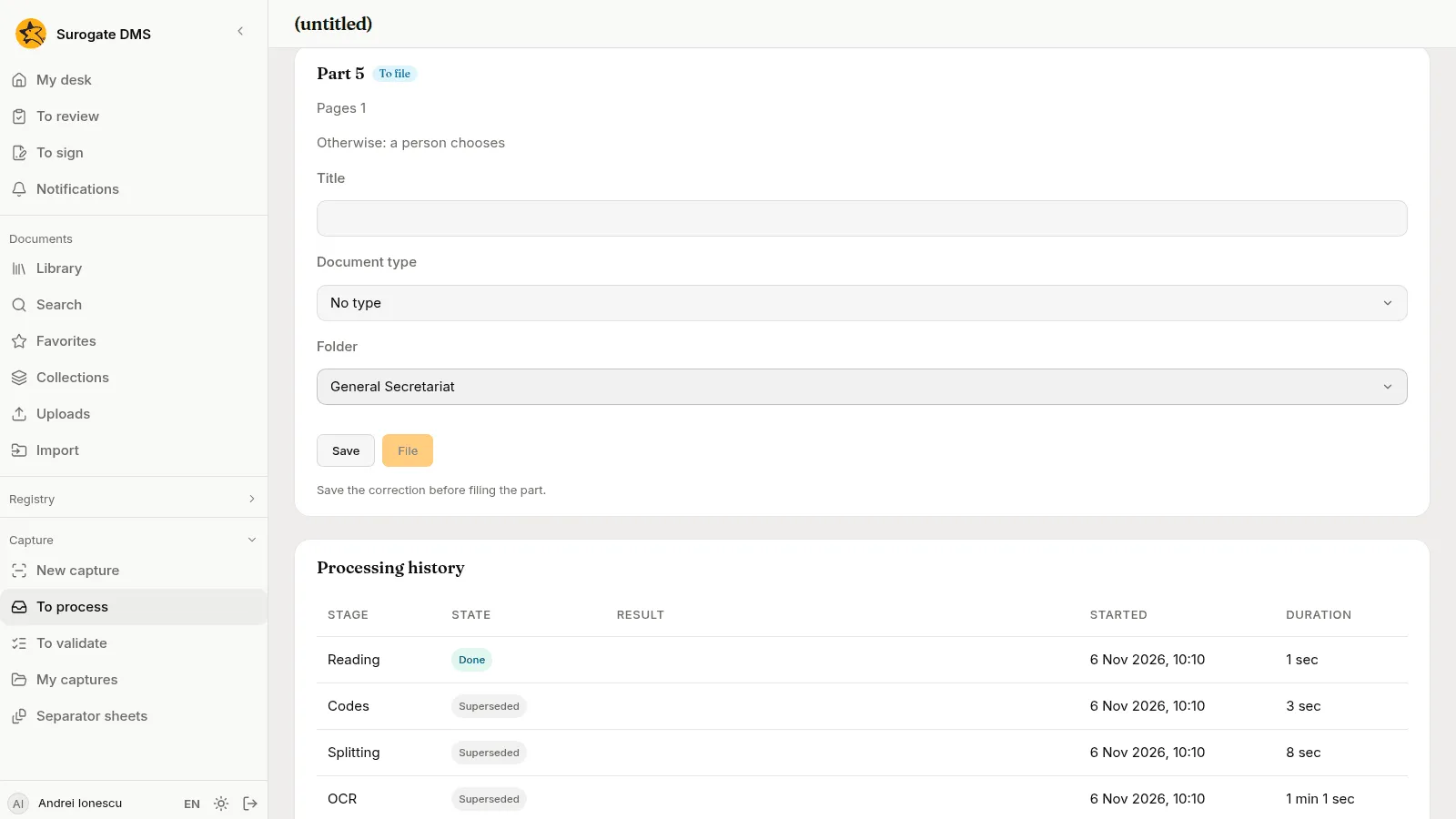
Section titled “The parts”Each part has its own card: Part 1, Pages (the part’s own pages, counted from 1), a title, a Document type and a Folder, and the fields of the type. The card says how the part got there: Rule “Petitions” when a flow’s rule took it, or Otherwise: a person chooses when no rule did. A part linked to a registration also has the line of its registration.
- Save keeps what you changed. The part cannot be filed before it is saved: “Save the correction before filing the part.”
- File files this part as a document. The document is made as you.
- Split cuts the part in two or more, see below.
- Open the document appears once the part is Filed.
A part linked to a registration says “It is filed in the register’s folder.” and has Remove the link. The folder you see is not used, because a registered document always goes to the folder of its register. A link is made by a label on the page, never by hand.
A flow can fill the title, the type, the folder and some data of a part for you. What you type on a part is never changed by a rule.
A part that is filed shows the rule that took it and a button to open its document.
Split a part
Section titled “Split a part”Two letters scanned without a sheet between them make one part. To cut it:
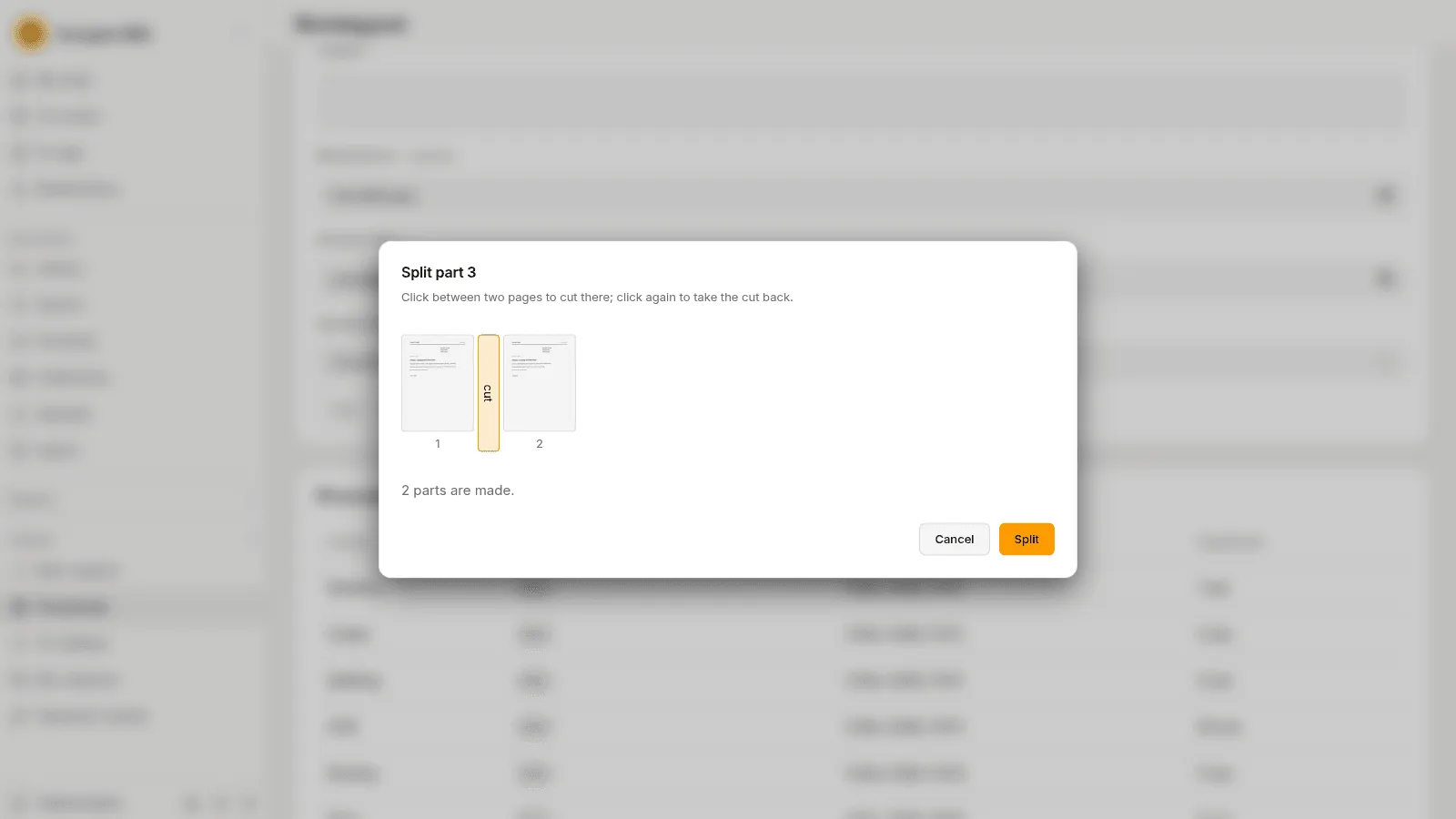
- On the part’s card, choose Split. The dialog Split part 3 shows the pages of the part side by side.
- Click between two pages to cut there. The gap is called Cut after page 1, and you can reach it with the keyboard. A cut shows as “cut”. Click again to take it back.
- The dialog says “2 parts are made.” Choose Split.
- The capture is read again. When it says Ready to file, check the new parts.
A PDF that carries a signature is never cut; the DMS would break the signature. File it whole.
When a capture waits
Section titled “When a capture waits”A capture that Needs attention says in words what is wrong. The usual ones, with what to do:
| Reason | What it says | What to do |
|---|---|---|
| Data to check | Check the data read from part {n}. | Open To validate. |
| Template not settled | Part {n} fits several templates. Choose one. | On the part, Choose the template, then Try again. |
| No template | Part {n} has no capture template. Choose one or go on without extraction. | Choose one, or choose Continue without Extraction. |
| No rule fits | No rule of the flow {flow} fits part {n}; choose the folder. | On the part, choose the Folder, Save, then Try again. |
| Dosar not open | The unit {unit} has not opened the dosar of position {indicativ} for {year}; open it or choose the folder. | Ask the unit to open the dosar, or choose another folder, then Try again. |
| The rule’s folder is missing | The flow {flow} cannot find the folder it sends part {n} to; choose the folder. | Choose the folder by hand, and tell the administrator of the flow. |
| Filing refused | Part {n} could not be filed, and why. | Read the reason on the part, correct it and Try again. |
| Two codes on one page | Page {n} has two different DMS codes; split the capture by hand. | Choose Continue without Codes, then split the part by hand. |
| Separator sheet no longer in use | The separator sheet on a page is no longer in use; choose the folder by hand. | Choose the folder of the part. |
| Signed file with separator sheets | A file is signed and is not split. | File it whole, or scan it again without the signature. |
| Password protected file | A file is password protected. | Save it without a password and capture it again. |
| File cannot be read | A file is damaged or in an unknown format. | Capture it again. |
| No pages | The capture has no pages. | Discard it. |
| Missing program | The reading program is missing on the server. | Tell the administrator. |
| Stage failed | The step failed. | Try again. |
| Handwriting, reading off, Handwriting not read, Daily handwriting limit | A handwritten field could not be read. | Fill the field in yourself. See Checking the data read from forms. |
If a flow’s rules sent a part nowhere, choose its folder and save.
Apply a flow
Section titled “Apply a flow”Apply a flow runs a different flow on a capture that waits. It is offered only while no part is filed. Choose the Flow among those that are switched on and press Apply. The warning says: “The parts and the corrections made on them are lost; the order of the pages stays, and the capture is processed again with the flow chosen.” A refusal is said in words and the capture stays as it was.
Discard and restore
Section titled “Discard and restore”Discard asks for a Reason for discarding, between 3 and 500 characters. A discarded capture says who discarded it, when and why. Restore brings it back, as long as the files have not been deleted.
Processing history
Section titled “Processing history”At the foot of the capture’s page, Processing history lists each step with its State (Running, Done, Skipped, Needs attention, Failed, Superseded), the result, when it Started and how long it took. A step that was tried again shows each attempt. Skipped by names the person who chose to go on without a step.