Comments and notifications
For everyone: writing a comment on a document, mentioning a colleague, and finding what needs your attention on the Notifications page.
Comments
Section titled “Comments”A document’s Comments tab lists the remarks colleagues made. People who hold the permission Comments can comment on the documents they read, in every state, an archived document included.
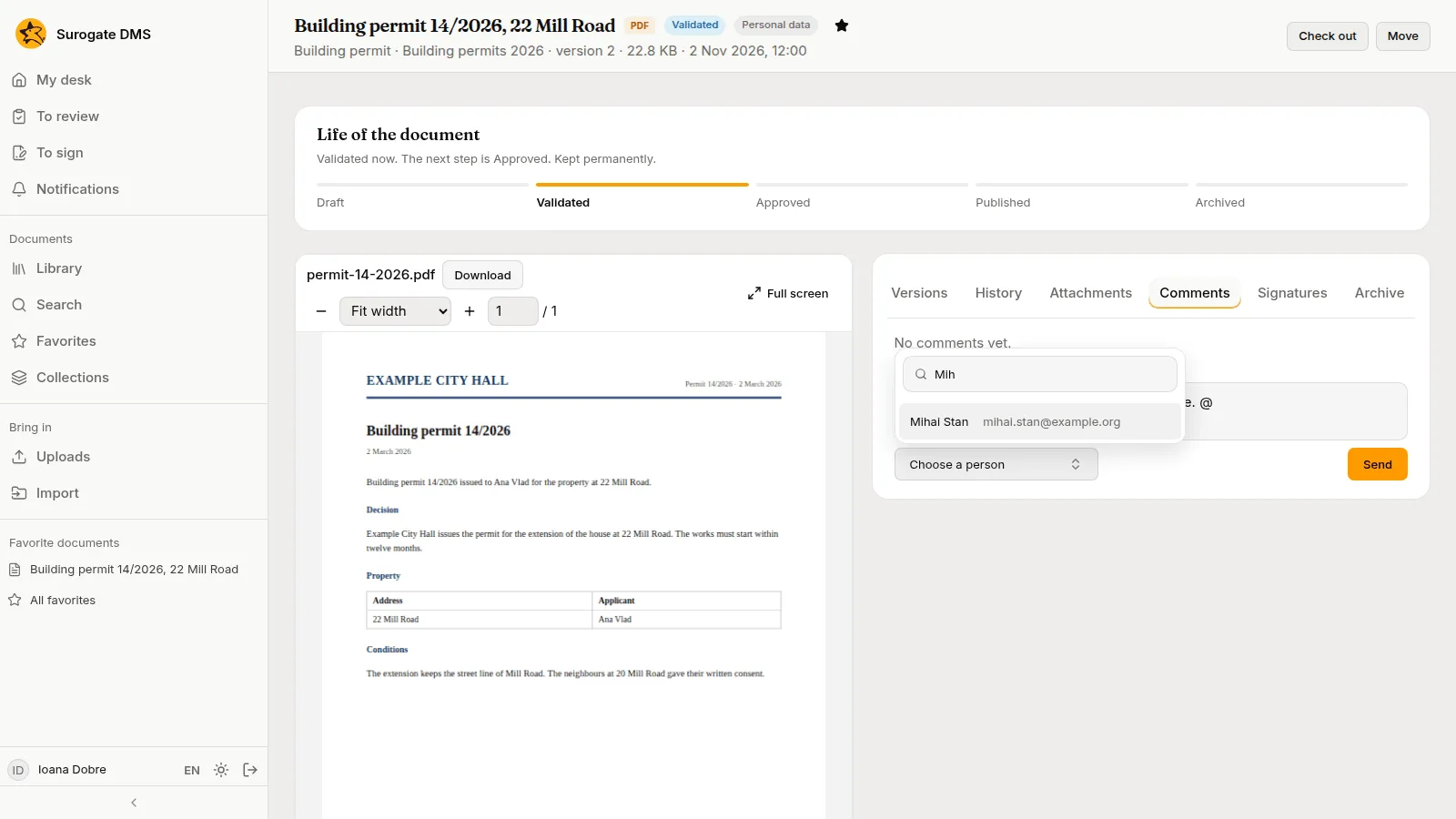
To write one, type in Your comment and press Send. The button stays grey while the box is empty.
Mention a colleague
Section titled “Mention a colleague”Type @ and the first letters of a name. A list of people opens: choose one and the name is put in the text. The person you mention gets a notification and can open the document if they may read it.
Notifications
Section titled “Notifications”A notification tells you that something needs your attention. Notifications in the sidebar shows how many are unread.
| Line | When |
|---|---|
| You were mentioned in a comment | A colleague mentioned you |
| Your signature was asked for on a document | Someone asked you to sign |
| A document you sent for signing was signed | A signer of your request signed |
| A document you sent for signing was refused | A signer of your request refused |
| A signing request you sent has ended | The last signer of your request answered |
| A signing request that concerned you was cancelled | A request you were asked in, or sent, was cancelled |
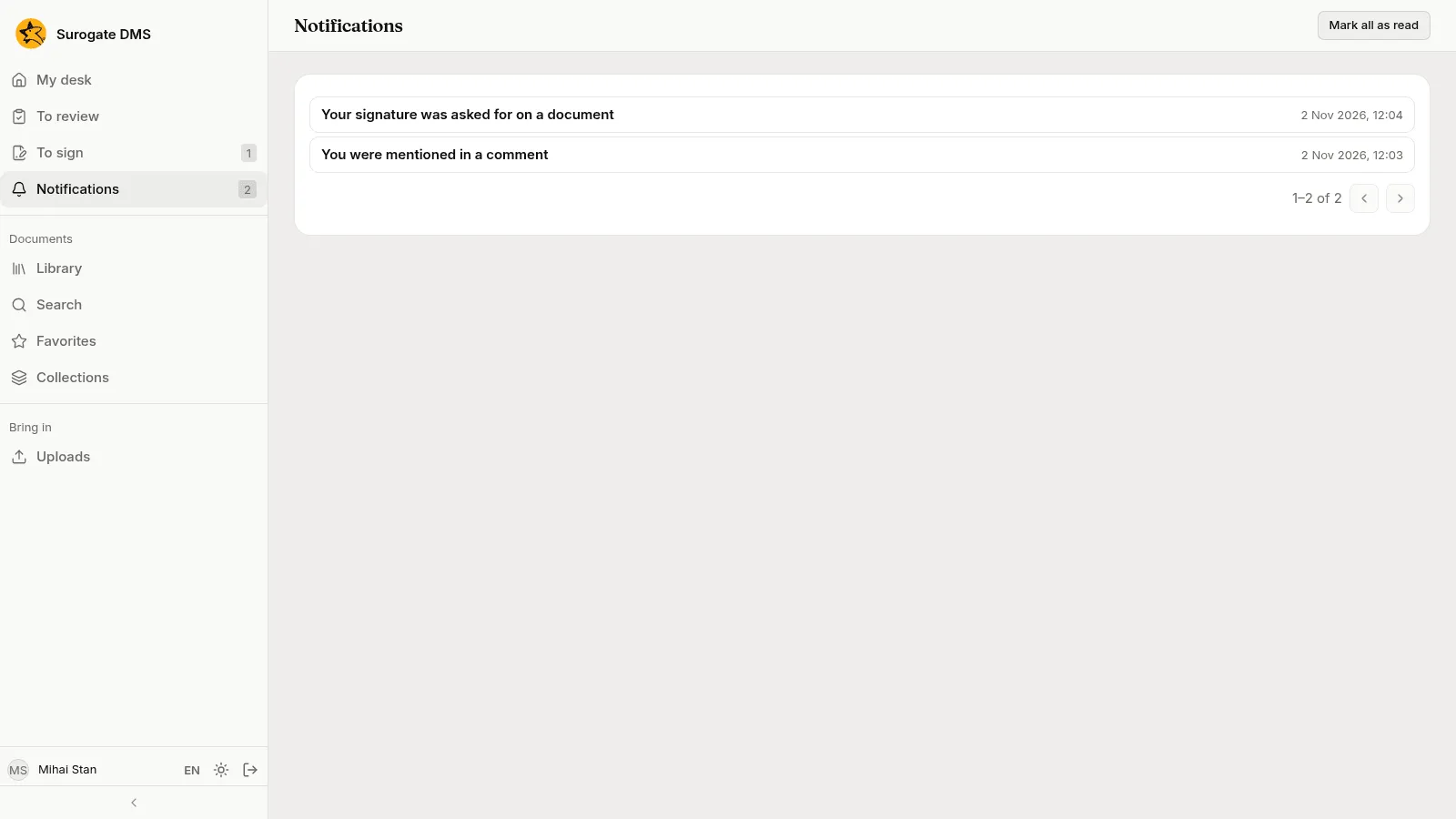
Mark all as read clears the count. Some roles also receive notifications about integrity checks, the audit log and unusual activity.