Finding registrations
For staff who look for a registration: the list and its filters, the field for a number or a QR code, the export and the printed register, and the list of what is addressed to your unit.
The list
Section titled “The list”Registry › Registrations lists the registrations you may read, newest first: those in the registers kept by a unit where you hold the right, those that name such a unit, and those you registered yourself.
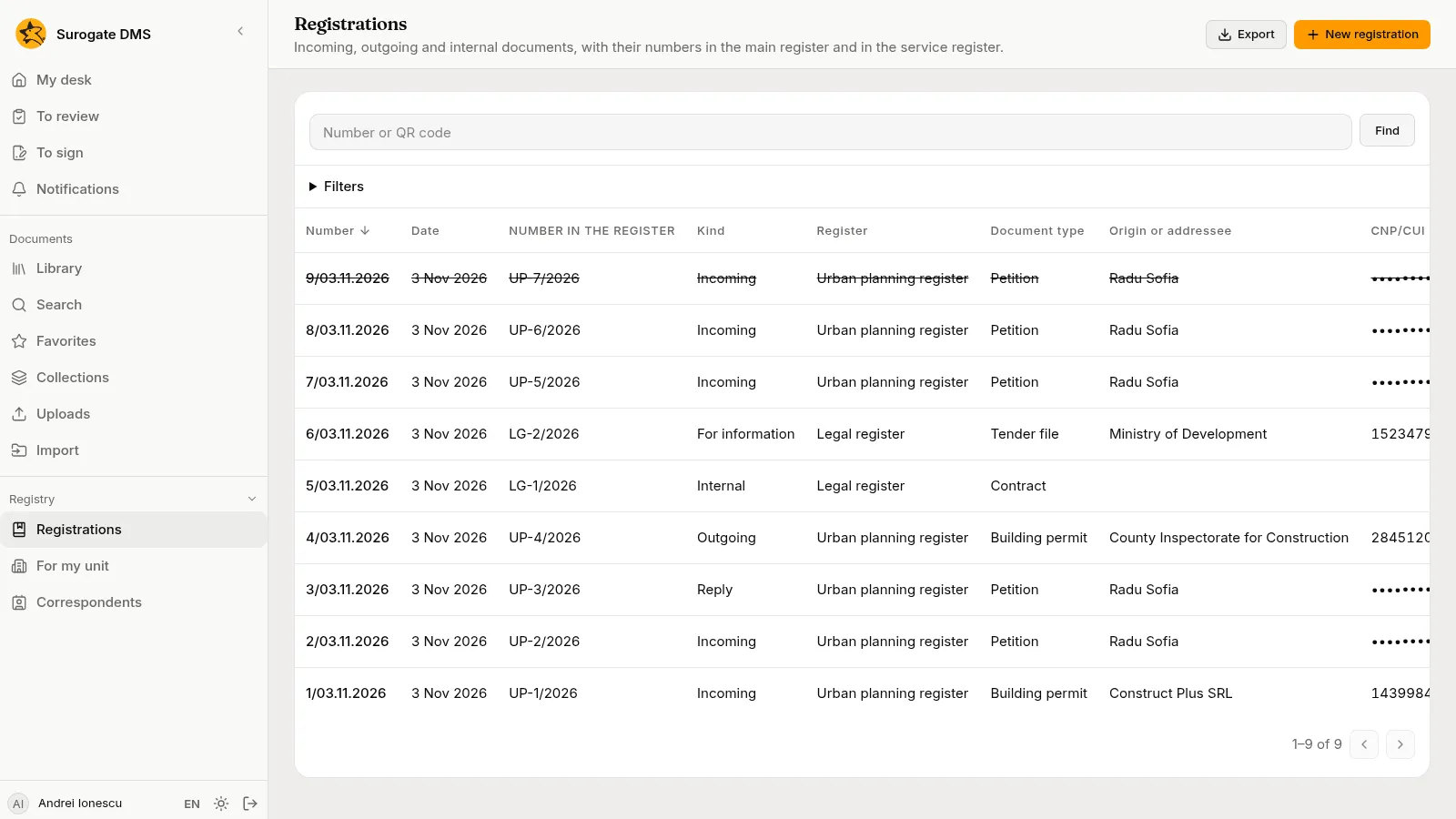
The columns are Number, Date, Number in the register, Kind, Register, Document type, Origin or addressee, CNP/CUI, Unit, Description, Thread and Status. Click a heading to sort by it. A cancelled registration is struck through and marked Cancelled. The list shows a CNP as its last four digits and a CUI in full. The last column, Actions, has Open, Print the receipt and, where you may use them, Reply, Add to the thread and Cancel the registration.
Find by number or by QR code
Section titled “Find by number or by QR code”Type a number in Number or QR code and choose Find. The number may be written in any of its forms: 12/03.11.2026 from the main register, or UP-10/2026 from a service register. A receipt carries a QR code: a scanner types its content into the same field. When one registration matches, its page opens.
Filters
Section titled “Filters”Choose Filters to narrow the list. The filters apply together:
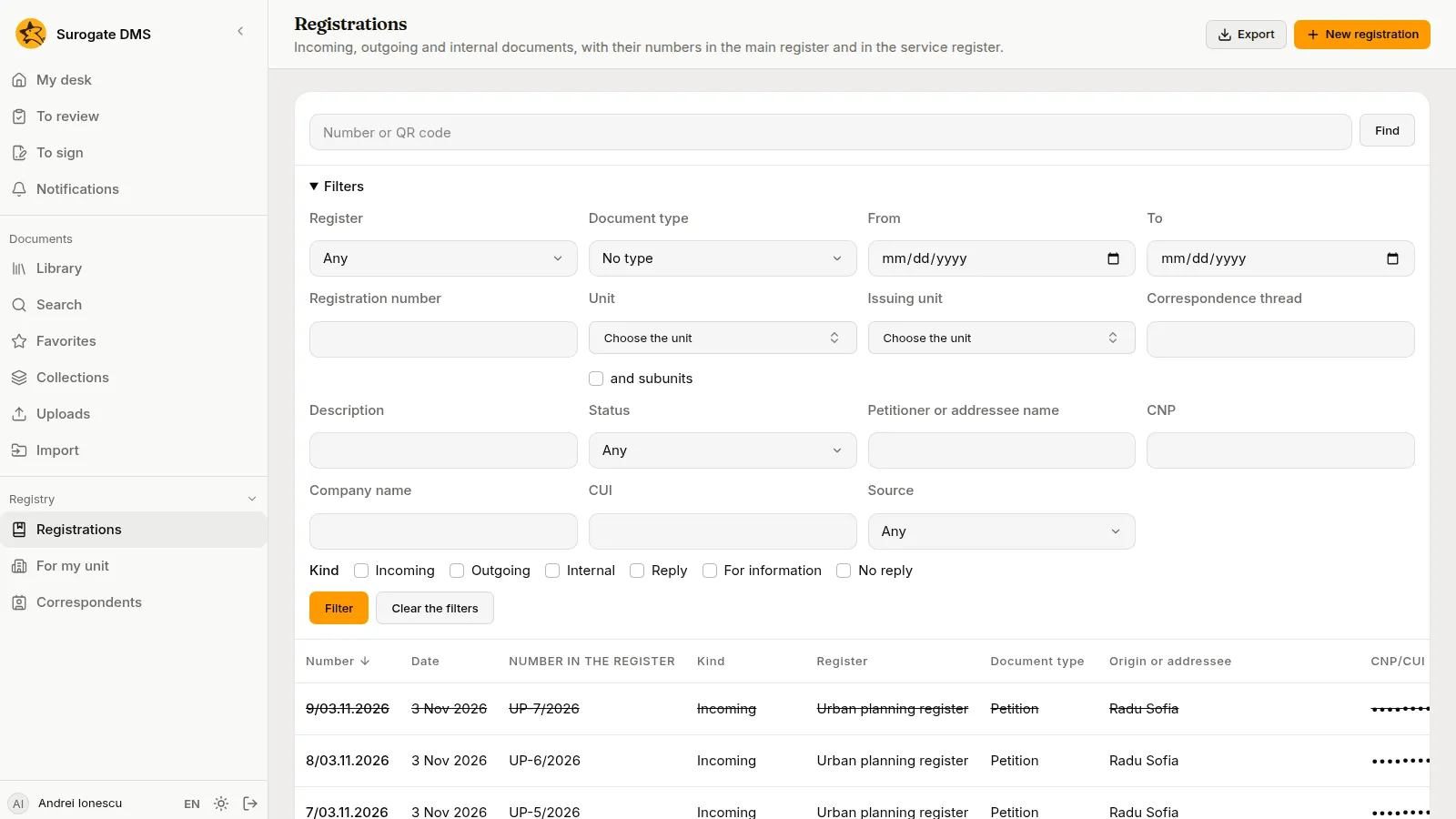
- Register, Document type, From and To, Registration number.
- Unit, with and subunits, and Issuing unit.
- Correspondence thread, Description and Status.
- Petitioner or addressee name, CNP, Company name and CUI.
- Source, and Kind: Incoming, Outgoing, Internal, Reply, For information. No reply keeps only the incoming registrations that nobody has answered.
Choose Filter to apply them and Clear the filters to start again. The filters are kept in the address of the page, so you can send the link to a colleague.
A search by name, CNP or CUI is written in the audit log with the names of the filters and the number of rows it found, never the values you typed.
Export and print
Section titled “Export and print”Export saves what the filters show as CSV or XLSX. An export holds at most 100,000 registrations; when the list is longer the DMS says so and you narrow the filters.
Print the register saves a PDF of the registrations of one register for a period. Filter the list by one register and choose Print the register, then choose From and To. An administrator can also print from the register’s card on the Registers page. The period is at most 400 days and ends today at the latest. A print holds at most 2,000 registrations: for more, choose a shorter period or export to XLSX.
Print labels
Section titled “Print labels”A label is a sticker with the QR code of a registration. Stuck on the first page of a letter, it lets the DMS know which registration the letter belongs to when the letter is scanned in a stack. See Separator sheets and registration labels.
- In the list, tick the registrations you want labels for, or tick the box at the top to select all on the page, and choose Print labels (n). On the page of one registration, choose Print the label instead.
- In Print labels, choose the Label size, the First free label and the Copies, and choose Print.
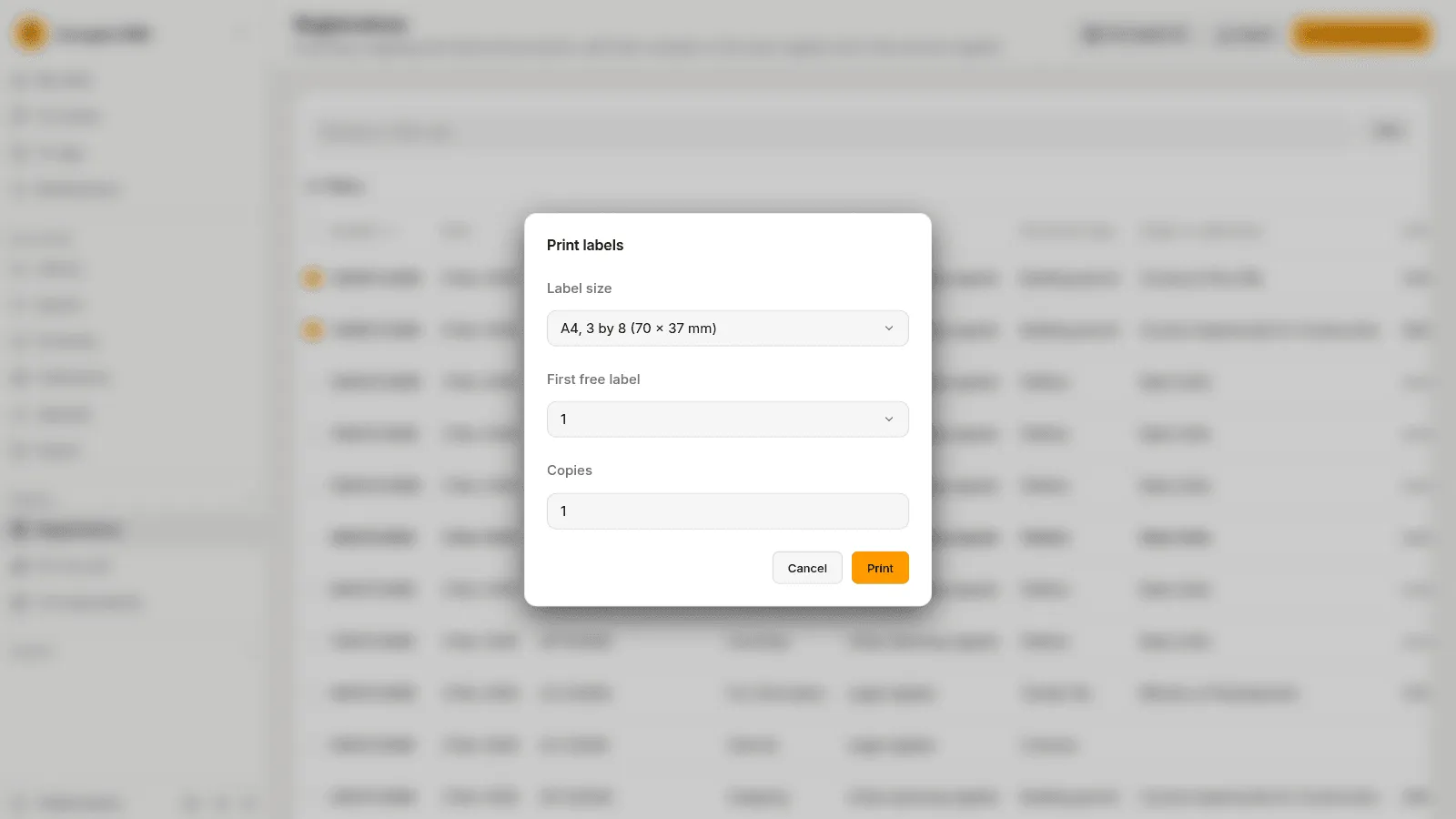
The Label size is the stock you stick the labels on: A4, 3 by 8 (70 x 37 mm), A4, 3 by 7 (70 x 42.3 mm), A4, 2 by 7 (99.1 x 38.1 mm), A4, 4 by 10 (48.5 x 25.4 mm), Roll, 62 x 29 mm, Roll, 50 x 25 mm, Roll, 57 x 32 mm or Roll, 100 x 50 mm. First free label is asked for the A4 sheets only. It lets you start on a sheet that is partly used. For a roll, each label is one page. Copies is how many labels of each registration to print.
Your browser saves a PDF. Print it at full size, never fitted to the page: a printer that shrinks the page moves the labels off their places and makes the QR code too small to read. A cancelled registration has no label.
A label carries the QR code of the registration, its numbers, the name of the register and the name of your institution. Where the size has room, it also carries the number as a Code 128 bar code, which a hand scanner reads into Number or QR code. A4, 4 by 10 (48.5 x 25.4 mm) and Roll, 50 x 25 mm have no Code 128, and a long number may leave it out on other sizes. It never carries a correspondent’s name, a CNP, a description or a document’s title.
For my unit
Section titled “For my unit”Registry › For my unit lists the registrations addressed to the units where you hold a position in the org chart. By default it shows the last 30 days: change From to look further back. and subunits adds the units below yours.
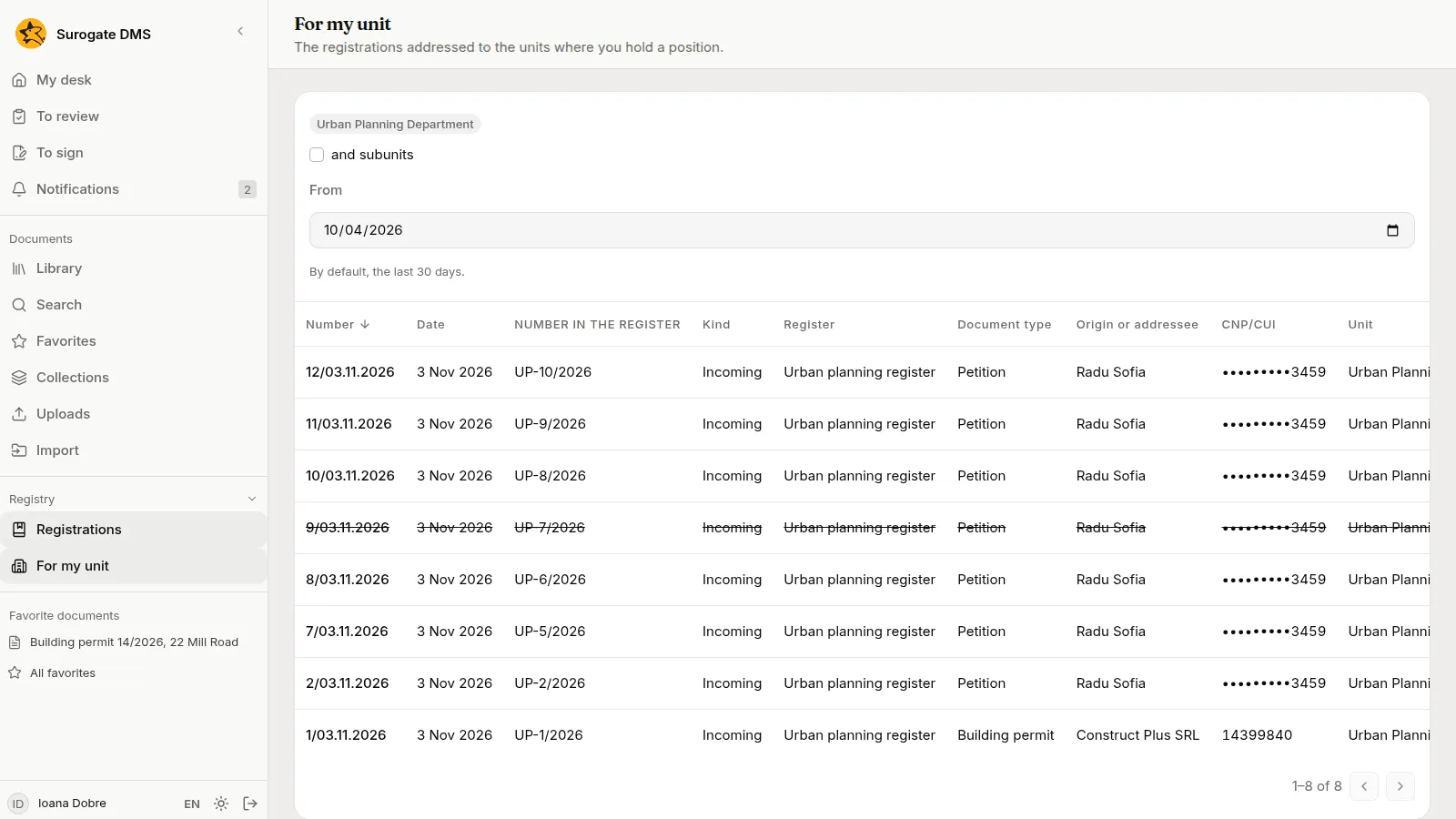
If you hold no position, the list is empty and says “You hold no position in the org chart, so the unit’s list is empty.” Ask your administrator to put you in a unit of the org chart.