Example: file and approve a contract
Radu Florea files the street-lighting maintenance contract, attaches its technical annex, validates it and asks the Secretary General to sign it. The Secretary General signs, approves and publishes it. The example is for staff.
The pictures were taken in a demo city hall, Example City Hall, with made-up people and documents.
What the example does
Section titled “What the example does”| Who | Does what |
|---|---|
| Radu Florea, contracts clerk in the Legal Department | Uploads the contract into Contracts 2026, fills in its metadata, attaches the annex, validates it and asks for a signature |
| Mihai Stan, Secretary General | Signs the contract internally, approves it and publishes it |
The DMS has no approval workflow of its own. (A flow that spans several people and systems can run in Keel: see Workflows and cases with Keel.) The states, the signing request and the permissions carry the approval: Radu may validate, and only a person who holds the permissions to approve and publish, here Mihai, may take the document further.
1. File the contract
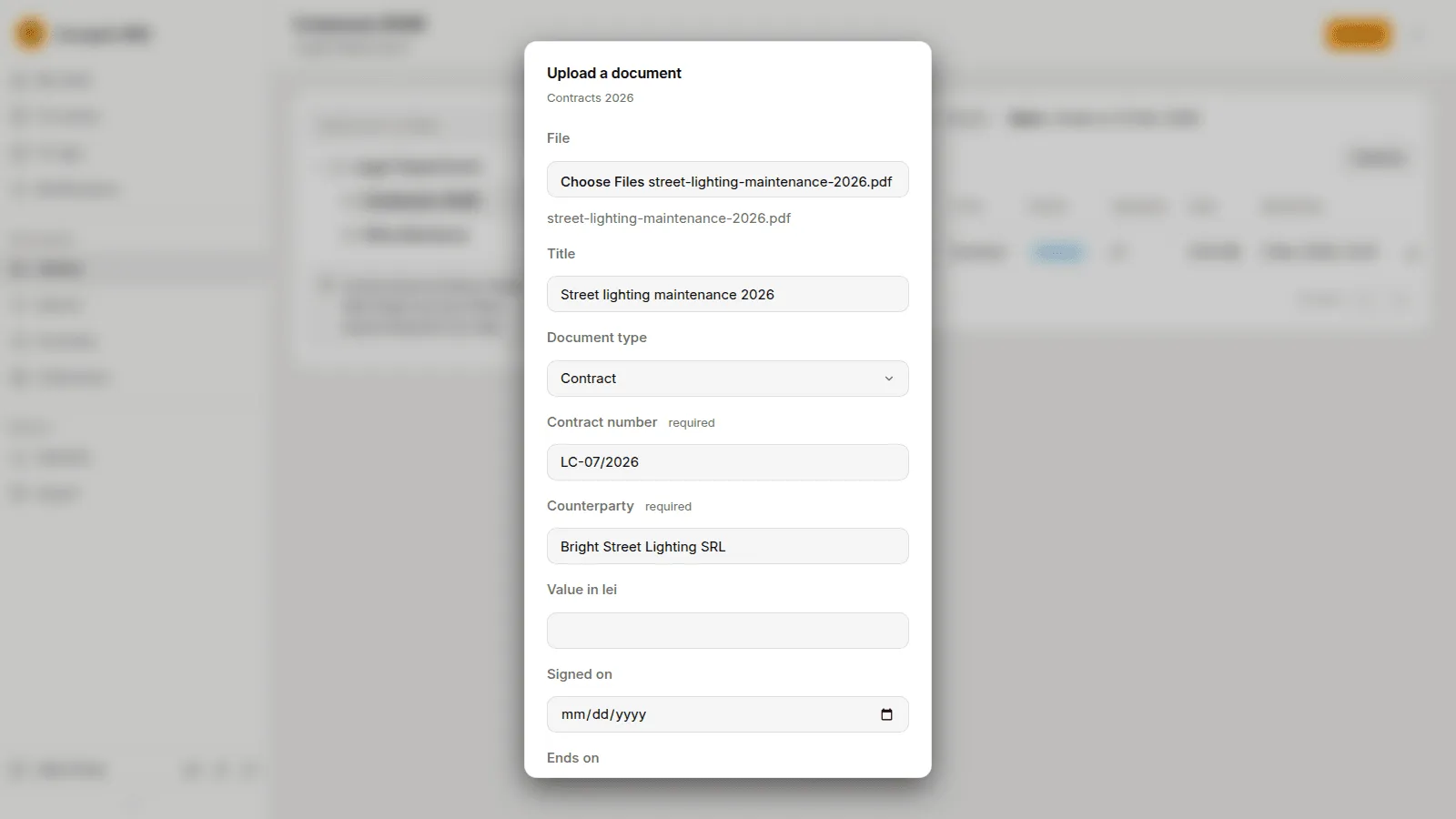
Section titled “1. File the contract”Radu opens Library › Legal Department › Contracts 2026 and presses Upload. He chooses the file, gives it a title, chooses the type Contract and fills in the two required fields, Contract number and Counterparty.
2. Fill in the metadata
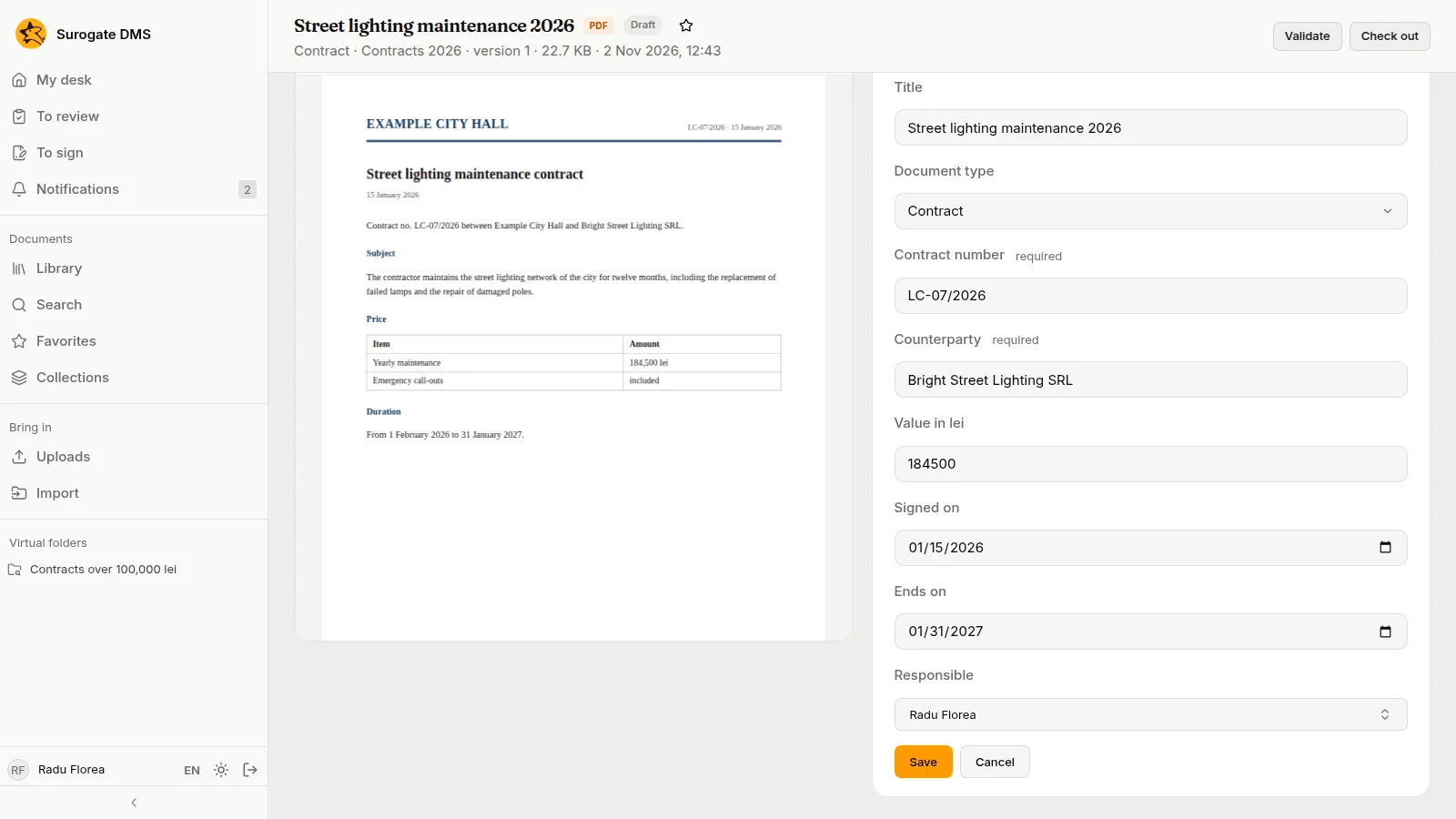
Section titled “2. Fill in the metadata”On the Metadata tab Radu presses Edit and fills in the value, the dates and the person responsible, then presses Save. A Person field offers the people of your institution.
3. Attach the annex
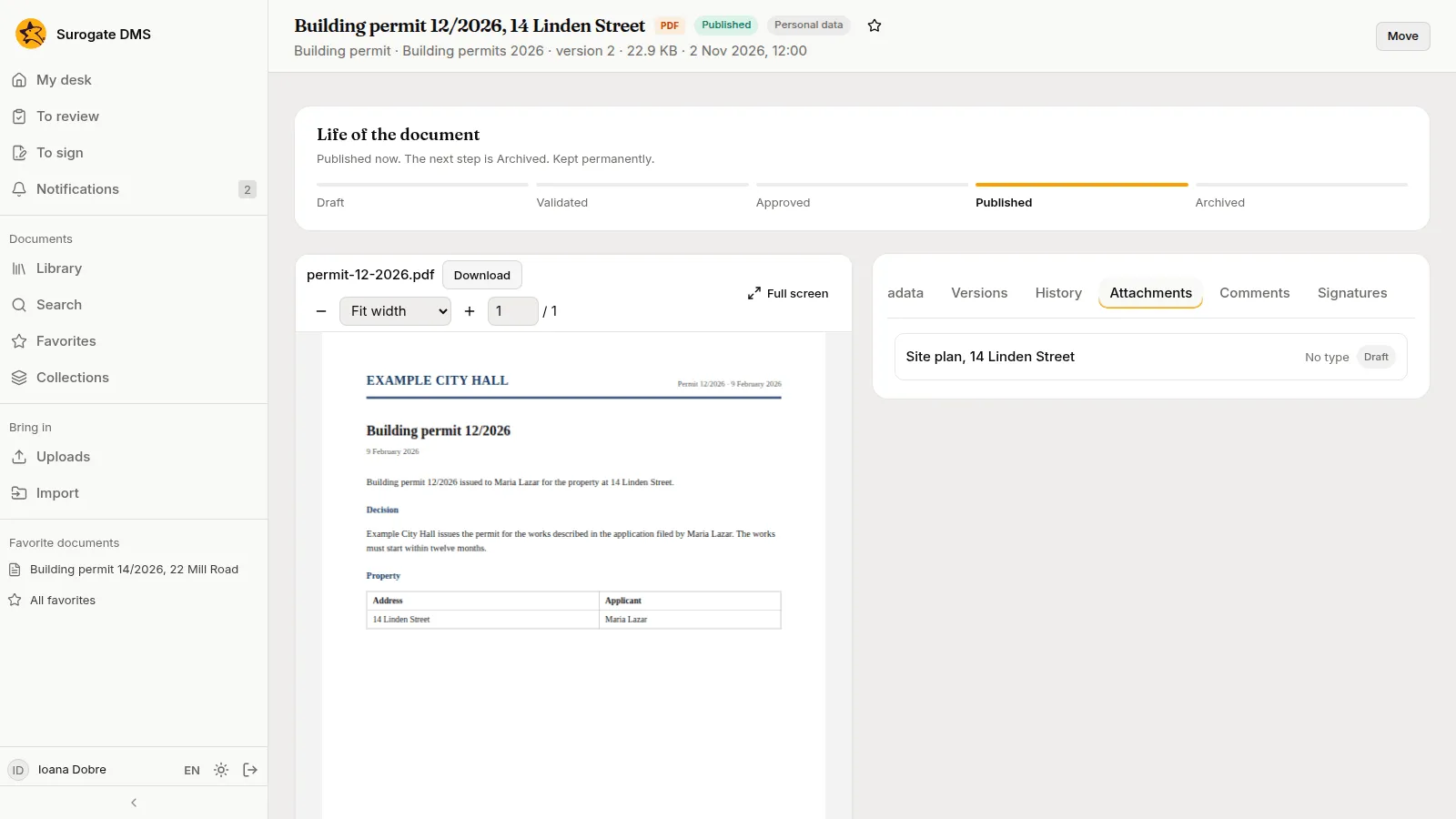
Section titled “3. Attach the annex”The technical annex is a document of its own, filed in the same folder and validated. On the contract’s Attachments tab Radu attaches it. A document takes attachments only while it is a draft or validated, so Radu attaches the annex before the contract is approved. See The document page.
4. Validate and ask for a signature
Section titled “4. Validate and ask for a signature”Radu validates the contract and, on the Signatures tab, presses Request a signature for Mihai, with Internal allowed. The page now says “Waiting for one signature”.
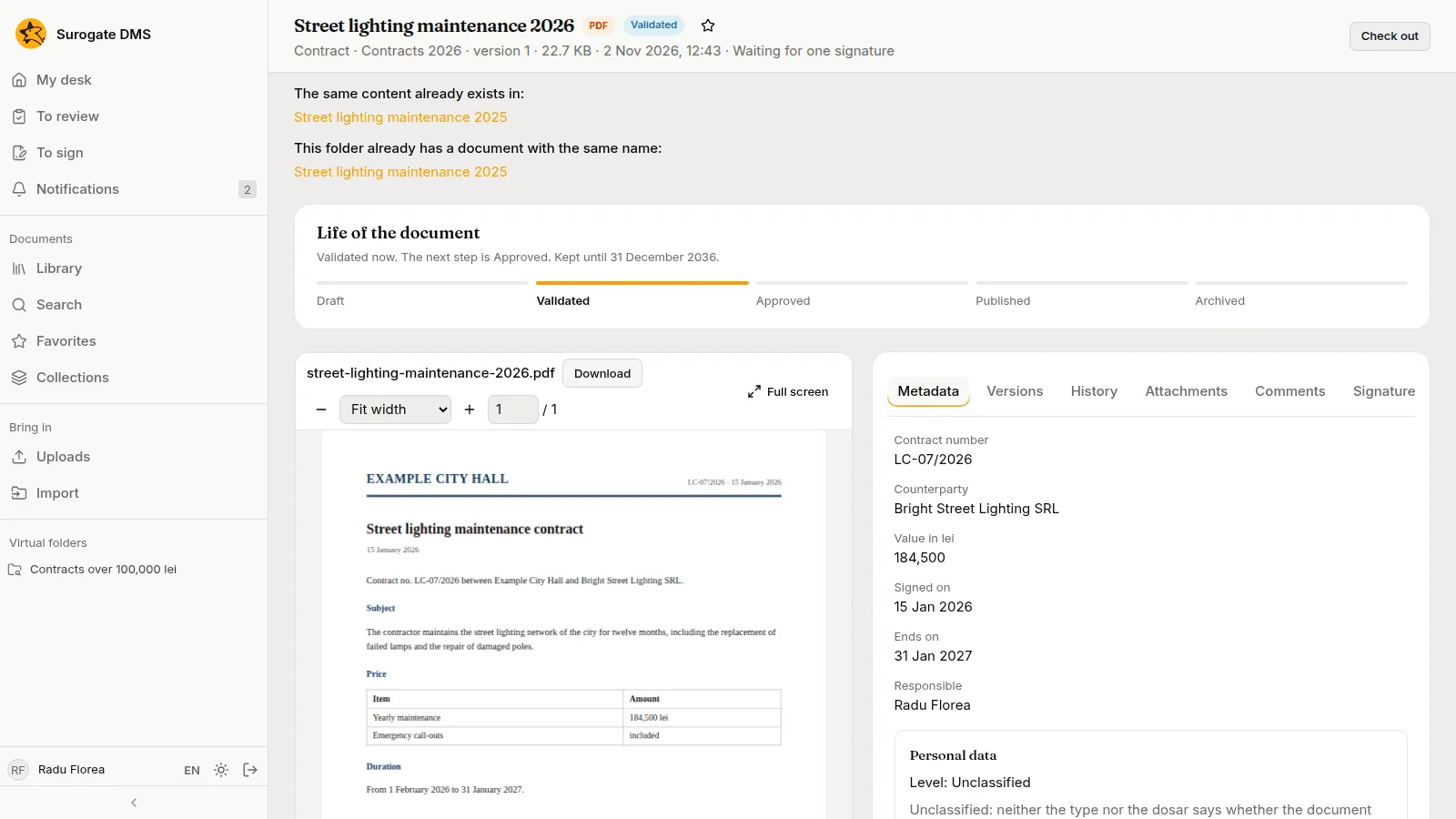
The DMS may also tell Radu that a document with the same name or the same content exists in the folder. It is a notice; it does not stop him.
5. Mihai signs
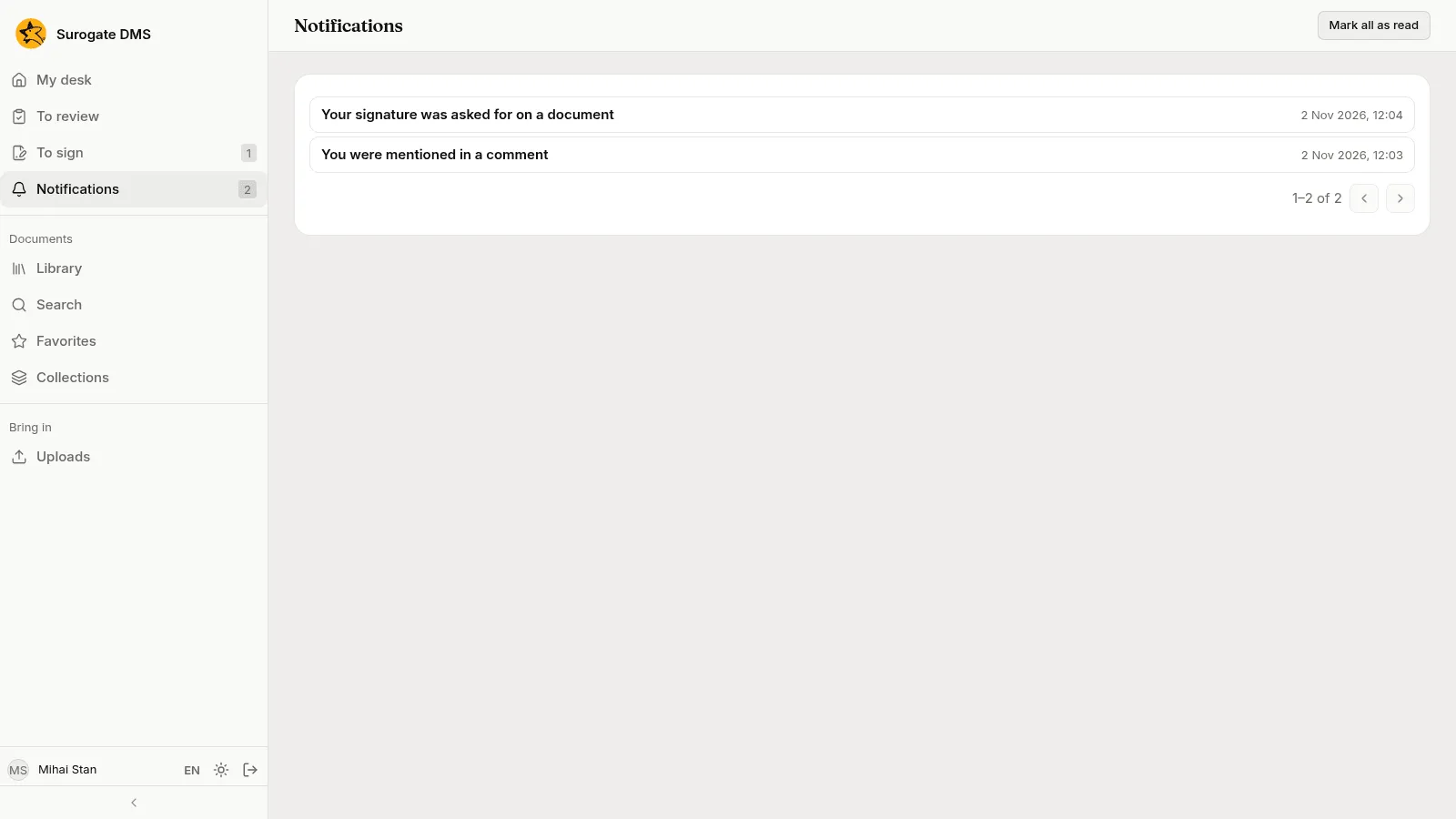
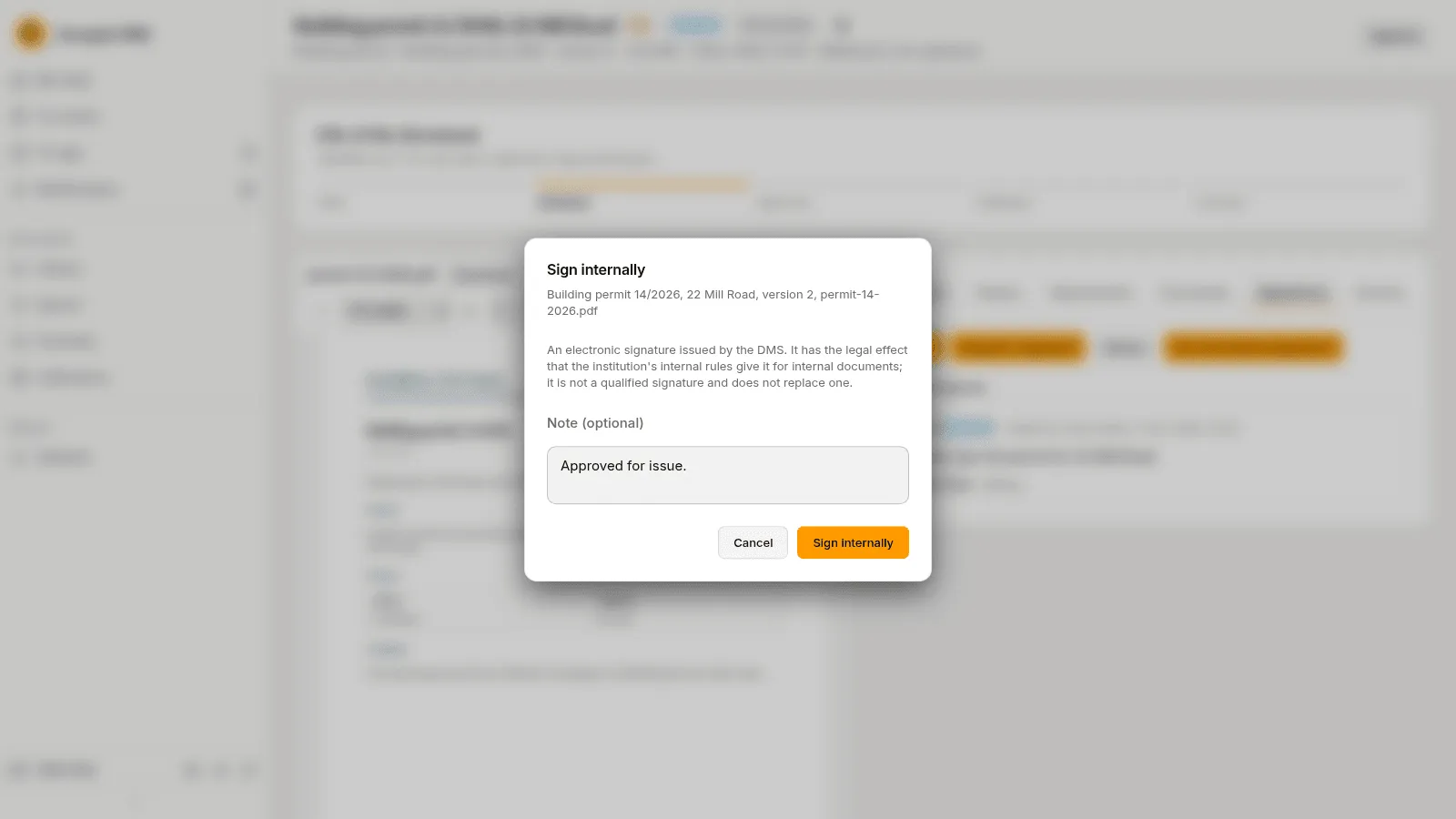
Section titled “5. Mihai signs”Mihai finds the request in Notifications and on To sign, opens the contract, chooses Sign › Internal and presses Sign internally.
6. Approve and publish
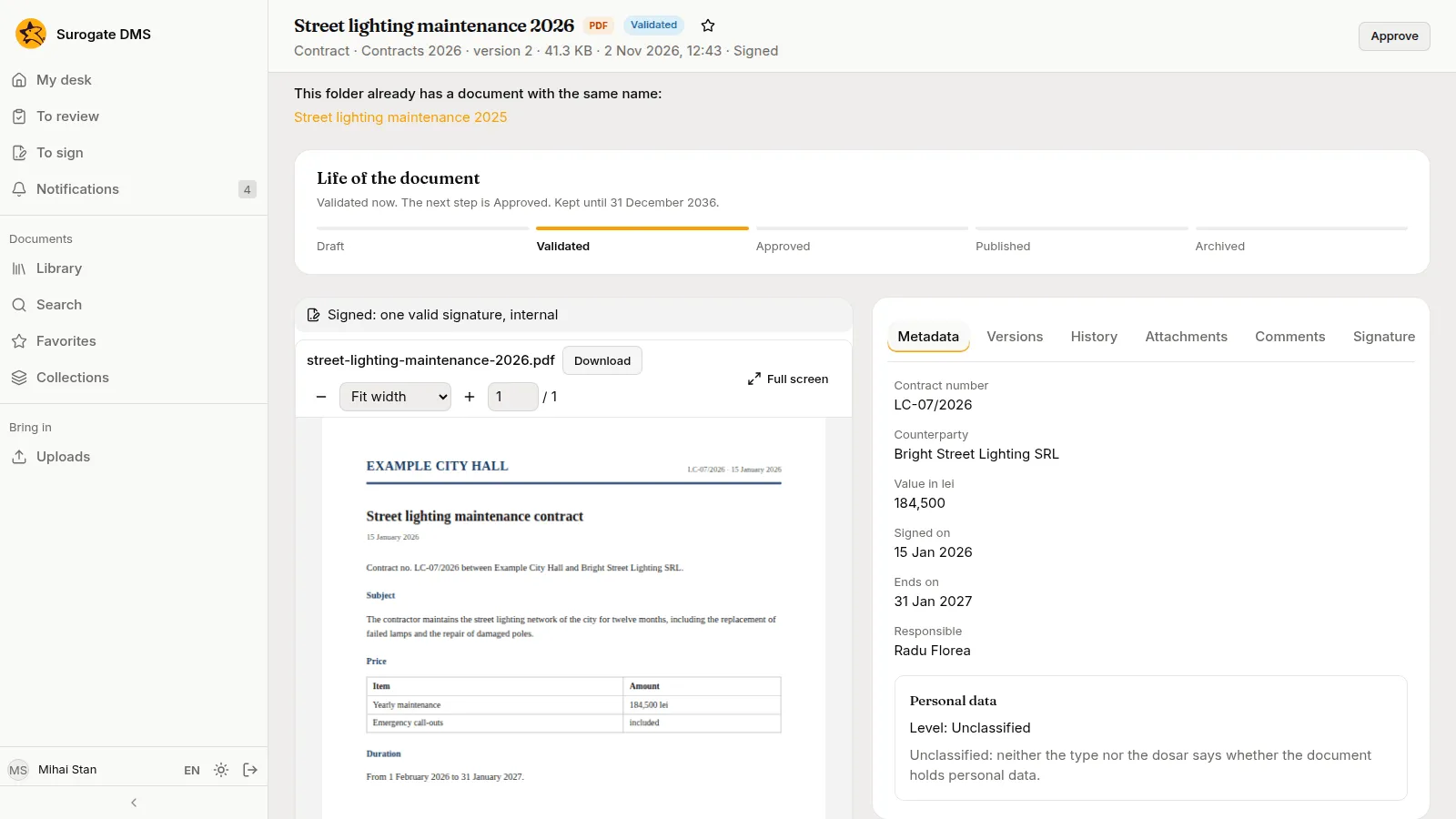
Section titled “6. Approve and publish”On the signed contract the button Approve is offered to Mihai. After it he can Publish it.
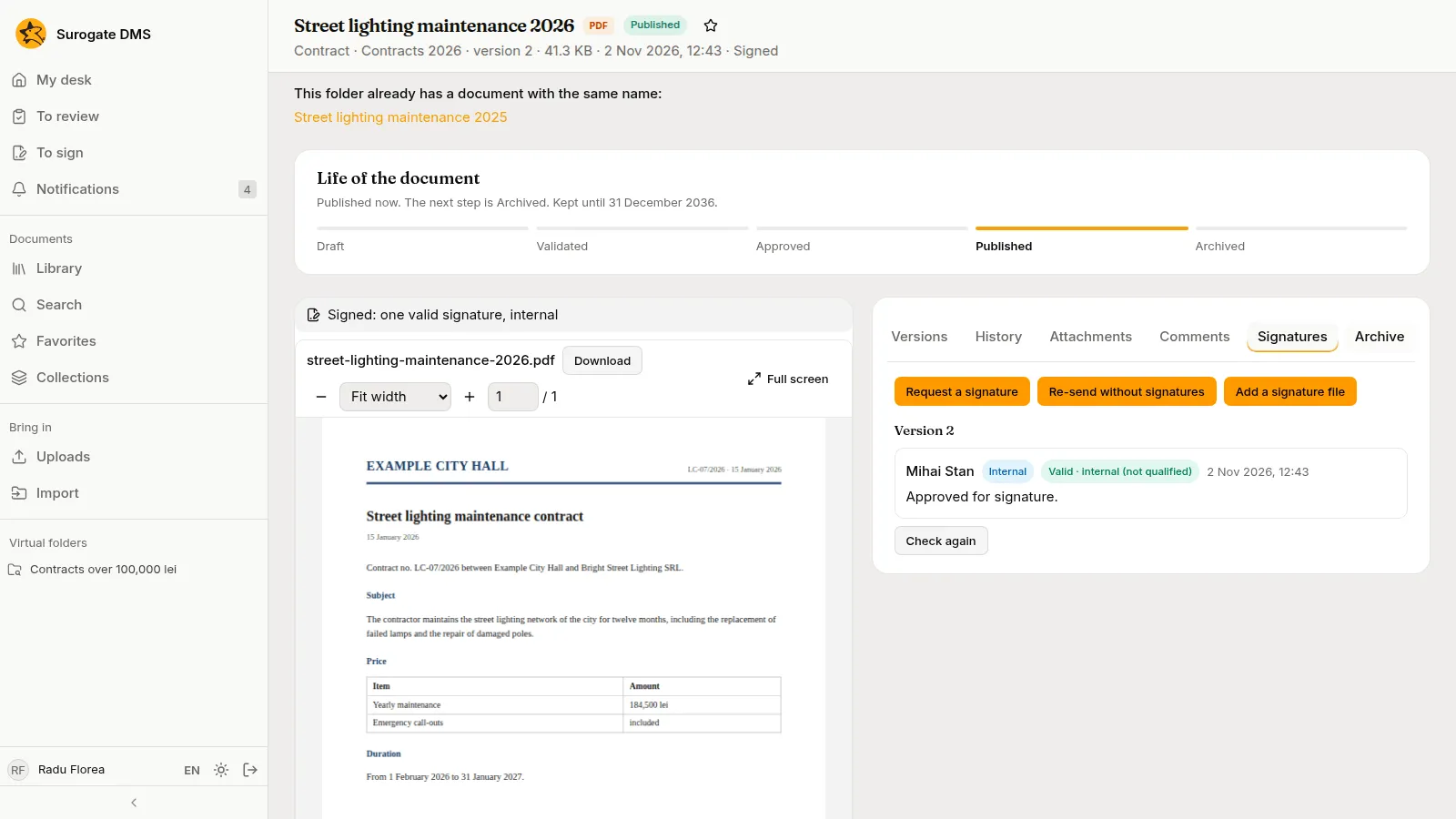
Radu sees the contract Published, with its signature.
What to remember
Section titled “What to remember”- A staff member with Standard user validates; approving and publishing need their own permissions.
- A signing request asks named people; they sign internally, or with a token when the request allows it.
- See Signing and The life of a document.