Capture flows
For administrators who decide what happens to a capture: the steps a channel’s captures run, the rules that send each part to a folder, how to check and publish a flow, and how to try it before it files anything.
What a flow is
Section titled “What a flow is”A capture flow is the line of steps that the captures of a channel run. It has one fork: the routing rules, which send each part to a folder, give it a type and a title, and fill in some of its data. A flow cuts a batch, reads it, routes the parts and files them. It is not a workflow. What happens to a document after it is filed, such as approvals and deadlines, runs on Keel; see Workflows.
You make flows in Administration › Capture flows. You need Manage capture for the whole institution.
A channel names one flow in its Flow setting; see Capture channels. A channel with no flow runs its own settings. A capture keeps the version of the flow it started with: a new version changes the captures that arrive afterwards, not the ones already waiting.
The Capture flows page
Section titled “The Capture flows page”The page lists the flows with their Name, State (On or Off), Version, Channels and Captures this month. A flow that has not been published says “not published”.
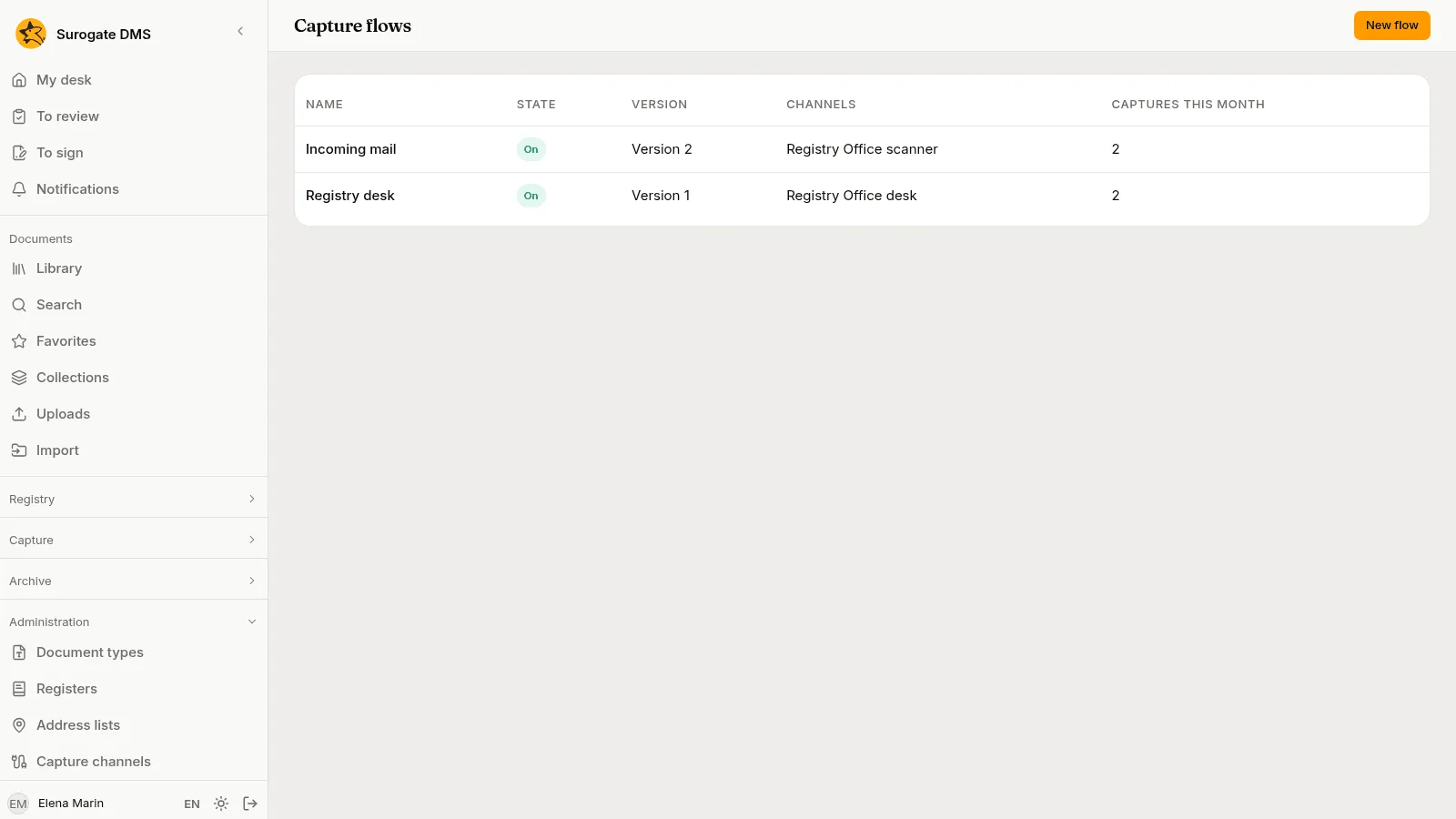
- New flow opens New capture flow. Write the Name and a Description and choose Create. The new flow has the two steps every flow has, Split and Filing, with A person files.
Choose a flow to open it. On its page, Rename changes the name and the description, and a table lists each published version with its Note, Published by and Published on. The flow can be shown in two ways, chosen with How the flow is shown: as a Drawing, with a box for each step and a fork at the rules, or as a List. They show the same flow.
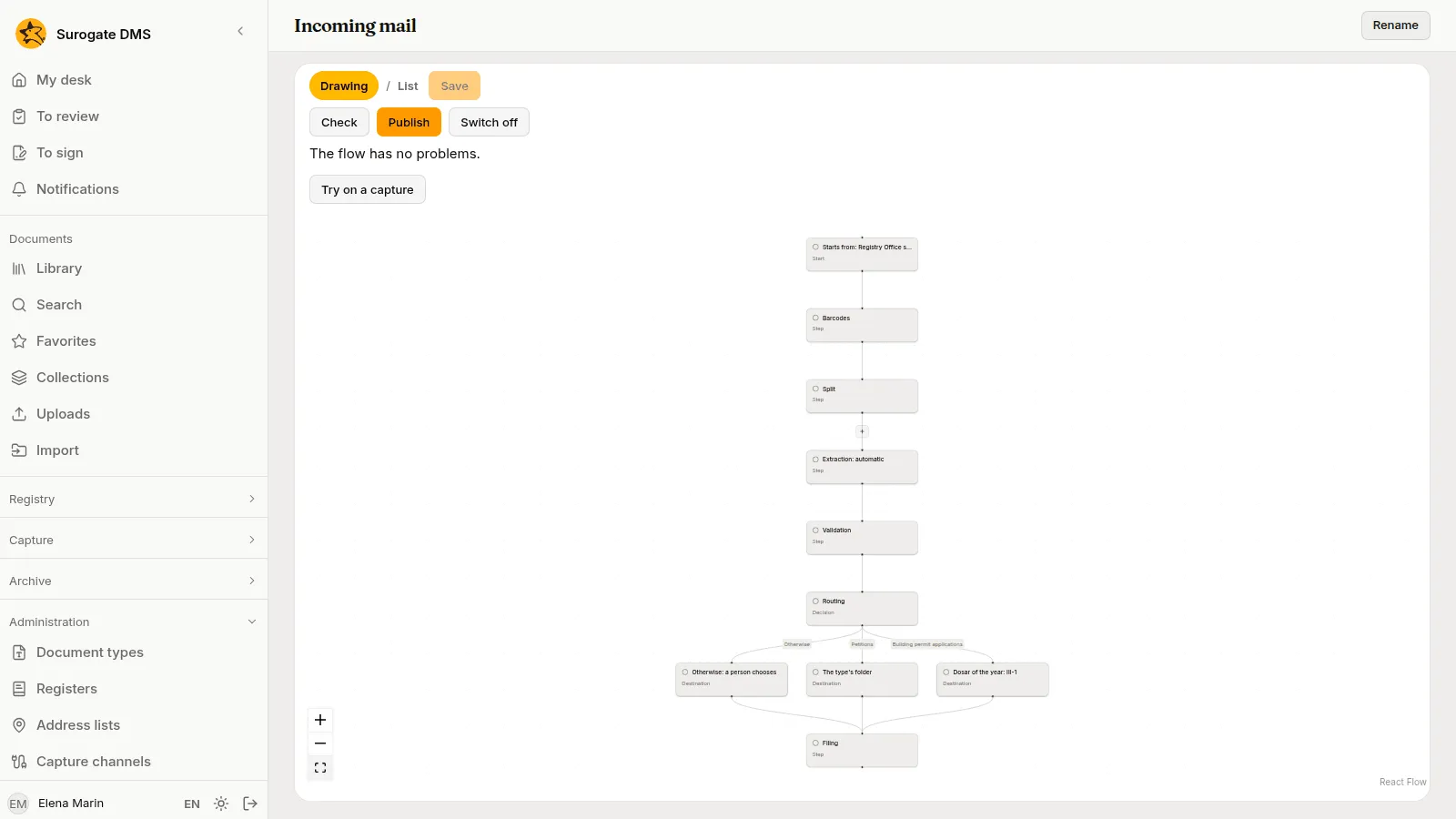
A flow has these steps, each at most once and always in this order. Split and Filing are in every flow. Choose Add a step to add another, and Remove the step in its panel to take one out.
| Step | What it does | Its settings |
|---|---|---|
| Barcodes | Reads separator sheets and registration labels. | Separators, Registrations, Blank pages; see Separator sheets and registration labels. |
| Split | Cuts the files into parts. | Documents: As the capture says, One document or One document per file. |
| OCR | Reads the text of the pages. | None. |
| Extraction | Reads the data of each part with a capture template. | Template (Automatic or one template) and Required. |
| Validation | Asks a person to check what was read. | Validation by a person: Never, When it does not conform or Always. |
| Routing | Chooses the folder, type, title and data of each part by rules. | The rules and Otherwise, see below. |
| Filing | Files the parts. | Filing: Automatic filing or A person files. |
| Keel | Starts a Keel process for each filed document. | The Keel process. |
Extraction reads the text of the pages by itself, so a flow that has it needs no OCR step. In a flow without Extraction, add OCR when the text of the pages should be read before filing.
With A person files, nothing is filed by rule: the capture waits in To process and a person files it. With Automatic filing, the rules file the documents as the person who switches the flow on, with that person’s access worked out again at each filing. The screen says “Automatic filing uses the rights of the person who switches the flow on.” If that person loses the right to file in a unit, the captures that would go there wait.
Choose Routing and then Add a rule. The rules are tried in order for each part, and the first that fits takes the part. Move up and Move down change the order, and Remove the rule deletes one.
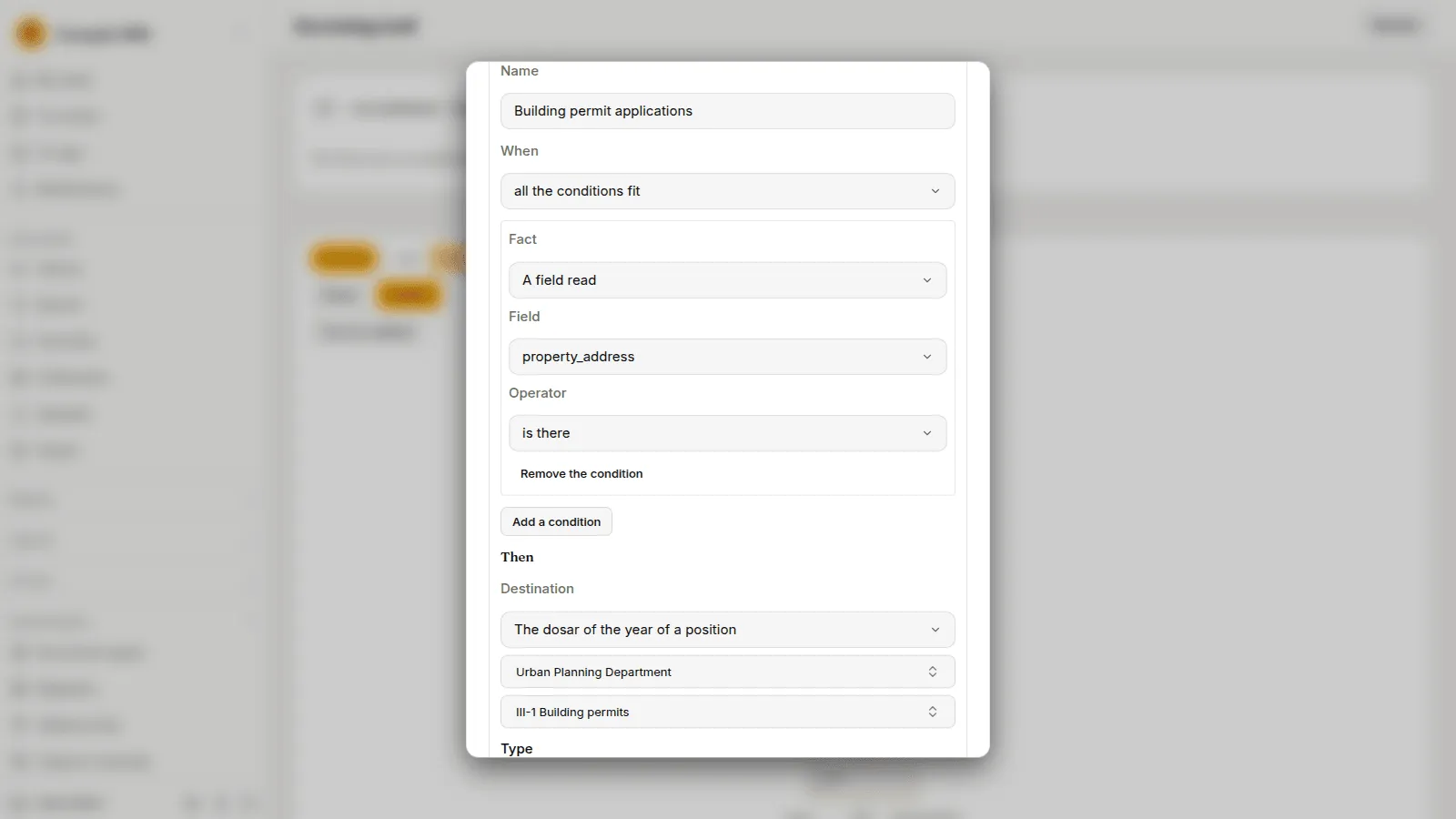
A rule has these parts.
- Name, shown on the part that the rule takes: Rule “{name}”.
- When: all the conditions fit or any condition fits.
- Conditions. Choose Add a condition, then a Fact, then an Operator, then the value. For A field read, also choose the Field. Remove the condition takes one out.
- Then: what to do with the part, see Where a part goes.
A condition looks at one fact about the part.
| Fact | Of | Operators |
|---|---|---|
| The channel | The channel the capture came by. | is, is one of |
| The separator sheet | The sheet that started the part. | is, is one of, is missing, is there |
| The registration | Whether the part is linked to a registration. | is missing, is there |
| A barcode | The text of a code on the part that is neither a registration’s nor a sheet’s. | is, starts with, matches (a regular expression) |
| The template | The template the part was read with. | is, is one of, is missing, is there |
| The type | The document type of the part so far. | is, is one of, is missing, is there |
| A field read | The value of a field of the template, with a person’s correction. | is, contains, starts with, is one of, is greater than, is less than, is missing, is there |
| The conformity | Whether the data conform to the template: conforming, not conforming or confirmed by a person. | is |
| The sender’s domain | What follows the @ in the sender of a message. | is, is one of |
| The message’s subject | The subject of a message. | contains |
| The file name | The name of the part’s file. | matches (a pattern with * and ?) |
Texts are compared without regard to case, accents or the amount of white space. is greater than and is less than compare numbers and dates, and are false for anything else. A fact the capture does not have makes the condition false, is missing included: a sender and a subject belong to messages only, and a step that did not run on a capture, such as the codes of a message that holds no pictures, leaves its facts unknown. A step that ran and found nothing leaves the fact empty, and is missing then holds.
Where a part goes
Section titled “Where a part goes”Then and Otherwise can set the destination, the type, the title and the data of a part.
- Destination is A library folder, The dosar of the year of a position (choose the Unit and the Position), The type’s folder, or No new folder. With the dosar of the year, the rule finds the open dosar of the position for the current year among the folders of the unit. If the unit has no such dosar open, the capture waits and says so.
- Type is the document type the part gets.
- Title is a text for the part. The screen says “{field:cheie}, {date}, {channel} can be used.” Write the key of a field of the template in place of
cheie:{field:property_address}stands for the value of that field.{date}stands for the day the capture was received, and{channel}for the name of the channel. The title has between 1 and 300 characters. - Data are values of fields of the type. Choose Add a datum, write the key of the type’s field in The type’s field in place of the
cheie1the screen suggests, and choose whether the value comes written here or from the field of the template. Remove takes one out.
Otherwise says what happens to a part no rule takes, under A part no rule fits: a person chooses the folder (the capture waits and says “No rule of the flow fits part {n}; choose the folder.”), or goes to a destination.
Two things win over the folder of a rule, as they do for any filing. A part linked to a registration is filed in the folder of its register. A type that has its own default folder is filed there. The check warns about the second. What a person set on a part is never changed by a rule.
Choose Check. It saves your edits and reads the flow step by step and rule by rule. It says “The flow has no problems.” or lists the problems. A mark on the step or the rule in the drawing, and a line beside it in the list, show where each one is.
Errors stop you from publishing and switching on. Warnings do not.
| Problem | What it says | Kind |
|---|---|---|
| Unknown step | The step {name} is not installed on this server. | Error |
| Steps out of order | The steps run in their order, each at most once; Split and Filing are required. | Error |
| Wrong settings | The step {name} is not filled in correctly, and what is wrong. | Error |
| Template off | The template chosen is not in use. | Error |
| Unknown field | The field {key} is in no template of the Extraction step. | Error |
| Wrong destination | The destination is not a library folder or no longer exists. | Error |
| You may not file there | You may not file in the unit {unit}; automatic filing would use your own rights. | Error |
| Wrong Keel key | The Keel process name has 1 to 200 printable characters, no spaces. | Error |
| Rule never applies | The rule {rule} never applies: a rule before it always fits. | Warning |
| The type’s folder wins | The type {type} has its own default folder; the document goes there, not to the rule’s destination. | Warning |
| Dosar closed | The destination’s dosar is closed. | Warning |
| Keel off | Keel is not configured; the Keel step will be skipped. | Warning |
| Two processes | The destination folder already starts the process {process} for every document; two processes would start. | Warning |
Publish and switch on
Section titled “Publish and switch on”Your edits are a draft. Save keeps them. Discard the draft deletes the saved draft, and the flow keeps its last published version.
- Choose Publish. In Publish the flow, write a Note if you want one and choose Publish. If the flow is on and files automatically, and you are not the person it files as now, the dialog says “Automatic filing will use your rights.” Whoever publishes a flow that is on, with automatic filing, becomes the person it files as.
- Choose Switch on. Channels can now be given the flow, and Apply a flow offers it. If the flow files automatically, the dialog says “Automatic filing will use your rights.” Publishing and switching on both run the check for you and refuse when it finds an error.
- In Capture channels, open each channel that should run the flow, choose the flow in Flow, and Save.
Switch off stops channels from being given the flow and stops Apply a flow from offering it. It says “Channels can no longer be given this flow and Apply a flow no longer offers it; captures started with it go on.” A channel whose flow is switched off runs its own settings again for new captures, its own Automatic filing included, until the flow is switched on.
Try on a capture
Section titled “Try on a capture”Try on a capture runs the flow on a capture of the inbox, whether it waits or is filed, without changing anything. Choose the Capture, choose Trying The draft or The published version, and choose Try.
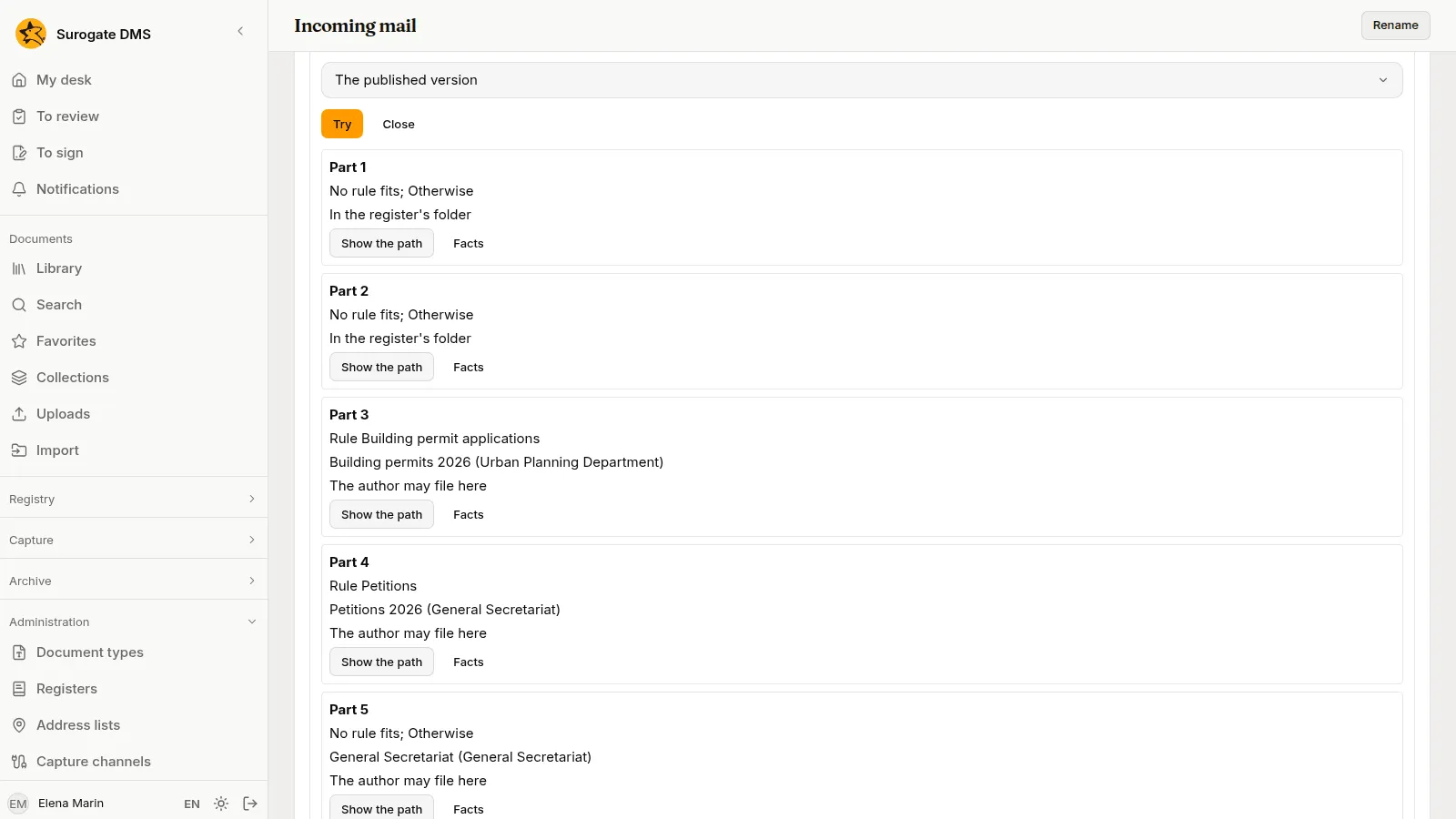
For each part it says which rule takes it (“Rule {name}”, or “No rule fits; Otherwise”), the folder and unit it would go to, and whether “The author may file here”. If the part would wait, it says “Waits at {step}: {reason}”. If a step did not run on that capture, it says “The steps {steps} did not run on this capture.” Show the path marks on the drawing the steps the part passes. Facts lists the facts the rules saw. They are personal data, so the try is for people who manage flows and may also work the capture.
The Keel step
Section titled “The Keel step”When your institution has Keel, the Keel step starts one Keel process for each document the flow files. The Keel process is the key of the process. Only the identifiers of the document, its folder, the capture and the flow are sent to Keel. No title, field value or file name is sent. Keel reads the document through its own account.
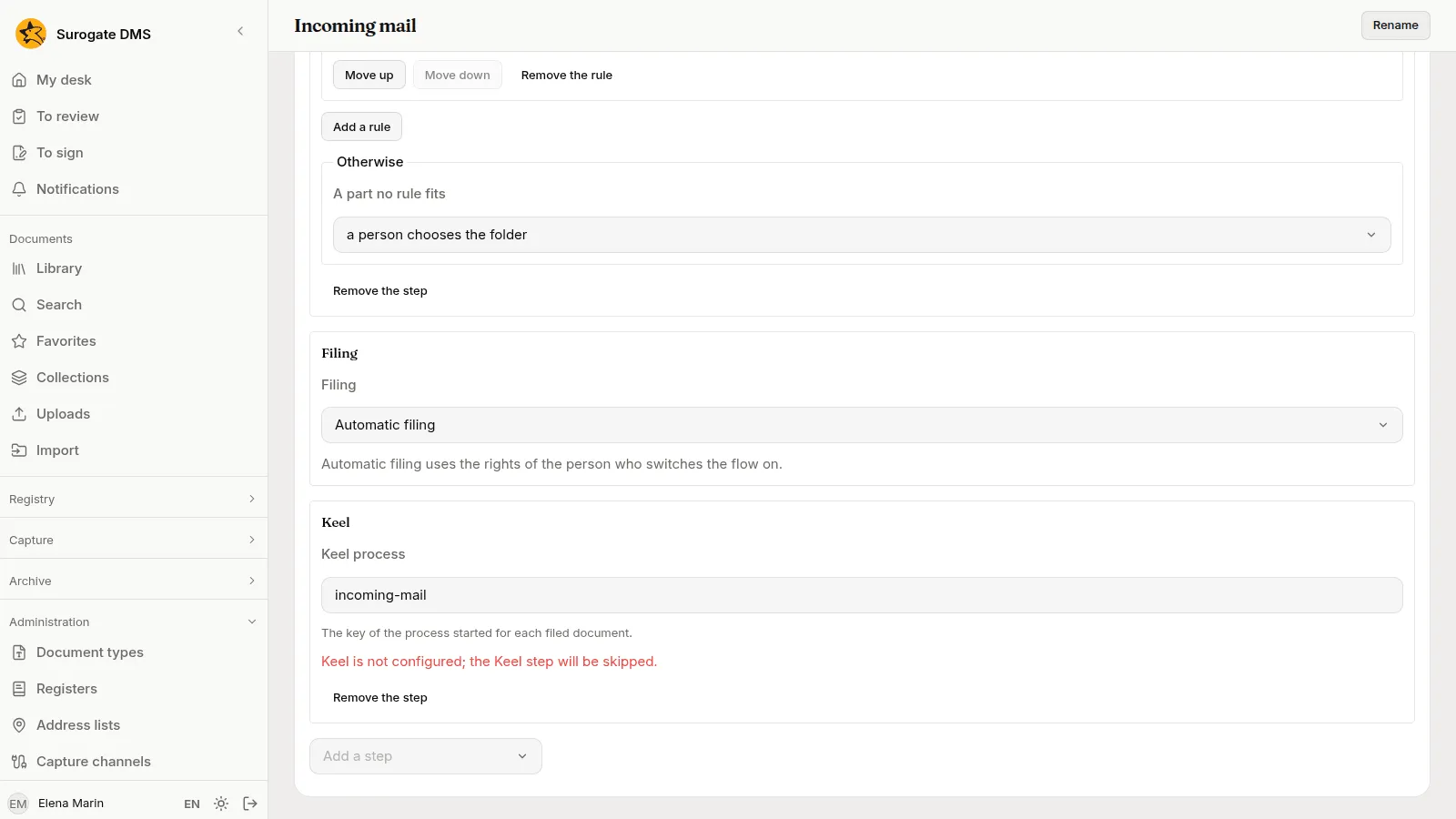
Without Keel, Check warns “Keel is not configured; the Keel step will be skipped.” The documents are filed, and no process starts. If a start rule of the destination folder already starts the same process, Check warns about Two processes. See The Keel integration.
Before real use
Section titled “Before real use”- Draw the flow and choose Check until it has no error.
- Choose Try on a capture with three real captures of each channel that will run the flow, and compare what it says with what a person would file.
- Check that the person who will switch the flow on may file in every unit the rules send parts to.
- Publish the flow, Switch on the flow, and give it to the channel.