Keel quickstart for the business app
This page is for the people who work cases: staff and supervisors. It takes you from the sign-in page to your first finished step, and shows the places you will use every day. It takes about ten minutes.
The pictures were taken in a demo bank, so the names, cases and queues you see are not yours. Your supervisor or a builder of your project has already published at least one case type. If you are a builder who has not, start with the quickstart for builders.
You need an invitation from your project’s supervisor: a link that sets your password, or a sign-in link.
1. Sign in
Section titled “1. Sign in”- Open the link your supervisor sent you. If it is a set-password link, enter a Password, repeat it in Repeat the password, and press Set password. The app signs you in.
- Next time, open the business app at https://keel-app.surogate.ai, enter your Email and Password, and press Sign in. Remember me keeps you signed in on this computer.
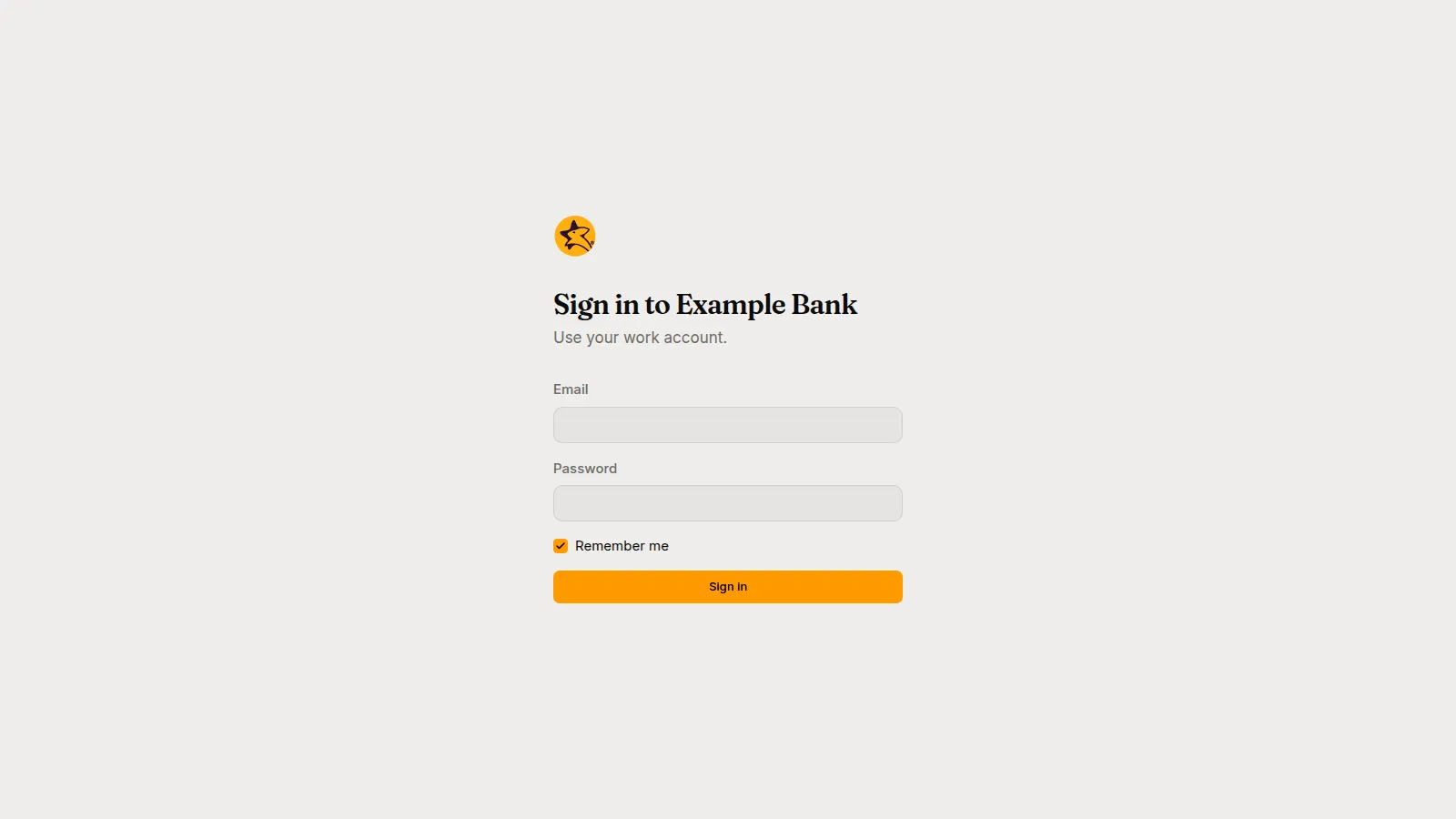
If the app says “Which project?”, open the link your supervisor sent you: it names the project. See Sign in to the business app.
2. Find your way around
Section titled “2. Find your way around”The left rail has Work, Cases and Processes. Supervisors also see Team and Overview, under Supervise. The project’s name and your role are at the top of the rail, and your name is at the bottom, with your settings, the theme and sign-out.
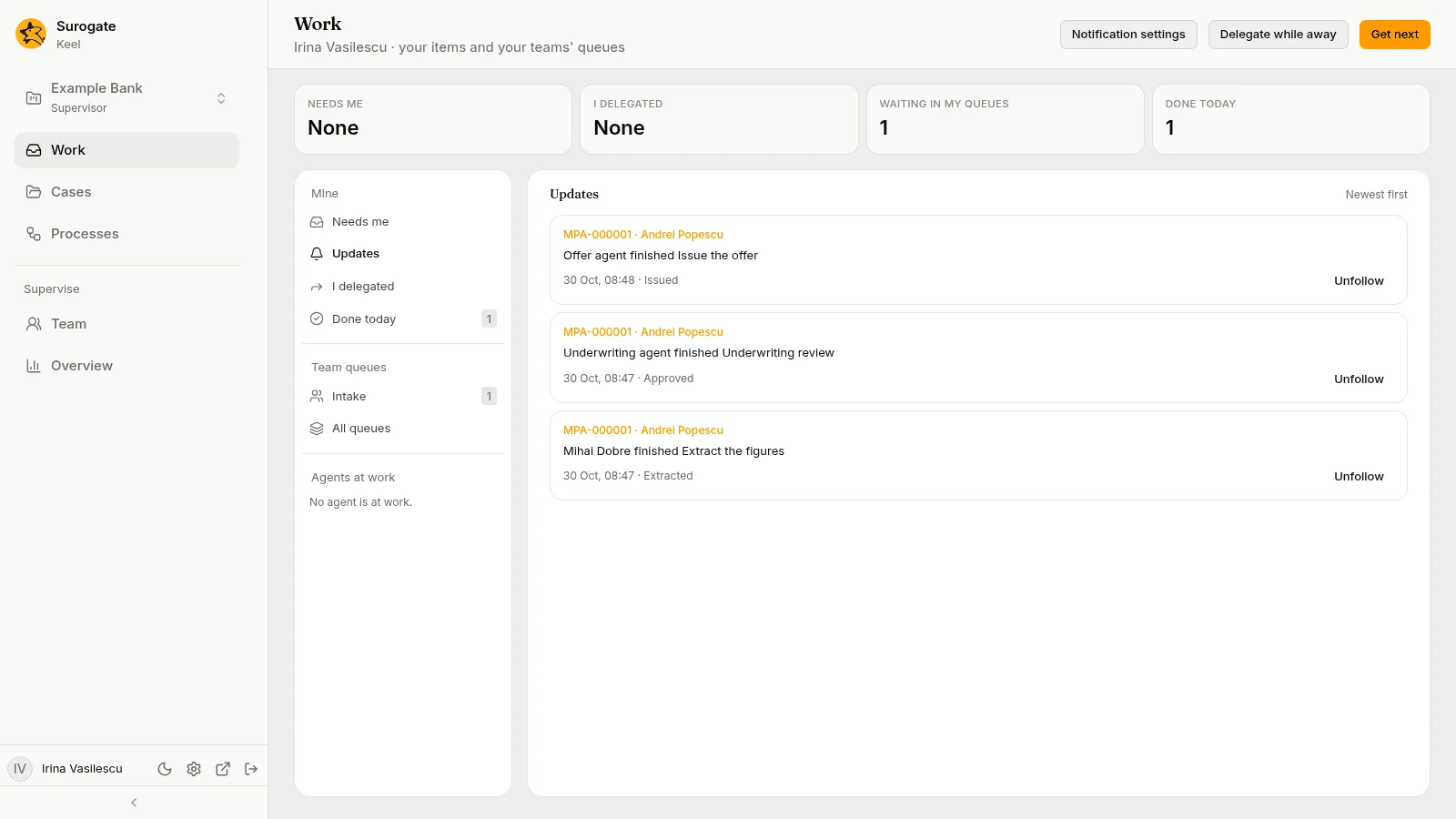
Work is your home page. Four cards count what needs you, what you handed to others, what waits in your queues and what you finished today. Below them, three columns:
- on the left, the lists you can open: Needs me, Updates, I delegated and Done today, then your team queues and the agents at work;
- in the middle, the list you picked;
- on the right, the item you picked.
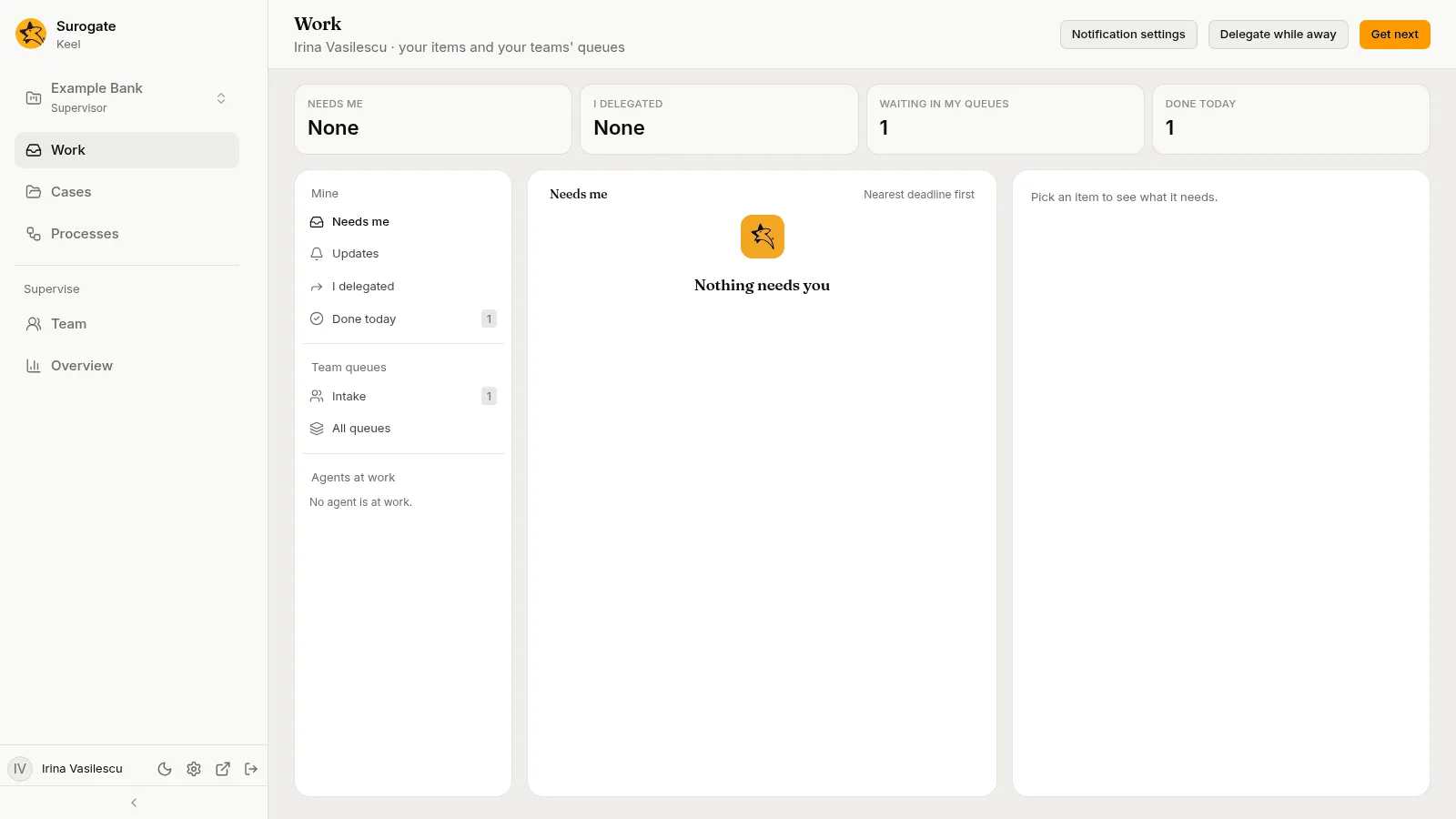
Needs me holds the work that is yours: steps assigned to you or that you claimed, votes you owe, and agents’ questions assigned to you. See The Work page.
3. Take a piece of work
Section titled “3. Take a piece of work”Work waiting in a queue of yours is not yours until you take it. There are two ways.
- Press Get next in the page header. Keel hands you the next item from your queues, in the order the queue serves work.
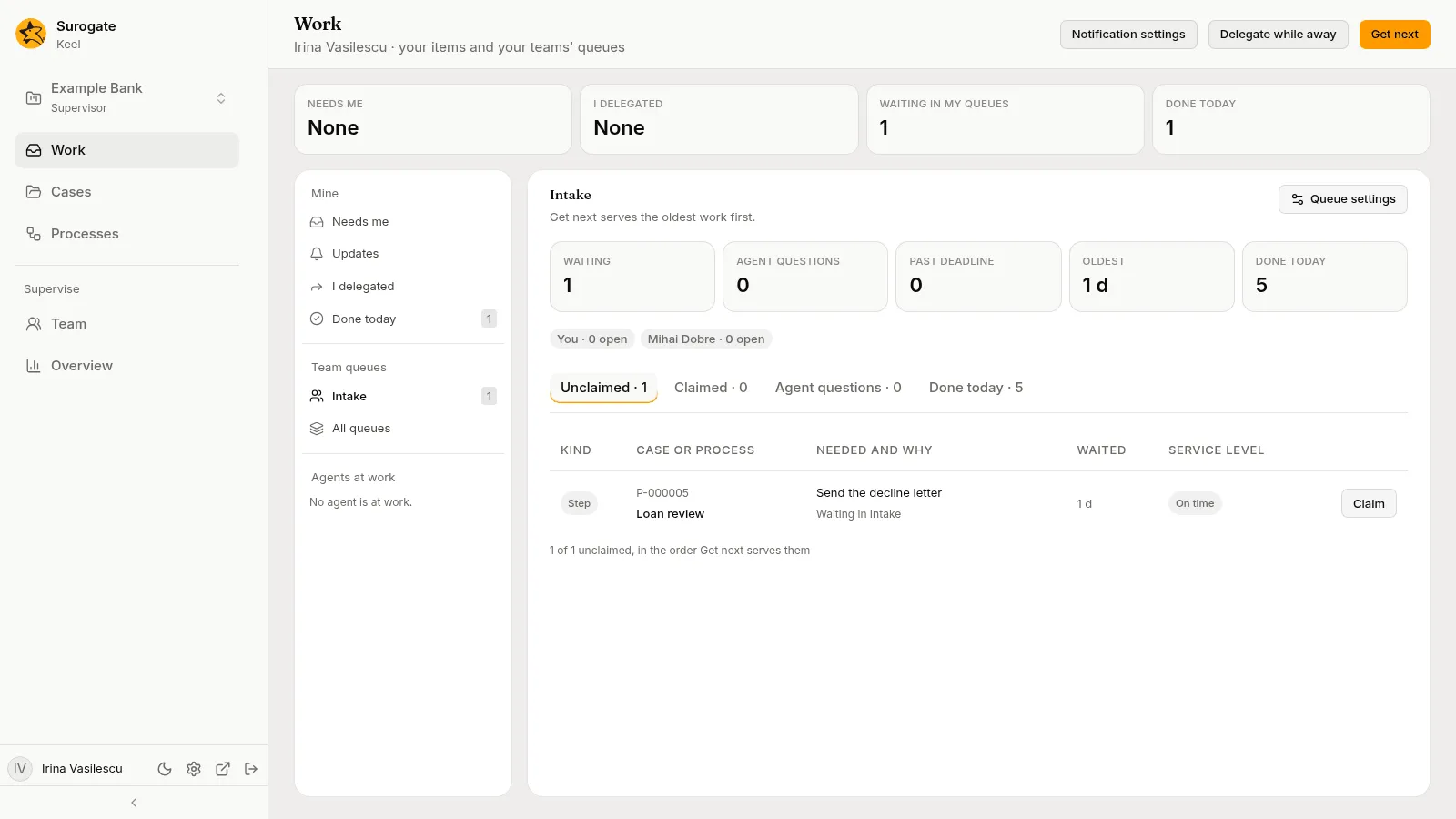
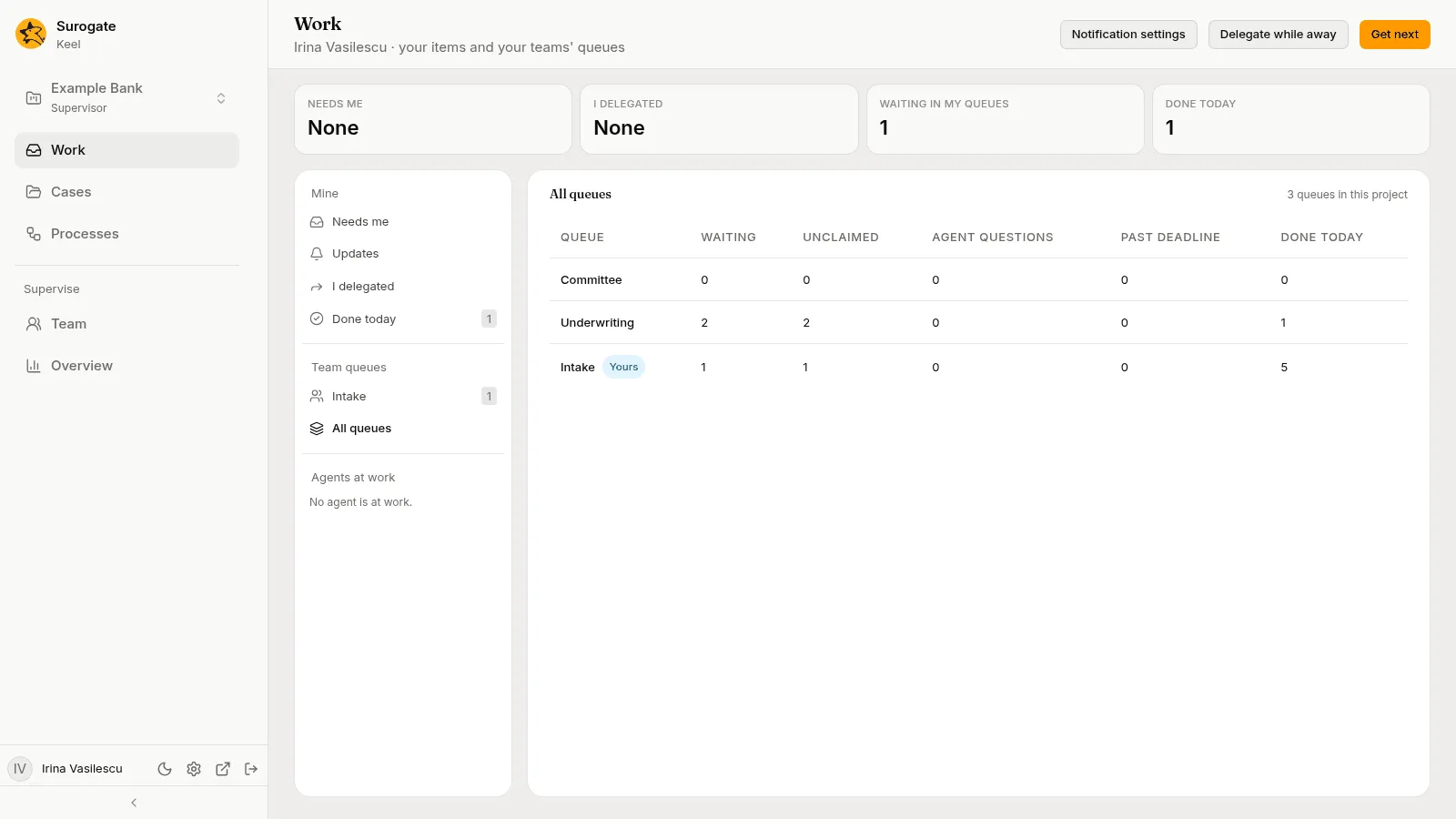
- Open a queue under Team queues. The queue’s page counts what waits, what is claimed and what agents asked, and lists the Unclaimed work. Press Claim on the row you want.
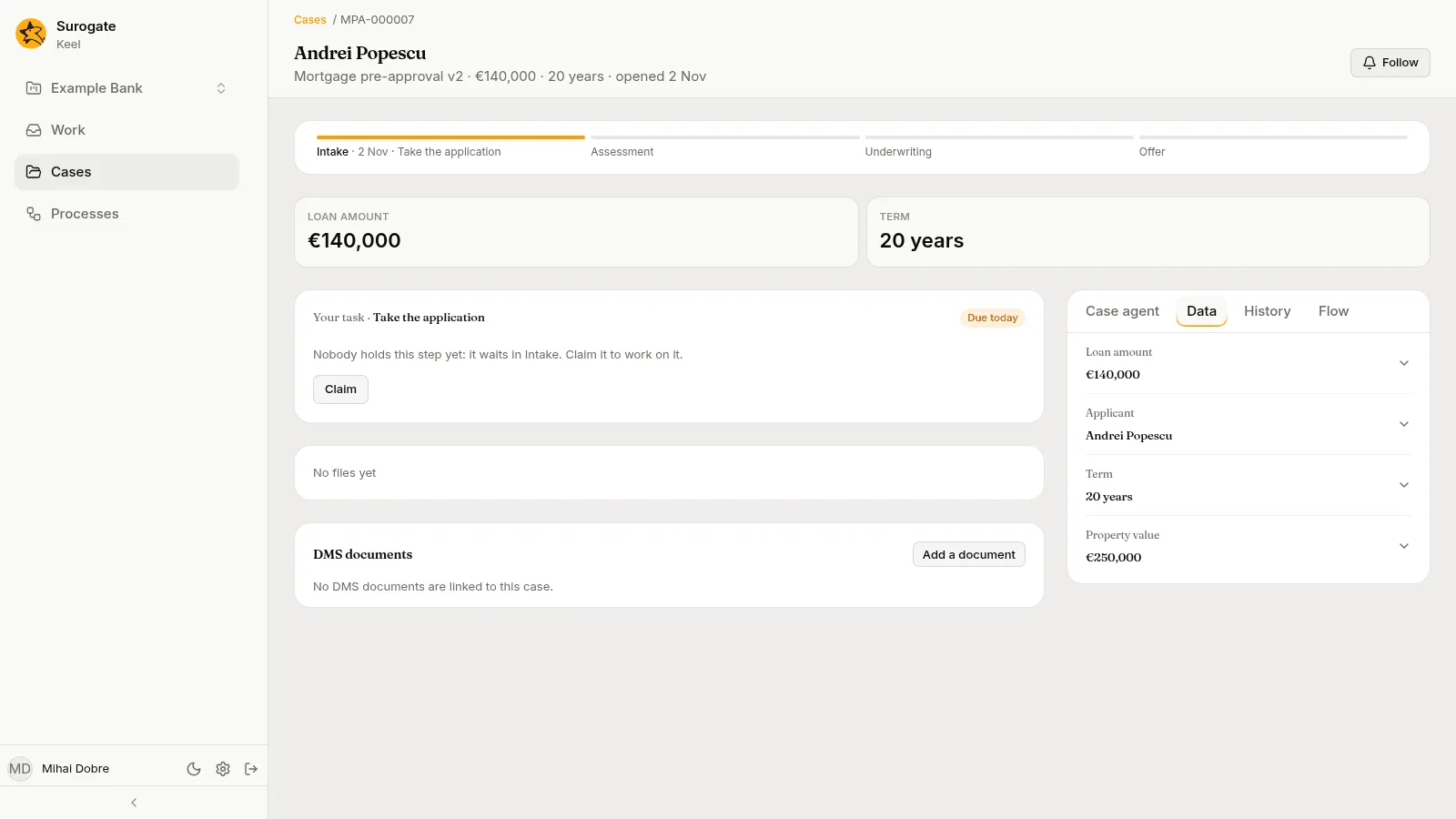
Open the case of a row you want. A step nobody holds says “Nobody holds this step yet: it waits in queue. Claim it to work on it.” Press Claim: the step becomes yours.
The step now shows in Needs me, as Your step, with Open case, Delegate and Return to queue.
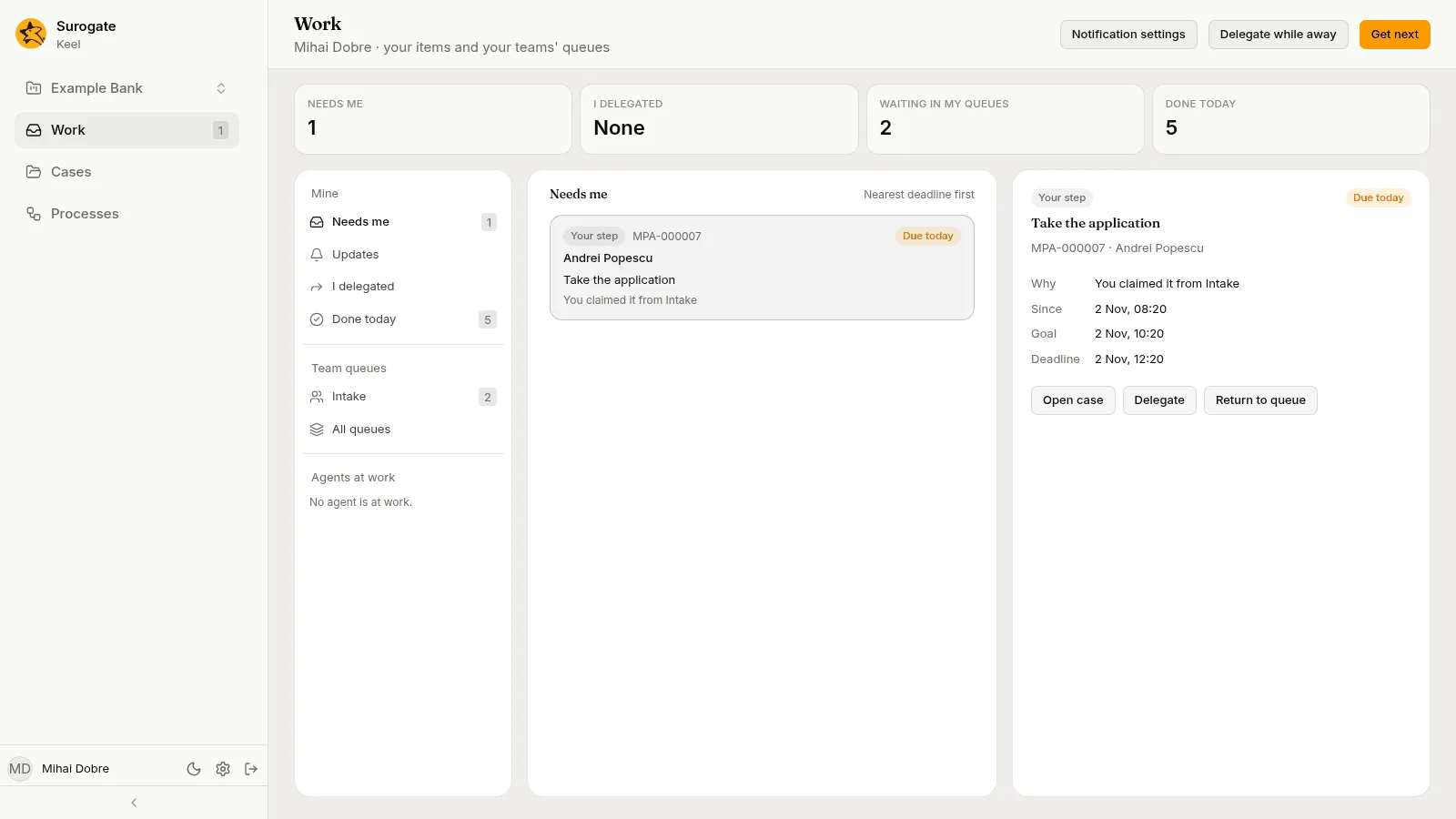
All queues lists every queue of the project, with what waits in each.
4. Do the step
Section titled “4. Do the step”Pick the item in Needs me, then press Open case (or Open process for a task of a process). The case page opens with a card Your task and the step’s name. The card shows the step’s form: the fields the step writes, and the choice of Outcome.
- Fill in the fields. A field the chosen outcome requires must be filled before you submit.
- Choose an outcome.
- Press Submit.
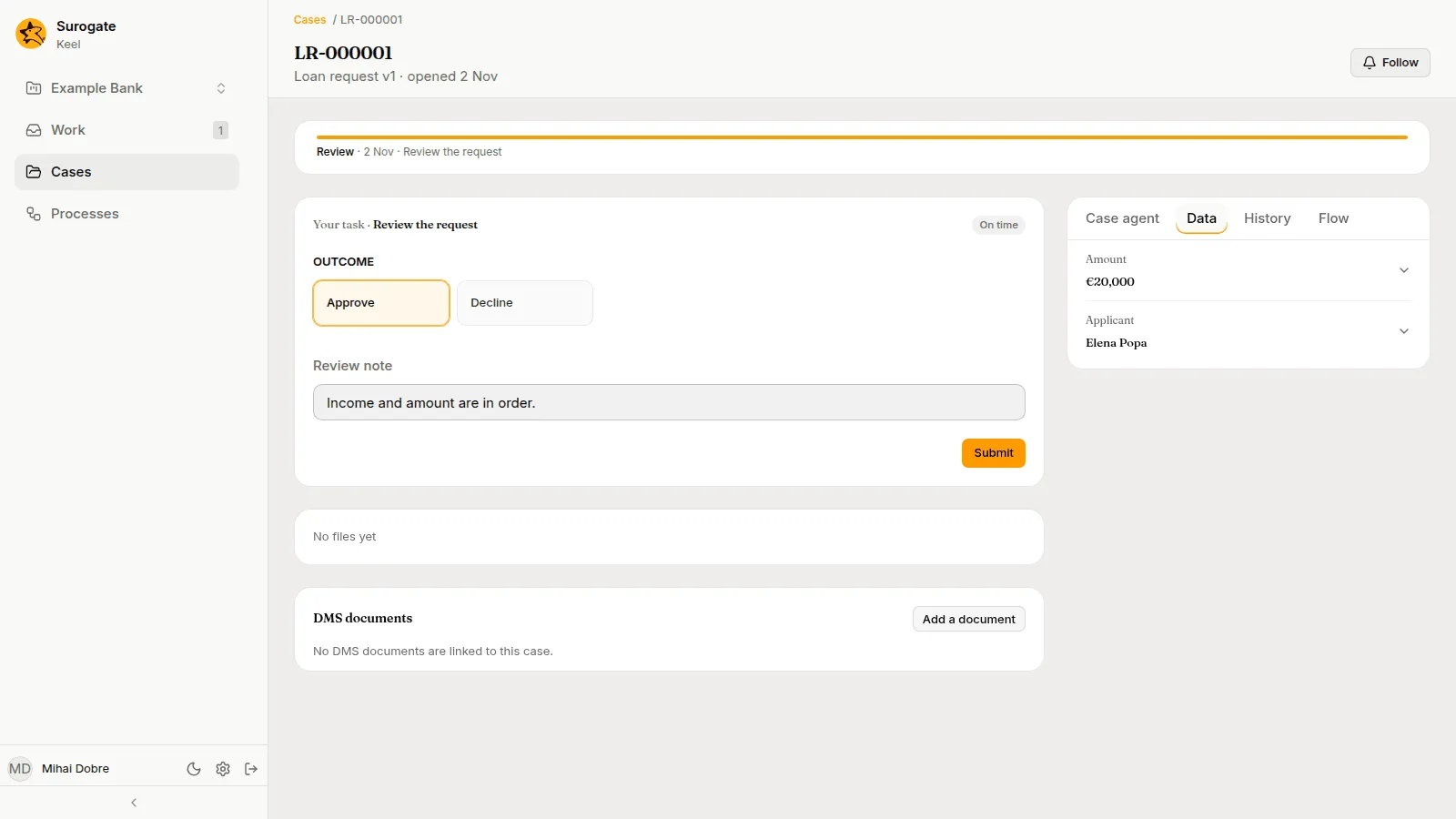
For a vote, choose your vote and press Submit vote.
The card goes away and the case moves to the next step. If you chose the outcome that closes the case, the page says This case is closed. See An open case.
5. Answer an agent’s question
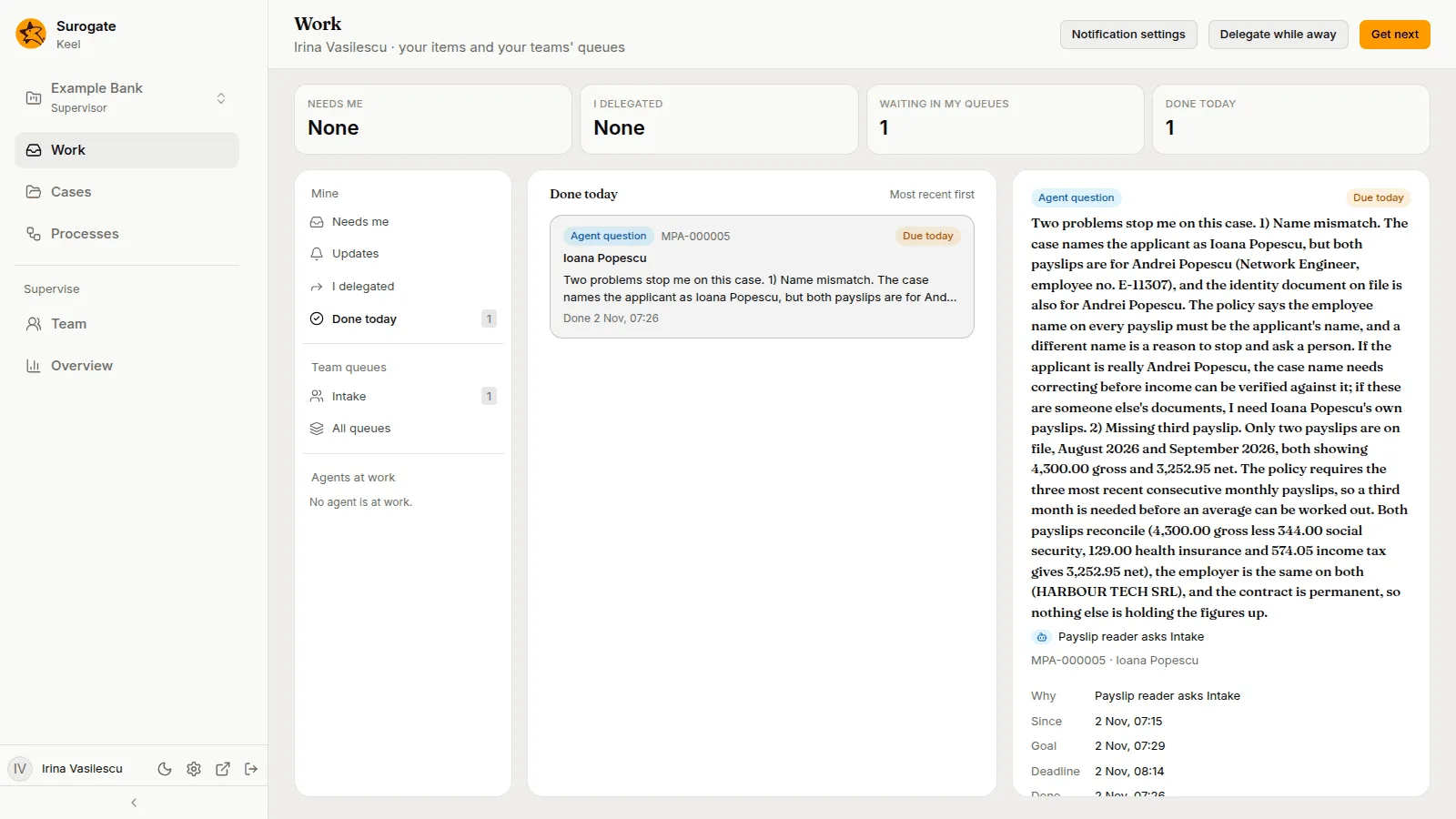
Section titled “5. Answer an agent’s question”Some steps are done by agents. When an agent needs a person, it asks, and the question lands in the queue the step names, or with you. It shows as an Agent question in your list.
Pick it. The right pane shows who asks, the question, the case, the step that is paused, and the evidence the agent found. Choose one of the agent’s answers, or type yours, add a note if you like, and press Send answer. The agent goes on with your answer, and the note is kept in the case’s history.
An agent never stops waiting by itself. See Working with agents.
6. Start a case
Section titled “6. Start a case”-
Open Cases and press New case.
-
Pick the case type.
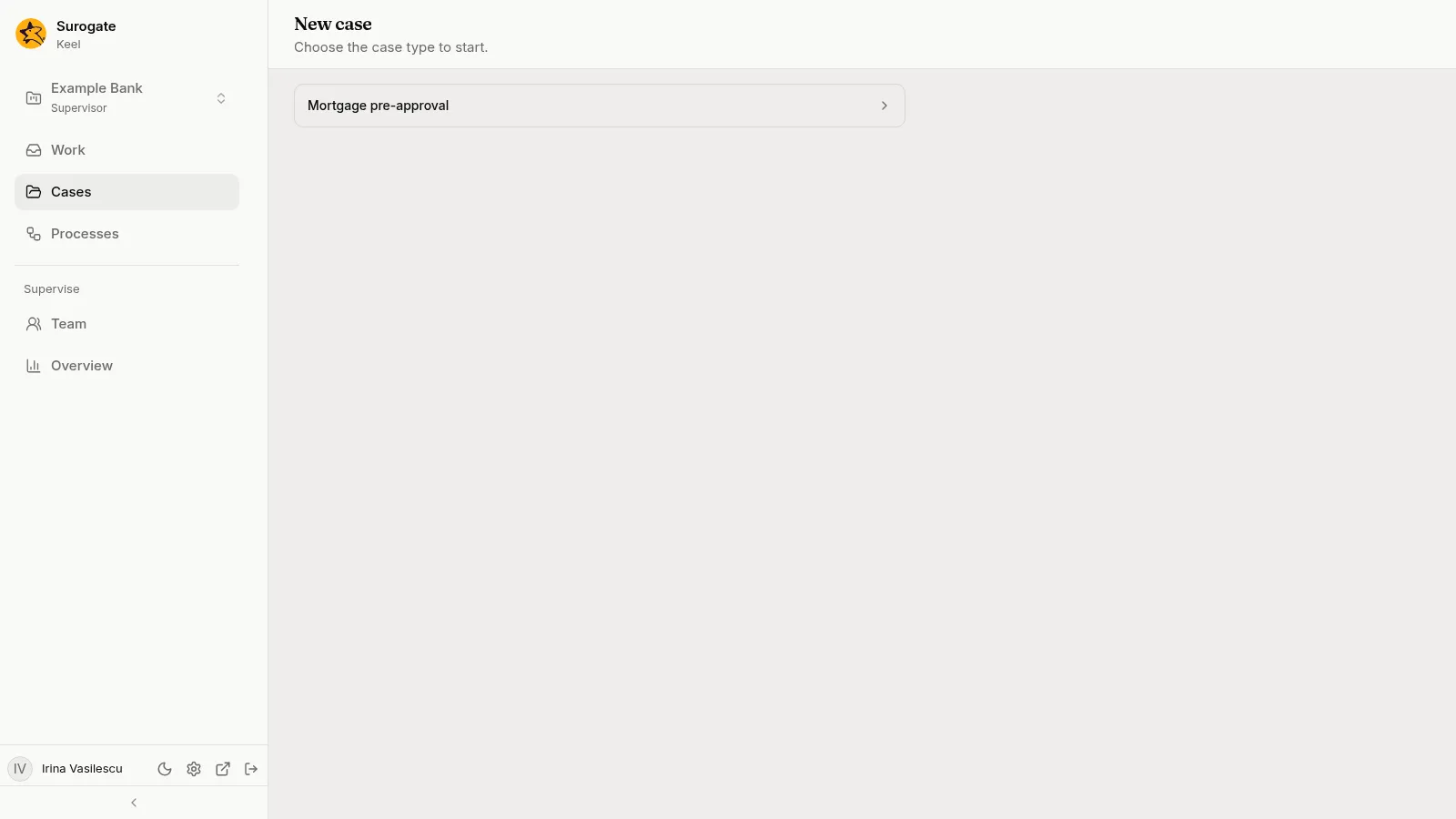
New case: the project's published case types to pick from -
Fill in the start form, which asks for the fields the case type needs to begin, and press Start.
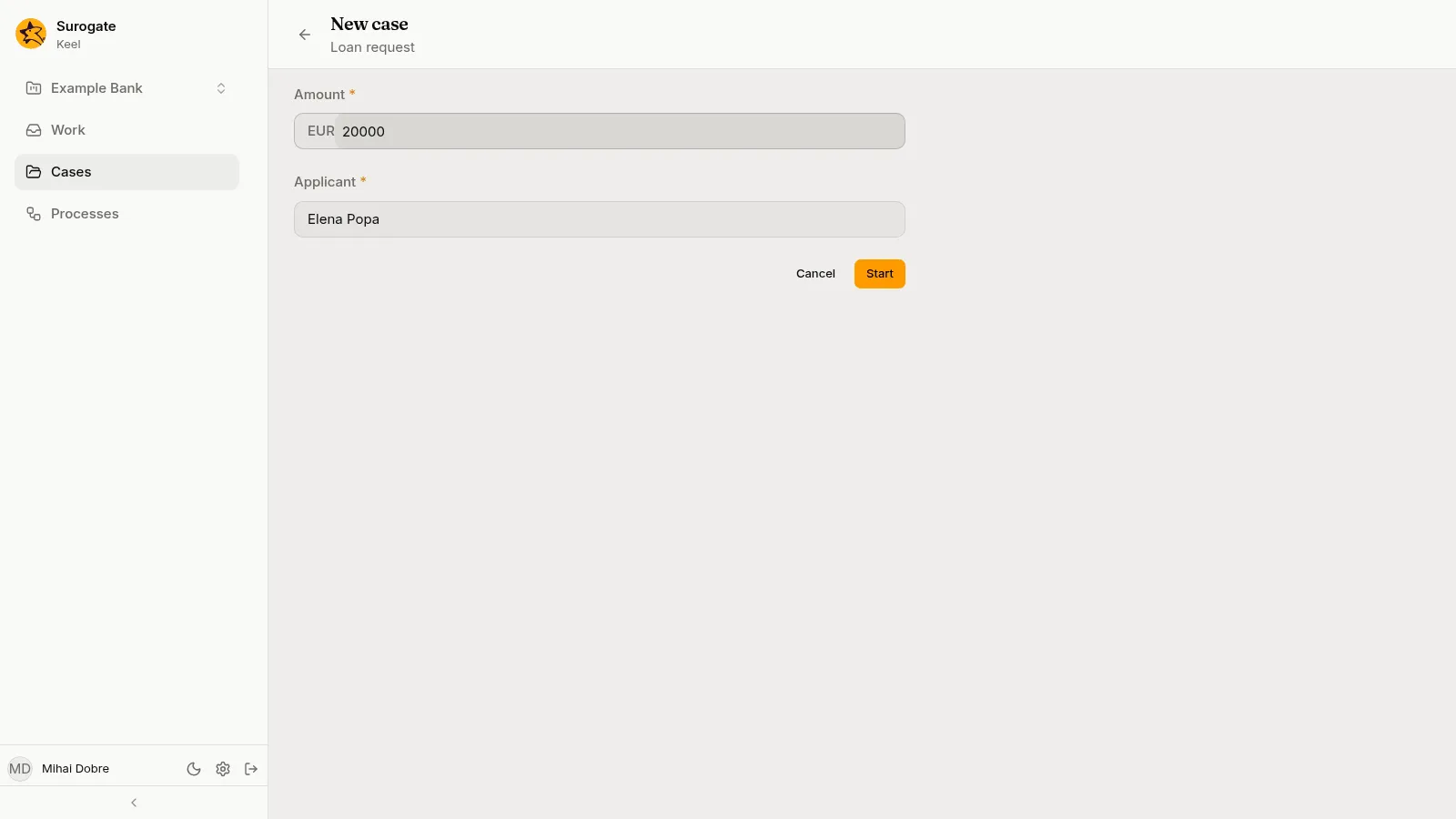
The start form of a case type: required fields marked with a star, and Cancel and Start
The case opens. Its number, such as LR-000001, is in the breadcrumb, and the stage bar shows where it is.
7. Read a case
Section titled “7. Read a case”The Cases page lists every case of the project, open and closed. The tabs sort them by who they wait on. Press a row to preview a case beside the list, with its files and its latest activity.
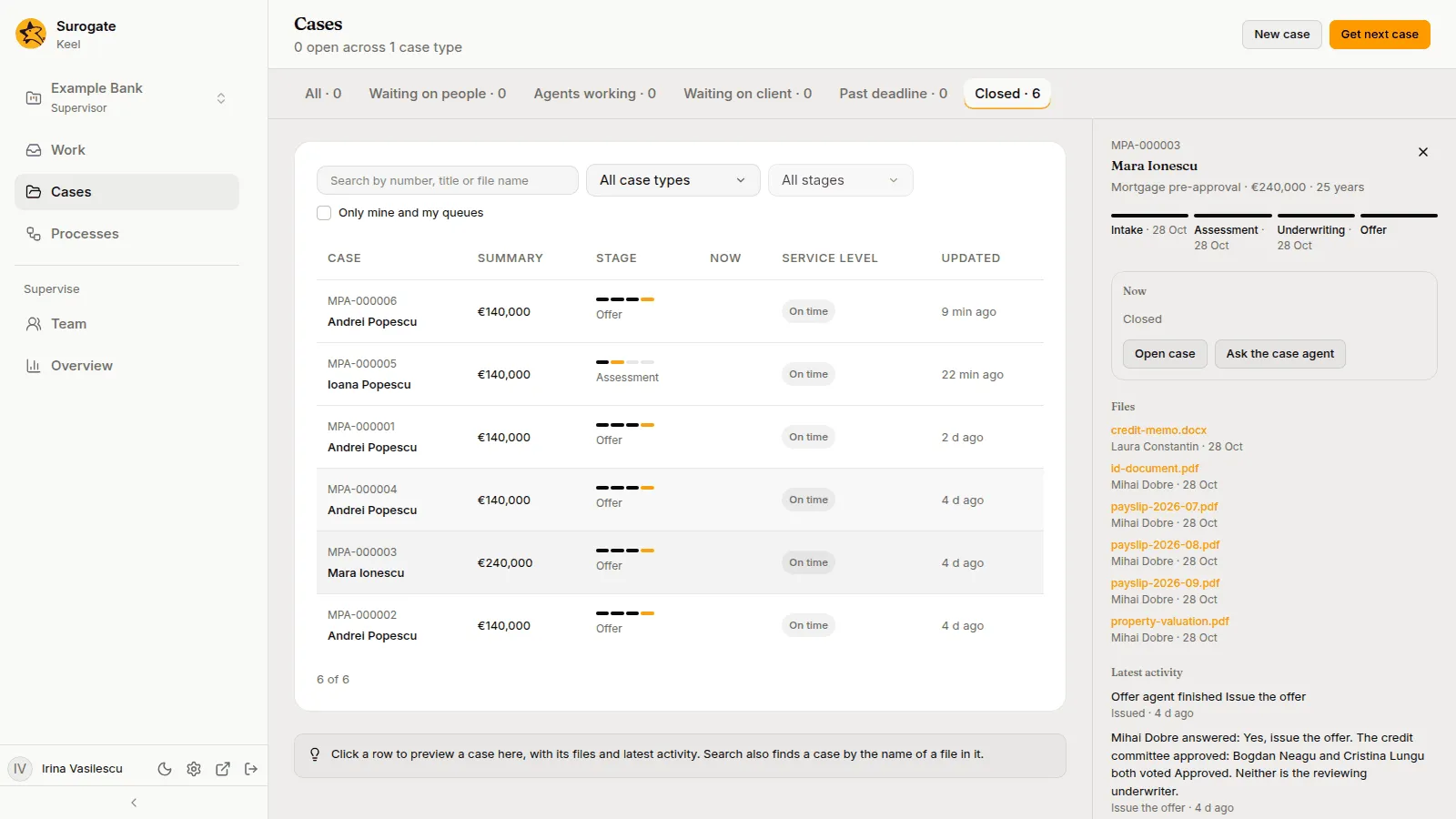
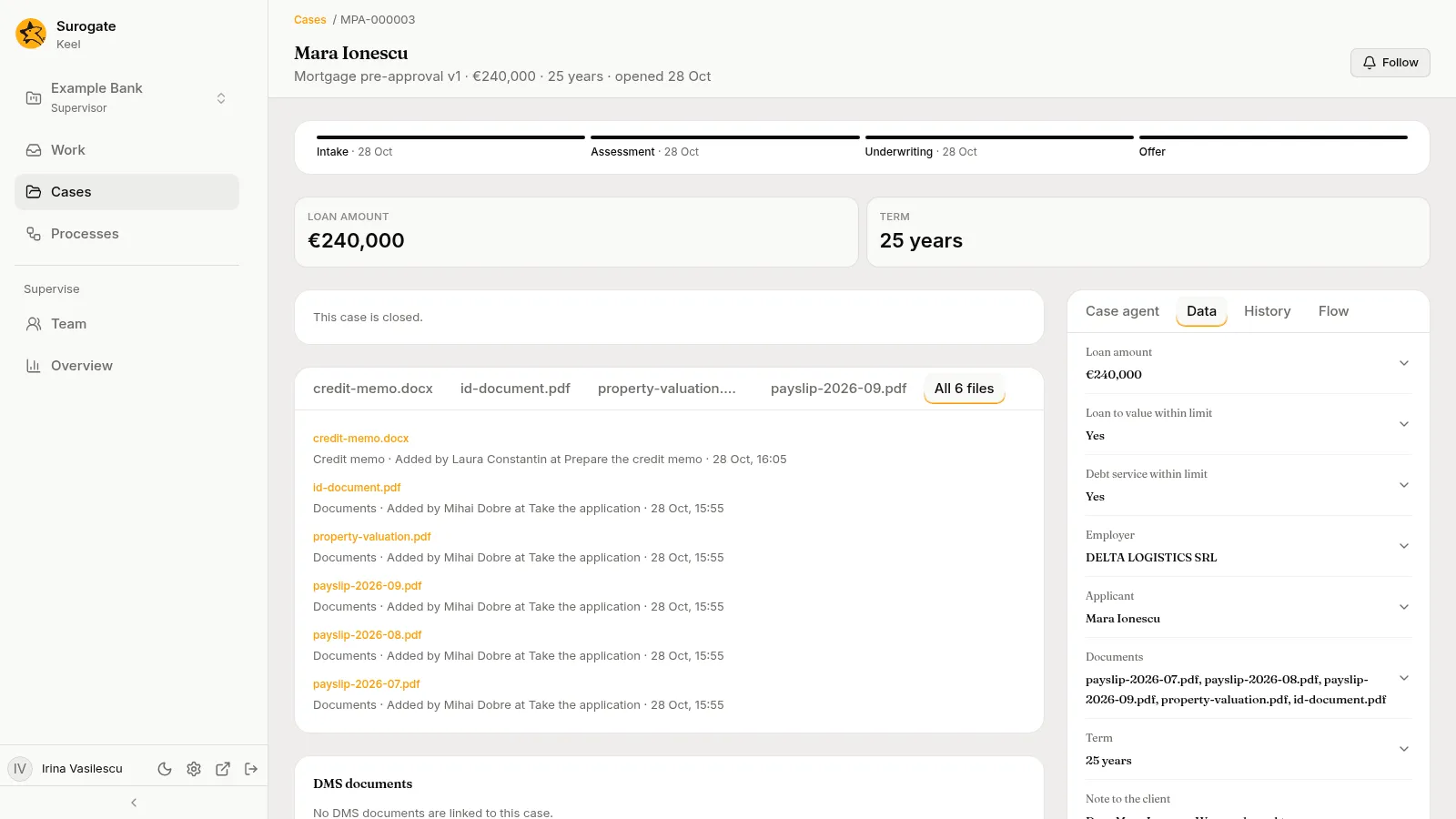
Press Open case to see all of it. The case page shows the stage bar, the values that sum the case up, its files, and a side panel with four tabs: Case agent, Data, History and Flow.
-
History lists each step done, who did it, when, and what came of it.
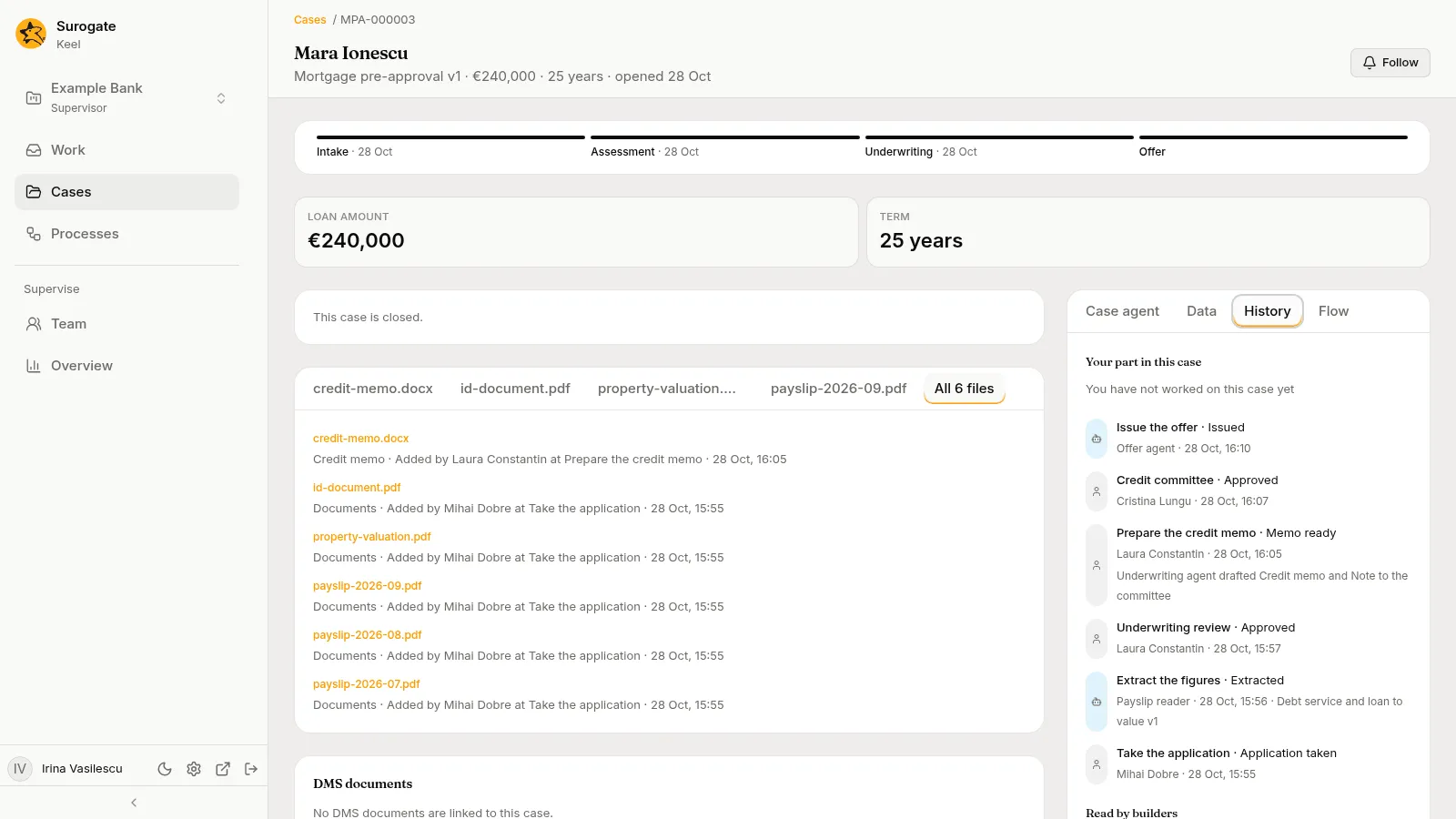
The History tab: each step with its outcome, who did it and when, newest first -
Flow draws the path the case follows.
-
Data lists every field of the case.
-
Case agent is a chat about this case. Ask it what you need to know, or ask it to fill in your form. It never submits; you do.
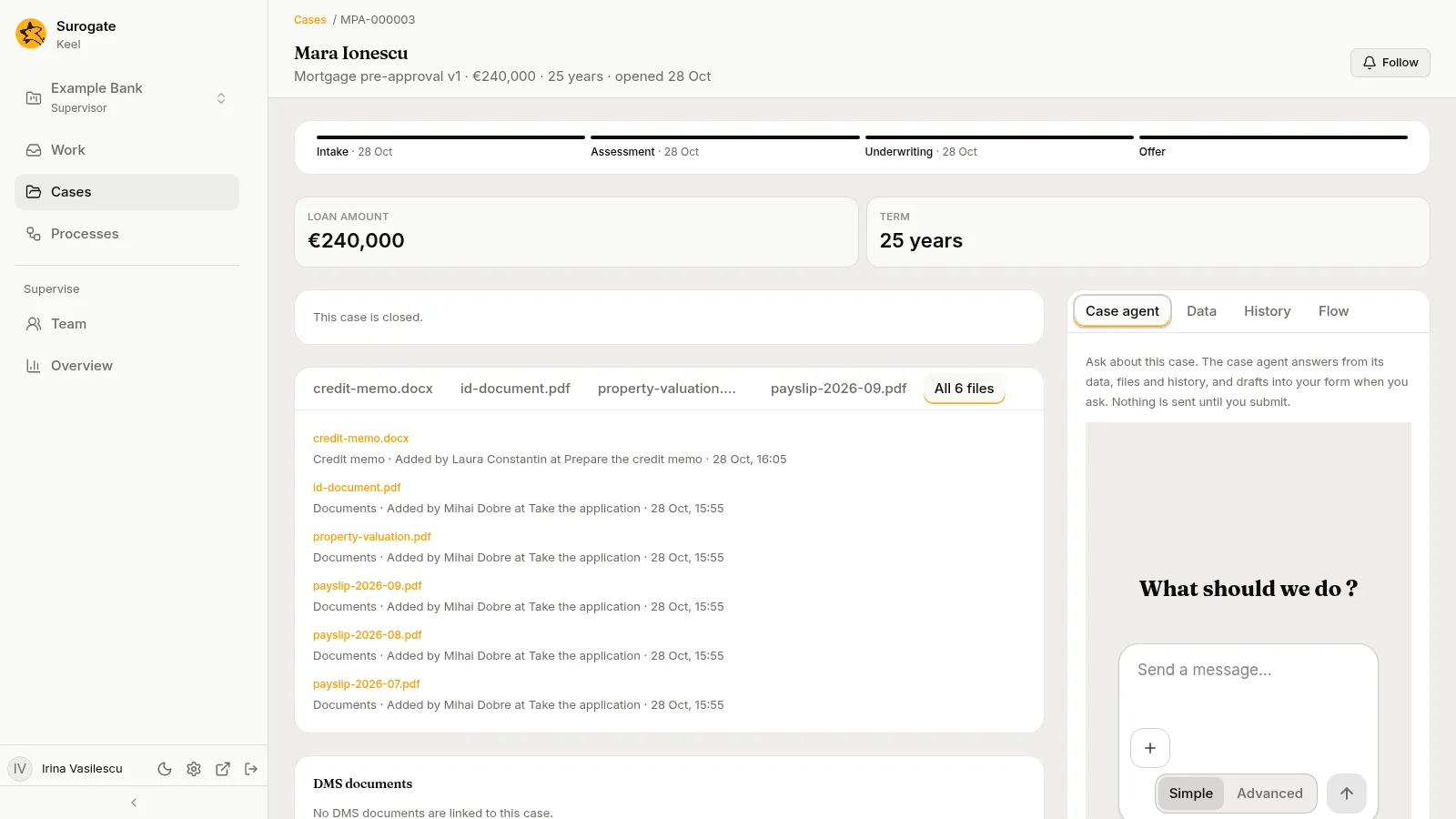
The Case agent tab: a chat with the case agent, with a message box and the Simple and Advanced choice
Follow, in the case’s header, puts the case’s changes in your Updates.
8. Start a process
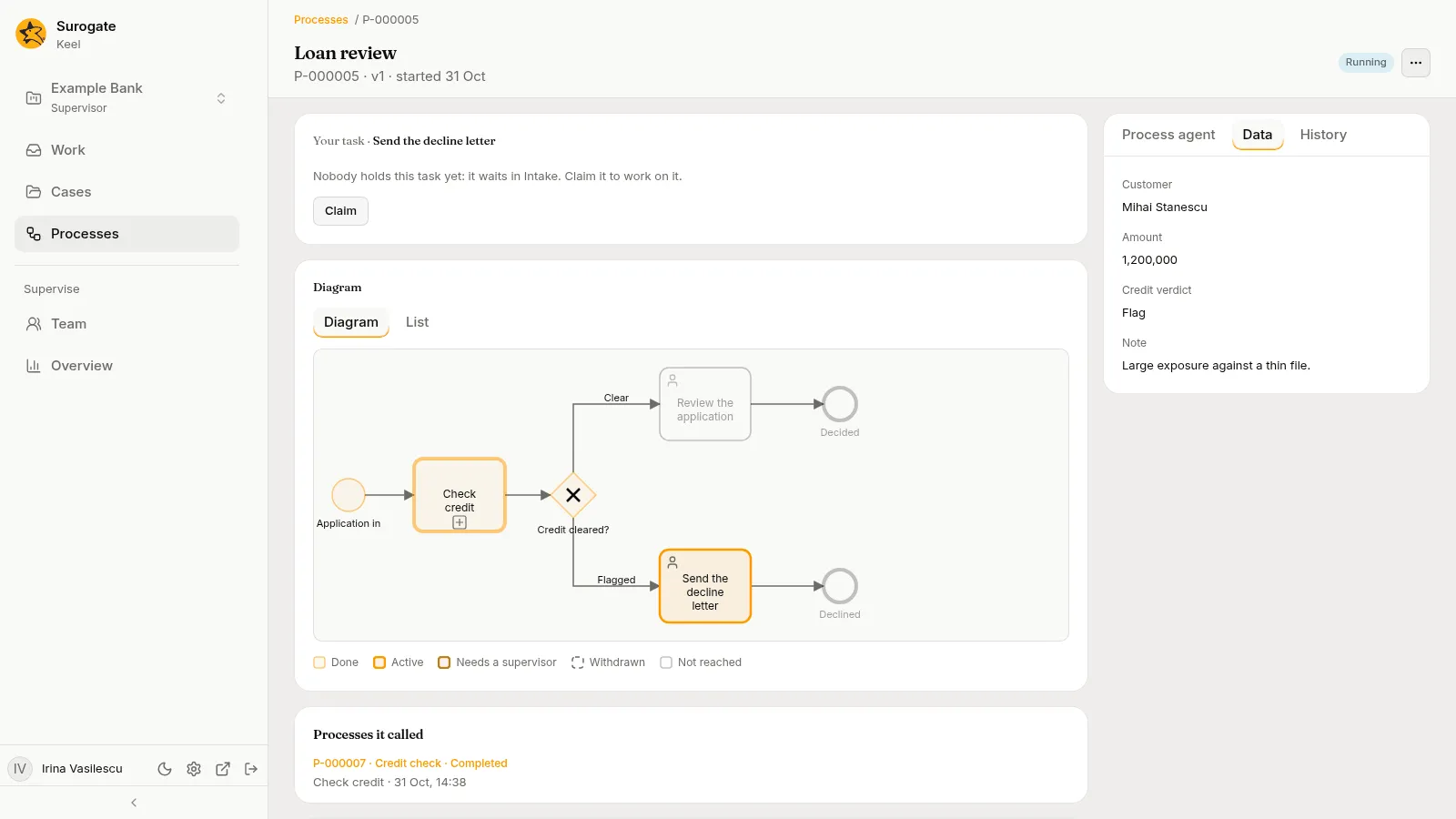
Section titled “8. Start a process”Processes lists the instances of the project’s BPMN processes. New process starts one. Its page shows a diagram of where the instance is, its tasks and its history, and a Process agent tab to ask about it. See Processes in the business app.
9. Be away
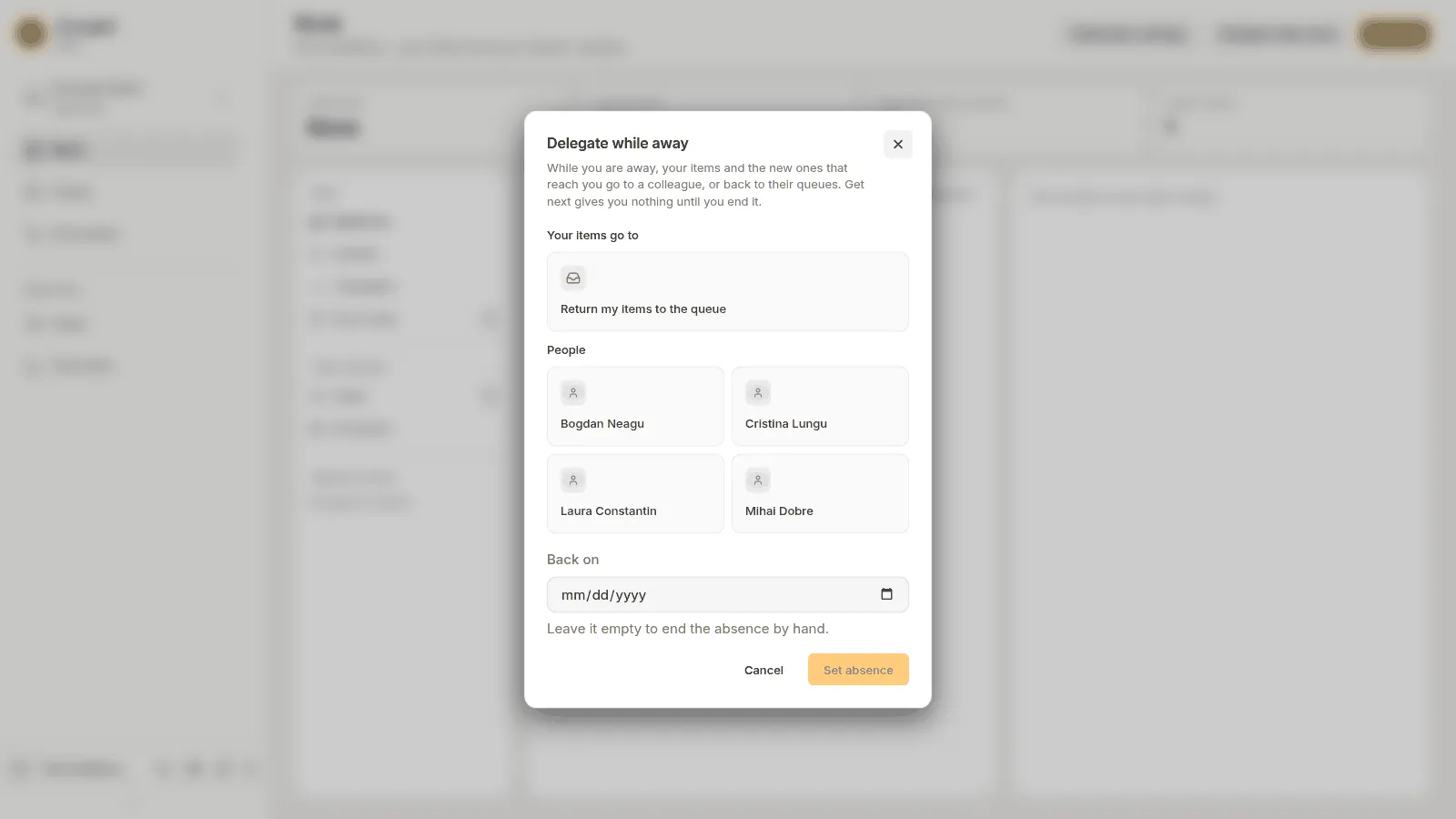
Section titled “9. Be away”When you will be away, press Delegate while away in the header of Work. Pick a colleague or choose to return your items to their queues, set the day you are back, and press Set absence. Get next gives you nothing until you are back.
Notification settings, in the same header, chooses which emails Keel sends you. See Your settings.
If you are a supervisor
Section titled “If you are a supervisor”Supervisors work cases like staff, and also see Team and Overview.
-
Team is where you invite staff, add people and agents to queues, set authority limits and absences, and turn agents on and off.
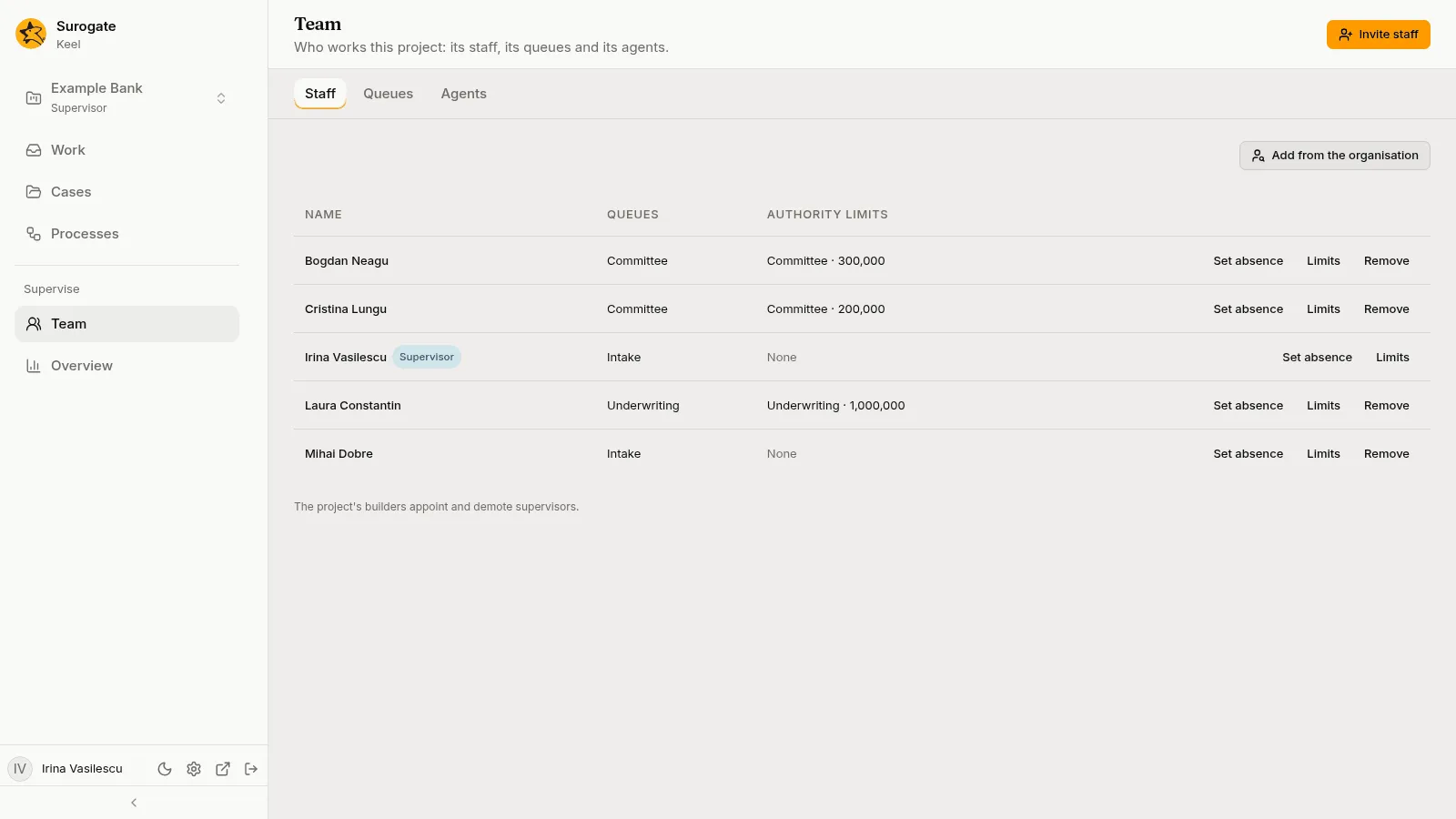
The Team page, Staff tab: each person with their queues and authority limits, and the Invite staff button -
Overview shows how the project’s work is going: cases opened and decided, cases by deadline, and where cases wait.
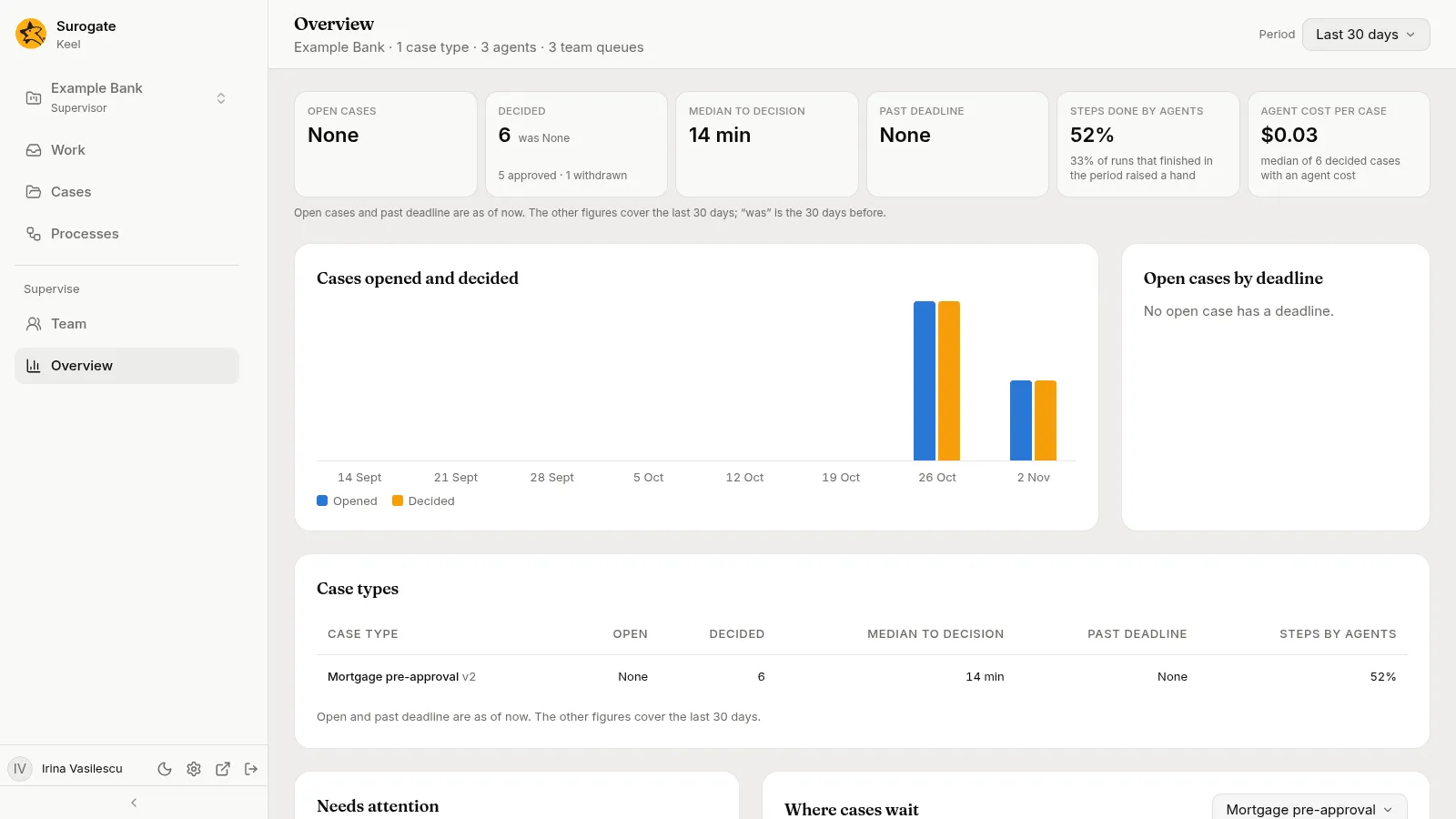
The Overview page: open cases, decided cases, median time to decision, steps done by agents, and charts
See The Team page and The Overview.
Next steps
Section titled “Next steps”- The Work page: every list, delegating, reassigning and answering agents.
- Cases and An open case: finding, previewing and working cases.
- The case agent: ask about a case and have it fill in your form.
- Example: mortgage pre-approval: a case worked by people, agents and a committee.