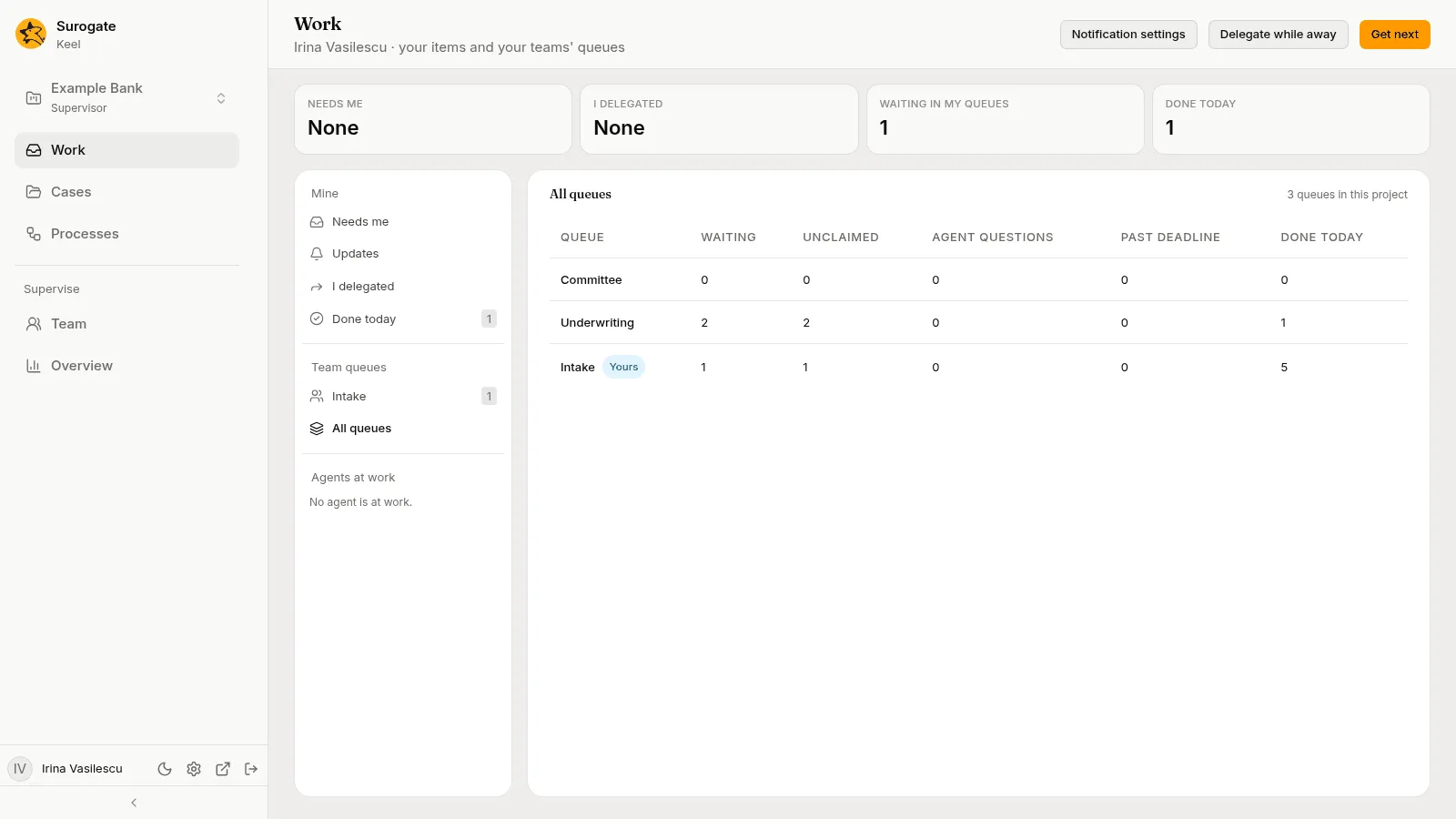
The Work page
Work is your home page in the business app: “your items and your teams’ queues”. It shows what needs you, what you handed to others, what you did today, the queues you work in, and the agents at work. The page keeps itself current; there is nothing to refresh.
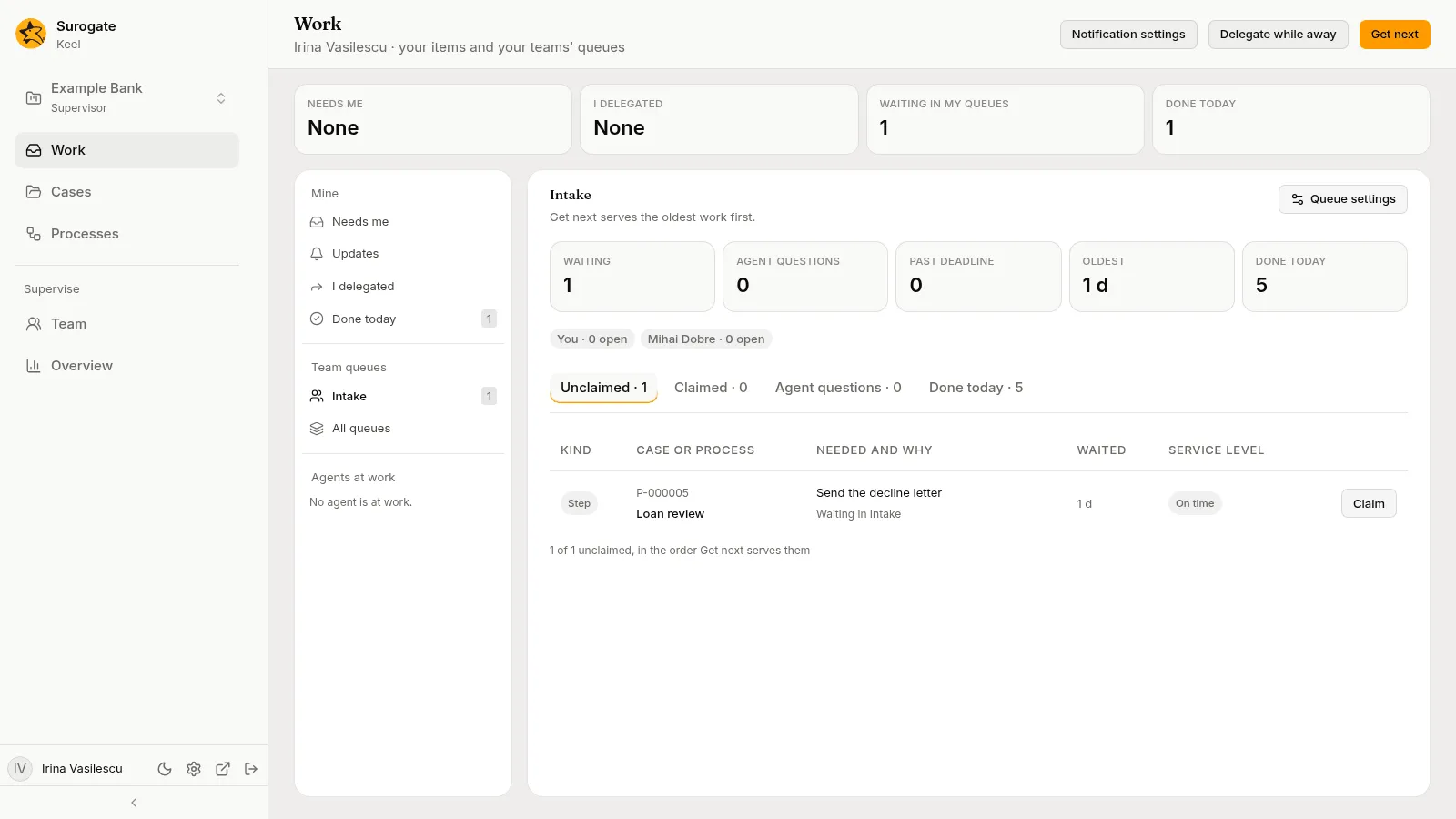
On a desktop, four figures head the page: Needs me, I delegated, Waiting in my queues (the open items of the queues you are a member of) and Done today. A count of zero reads None.
Under them, the page has three columns:
- on the left, the lists you can open: Mine, Team queues and Agents at work;
- in the middle, the list you picked, labelled with the order it is in;
- on the right, the item you picked.
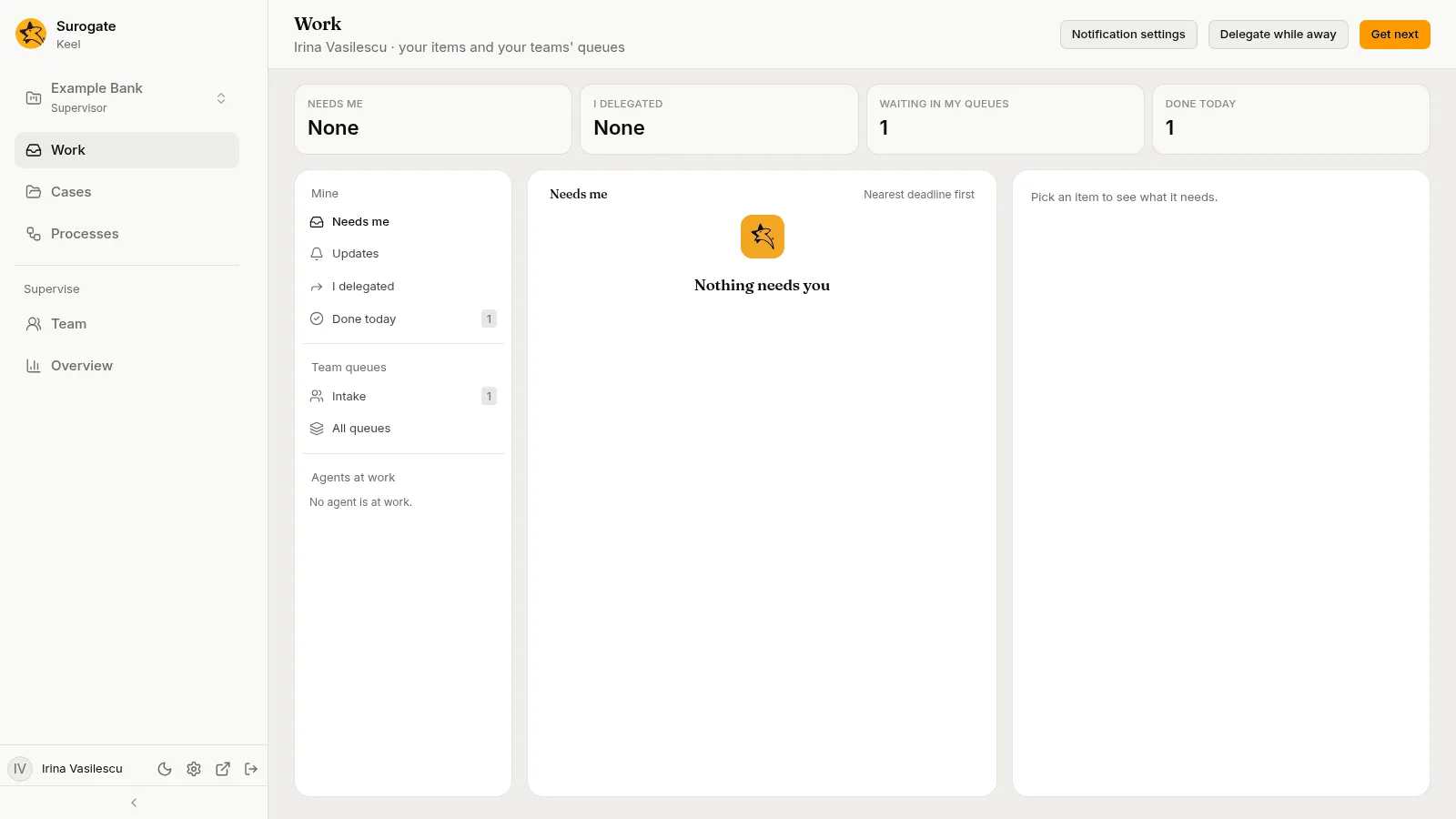
On a phone, the lists come first, and an item opens on its own with Back.
| List | What it holds | Order |
|---|---|---|
| Needs me | Work you hold: steps assigned to you or that you claimed, items delegated to you, votes you owe, and agents’ questions assigned to you. Below the items, notices. | Nearest deadline first |
| Updates | What changed on the cases you follow. | Newest first |
| I delegated | Open items you handed to someone else, until they are done. | Nearest deadline first |
| Done today | What you did since midnight, in your time zone. | Most recent first |
Each list shows its count in the column; Updates shows how many are new, such as 8 new. The Work row in the left rail shows the count of Needs me as a badge, the items and the open notices together.
Unclaimed work in your queues is not in Needs me until you take it. Find it in your team queues, or press Get next.
What a row shows
Section titled “What a row shows”Each item shows:
- its kind: Your step, Delegated to you, Step, Your vote, Vote, Agent question or Escalation;
- its case: number and title;
- what it needs: the step’s name, an agent’s question, or A deadline was missed for an escalation;
- why it is here, in a sentence, such as “Assigned to you”, “Ana Marin handed it over”, “Underwriting agent asks you”, “Your vote is owed”, or “Escalated to Underwriting”. An agent that holds an item is named like a person, such as “Assigned to Document checker”;
- its service level: Past deadline, with how long ago, such as Past deadline · 2 h; Past goal; Due today; the time left to its deadline, such as 3 d left; or On time when it has no deadline. An item done shows when it was done.
An item
Section titled “An item”Pick an item to see it on the right: its kind and service level, what it needs, its case, and:
- Why: why it reached you;
- Returned, for an item an agent gave back: why, and when, such as “Document checker returned it: The payslip is unreadable.” See When an agent returns an item;
- Since, Goal, Deadline: when it opened, and its service level’s times;
- Done, for an item done.
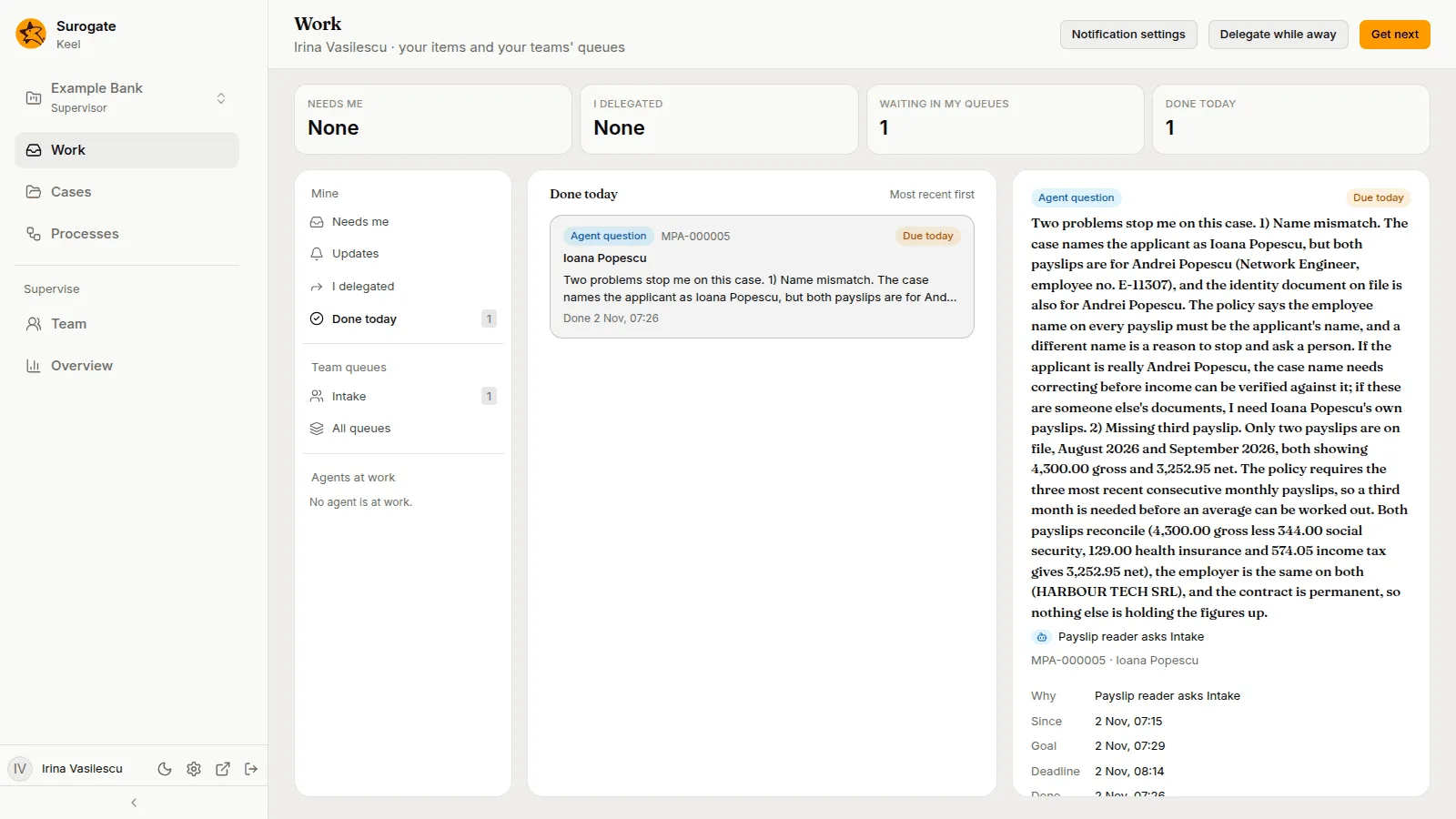
Open case opens the case. Steps and votes are worked in the case, where their form and the case’s files are. See An open case.
A task of a BPMN process shows Open process instead, which opens the instance’s page, where the task’s form is.
If a link points at an item the list no longer holds, the pane says so: “This item is no longer in this list. It may have been answered, returned or handed to someone else, or it is not yours.”
Hand an item to someone else
Section titled “Hand an item to someone else”For an item you hold, a step or an agent’s question, the pane shows Delegate and, when the item has a queue, Return to queue.
- Return to queue puts it back in its queue, unclaimed, for someone else to take.
- Delegate opens Delegate: “Hand this item to someone on the staff or to an agent. It leaves your work and shows in I delegated until it is done.” Pick a person under People or an agent under Agents, and press Delegate. Keel says Handed to and the name.
The person you pick sees it in their Needs me as Delegated to you. An agent you pick starts work on it at once; if it cannot finish it, it returns the item to you. Only some items take an agent: see Agents in queues and as delegates, and, for a BPMN process’s tasks, Agents in a process’s queues. A process’s task is handed on the same way. A vote cannot be delegated: every member of its queue votes for themselves.
When you return or delegate an item, or a supervisor reassigns it, any draft the case agent made of its form for you is dropped. Whoever holds it next starts with none. When you are away and the item goes to your substitute, the draft goes with it; when it goes back to its queue, the draft is dropped.
Reassign an item
Section titled “Reassign an item”Supervisors see Reassign on any open item but a vote, whoever holds it. It opens Reassign: “Give this item to someone on the staff or to an agent. Whoever holds it now no longer does.” Pick a person under People or an agent under Agents, and press Reassign. Keel says Given to and the name.
Whoever holds the item now is not offered. When there is no one to offer, the dialog says “There is no one to hand it to.” Taking an item from an agent stops its work on it. A process’s task is given the same way, to people and agents.
Answer an agent’s question
Section titled “Answer an agent’s question”When an agent working a step needs a person, it raises a hand, and its question becomes an Agent question. You can answer it when it is assigned to you, or when it waits unclaimed in one of your queues. The item shows:
- who asks, such as “Underwriting agent asks you”, and when it asked;
- the question;
- the case, and the step it paused: “step · paused until you answer”;
- the agent’s progress on that step: its plan, and when it was last active;
- the agent’s Evidence: cards with a value and the file it comes from, which open the case on that file, and notes;
- Your answer: one of the agent’s choices, or a text box when it gave none;
- Note for the agent and the case history, optional.
Press Send answer. “Your answer goes back to the step. The note goes to the agent and is kept in the case history.” The agent resumes the step with your answer.
An agent working a task of a BPMN process asks the same way, and you answer it here the same way. The item shows the process in place of the case: its number and name, such as P-000001 · Loan review, which open the instance’s page; “task · paused until you answer”; and the agent’s progress on the task. The agent’s evidence shows its cards without a file to open, since a process keeps no files. The note reads Note for the agent and the process history, and under Send answer: “Your answer goes back to the task. The note goes to the agent and is kept in the process history.” The agent resumes the task with your answer. An agent’s question on a task its agent drafts for a person is answered the same way, by a person.
An agent never stops waiting by itself: a question stays open until someone answers it. See Working with agents.
Notices in Needs me
Section titled “Notices in Needs me”Below the items, Needs me lists Notices, newest first, when there are any. A notice is not work you do; it tells you something, and you close it. Show more notices lists more. Pick one to read it on the right. Two kinds reach you:
- Mention: “Name mentioned you in document”. A colleague mentioned you in a comment in a case’s document. The notice names the case, the document and when; it never copies the comment, so Open the document to read it. “It closes once you open the document, or when you dismiss it.”
- Absence, for supervisors: “Name is away: n items stayed with them”. Some of the items of a colleague who went away could not move on: they have no queue to return to, or their substitute may not do their step. The notice says so, and lists each item with its case and who holds it now, as many as fit, with “Showing n of m items.” when there are more. See Delegate while away.
Dismiss closes a notice: Keel says Dismissed. Closed notices are kept for 30 days and then deleted.
Updates
Section titled “Updates”Updates lists what changed on the cases you follow, newest first. Each update gives the case’s number and title, which open the case, a sentence saying what happened, such as who finished a step and how, and when. You never see your own changes in it.
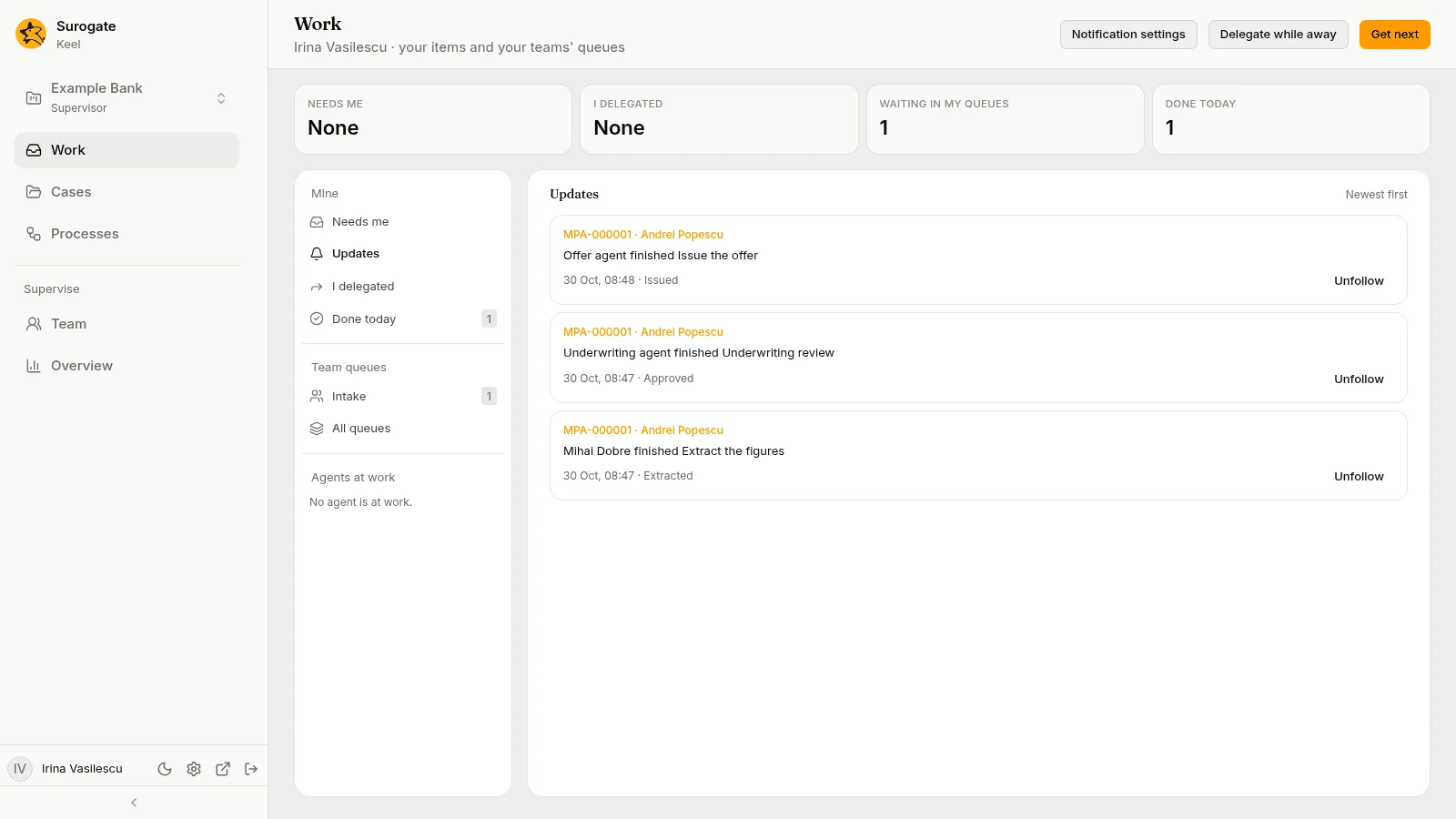
- An update you have not seen is marked New, and the Updates row counts them:
8 new, or99+ newwhen there are many. - They count as seen once you have listed them all. When there are more than the list shows, Show more updates lists the rest, and Mark all as seen marks them at once.
- Unfollow on an update stops following its case; the update then reads Unfollowed.
- With nothing to show, the list says Nothing new on the cases you follow: “You follow a case once you act on it, or with Follow on its page.”
Updates are kept for 30 days and then deleted. By email, Your settings chooses whether you are mailed when a case you follow moves.
Delegate while away
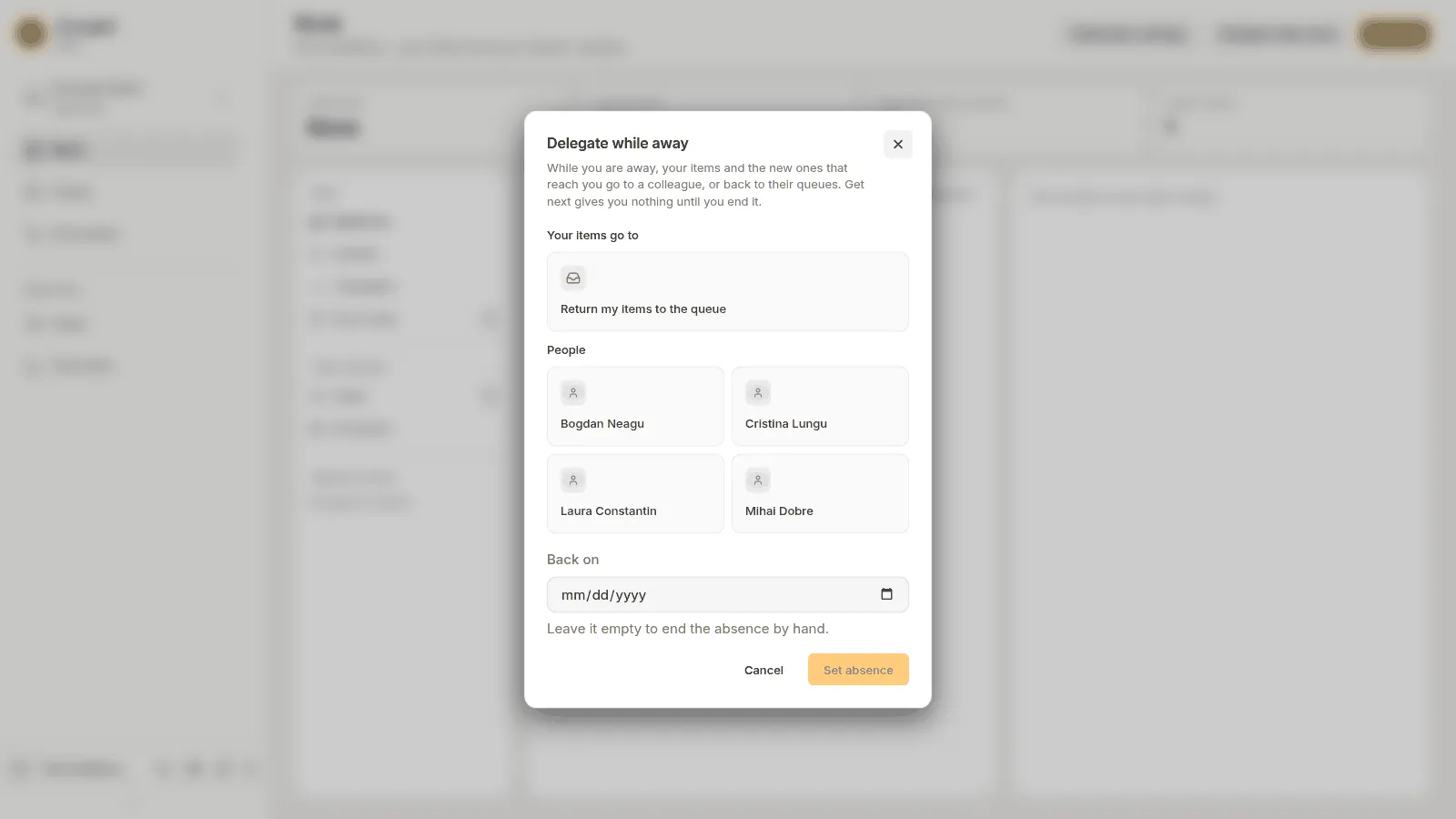
Section titled “Delegate while away”When you will be away, Delegate while away in the page’s header hands your work on, and Get next gives you nothing until you are back. It opens Delegate while away: “While you are away, your items and the new ones that reach you go to a colleague, or back to their queues. Get next gives you nothing until you end it.”
Under Your items go to, pick one:
- Return my items to the queue: your items go back to their queues, unclaimed, for their members to take.
- A colleague, by name under People. You are not offered, and neither are agents.
Under Back on, pick the day you are back, or leave it empty: “Leave it empty to end the absence by hand.” An absence with a day ends by itself at the start of that day, in your time zone.
Once you have picked, the dialog says what would happen before anything does, such as:
- “You hold 3 items:”, then “1 goes to Mihai Ionescu” and “1 goes back to its queue”.
- “1 stays with you:”, with the list Items that stay under it, each as its case, its step and why: “it has no queue”, or “Mihai Ionescu may not do this step”. A long list shows the first hundred and “and 140 more”.
- Who will find what: the colleague finds what goes to them in Needs me, together with the new items that reach you while you are away; the queues’ members find what goes back in their queues; and the project’s other supervisors see what stays, in their Needs me.
What moves is every item you hold, whichever way it reached you, and each new one that reaches you. A vote moves nowhere: every member of its queue votes for themselves. A colleague who is away too is never given an item. A colleague who is not allowed to do a step, because it needs someone other than you or an authority limit they do not hold, does not receive it: the item goes back to its queue, or stays with you when it has none.
When some items would stay and no other supervisor could see them, the dialog says: “No other supervisor can see what stays. Choose someone who may take it, or ask a builder to name another supervisor.” Set absence is not offered then. If a colleague cannot be your substitute, Keel says why, such as “The substitute is away too: choose someone else, or return the items to the queue.”
Press Set absence. Keel says, for example, You are away. 2 items went to Mihai Ionescu.
While you are away
Section titled “While you are away”A box under the page’s header says how things stand:
- “You are away, back on 3 Nov.”, or “You are away until 2 Nov, 22:00.” when the absence was set to end at another hour, or “You are away until you end your absence.”
- “New items go to Mihai Ionescu.”, or “New items go back to their queues, or stay with you when they have none.”
- “So far 2 items went to Mihai Ionescu.” and what went back to queues or stayed.
- “Name set it.” when a supervisor set your absence for you.
- “Name is no longer on the staff: new items go back to their queues, or stay with you when they have none.” when your substitute left the project.
Get next answers “You are away: end your absence to take work.” You cannot claim from a queue either. A colleague’s mention of you still comes to you.
End absence in the header asks first: “End your absence?” “New items reach you again. What went to Mihai Ionescu stays with them.” Press End absence; Keel says Your absence has ended. The same happens by itself when the day you set arrives. If a supervisor removes you from the staff, your absence ends.
Supervisors can also set and end a colleague’s absence from the Team page.
Get next
Section titled “Get next”Get next in the page header hands you your next piece of work, unless you are away:
- If Needs me holds anything, it opens the first item there.
- Otherwise, it takes the first unclaimed item from your team queues and opens it. It looks at your queues by their priority, and in each queue follows the queue’s serving order. The item is yours from then on.
When nothing is waiting, it says Nothing is waiting for you. Two people pressing Get next at once never get the same item.
Get next case on the Cases page does the same, and opens the item’s case.
Notification settings
Section titled “Notification settings”Notification settings in the page’s header opens Your settings, where you choose which emails Keel sends you. On a phone, open the menu: Your settings is in the bar at its bottom.
Team queues and agents at work
Section titled “Team queues and agents at work”Under Mine, the column lists:
- Team queues: each queue you are a member of, with how many items are open in it, and All queues. See Team queues.
- Agents at work: each agent at work on the project’s cases and processes now, on its own steps or tasks or on work items, with how many. With none, it says “No agent is at work.” See Working with agents.
A queue you pick fills the middle and the right of the page with its figures, its members and its items:
All queues lists every queue of the project, with your own marked Yours: