Project settings
The Settings page in Keel Builder’s left rail, under Project, holds what applies to the whole project: “The business app’s address, service keys and effects.” It is not the designer’s Settings tab, which is per case type (see Case type settings).
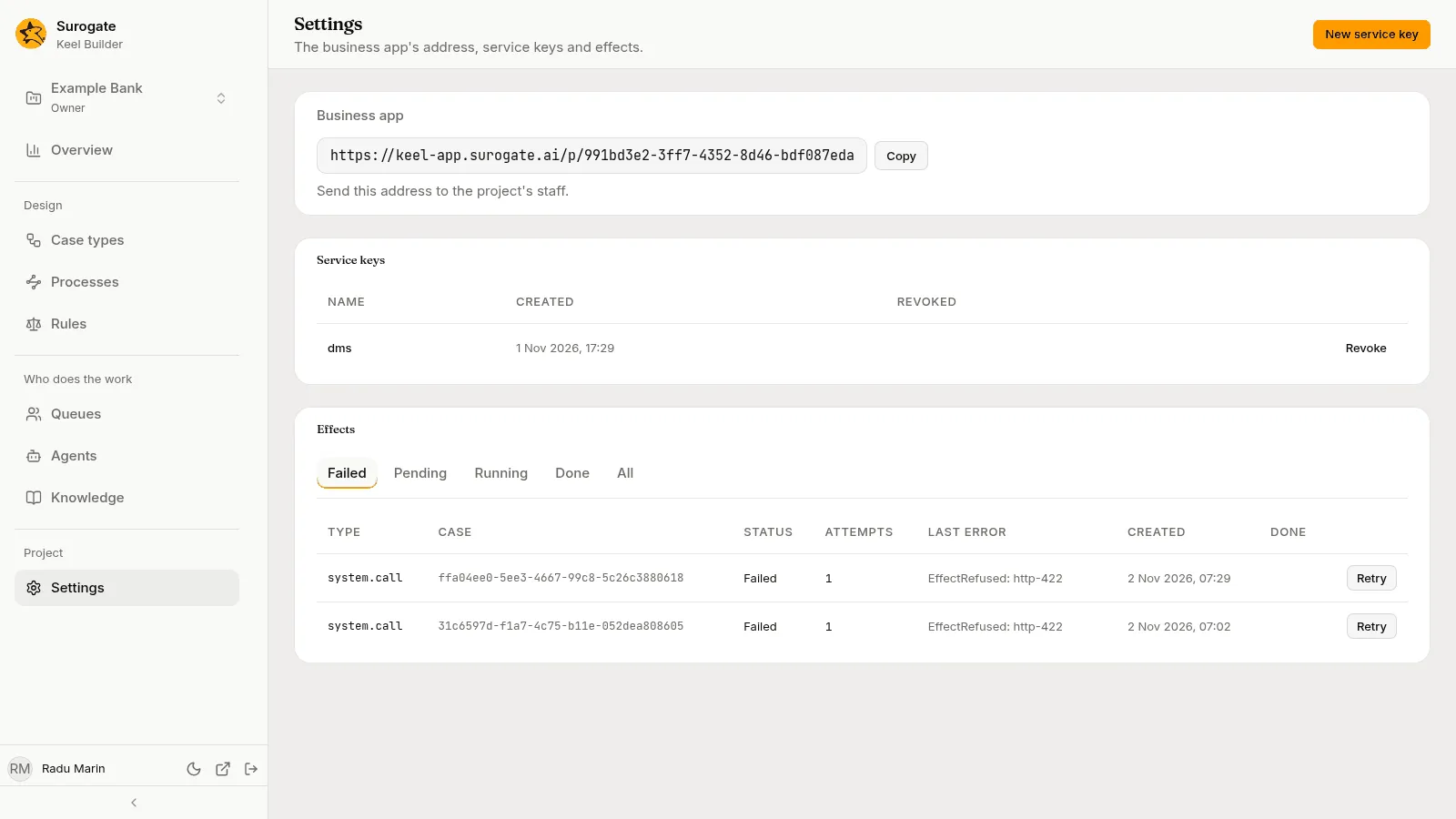
What you see depends on your role in the project. Every role sees Business app. Owners also see Service keys and the New service key button. Editors and owners see Effects.
Business app
Section titled “Business app”Business app shows the address of this project’s Work page in the business app: “Send this address to the project’s staff.” Press Copy to copy it, then send it to the people who work the project’s cases. Every role sees it.
Service keys
Section titled “Service keys”A service key lets another system that your team connects to Keel, such as a core banking system or a web form, start cases on the project’s behalf. Treat a key like a password. Only owners see this section.
Create a key
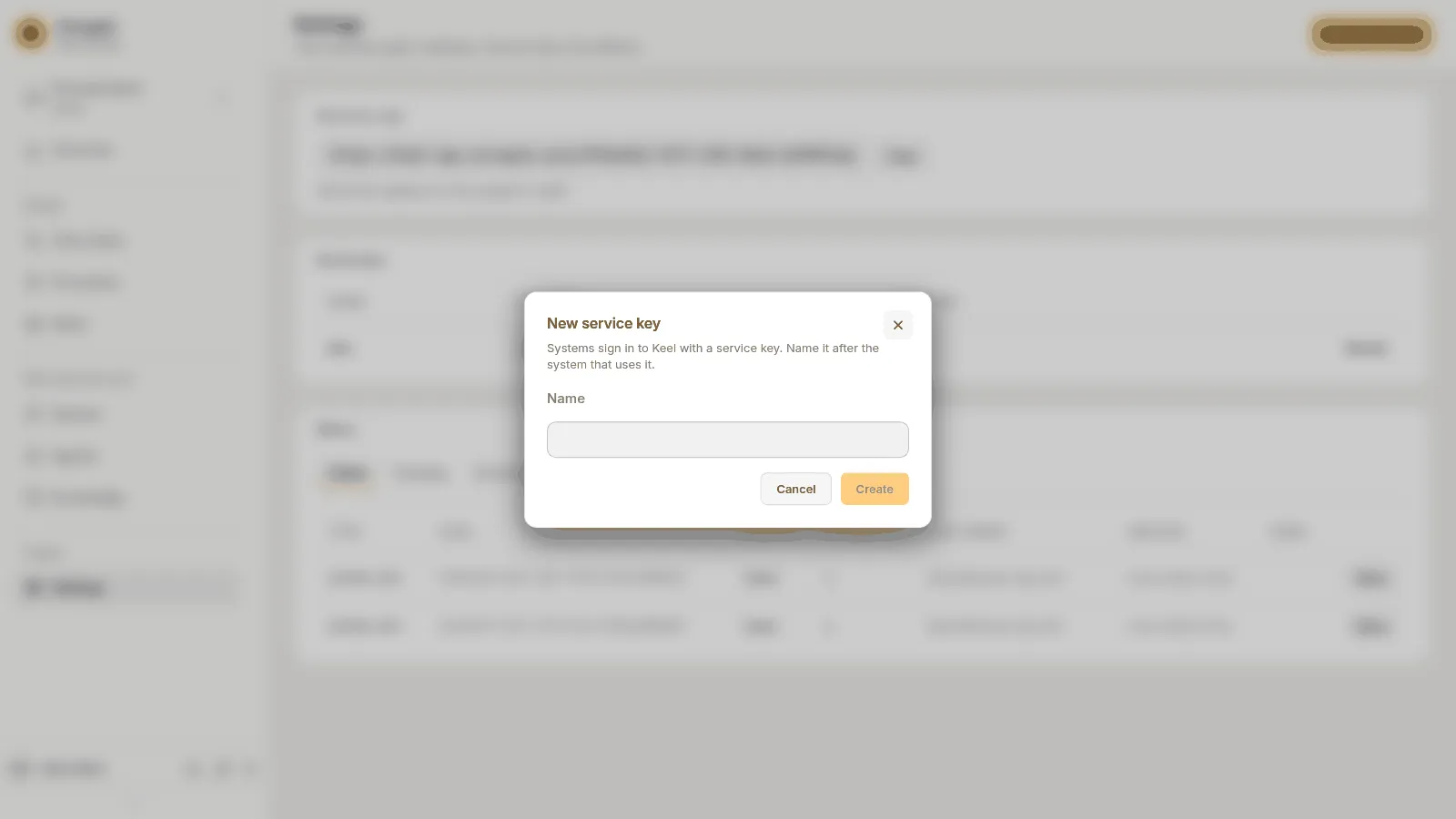
Section titled “Create a key”- Press New service key in the page header.
- Type a Name. The dialog says: “Systems sign in to Keel with a service key. Name it after the system that uses it.”
- Press Create.
- The dialog shows the Service key: “Copy the key now. It is not shown again.” Copy it, then press Done. Until you press Done, the dialog stays open, so the key is not lost by a stray click.
Keel cannot show the key again. If the key is lost, create a new one and revoke the old one.
Revoke a key
Section titled “Revoke a key”The table lists each key by Name, when it was Created, and when it was Revoked. Before the first key, it reads “No service keys yet.” Press Revoke on a live key. Keel asks Revoke name?: “Systems using it can no longer sign in.” Press Revoke to confirm. A revoked key stays in the list with its revoke date, and it cannot be turned back on.
Effects
Section titled “Effects”An effect is work Keel does after a transition: starting or resuming an agent on a step, starting or stopping an agent’s work on a work item, calling another system for a system step, starting the process a case’s process node asks for, or starting the case a process’s task asks for. Keel runs each effect, tries again when it fails, and marks it Failed when its last attempt fails. Editors and owners see this section.
The tabs show the effects in one status: Failed, Pending, Running, Done or All. It opens on Failed. A tab with nothing in it says so, for example “No failed effects.” The table shows each effect’s Type, its Case (a case’s id, or Process and the instance’s number for an effect of a process, such as Process P-000003), its Status, its Attempts, its Last error, when it was Created and when it was Done. It never shows the effect’s content, which holds case data.
Press Retry on a failed effect to run it again; Keel says The effect runs again. An effect that is no longer failed, or that Keel no longer has, shows Keel’s reason, and the list is read again.
What happens to the case when a system step’s call fails for good is set on the step, under When it fails for good (see Steps). An agent step whose agent fails for good goes to people in its raised-hands queue.