Processes
The Processes page lists the project’s BPMN processes: “Upload, check and publish this project’s BPMN processes.” Press a row to open the process: its drawing, its file, the problems the checks found in it, its versions and its connections.
Draw a process on its page, in a draft, or make the file in a modeller such as Camunda Modeler or bpmn.io and upload it here. Or describe it, and have the designer agent draft it.
The list
Section titled “The list”| Column | What it shows |
|---|---|
| Process | The name, with the key under it. |
| Version | The current published version, such as v2. |
| Published | When the current version was published, and by whom; Not published for a process only drafts hold. |
| Open drafts | The open drafts that change this process. Each is a link that opens the process in that draft. Cannot be read now when the drafts could not be read. |
| Running instances | How many instances are open on each version, newest first, such as 3 on v2 · 1 on v1; None when no instance is open. |
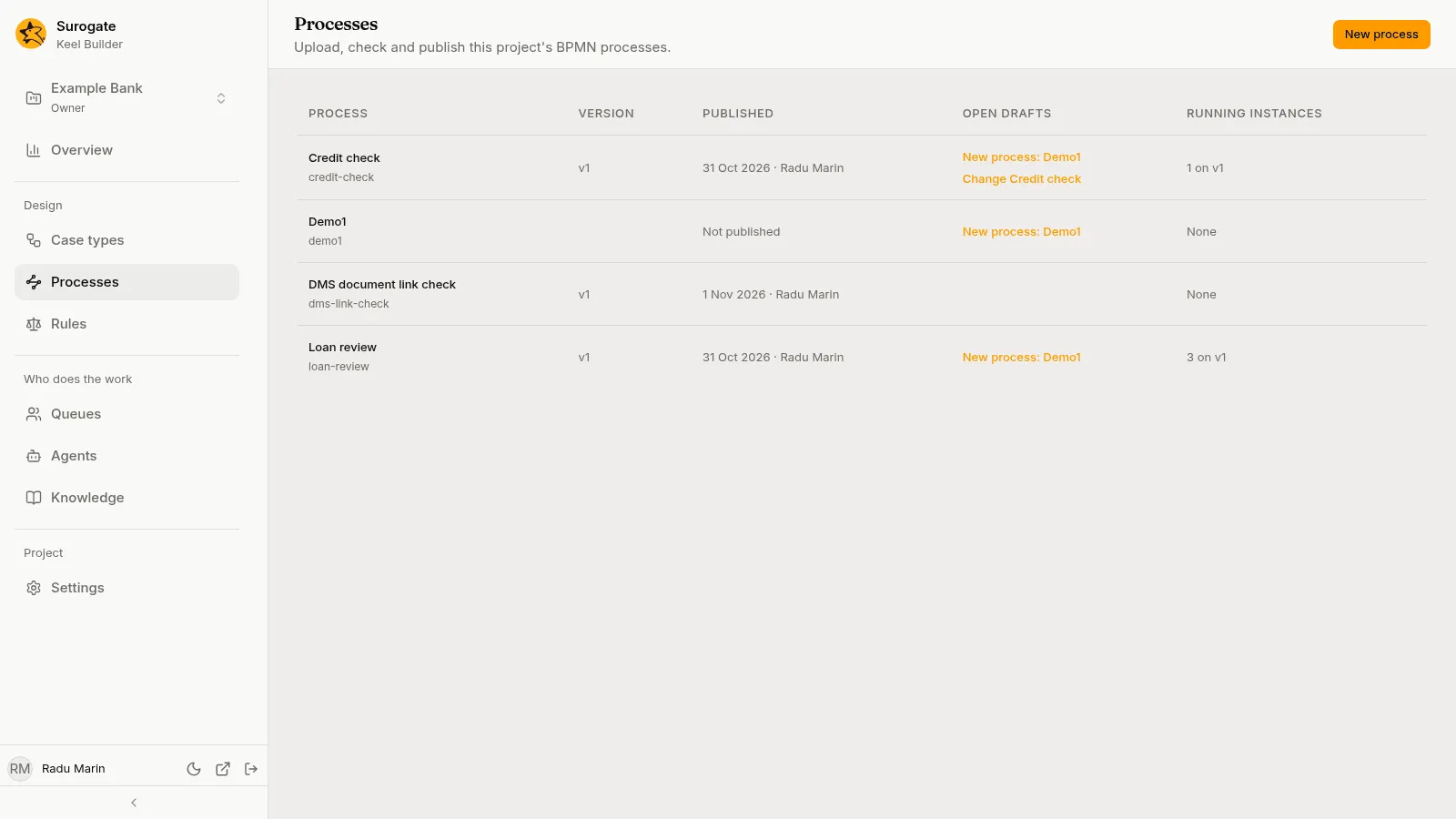
A process that exists only in a draft is listed too, under its key made readable. It opens in the newest draft that holds it. With no process at all, the page says No processes yet, and editors and owners read “Start one with New process.” If the list cannot be read, the page says why, with Try again.
New process
Section titled “New process”Editors and owners see New process in the page header. It is turned on once the list is read.
-
Press New process. Start from offers A BPMN file, the default, An empty diagram and Describe it to the designer agent (not on a phone’s width). With a file, the dialog says: “Its file is saved in a draft as you upload it. Nothing published changes until the draft is published.”
-
With A BPMN file, choose the BPMN file: “A BPMN 2.0 file from a modeller such as Camunda Modeler or bpmn.io, at most 5,000,000 bytes.” With An empty diagram, type the process’s Name instead. The dialog then says: “Its diagram is saved in a draft as you change it. Nothing published changes until the draft is published.” With Describe it to the designer agent, type the Name and the Description: see Describe it.
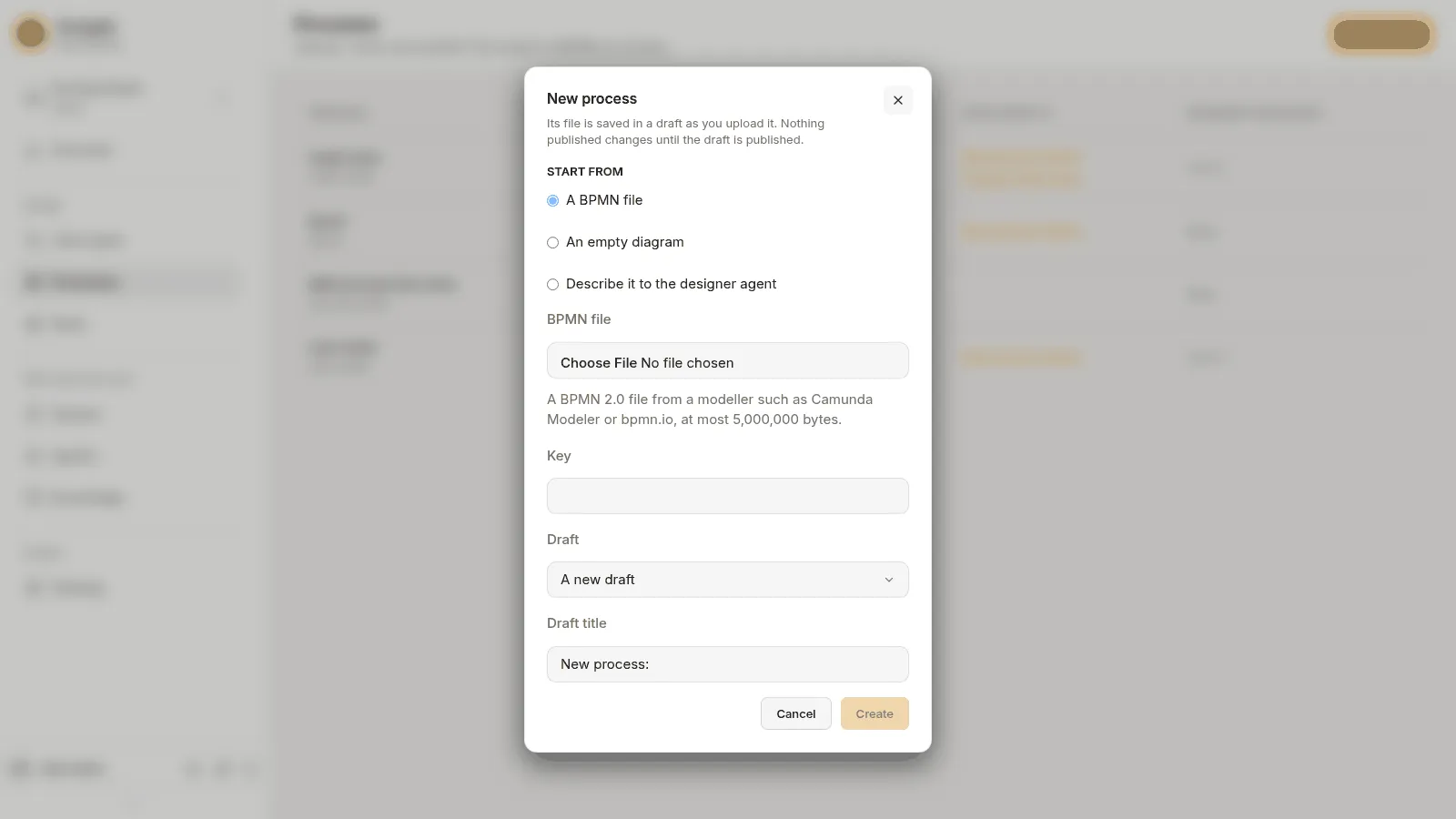
The New process dialog: Start from A BPMN file, An empty diagram or Describe it to the designer agent, then the BPMN file, Key, Draft and Draft title -
Check the Key. It fills in from the file: from the process’s name, else from the file’s name; from an empty diagram or a description, it fills in from the Name. It is made into a key: lower case, without accents, with each run of other characters as
-. When a process of the project has that key already,-2,-3and so on are added. Change it if you need to.- A key is letters, digits,
-and_, starting with a letter or a digit. The dialog says so, “A key is letters, digits, - and _, starting with a letter or a digit.”, when yours is not. - It says “A process has this key already.” when you type the key of a published process, or of one the draft you pick holds.
- A key is letters, digits,
-
Pick the Draft to put it in: A new draft, or one of the open drafts. A new draft asks for a Draft title, which starts as
New process: <the process's name>, or the key when the file’s process has no name; for an empty diagram or a description,New process: <the Name>. -
Press Create.
Create is turned on once a file is chosen, or a Name typed, its key is good, and the draft’s processes are read; for a new draft, its title is not empty too. Keel saves the file in the draft as you chose it, and the new process opens in that draft. Nothing published changes until the draft is published.
An empty diagram is a process named as you typed, with one start event. Keel’s checks find two problems in it at once, which the Problems tab of the Details panel lists: Process_loan-review needs an end event and StartEvent_1 has no flow leaving it: every path must end at an end event, with your process’s key in place of loan-review. Draw the rest, as Changing the diagram says.
If the draft cannot be made, the dialog says why, in Keel’s words when Keel gave them, else “The draft could not be started. Try again.” If Keel refuses the file, the dialog says why, in Keel’s words when they are for people, such as “A file is at most 5000000 bytes.”, or “This draft is published or discarded.” when the draft is no longer open, and stays open. Press Create again: a draft already made for it is used again, and no second one is made. If the process was saved but cannot be opened, the dialog says “The process could not be opened. Try again.”
Describe it
Section titled “Describe it”Describe it to the designer agent has the designer agent draft the process from your words. The dialog says: “The designer agent drafts it from your description, in a draft, and you review what it changed. Nothing published changes until the draft is published.”
- Type the Name, and check the Key and the Draft, as for an empty diagram. The key is chosen here, because the process’s file is named by it and the agent cannot rename a file.
- Type the Description: “What starts it, who does each task, the decisions on the way and how it ends. At most 4,000 characters.” Over 4,000 characters, the dialog says “A description is at most 4,000 characters: this one has 4,350.” with the number yours has, and Create stays off; nothing is cut. Put anything longer in the chat once it is open.
- Press Create.
Under the description, the dialog checks the designer agent: Checking the designer agent… while it does, and Create stays off until the agent can work on processes. Otherwise it says why, as the designer agent’s page lists: This project has no designer agent., The designer agent is switched off in Studio., or The designer agent has no tools for processes in this project yet. Ask an administrator. If the check cannot be made, the dialog says why, with Try again. If the window is narrowed to a phone’s width, the choice becomes An empty diagram.
Create makes the draft when you picked A new draft, saves an empty process in it, as An empty diagram does, and opens the process’s page in the draft. The designer agent’s panel opens there by itself, and a first message is sent for you: Keel’s request to draft the process in its file, then your description. The turn’s changes are those since the empty process was saved, even in an open draft that holds other changes of yours.
If something fails on the way:
- The draft cannot be made, or Keel refuses the file: the dialog says why, as for any new process, and stays open. Create again uses the draft already made.
- The empty process is saved, but the chat cannot open, such as when Studio cannot be reached: the empty process stays in the draft, and the panel says why, with Try again, which sends your description then.
- The process’s page cannot be opened: the dialog says “The process could not be opened. Try again.”
Your description is kept in this browser tab only, until it is sent: reloading the page loses it. See The designer agent for what the agent does with it.
A process’s page
Section titled “A process’s page”The page’s header shows the process’s name and, under it, its published version: for example Version 2 published 20 Oct 2026 · 3 instances running on it, or Not published yet. When instances still run on older versions, it adds their number: Version 3 published 20 Oct 2026 · 3 instances running on it · 5 on older versions. While the draft’s file is shown, the name is the one that file gives its process. Under the header are the tabs:
| Tab | What it holds |
|---|---|
| Diagram | The drawing of the file, its Details panel, and in a draft, the problems found in it. |
| Connections | The connections the process calls, and their credentials. |
| Versions | Every published version, what each changed, and its file, and the moves of running instances to the current version. |
| Figures | How the process’s instances and tasks did over a period, by version and by task. |
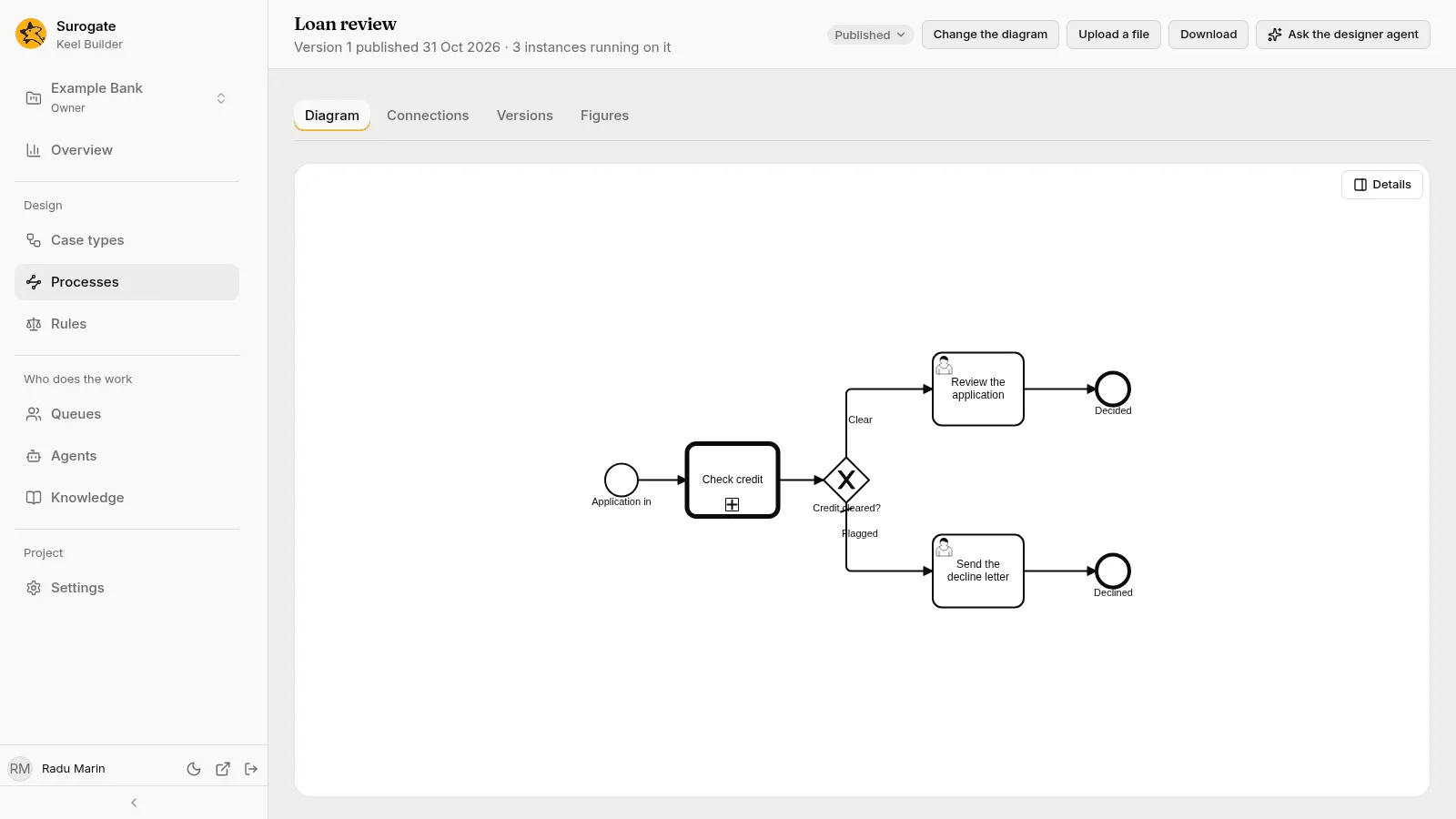
On the right of the header, the draft bar’s chip (Published, or the draft’s title) comes first. Everyone sees Download. Editors and owners also see Upload a file, with no draft open Change the diagram, Ask the designer agent in a draft or, with none open, on the current version (not on a phone’s width), and in a draft, Dry run and Review and publish. See Dry run and publish.
On the Diagram tab, a process that is not published, opened with no draft or in a draft that has no file for it, says This process is not here: “Open it in the draft that holds it.” A draft that has no file for a published process says The draft has no file for this process.
Asking the designer agent
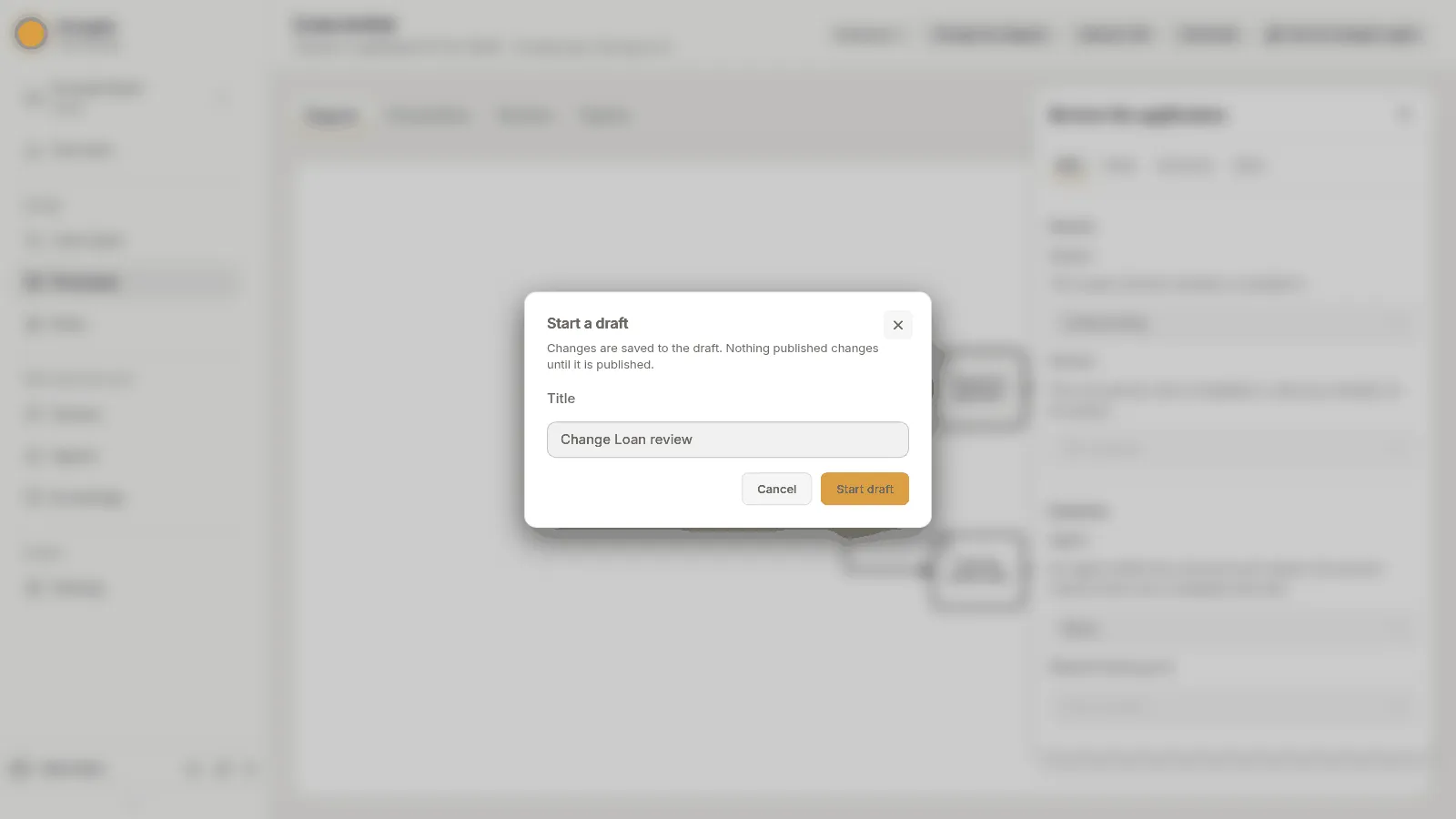
Section titled “Asking the designer agent”Ask the designer agent opens the designer agent’s panel beside the page, in the open draft. With no draft open, it is offered on the current version only, and asks for a draft first, as Upload a file does: the Start a draft dialog offers a Title, such as Change Loan review, and Start draft makes the draft and opens the panel in it.
 The panel stays open as you move between the tabs and the draft’s other processes, and ends when you leave the draft. While the agent takes its turn, the page waits: see The designer agent. After its turn, the page reads the file again, and Show changes lists what it changed, without the diagram, with Revert.
Upload a file
Section titled “Upload a file”Upload a file puts a BPMN file from another modeller in the draft as this process’s file. It is kept exactly as you chose it: Keel Builder does not change it first.
With no draft open, Keel Builder asks for one first: the Start a draft dialog offers a Title, such as Change Loan review. Press Start draft, and the file is saved in the new draft. Cancel, and nothing is uploaded.
Once the file is saved, a message says Uploaded loan-review.bpmn. with the file’s name, and the page shows the draft’s file, on the Diagram tab even when you uploaded from another tab. If Keel refuses the file, a message says why, in Keel’s words when they are for people, or “This draft is published or discarded.” when the draft is no longer open, and the page stays as it was. A file you choose while another is on its way waits for it.
Download
Section titled “Download”Download saves the file the page shows, as Keel has it. In a draft it is the draft’s file, saved as <key>.bpmn; if a change to the diagram is waiting to be saved, it is saved first, and if it cannot be, a message says Not saved: and why, and nothing is downloaded. For a published version it is that version’s file, saved as <key>-v<version>.bpmn, such as loan-review-v2.bpmn. A file Keel Builder cannot draw downloads like any other. If Keel refuses, a message says why and nothing is saved.
The Diagram tab
Section titled “The Diagram tab”The tab draws the process as it was laid out. Drag the drawing to move it. The mouse wheel moves it up and down, and with Shift sideways. Hold Ctrl (⌘ on a Mac) while you turn the wheel, or pinch on a touchpad, to zoom. It opens fitted to the tab and centred. On a phone the tab is shorter: drag with one finger to move the drawing, pinch with two to zoom it, and touch outside the drawing to scroll the page.
The tab shows the file of the draft when a draft is open, else the current published version. When it shows a published version in a draft, or a version that is not the current one, Version 2, as published. says so, with Show the draft’s file in a draft, or Show the current version when the version is not the current one.
In place of a drawing, the tab says why there is none:
- This file cannot be read as a BPMN 2.0 file. The file is not a BPMN 2.0 file Keel Builder can read.
- This process’s file has no diagram layout. The file has no drawing, so there is nothing to draw. Editors and owners can have Keel draw one: see Laying out the diagram.
- This file could not be drawn. The drawing could not make sense of the file.
If the file cannot be read from Keel, the tab shows Keel’s words, or “The process’s file could not be read.”, with Try again. The page does the same when it cannot read the project’s processes, “The project’s processes could not be read.”, or the draft, in Keel’s words.
Laying out the diagram
Section titled “Laying out the diagram”A file from another tool often has no diagram, or has one that leaves some elements out. Keel runs and publishes it all the same, but Keel Builder cannot draw the missing parts, and an instance’s page leaves them out. Lay out the diagram has Keel draw them.
Who sees it. Editors and owners, on a phone too, in two places:
- the draft’s file;
- the current version with no draft open. Pressing the button there asks for a draft first, as Upload a file does: press Start draft in the Start a draft dialog and the file is laid out in the new draft. Cancel, and nothing is laid out.
It is not offered on a published version that is not the current one, on a published version shown in a draft, or while the designer agent takes its turn in the draft. A viewer sees neither the button nor the line above it.
When. Only when Keel Builder can read the file and it lacks a shape. A line above the drawing says what Keel can add, beside Lay out the diagram:
| The line | When |
|---|---|
| Keel can draw one: a shape for each element and a line for each flow. Nothing else in the file changes. | The file has no diagram. The drawing says This process’s file has no diagram layout. |
| 2 elements have no shape in this file’s diagram. Keel can add them beside what is drawn. | The file has a diagram, but some of its tasks, events, gateways, flows, lanes, pools or annotations have no shape or line in it. For one, it reads 1 element has no shape in this file’s diagram. Keel can add it beside what is drawn. |
What it does. Keel draws a shape for each element that has none and a line for each flow that has none, beside what is drawn. A file with no diagram gets a whole one, left to right, with its lanes, subprocesses and event subprocesses. It also removes what the diagram draws for nothing: a shape or line of an element the file no longer has, or a second one of an element. Wait for its message before you change the diagram again: a change made while Keel works is saved after the layout, over it.
What it never does. It never changes an element, a name or a setting, and never moves or resizes a shape you placed. Only the file’s diagram changes, and nothing else in the file. The one exception: a lane, pool or subprocess too small for what Keel puts in it grows, and what lies beyond it moves by as much. The notice below names the container that had no room.
What it leaves without a shape. Keel does not draw:
- a second process in the file: only the first is laid out;
- a second pool, or a message flow between pools: Keel runs one process per file;
- a data object or a data store: Keel does not run them;
- a group: draw it round what it groups in Keel Builder;
- a lane inside a subprocess;
- an element that is in no lane, in a process that has lanes: put it in one;
- a lane, pool or subprocess with no shape whose elements are drawn outside it: draw it round them in Keel Builder;
- a flow or an association whose source or target has no shape.
What it says. While Keel works the button is disabled. Then a message says how it went:
| The message | When |
|---|---|
| Laid out the diagram. | Keel drew something. |
| Every element already has a shape. | There was nothing to draw, and nothing was left out. |
| Nothing could be laid out. | Keel drew nothing, and left something without a shape. |
Under the line, an amber notice then says what Keel left out and what it made larger. Keel left these elements without a shape: lists each as its name, else its id, then its type and why, such as Score the applicant · Script task: it is in no lane, and the process has lanes: put it in one. When a container grew, it adds To make room, Keel made Review the loan larger and moved what lay beyond by as much., naming the containers that had no room. The notice lists only elements the file still draws no shape for. While it stands, the line above the drawing and Lay out the diagram give way to it. It stays while the draft is as the layout left it and the page shows the same process, also after a visit to another tab. The next change to the draft removes it, and the line may then offer the layout again for the elements Keel could not lay out.
When Keel refuses. A message says why and the file stays as it was. Keel does not lay out a file it cannot read as a process, a file whose subprocesses and lanes nest more than 100 levels deep, or one with more than 5,000 elements to draw; the message is Keel’s and names the process. A laid-out file over 5,000,000 bytes is refused too. A draft that is no longer open says This draft is published or discarded., and while the designer agent works in the draft it says “The designer agent is working in this draft. You can edit again when its turn ends.” Any other draft that cannot be changed says The draft cannot be changed now. When your last change to the file could not be saved, the layout is not sent: a message says Your last change could not be saved: and why, and the change stays.
What it saves. A layout is one saved change of the draft’s file: a change waiting to be saved is saved first, and Review and publish shows the file as Changed, or Added for a process that is new in the draft. Nothing is saved when the diagram was already complete. Undo and Redo start afresh from the laid-out file: a layout cannot be undone, and neither can the changes before it. They start afresh, with nothing to undo, after the designer agent’s turn too. Once it is saved, the page draws the laid-out file and the draft’s checks run again.
Changing the diagram
Section titled “Changing the diagram”In a draft, editors and owners change the drawing on this tab. Nothing is saved with a button: see Saving.
When you can change it. The tab is the modeller when all of these hold:
- you are an editor or an owner, and a draft is open;
- the tab shows the draft’s file, not a published version;
- you are not on a phone;
- the designer agent is not taking its turn in the draft;
- Keel Builder can write the file back whole after a change.
Otherwise the drawing is only read, and a sentence above it says why when there is one. The designer agent’s turn is the exception: its sentence stands above the tabs, once, on every tab, because the connection files wait too.
| The sentence | When |
|---|---|
| Change the diagram on a larger screen. | On a phone. |
| The designer agent is working in this draft. You can edit again when its turn ends. | While the designer agent takes its turn. It stands above the tabs, not above the drawing. |
| This file is not in UTF-8, so it cannot be changed here. Upload it in UTF-8 to change it here. | The file was saved in another text encoding. Save it again in UTF-8 in the modeller it came from, and upload it. |
| Changing the diagram here would change part of this file: …. Change it where it was made and upload it again. | Keel Builder cannot write the file back whole. The sentence names what it would alter. |
A viewer reads the drawing with no sentence, as does a published version.
On the Diagram tab of a published process, with no draft open and its current version shown, editors and owners see Change the diagram in the page header, but not on a phone. It asks for a draft, as an upload does: the Start a draft dialog offers a Title, such as Change Loan review. Press Start draft, and the process opens in the new draft, ready to change. In a draft, on the other tabs, with an older version shown, and for a process that only a draft holds, the button is not there.
What you can draw. Keel Builder offers only what Keel runs. Beside the drawing, the palette has the hand, lasso, space and connect tools, then Create start event, Create end event, Create gateway, Create user task, Create timer intermediate catch event, Create expanded sub-process, Create pool/participant and Create group. A picked element has a context pad. A flow node that is not an end event has Append end event, Append gateway, Append user task and Append timer intermediate catch event; an event-based gateway has Append receive task, Append message intermediate catch event, Append timer intermediate catch event and Append signal intermediate catch event; an end event has none. Most elements also have Change element, Add text annotation, a connect handle and a delete handle. The palette and the context pad draw no signal event but the one an event-based gateway appends: the Next element, Boundary event and Event subprocess picks of the panel’s Connect tab and Change element draw the others. What Keel does not run is not offered: a plain task, a throw event that sends no signal, a message throw or end event, a signal start event of the process itself, a conditional or compensation event, a data object or a data store. Change element lists only the kinds Keel runs; for a user task: Service task, Receive task, Manual task, Business rule task, Call activity, Sub-process (collapsed) and Sub-process (expanded). A task changed into a call activity keeps its Keel settings, which the call activity’s panel then shows as settings it does not show; a call activity changed into a task loses the process it calls, but its passes and receives stay in the file, hidden behind the task’s panel, which says it holds settings it does not show; one Undo puts it back. On an exclusive gateway it lists Parallel gateway, Inclusive gateway and Event-based gateway: changing it into an inclusive gateway keeps its default flow and its flows’ conditions, changing it into a parallel one takes them away, and one Undo puts it back. On a timer boundary event it also offers Toggle non-interrupting. A boundary event lists Message boundary event and Signal boundary event, but never one that does not interrupt; a timer boundary changed into a message or a signal boundary loses its business time, and a message boundary changed into a timer or a signal boundary loses its key and what it writes, and one Undo puts it back. An intermediate catch event lists Signal intermediate catch event and Signal intermediate throw event, and so does a signal end event. A signal catch event and a signal throw event also list Signal end event, and so does every other end event. No list offers the kind the element already is. No event lists a plain Intermediate throw event, since a throw needs a signal. A timer catch event changed into a signal catch event loses its business time, and a message catch event its key and what it writes; one Undo puts them back. On an expanded subprocess it lists Event sub-process and Sub-process (collapsed), and an event subprocess lists Sub-process: see Event subprocesses. On a user, manual, service or business rule task and a call activity, Change element shows two icons at its top, Parallel multi-instance and Sequential multi-instance (the words their tooltips show). The first marks the task as running several times, all at once; the second, one after another; the icon of the way the task runs now is on, and pressing it takes the marker away, with everything the file says of its instances, in one step of Undo. Pressing the other changes the way and keeps the rest. A receive task and a subprocess have no such icons, since Keel cannot run them for each item. A task changed into another of those kinds keeps its marker and its settings. Changed into a receive task or a subprocess, it keeps the marker too, and Keel’s checks refuse the file when it is published, naming the task: see Problems. The drawing shows the marker as BPMN does: three bars at the bottom of the task, vertical for all at once and horizontal for one after another, with a call activity’s plus beside them. The panel’s Instances section sets the rest: see Instances.
A file from another modeller can hold elements Keel does not run, such as a script task. They stay drawn, you can delete them or change them into a kind Keel runs, and the settings the other modeller gave them are kept through every change.
On the drawing, Delete removes what is picked, Ctrl+Z takes the last change back and Ctrl+Y does it again (⌘ on a Mac), and E renames the picked element in place. Undo and Redo, at the top right of the drawing beside Details, do the same; each is off while there is nothing to take back or do again. An undo is a change like any other, and is saved. A file drawn afresh, after Load the latest, an upload, a layout or the end of the designer agent’s turn, has nothing to undo.
Keel runs one pool: a second pool cannot be drawn on a drawing that has one. Lanes, pools, text annotations and groups are drawn with the pointer only; once drawn, the panel names them and deletes them. A lane’s name is the queue of the tasks in it: see Lanes.
Saving a change
Section titled “Saving a change”There is no save button. Each change is saved to the draft as the process’s file a moment after you make it, as it is for any other change in the draft: the draft bar says Saving…, then Saved, or Not saved: and the reason, with Try again, which sends the latest drawing. Your drawing stays as you changed it until it is saved. When someone else saved the draft meanwhile, the bar warns “This draft changed since you opened it. Each of your saves replaces the whole file as you have it.”, your save is still made, and it replaces the process’s file as they saved it. Load the latest reads the draft again and draws its file as it is then.
The first change to a file made in another modeller rewrites the whole file in Keel Builder’s own way. Its elements, their settings, the other modeller’s settings and the diagram’s layout are kept, so the process is the same, but Review and publish can show many lines changed after the first change of an uploaded file. When the file holds comments, the tab says so before you change it: “This file holds XML comments. Your first change here drops them; its elements, their settings and its layout stay.” Upload a file still keeps a file exactly as you chose it.
The panel
Section titled “The panel”The Details panel opens over the right side of the tab. Picking an element on the drawing opens it, showing that element. With nothing picked, the Details button at the top right of the drawing opens it, showing the process; in a draft, the button also shows how many problems the checks found. The close button (×) closes the panel and clears the pick. On a phone, the panel sits under the drawing.
The panel is headed by the picked element’s name, else its kind, such as User task, or by Process when none is picked. Its body is in tabs. A viewer reads it and changes nothing, and so does an editor while the drawing cannot be changed (on a phone, during the designer agent’s turn, for a file this page cannot write back, and for a published version). Where the drawing can be changed, a field is saved when you leave it, or press Enter in a one-line box: Escape puts the old value back. A box in the middle of typing is not a change.
An element’s panel has:
- beside its title, a pencil that renames it in place (for a text annotation, it changes its text), Delete, which removes it, and the close button;
- its settings: on a user or manual task, the tabs Who, Fields, Outcomes and Rules; on a service task, the tabs Call, Fields and Outcomes (once it calls an agent) and Rules; on any other element, one Settings tab. The paragraphs below describe them;
- a Connect tab, while the drawing can be changed, on the elements that offer these picks:
- on a flow node that is not an end event or an event subprocess, a Next element pick with Add after, which adds that kind after the element, joined to it, and picks it: User task, Manual task, Service task, Receive task, Business rule task, Exclusive gateway, Parallel gateway, Inclusive gateway, Event-based gateway, Timer catch event, Message catch event, Signal catch event, Signal throw event, Call activity, Subprocess, End event, Terminate end event, Error end event or Signal end event; and a Connect to pick with Connect, which joins it to another element of its process or subprocess. If the drawing refuses, a message says “Nothing can be added after this element.” or “These two cannot be connected.”;
- on a task, a call activity or a subprocess that is not an event subprocess, a Boundary event pick with Attach: Timer, Timer that does not interrupt, Message, Signal or Error. If it cannot be attached, “A boundary event cannot be put on this element.”;
- on an expanded subprocess, an Event subprocess pick with Add inside: see Event subprocesses;
- in a draft, a Problems tab: see Problems.
The process. With nothing picked, the panel’s Settings tab has:
- Name: the name the page’s header shows;
- Queue, None or one of the project’s queues, published or in the draft: “Tasks that name no queue and lie in no lane go to this queue.”
- Calendar, None or one of the project’s calendars, published or in the draft: “The working hours that business timers and deadlines count.”
- Knowledge, the knowledge bases as chips, each with a remove button, and an Add menu: “The knowledge bases the process’s agent tasks may use.” With none: “Its agent tasks use no knowledge.”
- Variables, a table of Variable, Type, Required and Personal data, one row for each variable the process declares, with Add variable. With none, No variables yet: “A process keeps only the variables it declares.”
- Event subprocess, last, a pick with Add, while the diagram can be changed: see Event subprocesses.
Beside Settings, the process’s panel has the Elements tab (see Elements, and the keyboard) and, in a draft, Problems.
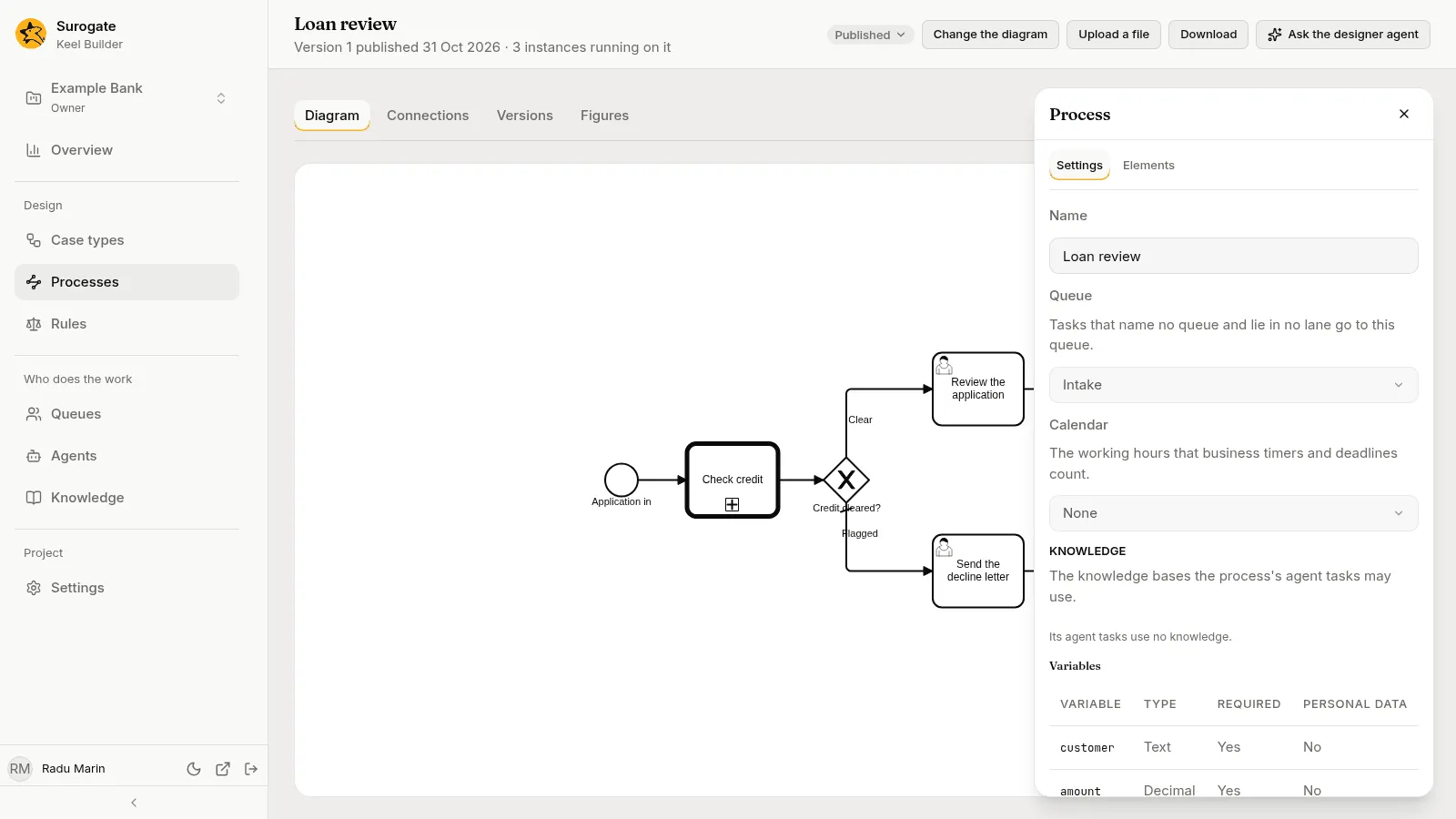
If the project’s queues, calendars or knowledge bases cannot be read, the panel says “The project’s queues could not be read.”, “The project’s calendars could not be read.” or “The project’s knowledge bases could not be read.”, each with Try again.
Press a variable, or Add variable, to open the dialog, which is the case type’s field dialog with variable’s words: Add variable for a new one, the variable’s label otherwise. It has a Name for a new variable, a Label, a Type and what the type takes, Required and Personal data, and Save. The types are the case type’s, without File, at every depth. A name is refused with “A variable name is lower-case letters, digits and _, starting with a letter.”, “A variable has this name already.” or <name> is a reserved word.. Remove variable takes the variable out of the file at once.
A sequence flow.
- Leaving an exclusive gateway, and not its default: Condition, a box for a CEL condition: “A CEL condition over the process’s variables, such as amount <= 250000.0. The gateway takes the first flow whose condition holds, in the file’s order.” A blank condition takes it away.
- Leaving an inclusive gateway, and not its default: Condition, with the same box: “A CEL condition over the process’s variables, such as amount <= 250000.0. The gateway takes every flow whose condition holds.” A blank condition takes it away.
- A gateway’s default flow reads “The default flow of the gateway: taken when no condition holds.” and has no condition.
- Any other flow reads “Only a flow that leaves an exclusive or an inclusive gateway carries a condition.”
An exclusive or an inclusive gateway has Default flow: None or one of the flows that leave it, such as Large · Sequence flow: “Taken when no other flow’s condition holds.” Picking a flow as the default takes away its condition.
A timer event (a timer catch event, or a timer boundary event):
- Timer: After a duration or At a date. The kind you pick is kept in the panel until you type its value, so a duration is never saved as a date.
- Duration: “An ISO 8601 duration, such as PT2H or P3D.” or Date: “A date and time with its offset, such as 2026-11-03T12:00:00+02:00, or a CEL expression over the variables.”
- Business time: “Counts working time on the process’s calendar.” With no calendar on the process, it also says “The process has no calendar: pick one in its settings.”
- On a boundary event, Interrupting: “An interrupting timer withdraws the activity; one that does not interrupt starts its path beside it.”
A message catch event, a receive task, a message boundary event or an event subprocess’s message start:
- Message: one of the file’s messages by name, None, or A new message. A new one asks for a Message name, and Add message adds it to the file and picks it. “The instance waits for a message of this name.”
- Key: None or one of the process’s text, whole-number and choice variables by name: “A message sent to the project with a key reaches the instances whose variable holds it. Without one, only a message sent to this instance reaches it.” A key the process does not declare, or declares of another type, shows as written until you pick another. Picking the key already set changes nothing, and None takes it away.
- Writes: the variables the message may write, as chips, with an Add menu: “The variables a message may write.” With none: “The message writes no variable.”
- On a message boundary event, last: “A message boundary event always interrupts the task it sits on.” A file from another modeller can say it does not interrupt, which Keel’s checks refuse: its panel then shows Interrupting, off, with that sentence under it, so you can switch it on.
A signal catch event, a signal throw event, a signal end event, a signal boundary event or an event subprocess’s signal start:
- Signal: one of the file’s signals by name, None, or A new signal. A new one asks for a Signal name, and Add signal adds it to the file and picks it; a name the file already declares picks that signal, and no second one is added. Under it, on a catch event, a boundary event and a start: “The instance waits for a signal of this name.” On a throw event and an end event: “Sends a signal of this name to the instances of the project that wait for it, this one included.”
- A signal the file names but does not declare shows as written. Picking the signal the file holds changes nothing, and None takes it away. A signal has no key and carries no values, so the panel has nothing more for it.
- On a signal boundary event, last: “A signal boundary event always interrupts the task it sits on.” A file from another modeller can say it does not interrupt, which Keel’s checks refuse: its panel then shows Interrupting, off, with that sentence under it, so you can switch it on.
An error end event or an error boundary event:
- Error: one of the file’s errors as name · code (the code alone when it has no name), or A new error, and on a boundary first Any error. A new one asks for an Error name and an Error code, says “An error needs a code.” while the code is blank, and Add error adds it to the file and picks it.
- “Thrown when the path reaches this end.” on an end event. On a boundary: “Catches the error of this code thrown inside the activity; Any error catches every code.”
A user or manual task. Its panel has four tabs. Who holds Done by and, on a user task, Drafted by. Fields holds Writes. Outcomes holds Outcomes. Rules holds Checks, Maker-checker, Authority, Service level and Instances.
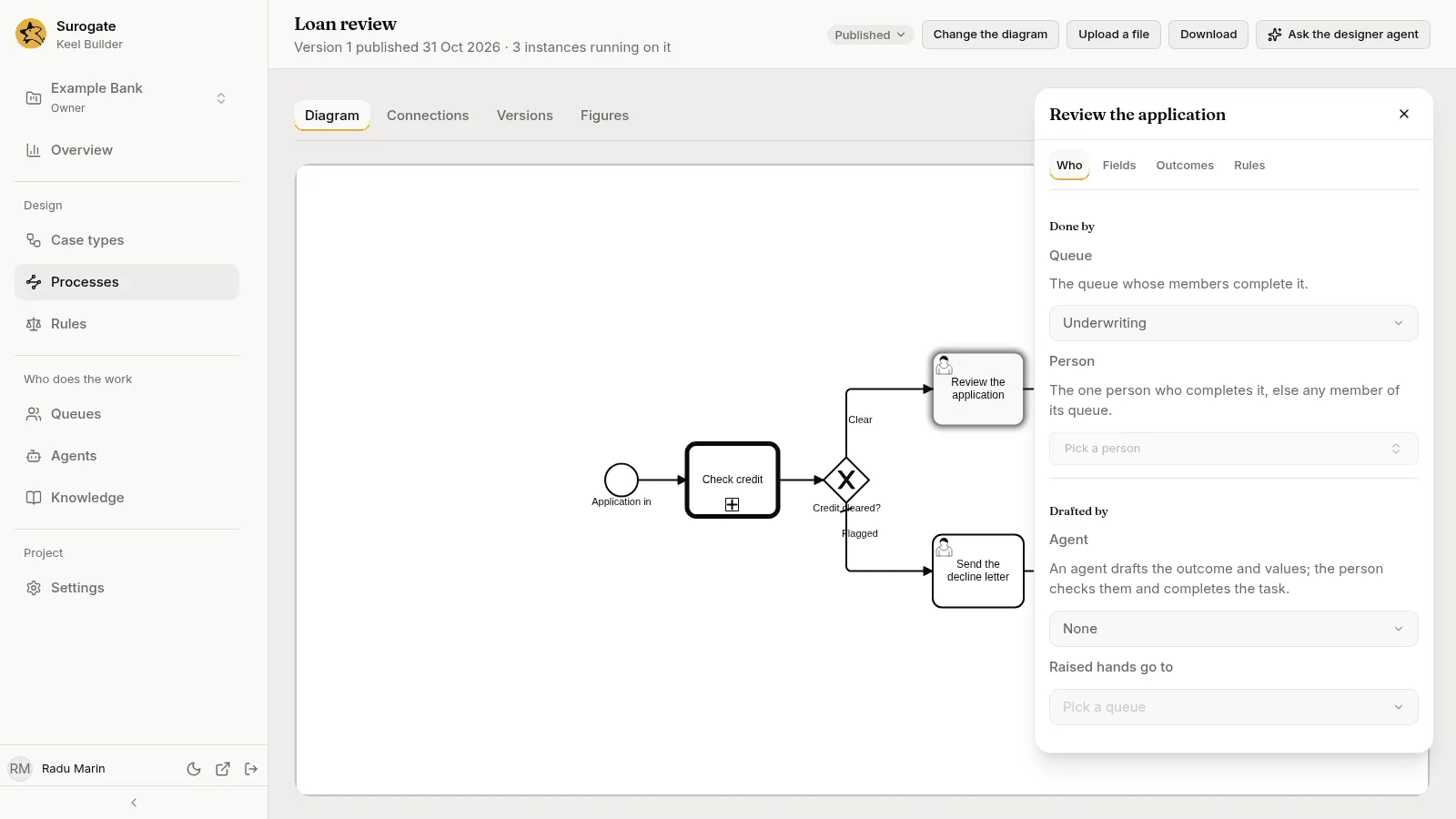
The sections, in this order: A section that needs two things before Keel can use it, such as an agent and the queue its raised hands go to, saves nothing until both are given, and says what it needs. Every change is one step of Undo.
- Done by:
- Queue, None or one of the project’s queues, published or in the draft: “The queue whose members complete it.”
- While the task names no queue of its own, one line says where it goes:
It goes to <queue>, the queue of its lane <lane>.,It goes to <queue>, the process's queue., “It goes to its person alone.” or “It goes to no queue.” A queue the project does not have shows as written. - Person, a button that opens a search of the project’s people by name: “The one person who completes it, else any member of its queue.” It reads Pick a person, then the person’s name (the person’s id until Keel names them), or Unnamed person for one Keel names no more. Clear person takes the person away.
- Drafted by, on a user task only: an agent that drafts for the person.
- Agent, None or one of the project’s agents: “An agent drafts the outcome and values; the person checks them and completes the task.” Raised hands go to picks a queue. While only one of the two is picked the section says “Pick where its raised hands go to save it.” or “Pick its agent to save it.” and nothing is saved.
- Once the agent is saved: Tools, MCP servers and Knowledge, each “Everything the agent has” (for knowledge, “Everything the process has”, or “The process has no knowledge.”) until you press Narrow. Narrow starts an empty list, so the agent may use nothing until you add from the list’s Add menu; the list’s chips have Use everything to go back and
Not allowed: …naming what the list leaves out. “A task can narrow these lists, never widen them.” Picking another agent drops the narrowing of its tools and MCP servers. - Once the agent is saved, also Reads: “The variables the agent is sent when it starts.” with an Add menu of the process’s variables, and “It reads no variable.” with none.
- None takes the agent away; the task’s other settings stay.
- Writes: the variables the task writes. Each row names the variable, then its type and whether it is needed:
Text · Required,Text · Required for Decline(for the outcomes that need it) orText · Optional. The row’s switch makes it needed whatever the outcome, and its remove button (×) takes it away, and stops any outcome requiring it. An Add menu offers the process’s declared variables the task does not write yet. With none: “It writes no variable.” - Outcomes: one box for each outcome: its name in small type, a box holding its label (blank, it shows the name made readable), Requires with the variables it requires as chips (“Nothing more.” with none) and an Add menu that offers the variables the task writes without always requiring them, and Remove outcome. A box reading Name an outcome with Add outcome adds one; its name is made from the label you type, and only its label changes afterwards, so a gateway’s condition that reads the name keeps working. A label with no letter or digit is refused: “Give it a name with letters or digits.” With no outcome: “It has one outcome, done, until you add one.” Outcome variable is None or one of the process’s choice variables: “A choice variable that takes the outcome’s name, for a gateway after the task to read. Its choices are the outcomes.” A variable the file names that is not a choice variable shows as written until you pick another.
- Checks: “Each condition must hold once the completion’s values are in, or Keel refuses the completion with its message.” One box for each check, with its Condition (a CEL condition over the process’s variables) and its Message, and Remove check. With none: “It has no checks.” Below them an empty Condition and Message make a new check; Add check is turned on once both are typed.
- Maker-checker: “Whoever completed one of these tasks may not complete this one.” The tasks are chips, and an Add menu picks another user task, manual task or agent task of the process. A task the file names and no longer holds shows as written. With none: “Anyone may complete it.”
- Authority: “The person completing it needs an authority limit in this scope at least as large as the amount.” Amount variable picks a whole-number or decimal variable of the process (one the file names that is not, shows as written), and Scope is typed. While one is missing: “An authority check needs its amount variable and its scope.” Emptying Scope of a saved authority takes it out of the file and the panel keeps the amount until a scope is typed. Clear takes it away.
- Service level: “An ISO 8601 duration from the moment the task is ready, such as PT4H or P2D.” Goal and Deadline are typed. A new service level is saved once it has a deadline: a goal alone says “A service level needs a deadline.” and waits. A saved one that loses its deadline says the same, and Keel’s checks list it in Problems. Once it is saved: Business time, “Counts working time on the process’s calendar.” (with “The process has no calendar: pick one in its settings.” when the process has none), and Past the deadline, escalate to, None or a queue. Clear takes it away.
The panel keeps a condition or a duration as you typed it and adds no check of its own. Keel’s checks list what is wrong in Problems, under the picked task, such as a check that is not a condition or an outcome variable whose choices are not the outcomes.
A task from another modeller can hold Keel settings the panel does not show. Its panel then says “It holds Keel settings this panel does not show. They stay in the file as written.” and every change you make keeps them.
A business rule task. Rule is one of the project’s rules by name; one the project no longer has, or only this draft holds, shows by its key made readable. If the rules cannot be read the section says “The project’s rules could not be read.” with Try again. Assignments: “Each result of the rule goes to a variable.” One box for each assignment, with the rule’s Result, the Variable it goes to and Remove assignment; “It assigns none of the rule’s results.” with none. Below them an empty Result and Variable make a new one, and Add assignment is turned on once both are given.
A service task. A service task does one thing, and its Call tab asks which. What it does has three choices, Calls a system, Calls an agent and Starts a case; a service task with no call says “It does nothing yet.” Picking a kind saves nothing at once: the panel keeps it until the kind’s first picks are given, which each kind’s section below says. While the task holds a call of another kind, a sentence says what saving does: “Saving this replaces its call to a system and everything that call holds.”, “Saving this replaces its call to an agent and everything that call holds.” or “Saving this replaces its start of a case and everything that start holds.” The call it held goes whole, with everything it held, in the same change as the new one, and one Undo puts it back. Nothing carries from one kind to another. A task that holds more than one call, or a Keel setting the panel does not show, says “It holds Keel settings this panel does not show. They stay in the file as written.” and shows its first call.
- Calls an agent has an Agent section. Agent is one of the project’s agents, with “The agent that completes the task, under its contract.” and “Pick an agent”; there is no None, since a service task needs its call, and Delete removes the task. Raised hands go to picks a queue: “The agent’s questions go to this queue, and so does the task when the agent is switched off.” While only one of the two is picked the section says “Pick where its raised hands go to save it.” or “Pick its agent to save it.” and nothing is saved. Once the agent is saved, the section has its Tools, MCP servers, Knowledge and Reads, as a user task’s drafting agent does, and the panel adds the Fields and Outcomes tabs and fills Rules with the sections of a person’s task: Writes, Outcomes, Checks, Maker-checker, Authority, Service level, in the same words. Authority says “Whoever completes it, the agent or a person when the agent is switched off, needs an authority limit in this scope at least as large as the amount.” The Add menu of Maker-checker offers the process’s user tasks, manual tasks and agent tasks.
- Calls a system has a Call section. Connection is one of the process’s connections, “Pick a connection”: in a draft the connection files of the process, else the published ones, and one the process no longer has shows as written. With none: “The process has no connections yet. Add one on its Connections tab.” Picking the first connection saves the call. Once the call is saved there are Method, “Pick a method”; Path, “After the connection’s base URL.
{variable}puts a variable’s value in it.”; Accept statuses, “Statuses outside 2xx that count as answers, such as 404.”; and Timeout (seconds), “Blank for the connection’s.” A statuses box that is not whole numbers says “Write each status as a number, such as 404.” and a timeout that is not a whole number says “Write a whole number of seconds.”; a refused box saves nothing and keeps what you typed, and a blank box takes its setting away. Once the call is saved there is also Request, which says “Query and Headers are JSON objects of names and values, and Body is JSON. A value is a string, or{"$field": "amount"}for a variable’s value.” In Query and Headers, type each name and its value in quotes, separated by a colon, the pairs separated by commas, all inside braces, such as{"channel": "branch"}. To send a variable’s value, write{"$field": "amount"}with the variable’s name in place of the value. Body takes the same form. The designer agent can write these boxes for you. Each box saves when you leave it; one that is not in this form says “Write this as a JSON object.” or “Write this as JSON.”, and an entry with no name says “Each entry needs a name.” A blank Body takes it away. A query Keel cannot read is kept, and the panel says so. Outputs says “Each variable takes the value at a path of the answer, such as$.body.clear.” It has a row for each variable: its name, a box for the path in the answer, and a remove button (×); with none, “It maps nothing from the answer.” An Add menu offers the process’s variables it does not map, and the new row waits for its path before it is saved. - Starts a case has a Case type section and a Waits section. Case type is one of the project’s case types that is not retired, by name, “Pick a case type”; if they cannot be read the section says “The project’s case types could not be read.” with Try again. A case type the project no longer has, or only this draft adds, shows by its key made readable. Waits is Waits until the case closes or Goes on at once, “Pick one”. While it waits there is If the process leaves the task first, “What becomes of its case when the process leaves this task before the case closes.”: Leave the case running, or
Send the case <event>for each event of the case type that interrupts, by its label; an event the case type lacks shows as written. Once the start is saved and waits, it also has Resolution variable, None or a string or choice variable of the process that no result takes: “A string or choice variable that takes the case’s resolution when the case closes.” A new start is saved once it has its case type, whether it waits and, when it waits, what becomes of its case; until then the section says “Pick its case type to save it.”, “Pick whether it waits to save it.” or “Pick what becomes of its case to save it.” Goes on at once takes away what only a waiting start holds: what becomes of its case, the resolution variable and what it receives. Another case type keeps what the start names, and Keel’s checks list in Problems what the new case type does not take. - Passes in (once the start is saved) has a pick for each field of the case type, in its order, labelled by the field and described by its type, such as “Decimal · required”. Each is Not passed or a variable of the process of that type. A field the start fills that the case type does not declare shows by its name with “Not declared by the case type”. Without a case type it says “Pick a case type to see what it takes.”; for one neither published nor added by the draft, “This case type is not published, and this draft does not add it.”; if it cannot be read, “The case type could not be read.” with Try again; and for one with no field, “The case type declares no fields.”
- Receives (once the start is saved and waits) says “When the case closes, each variable takes a field of the case.” One box for each result has a Variable, the Field of the case it takes, and Remove; with none, “It receives nothing when the case closes.” Below them a Variable and a Field make a new one, and Add result is turned on once both are picked. A variable another result takes, and the resolution variable, are not offered.
A call activity. A call activity starts another process of the project and waits for it. Its panel has three sections.
- Process is the process it calls, one of the project’s other processes by name, published or added by the draft: “Each call starts the newest published version of the process, and waits until it ends.” and “Pick a process”. With none picked it says “It calls no process yet.” A process the file names that the project lacks shows as written. If the project’s processes cannot be read the section says “The project’s processes could not be read.” with Try again. Picking the one already picked changes nothing.
- Passes in has a pick for each variable the called process declares, in its order, labelled by the variable and described by its type, such as “Text · required”. Each is Not passed or a variable of this process of that type; Not passed takes the pass away. A pass the file holds for a variable the called process does not declare shows by its name with “Not declared by the process”. Without a process it says “Pick a process to see what it takes.”; for one neither published nor added by the draft, “This process is not published, and this draft does not add it.”; if its variables cannot be read, Keel’s own words when it says why (the process is not valid, its definition is broken or its file is unknown), else “The process’s variables could not be read.”, with Try again; and for one with no variable, “The process declares no variables.”
- Receives says “When the process ends, each variable takes one of the process’s variables.” One box for each receive has a Variable of this process, the From variable of the called process it takes, and Remove; with none, “It receives nothing when the process ends.” Below them a Variable and a From make a new one, and Add is turned on once both are picked. A variable that receives already is not offered again, but in its own box. Picking another process starts the new one afresh.
A call activity from another modeller can hold Keel settings the panel does not show, and says so as a task does. Keel’s checks place a problem at the call activity: see Problems.
A lane. A lane’s name is the queue of the tasks in it, as Lanes says. Its panel has Name, as every element does, and Queue: “A lane’s name is the queue of the tasks in it. Picking a queue names the lane so that it reads as that queue’s key.” It offers the project’s queues whose key a name can read as, and picking one names the lane: by the queue’s name when that name reads as its key, else by the key. A line says what the lane gives: The tasks in it go to the queue <queue>, unless a task names its own., “Its name reads as no queue key.” or “A lane with no name gives its tasks no queue.” Take care with a queue Keel Builder made from “Front desk”: its key is front-desk, while a lane named “Front desk” reads as front_desk. Pick the queue, and the lane is named front-desk.
Instances
Section titled “Instances”A user task, a manual task, a service task, a business rule task and a call activity can run more than once where the flow reaches them: see A task that runs for each item. Their panels end with an Instances section.
- Runs picks one of Once, Several times, all at once and Several times, one after another. A task that runs once reads Once. Picking another way adds the marker, or changes the way and keeps what the file says of its instances; picking Once takes the marker away with everything the file says of its instances. Each is one step of Undo, and picking the way the task runs already changes nothing. The rest of the section is there once the task runs several times.
- How many picks One for each item of a list or A number of times. Picking the way the file does not hold changes nothing in the file until the way’s first pick is given, as a service task’s What it does does; another element, another way of running or a count changed by an Undo starts the pick afresh.
- One for each item of a list has List, “Each instance takes one item, in the list’s order. The list is read once, when the task starts.”, one of the process’s list variables (“Pick a list”), or “The process declares no list variable.” when it has none. It has Each instance’s item, “A variable that holds the instance’s item while it runs, and nothing outside it.”: Not given, or a variable of the shape of the list’s items that takes every choice they may hold. The list, the results and the result are not offered, nor a variable that is required.
- A number of times has Number of times, “A whole number from 1 to 100, or an expression of the variables.”, a box that saves when you leave it, and Each instance’s number, “A variable that holds the instance’s number, from 1, while it runs.”: Not given, or one of the process’s whole-number variables that is not required.
- Picking a list, or typing a number, takes away the other way’s count in the same change, and keeps the item when it still fits. Each instance’s item and Each instance’s number are turned off while the file holds the other way’s count, so a pick cannot take it away by the way.
- Results picks the list the instances’ results are collected in: Not collected, or one of the process’s list variables. “When the task ends, a list of what each instance gave, in the order of the items. An instance that gave nothing adds nothing.” Each instance’s result, “The variable each instance writes. It goes into the list, never into the process’s variables.”, is a variable of the shape of the list’s items whose choices the list takes (“Pick a variable”). Nothing is saved until both are picked; then one change writes both. Not collected takes both away. Picking another list keeps the saved result when it still fits; otherwise the list waits for a result, and the file keeps the old pair until both are given. A variable that is the list the instances take, or the item, is not offered here.
- Ends early when is a box for a CEL condition that saves when you leave it; a blank one takes it away. “Read each time an instance completes, over the variables, the results so far, numberOfInstances, numberOfCompletedInstances and numberOfActiveInstances. When it holds, the instances still open are withdrawn. Left empty, the task ends when every instance has.”
- On a user or manual task, a box, Each person completes one instance at most: ticked, no person completes two of the task’s instances. A service task, a business rule task and a call activity have none: an agent, a call or a rule completes every instance as one actor.
A list, an item, a results list or a result that the file names and the process does not declare shows as written in its pick, and stays until you pick another. Instances that hold Keel settings the panel does not show say “It holds Keel settings this panel does not show. They stay in the file as written.” at the top of the section, and every change you make keeps them. A file from another modeller that names the list in its own way shows How many with neither way picked, and Keel’s checks list in Problems that the task needs a number of times or a list: pick one.
Event subprocesses
Section titled “Event subprocesses”An event subprocess is a subprocess that no flow enters or leaves, started while the process or subprocess around it runs: see An event subprocess. Keel Builder draws one in a subprocess’s or the process’s panel, in the Change element menu, and with its start event’s panel.
Add one. The process’s Settings tab, with nothing picked, ends with Event subprocess: “Starts while the process runs: when its timer fires, its message or its signal arrives or an error is thrown in the process.” An expanded subprocess’s Connect tab has the same pick, “Starts while this subprocess runs: when its timer fires, its message or its signal arrives or an error is thrown inside it.”, with Add inside. Pick what starts it, from “Pick what starts it”:
- On a timer
- On a timer, alongside the rest
- On a message
- On a message, alongside the rest
- On a signal
- On a signal, alongside the rest
- On an error
Add (or Add inside) is turned on once something is picked. It adds an expanded event subprocess below what the process or subprocess holds, with a start event of the trigger picked, joined by a flow to an end event, and picks the event subprocess. Pick its start event to say more. “On a timer”, “On a message” and “On a signal” interrupt, and the choices “alongside the rest” do not. All of it is one step of Undo. A collapsed subprocess has no such pick. If the drawing refuses, a message says “An event subprocess cannot be added here.” The pick is only there while the diagram can be changed.
Change element. An expanded subprocess lists Event sub-process: it becomes an event subprocess, keeping what it holds. It is taken out of the flow, so its boundary events and its flows go, and an element before it and one after it are joined when it had one flow in and one out. An event subprocess lists Sub-process, which changes it back; its start event becomes a plain one, and a timer’s or a message’s Keel settings go with the trigger. The start event of an event subprocess lists Message start event, Timer start event, Signal start event, Error start event, Message start event (non-interrupting), Timer start event (non-interrupting) and Signal start event (non-interrupting), but for the one it is, and, on a timer, a message or a signal start, Toggle non-interrupting. Changing a timer into a message or a signal drops its business time, and a message into a timer or a signal drops what it writes and its key, as Starts on does. One Undo puts it all back.
An event subprocess’s panel has its title with the rename pencil, Delete, and, on its Connect tab as a subprocess’s does, the pick that adds an event subprocess inside it, but no Next element, Connect to or Boundary event: no flow enters or leaves it. It says “No flow enters or leaves an event subprocess: its start event starts it while the process or subprocess around it runs. Pick its start event to say what starts it.”
Its start event’s panel, headed Start event, has:
- Starts on: A timer, A message, A signal or An error. Picking the one the file holds changes nothing. Any other pick replaces the start event’s trigger with an empty one of that kind, and takes away what only the old one used: a timer’s business time, a message’s writes and key. Picking An error makes it interrupting. With none picked it says “Pick what starts this event subprocess.” A subprocess changed into an event subprocess keeps its plain start event, which starts it on nothing yet: Keel’s checks refuse it until you pick.
- Then the settings of the trigger, as on a catch event or a boundary event. A timer: Timer, Duration or Date, and Business time. A message: Message, Key and Writes. A signal: Signal. An error: Error, which offers Any error first, then the file’s errors and A new error: “Catches the error of this code thrown inside its process or subprocess, unless a boundary event nearer to it catches it first; Any error catches every code.”
- For a timer, a message or a signal, Interrupting: “An interrupting event subprocess stops everything else its process or subprocess is doing. One that does not interrupt runs alongside it, each time it starts.” For an error: “An error always interrupts.” A file from another modeller can say an error start event does not interrupt, which Keel’s checks refuse: its panel then shows Interrupting, off, so you can switch it on.
The Elements list names an event subprocess as one, such as Chase the claim · Event subprocess. A problem Keel places at an event subprocess’s start event shows when it is picked.
Elements, and the keyboard
Section titled “Elements, and the keyboard”The drawing takes the keyboard when it is focused, but its palette and context pad do not. So everything you draw is also reached without the pointer or the canvas. The Elements tab of the process’s panel (open Details with nothing picked) lists every element the drawing draws, such as Review the loan · User task: its name, else its id, then its type. Type in Find an element to narrow it; with no match it says “No element matches.” Press an element to pick it: the panel shows it and the address keeps it. A viewer sees the list too. Then use Add after, Connect to and Attach on the element’s Connect tab to draw. Everything but lanes, pools, text annotations, groups and the start event can be drawn this way; a start event is made from the palette.
Problems while you change
Section titled “Problems while you change”The checks still run by themselves for editors and owners, but not after every change: they wait until the draft is saved and you have stopped changing the diagram for a moment, so a minute of drawing sends a few checks, not one for each save. Meanwhile the Problems tab says You changed the draft since this dry run. and the drawing marks nothing, so no mark sits on an element you moved, changed or deleted. A problem at an element you deleted names it in words, such as score, and is not a button, until the next check.
Problems
Section titled “Problems”In a draft, the Details panel has a Problems tab, such as Problems · 2 with how many problems the checks found; the Details button shows the same number, and the tab opens first while it has problems. It lists what the checks found in this process: the problems in its file, and those Keel placed at it, such as one in its connection file. Problems in other files, such as a case type, are not listed.
The checks run by themselves. Editors and owners need not press Dry run: opening the draft’s file checks the draft, unless it was checked already as it is now, and when the draft changes, as it does after an upload or Load the latest, it is checked again. While it runs, the section says Checking the draft… A viewer reads “Only the project’s editors and owners run the draft’s checks.” and no check is run.
Each problem shows:
- an Error mark, for a problem that stops a publish, or a Warning mark, for one that does not, such as a setting from another modeller that Keel ignores, or a file whose diagram is missing or partial;
- Keel’s message;
- its place. A problem at an element of the drawing names it, such as Score the applicant · Script task: its name, else its id, then its type. Press it to pick the element. A problem at the process reads The process. A problem at an element the drawing does not draw, such as Documents · Message, at a place Keel names in its own words, or in another file of the process, is listed but is not a button. A problem in another file of the process names that file, such as
bureau · Process connection checking/bureaufor a connection file.
The drawing marks the elements the problems name: an element with an error has a red outline and a red glow, one with only a warning an amber outline and glow. The element you picked is drawn in the focus colour with a glow of its own, and the drawing moves to it.
Picking an element, from a problem or by pressing it on the drawing, shows its problems only on its own Problems tab, with Show every problem and how many there are in all. An element with none reads No problem here. Press the drawing’s background, or Show every problem, to list every problem again. The address keeps the element, so you can send a colleague a link to it.
The tab also says:
- You changed the draft since this dry run. when the draft changed since the checks ran. The list is the older run’s, and the drawing marks nothing, until the checks run again.
- Keel found no problem in this process. when there is none.
- Keel’s message, with Try again, when Keel refused to run the checks. They are not run again by themselves for that state of the draft: press Try again.
From the Dry run panel in a case type’s designer, a problem Keel placed at a process links to the process, such as Process loan-review, with the element it names picked.
The Versions tab
Section titled “The Versions tab”Each publish that stored a version of the process is a row, newest first: v2 · 20 Oct 2026 · Ana Pop · Tighten KYC, that is, the version, the day, who published it and the draft’s title. Beside it, how many instances run on that version: 3 instances running, 1 instance running, or No instances running. With no publish, the tab says Not published yet.
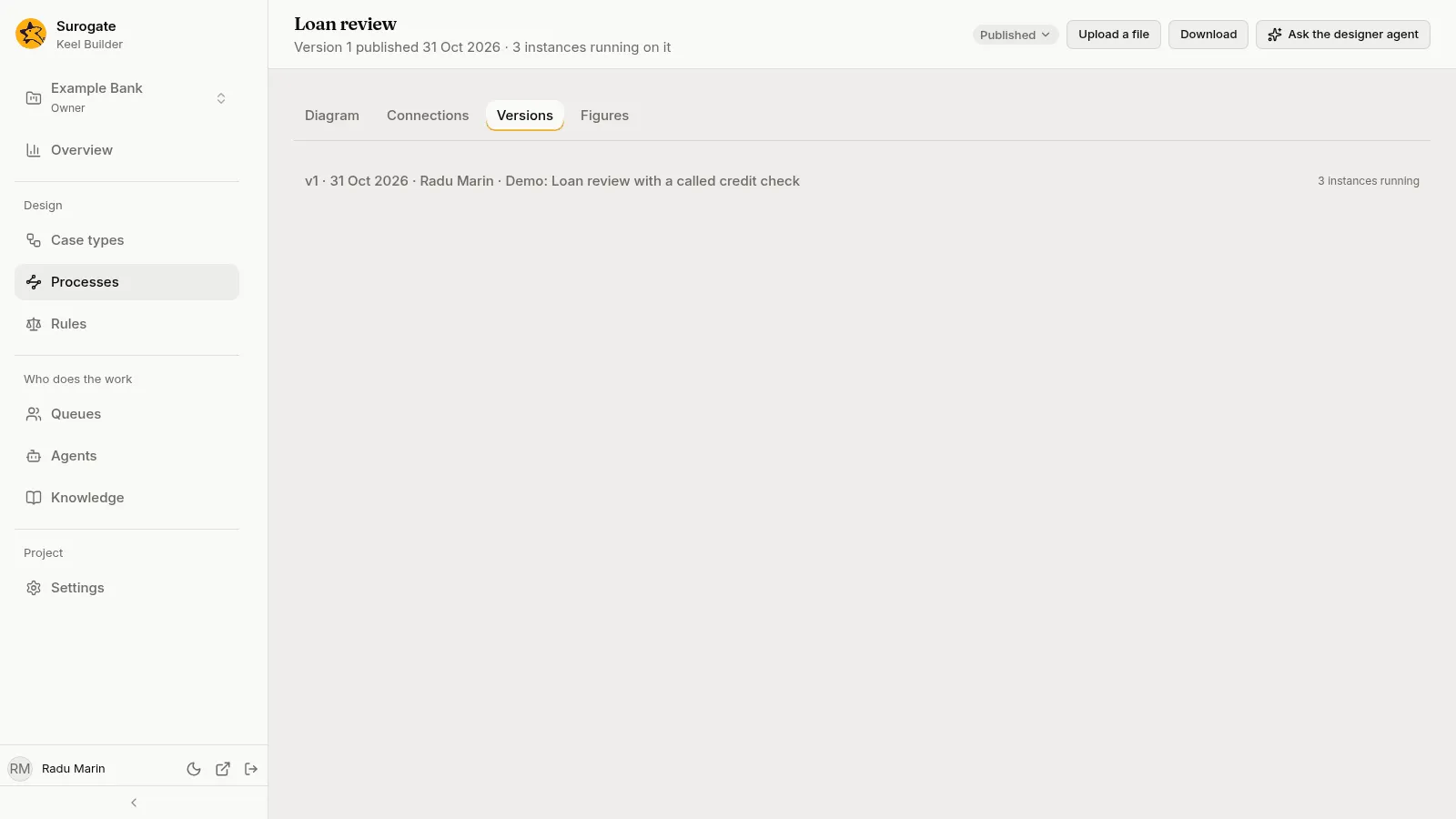
Press a row to open it:
- Download v2 saves that version’s file as
loan-review-v2.bpmn. - Show the diagram opens the Diagram tab on that version.
- Under them, what the version changed in the process’s file, as its lines: the file before the publish against the file after it, with three unchanged lines beside each change. The diagram is left out of the lines (“Its diagram is left out.”), as in the review page: “Only its diagram changed.” says when nothing else did. A version that did not change it says “This version did not change” and the process’s name, such as “This version did not change Loan review.”
If the publishes cannot be read, the tab says why, in Keel’s words, or “The project’s publishes could not be read.”; if what a version changed cannot, “What this version changed could not be read.” Each comes with Try again.
Moving the instances of an older version
Section titled “Moving the instances of an older version”A new version does not take the running instances with it: each stays on the version it started on until it is moved (Moving instances to a newer version says when it can). Under the row of each version older than the current one that has instances running, a section Move from v2 says what a move would do. Keel checks the oldest thousand of those instances as they stand:
- “Of the 12 instances running on v2, 10 can move to v3 and 2 cannot.” When there are more than Keel checked: “Keel checked the 1000 oldest of the 4213 instances running on v2: 980 can move to v3 and 20 cannot.”
- Under it, why the others cannot move, the reason most instances meet first, each with how many: “Pay is open, and version 3 has no element pay · 2 instances”.
- If the check cannot be made, the section says why, in Keel’s words, or “Keel could not check the instances running on v2.”, with Try again.
Move running instances to v3, for editors and owners, asks first: Move the instances running on v2 to v3? “Each one that can move goes to v3 with its open tasks and their work. One that cannot stays on v2, and the move lists it with why. A move cannot be undone.” Move them starts the move. The button is off for a viewer, while no instance can move, and while a move of this process’s instances is running (“A move of this process’s instances is running.”). When Keel refuses the start, the section says why in Keel’s words, such as “A move of the running instances of loan-review is running: wait until it is done.”
Above the rows, Moves lists the process’s moves, newest first. Each card shows v2 to v3 · 20 Oct 2026, 10:00, Running or Done, a bar named by how many instances it handled of those it had to (“8 of 10 instances handled”, moved and stayed together), and “6 moved · 2 stayed · 2 remaining”. A running move is read again every five seconds until it is done, and then the number of instances running on each version is read again. When a move left instances behind, Instances that stayed (2) opens a table of them, Instance and Why, by number as people count, P-000009 before P-000010, fifty at a time with Show more. Each shows its number and each reason on a line of its own, never its data. The instances stay where they were, and their reasons are worded as the forecast’s. If the moves cannot be read, the tab says why, in Keel’s words, or “The moves of running instances could not be read.”; if the list of instances, in Keel’s words or “The instances that stayed could not be read.” Each comes with Try again.
The Figures tab
Section titled “The Figures tab”The tab shows how the process’s instances and tasks did. Nothing is read until it opens. The address keeps the tab, the period and the version, so a link shares them.
- Period offers Last 7 days, Last 30 days and Last 90 days, and opens on 30 days.
- Version offers All versions, then each version that has instances running, needing a supervisor, or started or finished in the period, and the current one, newest first, such as
v3 · currentandv2.
Under them are the six figures of the instances as tiles (screen readers hear them as Figures of Loan review, or Figures of Loan review v2 when a version is picked): Running, Needs a supervisor, Started, Finished, Failed or cancelled and Median to finish, with the caption “Running and needs a supervisor are as of now. The other figures cover the last 30 days.” Finished adds 28 completed · 2 ended when any ended, Failed or cancelled adds 1 failed · 3 cancelled when any failed or was cancelled, and Median to finish adds 90% within 4.2 d. Figures says what each counts. An instance counts under the version it runs on, or ended on.
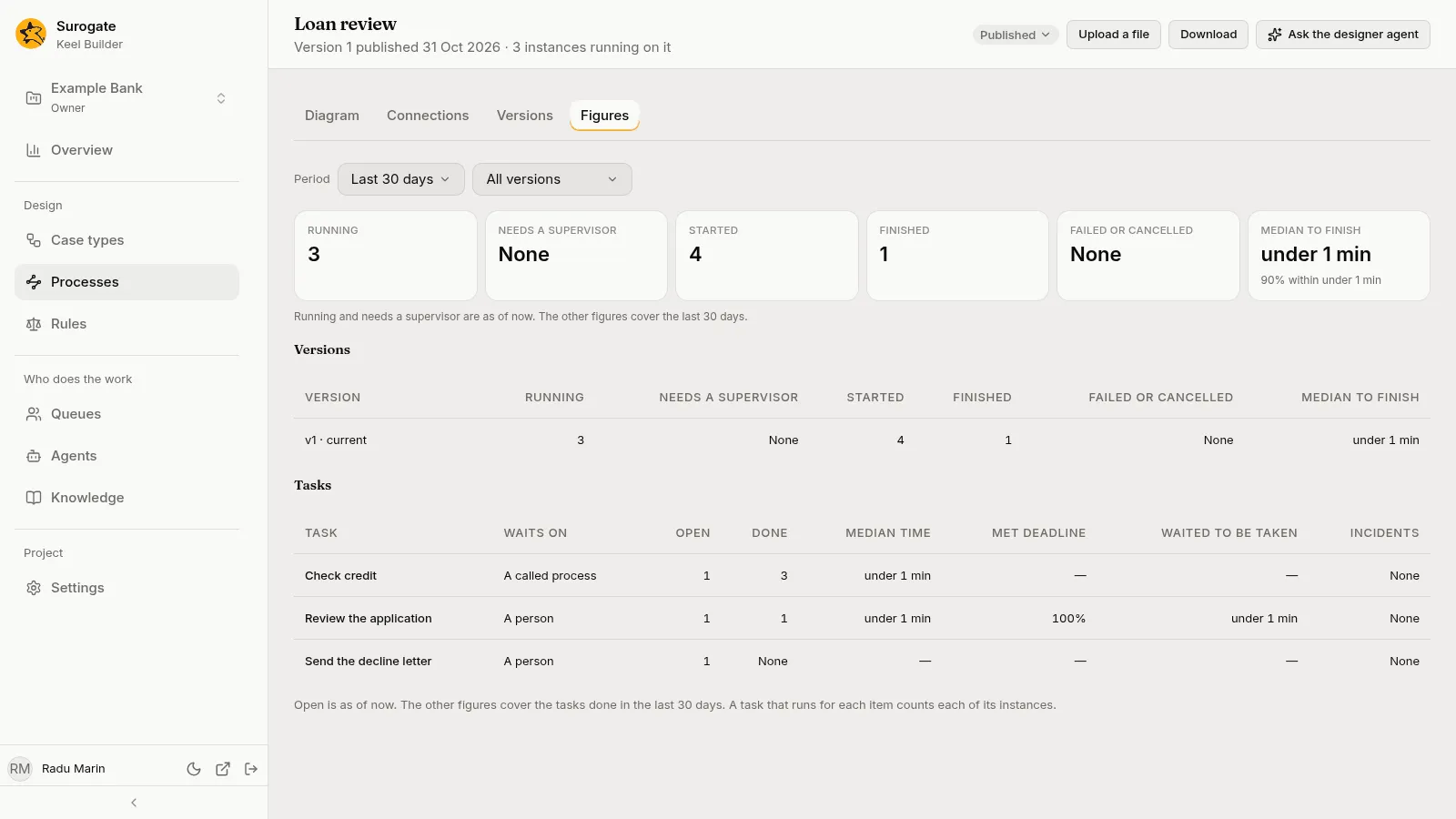
- Versions is a table with a row for each version,
v3 · currentandv2, and the same six columns, whatever Version says. - Tasks is a table of the process’s tasks, for all versions or the version picked: Task, Waits on, Open, Done, Median time, Met deadline, Waited to be taken and Incidents, with the caption “Open is as of now. The other figures cover the tasks done in the last 30 days. A task that runs for each item counts each of its instances.” The columns are those of the Processes page. A process with no task to measure says “This process has no task to measure.” A version whose file no longer loads says “Version 2 no longer loads, so its tasks cannot be shown.”
While a new choice loads, the tab keeps the last figures, dimmed. If Keel cannot read them, the tab says The figures could not be loaded with the reason, in Keel’s words, such as “The figures took too long to read. Try a shorter period.” or, for a version the process does not have, “The project has no process loan-review v9.”, and Try again; Period and Version stay. A process that only a draft holds says Not published yet. and reads nothing.
The Connections tab
Section titled “The Connections tab”The tab says: “The connections this process calls, with their credentials. Its connection files are changed in a draft.” With no draft, each connection of the process shows its Base URL and Authentication, read-only, as published. In a draft, each connection file of the process shows as the Connections tab of a case type shows its own: Base URL, Authentication with what its kind needs, Idempotency-key header and Default timeout (seconds). Editors and owners change them, except during the designer agent’s turn, and a viewer reads them. New connection, for editors and owners, asks for a Name in a dialog that says “It is made in the draft. Its calls need a base URL next.” and makes the file in the draft. A connection file is never deleted. Each connection also shows its credentials as the Connections tab of a case type shows them:
- Set credential, or Replace credential when one is set, and Delete credential, which asks first. Editors and owners see them; a viewer reads the credentials only. The dialog is Set the kind credential of connection, and the page says Credential set. It is not shown again.
- Each credential shows its kind, the hosts it is sent to, who set it and when, never its secret.
- A connection with no credential says No credential is set., and one that authenticates with None, It sends no credential.
- If setting or deleting a credential is refused because your installation keeps no credentials, the tab then says Credentials are off in this installation. and removes the credential buttons.
Under them, Who changed credentials lists the changes to this process’s credentials, newest first, such as “Ana Marin set the API key credential of bureau for bureau.example · 20 Oct, 09:00”. With none, “No one has changed a credential of this process yet.”
A process with no connection says This process has no connection yet. If the connections cannot be read, the tab says why, in Keel’s words, or “The connections could not be read.”, with Try again. In a draft, if the connection files cannot be listed, the tab says the same, with Try again. How a process’s connections are kept is in A process’s connections.
Review and publish
Section titled “Review and publish”In What changes on the review page, a process’s file reads Process Loan review: the name the draft’s file gives its process, else the name the published file gives it, else the key. Beside it are Added, Changed or Removed, and the file’s lines, the published file’s against the draft’s, with the diagram left out (“Its diagram is left out.”). A changed connection file of a process reads Process connection and its process and name, such as Process connection checking/bureau.
When you open Review and publish from a process, the page’s link back reads Back to the process, and leads to the process in the draft. After the publish, the page that confirms it offers Back to the process too, leading to the published process.
Who can do what
Section titled “Who can do what”| Viewer | Editor | Owner | |
|---|---|---|---|
| See the list, a drawing, its versions and connections | Yes | Yes | Yes |
| Download a file | Yes | Yes | Yes |
| New process, Upload a file, Change the diagram | No | Yes | Yes |
| Lay out the diagram | No | Yes | Yes |
| Ask the designer agent, and Describe it to the designer agent in New process | No | Yes | Yes |
| Change a draft’s diagram, and set the process, a task, a service task, a rule task, a lane, a flow, a timer, a message, a signal or an error in the panel | No | Yes | Yes |
| Make and change a process’s connection files in a draft | No | Yes | Yes |
| Read the panel and Elements | Yes | Yes | Yes |
| Run the draft’s checks, Dry run, publish | No | Yes | Yes |
| Read the forecast of a move of running instances, and follow the moves | Yes | Yes | Yes |
| Read the process’s figures | Yes | Yes | Yes |
| Move running instances to v3 (an older version’s, to the current one) | No | Yes | Yes |
| Set, replace and delete a connection’s credential | No | Yes | Yes |