Case type settings
The designer’s Settings tab holds what applies to the whole case type. It has eight sections.
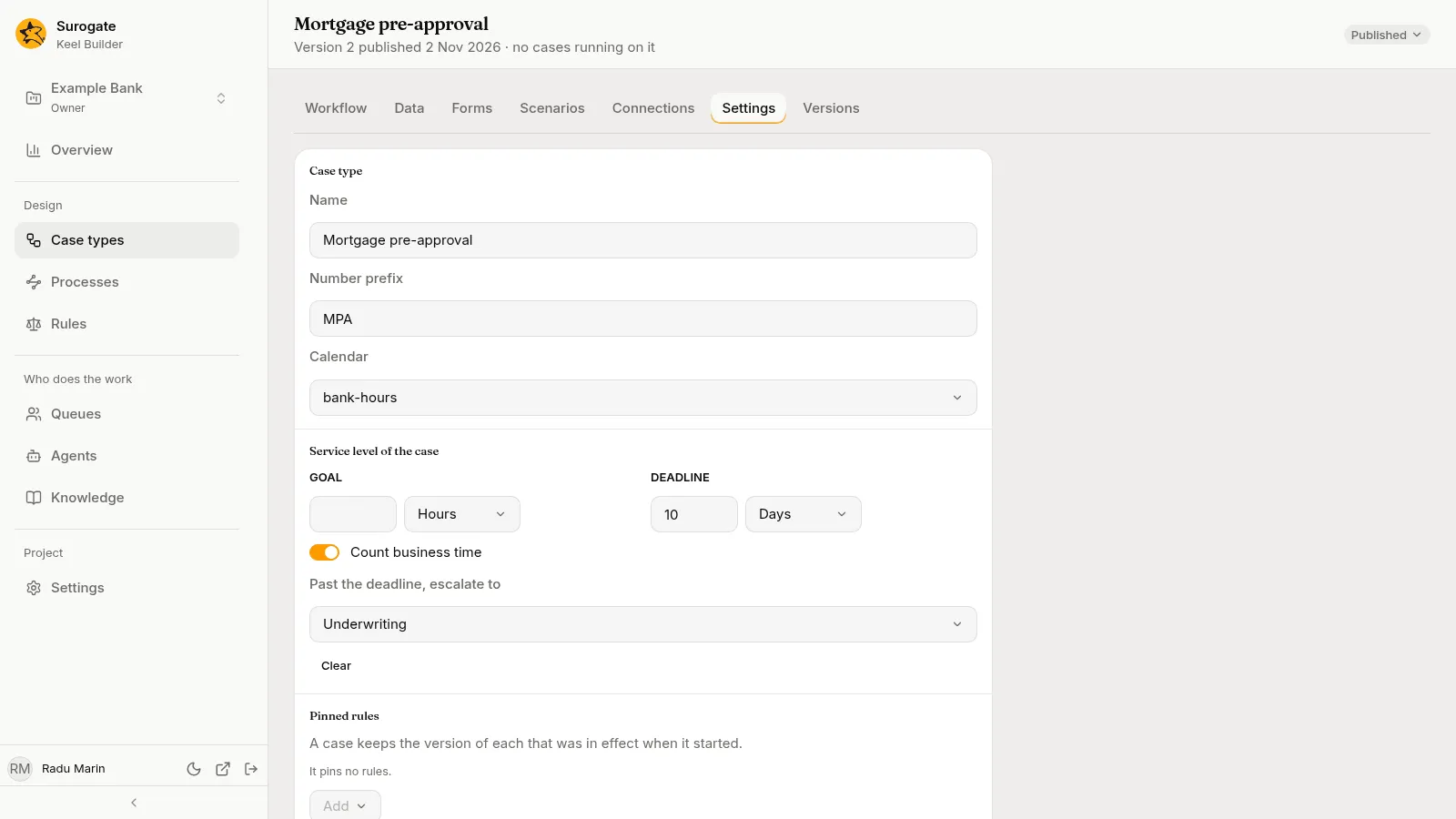
Case type
Section titled “Case type”- Name: the case type’s name, as builders and staff see it.
- Number prefix: the start of each case number, such as
LRforLR-000001. Up to 32 letters, digits,-and_, starting with a letter or a digit. Two case types of the project cannot share it. - Calendar: None, or one of the project’s calendars. With a calendar, service levels and waits can count business time only.
A blank name, or a prefix Keel would refuse, is kept on screen and not saved.
Service level of the case
Section titled “Service level of the case”A Goal and a Deadline for the whole case, counted from its start, with Count business time when there is a calendar and Past the deadline, escalate to a queue. They work as a step’s service level does; see Service level. Clear removes the service level. While a case waits on the client, this clock pauses.
Each stage has a service level of its own, set with the pencil beside its name on the board.
Pinned rules
Section titled “Pinned rules”The rules each case keeps at the version it started on: “A case keeps the version of each that was in effect when it started.” A rule that is not pinned is used at the version in effect when the case reaches it. The Add menu adds one. With none, “It pins no rules.”
Knowledge
Section titled “Knowledge”The knowledge bases the case type’s agent steps may use, picked from the project’s knowledge bases, which are made in Studio. The Add menu adds one. Each agent step can narrow this list under May use, never widen it. With none, “Its agent steps use no knowledge.”
Business users never see the knowledge bases themselves. In a case’s history, what a step read shows as the policy and the page, under Policies read.
Intake agents
Section titled “Intake agents”The project’s agents that may start a case of this type, picked from the agents made in Studio. The Add menu adds one; it never offers the project’s helpers, the case agent and the designer agent. With none, “No agent starts its cases.”
Case events
Section titled “Case events”Named signals another system can send to a case of this type, such as documents_received. Each event has:
- Name: the name systems send. Two events cannot share one.
- Interrupts the case: on, the event withdraws all open work of the case and moves it where Goes to says; off, it starts an optional action alongside the current work.
- Goes to: where the case goes. An interrupting event moves the case to a node, the next stage, a stage, or a close. One that does not interrupt starts an optional action: “It starts an optional action: add one first.”
- Label: what people see.
Type a name in Name an event and press Add event. Removing one asks first: “A case it reaches no longer reacts to it.”
A wait for an event of that name takes precedence: when a case is waiting for the event, the wait moves on and the case type’s event does not fire.
What staff see beside each case’s number, such as {applicant} for the applicant’s name: “Staff see it beside the case number, such as {applicant}.” Type text and field names in braces, or use Insert field to add a field at the cursor. Without a title, a case shows by its number.
Summary fields
Section titled “Summary fields”The fields that sum up a case, in order, such as the amount and the term. The case page’s header shows them all, and the case list’s Summary column shows the first. The Add menu adds one; each moves up or down or is removed. With none, “It shows no fields.”