BPMN processes
A process is a business procedure drawn as a flowchart: who does what, in which order, what waits for what, and what happens when something goes wrong. Keel draws it in BPMN 2.0, the notation of modellers such as Camunda Modeler and bpmn.io, and runs it. Each run of a process is an instance, numbered like P-000001.
Builders draw, set up and publish processes in Keel Builder. Staff start instances and work their tasks in the business app, in the same queues and on the same Work page as the steps of cases. Supervisors watch the instances that need them.
This guide follows a process from the first drawing to a running instance. Each part says where in the apps you do it, and links to the page that lists every screen.
Processes and case types
Section titled “Processes and case types”Keel has two ways to describe work. They share the project’s queues, people, agents, rules and connections, and they work together.
| A case type | A process | |
|---|---|---|
| What it is | A file about a customer, a claim or a loan that goes through stages made of steps, with its own fields, files and history. | A flowchart of tasks, decisions, waits and calls, run from a start to an end. |
| What staff open | A case, on the Cases page. | An instance, on the Processes page. |
| Good for | Work that people carry through stages and add to over weeks. | Work with a route: parallel branches, timers, messages from other systems, calls to systems and agents, work repeated for each item of a list. |
| Drawn in | The designer, as stages and steps. | The process’s drawing, in BPMN. |
Use a process when you already have a BPMN model, or when the work is mostly a route that decides, waits and calls other things. Use a case type when the work is a file people work in stages. Use both when a file needs a routed procedure inside it: a case’s process node starts a process, and a process’s task can start a case. Each side shows the other: a case’s page names the process it waits for, and an instance’s page names the case that started it. Keel starts the other side a moment later. If the waiting side moves on first, Keel withdraws the other. A chain of starts stops at eight, so a case type and a process that start each other never loop for ever.
From a drawing to finished work
Section titled “From a drawing to finished work”- Draw it in Keel Builder, on the Processes page. Start from an empty diagram, from a BPMN file, or by describing the process to the designer agent.
- Set it up in the Details panel of the drawing: the data it keeps, who does each task, how long they have, what each decision depends on.
- Check it. The Problems tab of the Details panel lists what is wrong while you work.
- Publish it in a draft, with Review and publish. The process has a new version.
- Start instances in the business app, from a case, from another process, or from another system.
- Work the tasks on the Work page and on each instance’s page.
- Supervise. Supervisors see what needs them and read the process’s figures.
- Improve it. Publish a new version. Running instances stay on the version they started on, until someone moves them.
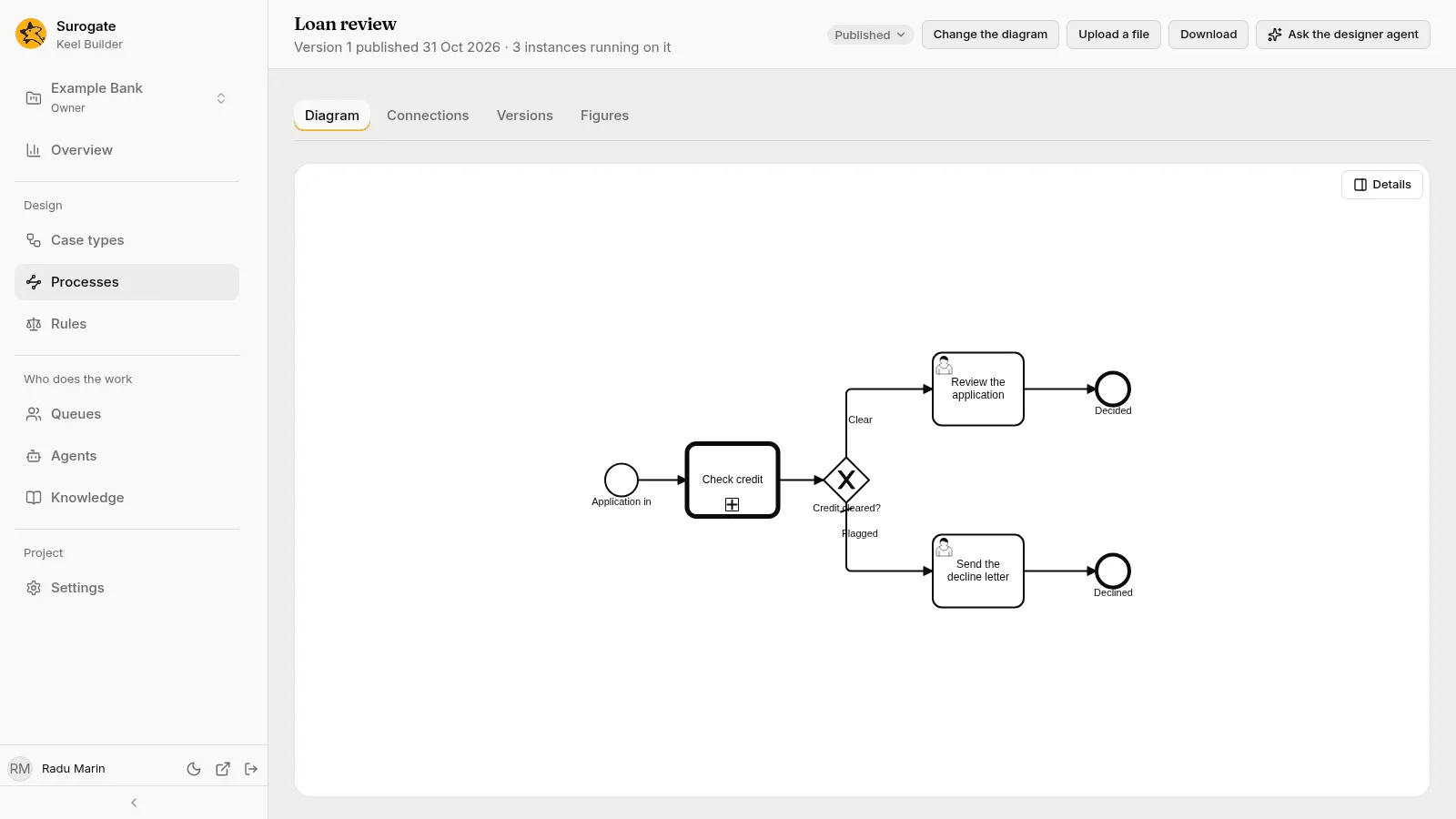
Build your first process
Section titled “Build your first process”This walks through a small loan review: an underwriter reviews every application, and a manager also approves the large ones. You need to be an editor or owner of the project. Before you start, make sure the project has three queues, for the underwriters, the managers and the team leads, and that people are in them: queues are defined on the Queues page, and a supervisor adds their members on the Team page.
-
In Keel Builder, open Processes and press New process. Under Start from, pick An empty diagram, type the Name
Loan review, and leave the Keyloan-reviewand the Draft A new draft. Press Create. The process opens in the new draft, with one start event on the drawing. The draft bar saves every change you make; there is no save button.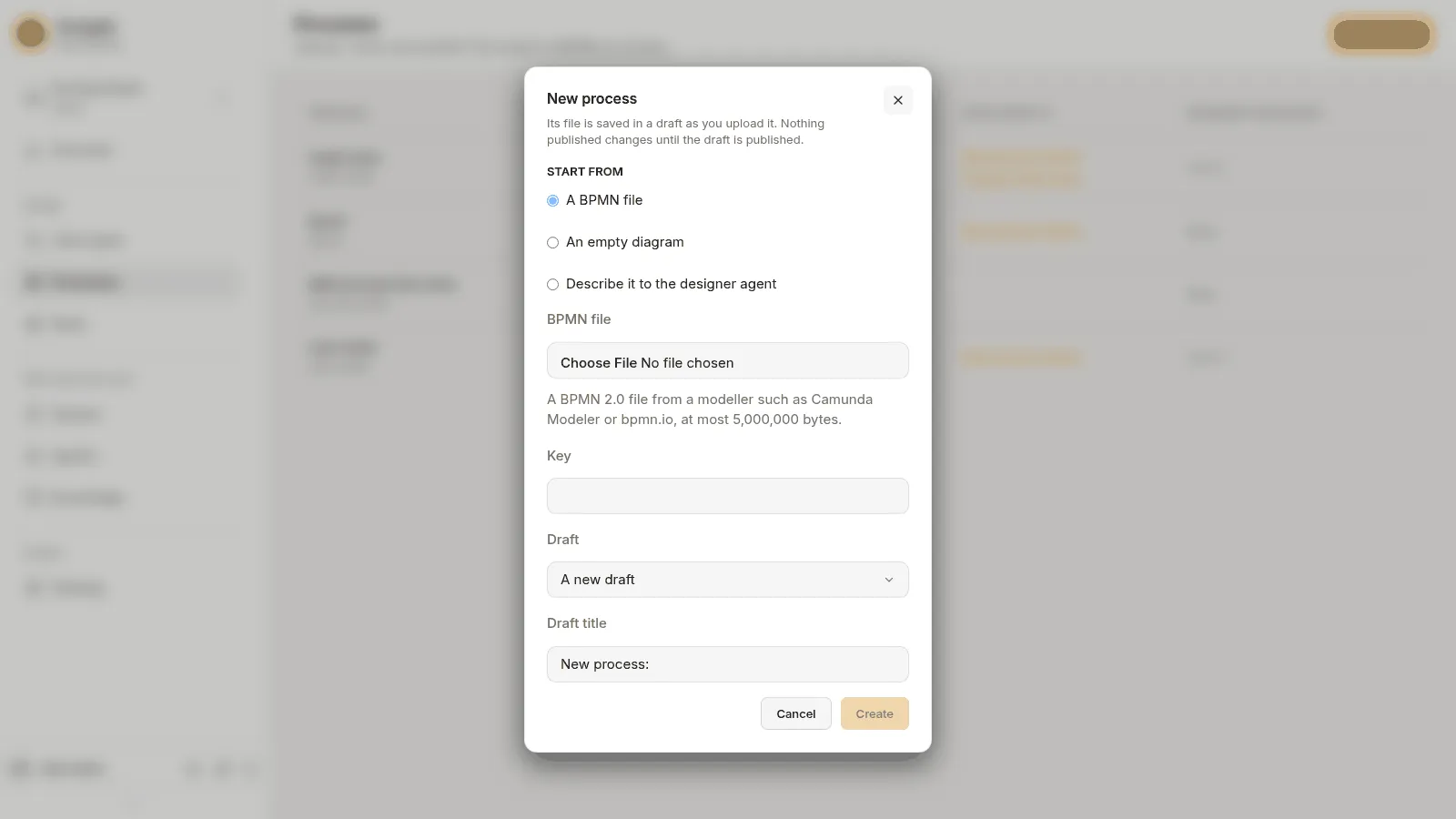
The New process dialog: Start from A BPMN file, An empty diagram or Describe it to the designer agent, with the Key, Draft and Draft title below -
Say what data the process keeps. Press Details at the top right of the drawing. With nothing picked, the panel is headed Process. On its Settings tab, under Variables, press Add variable and add two. The first is
amount, with the LabelAmount, Type Decimal and Required on. The second isdecision, Type Choice, with the choicesapproveanddecline. A process keeps only the variables it declares.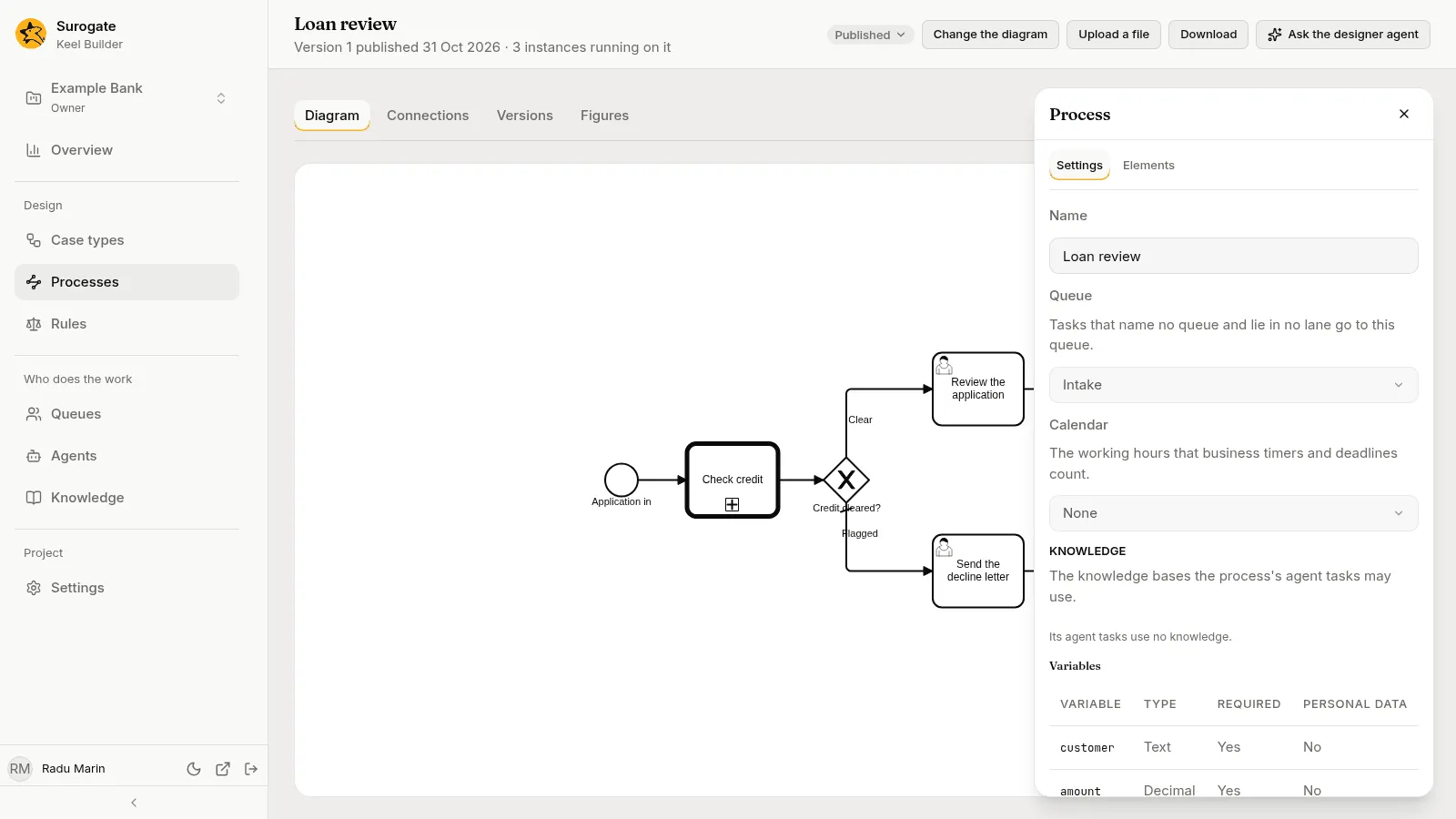
The Details panel of a process: the Settings tab with Name, Queue, Calendar, Knowledge and the Variables table -
Draw the route. Pick the start event. On the panel’s Connect tab, pick User task under Next element, press Add after, and name it
Review the loanwith the pencil beside the panel’s title. Add after it an Exclusive gateway namedLarge?. After the gateway, add a User task namedManager approvaland, from the gateway, a second path to an End event. JoinManager approvalto the same end event with Connect to. You can draw with the palette and the pointer instead; the panel does the same without it. -
Say who does each task. Pick
Review the loan. On its Who tab, under Done by, set Queue to the underwriters’ queue. Do the same forManager approvalwith the managers’ queue. A task goes to the queue that its Queue names, else the queue of its lane, else the process’s own queue; members take it from there.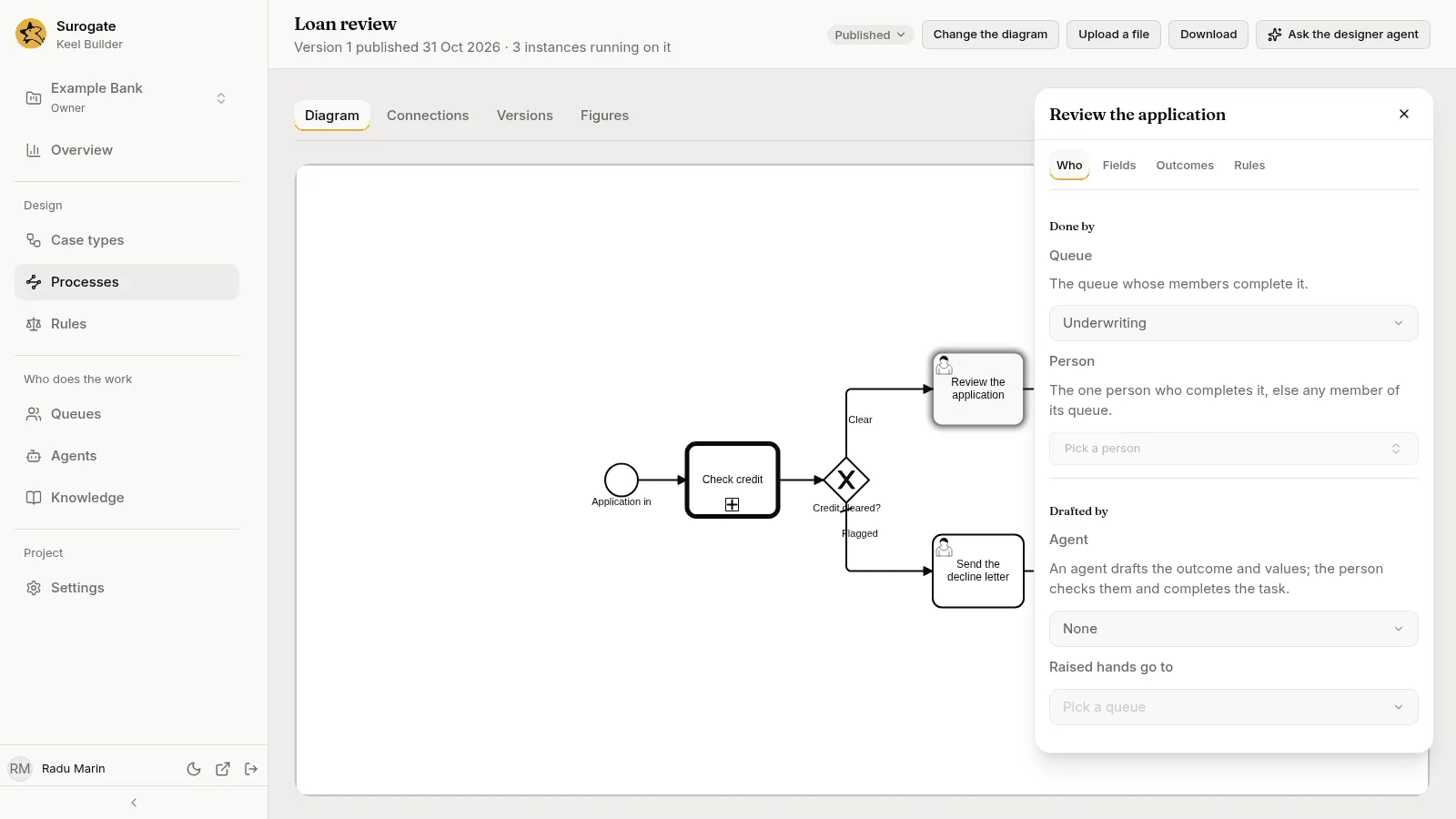
The panel of a user task on its Who tab: Done by with Queue and Person, and Drafted by with Agent and Raised hands go to -
Say how a task ends. On the Outcomes tab of
Review the loan, addApproveandDecline; their names are the lower-case forms of the labels. Set Outcome variable todecision: the task stores the outcome there, so a path after it can read it. A task with no outcome has one,done. -
Say which way the gateway goes. Pick the line from
Large?toManager approval, name itOver 50,000, and typedecision == "approve" && amount > 50000.0in its Condition. Name the line from the gateway to the end eventOtherwise. Pick the gateway and set its Default flow to Otherwise · Sequence flow: it is taken when no condition holds. A declined loan, or a small one, goes straight to the end. -
Give it a deadline. On the Rules tab of
Review the loan, under Service level, type a Goal ofPT4Hand a Deadline ofP2D: four hours and two days, counted from the moment the task is ready. Set Past the deadline, escalate to to a team leads’ queue. -
Read Problems. A new process shows problems until the route is whole; for example, a path that does not end at an end event. Press a problem to pick the element it names. Fix them until the Problems tab says Keel found no problem in this process.
-
Publish. Press Review and publish, read What changes and Checks, and press Publish. The process has version 1.
-
Start an instance. In the business app, open Processes, press New process, pick Loan review, type the Amount and press Start. The instance opens on its own page.
-
Work the task. An underwriter opens Work, then the underwriters’ queue under Team queues, and presses Claim on P-000001 · Loan review under Unclaimed; Get next claims the next task and opens it in one press. The claimed task is in Needs me: open it and press Open process. Under Your task they pick an outcome and press Submit. An approved loan over 50,000 then opens the manager’s task; any other loan ends the process.
You can have the designer agent do steps 2 to 7 from a description: see Ask the designer agent.
What a process can do
Section titled “What a process can do”Each part below says what an element does and where you set it. The Builder’s panels are listed in full on the Processes page of Keel Builder.
Tasks that people do
Section titled “Tasks that people do”A user task waits for a person. A manual task is work done away from any application that someone still marks as done. Both are worked from a queue, or by one named person.
- Who does it. The task’s Queue in the panel. Without one, the queue of the lane it is drawn in: a lane sends its tasks to the queue its name matches, and picking the lane’s Queue in its panel names the lane to match. Without a lane, the process’s own queue. Lanes are drawn with the pointer, not from the panel. A Person in the panel names the one person who completes the task. Keel offers the task on the business app’s Work page, in the queue’s views and in Get next.
- What they fill in. Writes lists the variables the task may set, and which are needed. The form people see has these fields and nothing else.
- How it ends. Outcomes lists the task’s results, such as
ApproveandDecline, and the variables each one needs. Outcome variable stores the outcome in a variable, so a gateway after the task can read it. - Rules about the completion. Checks are conditions that must hold, with the message people see when one does not. Maker-checker stops a person who completed another named task from completing this one. Authority asks for an authority limit, set on the Team page, at least as large as an amount.
- Time. Service level gives a goal and a deadline, with Business time to count only working hours on the process’s calendar, and a queue to escalate to when the deadline passes. A missed goal is only recorded in the history. A missed deadline puts an escalation in the queue you name, and its members may complete the task.
- An agent that drafts. On a user task, Drafted by names an agent that fills in the form first. The person checks the draft, changes what they want and completes the task. The agent proposes an outcome and values, and the form opens with them filled in. The person checks them, changes what they want and presses Submit. Only the person decides: the agent never completes a user task.
Decisions
Section titled “Decisions”A gateway is a fork or a join in the route.
| Gateway | What it does |
|---|---|
| Exclusive | Takes the first outgoing path whose condition holds, in the order drawn, else its Default flow. |
| Parallel | Splits into every outgoing path, or waits for every incoming one. |
| Inclusive | Takes every outgoing path whose condition holds, else its default. Where paths meet, it waits for the paths that can still arrive. |
| Event-based | Waits for whichever of its timers, messages or signals comes first. |
A condition is typed on a path in the panel, over the process’s variables, such as amount <= 250000.0. A condition that reads a variable with no value cannot be decided, and Keel refuses the step that reached the gateway, so give such a variable a value on every path. An exclusive or inclusive gateway with several paths needs a condition on every path but its default, and a default path as soon as any path has a condition.
A business rule task applies one of the project’s rules, a decision table or a scorecard, and writes its results into variables, so a gateway after it can read them. Pick the Rule, and under Assignments say which variable takes each result. It never waits.
Variables are the process’s memory. Declare them in the process panel, under Variables, with a Type, whether the process Requires the value and whether it is Personal data. A required variable is asked for on the start form. Tasks, rules, calls and messages write to variables; conditions, deadlines and calls read them. The instance’s page shows them under Data.
Waiting
Section titled “Waiting”- A timer waits for a duration such as
PT2H(two hours) orP3D(three days), or until a date. With Business time, it counts working hours on the process’s Calendar, which you pick in the process panel; calendars are made on the Rules page. - A message reaches one instance. A message can carry a Key: a variable such as a claim number, so a system that knows only the claim number reaches the right instance. A message can write values into variables you list.
- A signal reaches every instance that waits for it, such as “the rates changed”. It carries nothing. A signal throw event or signal end event sends one.
- A receive task and a message catch event wait for a message.
The apps have no button to send a message or a signal; another system that your team connects to the project sends them, with a service key of the project. An instance’s page shows what it waits for under Waiting for.
Calling other things
Section titled “Calling other things”A service task does one thing, which you choose with What it does:
- Calls a system. Calls another system through one of the process’s connections, with a method, a path and the values to send. It waits for the answer, writes the values you name into variables and goes on. A connection holds the system’s address and its credentials. Make it on the process’s Connections tab. A credential goes on the published connection: publish first, then set it on the same tab, and it applies at once. A call that fails for good does not stop the instance silently: the task shows an incident for a supervisor.
- Calls an agent. Starts an agent on the task. The agent completes it under the task’s contract: the variables it reads, the ones it writes, its outcomes. If it needs a person, its question goes to the queue you name under Raised hands go to, and so does the whole task if the agent is switched off.
- Starts a case. Starts a case of one of the project’s case types, filling its fields from variables. It either waits until the case closes and takes back values and the case’s resolution, or goes on at once.
A call activity starts another process of the project and waits for it to end. You say which variables go in (Passes in) and which come back (Receives). A called process is an instance of its own, with its own number and page. A process cannot call itself, even through other processes.
Doing a task several times
Section titled “Doing a task several times”A user, manual, service or business rule task, or a call activity, can run more than once: once for each item of a list, or a fixed number of times. Open the Instances section on the task’s Rules tab.
- Runs is Once, Several times, all at once or Several times, one after another.
- How many is One for each item of a list, with the List variable and a variable that holds Each instance’s item, or A number of times, from 1 to 100.
- Results collects what each run gives into a list, in the order of the items.
- Ends early when is a condition that ends the task before every run has finished, and withdraws the runs still open.
- On a user or manual task, Each person completes one instance at most keeps one person from completing two of the runs. The business app words it “Someone else must finish this step.”
Each run of a person’s task is a work item of its own, shown as Approve · 2 of 3, with its own goal and deadline; the instance’s page shows the item under the name. Each run of a call activity is an instance of the called process of its own. A task that would run more than 100 times is refused: the business app says “This would run a step more than 100 times. Ask your supervisor.” A receive task and a subprocess cannot run for each item; draw the steps as a process of their own and call it from a call activity that does.
When something goes wrong, or changes
Section titled “When something goes wrong, or changes”- A boundary event sits on a task, a call activity or a subprocess. A timer boundary event fires after a duration or at a date; a message or signal boundary event fires when one arrives; an error boundary event catches an error thrown inside. An interrupting one withdraws the task and takes its own path; a timer that does not interrupt starts its path beside the task.
- An error end event throws an error with a code. To catch an error, attach an Error boundary event, pick A new error and type the code under Error code, or pick Any error. A task that starts a case, and a call activity, throw these codes:
case-not-started(Keel could not start the case),case-failed(a step’s failure closed it),case-valuesandprocess-values(it ended with a value your variables cannot hold),process-not-started(the called process is not published, or the values passed do not fit it) andprocess-cancelled(a supervisor cancelled it). An error nothing catches fails the instance. - An event subprocess is a part of the process that no path enters. It waits while the process or subprocess around it runs and starts when its timer fires, its message or signal arrives, or an error is thrown. It either stops the rest or runs beside it. Add one from the Event subprocess pick at the end of the process’s Settings tab, or on a subprocess’s Connect tab, such as On a timer or On a message, alongside the rest, then pick its start event to say more. The business app draws it dotted, and says Waiting to start while it waits.
- A terminate end event ends everything still open in its process or subprocess.
- A subprocess groups steps and can carry boundary events.
Ask the designer agent
Section titled “Ask the designer agent”The project’s designer agent can draw a process from your description, or change one in a draft. Open a process’s page and press Ask the designer agent, or start from New process and pick Describe it to the designer agent: type a Name and a Description of what starts the process, who does each task, the decisions on the way and how it ends. The agent reads what Keel supports, sets up each element as the panel would, has Keel draw the diagram, checks what it wrote and asks you about what the description leaves open. It works in a draft and never publishes.
While it works, the process’s page is read-only. When its turn ends, Show changes lists what it changed, without the diagram, and Revert puts a file back. You then review the drawing and the Problems, change what you want, and publish the draft yourself.
Bring a BPMN file from another modeller
Section titled “Bring a BPMN file from another modeller”Press Upload a file on a process’s page, or pick A BPMN file in New process. The file is kept exactly as you chose it. A file holds one process, at most 5,000,000 bytes.
- Keel runs start events, user and manual tasks, business rule tasks, service tasks, call activities, receive tasks, timers, messages, signals, the four gateways, subprocesses, event subprocesses, boundary events and end events.
- What Keel does not run is refused when you publish, and the Problems section names each element. This includes script tasks, plain tasks, send tasks, message throw and message end events, a start event that waits for a timer, a message or a signal (only an event subprocess starts that way), repeating timers, message and signal boundary events that do not interrupt, loops drawn on a task (draw the loop with a gateway), escalations, compensation, transactions, ad hoc subprocesses, complex gateways, conditional and link events, and data objects. Delete or change these in Keel Builder.
- A second pool, or a message between pools, is not run: Keel runs one process per file.
- Settings of another tool stay in the file through every change, though Keel ignores them and warns.
- A file without a diagram, or with a partial one, can run, but the apps cannot draw what is missing. Press Lay out the diagram and Keel draws every shape and line that is missing, without moving any shape you placed. See Laying out the diagram.
- The first change you make to an uploaded file in Keel Builder rewrites the whole file in its layout. Comments in the file are dropped, and Keel Builder warns you before your first change; the elements, their settings and the layout stay.
Check and publish
Section titled “Check and publish”A process is saved in a draft and published with it, like any other definition. For editors and owners, the Diagram tab checks the draft by itself and lists the problems on the Problems tab of the Details panel. See Problems. Each problem is an Error, which stops the publish, or a Warning, which does not. A problem names the element; press it to pick the element on the drawing.
The checks go beyond the drawing. They read the process against the rest of the project:
| What Problems says | What to do |
|---|---|
| A task names a queue the project does not have. | Pick one of the project’s queues, or make the queue on the Queues page. |
| A service task calls a connection the process has none of. | Add the connection on the process’s Connections tab. |
| A task sets a header that its connection already sends, such as the one that carries its key. | Take the header out. Credentials belong to the connection, never to a task. |
| An agent is not one of the project’s agents, or lacks a tool, an MCP server or a knowledge base you named. | Pick an agent the project has, or take the tool away from the task. A task can narrow what an agent has but never widen it. |
| A knowledge base is not one the process grants. | Add it to the process’s Knowledge. |
| A business rule task names a rule the project does not have, a rule with no version in force, or a rule whose tests fail. | Fix the rule, or pick another. |
| A task starts a case type the project does not have, or one that is retired. | Pick a case type that is published and not retired. |
| A call activity calls a process the project does not have, or a variable the called process requires is not passed. | Publish the called process in the same draft, or fill every required variable under Passes in. |
| A process calls itself, directly or through others. | Break the cycle. |
| A path does not end at an end event. | Draw it to an end event. |
| A condition cannot be read, or is not a yes or no. | Rewrite it over the process’s variables. |
| A task that runs for each item names a variable that is not a list, or a number of times outside 1 to 100. | Pick a list variable, or a number from 1 to 100. |
When you publish a case type or a process that others use, Keel also checks it against them. If a change would break a process that starts or calls it, or a case type that starts it, the publish lists the process and the task. A problem at an older version that cases or instances still run on lasts until they finish or move. A problem at the current version of another process lasts until you publish a new version of it in the same draft.
Press Dry run for a full report, or open Review and publish: it shows what the draft changes, runs the checks again and publishes once they pass. See Dry run and publish.
Start and work instances
Section titled “Start and work instances”Staff start instances in the business app, on the Processes page: press New process, pick the process, fill in the form of its required variables and press Start. A case can start one with its process node, a process can start one with a call activity, and another system can start one. The process’s name and the instance number, P-000001, appear wherever the work does.
Work. A user or manual task waits in its queue or with its person. It shows on the Work page in Needs me when it is yours, in the queue’s views and in Get next. Its row reads the instance and the process, such as P-000001 · Loan review. Open it to see the instance’s page: Your task has the form, with Submit and Return to queue; Claim takes a task that waits in your queue; Now shows tasks others hold. Delegate and Reassign hand the task to a person or an agent, as they do for a case’s steps.
The instance’s page shows the process’s name, the instance number, its version and the day it started, its status, the tasks, what it waits for, its diagram, its data and its history. It keeps itself current. See An open process.
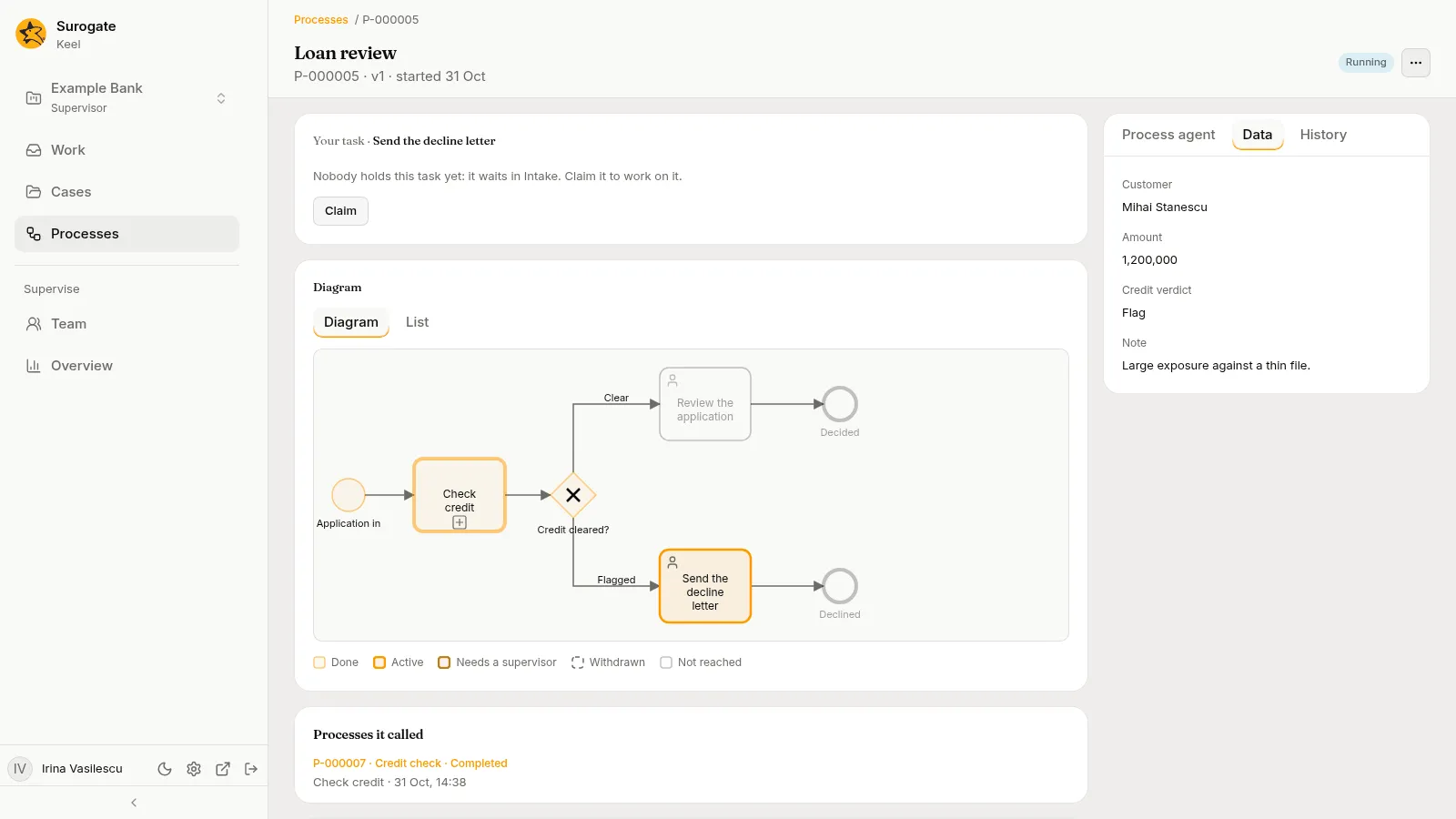
Agents and tasks. An agent that works a task shows what it does, its plan, and its question if it has one. Message the agent sends it a note while it works; Open its session lets you read it. An agent that drafts a user task fills the form for you; Ask to revise has it draft again with your note, and nothing is sent until you press Submit. The page says when an agent has failed or is switched off, and what you do then. Answer in Work takes you to an agent’s question. See Agents in processes and Watch.
The Process agent tab. Ask the project’s case agent about the instance, and have it fill the form of a task you hold with values from the instance’s data. It never submits, never picks the outcome and never acts on the instance. See An open process.
When a task is no longer open. If someone else completes a task, or a timer withdraws it, before your submission arrives, the page says “This step is no longer open.” and shows the instance as it is now.
Away. While you are away, a process’s tasks assigned to you move as your absence says, as a case’s steps do.
Agents in queues. An agent can be a queue’s member or a delegate, and take a process’s tasks as it takes a case’s: a user task no agent drafts for, and the questions of other agents. It never takes a manual task, a task its own agent drafts for, or an escalation. See Agents in queues and as delegates.
Supervise
Section titled “Supervise”Supervisors find the instances that need them on the Processes page, in the Needs a supervisor tab. On an instance’s page, Needs a supervisor lists each task or timer with an incident, and what a supervisor can do:
- An agent task whose agent failed for good: Retry starts the task again with a fresh run.
- A call to a system that failed for good: Retry makes the call again as a new call. If the call may have reached the system before it failed, Retry asks first: check the system, then retry.
- A timer that could not fire: Keel cannot retry it. Cancel the process, fix the cause in a new version (for example, a condition that reads a variable with no value), and start a new instance.
Other staff read the same incident on the task’s Now card, without a button.
A supervisor cancels an instance from More actions with Cancel the process…, and writes a reason: everything open is withdrawn, a case it waits on is cancelled or left running as the process says, and a process it called is cancelled too. A supervisor puts an instance on the process’s current version from More actions with Move to version… (see below).
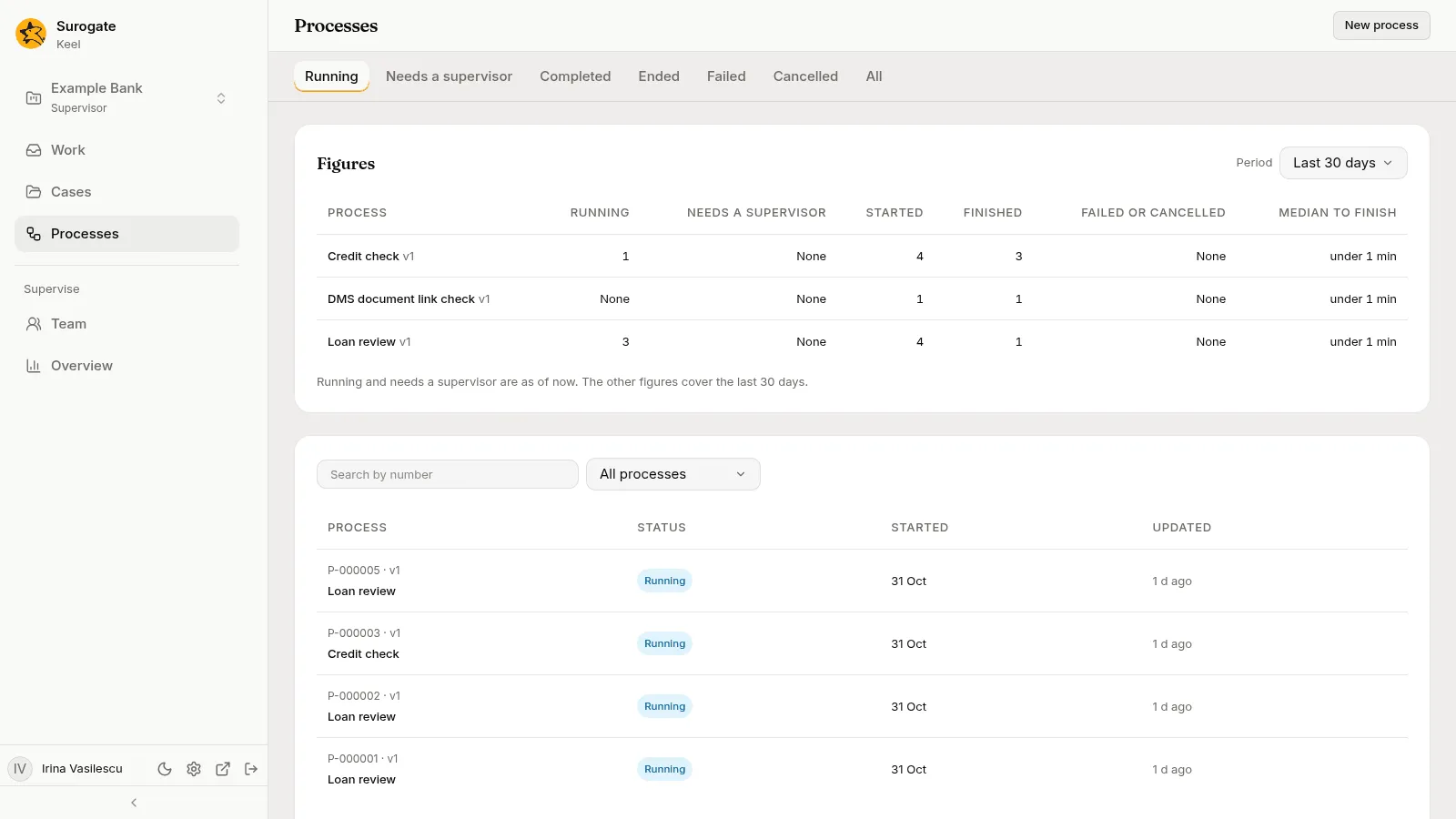
The Processes page lists the instances with their status, and filters them. Supervisors also see the process’s figures there; see Figures.
Change a published process
Section titled “Change a published process”Change a published process in a draft, as any definition: open the process, press Change the diagram, and publish the draft. Each publish creates a new version. New instances start on the newest. Running instances stay on the version they started on, with their number, data and history, until they are moved.
Moving instances. A move puts an instance on the process’s current version, from where it stands. It keeps its tasks, who holds them, their goals and deadlines, the timers it armed, the calls it made, its data and its history.
- A supervisor moves one instance from its page: More actions, then Move to version 3…, where 3 is the current version. The dialog checks first, and says why an instance cannot move.
- An editor or owner moves every running instance of an older version from the process’s Versions tab, under Move from v2. Keel first says how many can move and why the others cannot. The move runs in the background, and the Moves list shows how it goes. An instance that cannot move stays where it is and is listed with the reason.
An instance can move when what it holds carries over: the task it is at still exists with the same kind and place in the new version, is worked the same way (the same queue, the same agent and contract, the same call, the same case type, the same called process), the new version adds no boundary event to an open task and no event subprocess to a running scope, and the data fits the new variables. Anything ahead of where it stands may change. Typical reasons it cannot move:
| Keel says | What to do |
|---|---|
| “Task is open, and version 3 has no element id” | Publish a version that keeps the element, or move the instance once it is past it. |
| “Task is open for the queue q, and version 3 gives it to the queue r” | Keep the task’s queue, or wait until it is done. |
| “Task is open, and version 3 adds the boundary event B” | Move once the task is done. |
| “Version 3 refuses its data: amount: required” | Declare the variable the way the instance holds it. |
Keel matches the task an instance is at by its id, not by its name: renaming a task keeps it. A task you delete and draw again is a new element, and an instance at it cannot move. A move cannot be undone: an instance moves only forward, to the current version.
Figures
Section titled “Figures”Keel counts a process’s instances and tasks over the last 7, 30 or 90 days, apart from the cases’ figures. Supervisors read them above the instance list on the business app’s Processes page. Builders read them on the Figures tab of a process, by version: see the Figures tab. The instance figures are Running, Needs a supervisor, Started, Finished, Failed or cancelled and Median to finish. The task table shows, for each task, what it waits on, how many are open and past deadline, how many were done, the median time, the share that met the deadline, how long a person’s task waited to be taken and how many incidents it raised. The figures name no instance and show no value of its data.
Who can do what
Section titled “Who can do what”| Viewer | Editor | Owner | Staff | Supervisor | |
|---|---|---|---|---|---|
| Read a process’s drawing, versions and figures in Keel Builder | Yes | Yes | Yes | — | — |
| Draw, upload, lay out, ask the designer agent, publish | No | Yes | Yes | — | — |
| Move every running instance of an older version | No | Yes | Yes | — | — |
| Start an instance and work the tasks given to you | — | — | — | Yes | Yes |
| Retry a task, cancel an instance, move one instance, read the figures | — | — | — | No | Yes |
Builders sign in to Keel Builder with their Studio account, staff to the business app with a work account of the project. Roles and permissions lists the rest.
Where to go next
Section titled “Where to go next”- Keel Builder’s Processes page: every tab and panel of a process.
- The designer agent: drafting and changing processes in a draft.
- Processes in the business app and An open process: starting, finding and working instances.
- Team queues and Supervisors: who works what.
- Project settings: the service keys another system uses to start instances and send messages and signals.