The Forms tab
People fill a form to start a case and to complete a step. Keel makes each form from fields: the start form from the case type’s required fields, a step’s form from the fields the step writes. The Forms tab lets you order, group and label those fields, and shows a preview of the form as staff will see it.
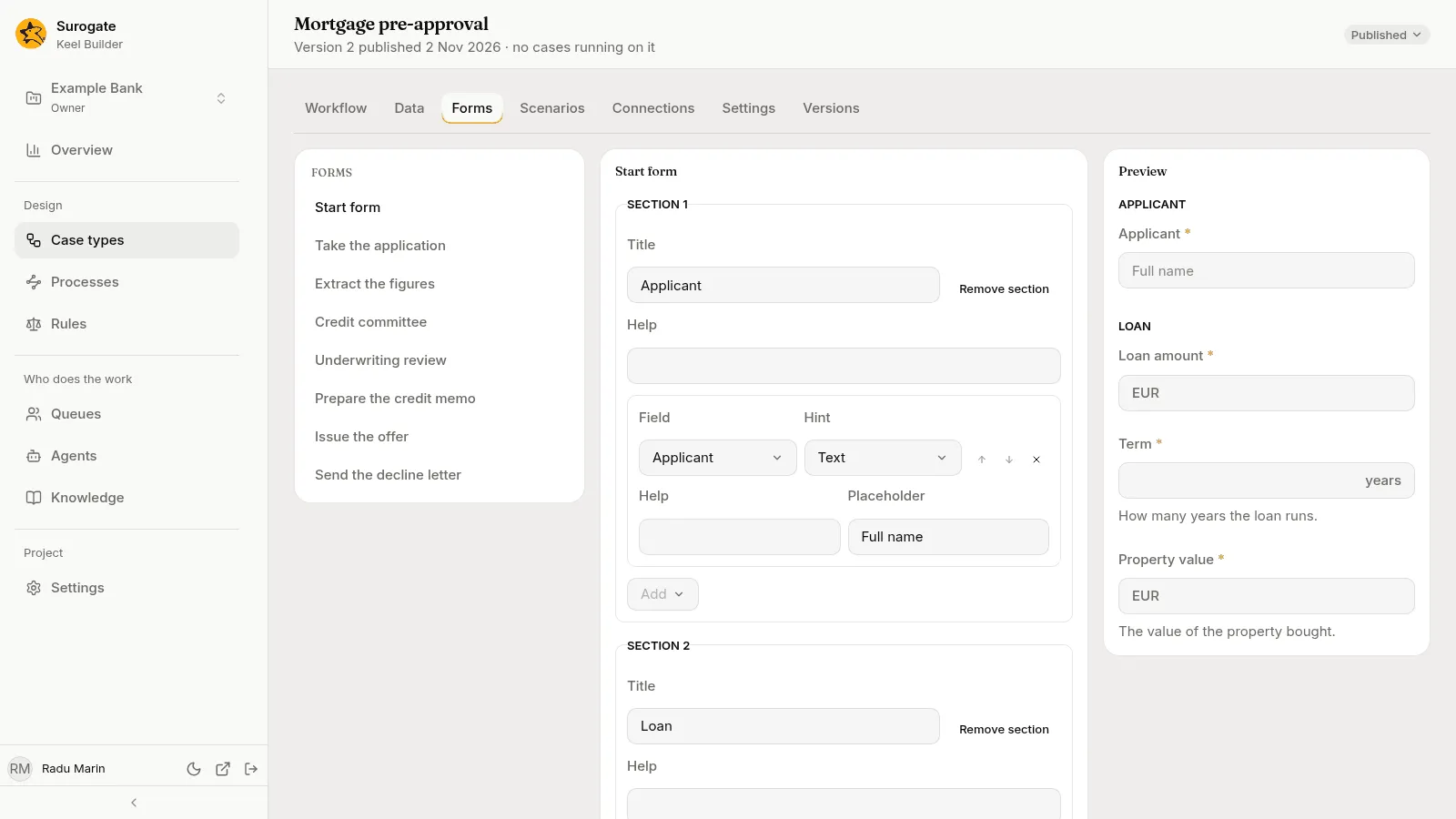
The list of forms
Section titled “The list of forms”The left of the tab lists:
- Start form: the form a case starts with;
- each step that writes fields, and each vote, stage by stage;
- each optional action’s step.
Pick one to edit its layout in the middle. Edit form in a step’s panel opens its form here.
What a form shows
Section titled “What a form shows”- The start form always shows the case type’s required fields. A layout can also place any other field.
- A step’s form shows the fields the step writes, and nothing else. It also shows the step’s outcomes as a choice: the person picks one before they submit.
- A vote’s form shows its outcomes only: “A vote’s form shows its outcomes only.” It takes no layout.
Laying out a form
Section titled “Laying out a form”A layout is a list of sections.
- Outcome label: what a step’s form calls its choice of outcome, such as
Decision. Blank, it reads Outcome. - Add section adds a section. Each has a Title and Help, then its fields in order.
- In a section, the Add menu places a field the form may show. Each placed field has:
- Field: which field it is.
- Hint: how it is shown, such as Long text for text, Money for a decimal, Drop-down or Choice cards for a choice, Checkbox or Switch for yes or no. Default lets the field’s type decide.
- Help: a line under the field.
- Placeholder: text shown in an empty box.
- Move up, Move down and Remove.
- Remove section takes the section out. A section with fields asks first: “Its fields leave the form, with their help and placeholders.”
A field is placed once. Fields the form shows but the layout does not place are named under the sections: “Not placed: … They show last, in a group with no title.”
A placed field that a step no longer writes says so: “Keel will not show this field: the step no longer writes it.” A hint that does not fit the field’s type says “This hint does not fit the field; Keel ignores it.”
The preview
Section titled “The preview”The Preview on the right draws the picked form as staff will see it. You can type in it and pick an outcome to try it; nothing you enter there is saved.
If a form cannot be drawn yet, the preview says “This form cannot be drawn yet. The dry run says why.”