The Scenarios tab
A scenario is a stored test of a case type: given how a case starts and what happens to it, the path it should take and how it should end. Every dry run plays the scenarios of the case types a draft changes, and publishing needs every scenario to pass.
You do not have to write scenarios by hand. The designer agent writes them for you, one for each way a case can end, and fixes them when a dry run finds a problem. Ask it in the draft, such as “Write a scenario where the committee declines the loan.”
The list
Section titled “The list”The left of the tab lists the case type’s scenarios by name, each with how it did in the last dry run: Passed, Failed or Not run. Pick one to see it.
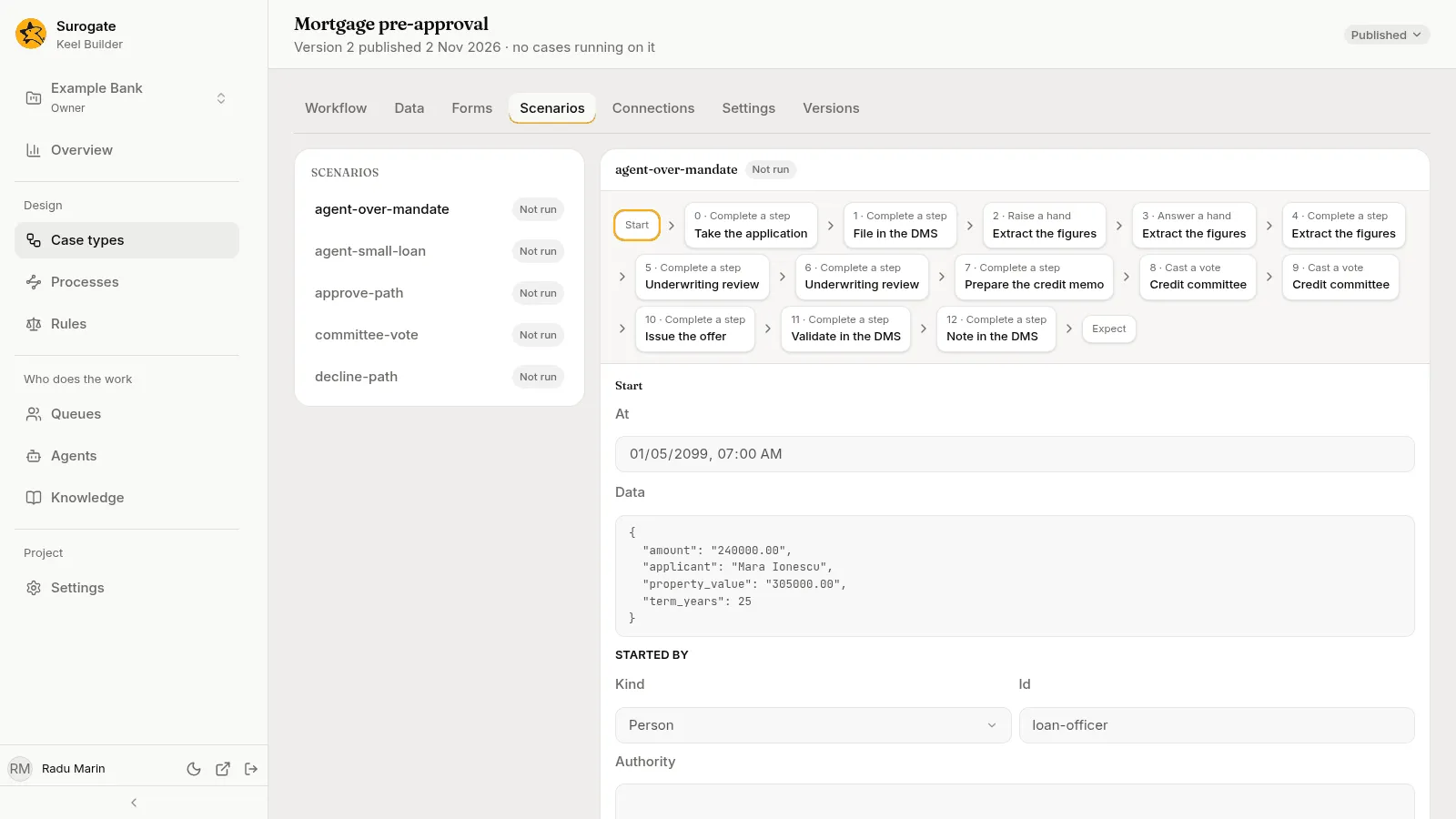
In a draft, editors and owners see two buttons beside the Scenarios heading:
- New scenario (the +): asks for its name. “It is made in the draft. How the case starts, the steps played and what must hold come next.”
- Run (the play button): dry-runs the draft, which plays every scenario, and updates their results. While it runs, the list says Checking the draft…. While a scenario has changes you have not saved, Run waits: “Save your changes to run them”.
With no draft open, the tab shows the published scenarios, read-only and not run.
A scenario
Section titled “A scenario”A scenario reads as a strip: Start, then each step played, numbered from 0 with its kind, such as 0 · Complete a step and the step’s name, then Expect. Press a part of the strip to see its details under it. In a draft, the Add menu before Expect adds a step, and the bin beside a step’s title deletes it (Delete step).
A failed scenario shows Keel’s message under its name.
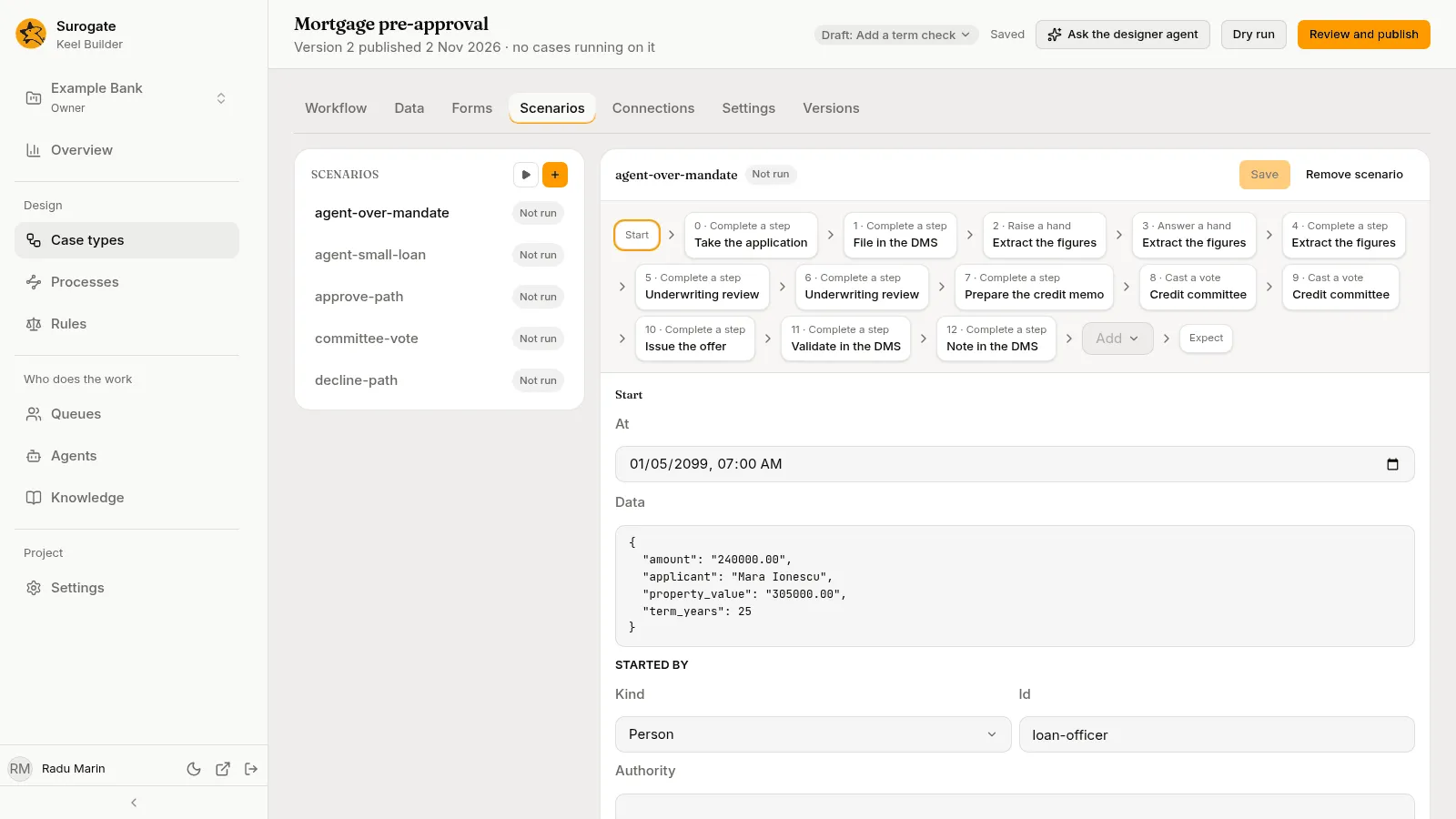
Your changes stay on screen until you press Save, which saves them in the draft. Discard drops them. If you leave the scenario with changes not saved, Keel Builder asks Discard your changes? first. After you change a scenario, its last result says “This result is of the last saved version.” If someone else changes the scenario while you edit it, it says “This scenario changed while you edited it. Saving replaces that change.”, with Use the latest to drop your changes and read theirs.
Typing data
Section titled “Typing data”Some boxes, such as a scenario’s Data, take field values. Type each field’s name in double quotes, a colon, then its value; separate the pairs with commas, and put them all between curly braces. Text, decimals, dates and choices go in double quotes; whole numbers, and true or false for yes or no, do not. For example: {"applicant": "Ioana Popescu", "amount": "20000.00", "term_years": 25}. A box left blank means none.
If Keel cannot read what you typed, the box says so, such as “Write the data as a JSON object.”, and the scenario says “A JSON box holds text that cannot be read. Fix it to save this scenario.” Fix the text, or ask the designer agent to write it.
- At: when the case starts, in your time zone.
- Data: the values the case starts with, typed as above.
- Started by: who starts it. Kind is a Person, an Agent or a System; Id names them, such as
loan-officer. Authority holds the limits they have, if a step checks authority: each scope and its limit, such as{"lending": "500000"}. Blank means none.
The things that happen to the case, in order. Steps count from 0. The Add menu picks the kind:
| Kind | What you fill in |
|---|---|
| Complete a step | The Step, its Outcome, its Output (the values the step writes, typed as above), its Sources (for each value, where an agent found it; blank for none), and who did it (Done by; by default, The step’s performer). |
| Cast a vote | The Step, the Choice, and who voted (Cast by). |
| Raise a hand | The Step, the Question, the Choices it offers (one per line), the Evidence (a list between square brackets; blank for none), and who raised it (Raised by). |
| Answer a hand | The Step, the Reply, a Note, and who answered (Answered by). |
| Send an event | The Event, its Payload (the event’s values, typed as above), and who sent it (Sent by; by default, No one). |
| Start an action | The Action, and who started it (Started by). |
| Move the case | Where it goes (To), the Reason, and who moved it (Moved by). |
| End a process | The Process, a process node that waits; its Status: Completed, Ended, Failed, Cancelled or Not started; the Error a failed process ended with, or why its start was refused; and the Variables it ended with, typed as above. |
| Let time pass | A Duration, so timers and service levels can fire. |
Who did a step is picked as under Started by: a Kind, an Id and any Authority.
Each step but Let time pass has an At: “A time with its offset, or + and a duration after the step before. A minute after it when blank.” For example, +PT1M is one minute after the step before.
Expect
Section titled “Expect”What must hold once the steps are played:
- Path: the nodes the case must pass through, in order. The Add menu adds one; each has a cross to remove it. Empty, it reads Any path.
- Status: Any, Open or Closed.
- Resolution: how the case closed, such as
approved. - Data: field values the case must hold, typed as above. Fields you leave out are not checked.
- Rejections: steps that Keel must refuse, each by its Step number and the refusal’s Code, such as
authority. Add rejection adds one. With none, it reads None expected.
Remove a scenario
Section titled “Remove a scenario”Remove scenario asks first, Remove name?: “Its file is deleted from the draft.” Press Remove.
Test one step
Section titled “Test one step”Scenarios play a whole case. To try one agent step alone, press Test this step in the step’s panel: it runs the step’s agent once on inputs you give, with no case. See Test an agent step.