The Team page and supervisors
Supervisors run the people side of a project. The Team page shows “Who works this project: its staff, its queues and its agents.” From it, supervisors invite and remove staff, staff the queues with people and agents, turn agents off and on, and set authority limits. Supervisors also reassign work items and move cases by hand, and read the Overview: how the project is doing.
The project’s owners appoint the first supervisors in Keel Builder (see Supervisors). Staff who are not supervisors have no Team row; a link to the page shows “Only the project’s supervisors see the team.”
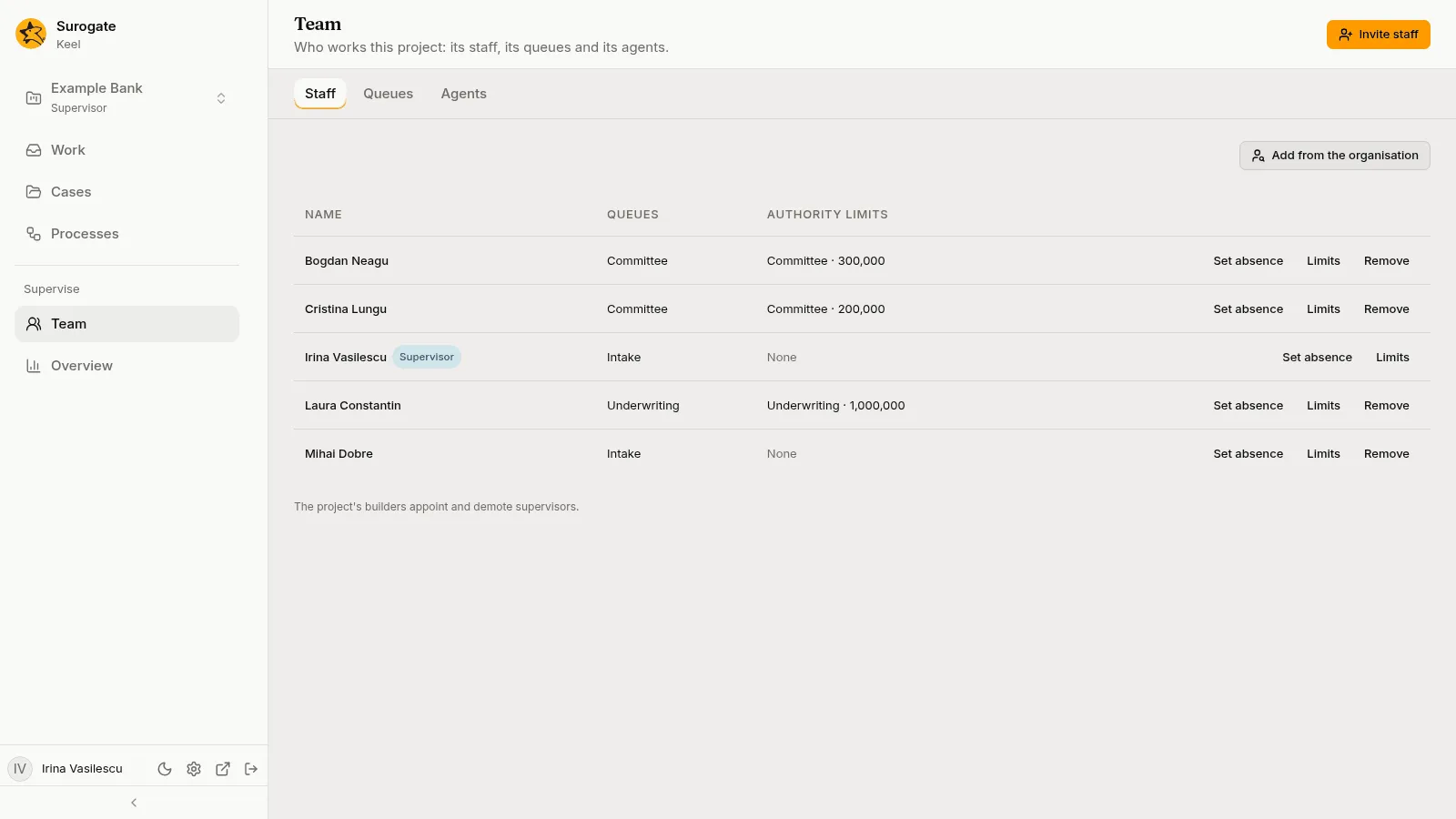
The Staff tab lists the project’s staff: each person’s Name, marked Supervisor where they are one, the Queues they work, and their Authority limits, or None.
Add someone
Section titled “Add someone”Two ways:
-
Add from the organisation: for someone who already has a work account in the project’s organisation. Search by name and pick them; people already on the staff show dimmed. Keel says name is on the staff.
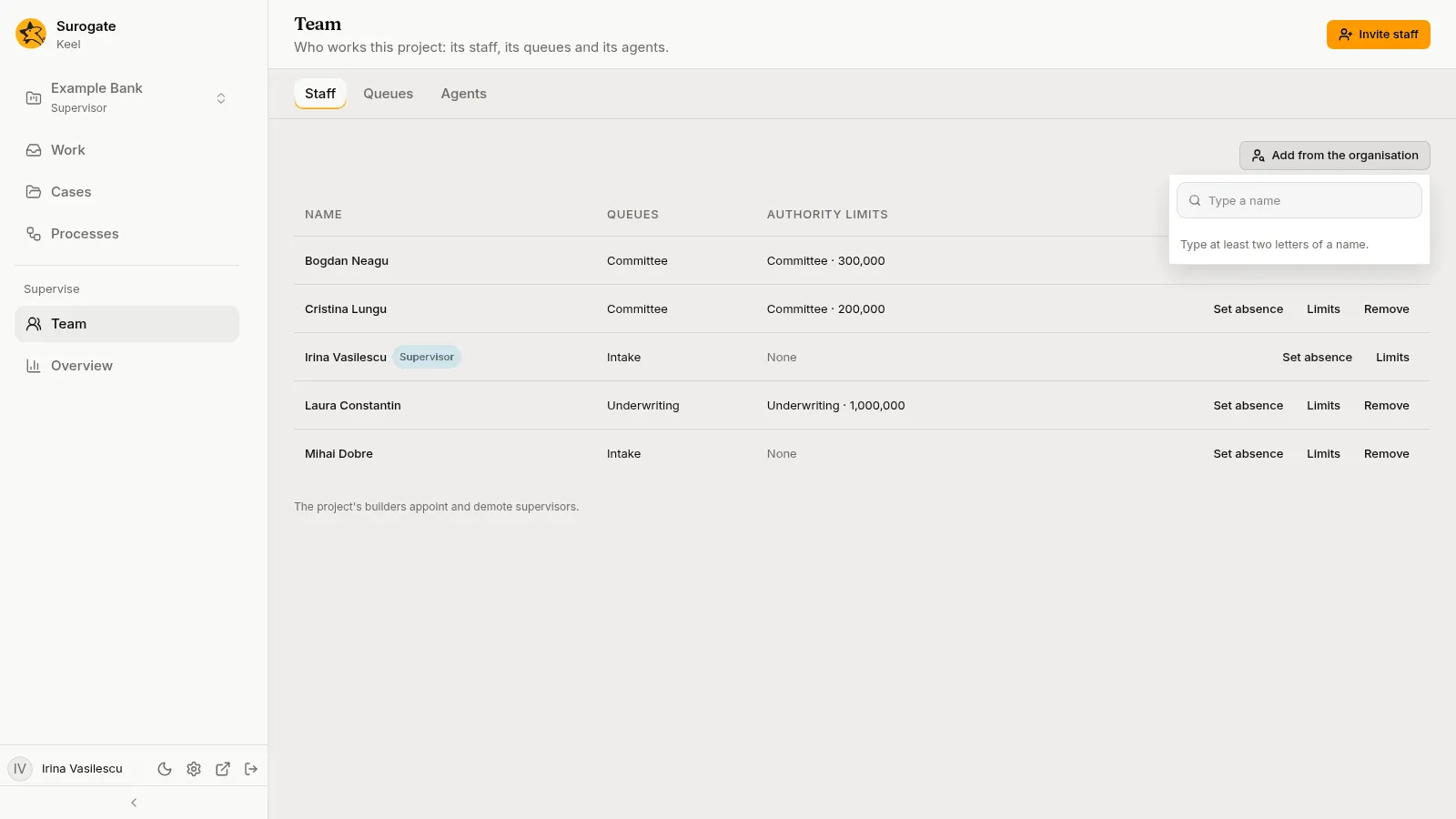
Add from the organisation open: a Type a name field and "Type at least two letters of a name." -
Invite staff, in the page header: for anyone, by email. “Add a person to this project’s staff by their work email.” Enter the Email and Name, then press Invite.
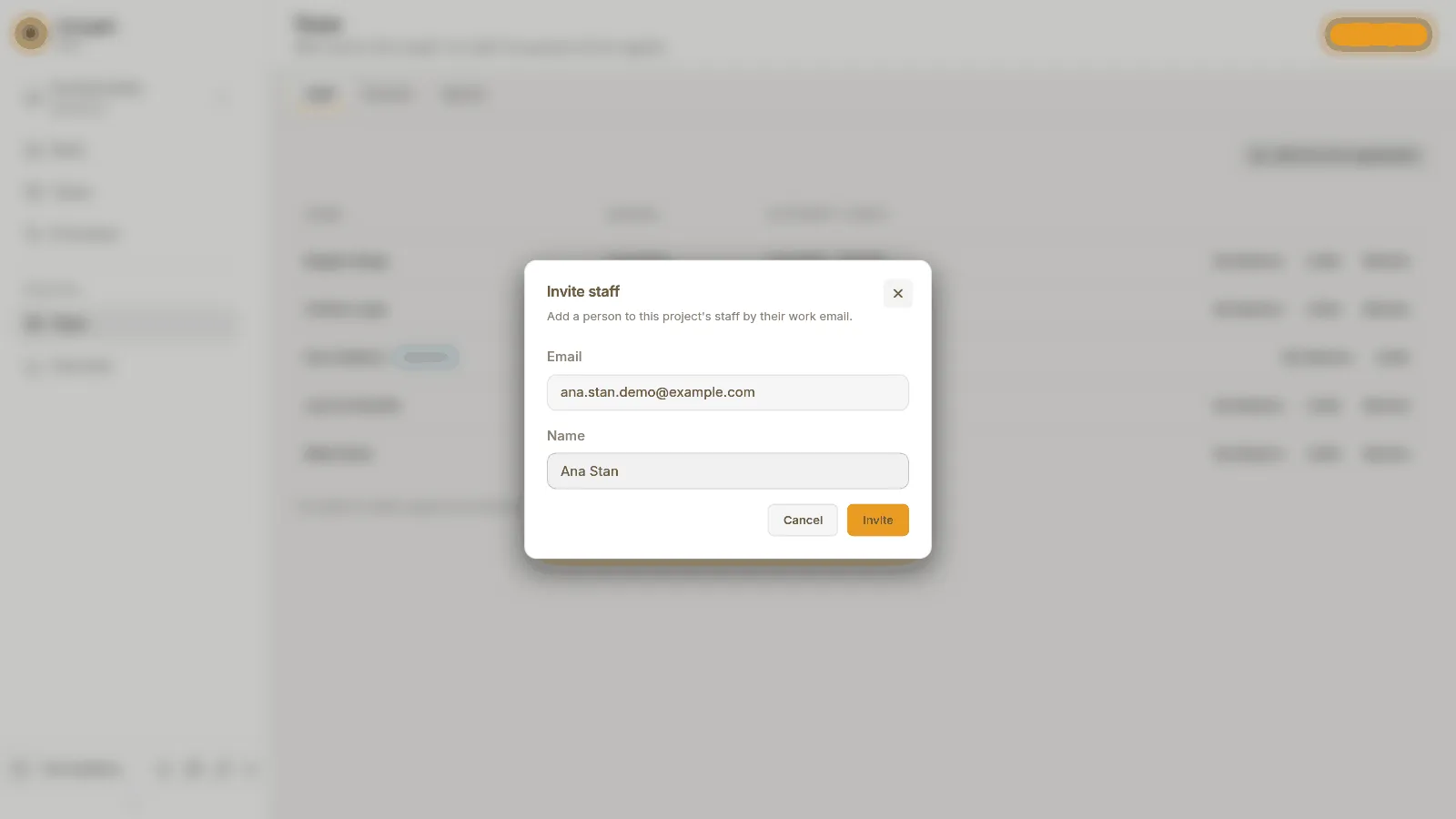
The Invite staff dialog: Email and Name filled in, with Cancel and Invite.
The invitation’s answer says how the person signs in, and gives a link to send them when there is one. Where Keel sends email, it emails the person the link itself and says so, for example Keel emailed name a link to set their password. If it does not reach them, send them this one., and the link is still shown to copy:
- Send name this link to set their password. A new password account gets a set-password link. “It works once, until” the time shown.
- Name signs in with Google, GitHub or a password, using their email, with a sign-in link, when the project signs in that way.
- Name is already on the staff.
- Name can sign in with the account they have., with a sign-in link. It adds: “If they have never set a password, their home organisation must invite them again to send a set-password link.”
Press Copy to copy the link, then Done. The dialog shows the link only this once.
Invitations can be refused; see Queues and supervisors for the messages.
Absences
Section titled “Absences”A person who will be away hands their work on from the Work page. A supervisor can do the same for anyone on the staff, from their row on the Staff tab:
-
Set absence on a row opens Set an absence for the person’s name: “While name is away, their items and the new ones that reach them go to a colleague, or back to their queues.” Pick Return their items to the queue or a colleague under People; you are offered, and the person is not. Pick a day under Back on or leave it empty. The dialog says what would move and what would stay before you press Set absence, as it does for a person’s own. Keel says, for example, Mihai Ionescu is away. 1 item went back to its queue.
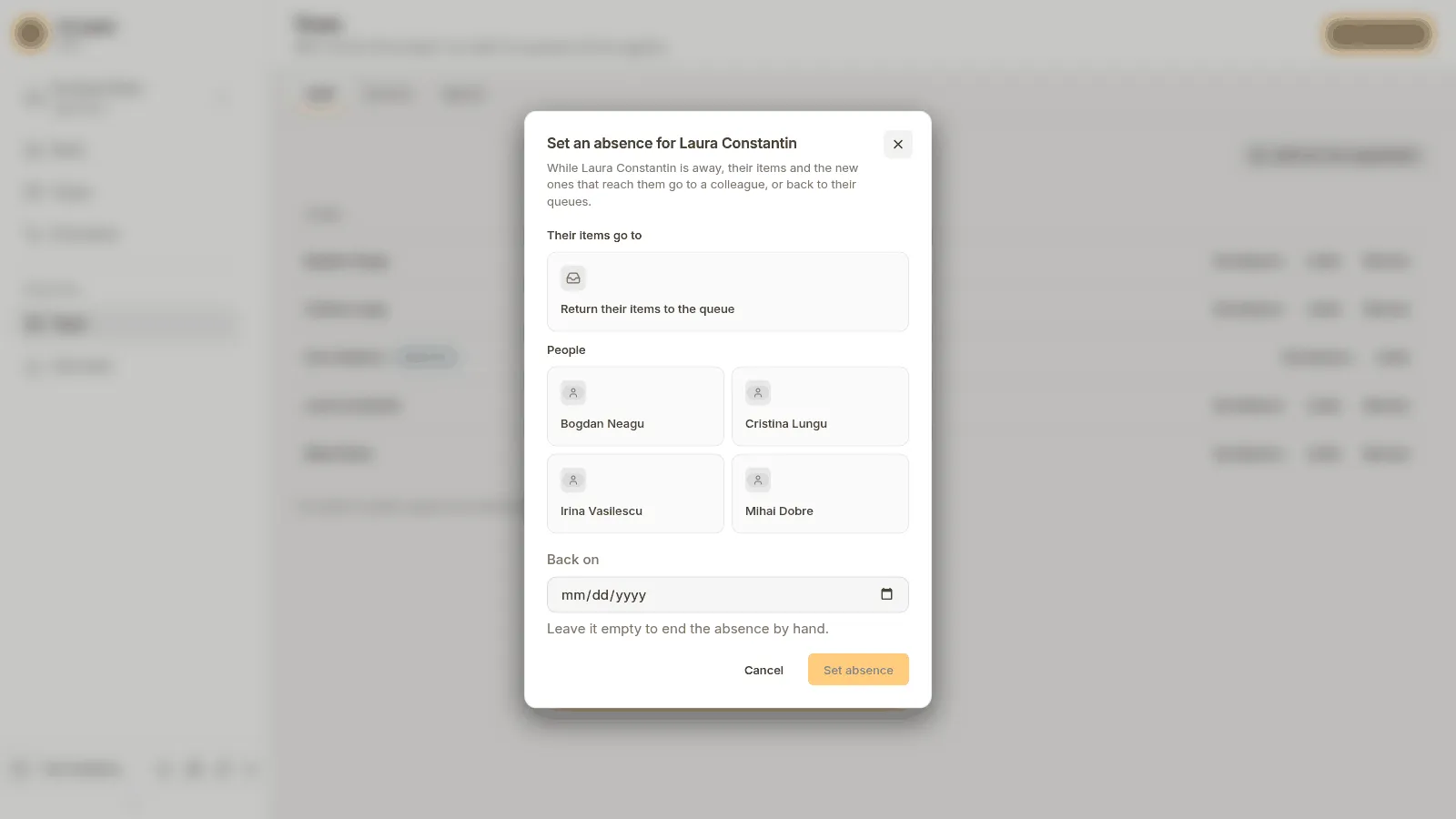
The Set an absence for Laura Constantin dialog: Return their items to the queue, four colleagues under People, and Back on. -
A person who is away shows beneath their name, such as
Out, back on 3 Nov · 2 items went to you, orOut until they end it. Their row offers End absence instead: “End name’s absence?” “New items reach them again. What went to you stays with you.” Keel says “Name’s absence has ended.”
When some of a person’s items cannot move, because they have no queue to return to or the substitute may not do their step, they stay with the person. Every other supervisor of the project then finds a notice in Needs me, “Name is away: n items stayed with them”, listing them, so one of them can reassign the items. An absence is refused when items would stay and the project has no other supervisor to see them: “Some items cannot return to a queue and the project has no other supervisor to see them: choose a substitute, or ask a builder to name a supervisor.”
Remove someone
Section titled “Remove someone”Press Remove on their row. If they were away, their absence ends. Keel asks Remove name from the staff?: “They leave the project’s queues and lose their authority limits.” A supervisor’s row has no Remove; under the list, the tab says “The project’s builders appoint and demote supervisors.” Ask an owner to demote them first.
Queues and members
Section titled “Queues and members”The Queues tab lists the project’s queues in the order Keel serves them. Above them, Load by queue draws how many items wait in each queue, the fullest first; a queue with items past their deadline says how many are late, such as 3, 1 late. Under the bars: “Get next serves the queue with the lowest priority number first.”
Each queue shows its name, its serving order in words, such as “Get next serves votes first, then the nearest deadline.”, its priority, such as Priority 10, and who works it. “Serving order and priority are set by the project’s builders.”
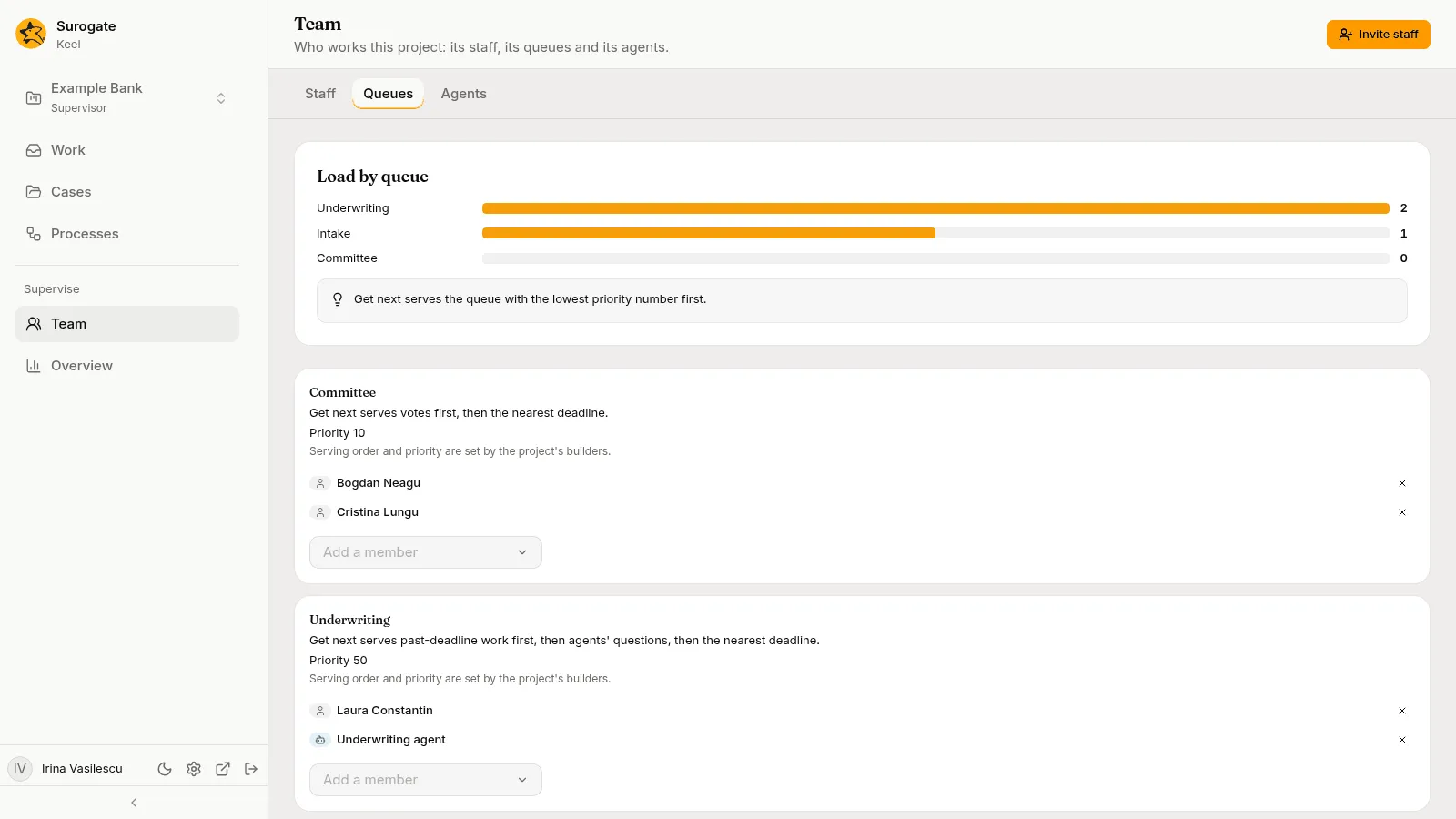
- Each member shows by name, with a mark for a person or an agent. Press × beside a member to take them out of the queue.
- Pick someone from Add a member to add them: the staff under People, and the agents under Agents. Agents a supervisor turned off are not offered, and neither are the project’s helpers. When everyone is a member already, it says “Everyone on the staff works this queue.”
An agent added to a queue takes the queue’s waiting items at once, in its serving order, and new ones as they come. See Agents in queues and as delegates.
A queue no one works says “No one works this queue yet.” Its work waits there until someone joins.
From a team queue on the Work page, Queue settings opens the same members for that queue.
With no queues, the tab says This project has no queues yet: “The project’s builders define its queues.”
Agents
Section titled “Agents”The Agents tab lists the agents the project’s case types and processes use, each with whether it Works its steps, and its Authority limits.
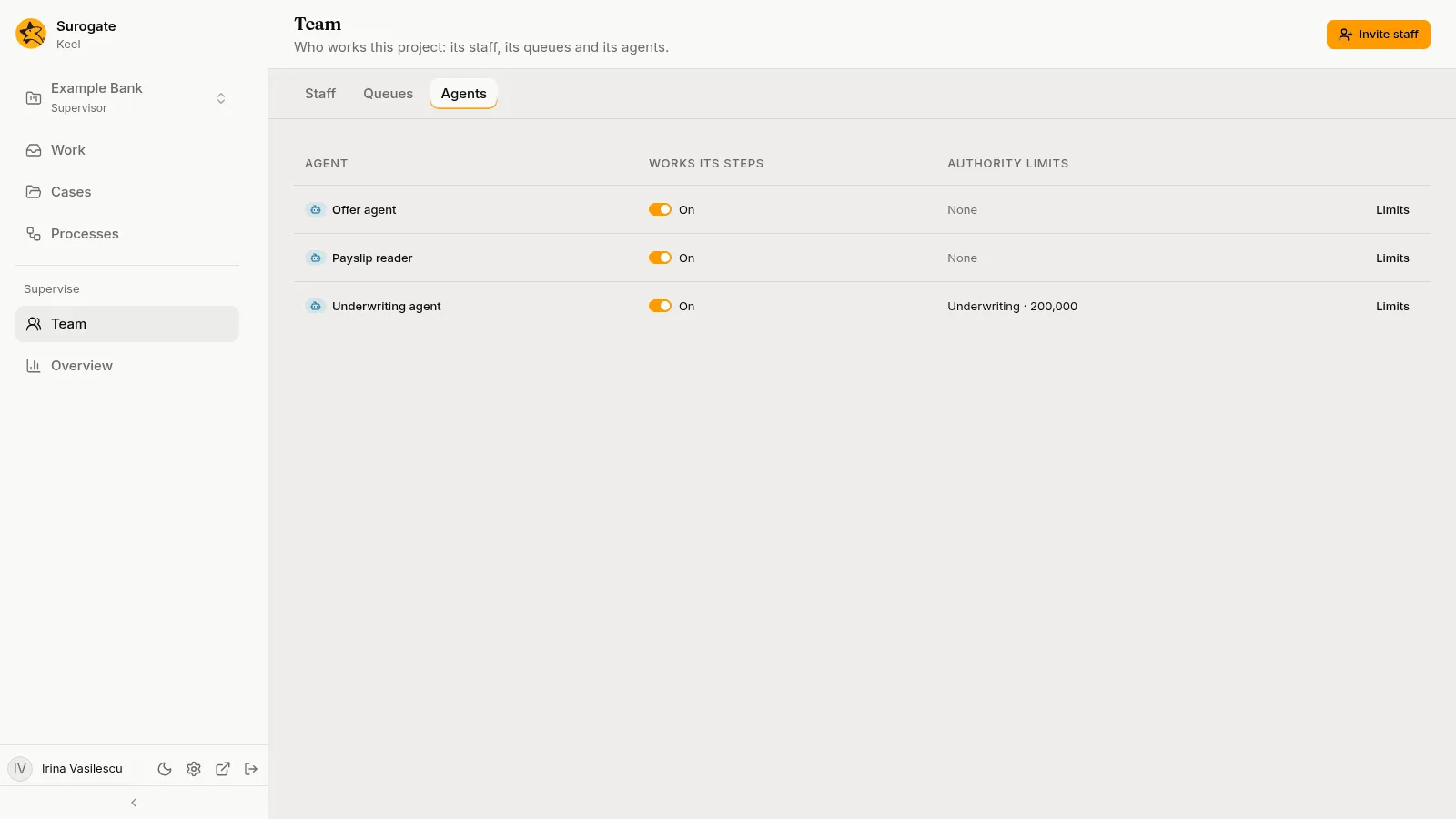
- Turning the switch off asks Turn off agent?: “People work each of its steps that opens from now on.” Its new steps go to people in the queue that gets its questions; steps it already works carry on. So do the tasks of a process: each that starts from then on goes to people in the queue named for the agent’s questions, and a task an agent drafts for a person is the person’s to work alone. It is no longer offered as a queue member, a delegate or a Reassign target. The row then reads Off since the date, with who turned it off.
- Turning it on applies at once.
With no agents, the tab says No case type or process of this project uses an agent.
Authority limits
Section titled “Authority limits”An authority limit is the most a person or an agent may approve in a scope, such as lending. A step with an authority check, or a process’s task with one, refuses anyone whose limit in its scope is lower than the amount, and anyone with no limit there.
Press Limits on a person’s row on the Staff tab, or on an agent’s row on the Agents tab. The dialog, Authority limits of name, says “The most name may approve in each scope. A change applies at once.”
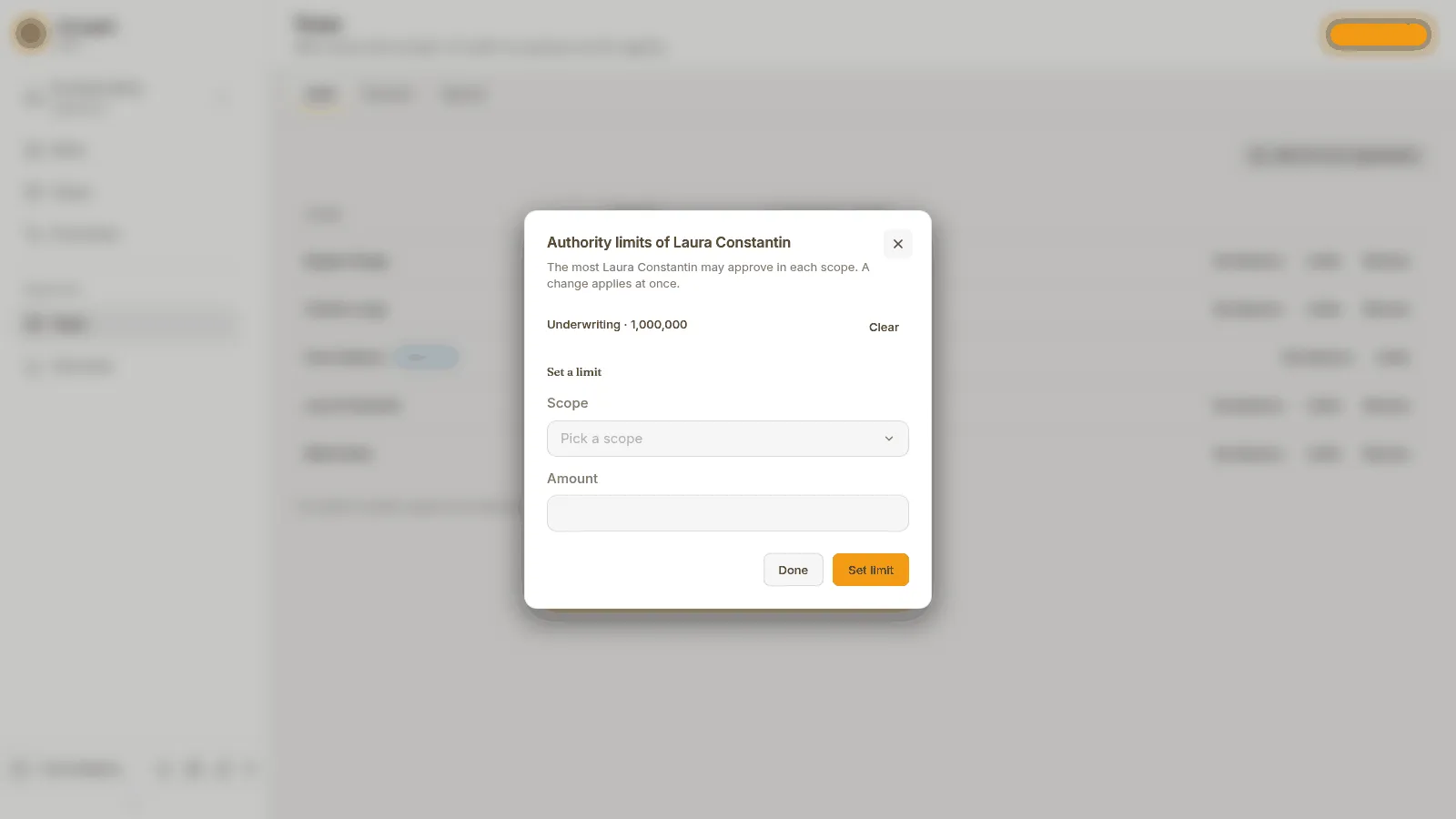
- Each limit held is listed with Clear. Clearing asks first: “Name may then approve nothing in scope.”
- Under Set a limit, pick the Scope and type the Amount, then press Set limit. The scopes are those the project’s published case types check; each says which step checks it, such as “Checked by Approve the loan in Loan request”. An amount is zero or more, with at most six decimal places.
A limit held in a scope no published case type checks now says “No published case type checks it now.” If no case type checks any scope yet, the dialog says “No published case type checks an authority limit yet.”
Reassign an item
Section titled “Reassign an item”A supervisor can give any open work item but a vote to someone on the staff or to an agent, whoever holds it now. Open the item on the Work page and press Reassign. See Reassign an item.
Move a case by hand
Section titled “Move a case by hand”A supervisor can move a case to any stage, or to a step of a stage, with a reason. Use it when a case is stuck, or went somewhere it should not have.
- Open the case and press More actions, then Move by hand….
- Under Move to, pick where the case goes: From the start of a stage, or one of the stage’s steps, votes or waits.
- Type the Reason. It is required: “Say why the case moves.”
- Press Move case.
“The case leaves its open steps and goes where you pick. The move and your reason are kept in its history.” Keel says Moved to the place you picked.
Move by hand… is offered on open cases. Steps on a parallel path are not offered, since a case moved onto one would wait at the join for paths no move opens. If a move would leave the case with nothing to do, Keel refuses it and says why.
Retry a process’s incident and cancel a process
Section titled “Retry a process’s incident and cancel a process”A BPMN process’s instance can need a supervisor: an agent task whose agent failed for good, a call to a system that failed for good, or a timer that could not fire. The Processes page finds them under its Needs a supervisor tab, and the instance’s page shows them first, under Needs a supervisor.
- Retry starts the task again. A call that may have reached its system before it failed asks first: “Its call may have reached system before it failed. A retry calls system again.” Check the system, then press Retry.
- More actions on a running instance has Move to version 3…, when its process has a newer version than the one the instance runs, and Cancel the process…. Move to version 3… checks whether the instance can carry over to the new version and, if it can, moves it: see Move to the current version. Cancel the process… asks for a Reason, which Keel keeps in the instance’s history, and withdraws everything still open in the process. It is the way out of a timer that could not fire.
See An open process.
What else supervisors see
Section titled “What else supervisors see”- The Overview, after Team in the left rail: figures, what needs attention, case types and where cases wait. Its Open the agents link opens the Agents tab above.
- Queue settings on each team queue of the Work page.
- Reassign on open work items, except votes.
- Open Keel Builder in the bar at the bottom of the left rail, to open the project in Keel Builder. Using it needs a Surogate account that is a member of the project.
- Everything staff see: supervisors work cases like anyone else.
What staff who are not supervisors see
Section titled “What staff who are not supervisors see”Staff see the Work, Cases and Processes pages, start cases and processes, work the steps given to them or their queues, answer agents’ questions, delegate and return their items, message agents and watch sessions. They do not see the Team page, the Overview, Queue settings, Reassign, Move by hand…, Open Keel Builder, Retry, Move to version… or Cancel the process… on a process, or its Needs a supervisor card.