Processes
The Processes page lists the instances of the project’s BPMN processes, running and ended. Its header offers New process. All staff see all the project’s instances. The page keeps itself current.
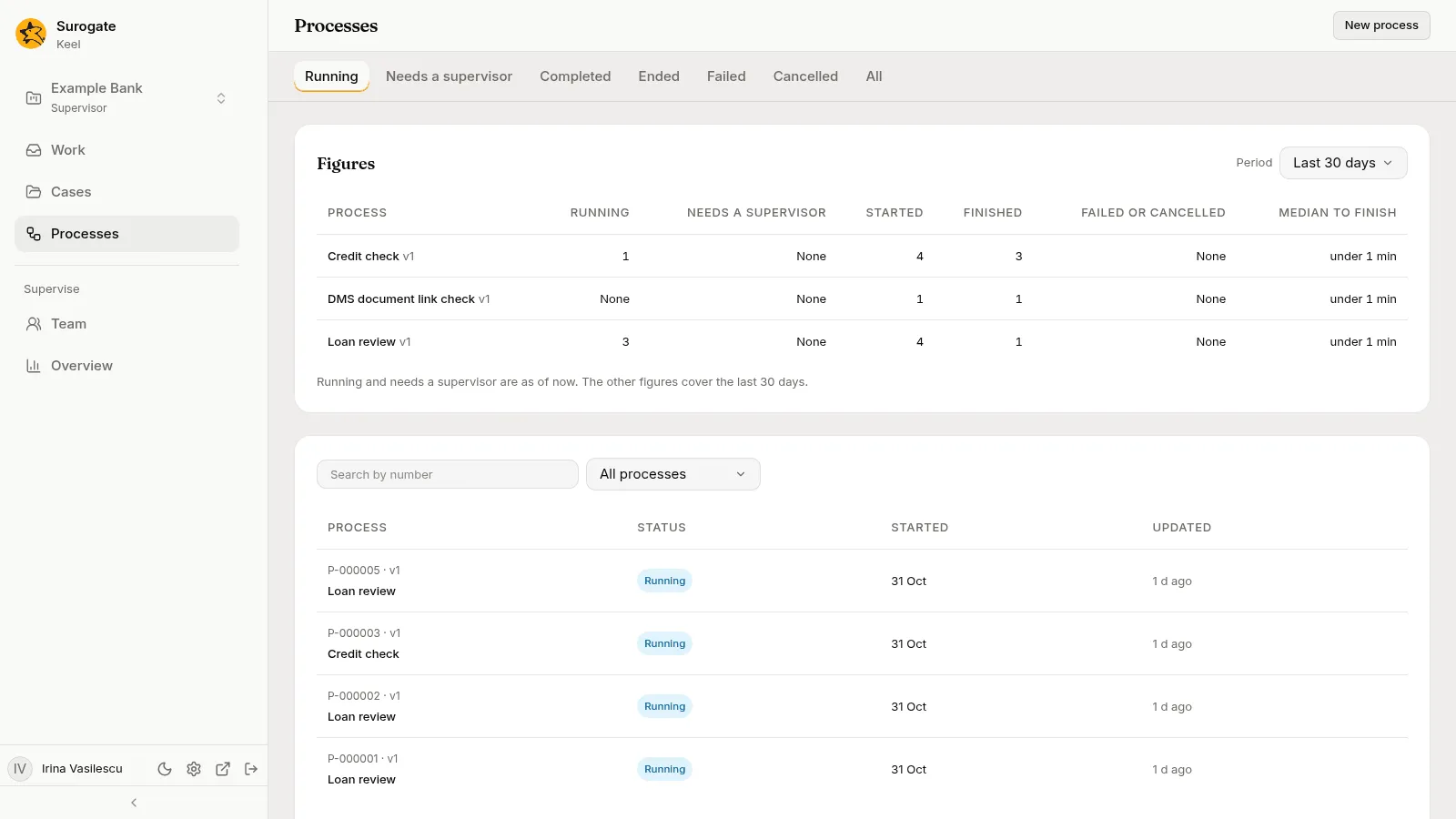
An instance is one run of a process, such as one loan review. Its number, such as P-000002, counts the project’s instances of every process. Supervisors see the processes’ figures above the list, and the Overview never counts the instances among the cases.
Figures (supervisors)
Section titled “Figures (supervisors)”Supervisors see a card Figures above the list, with how the project’s processes did. Other staff do not see it, and a supervisor demoted while the page is open loses it. The list below it is the same in each case.
Period, beside the card’s heading, offers Last 7 days, Last 30 days and Last 90 days. It opens on 30 days. The address keeps the period and the process, so a link to the page keeps them.
With All processes in the filters, the card shows a table labelled Processes: a row for each process the project has published, by name, with its current version muted after it, such as Loan review v3. Its columns are:
| Column | What it shows |
|---|---|
| Running | The instances running now. |
| Needs a supervisor | The instances with an incident or a timer that could not fire, now: the count of the Needs a supervisor tab. |
| Started | The instances that started in the period. |
| Finished | The instances that completed or ended in the period. |
| Failed or cancelled | The instances an error ended, or that were cancelled, in the period. |
| Median to finish | The median time from start to finish of the instances finished in the period, such as 4.2 d. — when none finished. |
A count of none reads None. Under the table: “Running and needs a supervisor are as of now. The other figures cover the last 30 days.” With no process published, the card says “No process is published in this project yet.”
Press a process’s name to pick it: the filter and the list narrow to it, and the card shows its figures. The card then shows the process’s six figures as tiles (screen readers hear them as Figures of Loan review), with the same caption. Finished adds 28 completed · 2 ended when any ended, Failed or cancelled adds 1 failed · 3 cancelled when any failed or was cancelled, and Median to finish adds 90% within 4.2 d. Under them is Tasks, a table of the process’s tasks over all its versions:
| Column | What it shows |
|---|---|
| Task | The task’s name. |
| Waits on | What the task waits for: A person, An agent, A system, A case, A called process, A message, A signal, A timer, The first of its events or Its own tasks. |
| Open | The tasks waiting now, such as 4, or 4 · 1 past deadline. |
| Done | The tasks that left in the period by completing, or by ending in a BPMN error. |
| Median time | The median time the done tasks took, from their start to their end. |
| Met deadline | Of the done tasks, the share that were not past their deadline, for a task with a service level. — for others. |
| Waited to be taken | For a person’s task, the median time from the opening of its work item to its taking, or to its closing when nobody took it; an item handed to a person when it opened waited nothing. — for others. |
| Incidents | The incidents raised on tasks that left in the period. |
Under it: “Open is as of now. The other figures cover the tasks done in the last 30 days. A task that runs for each item counts each of its instances.” A process with no task to measure says “This process has no task to measure.” Figures says what each figure counts.
While another period or process loads, the card keeps the last answer, dimmed. When Keel cannot read the figures, the card says The figures could not be loaded with the reason and Try again. A read that takes too long says “The figures took too long to read. Try a shorter period.” A period or process that cannot be read replaces the figures with the reason, in Keel’s words, and Try again; Period stays. The card is not read again when the list changes. Period, picking a process and Try again read it again.
Finding an instance
Section titled “Finding an instance”The tabs sort instances by how they stand:
| Tab | What it lists |
|---|---|
| Running | Instances that are running. This tab opens first. |
| Needs a supervisor | Instances with a task that holds an incident, or a timer that could not fire. |
| Completed | Instances that reached their end. |
| Ended | Instances a terminate end event stopped. |
| Failed | Instances an error ended that no boundary event caught. |
| Cancelled | Instances a supervisor cancelled. |
| All | Every instance, whatever its status. |
The filters narrow the list:
- Search by number: matches the instance number, such as
00012orP-0000. It searches once you type two characters and pause. - All processes, or one process, by name.
The address keeps the tab, the process and the search, so you can share a link to them. The Running tab is the default and is not written in it.
What a row shows
Section titled “What a row shows”| Column | What it shows |
|---|---|
| Process | The instance number and the version it runs on over the process’s name, such as P-000002 · v1 over Loan review. The whole row opens the instance. |
| Status | Running, Completed, Ended, Failed or Cancelled. An instance that needs a supervisor also shows Needs a supervisor. |
| Started | The day the instance started. |
| Updated | How long ago it last changed, such as 2 h ago. A phone does not show it. |
Under the list, Showing 25 processes counts the rows shown, and Show more loads the next ones.
With no instance in a tab, the page says No processes here. When Keel cannot read the list, it says The processes could not be loaded with the reason and Try again. When it cannot read the processes to pick from, the filters say “The processes to start could not be loaded.”
Starting a process
Section titled “Starting a process”-
Press New process. The page asks you to “Choose the process to start.”
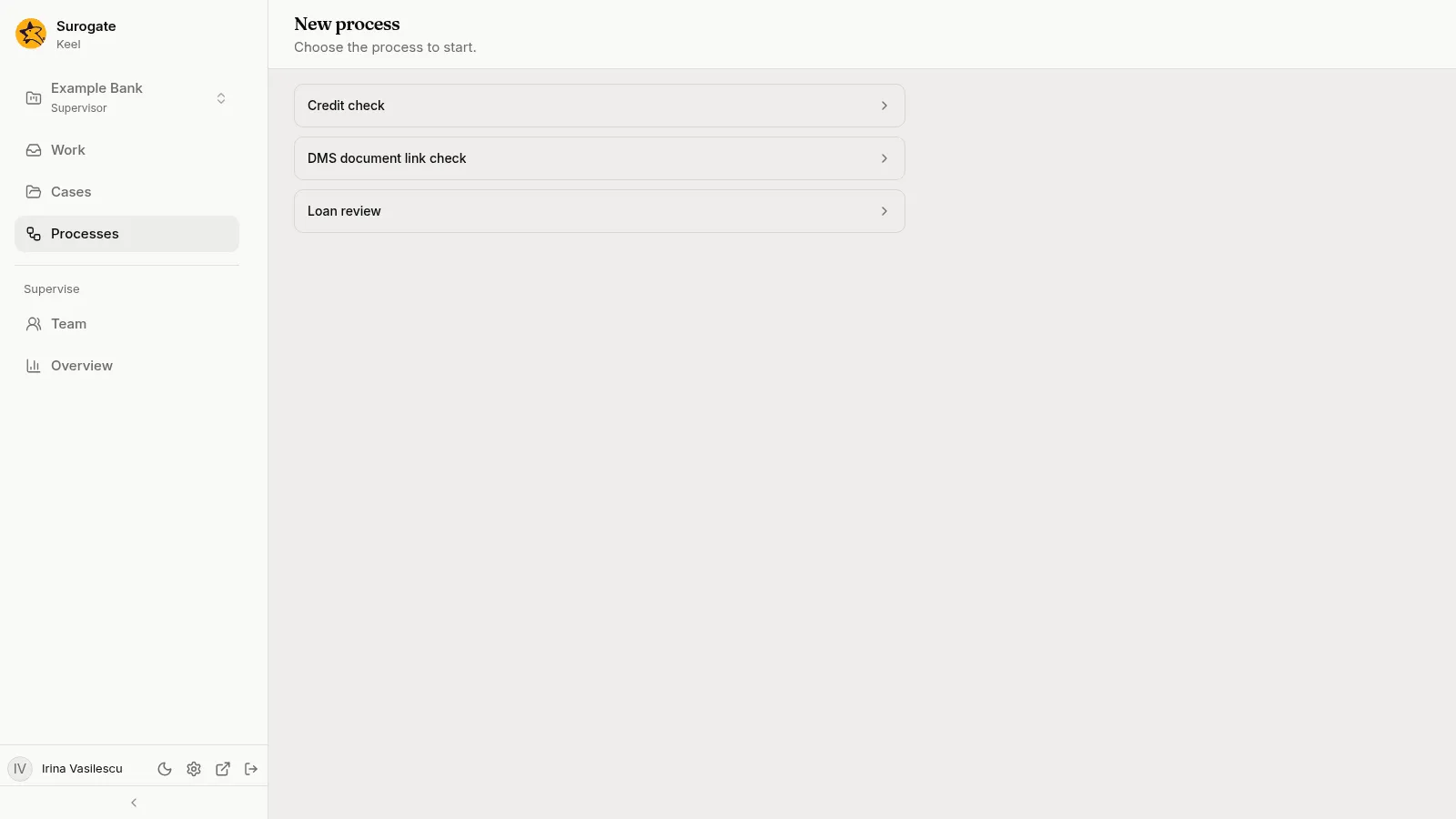
The New process page: Choose the process to start, with three processes listed. -
Pick a process. Its start form opens, with the variables the process requires.
-
Fill in the form and press Start. Cancel goes back to the instances.
The instance opens on its page. Every process the project has published whose current version can start is listed. With none, the page says No process to start: “Processes start once the project’s builders publish one.”
A link to a process that is not among those you may start says This process cannot be started: “It is not among the processes that may start.” Choose a process lists them. A process that requires nothing says “This process asks for nothing to start.” and shows Start and Cancel without a form.
If Keel refuses the form, the reason shows beside the field it names, or above the form when it names none. An empty required field reads Required. beside it, and nothing is sent. Pressing Start twice, or again after an error, never starts two instances from the same form.
Instances also start without you: a case’s process node starts one, and another system connected to the project can start one.
What the page does not offer
Section titled “What the page does not offer”An instance is not a case. The list has no Get next: the Work page’s Get next serves the tasks of processes as well. An instance has no files, no Follow and no re-run. See An open process.