Case types
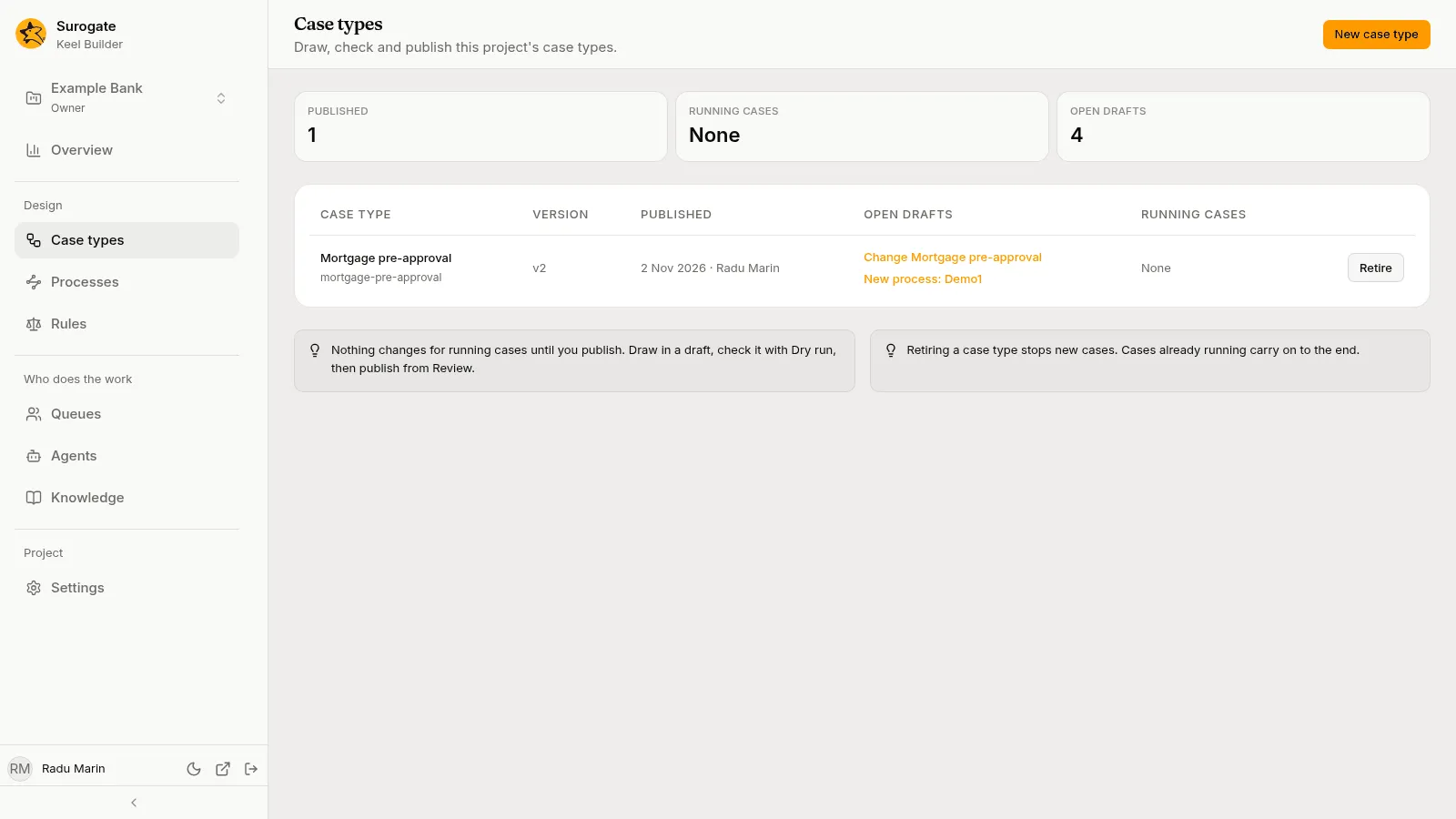
The Case types page lists the project’s case types: “Draw, check and publish this project’s case types.” Press a row to open that case type in the designer.
The list
Section titled “The list”Above the table, three figures count the case types Published, the Running cases and the Open drafts.
| Column | What it shows |
|---|---|
| Case type | The name, with the key under it. A retired case type is marked Retired. |
| Version | The current published version, such as v3. |
| Published | When the current version was published, and by whom; Not published for a case type only drafts hold. |
| Open drafts | The open drafts that change this case type. Each is a link that opens the designer in that draft. |
| Running cases | How many cases are open on each version, newest first, such as 41 on v3 · 2 on v2; None when no case is open. |
A case type that exists only in a draft is listed too, under its key made readable. It opens in the newest draft that holds it. A project with no case types says No case types yet.
Create a case type
Section titled “Create a case type”Editors and owners see New case type in the page header.
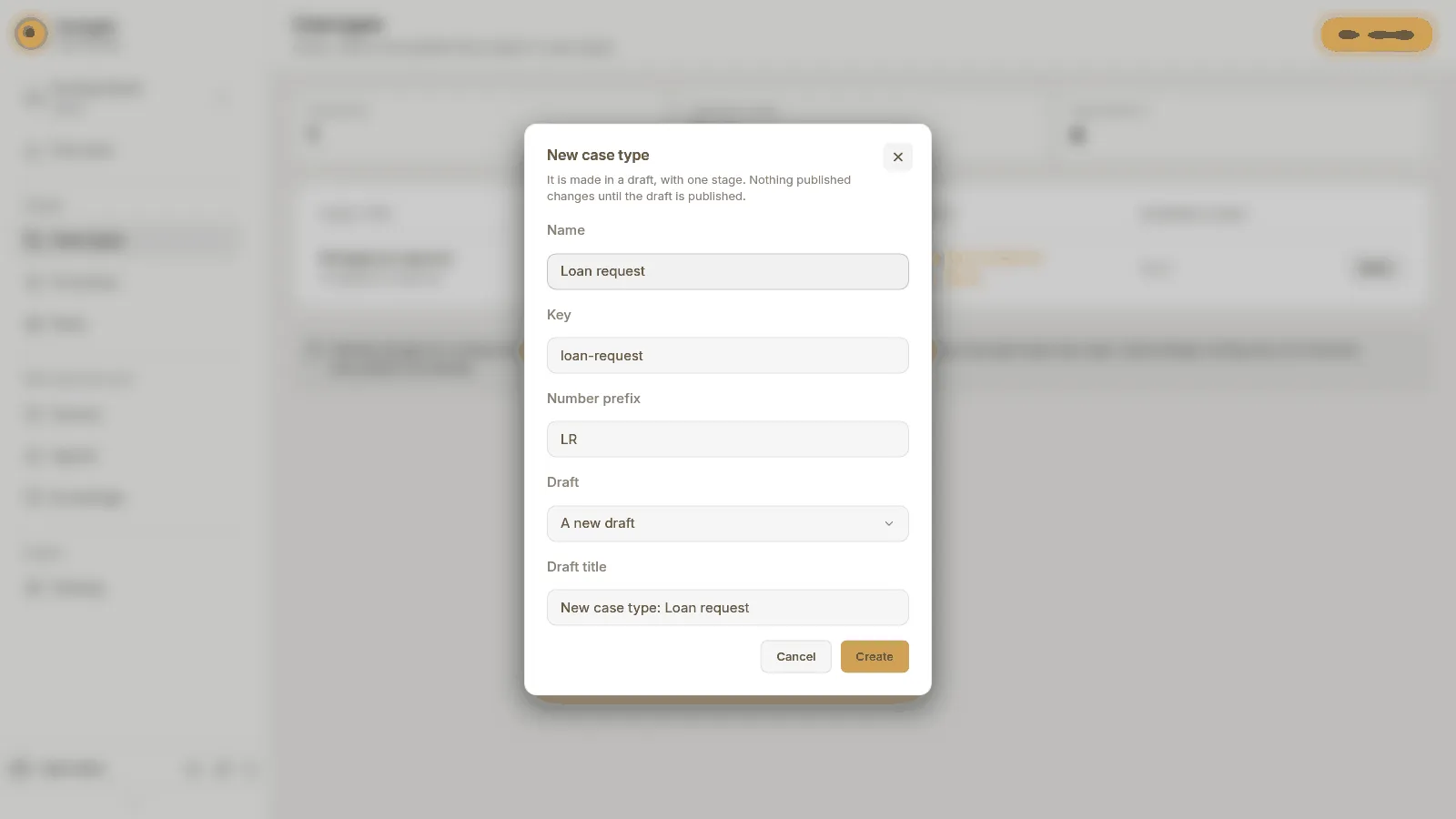
- Press New case type. The dialog says: “It is made in a draft, with one stage. Nothing published changes until the draft is published.”
- Type a Name, such as
Loan request. - Check the Key and the Number prefix. Both fill in from the name; change them if you need to.
- The key identifies the case type. It is letters, digits,
-and_, starting with a letter or a digit, and no other case type may have it. - The number prefix starts every case number, such as
LR-000001. It is up to 32 letters, digits,-and_, starting with a letter or a digit. Two case types of a project cannot share a prefix.
- The key identifies the case type. It is letters, digits,
- Pick the Draft to make it in: A new draft, or one of the open drafts. A new draft asks for a Draft title, which starts as
New case type: <name>. - Press Create.
The new case type has one stage, First stage, with nothing in it, and no fields. The designer opens on it in the draft. Nothing published changes until the draft is published.
Retire a case type
Section titled “Retire a case type”Retiring a case type stops new cases. Cases already running carry on to the end. Editors and owners see Retire at the end of each published case type’s row.
- Press Retire. The dialog asks Retire name?: “Nobody will be able to start new cases of name.”, followed by how many running cases continue.
- Press Retire.
A retired case type shows Retired beside its name, and Reinstate instead of Retire. Reinstate lets people start its cases again, at once. Neither needs a draft or a publish.
The designer
Section titled “The designer”The designer’s header shows the case type’s name and, under it, its published version: for example Version 3 published 12 Oct 2026 · 41 cases running on it, or Not published yet. On the right of the header is the draft bar. In a draft, editors and owners also see Ask the designer agent, Dry run and Review and publish there.
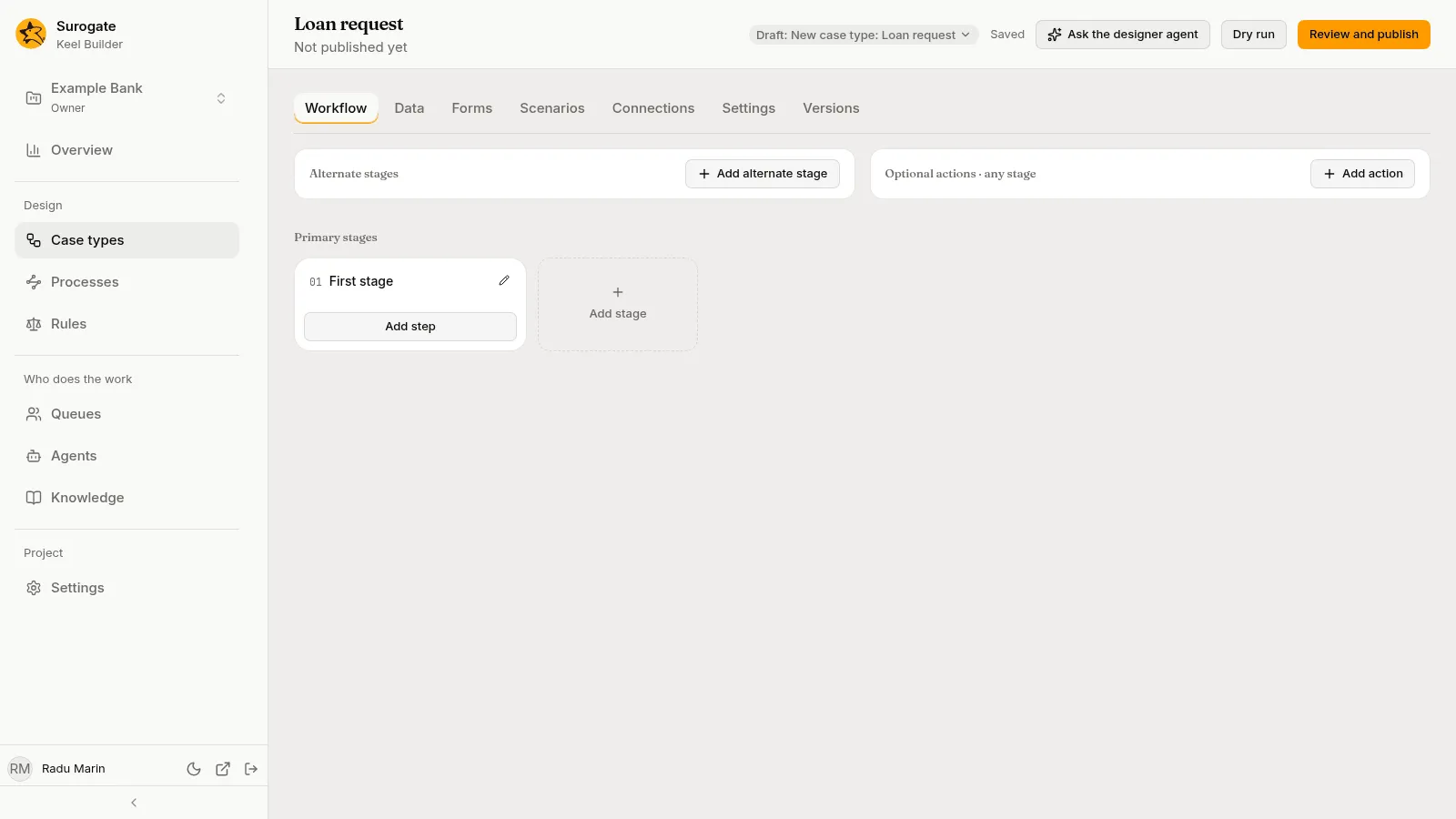
Under the header are the designer’s tabs:
| Tab | What it holds |
|---|---|
| Workflow | The stage board, each stage’s flow, and the panel of the node you pick. See Workflow. |
| Data | The case type’s fields. See Data. |
| Forms | The layout of each step’s form and of the start form. See Forms. |
| Scenarios | Stored test cases that every dry run plays. See Scenarios. |
| Connections | The other systems its system steps call, and their credentials. See Connections. |
| Settings | Name, number prefix, calendar, service level, pinned rules, knowledge, intake agents, case events, title and summary fields. See Case type settings. |
| Versions | Every published version, and moving running cases. See Versions. |
The address of the page keeps the tab, the draft, and what is open on it, so you can copy a link to a node or a form and paste it to a colleague.