The Data tab
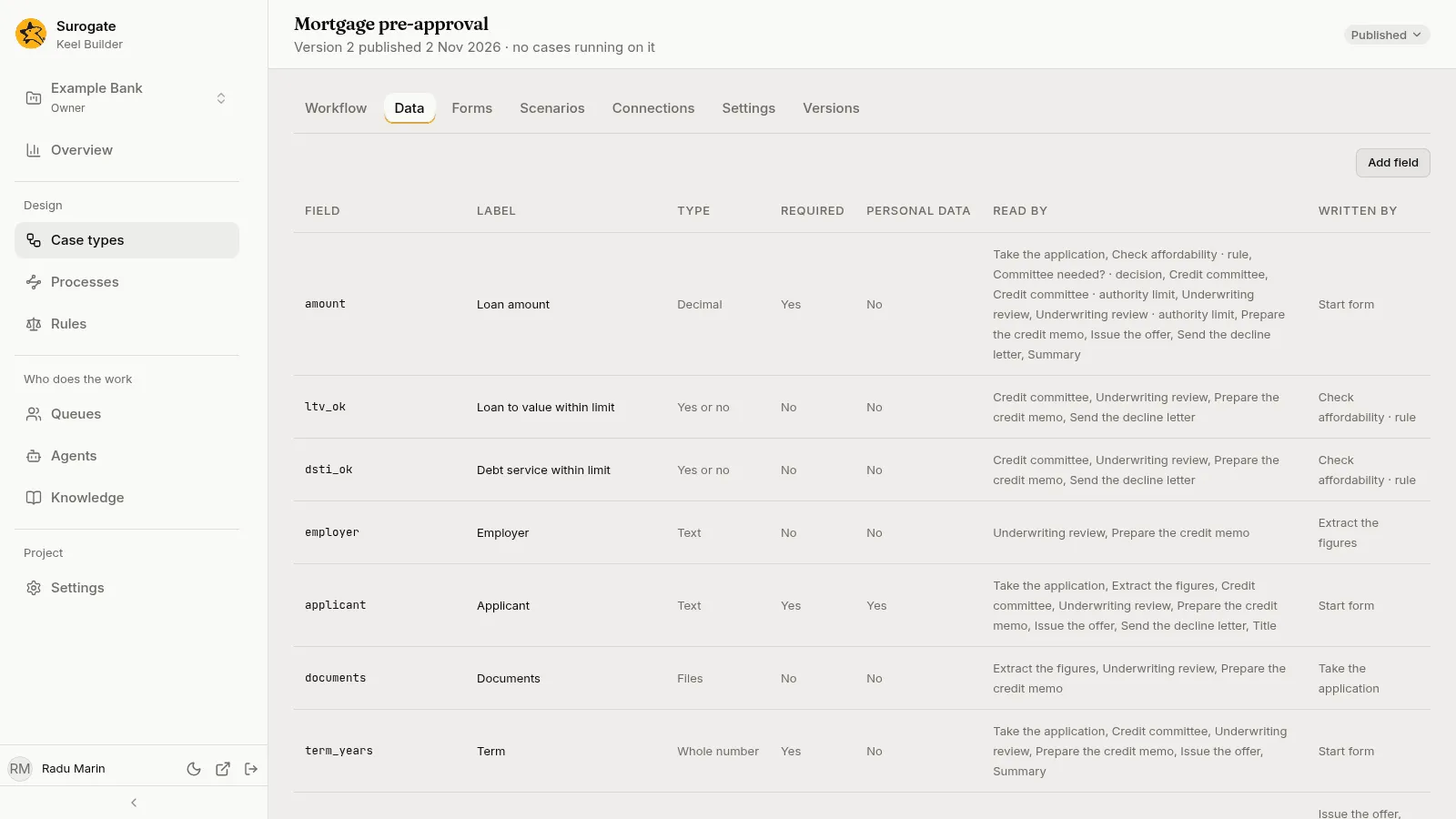
The Data tab lists the case type’s fields: the data every case of the type carries. Steps read and write fields, decisions and rules test them, and forms are made from them.
The field list
Section titled “The field list”| Column | What it shows |
|---|---|
| Field | The field’s name, as conditions and templates use it. |
| Label | What people see. |
| Type | The field’s type in words, such as Text, Decimal, Choice of 3 or Files for a list of files. |
| Required | Yes when every case must start with a value. |
| Personal data | Yes when the field is marked as personal data. |
| Read by | Where it is read: steps by name, and decisions, rules, waits, conditions, the title and the summary. |
| Written by | Where it is written: steps by name, rules, and the Start form. |
Keel works out Read by and Written by from the case type as you edit it. A field nothing reads or writes yet shows None. While Keel works, the columns stay empty; if it cannot work them out, a warning says why.
Add or change a field
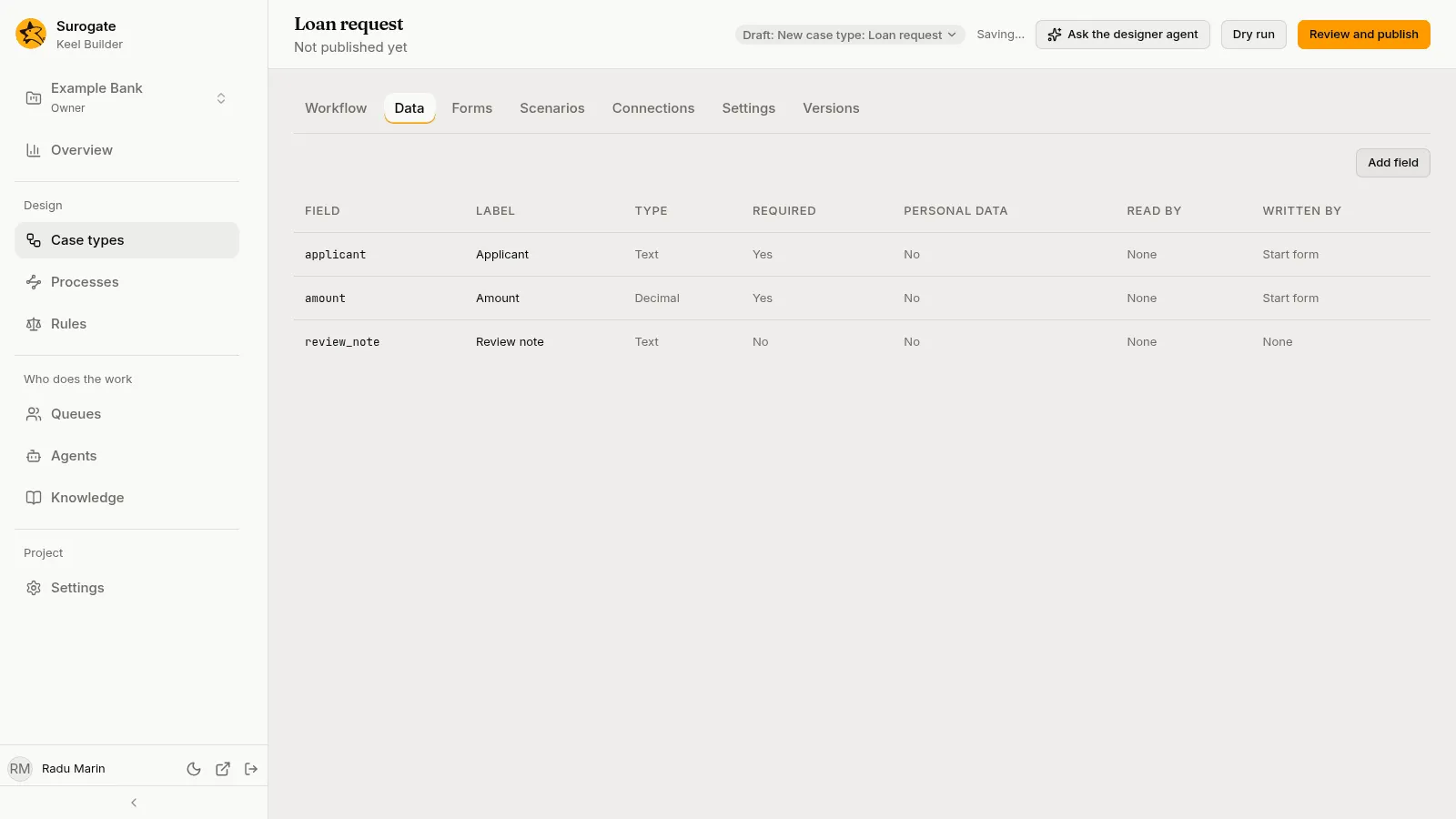
Section titled “Add or change a field”Editors and owners press Add field; anyone can press a row to open a field.
| Setting | What it is |
|---|---|
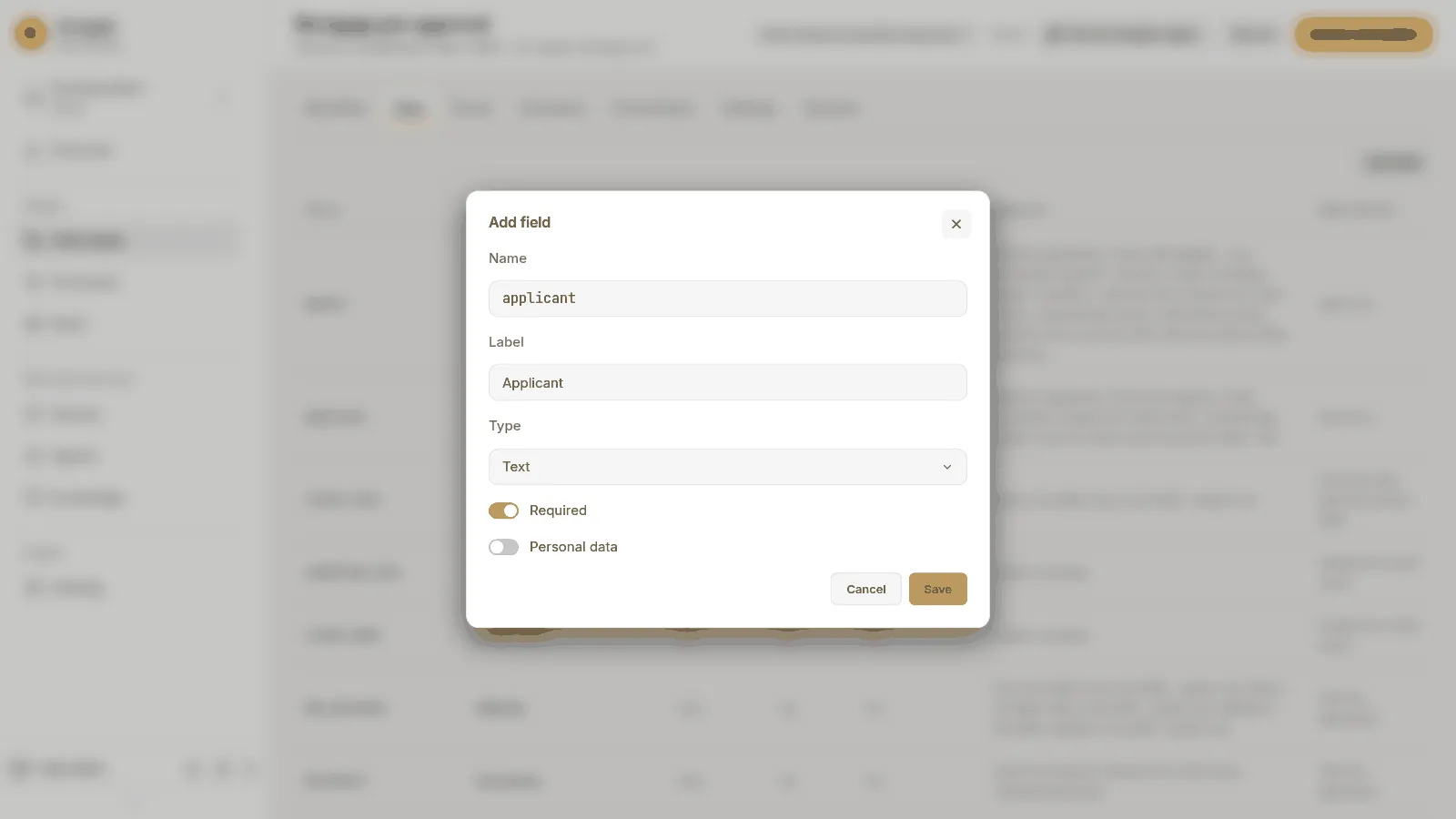
| Name | Lower-case letters, digits and _, starting with a letter, such as loan_amount. It cannot be changed once the field exists, and some words, such as now, in or int, are taken. |
| Label | What people see, such as Loan amount. |
| Type | Text, Whole number, Decimal, Yes or no, Date, Date and time, Choice, File, List or Object. |
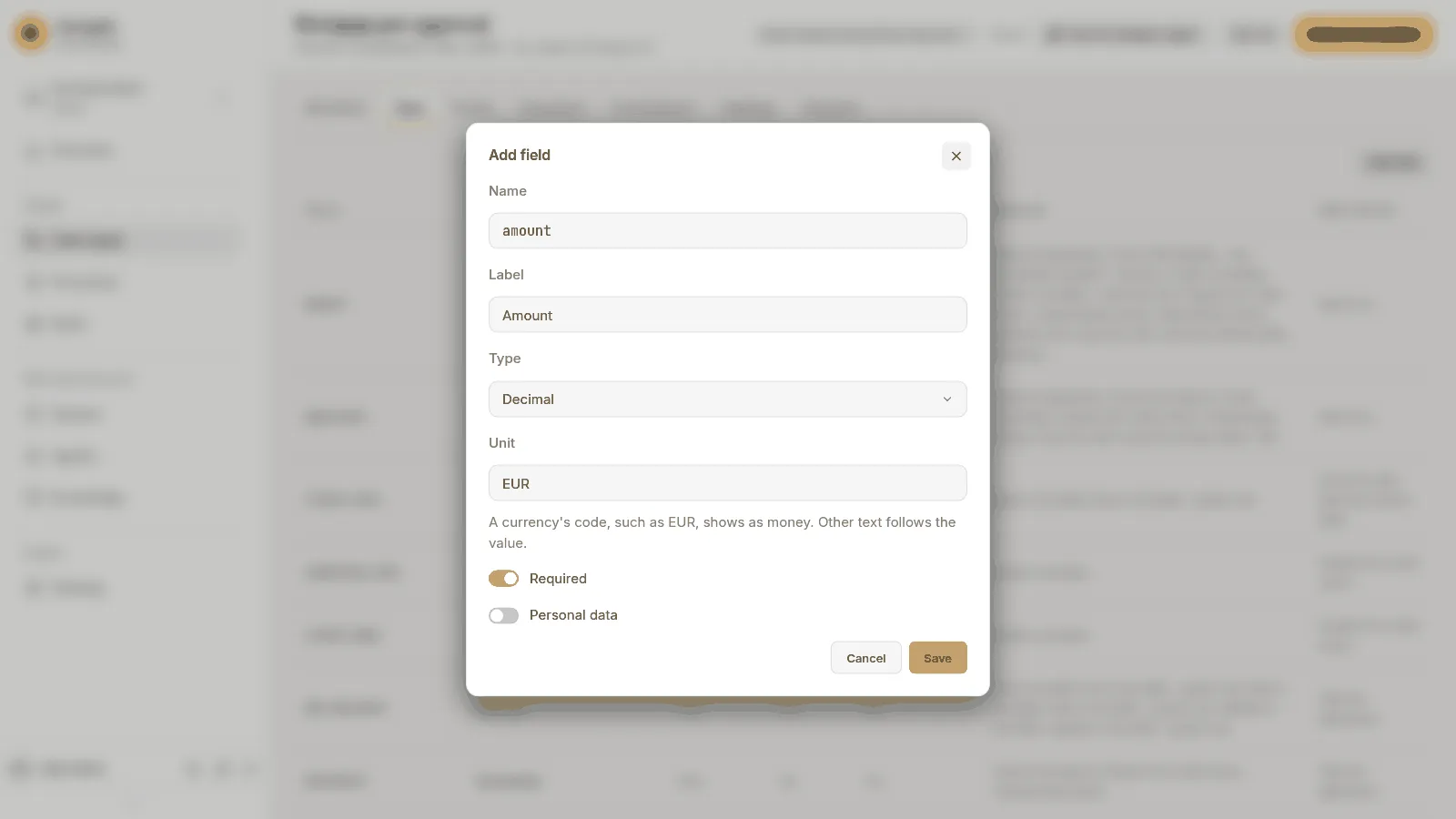
| Unit | For a whole number or a decimal. “A currency’s code, such as EUR, shows as money. Other text follows the value.” |
| Choices | For a choice: each with a Value and a Label. Add choice adds one. |
| Items | For a list: the Item type, and what that type takes. A list of files holds several documents. |
| Fields | For an object: its own fields, each with a Name, a type and Required. |
| Required | A case must start with a value: the start form always asks for it. |
| Personal data | Marks the field as holding personal data. |
Press Save. Viewers see the same dialog with Close.
Remove a field
Section titled “Remove a field”Open the field and press Remove field. Keel Builder asks first, Remove label?: “No step requires it any more. Steps and forms that name it, and the case’s title and summary, will need changing.” Press Remove. Run a dry run afterwards to find them.
Files and documents
Section titled “Files and documents”A File field holds one file and a list of File items holds several. In the business app, a step that writes a file field lets the person add the file from its form, and the case’s files panel lists every file of the case. Office documents open there in the web editor. See Files and documents.