Sign in to the business app
The business app, Keel, at https://keel-app.surogate.ai, is where a project’s staff work cases. You sign in with your work account of the project. Your supervisor gives you the link to your project, or a link to set your password.
Your first sign-in: the set-password link
Section titled “Your first sign-in: the set-password link”When a supervisor or a project owner invites you, they send you a set-password link.
- Open the link. The page is titled Set the password for your email: “Choose the password you will sign in with.”
- Type a Password and type it again in Repeat the password.
- Press Set password.
The app signs you in and opens your Work page. The link works once, until the time your supervisor was shown. A used or expired link says This link cannot be used: “This link is not valid or has expired. Ask your supervisor for a new one.”
If you open the link while signed in, the page says You are signed in: “To set a password from this link, sign out first, then open the link again.” It offers Open your work and Sign out.
Signing in
Section titled “Signing in”The sign-in page is titled Sign in to and your project’s name: “Use your work account.”
- Type your Email and your Password.
- Leave Remember me on to stay signed in on this browser.
- Press Sign in.
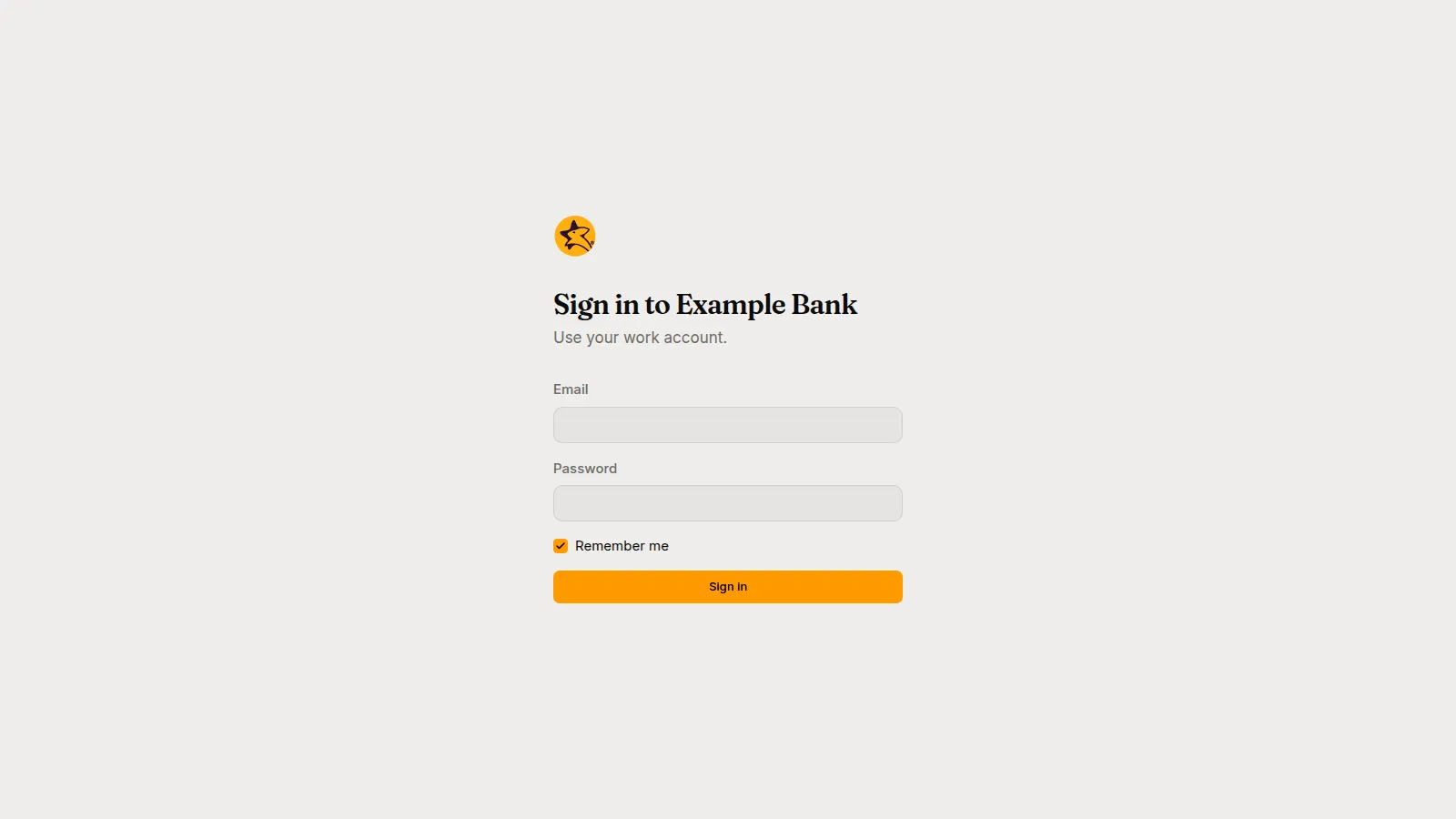
When your project signs in with Google or GitHub, the page also shows Continue with Google or Continue with GitHub. Some projects show only those buttons.
If sign-in does not work, the page says why:
| Message | What to do |
|---|---|
| Wrong email or password. | Check both and try again. |
| Too many attempts. Wait a minute and try again. | Wait, then try again. |
| You have no account in project**. Ask a supervisor to invite you.** | Your Google or GitHub account is not one of the project’s. Ask to be invited. |
| This project does not exist. | Open the link your supervisor sent you. |
| This project has no way to sign in yet. Ask a supervisor. | The project’s sign-in is not set up. |
| Cannot reach Surogate. Try again. | A temporary problem; try again. |
If the app cannot tell which project you mean, it asks Which project?: “Open the link your supervisor sent you.”
Your projects
Section titled “Your projects”One sign-in serves every project you are on the staff of. The switcher at the top of the left rail lists them by name; pick one to open the same page in that project, with no new sign-in. The app opens the project you used last.
If the app does not let you in, it says why:
- You are not on any project’s staff yet: “Ask a supervisor to add you.”
- You are not on this project’s staff: “Ask a supervisor to add you.”
- This project does not exist, or it is not yours: the link is wrong, or you were removed.
The left rail
Section titled “The left rail”The rail lists the pages of the project. Supervisors also see Team and Overview, under Supervise.
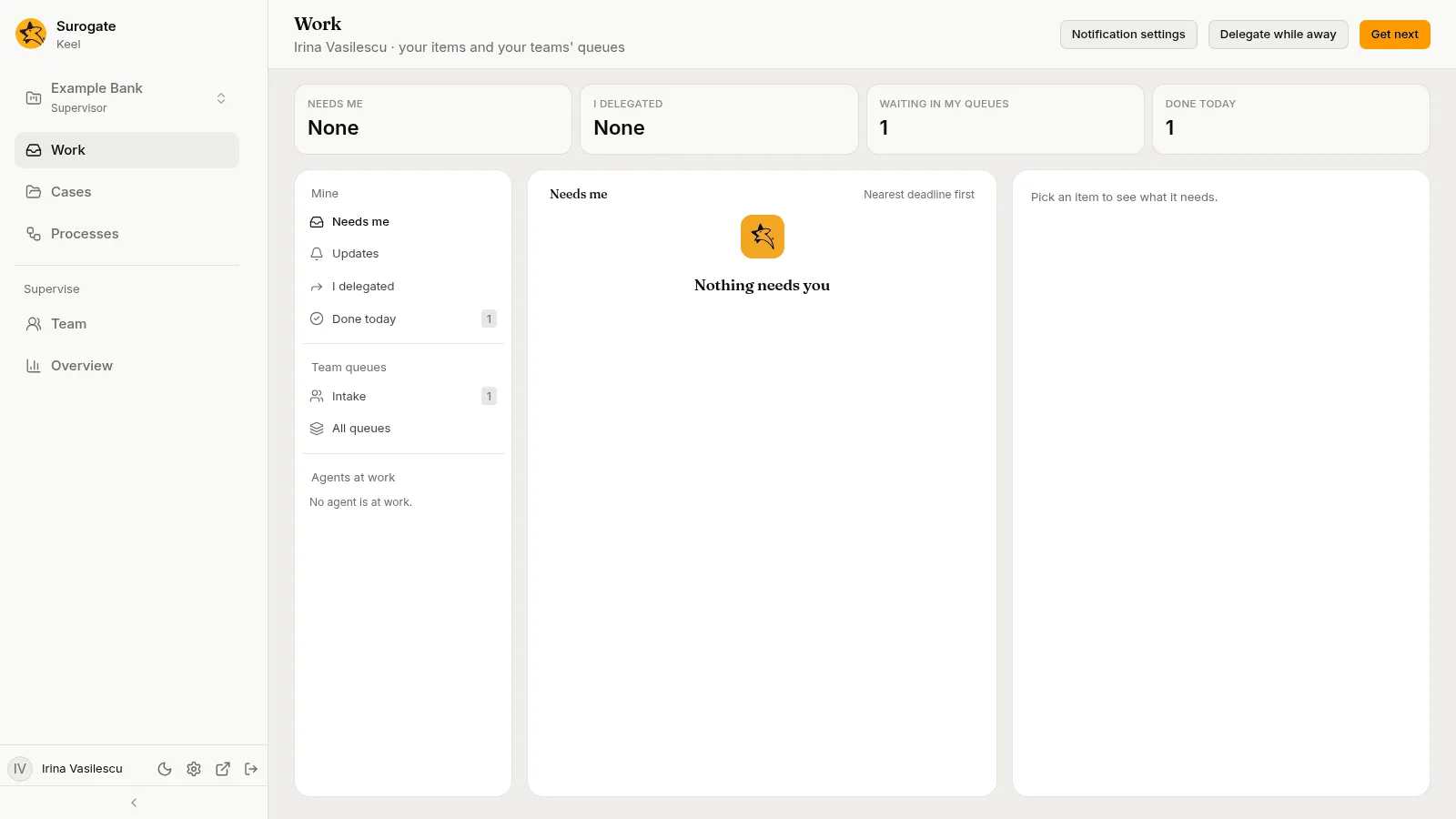
| Row | Who sees it | What it holds |
|---|---|---|
| Work | Everyone | Your items, your team queues and the agents at work. Its badge counts what needs you. See The Work page. |
| Cases | Everyone | Every case of the project, and new cases. See Cases. |
| Processes | Everyone | Every instance of the project’s processes, and new ones. See Processes. |
| Team | Supervisors | Staff, queues, agents and authority limits. See The Team page. |
| Overview | Supervisors | How the project is doing: figures, what needs attention, case types and where cases wait. See The Overview. |
The bar at the bottom shows your name and these buttons:
- Dark theme or Light theme switches the app’s colours.
- Your settings opens Your settings.
- Open Keel Builder, for supervisors only, opens the project in Keel Builder in a new tab. Using it needs a Surogate account that is a member of the project.
- Sign out.
Phones
Section titled “Phones”The business app works in a phone browser. On a phone, the rail opens from the top bar, and lists and details show one at a time.