An open case
A case’s page shows where the case is, the steps that are yours to work, who holds the others, its files, its data and its history, and has the case agent to ask about it. If your project uses the DMS, it also lists the case’s DMS documents. It keeps itself current as the case changes. Open a case from the Work page, the Cases page, or a link a colleague sends.
Keel records each time someone opens a case.
The header
Section titled “The header”- A breadcrumb: Cases / the case number.
- The case’s title, or its number when the case type gives it no title.
- Under it, the case type and its version, such as
Loan request v3, the case’s summary values, and the day it opened. - On the right, Follow, and a button for each optional action available now, such as Ask client for a document. Pressing it starts the action’s step, which then shows like any other step.
- For supervisors, More actions with Move by hand…. See Move a case by hand.
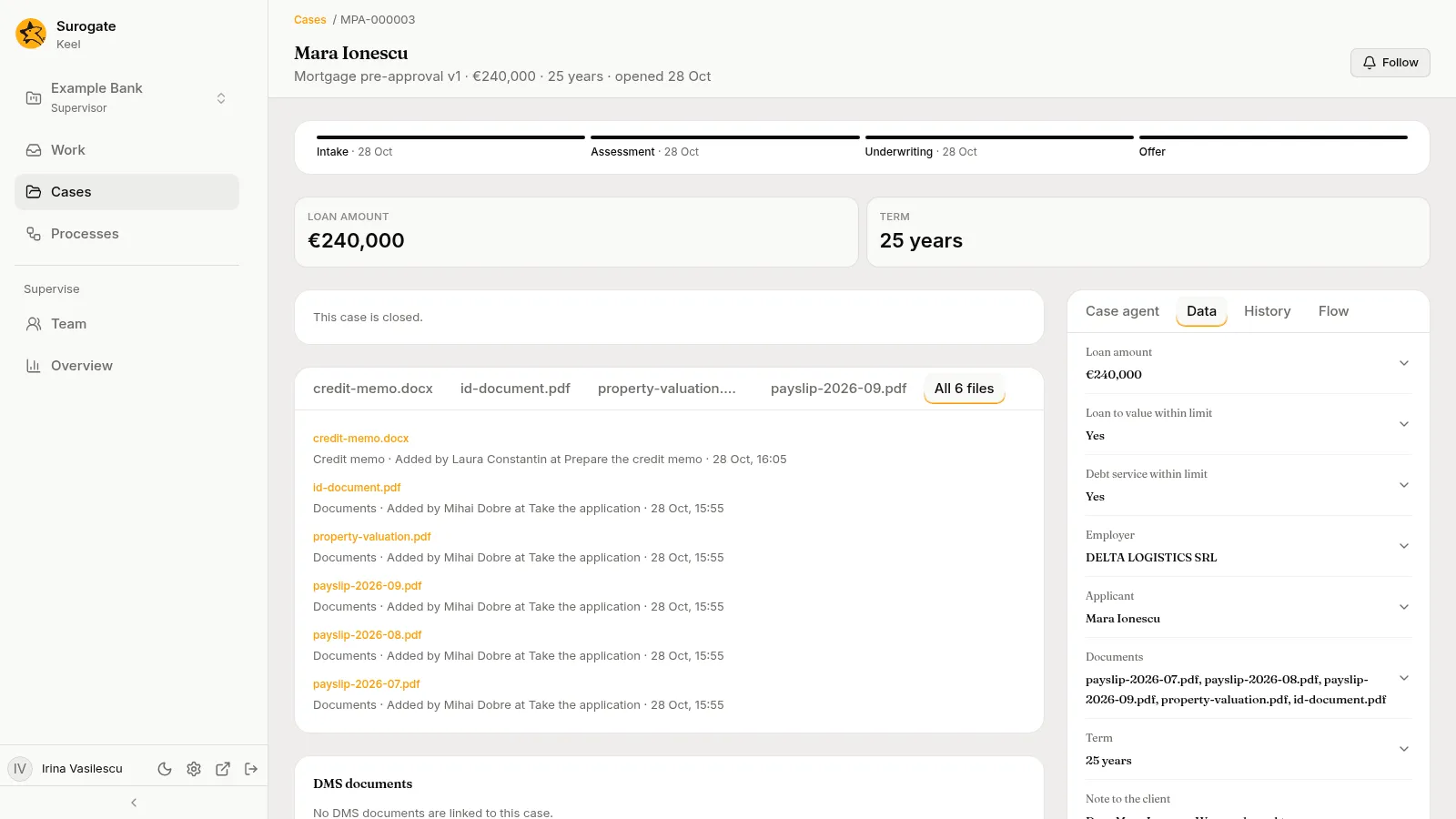
Under the header, a case a BPMN process started shows Started by and the process’s instance, such as P-000001 · Claim settlement, linked to its page. The stage bar shows the case’s stages with their dates: done, current and ahead. The current stage names the steps open in it. Under the stage bar, the case type’s summary values show as figures, such as Loan amount and Term.
Follow a case
Section titled “Follow a case”Follow, in the header, puts the case’s changes in your Updates. It reads Following once you do, and pressing it again stops: Keel says “You follow number. Its changes show in Updates.” or “You no longer follow number, even when you act on it.”
You also follow a case by acting on it: completing a step, casting a vote, answering an agent’s question, moving it, messaging its agent, or commenting with a mention. Keel does not tell you each time; the button reads Following the next time the case changes.
Stopping is for good: once you unfollow a case, acting on it does not follow it again. Only Follow does. Agents never follow a case. The changes you make yourself are not in your Updates, and Your settings chooses whether you are emailed when a case you follow moves.
Your task
Section titled “Your task”Each open step that is yours shows first, as a card: Your task and the step’s name, or Your vote for a vote. The card shows the step’s service level, and for a vote how many have voted, such as 2 of 5 voted.
What the card holds depends on the step:
A step you hold
Section titled “A step you hold”The card shows the step’s form: the fields the step writes, and the choice of Outcome (or the label the builders gave it, such as Decision).
- Fill in the fields. A field marked as required for an outcome must be filled before you submit with that outcome.
- Choose an outcome.
- Press Submit.
For a vote, choose your vote and press Submit vote. You vote once; the step ends as soon as one choice has the votes it needs.
A file field has an upload. The file is added to the case’s files as soon as you add it, and the field holds it. If someone has the file it replaces open, the upload says “Someone has this file open. Add it again once everyone has closed it.”
If Keel refuses the submission, the reason shows beside the field it names, or above the form. See When Keel refuses.
When you ask the case agent to fill in your form, each field it filled is marked “Drafted by the case agent at your request. Nothing is sent until you submit.” It fills only fields you have not changed. The mark goes from a field once you change it.
A step an agent drafted for you
Section titled “A step an agent drafted for you”On a step an agent drafts and you finish, the card shows “Agent is drafting” while it works, with how its run stands and its progress. Then the form opens filled with the agent’s draft. Each field it drafted is marked, with “Drafted by agent. Nothing is sent until you submit.” The mark goes from a field once you change it. Check the draft, change what you need, and submit as usual.
If you also asked the case agent to fill in the form, the newer draft of each field wins. A field you changed stays yours.
Ask to revise sends the agent a note, What should change, and asks it to draft again: “Agent drafts the step again with your note. Nothing is sent until you submit.” It is offered once the agent has stopped working on its draft. Its new draft fills the form afresh.
A step waiting in your queue
Section titled “A step waiting in your queue”“Nobody holds this step yet: it waits in queue. Claim it to work on it.” Press Claim. The step becomes yours, and its form shows.
A step whose agent asked a question
Section titled “A step whose agent asked a question”“Agent asked a question”, the queue it went to, and the agent’s progress on the step. Answer in Work opens the question on the Work page, where you answer it. Open its session shows what the agent was doing, on Watch.
Now: steps others hold
Section titled “Now: steps others hold”Every other open step shows as a Now card, with the step’s name and its service level:
| Who holds it | What the card shows |
|---|---|
| An agent at work | “Agent is working” and how its run stands (Starting, Running, Waiting or Drafted); when it started, its goal and deadline; the agent’s plan and when it was last active; where its question would go if it needs a person, and whether that includes you. |
| An agent that asked a question | “Agent asked a question”, and who holds the question. |
| A person, an agent given the step, a queue or a vote | Who holds it, by name, since when; for a vote, how many have voted. An agent holds a step people work when it took it from its queue, or someone delegated or reassigned it. See Agents in queues and as delegates. |
| A system | Waiting on a system, and each attempt of its call, with its time and how it went: Applied, Sending, The system did not answer in time, The system was unavailable, Refused by the system or The system could not complete this. |
| A wait | Waiting on the client, Waiting on a third party, or Waiting for the event, and until when. |
| A process | The process’s instance, by its number, the process’s name and how it stands, such as P-000003 · KYC check · Running, linked to its page; until Keel starts it, Waiting for the process and the process’s key made readable, such as Waiting for the process Kyc check. “It could not start: …” says why Keel could not start the process, and “Keel could not take its end: …” why the case could not take how the process or its start ended. See BPMN processes. |
Each card also says what comes Next: where each outcome leads and who works it there, and whether you are on that step, such as “Next: Credit committee, 5 members. You are not on that step.”
For an agent’s step, the card offers:
- Message the agent, while the agent is at work and takes messages. “Agent reads it while it works on step. It is kept in the case’s history as your note.” Type the Message and press Send. If the agent cannot take one now, Keel says “Agent takes no message now.”
- Open its session, which shows the agent’s session on Watch.
When a case has no open step, the page says This case is closed. or Nothing waits now.
Processes
Section titled “Processes”A case whose process nodes started any BPMN processes lists them under Processes, under its steps, oldest first. Each row shows the instance by its number, the process’s name and how it stands (Running, Completed, Ended, Failed or Cancelled), linked to its page; then the node that started it and when. A start that started nothing reads, for example, Kyc check · Not started, with “It could not start: …” and why. A case that started no process shows no Processes.
Files and documents
Section titled “Files and documents”Under the steps, the files panel holds the case’s files: the files its file fields hold, and the files its agents wrote. The four changed last have tabs of their own; All n files lists every file, newest first, with its field, who added it, at which step, and when.
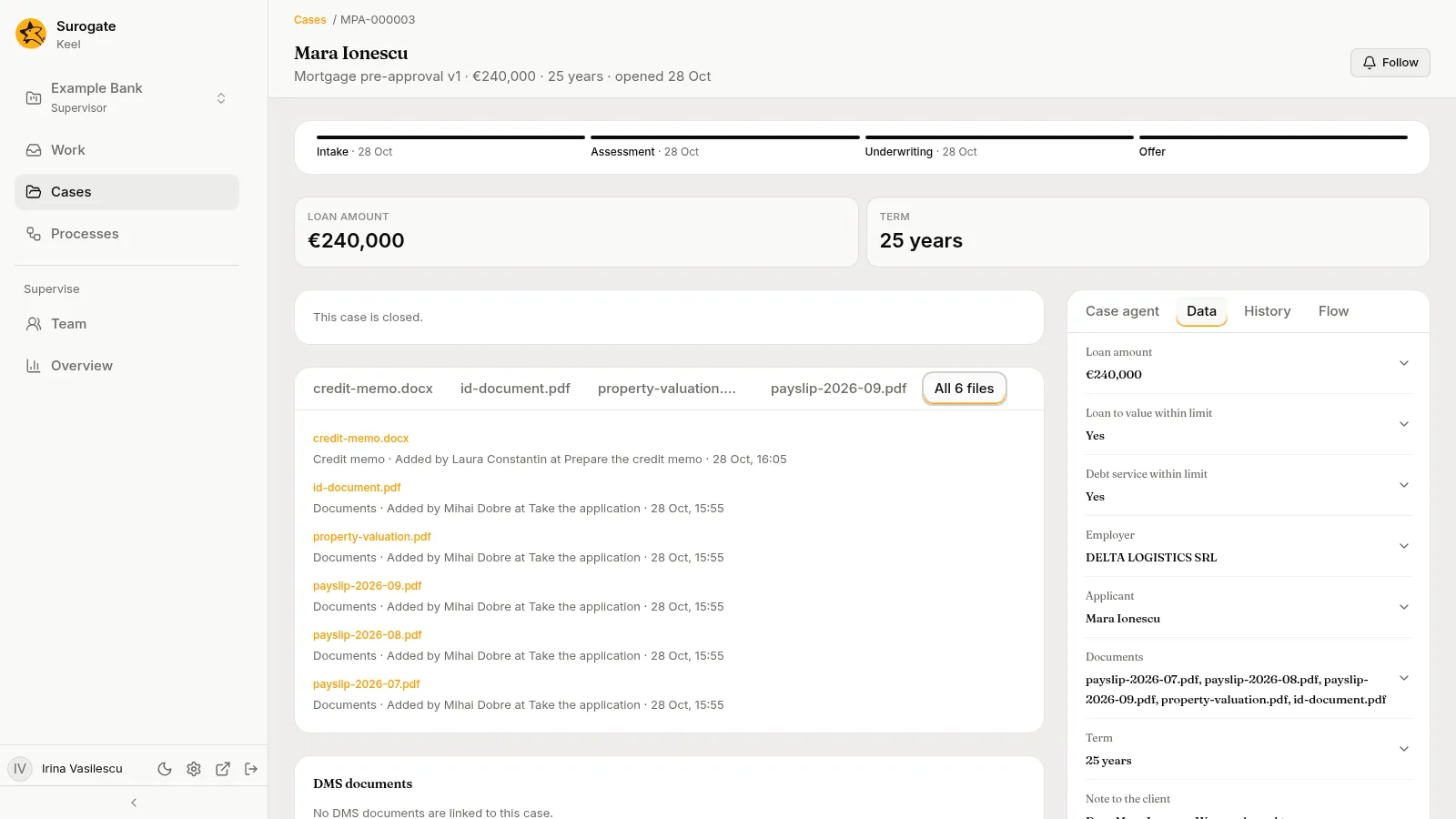
Office documents, such as Word, Excel, PowerPoint and PDF files, open in the web editor in the panel. What you can do in a document depends on the case:
- While you hold a step of the case, you can edit.
- Otherwise you can comment: “You can comment”, and who holds editing, such as “You can comment · Ana Marin holds editing”.
- Some documents open read-only: “You can read this document here.”
The panel also shows who is in the document now, as “Here now ·” and their names.
While you hold a step that an agent drafts for you, and the agent is at work on it, the editor offers that agent to mention in a comment. A comment that mentions it reaches the agent, which answers in the comment’s thread. If Keel cannot pass the comment on, the panel says “The agent was not told about your comment:” and why, such as “No agent works a step of yours on this case now.”
The editor also offers the project’s staff, apart from you. A comment that mentions a colleague tells them: it appears in their Needs me as a Mention, and reaches them by email when their settings say so. The notice names you and the document and leads to it; it never copies your comment. If Keel cannot tell them, the panel says “The people you mentioned were not told about your comment:” and why. Mentioning many people in a minute is limited: “Too many mentions in a minute: wait a moment and comment again.”
Other files show their name and size, with Download. When documents cannot open in the editor, the panel says why, such as “Documents open here once a document server is set up. Download the file instead.”
DMS documents
Section titled “DMS documents”If your project uses the DMS, Surogate’s document system, the case’s page has a DMS documents section under the files panel. It lists the documents of the DMS linked to the case. Keel keeps no copy of them: it asks the DMS each time, as you, so you see only what the DMS lets you read.
- The documents show newest first. Each shows its title, then its document type when it has one, how it stands in the DMS (Draft, Validated, Approved, Published or Archived), its current version and file name, such as
v2 contract.pdf, and when it was added to the case. - Each title opens the document in the DMS, in a new tab, when the DMS has a page for it.
- Documents you may not open there are not listed. A line counts them instead, such as “2 documents you cannot open.”
- Show more lists more when there are many.
- With no document linked, the section says “No DMS documents are linked to this case.”
The section reads the DMS again each time the case changes.
Add or remove a document
Section titled “Add or remove a document”Add a document and Remove show only while the case is open, and only to a supervisor or to someone who has work on the case: a step, a vote or an agent’s question they hold, or a step waiting unclaimed in one of their queues. Others see the list only.
To link a document:
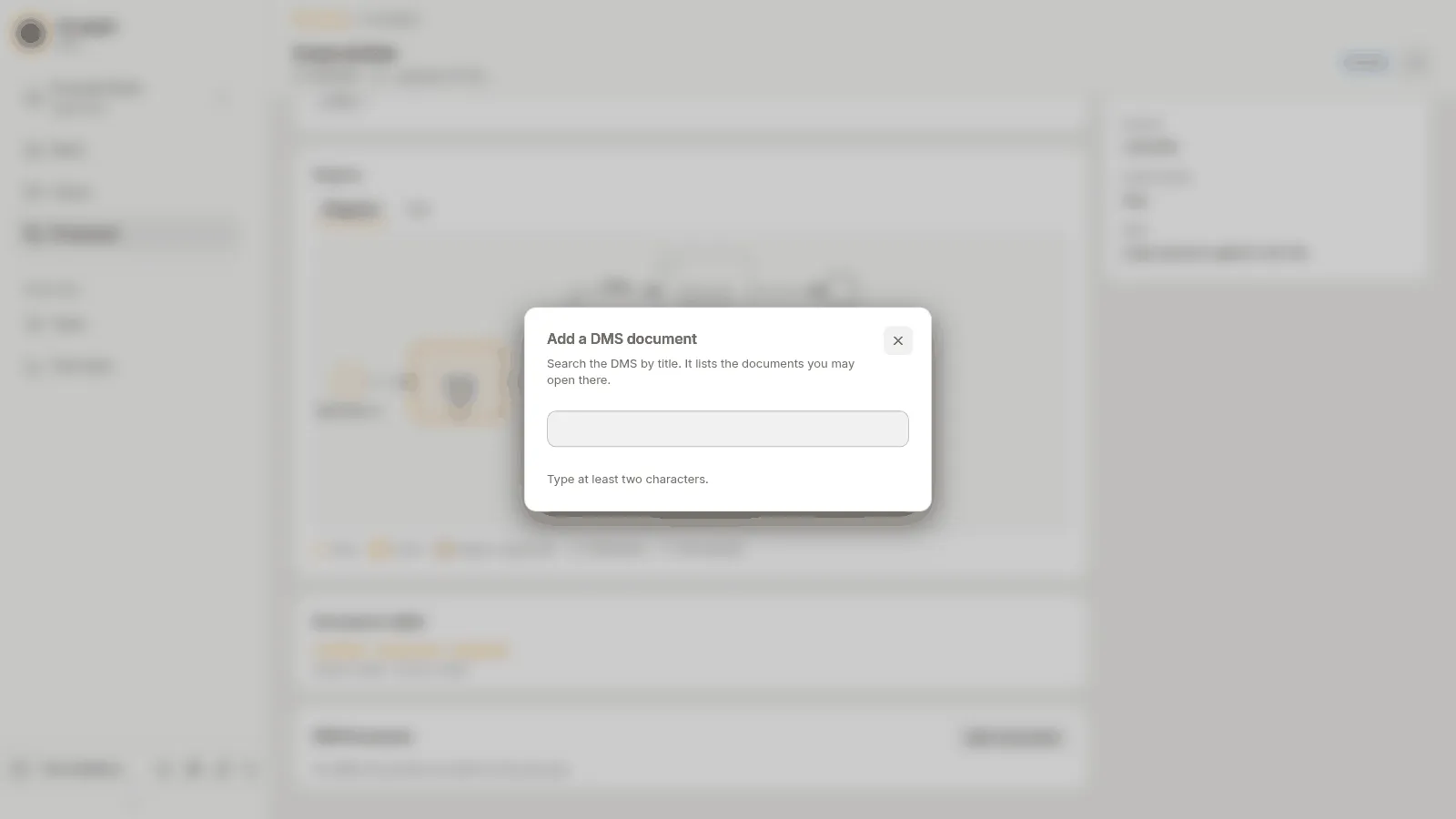
- Press Add a document. The dialog Add a DMS document opens: “Search the DMS by title. It lists the documents you may open there.”
- Type at least two characters of the title. The dialog says “Type at least two characters.” until you do, then “Searching…”.
- Each document found shows its title, its folder, how it stands and its current version. More results lists more. When nothing matches, the dialog says “No document matches.”
- Press Add beside the document. Keel says Added., or “It was already in this case.” when it was linked before. The dialog closes, and the section lists the document.
To unlink a document, press Remove under it. Keel asks “Remove title from this case?”: “The document stays in the DMS.” Press Remove. The DMS has the last word: when it does not let you, Keel says “The DMS does not let you do this with this document.”
When the DMS refuses or does not answer
Section titled “When the DMS refuses or does not answer”When the section cannot list the documents, it says why:
| Message | What to do |
|---|---|
| “You are not a member of the DMS’s organisation, so it lists no documents for you. Ask an administrator.” | Ask an administrator. The section offers nothing to try again. |
| “The DMS did not accept your sign-in.” | Press Try again. |
| “The DMS did not answer. Try again shortly.” | Press Try again a little later. |
A search in Add a DMS document can also say “The DMS cannot read this search. Use plain words, and close any quote or bracket.”
Case agent, Data, History and Flow
Section titled “Case agent, Data, History and Flow”The side panel, beside the steps on a wide screen and under them on a phone, has four tabs. The case opens on Data.
-
Case agent: your chat with the project’s case agent about this case. It answers from the case’s data, files and history, and fills in your form when you ask. See The case agent.
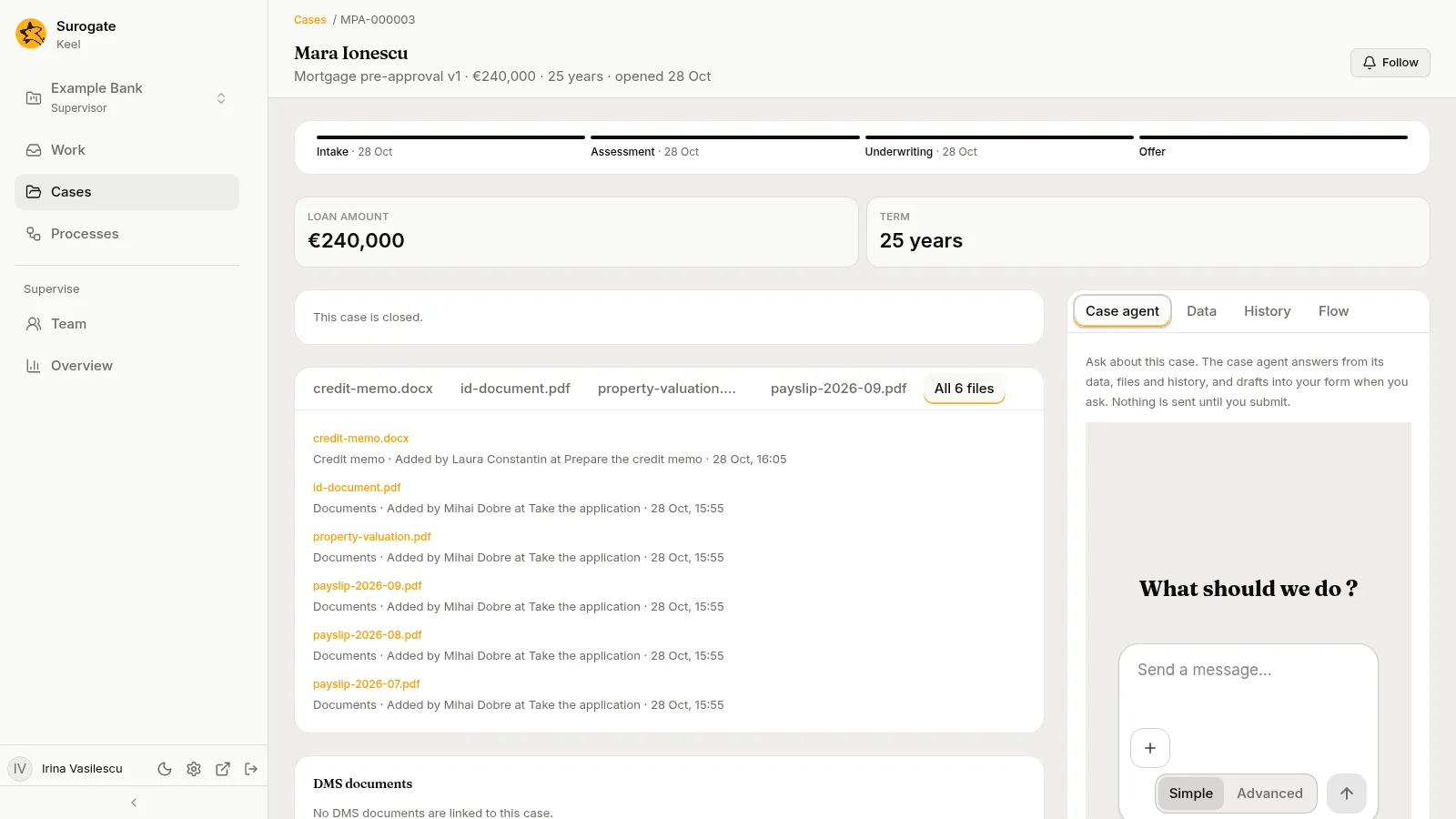
The Case agent tab: "Ask about this case.", and the message box. -
Data: each field by its label and value. Open a field to see every value it took, who set it (a person, an agent, Rule, or Set by the move to version n), when, and at which step or at Case started.
-
History:
- Your part in this case first: what you did, latest first, or “You have not worked on this case yet”.
- Then each step done, latest first: its name and outcome, who did it, when, the rules it applied with their versions, which agent drafted the fields a person submitted, such as “Case agent drafted Amount and Term”, and the Policies read by an agent, by policy and page.
- Read by builders: the builders who read the case, such as
Ana Marin, a builder, read an agent's session on this case, with the time. It shows only when a builder has read the case, and says “Builders’ reads could not be loaded.” with Try again when they cannot be read. History shows the latest five; the rest are in Full history, which lists all of them, with Show more reads. - Full history with inputs and outputs opens every transition of the case, a hundred at a time, each with the agents that drafted it and the values it recorded: the outcome, the fields written, a vote’s choice, an answer, a note and a message to an agent. A transition that reached a process node also says “Requested the process” and the process’s key made readable, such as “Requested the process Kyc check”, and the node; the process’s end reads, for example, “Process P-000003 ended” or “Process P-000003 failed”, with the way the case left by.
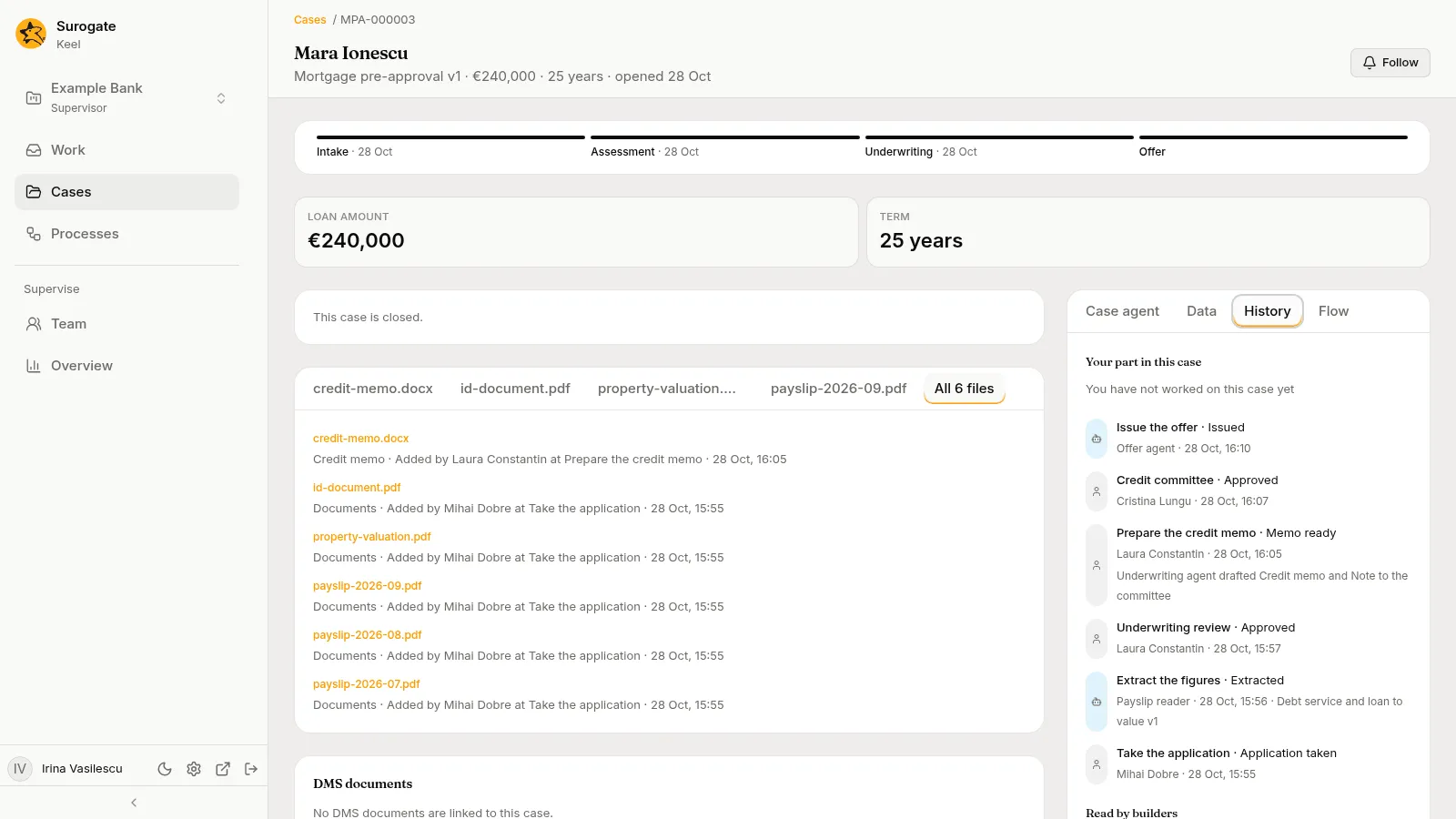
The History tab: Your part in this case, then each step done, latest first, with its outcome, who did it and when. -
Flow: the current stage’s flowchart, with the path the case took traced through it and its open steps marked as current.
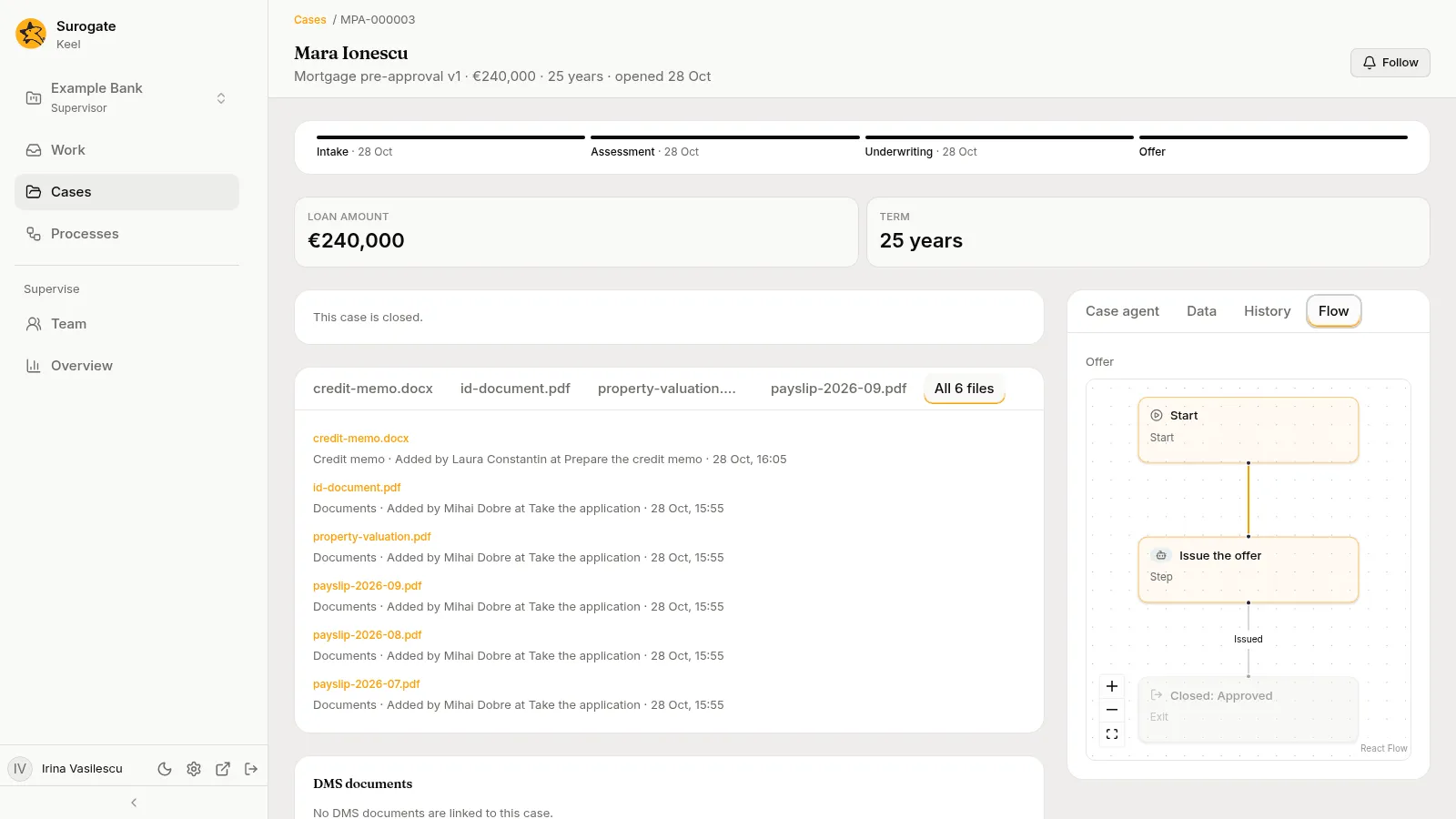
The Flow tab of a closed case: the Offer stage, from Start through Issue the offer to Closed: Approved.
When Keel refuses
Section titled “When Keel refuses”Keel checks every submission. When it refuses one, the form says why:
| Message | Why |
|---|---|
| Choose an outcome first. / Choose your vote first. | Nothing was chosen. |
| Some required fields are empty. | The outcome you chose requires fields you left empty. |
| A check on this step did not pass. | One of the step’s checks failed. The builders’ message for it follows. |
| This is beyond your authority limit. | The amount is above your limit in the step’s scope, or you have no limit there. Ask a supervisor. |
| Someone else must finish this step. | You did an earlier step this one checks (maker-checker). |
| You have already voted on this step. | You voted already. |
| The agent is waiting for an answer to its question. | The step is paused until its agent’s question is answered. |
| The question was already answered. | Someone answered it first. |
| This step is no longer open. | The case moved on. |
| You cannot do this on this step. | The step is not yours, or not in one of your queues. |
| This case is closed. | The case closed meanwhile. |
| Keel could not apply a rule on this step. Ask your supervisor. | A condition or rule failed on the case’s data. |
| This could not be done. | Any other refusal. |
The FAQ answers what to do in each case.