Quickstart
In this quickstart you sign in to your portal’s console, add a colleague, make them an administrator, and create a token for yourself. It takes about five minutes.
You need the address of your portal and an administrator account. Whoever set up the portal gives you both.
1. Sign in
Section titled “1. Sign in”- Open your portal’s address followed by
/_portal/admin/, for examplehttps://www.example.ro/_portal/admin/. - The page is titled Portal administration: “Sign in to manage the portal.”
- Type your Email and Password and press Sign in.
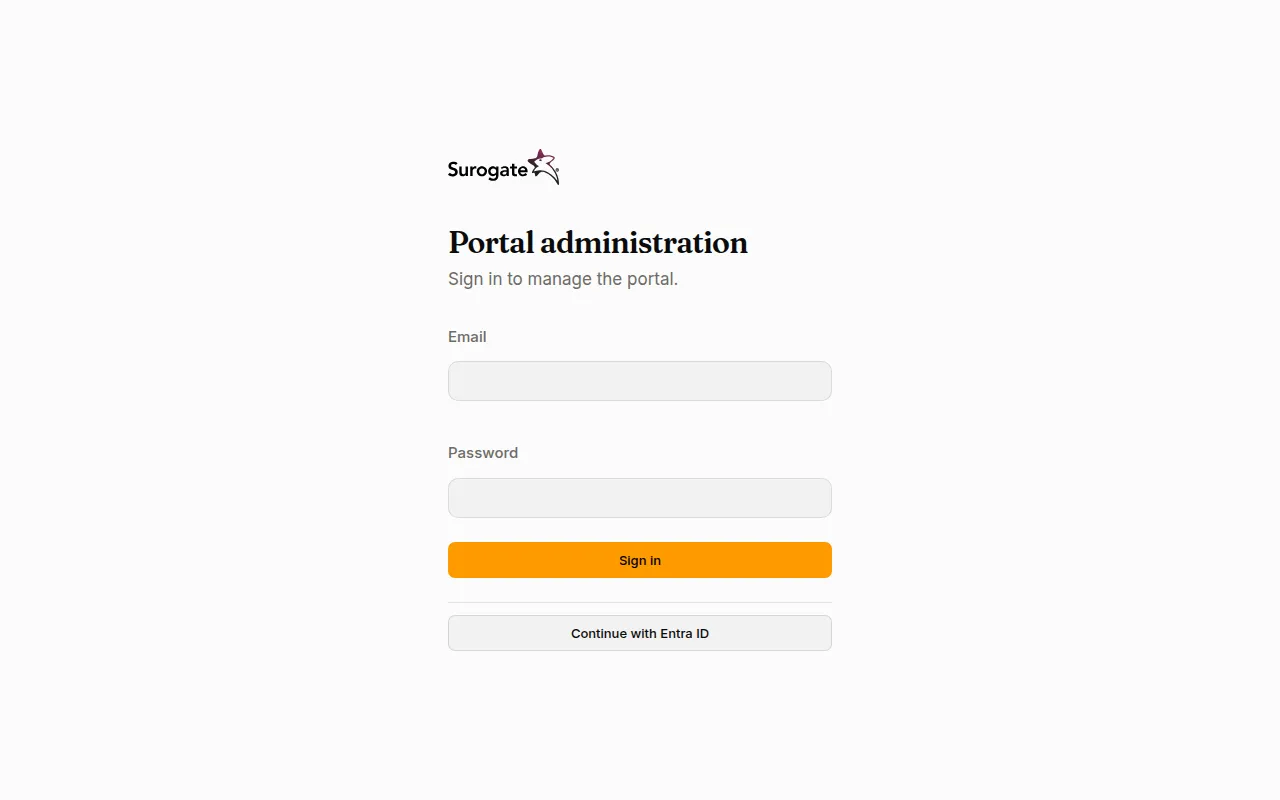
If your portal signs in with an organisation account, press Continue with and the account’s name instead. See Sign in to the console.
The console opens on Users. An install administrator lands on Tenants instead.
2. Add a user
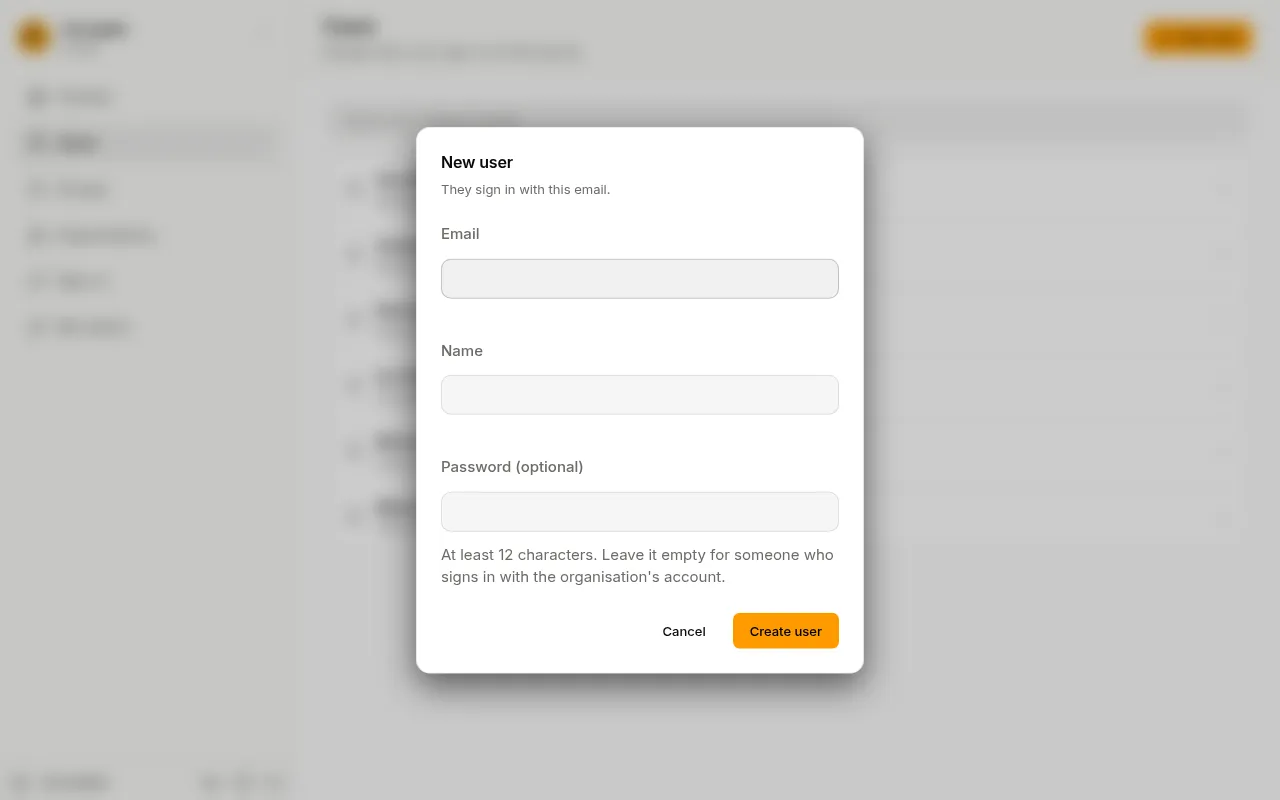
Section titled “2. Add a user”- On Users, press New user.
- Type their Email and Name.
- Type a Password of at least 12 characters, or leave it empty if they will sign in with your organisation’s account.
- Fill in any other fields your portal asks for. Fields marked Required must be filled in.
- Press Create user.
The console opens the new user’s page.
3. Make them an administrator
Section titled “3. Make them an administrator”- On the user’s page, under Roles, tick Administrator.
- Press Save roles. The console says Roles saved.
They can now sign in to the console and manage the portal’s people and sign-in.
4. Create a token for yourself
Section titled “4. Create a token for yourself”- Open My tokens and press New token.
- Name it, for example “laptop”, and press Create token.
- Copy the token now: the console shows it once. Then press Close.