Groups
A group is a set of people you give the same access, such as “Editors” or “Help desk”. You need the Administrator role.
Groups lists your groups with how many members each has.
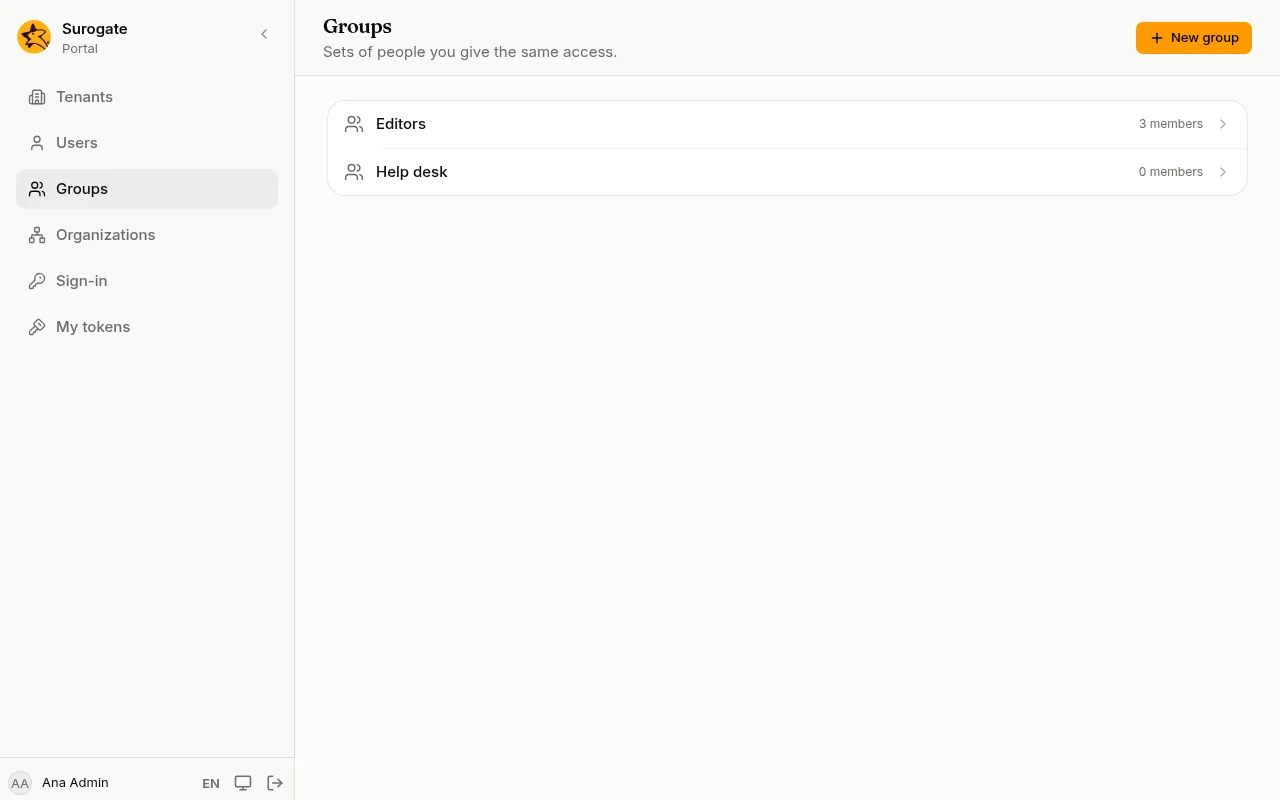
Create a group
Section titled “Create a group”- Press New group.
- Type its Name and press Create group.
The console opens the new group. Names are unique: a second group with the same name says A group with this name already exists.
Members
Section titled “Members”On a group’s page, the Members card lists who is in it.
- Type a name or an email in Search for users to add. Matching users appear under the field.
- Press the + beside each person to add them. Press the × beside a member to remove them.
- Press Save members. Nothing changes until you save.
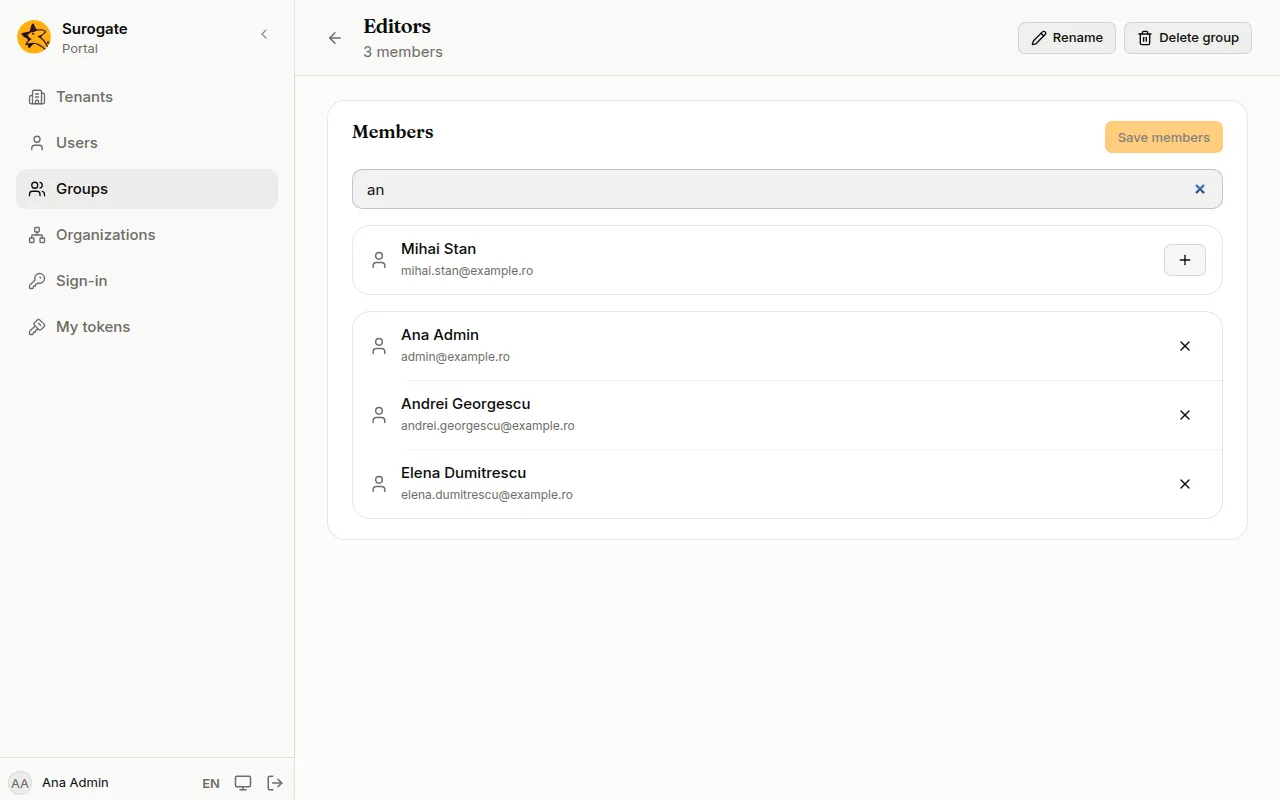
If nobody you could add matches the search, the card says No user to add matches.
Rename or delete a group
Section titled “Rename or delete a group”- Press Rename, type the new Name and press Save.
- Press Delete group, then Delete group again to confirm. The members stay; only the group goes.