Versions
Every time a change to the portal’s sites is saved, the portal keeps it as a version: what changed, who saved it and when. Versions lists them, newest first. Open one to see what it changed, undo it, or take the sites back to it. Saves from Pages and from the design studio are versions too. Versions is for administrators, on a portal whose site files the portal keeps; the page is not in the menu otherwise.
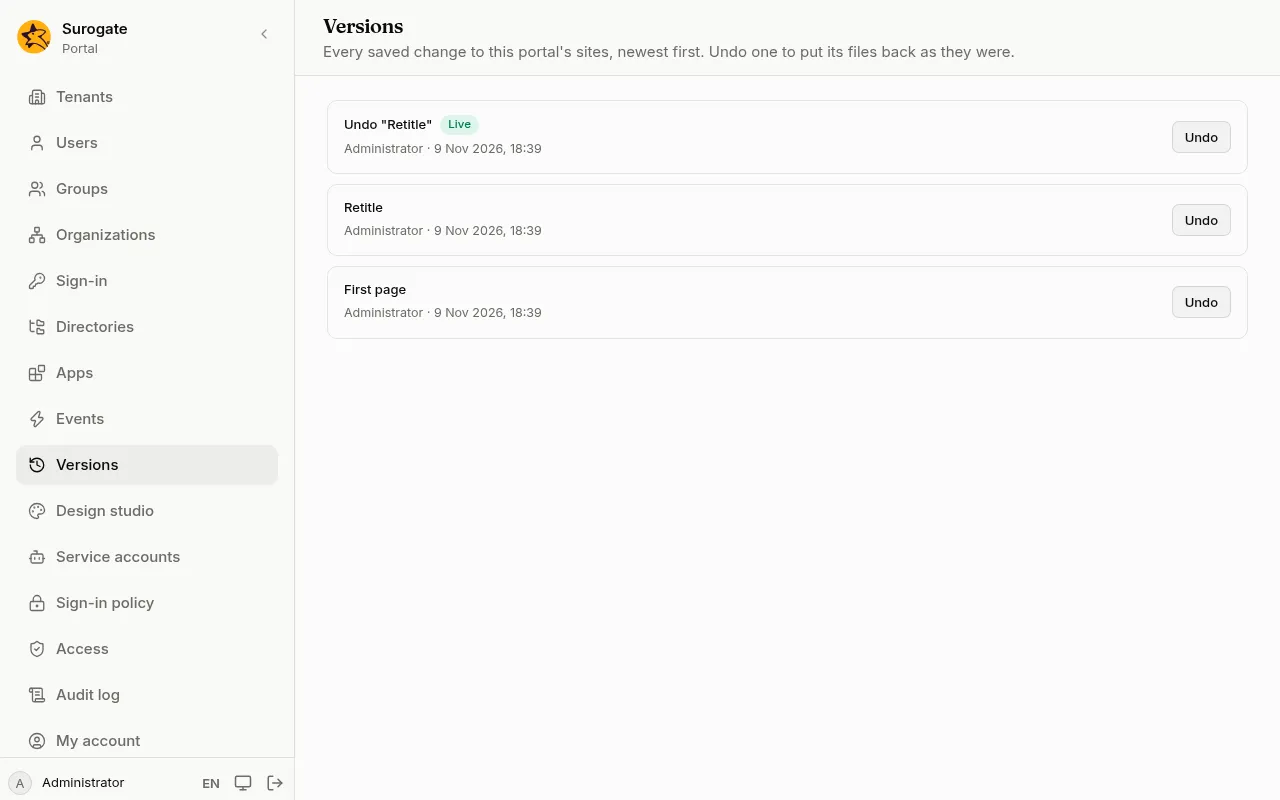
What the list shows
Section titled “What the list shows”- Each version’s description, who saved it and when.
- Live marks the version visitors see now. Usually it is the newest. If the newest could not go live, the page says The newest version is not live yet; press See what is not live to compare it with the live version, or Make it live to try again.
- Moved into the portal is the version the portal started from, when the sites were moved in. It cannot be undone.
- Undid an earlier change is an undo.
- Went back to the version of … is a going-back, named by the date of the version the sites went back to.
- Changed outside the console is a change your implementation team made directly.
- Show older versions brings in the ones further back.
See what a version changed
Section titled “See what a version changed”Press a version’s description to open it. The page shows each file the version changed, line by line: the lines it removed and the lines it added, with a few unchanged lines around them. A new file shows as all added, a removed one as all removed. A file too large to show is named only.
Under the buttons, the page says what the version is compared with: usually the version before it. The first version is compared with nothing, so every file in it is new.
Compare with the live version
Section titled “Compare with the live version”When a version is not live, its page offers Compare with the live version. The page then shows every difference between the two, whichever versions in between made them. Show what this version changed goes back to the version’s own changes.
Undo a change
Section titled “Undo a change”- Press Undo beside the version.
- The portal says what undoing it will do. If later changes touched the same files, it names them: undoing puts them back to what they were before this change too. Undoing the very first version leaves the sites with no pages, and the portal says so.
- Press Undo to confirm.
Undoing never deletes history. The files that version changed go back to what they were before it, as a new version, which you can undo in turn.
If someone saved a change while you were deciding, the portal asks you to look at the newest versions first, then try again. If undoing would break the site, nothing changes and the page lists what is wrong.
Go back to a version
Section titled “Go back to a version”Undo puts back what one version changed. Going back puts back everything: every site file returns to how that version had it.
- Open the version.
- Press Go back to this version. The newest version has no such button: the sites are already there. If no site file would change, the portal says so instead.
- The portal names the files that will change. Press Go back to this version to confirm.
Going back is a new version on top, like an undo, so you can undo it in turn. The same checks as any save apply: if the old files would break the site now, nothing changes and the page lists what is wrong. If someone saved a change meanwhile, the portal asks you to look again first.
Send a version to another environment
Section titled “Send a version to another environment”When the portal names other portals in its environments, such as Production, each version’s page offers Send to Production.
- Open the version.
- Press Send to Production. The portal asks Production what would change there and says how many files are added or changed, and how many removed.
- Press Send.
The version arrives on Production as a proposed change, named after this portal and the version. Nothing there changes until its administrators approve it. Open it there goes to the proposal on Production; when Production is named by an address inside the cluster, find it under Proposed changes there.
Sending a version again while its proposal is still open there makes no second one. Once that proposal is rejected or withdrawn, the version can be sent again. If Production refuses, the page says why: the key is not set, is no longer known there or may not propose changes, Production has too many proposals open, or nothing differs.
One sending changes at most 200 files and 500 KB there. When two portals differ a lot, such as the first time, bring them closer by hand first, then send the versions that follow.
Saving, undoing, going back, sending and moving into the portal are all in the audit log.