Sign in with your organisation account
On Sign-in, an administrator connects the portal to your organisation’s accounts, such as Microsoft Entra ID, ADFS, Keycloak or Google Workspace. People then sign in with the account they already have. The portal speaks OpenID Connect and SAML; most of these services offer both.
Before you start
Section titled “Before you start”Register the portal as an application with your organisation’s sign-in service. You need from it:
- the issuer: the service’s https address, such as
https://login.microsoftonline.com/<your directory>/v2.0; - a client ID and a client secret for the portal.
The service asks you for the portal’s callback URL. The console shows it while you add the provider (step 3 below), so you can copy it from there.
Add a provider
Section titled “Add a provider”- On Sign-in, press New provider.
- Display name: the name on the sign-in button, for example “Entra ID” for Continue with Entra ID.
- Slug: a short name in lower-case letters, digits and hyphens, such as
entra. As soon as you type it, the console shows the Callback URL. Press Copy and register it with your sign-in service. - Issuer, Client ID and Client secret: from your sign-in service.
- Scopes: leave
openid email profileunless your service asks for others. They must includeopenid. - Create the account at first sign-in: on, anyone your service lets in gets an account the first time they sign in. Off, only people you already added as users can sign in.
- On: untick it to keep the provider ready but hidden from the sign-in page.
- Press Add provider.
People are matched by email: someone whose organisation email is already a user of the portal signs in as that user. This needs the provider to say the email is verified; when it does not, the person can still sign in, but only to an account the provider made or linked before, and no account is made for them.
Add a SAML provider
Section titled “Add a SAML provider”- Press New provider and choose SAML.
- Display name and Slug, as for OpenID Connect.
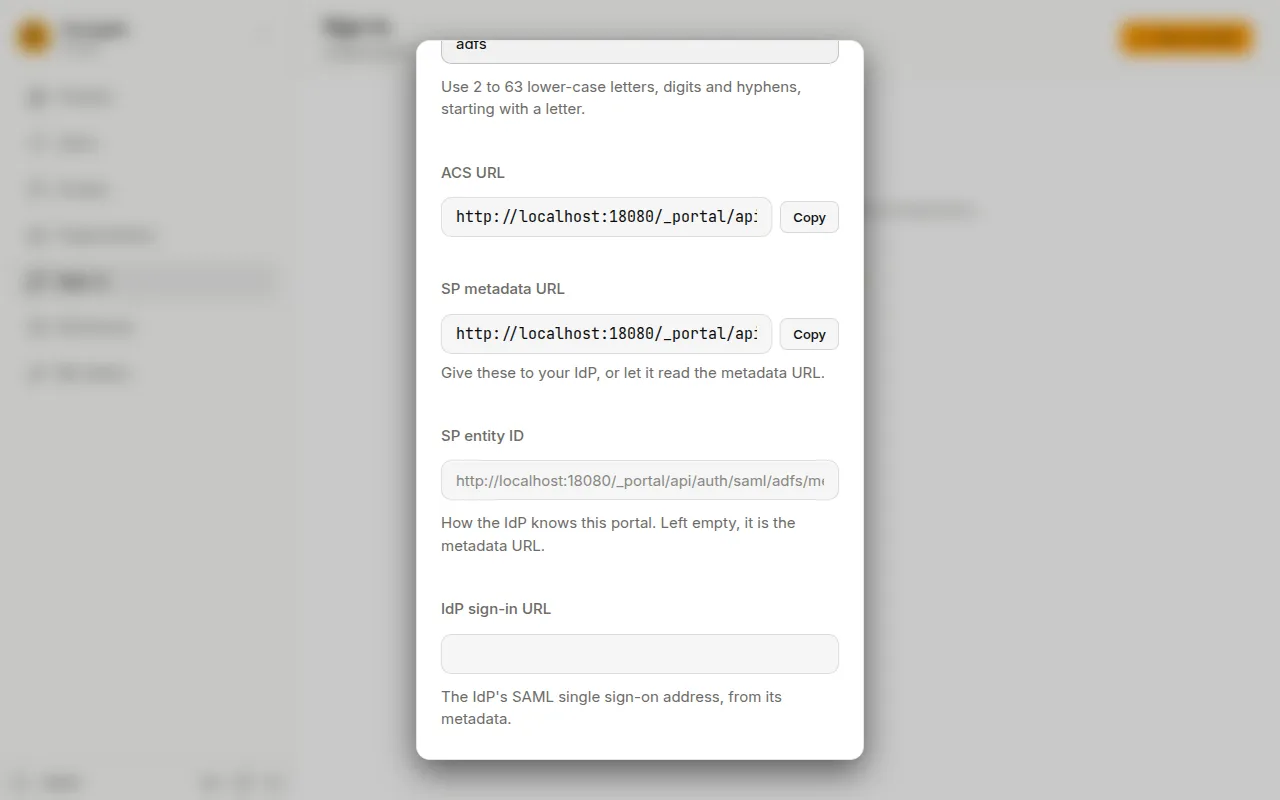
- The console now shows the portal’s ACS URL and SP metadata URL. Register the portal with your IdP using these, or give it the metadata URL.
- SP entity ID: how the IdP knows the portal. Leave it empty to use the metadata URL; enter another only if your IdP expects one.
- You can save it now, with On unticked, and come back with the IdP’s details.
- IdP sign-in URL and IdP signing certificate: from the IdP’s metadata. During a certificate change, paste both certificates.
- IdP entity ID: the IdP’s issuer, so only it is accepted.
- Email attribute, Name attribute and Groups attribute: the names of the attributes your IdP sends. Leave the email empty to use the email the IdP names, or the NameID.
- ID attribute: leave it empty to use the NameID. If your IdP sends a temporary (transient) NameID, set an attribute that stays the same.
- Trust the IdP’s email: only then can a sign-in link an existing user by email.
- Tick On and press Save.
Sign-in always starts on the portal: a link on the IdP’s own portal page that sends people straight here does not sign them in.
Groups and existing users
Section titled “Groups and existing users”- Groups claim (OpenID Connect) or Groups attribute (SAML): where the provider lists a person’s groups, for group mappings.
- Link existing users by email: a person whose email is already a user signs in as that user. Administrators are never linked this way; link them on their user page.
A person who signed in once through a provider is recognised by the provider’s own ID for them afterwards, even if their email changes.
Change or delete a provider
Section titled “Change or delete a provider”Press a provider in the list to edit it.
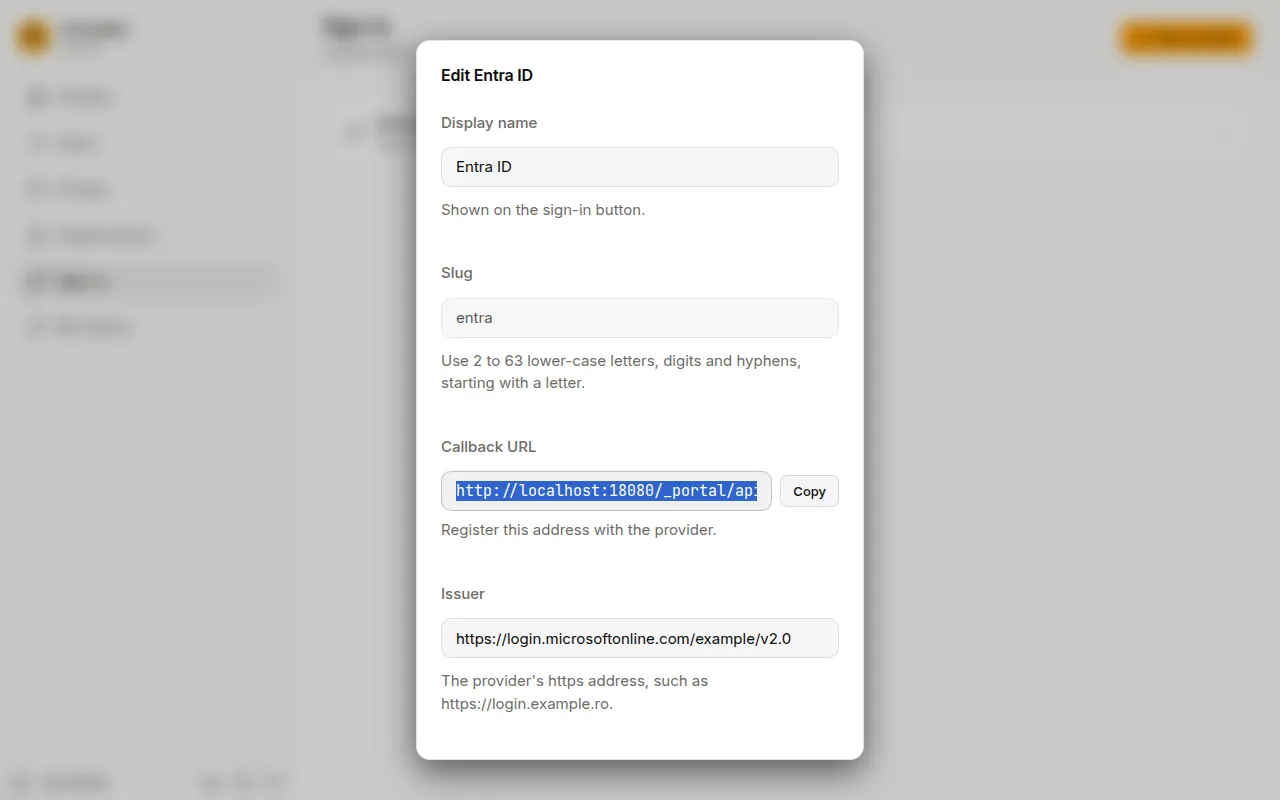
The Client secret field is empty: leave it empty to keep the saved secret, or type a new one to replace it. Press Save.
To delete it, press Delete provider in the same window and confirm. People can no longer sign in with it; their accounts stay, and they can still sign in with a password if they have one.
Deleting a provider also unlinks everyone who signed in through it, and a new provider does not take them back for administrators. Before you delete the provider you sign in with yourself, set yourself a password on your user page or link your account to another provider. Otherwise you cannot sign in again.