Users
Users lists the people who can sign in to this portal. You need the Administrator role (on the main portal, Install administrator). To let people make their own account, invite them.
Find a user
Section titled “Find a user”Type part of a name or an email in Search by name or email. The list follows as you type. When nothing matches, the page says No user matches.; press Clear the search to see everyone.
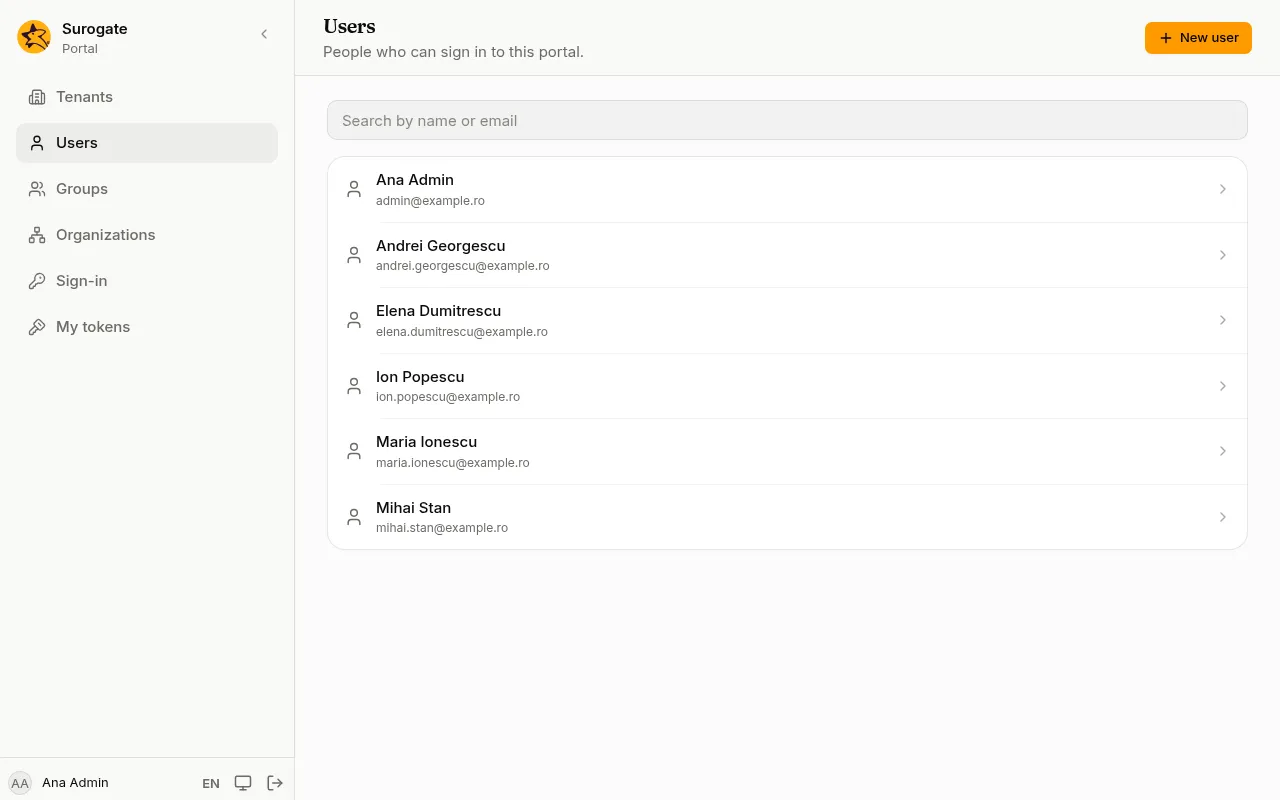
The list shows 50 users at a time. Use Previous and Next to move between pages. A disabled account carries the label Disabled.
Add a user
Section titled “Add a user”- Press New user.
- Type their Email and Name. They sign in with this email.
- Password (optional): at least 12 characters. Leave it empty for someone who signs in with your organisation’s account.
- Fill in the portal’s own fields, if it has any (a badge number, a department, a phone). Fields marked Required must be filled in. A tick box left alone counts as unticked.
- Press Create user.
If the email is already used, the console says A user with this email already exists.
An app can check, or tidy, each person created or changed here. When it refuses, its message shows under the field it names, such as the name; change it and press Create user again. When an app’s check cannot run, the console says so, and an administrator can revoke the app’s approval if it keeps happening.
A user’s page
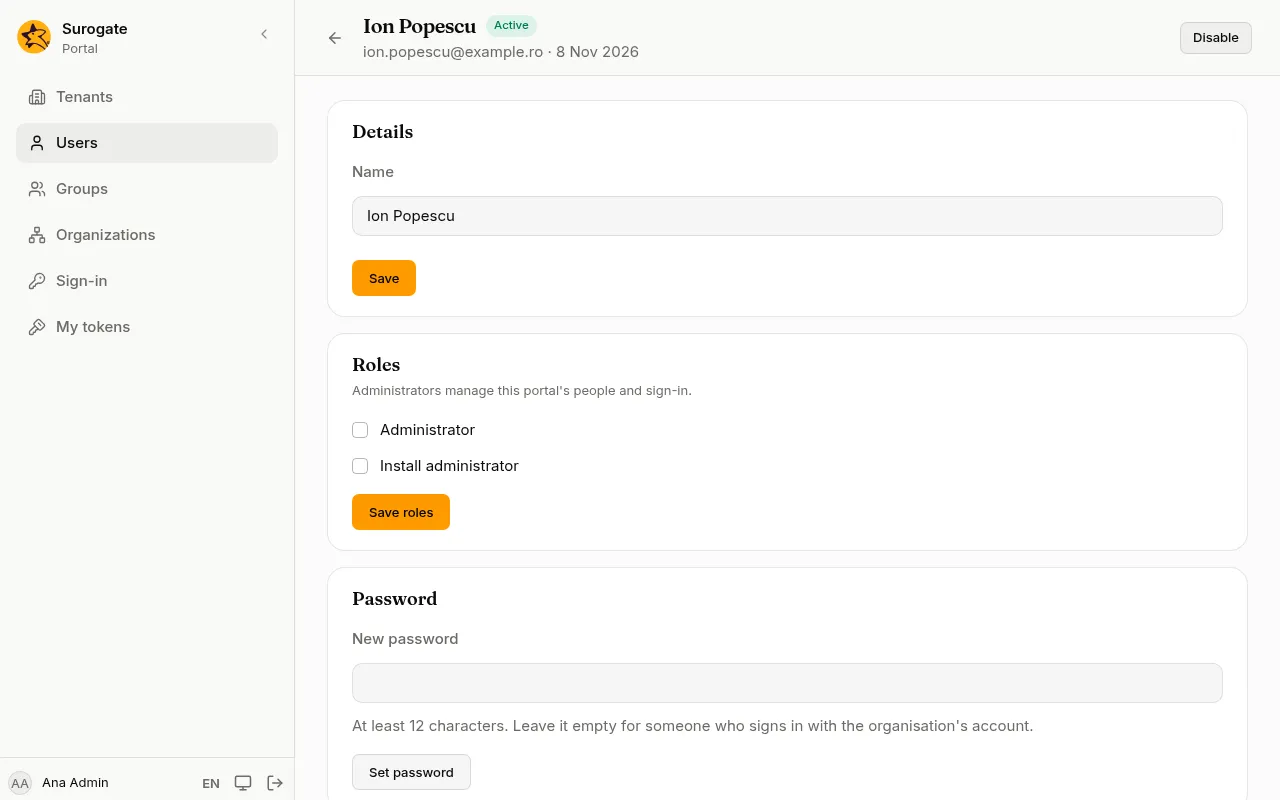
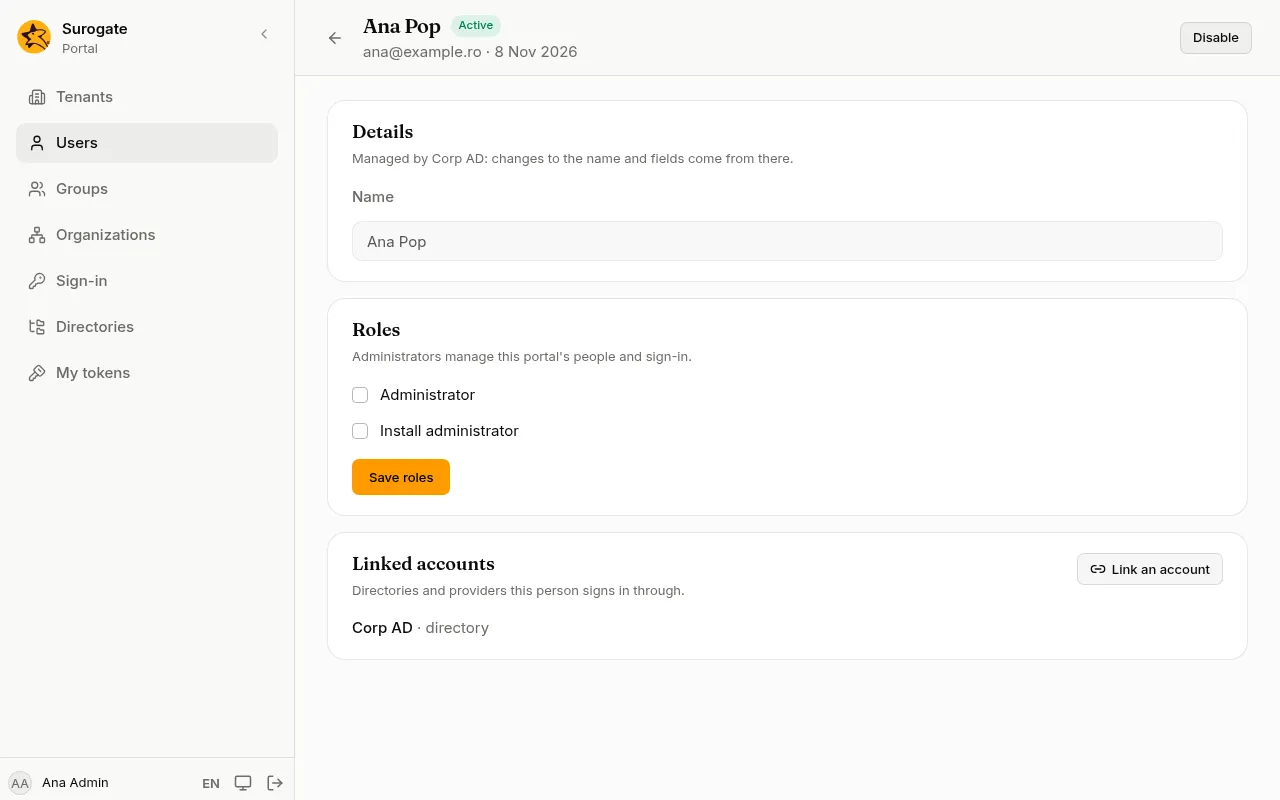
Section titled “A user’s page”Press a user in the list to open their page. The top shows their name, email, the date they were added, and Active or Disabled.
Details
Section titled “Details”Change the Name or the portal’s own fields and press Save.
Handle
Section titled “Handle”Each person has a Handle, the name others use to mention them with @ in comments and posts. The portal makes it from their name when they are added: the Latin letters without accents, words joined by dots, so Ștefan Țepeș is stefan.tepes and Łukasz Ørsted is lukasz.orsted. When someone already has it, a number is added: ana.pop2 up to ana.pop9, then a longer number. A name with no Latin letters gives person, person2 and so on.
To change it, type a new Handle under Details and press Save. A handle starts with a letter, then letters and digits, joined by single dots or hyphens, 40 characters at most, in lower case. Two people of a tenant never share one. A handle can be changed for someone a directory or SCIM keeps too: it is the portal’s own. Service accounts have no handle.
Mentions already written keep their words: a changed handle no longer names the person in them. The handle of someone erased can be given to someone else.
Tick or untick Administrator and press Save roles. On the main portal there is also Install administrator. See Roles.
A portal always keeps at least one active administrator. Removing the role from the last one says This is the portal’s last active administrator. Give the role to someone else first.
Password
Section titled “Password”Type a New password of at least 12 characters and press Set password. The person’s other sessions end: they sign in again with the new password. Their tokens keep working. A new password also lets in someone the console locked out after too many wrong passwords.
When you set your own password here, you stay signed in on this browser.
Disable and enable
Section titled “Disable and enable”Press Disable at the top, then Disable again in the question Disable name**?** A disabled person can no longer sign in, and their tokens stop working. Press Enable to let them back in.
You cannot disable the last active administrator.
Impersonate
Section titled “Impersonate”To see the portal exactly as a person sees it, for example to check what a page shows them, press Impersonate at the top of their page and confirm. The console takes you to the portal’s home page, signed in as them.
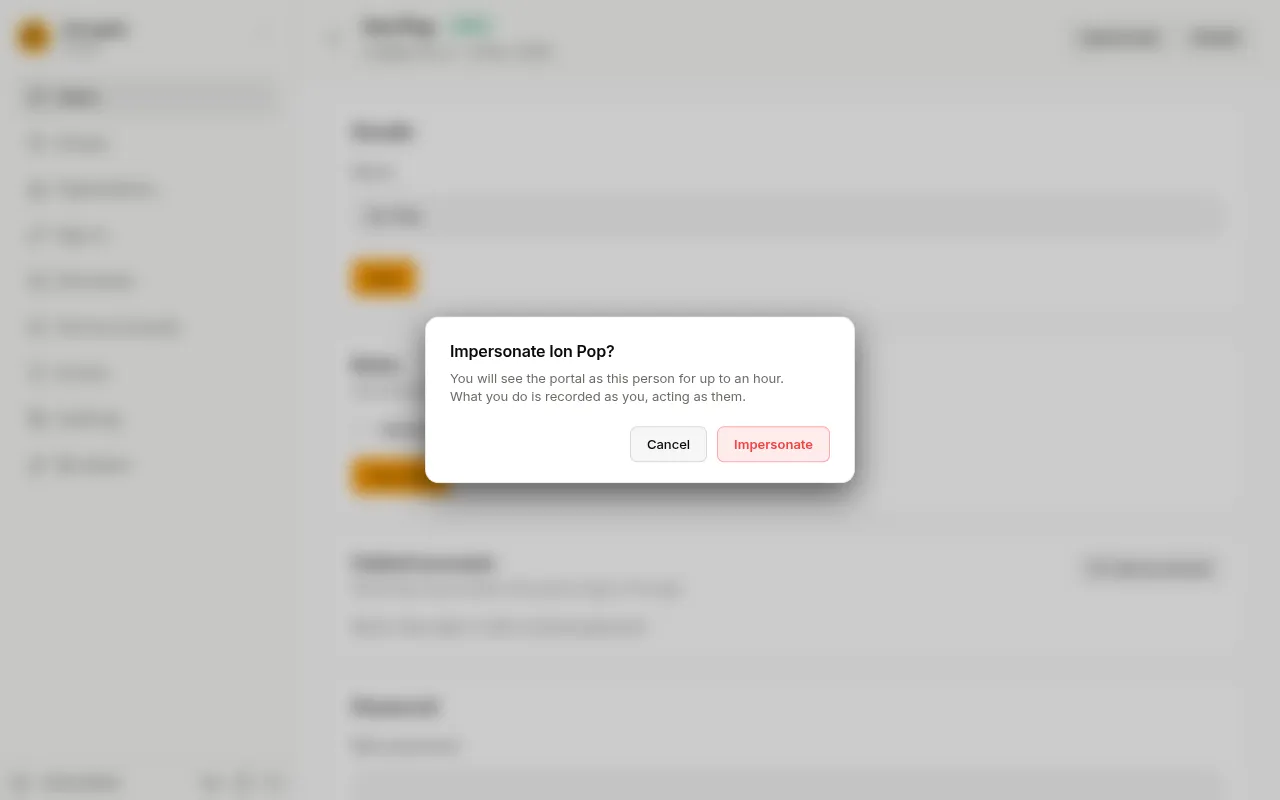
- It lasts at most an hour. The console shows “You are acting as” name at the top; press Stop to come back to your own account.
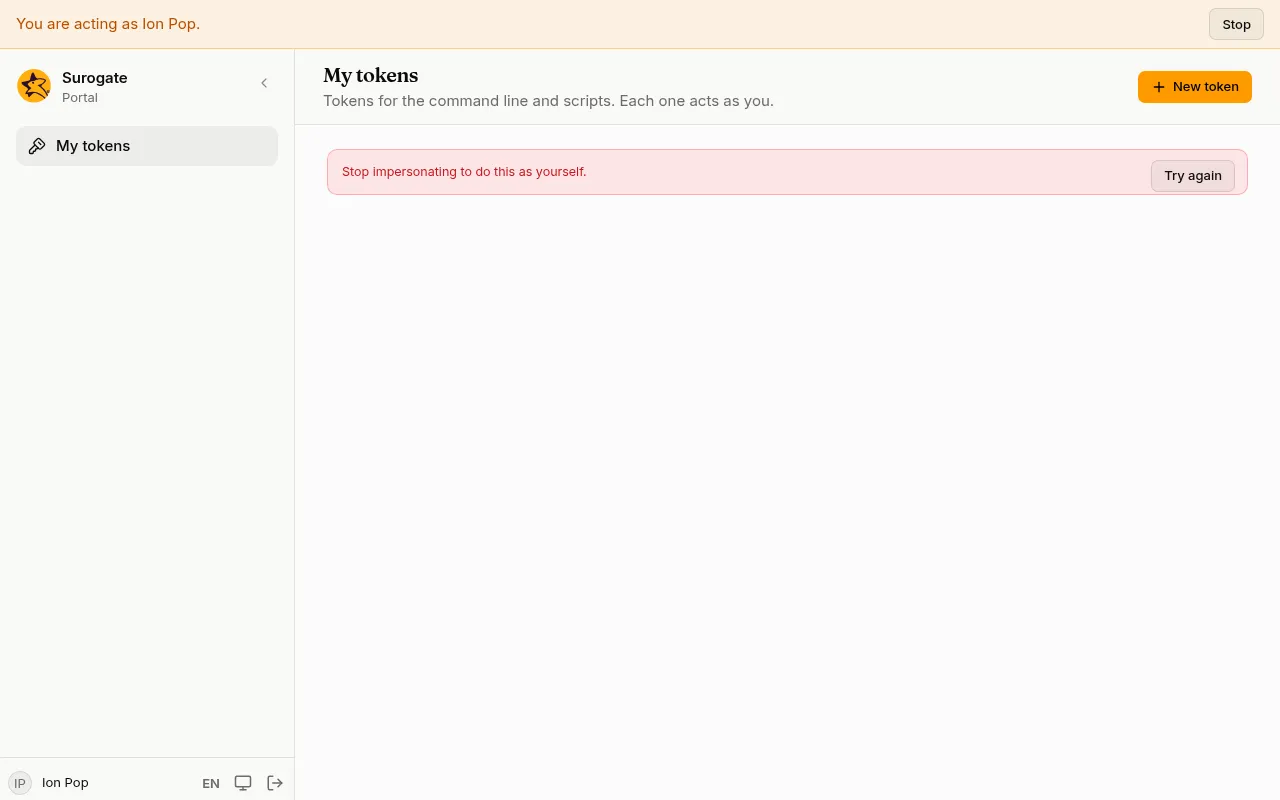
- While you impersonate someone, the console’s administration pages, their password and their tokens are closed to you.
- Everything you do meanwhile is in the audit log as you acting as them.
- You can impersonate an active person who is not an administrator, and not yourself.
Sessions
Section titled “Sessions”The Sessions card lists where the person is signed in now, with the browser, the address and when it was last used. End signs one out; End all sessions signs them out everywhere.
Two-step sign-in
Section titled “Two-step sign-in”If the person lost their phone, press Reset two-step sign-in and confirm. Their authenticator app, passkeys and recovery codes are removed. They sign in with their password and set up a new one, within 7 days.
People from a directory or an identity system
Section titled “People from a directory or an identity system”A user who comes from a directory or from SCIM carries its name in the list. On their page:
- Details says Managed by the directory or system: their name and fields come from there, and are changed there.
- A directory user has no Password card: they use their directory password.
- Roles shows the roles given by hand as tick boxes, and lists below them each role a directory or provider gives through group mappings, with that source’s name.
Linked accounts
Section titled “Linked accounts”The Linked accounts card lists the directories and providers a person signs in through. Administrators are never linked by email, so link them here:
- Press Link an account.
- Choose the Sign-in source and type Their ID at the source: the NameID or subject the provider sends, or the ID of their directory entry.
- Press Link.
To link a certificate, choose Certificate as the source and type the Certificate issuer and the Subject serial number, as the certificate shows them; the issuer’s parts can be in any order. The person can then sign in with it.
Personal data
Section titled “Personal data”Under Personal data on a person’s page, an administrator answers a data protection (GDPR) request.
- Export data saves, as one file, everything the portal holds on the person: their details, roles, groups, organizations, linked accounts, tokens, sessions, audit events, how they arranged their personal dashboards and which content entries they wrote or published, and what each of the portal’s apps holds. If an app does not answer, the console says the file is incomplete.
- Erase person removes them everywhere. Type their email to confirm and press Erase.
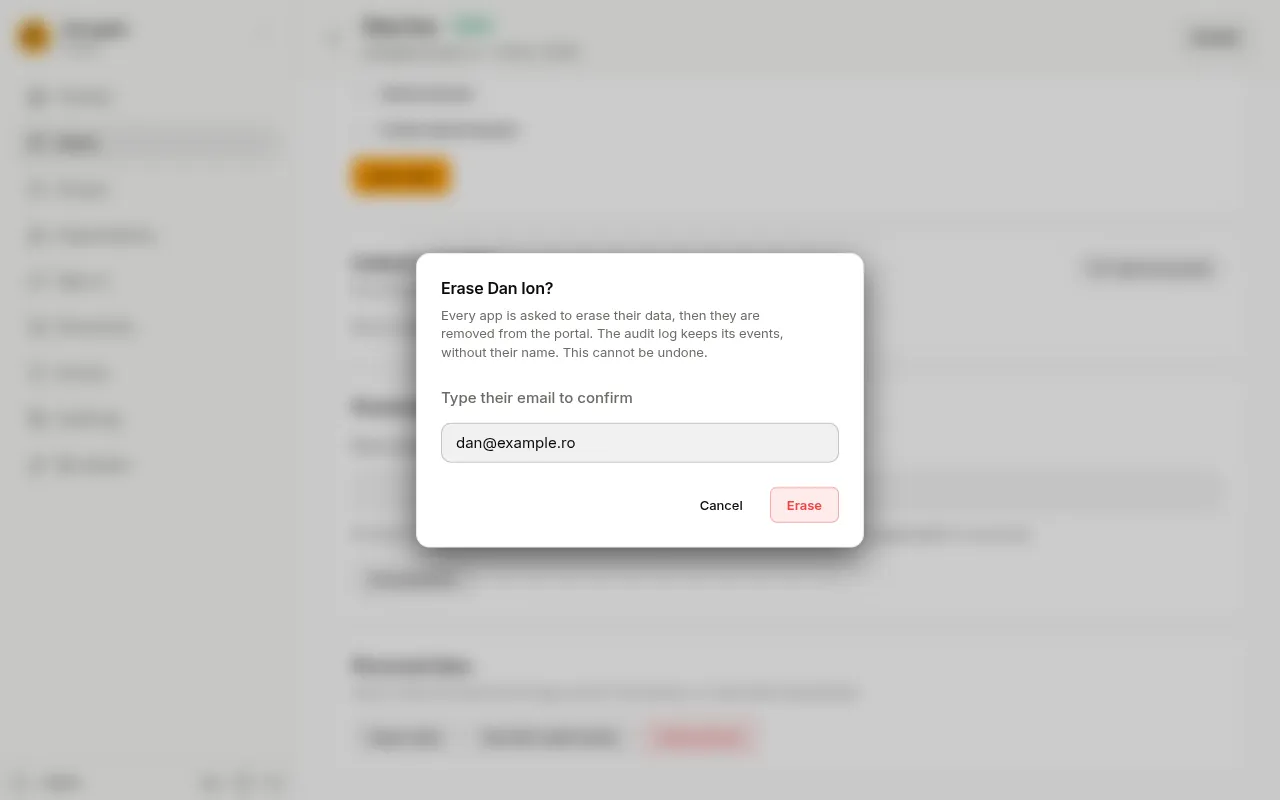
Erasing asks every app to erase the person first. If an app cannot, the console names it, and the person stays disabled until you try again. If an app has not been set up to erase people, nothing is done and the console names it. When every app has erased them, they are removed from the portal, and their name and email are removed from the audit log.
You cannot erase yourself, nor the last active administrator. A person who comes from a directory or from SCIM can come back on the next sync: remove them there as well. If the site’s files name the person, the console says so; remove them from the files too.