Design studio
The design studio is an AI design tool for the portal’s sites. You describe a page, a layout or a whole brand, and it designs it with the portal’s own AI model, showing the result as it goes. Each portal has a studio of its own, with its own projects; no other portal sees them. Design studio is for administrators.
The studio appears only on installs where your implementation team has turned design studios on. Otherwise the page says This portal has no design studio.
Turn it on
Section titled “Turn it on”- Open Design studio.
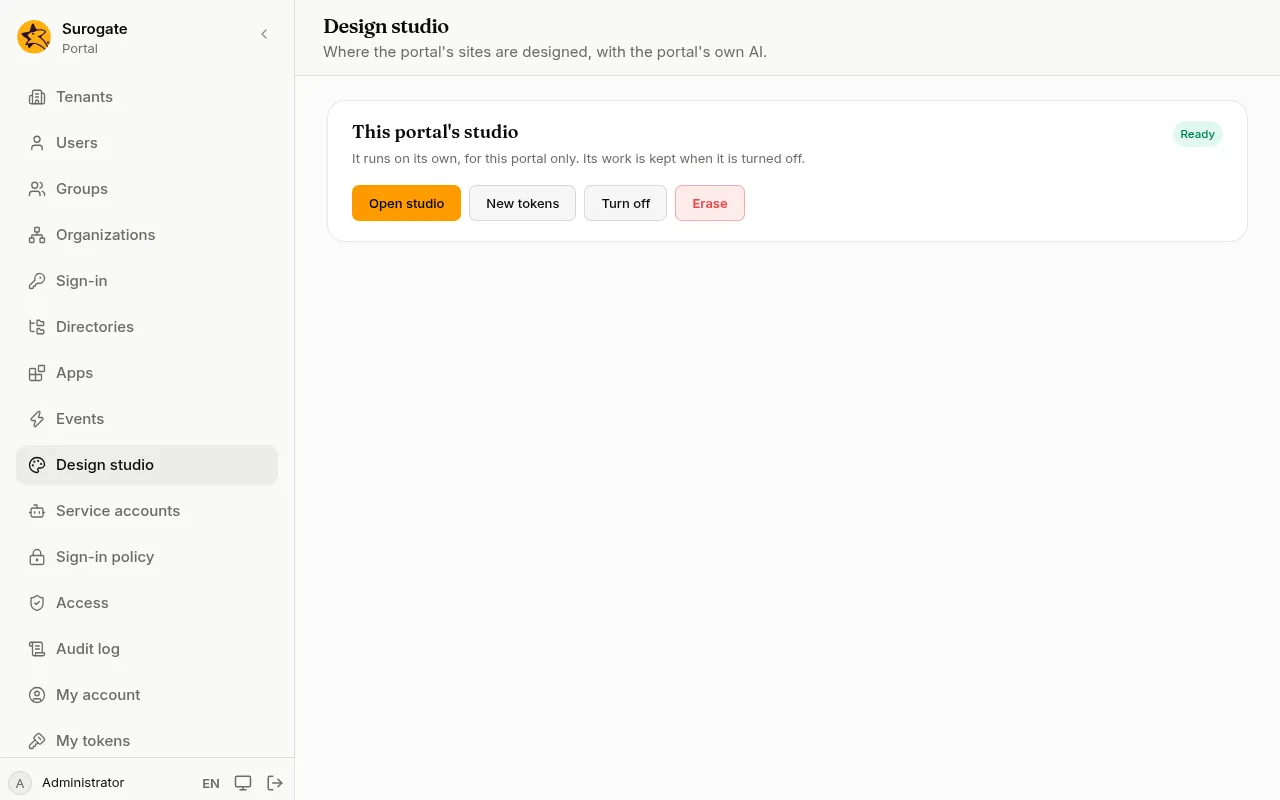
- Press Turn on. The studio shows Starting while it gets ready, which takes a minute or two the first time. The page updates by itself.
- When it shows Ready, press Open studio.
If it shows Not running, the reason is under it; Start again tries once more. If it stays that way, tell your implementation team.
The studio opens on its own address, already signed in as you. Only the portal’s administrators can open it; anyone else who reaches its address is sent to sign in to the console.
Design in the studio
Section titled “Design in the studio”The studio is where you explore designs: describe what you want, look at what it makes, and ask for changes. It designs with the portal’s own model, so you need no account or key of your own, and it cannot be pointed at another one.
Nothing in the studio reaches visitors by itself. A page you like becomes part of a site when you use it in a site. The site’s colours and fonts still come from its design package.
For pages that go into a site whole, ask for a Portal page: the studio then marks where the page’s content goes and leaves out what a site cannot hold.
Use a design in a site
Section titled “Use a design in a site”When the studio is Ready and the portal keeps your sites’ files, the page lists the studio’s pages under Use a design in a site, newest first.
- Press Use in a site beside a page.
- Choose the Site, and give the Layout name and the Page address. Both start from the page’s names. Add a Page title if the design’s own heading is not the one you want.
- Press Preview. It shows:
- New files: the site’s layout, its stylesheet and the page;
- Replaced and Removed: files of the site the change writes over or takes out, such as an earlier version of the same layout;
- Left out: what the design held that a site cannot, such as scripts, forms, buttons or styles written on single elements, and how many;
- Problems, if the result cannot be used as it is.
- Press Save as a version. The change is a new version, named “From the design studio: …”, and goes live like any other. To take it back, undo that version.
The design’s frame, its header, navigation and footer, becomes the site’s layout; its content becomes the page’s text, the same in each of the site’s languages until you translate it. Back returns to the form; nothing is saved until you press Save as a version.
Turn it off
Section titled “Turn it off”Turn off stops the studio. Its projects and files are kept, and Turn on brings it back as it was.
New tokens
Section titled “New tokens”The studio talks to the portal with tokens of its own, which nobody needs to see. New tokens replaces them, for example after a security review. The studio starts again with the new ones; anyone working in it is out for a moment.
Erase removes the studio with every project, design and file in it, whether it is on or off. Type erase to confirm. This can’t be undone. While it goes, the studio shows Being erased; if that lasts, press Erase again. You can turn on a new, empty studio afterwards.
Turning the studio on and off, opening it, new tokens and erasing are in the audit log, and so is each saved version.